WhatsApp är inte längre bara för personliga chattar. Med över 2 miljarder användare världen över har det blivit en viktig kommunikationskanal för företag som kan öka ditt kundengagemang avsevärt.
Den här steg-för-steg-guiden guidar dig genom att skapa ett WhatsApp Business-konto och ansluta det till PushEngage för maximal effekt. Vi kommer att täcka allt från den initiala installationen till avancerade funktioner som hjälper dig att engagera kunder effektivt.
Skicka WhatsApp-meddelanden idag!
WhatsApp Business Automation är ett supereffektivt, billigt marknadsföringsverktyg som hjälper dig att öka din återkommande trafik, ditt engagemang och din försäljning automatiskt.
- Förutsättningar
- Steg 1: Ladda ner och installera WhatsApp Business-appen
- Steg 2: Registrera ditt företags telefonnummer
- Steg 3: Konfigurera din företagsprofil
- Steg 4: Skapa ett Meta Business-konto
- Steg 5: Generera WhatsApp-åtkomsttoken
- Steg 6: Generera en permanent åtkomsttoken
- Steg 7: Anslut PushEngage till WhatsApp Business
- Steg 8: Lägg till WhatsApp-chattwidget på din webbplats (valfritt)
- Steg 9: Konfigurera WhatsApp-automationsmeddelanden (valfritt)
- Felsökning av vanliga problem
- Bästa praxis för WhatsApp Business
- Vanliga frågor
- Kan jag ha både personlig WhatsApp och WhatsApp Business på samma telefon?
- Är WhatsApp Business gratis att använda?
- Kan jag konvertera mitt personliga WhatsApp-konto till ett företagskonto?
- Hur blir jag verifierad på WhatsApp Business?
- Kan flera personer använda samma WhatsApp Business-konto?
- Hur skiljer sig WhatsApp Business från vanlig WhatsApp?
- Hur integrerar jag WhatsApp Business med mina andra marknadsföringsverktyg?
- Dina nästa steg
När ditt konto är aktivt, jämför WhatsApp-marknadsföringsprogramvara härnäst – plattformskiktet är där sändningar, automatisering och analys faktiskt sker.
Förutsättningar
Innan du börjar, se till att du har:
- En smartphone (Android eller iOS)
- Ett telefonnummer för ditt företag (helst separat från ditt personliga nummer)
- Åtkomst till e-post för att skapa ett Meta-konto
- Dina företagsuppgifter redo (namn, adress, beskrivning, öppettider)
Steg 1: Ladda ner och installera WhatsApp Business-appen
Först måste du ladda ner WhatsApp Business-appen på din smartphone:
För Android:
- Öppna Google Play Store
- Sök efter "WhatsApp Business"
- Leta efter appen med "B"-logotypen
- Tryck på "Installera"
- Öppna appen när installationen är klar
För iOS:
- Öppna App Store
- Sök efter "WhatsApp Business"
- Tryck på "Hämta"
- Slutför installationen
- Öppna appen
Steg 2: Registrera ditt företags telefonnummer
Nu kommer ett viktigt beslut: vilket telefonnummer ska du använda.
Du har två alternativ:
- Använd ditt befintliga WhatsApp-nummer: Detta flyttar ditt personliga konto till företag, och behåller din chatt-historik.
- Använd ett annat nummer: Skapar ett helt separat företagskonto (rekommenderas för att upprätthålla professionella gränser).
Registreringssteg:
- Starta WhatsApp Business-appen och acceptera villkoren
- Välj om du vill använda ditt befintliga nummer eller ett nytt
- Ange din landskod och fullständiga telefonnummer
- Tryck på "Nästa" och vänta på verifieringskoden via SMS
- Ange den 6-siffriga koden när du uppmanas
- Om du inte får koden, begär ett telefonsamtal efter att timern har gått ut
- Ge nödvändiga behörigheter för kontakter och media
Steg 3: Konfigurera din företagsprofil
Här gör du ditt företag professionellt och trovärdigt:
- Lägg till ditt företagsnamn – Använd ditt officiella företagsnamn
- Välj din företagskategori – Välj bland detaljhandel, tjänster, etc.
- Ladda upp en profilbild – Din logotyp eller butiksfasad (hög kvalitet)
- Skriv en beskrivning – Håll den kortfattad (max 256 tecken) och lyft fram vad som gör dig unik
- Lägg till din adress – Hjälper lokala kunder att hitta dig
- Ange öppettider – Låt kunderna veta när du är tillgänglig
- Inkludera webbplats och e-post – Ge kunderna flera sätt att nå dig
Du kan redigera denna information när som helst via Inställningar > Företagsinställningar > Profil.
Steg 4: Skapa ett Meta Business-konto
Eftersom WhatsApp ägs av Meta (tidigare Facebook), behöver du ett Meta-konto för att låsa upp alla företagsfunktioner:
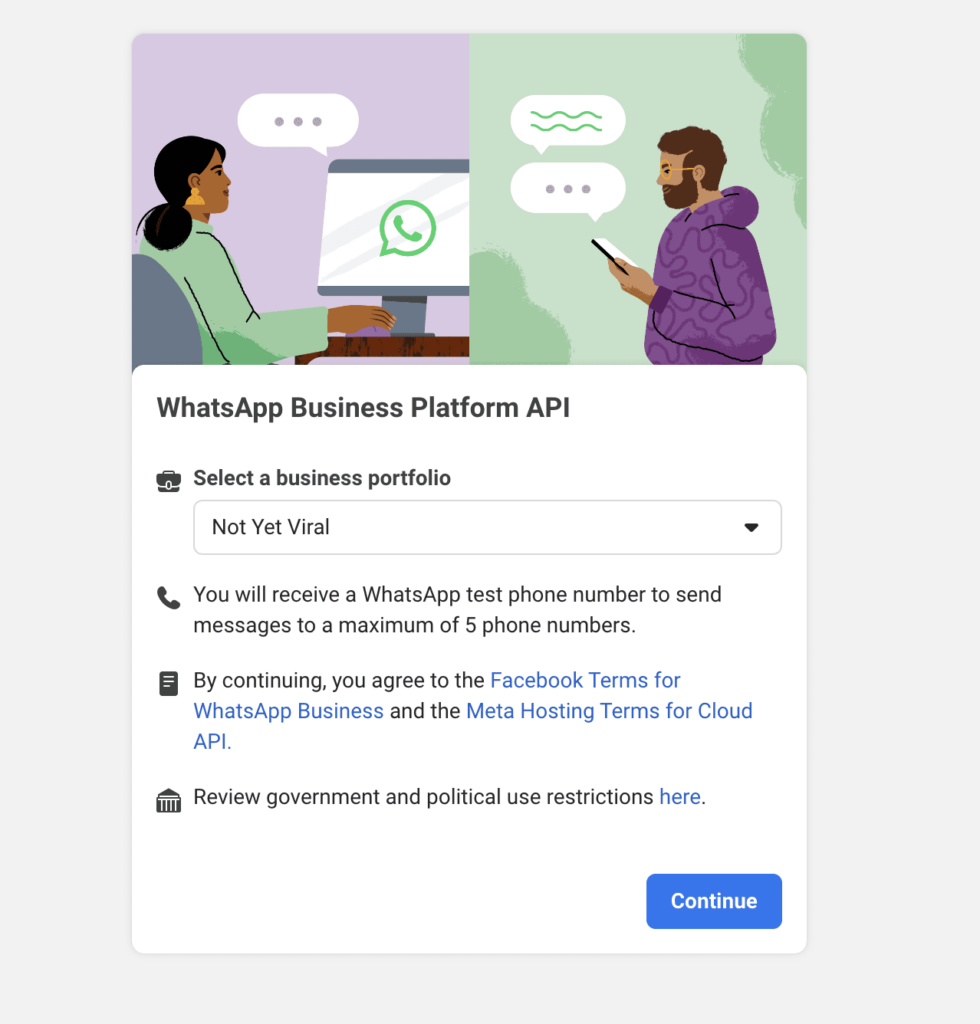
- Besök Meta Business Manager
- Klicka på "Skapa konto" om du inte redan har ett
- Ange dina företagsuppgifter
- Verifiera din e-postadress
- Slutför verifieringsprocessen för företaget om du uppmanas till det
Steg 5: Generera WhatsApp-åtkomsttoken
För att ansluta WhatsApp Business till PushEngage måste du generera åtkomsttoken:
- Gå till Företagsinställningar i ditt Meta Business-konto
- Leta efter "Användare" i den vänstra menyn och klicka på "Systemanvändare"
- Klicka på knappen "Lägg till"
- Ge din systemanvändare ett namn (t.ex. "WhatsApp-integration")
- Välj "Administratör" som roll
- Klicka på "Skapa systemanvändare"
- Klicka på "Tilldela tillgångar" i dialogrutan som visas
- Välj Appar » Ditt appnamn » Fullständig kontroll
- Klicka på "Generera token" högst upp på skärmen
- I popup-fönstret, välj din app, ange en utgångsperiod och välj behörigheter
- Behörigheterna måste inkludera: "whatsapp_business_management" och "whatsapp_business_messaging"
- Klicka på "Generera token" och kopiera den omedelbart
Obs: Denna initiala token är tillfällig och är endast giltig i 24 timmar.
Steg 6: Generera en permanent åtkomsttoken
För långsiktig integration behöver du en permanent token:
- I Business Manager, gå till Företagsinställningar
- Navigera till "Användare" » "Systemanvändare"
- Klicka på "Lägg till" för att skapa en ny systemanvändare
- Namnge denna användare (t.ex. "PushEngage WhatsApp-integration")
- Välj "Administratör" som roll
- Klicka på "Skapa systemanvändare"
- Klicka på "Tilldela tillgångar" och välj Appar » Ditt appnamn » Fullständig kontroll
- Klicka på “Generera token” högst upp
- Välj din app, ställ in utgångsdatumet till “Aldrig” om det är tillgängligt
- Se till att behörigheterna inkluderar “whatsapp_business_management” och “whatsapp_business_messaging”
- Generera och kopiera denna token säkert
Steg 7: Anslut PushEngage till WhatsApp Business
Nu är det dags att ansluta ditt WhatsApp Business-konto till PushEngage:
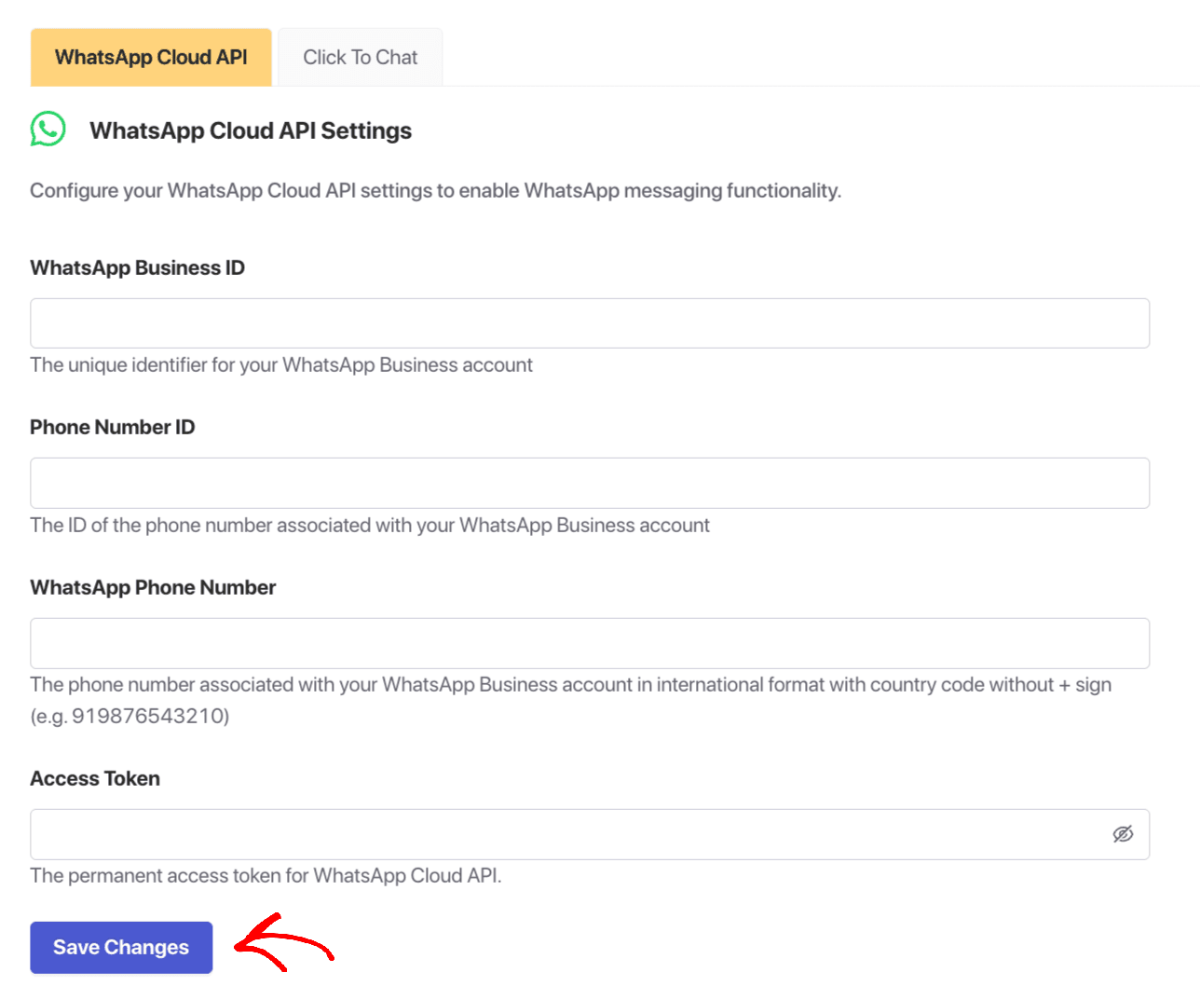
- Logga in på din PushEngage-instrumentpanel
- Navigera till WhatsApp-sektionen bland de listade plugin-programmen
- Klicka på “Inställningsflik”
- Under WhatsApp Cloud API-inställningar behöver du ange:
- WhatsApp Business-kontoid
- Telefonnummer-ID
- WhatsApp-telefonnummer (med landskod men utan + tecken)
- Permanent åtkomsttoken (från steg 6)
- Klicka på “Spara ändringar”
Viktigt: Ditt Meta Developer-konto hjälper dig att samla in dessa uppgifter. Observera att WhatsApp-telefonnummer och Telefonnummer-ID är olika identifierare.
Steg 8: Lägg till WhatsApp-chattwidget på din webbplats (valfritt)
Vill du låta besökare chatta med dig direkt från din webbplats? Här är hur:
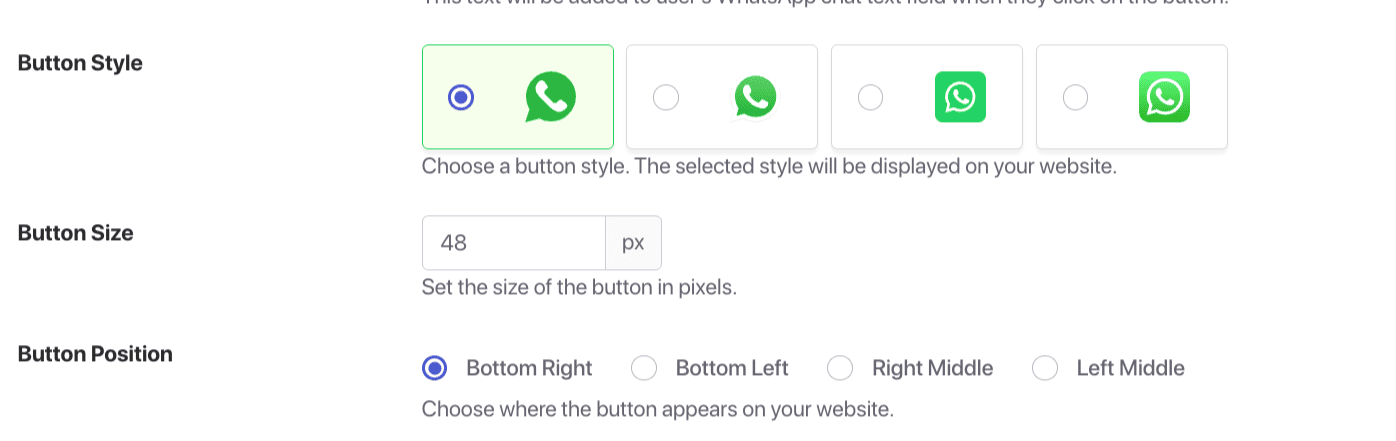
- Navigera till WhatsApp i din PushEngage-instrumentpanel
- Klicka på “Klicka för att chatta-flik” under Inställningar
- Aktivera funktionen genom att klicka i kryssrutan
- Ange ditt WhatsApp-nummer med landskod men utan + tecken (t.ex. 919876543210)
- Ställ in ett hälsningsmeddelande (t.ex. “Hej! Hur kan vi hjälpa dig idag?”)
- Välj en knappstil från de tillgängliga alternativen
- Ställ in knappstorleken (48px rekommenderas för synlighet utan att vara påträngande)
- Välj positionering (Nederst till höger, Nederst till vänster, Mitten till höger eller Mitten till vänster)
- Justera förskjutningsinställningarna för att säkerställa korrekt avstånd från skärmkanterna
- Ställ in Z-index för att säkerställa att chattwidgeten visas ovanför andra element
- Klicka på “Spara ändringar”
Steg 9: Konfigurera WhatsApp-automationsmeddelanden (valfritt)
Förbättra din kundupplevelse med automatiserade meddelanden:
- Gå till WhatsApp i din PushEngage-instrumentpanel
- Konfigurera automationsmeddelanden för olika scenarier
- Skapa mallar för:
- Välkomstmeddelanden för nya kunder
- Orderbekräftelser
- Leveransuppdateringar
- Påminnelser om övergivna varukorgar
- Uppföljningsmeddelanden efter köp
Felsökning av vanliga problem
Även med noggrann installation kan du stöta på vissa utmaningar:
Kan du inte verifiera ditt telefonnummer?
- Kontrollera din nätverksanslutning
- Se till att din telefon kan ta emot SMS eller samtal
- Försök att begära ett samtal istället för SMS
- Vänta 24 timmar om du har gjort flera försök
Anslutningsproblem mellan PushEngage och WhatsApp?
- Verifiera att alla ID:n och tokens är korrekt inmatade
- Se till att behörigheterna är korrekt inställda i Meta Business Manager
- Kontrollera att ditt WhatsApp Business-konto är aktivt
- Kontakta PushEngage-support om problemen kvarstår
Bästa praxis för WhatsApp Business
Följ dessa tips för att maximera dina WhatsApp Business-resultat:
Svarstid
- Sikta på att svara inom 24 timmar
- Använd frånvaromeddelanden under icke-arbetstid
- Ställ in tydliga förväntningar på svarstid
Meddelandemallar
- Skapa mallar för vanliga frågor
- Anpassa meddelanden när det är möjligt
- Håll kommunikationen kortfattad och värdefull
Integritet och efterlevnad
- Skaffa samtycke innan du lägger till kunder
- Följ WhatsApps affärspolicy
- Följ integritetsregler som GDPR
Vanliga frågor
Kan jag ha både personlig WhatsApp och WhatsApp Business på samma telefon?
Ja, du kan ha båda apparna installerade på samma enhet, men de måste använda olika telefonnummer.
Är WhatsApp Business gratis att använda?
WhatsApp Business-appen är helt gratis att ladda ner och använda. WhatsApp Business API kan medföra kostnader beroende på din leverantör.
Kan jag konvertera mitt personliga WhatsApp-konto till ett företagskonto?
Ja, du kan migrera ditt personliga konto till ett företagskonto, men du kan inte ha båda typerna som använder samma telefonnummer.
Hur blir jag verifierad på WhatsApp Business?
WhatsApp har en verifieringsprocess för företag som uppfyller vissa kriterier. Detta innebär vanligtvis att bekräfta din företagsinformation och kan kräva dokumentation.
Kan flera personer använda samma WhatsApp Business-konto?
Med funktionen för flera enheter kan du använda WhatsApp Business på upp till fyra länkade enheter. För mer omfattande teamarbete behöver du WhatsApp Business API.
Hur skiljer sig WhatsApp Business från vanlig WhatsApp?
WhatsApp Business erbjuder ytterligare funktioner som är specifikt utformade för företag, inklusive en företagsprofil, katalog, snabbsvar, automatiserade meddelanden och analys.
Hur integrerar jag WhatsApp Business med mina andra marknadsföringsverktyg?
PushEngage gör detta enkelt genom att låta dig koppla ditt WhatsApp Business-konto till din övergripande kundengagemangsstrategi och skapa en sömlös omnikanalupplevelse.
Dina nästa steg
Att sätta upp ett WhatsApp Business-konto är ett kraftfullt steg för att möta dina kunder där de redan befinner sig. Genom att följa den här guiden har du skapat en professionell företagsnärvaro på en av världens mest populära meddelandeplattformar.
Kom ihåg att framgångsrikt kundengagemang är en pågående process. Uppdatera regelbundet din profil, förfina dina meddelanden och fortsätt att vara lyhörd för kundernas behov.
För företag som vill ta sin kundengagemang till nästa nivå, skapar integrationen av WhatsApp Business med PushEngage en verkligt omnikanalupplevelse som avsevärt kan öka kundnöjdheten och driva affärstillväxt.
PushEngage är den främsta plattformen för kundengagemang på marknaden. Om du är osäker på var du ska börja kan du registrera dig för gratisversionen. Om du vill skala upp din verksamhet med kraftfulla kampanjer bör du dock välja en av betalplanerna. Eller så kan du kolla in dessa fantastiska resurser för att komma igång:
Oavsett vilket, vänta inte. Dina kunder använder redan WhatsApp. Frågan är: Kommer du att möta dem där?
Börja med den metod som känns rätt för din verksamhet. Du kan alltid uppgradera till en mer sofistikerad lösning senare. Det viktiga är att komma igång och börja bygga de direkta kundrelationer som WhatsApp möjliggör.
Dina kunder kommer att tacka dig för att du gör det enkelt att nå dig. Och din verksamhet kommer att tacka dig för det ökade engagemanget och de konverteringar som kommer med bättre kundkommunikation.
- Varför mobilappars push-notiser är bra för din app
- Strategi för engagemang i mobilappar för nya appbyggare
- Vilka mätvärden för appengagemang bör du titta på
- Vad är push-notiser? En enkel guide för episka resultat
- Kostnad för pushmeddelanden: Är det verkligen gratis? (Prisanalys)
Det var allt för den här gången.


