
Letar du efter ett snabbt och enkelt sätt att skapa en försäljningssida i WordPress?
Att skapa en försäljningssida är det bästa sättet att visa upp dina produkter och tjänster för potentiella kunder och få dem att vilja köpa. Men tänk om du aldrig har designat en webbsida tidigare? Tänk om du inte har någon kodningserfarenhet och inte vet hur du lägger till anpassad funktionalitet på dina sidor?
Lyckligtvis finns det ett enkelt sätt att skapa en försäljningssida i WordPress. I den här artikeln hjälper vi dig att lansera en försäljningssida på mindre än 15 minuter.
Är du redo? Låt oss dyka in.
Vad är en försäljningssida och varför ska du bry dig?
En försäljningssida är en helt anpassningsbar webbsida som fokuserar på att sälja en produkt eller tjänst till dina webbplatsbesökare. Till skillnad från en social medie-sida eller en marknadsplats som Amazon eller Etsy, fokuserar din försäljningssida på en enda produkt eller tjänst att sälja åt gången. Ännu bättre, den visar inte alla dina konkurrenter på samma webbsida!
Varje försäljningssida är utformad för att övertyga och konvertera webbplatsbesökare till betalande kunder. Beroende på hur mycket tid du har, din affärsmodell och hur mycket pengar du förväntar dig att tjäna från dina prenumeranter, kan du:
- Erbjuda kuponger och rabatter
- Anordna en utlottning
- Skapa en gratis guide eller checklista som en lead magnet
- Ta emot donationer från fans
Och mycket mer!
Men innan du börjar, kom ihåg att ha ett mycket tydligt och specifikt mål för din landningssida. Bara för att du kan göra många saker betyder det inte att du ska göra dem alla på en sida. Oftare än inte, om du ger dina besökare för många saker att klicka på, kommer de inte att klicka på något alls.
Vad har alla framgångsrika försäljningssidor gemensamt?
Nu när du vet vad en försäljningslandningssida i WordPress gör och varför du bör bygga en, är det dags att skapa en ritning för din landningssida. Om du tittar på några framgångsrika landningssidor kommer du att märka att de alla har några mycket grundläggande gemensamma element:
- Rubrik: Rubriken är där du fångar människors uppmärksamhet och får dem att vilja scrolla ner och lära sig mer om dig.
- Beskrivning: Strax under rubriken bör du ha en beskrivning av vad dina tittare kan förvänta sig av resten av sidan. Detta är också ett utmärkt ställe att övertyga läsare att köpa din produkt.
- Senaste avsnitten: När folk vet vad de kan förvänta sig av ditt varumärke, ge dem en försmak av din show genom att lista dina senaste avsnitt. Vi rekommenderar att visa högst 3-5 avsnitt.
- Köpknapp: Följ upp med en köpknapp så att dina besökare direkt kan lägga din produkt i kundvagnen. Detta kallas för call to action (CTA)-knapp. Det är så du uppmanar dina besökare att agera på din sida. Beroende på ditt mål för landningssidan kommer din CTA att variera.
- Socialt bevis: Ett utmärkt sätt att ge dina läsare en stark anledning att prenumerera är genom att erbjuda socialt bevis. Socialt bevis talar helt enkelt om för din besökare att det finns andra människor som redan vidtar samma åtgärd som du vill att de ska vidta.
- Nyhetsbrevsanmälan: När du har presenterat ditt kärnerbjudande för dina besökare kan du också be dem att bli e-postprenumeranter. Du kan också be dem att bli prenumeranter på push-notiser med en klick för att prenumerera-knapp. Det är alltid bäst om du erbjuder något värdefullt i gengäld.
- Knappar för social delning: Ju mer folk pratar om dig på sociala medier, desto större chans har du att öka dina prenumeranter. Så, sätt upp knappar för social delning på din landningssida för att uppmuntra folk att dela den på sociala medier.
Här är en förhandstitt på WordPress-försäljningssidan vi kommer att skapa i vår handledning.

Kom ihåg att detta bara är de mest grundläggande delarna av en framgångsrik landningssida. För din sida kan du lägga till många andra sektioner och skapa anpassade erbjudanden för att öka dina konverteringar.
Hur man skapar en säljsida i WordPress
Nu när du vet vad du ska skapa är det dags att lansera din försäljningssida i WordPress. Vi rekommenderar starkt att använda SeedProd för att skapa dina landningssidor.

SeedProd är den bästa landningssidbyggaren för WordPress. Den är perfekt för företag, bloggare och webbplatsägare som vill bygga högkonverterande landningssidor utan några utvecklingskunskaper.
Med SeedProd får du färdiga mallar för högkonverterande landningssidor som du kan publicera omedelbart. Detta inkluderar mallar för:
- Säljsidor
- Kommer snart-sidor
- 404-sidor
- Underhållssidor
- Squeeze-sidor
- Inloggningssidor
- Tack-sidor
- Webinar-sidor
- Videosidor
Och mycket mer!
Steg #1: Installera och aktivera SeedProd
Först vill du skaffa SeedProd Pro pluginet och aktivera det. Om du är osäker på hur du gör det, kolla in den här artikeln om hur man installerar ett WordPress plugin. Gå sedan till SeedProd » Inställningar i din WordPress-instrumentpanel och aktivera Pro-versionen:

Gå sedan till SeedProd » Sidor för en översikt över Seed પ્રોડs landningssidors instrumentpanel. Det är här du kan se de olika typerna av landningssidor du kan skapa med SeedProd:

Tänk på att detta är speciella sidor med förbyggd funktionalitet och designdesignmallar. För en försäljningslandningssida vill du inte använda NÅGON av dessa speciella landningssidor. Istället kommer du att skapa en anpassad landningssida.
Skrolla längre ner och klicka på knappen Lägg till ny landningssida för att komma igång:

Steg #2: Skapa en ny försäljningslandningssida
Efter att ha klickat på knappen Lägg till ny landningssida ser du SeedProds bibliotek med landningssidmallar. Dessa är professionellt designade landningssidmallar som är helt responsiva.
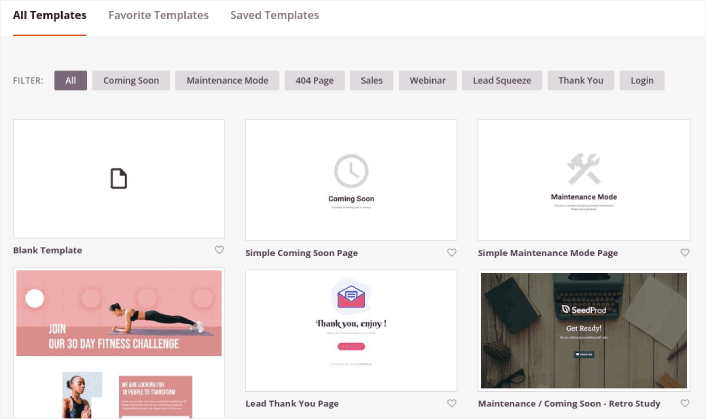
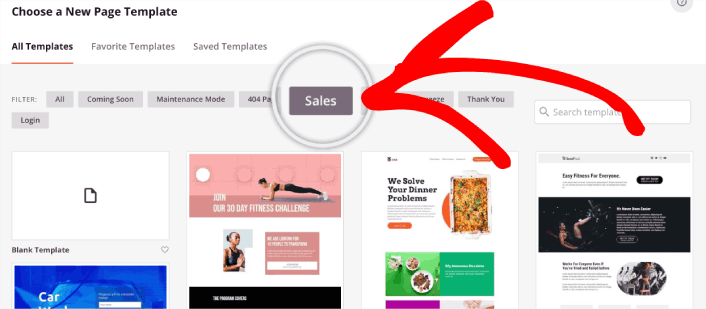
Därefter kan du välja en av dessa mallar för att komma igång. Kom ihåg att mallen bara är en utgångspunkt. Du kan anpassa allt om sidan senare. För nu, hitta en mall som du tror passar. När mall-sidan öppnas kan du klicka på Försäljning för att filtrera listan:
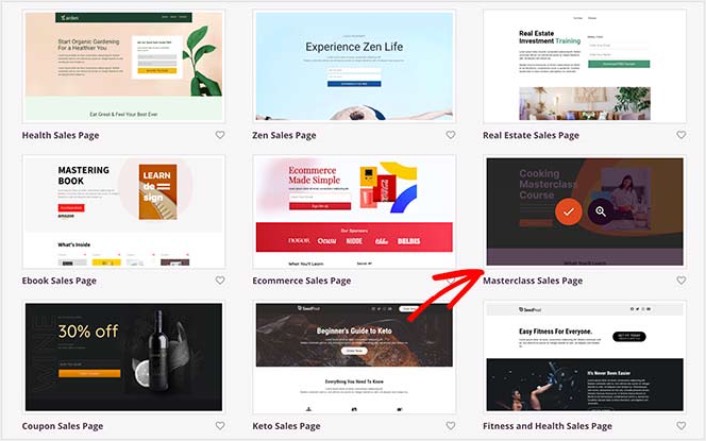
För den här guiden väljer vi Masterclass Försäljningssida. Klicka på den nu.
Sedan kommer vi att anpassa landningssidan.
Steg #3: Anpassa din landningssides design
SeedProds visuella byggare låter dig anpassa din landningssida med hjälp av dra-och-släpp-innehållsblock.
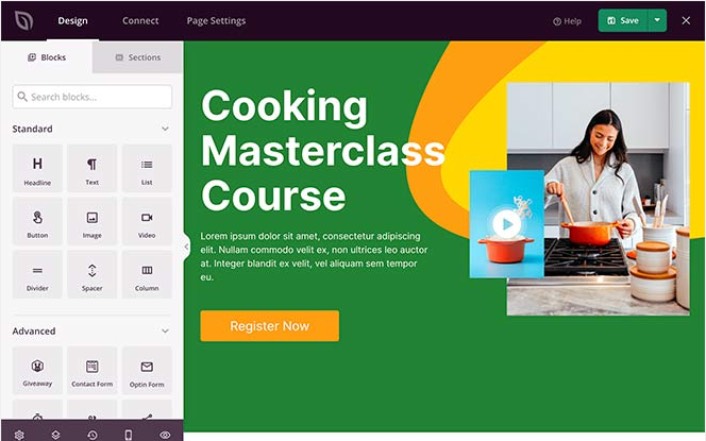
Du kan skapa en helt anpassad rubrik för din landningssida på några minuter. Du kan till och med lägga till anpassade element för att övertyga och konvertera din trafik. Du kan till exempel skapa en videomodul och bädda in en YouTube-video för att övertyga dina besökare att köpa din produkt eller tjänst.
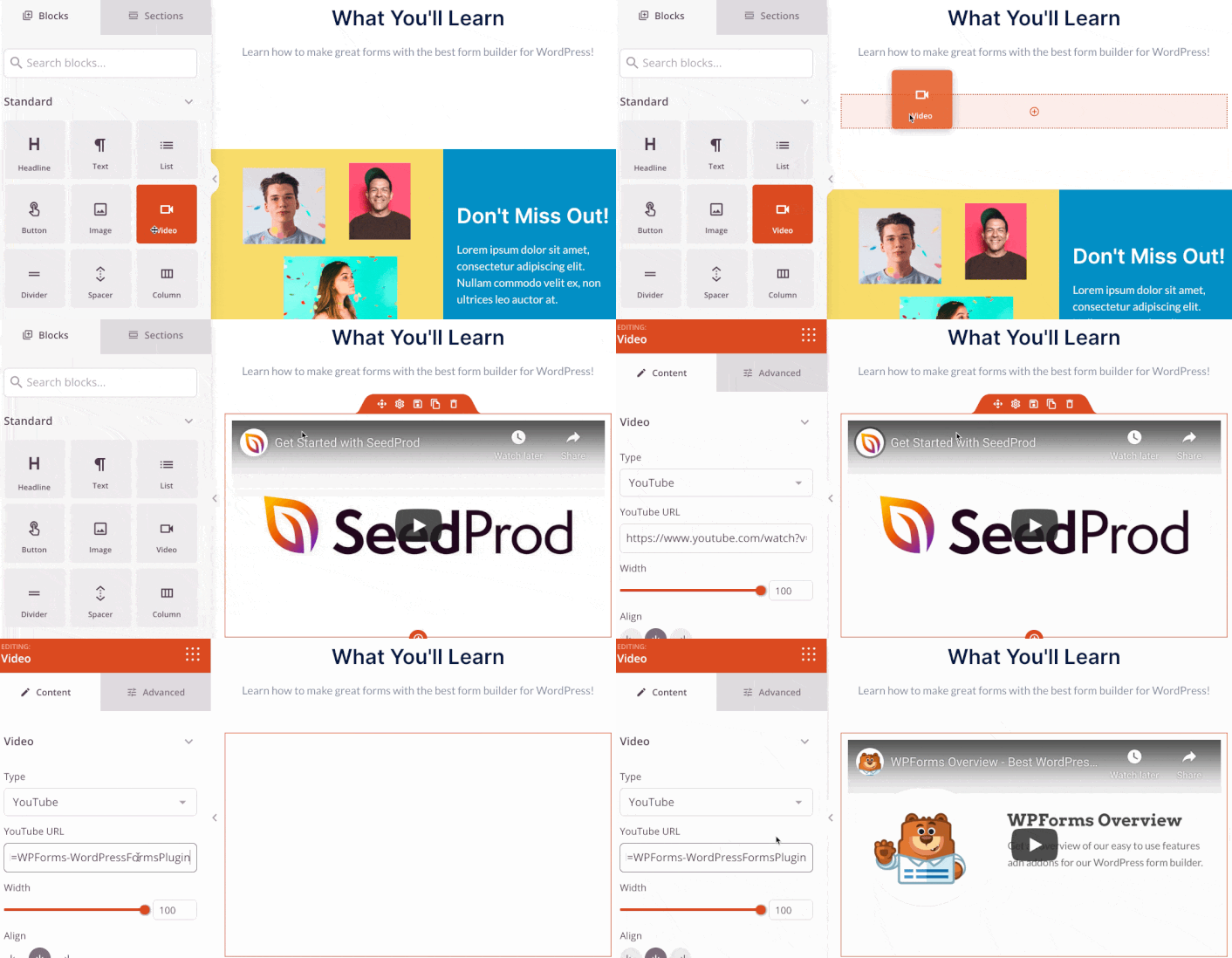
Det är också superenkelt att lägga till en sektion med en kort beskrivning av din produkt eller tjänst. Gå till fliken Sections i den visuella byggaren och under sektionen Hero hittar du flera förbyggda mallar som du kan importera med ett enda klick.
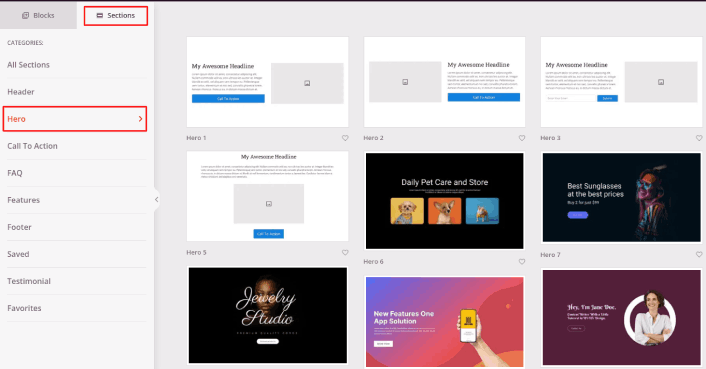
Välj en som du gillar.
Oroa dig inte för färger eller innehåll. Du kan redigera allt. Vad du bör leta efter är en layout som passar bra med din mall.
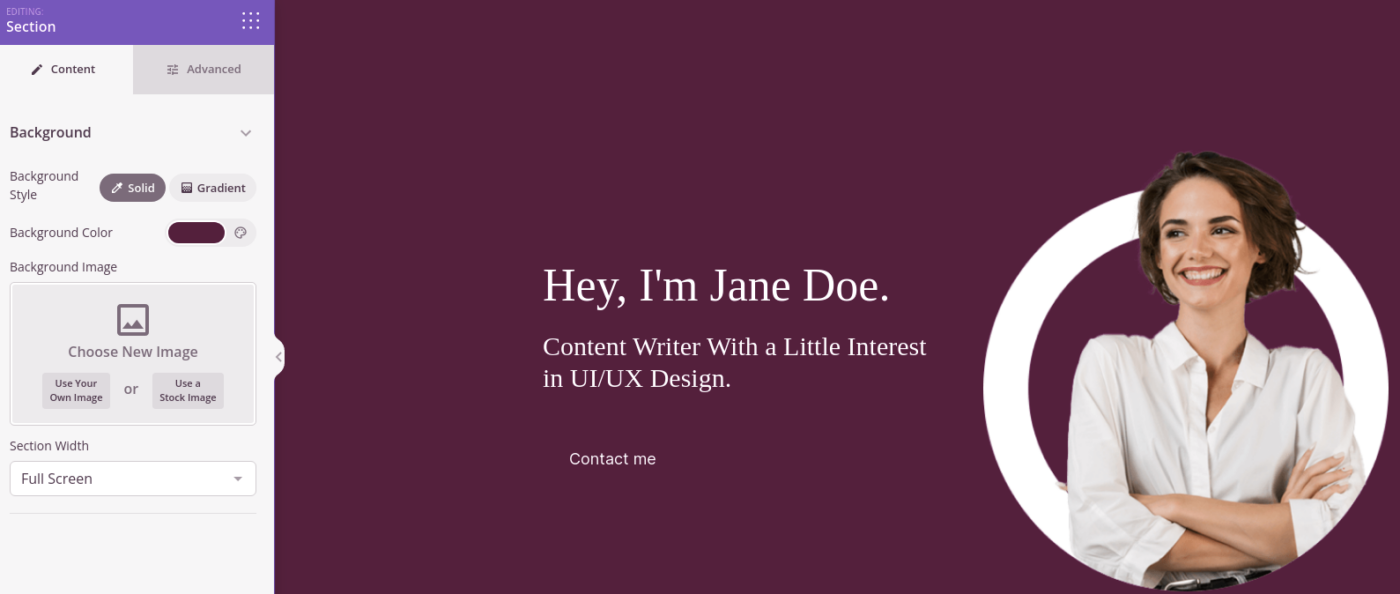
Du kan anpassa hjältesektionen på samma sätt som vi gjorde tidigare genom att välja en annan bild och ändra rubrik och beskrivning. Medan du håller på, lägg till en uppmaning till handling-knapp som uppmanar besökare att köpa från dig.
Välj sedan, från fliken Sektioner rubriken Testimonials och välj en design du gillar. Och precis sådär har du en testimonials-sektion på din landningssida.
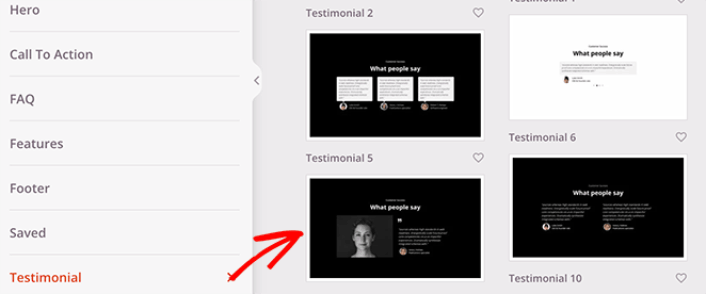
Det är så enkelt!
Steg #4: Lägg till en klick-för-att-prenumerera-knapp på din försäljningssida
Du kan också lägga till en klick-för-prenumerera-knapp för att samla in prenumeranter på push-notiser. Push-notiser är ett utmärkt sätt att öka din återkommande trafik, få mer engagemang och till och med sälja officiella varor om du har några.
I SeedProd, dra och släpp bara modulen Anpassad HTML från sidofältet.
Vi har placerat prenumerationsknappen direkt under e-postregistreringsformuläret i den första vyn.

Men du kan infoga knappen var du vill.
För den här delen behöver du viss erfarenhet av HTML och CSS. Eller så kan du kopiera den här koden och klistra in den i ditt anpassade HTML-block:
<button onclick="subscribeOnClickButton()" style="border: none; padding-left: 5%; padding-right:5%; text-align: center; display: inline-block; color: blue;">Get Updates via Push Notifications</button>Det där är en standardknapp i HTML med väldigt lite styling. Det enda speciella är onclick-funktionen i koden. Det betyder i princip att dina besökare kan klicka på knappen för att prenumerera på något. Nu behöver vi ge knappen lite extra kod för att tillåta dina besökare att prenumerera på push-notiser.
Gå till PushEngage startsida och klicka på knappen Kom igång :

Sedan vill du välja gratisplanen för att prova PushEngage eller välja en betald plan om du menar allvar med att växa din verksamhet. De betalda planerna kommer med fler kampanjalternativ och möjligheten att bygga ännu större prenumerantlistor.
I din PushEngage-instrumentpanel, gå till Webbplatsinställningar » Webbplatsdetaljer och klicka på knappen Klicka här för installationsinstruktioner. Under Valfri webbplats, får du din installationskod:

VARNING: Du måste kopiera koden du får från din instrumentpanel. Koden är unik för varje PushEngage-användare. Du kan inte kopiera koden i bilden och samla prenumeranter på push-notiser.
När du har koden i din PushEngage-instrumentpanel, lägg till detta kodavsnitt i din kod:
<script> window._peq = window._peq || [];</script> <script>
function subscribeOnClickButton(){
window._peq.push(['subscribe',{}.pe,function(res){
if(res.statuscode==1)
{
// Code to return response
console.log(res);
}
}]);
}
</script>
Din slutliga kod bör se ut ungefär så här:
<script src="https://clientcdn.pushengage.com/core/02a6e92667ae2279fcba8932356c1d93.js" async></script>
<script> window._peq = window._peq || [];</script> <script>
function subscribeOnClickButton(){
window._peq.push(['subscribe',{}.pe,function(res){
if(res.statuscode==1)
{
// Code to return response
console.log(res);
}
}]);
}
</script>
Du vill lägga till den här koden i HTML-blocket på din landningssida efter koden för knappen. Det bör se ut ungefär så här:

Anpassa gärna knappens stilar hur du vill. När du är klar med att anpassa din försäljningssida, klicka på knappen Spara.
Steg #5: Konfigurera dina sidinställningar
När du är klar med att designa din försäljningssida, klicka på fliken Anslut högst upp i din sidbyggare och välj din e-postmarknadsföringsleverantör för att samla in leads på din webbplats.

Klicka sedan på fliken Sidinställningar högst upp på skärmen.

Här kan du lägga till ett SEO-plugin och ett Google Analytics-plugin till din försäljningssida. Du kan till och med ställa in anpassade spårningskoder som en Facebook Pixel eller en Pinterest Pixel för att spåra annonsresultat.
Steg #6: Publicera din försäljningssida i WordPress
Nu ska vi publicera din design. För att göra detta, klicka på nedåtpilen bredvid spara-knappen och klicka på Publicera.
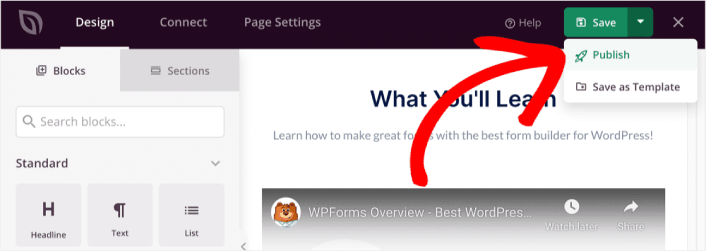
Du kan sedan klicka på knappen Se live-sida för att se hur den ser ut.
Grattis! Du har precis publicerat din allra första försäljningssida.
Vad du ska göra efter att du har byggt en försäljningssida
Nu när din försäljningssida är live är det dags att arbeta med din trafik, engagemang och försäljning. Du bör prova att använda push-notiser på din webbplats. Push-notiser är ett utmärkt marknadsföringsverktyg som kan hjälpa dig att växa din verksamhet.
Ta en titt på dessa episka resurser så förstår du vad vi menar:
- 7 smarta strategier för att öka kundengagemanget
- Är push-notiser effektiva? 7 statistik + 3 experttips
- Hur du ställer in pushmeddelanden för övergivna kundvagnar (Enkel handledning)
Vi rekommenderar att använda PushEngage för att skapa dina push-notiskampanjer. PushEngage är den främsta push-notisprogramvaran i världen. Så, om du inte redan har gjort det, kom igång med PushEngage idag!


