Letar du efter ett snabbt sätt att lägga till och redigera din app-push-notifikationsikon?
Det är faktiskt superenkelt. Notifikationsikonen talar om för dina prenumeranter vem du är. Det är ett varumärke på varje push-notifikation du skickar. Och det kan vara ovärderligt eftersom det hjälper din publik att komma ihåg ditt varumärke.
Kostnaden för att säkerställa att varje push-notifikation du skickar hjälper dig att bli mer minnesvärd? Mindre än 5 minuter.
I den här artikeln kommer vi att visa dig hur du lägger till och redigerar din app-push-notifikationsikon. Och som vi sa, det är superenkelt.
Låt oss dyka in.
Varför lägga till en app-push-notifikationsikon?
En app-push-notifikationsikon är en liten, distinkt bild som representerar en app på en användares enhet. Den visas tillsammans med push-notifikationer för att visuellt identifiera källappen för meddelandet eller varningen.
Ditt varumärke är en stor del av din strategi för app-push-notifikationer. Och din appikon hjälper användare att snabbt känna igen vilken app eller webbplats som kommunicerar med dem utan att behöva läsa notifikationens text.
Att lägga till en app-push-notifikationsikon är ett smart drag av några anledningar:
- igenkänning: Precis som att se ett bekant ansikte i en folkmassa, känner vi igen ikoner direkt. När din app skickar en notifikation fungerar ikonen som en liten vinkning och säger: ”Hej, det är jag!” Detta hjälper användare att snabbt identifiera vilken app som kräver deras uppmärksamhet.
- Varumärkesbyggande: Din ikon är som en liten reklamtavla för din app. Den är en del av din varumärkesidentitet. Varje gång användare ser den påminns de om din app. Detta kan hjälpa till att hålla din app i åtanke.
- Användarupplevelse: Användare har ofta många installerade appar, och det kan vara en riktig röra. En unik ikon hjälper dem att hantera sina notifikationer mer effektivt. De kan se med en blick vilka notifikationer de vill kolla in först.
- Professionalism: En app med sin egen notifikationsikon ser mer polerad och professionell ut. Det visar att du har tänkt på även de små detaljerna, vilket kan förbättra den totala användarnöjdheten.
- Funktionalitet: Ibland kan ikonen också förmedla ytterligare information. Till exempel kan en meddelandeapp visa olika ikoner för ett nytt meddelande jämfört med ett missat samtal. Detta ger ett extra lager av funktionalitet och användarkomfort.
Så, en app-push-notifikationsikon kan vara liten, men den spelar en stor roll i hur användare interagerar med din app och uppfattar den!
Hur man lägger till en app-push-notifikationsikon
Integrera med en AI-kodningsassistent? De open source PushEngage Agent Skills lär Claude Code, Cursor och alla SKILL.md-kompatibla agenter att integrera och felsöka detta SDK. Och när du väl har skickat, låter PushEngage MCP-servern samma assistent köra dina kampanjer — segment, sändningar, A/B-tester och rapporter. Bygger du i Replit, Lovable eller Bolt? De open source vibe-coding kits inkluderar en färdig demo-butik, en Flutter-startare och demos med en prompt med PushEngage förtrådat.
Nu när vi förstår vad en app-push-notifikationsikon är och varför du bör lägga till den, låt oss titta på hur du enkelt kan lägga till den utan någon kodning alls.
Steg #1: Välj en push-notifikationstjänst för appar
Push-notifikationer är ett marknadsföringsverktyg som hjälper dig att ansluta till webbesökare även efter att de lämnar din webbplats. Du kan skicka riktade notifikationer till dina push-prenumeranter och till och med anpassa dina notifikationer för olika kundsegment. Men vilken push-notifikationstjänst bör du välja?
Vi rekommenderar att använda PushEngage för att skicka push-notifikationskampanjer.

PushEngage är den bästa push-aviseringstjänsten i världen. Och vi pratar inte bara om gratisversionen. Den låter dig ansluta med besökare efter att de har lämnat din webbplats med riktade push-meddelanden.
PushEngage är vårt förstahandsval för push-tjänster och verktyg eftersom det är:
- Superenkel att använda
- Har en visuell kampanjbyggare med förbyggda mallar som kräver lite eller ingen kodning för att ställa in
- Enkel att ställa in helt automatiserade push-meddelandekampanjer för alla typer av webbplatser
- Fullt utrustad med Android- och iOS-SDK:er för att snabbt utveckla, driftsätta, analysera och hantera app push-kampanjer
- Byggd med flera alternativ för att skicka personliga push-meddelanden för högre klickfrekvens
- Utrustad med anpassad målspårning, UTM-parametrar och avancerad analys
- Har kraftfulla A/B-testning av push-meddelanden alternativ
Och detta är knappt ytan. Kolla in PushEngages fullständiga lista över funktioner innan du går vidare.
Den mest otroliga delen med PushEngage är att det har en evigt gratis plan som du kan prova innan du fattar ett köpbeslut.
Proffstips: Läs vår artikel om kostnadsanalys för push-meddelanden innan du köper någon tjänst.
Steg #2: Konfigurera PushEngage-appens pushmeddelanden
Hittills har du varit tvungen att använda skelett-SDK:er för att skicka push-meddelanden för appar. Problemet med att använda dessa SDK:er är att de är ganska grundläggande.
Teoretiskt sett kan du skicka alla typer av push-kampanjer för mobilappar med dem. Men då måste du också bygga:
- Ett gränssnitt för att hantera dina kampanjer
- En analyssvit för att spåra dina kampanjers prestanda
- Bättre stöd för rich media och omdirigeringslänkar i appen (eller djupa länkar)
- Processer för att samordna både marknadsförings- och utvecklingsteam
Allt för att introducera en enda tillväxtkanal. Att använda de gamla verktygen för att skicka pushmeddelanden till mobilappar är mödosamt, dyrt, resurskrävande och tidskrävande. Och naturligtvis kräver det djupa kodningskunskaper i ditt team för att utveckla och hantera allt du bygger.
Med de nya SDK:erna för PushEngage för Android och iOS kan du skicka pushmeddelanden för mobilappar med samma pålitliga programvara för utmärkta leveransgrader. Men vi har byggt flera lager ovanpå som gör det superenkelt att bygga anpassade integrationer med din app. Och PushEngage hanterar hela SDK:n. Så du behöver inte ens spendera massor av tid och pengar på att hantera dina integrationer.
Allt du behöver göra är att bygga!
Du kan skicka sändningsmeddelanden direkt från din PushEngage-instrumentpanel när du har konfigurerat din app för att skicka pushmeddelanden för mobilappar med PushEngages SDK. Ja, du måste fortfarande lägga till kod i din app och utveckla kopplingarna mellan din app och PushEngage API. Men när det är gjort kan du enkelt skapa pushkampanjer för mobilappar från ett förbyggt programvarugränssnitt som också kommer med:
- Mycket engagerande pushkampanjtyper
- Beprövade kampanjmallar med höga konverteringsgrader
- Automatiserade kampanjer för att marknadsföra ditt innehåll när du publicerar
- Flera alternativ för målinriktning och kampanjschemaläggning
- Webb push-kampanjer som en kompletterande tillväxtkanal
- Ökad publikretention med databaserad personalisering
- Målspårning och avancerad analys
- Smart A/B-testning
- En dedikerad framgångschef
Och mycket mer. Vi har precis tagit bort besväret med att utveckla pushkampanjer för mobilappar för Android och iOS.
Steg #3: Lägg till eller redigera ikonen för din app-pushmeddelande
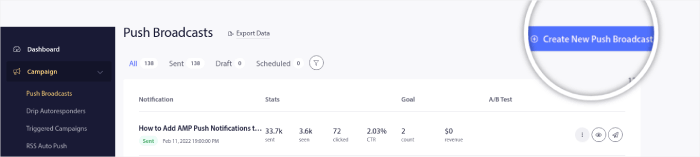
Du kan enkelt ställa in en ikon för pushmeddelanden för mobilappar för iOS och Android. Gå tillbaka till din PushEngage-instrumentpanel och gå till Kampanj » Sändningar och klicka på Skapa en ny push-sändning.
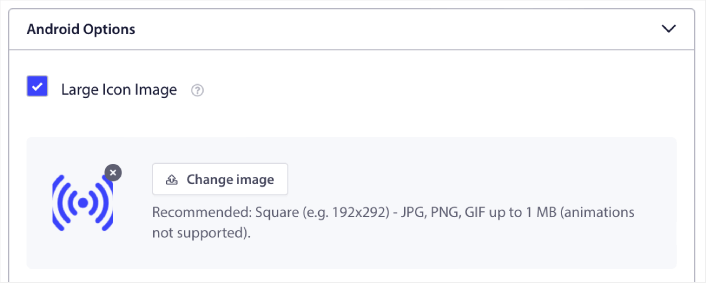
Under Android-alternativ, markera kryssrutan Stor ikonbild:
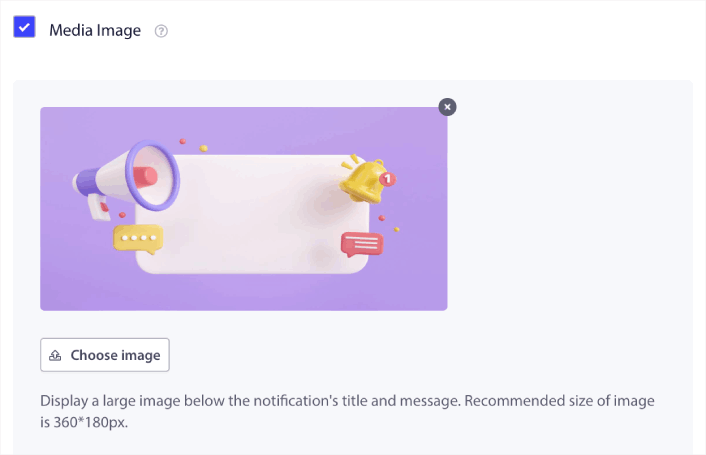
Du kan göra samma sak för pushmeddelanden för iOS-appar också. Ställ in en mediebild för ditt pushmeddelande för iOS-appen för att göra din kampanj mer iögonfallande:
Bilden du laddar upp är ikonen för ditt pushmeddelande för appen. Håll bildens dimensioner på 192px x 192px för bästa resultat och se till att bildstorleken är mindre än 1 MB. Du kan använda en JPG, PNG eller till och med en GIF för animerade varumärkesmärken. Se bara till att ikonen är konsekvent med varumärkesmärken som du använder på sociala nätverkssajter.
Om du behöver redigera din ikon senare är det här du gör det. Ladda bara upp en annan bild och du är klar!
Med andra ord kan du bevara dina varumärkesdesignriktlinjer ganska enkelt när du skickar pushmeddelanden för mobilappar. Och allt detta, från ett lättanvänt gränssnitt som du aldrig behöver hantera!
Steg #4: Skicka ett testmeddelande för att kontrollera din ikon för pushmeddelanden
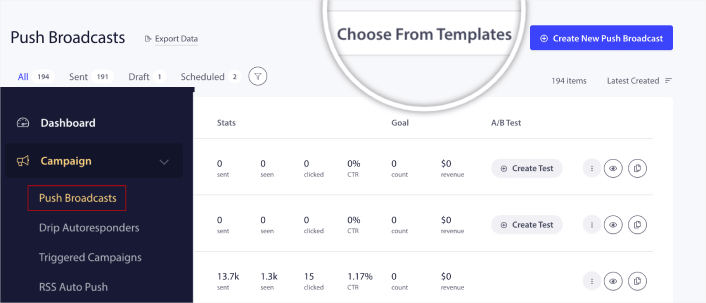
Gå till din PushEngage-instrumentpanel och navigera till Kampanj » Push-sändningar och klicka på Välj från mallar:
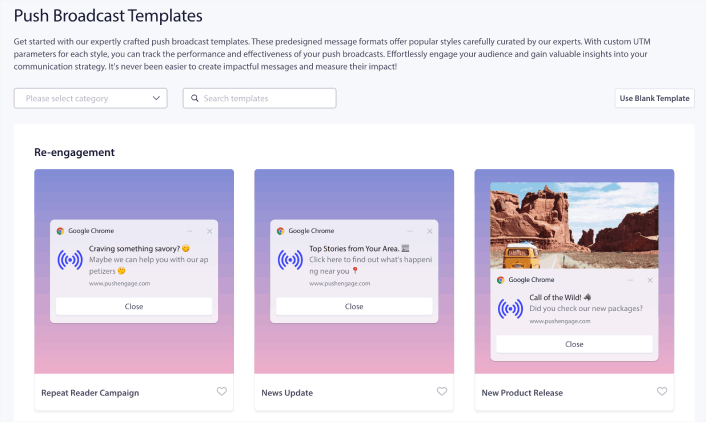
Därefter kan du välja en mall att börja med från biblioteket:
Håll muspekaren över någon av mallarna och klicka på knappen Använd mall för att skapa en ny push-sändning med den mallen:
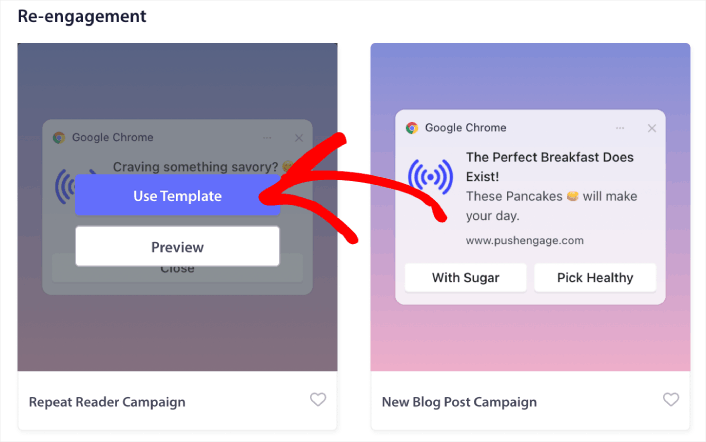
När du använder mallen fylls alla fält du behöver för att skapa en ny push-sändning automatiskt i genom att hämta informationen från mallen. Naturligtvis kan du redigera alla fält för att bättre passa ditt varumärke. Men du kan också skicka ut sändningen som den är om du vill.
För närvarande har vi push-notifikationsmallar för:
- Återengagemang push-notifikationer
- Annonseringskampanjer
- Kampanjer med erbjudanden
- Kampanjer för nya blogginlägg
- Säsongserbjudanden push-notifikationer
- Uppförsäljning och korsförsäljning push-notifikationer
- Kampanjer med snabbförsäljning
Och det coolaste är att även våra gratisanvändare får tillgång till några gratis mallar. Naturligtvis kan du alltid uppgradera ditt PushEngage-konto för att få tillgång till rika push-notifikationer med kraftfullare funktioner.
Låt oss skapa en välkomstkampanj för push-notiser nu. Gå till din PushEngage-instrumentpanel och gå till Kampanj »
Och som du kan se är ikonen för pushmeddelanden ganska framträdande i vårt exempel!
Om du är nybörjare på pushmeddelanden bör du följa en fullständig testprocess för pushmeddelanden innan du går live. Det hjälper dig att felsöka vanliga problem med funktionaliteten innan dina besökare ser dem och börjar klaga på en trasig användarupplevelse.
Vad du ska göra efter att du har lagt till en ikon för pushmeddelanden för appen
Nu när du vet hur du lägger till en ikon för pushmeddelanden för appen är det dags för dig att börja skapa dina egna kampanjer. Men innan du börjar med kampanjerna bör du studera några bra exempel på pushmeddelanden först.
Och om du är nybörjare på push-notiser bör du kolla in vår artikel om bästa praxis för push-notiser innan du börjar skapa kampanjer. Några av de bästa praxis som vi aktivt rekommenderar inkluderar:
- Öka klick med nyfikenhet
- Personifiera varje push-notis
- Stick ut med rikt media
- Återaktivera inaktiva push-prenumeranter
- Håll kunderna informerade
- Använd emojis där du kan
- Skapa en känsla av brådska
Vi rekommenderar att använda PushEngage för att skapa dina push-notiskampanjer. PushEngage är den främsta mjukvaran för push-notiser på marknaden och dina kampanjer kommer att vara i trygga händer.
Så, om du inte redan har gjort det, kom igång med PushEngage idag.


