Sanningen är att du kan använda nästan alla olika kampanjer på varierande sätt för att växa nästan vilken verksamhet som helst. Men det kräver lite erfarenhet och expertis inom marknadsföring för att känna till dessa användningsfall.
Spännande nyheter: vi har precis lagt till en STOR uppgradering till RSS-pushnotiser på PushEngage.
Vi lanserade RSS-autopush-kampanjer för ett tag sedan och det blev väldigt populärt. Men det fanns begränsningar för vad du kunde göra med RSS-notiser. Därför har vi lagt till några kraftfullare funktioner till våra RSS-flödeskampanjer.
Här är en snabb överblick över höjdpunkterna:
- Skapa flera RSS-flöden
- Starta/Pausa/Ta bort dina RSS-pushnotiser när du vill
- Lägg till en stor bild för dina RSS-flöden
- Välj dynamiskt den stora bilden för dina RSS-flödespushnotiser
- Ställ in en notifikationsikon dynamiskt från RSS-flödet eller ladda upp din varumärkesikon
- Främja automatiskt ditt senaste innehåll genom att skrapa RSS-flödet med intervaller du bestämmer
- Välj målgruppsgruppen du vill rikta in dig på för bättre personalisering
- Lägg till regler för notifikationens utgång
- Ställ in anpassade UTM-parametrar
- Få detaljerad kampanjanalys för varje RSS-flödeskampanj
Vi har också gjort det superenkelt att använda. Mycket arbete lades ner på denna uppgradering och vi tror att du kommer att älska den. Det är också en stor uppdatering, så det finns MYCKET att packa upp.
Låt oss dyka in.
Varför skicka RSS-pushnotiser?
Att ständigt skapa innehåll och hantera en blogg är hårt arbete. Men om du driver en seriös verksamhet vet du att det inte räcker att bara skapa innehåll. Du måste också kunna marknadsföra ditt innehåll.
Och push-notiser är ett utmärkt sätt att skaffa prenumeranter på ett kostnadseffektivt sätt. Det som gör push-notiser så bra som ett marknadsföringsverktyg är att de kan automatiseras helt.
Det är där RSS-push-notiser kommer in i bilden.
Om du ställer in RSS-pushmeddelanden på rätt sätt, varje gång du publicerar innehåll på din webbplats får dina prenumeranter automatiskt ett pushmeddelande som leder dem till ditt innehåll.
Gör inga misstag, dock. RSS-pushnotiser är fortfarande mindre personliga än andra automatiserade pushnotiskampanjer. Därför rekommenderar vi att använda en blandning av olika kampanjer för att maximera din tillväxt. Du måste till exempel aktivera e-handels-pushnotiser om du driver en e-handelswebbplats.
Skapa flera RSS-flödesnotiser
När du har installerat PushEngage på din webbplats, gå till din PushEngage-instrumentpanel och navigera till Kampanj » RSS Auto Push och klicka på Skapa ny kampanj:
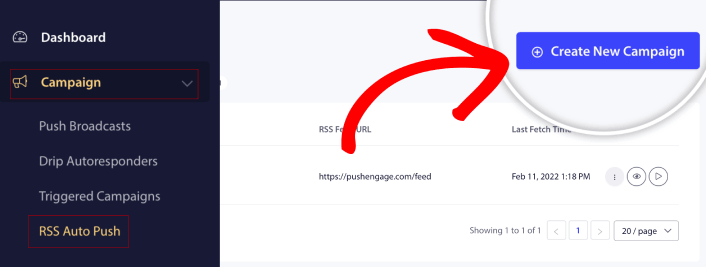
Med denna nya uppgradering kan du nu skapa och skicka flera RSS-flödesnotiser för olika segment och målgruppsgrupper. Din webbplats har inte bara ett RSS-flöde. Du kan skapa RSS-flöden för varje innehållskategori på din webbplats.
Och det tar väldigt lite tid att göra. Men att skapa flera flöden gör att du kan skicka mer personliga RSS-pushnotiser.
Låt oss säga att du har tre målgruppsgrupper som bara bryr sig om superbilar, motorcyklar och lastbilar respektive. Du kan enkelt skapa olika RSS-flödes-URL:er för varje kategori och skicka dina prenumeranter pushnotiser om innehåll som de faktiskt bryr sig om.
Resultatet? Du kommer att se en ökning i din webbplatsengagemang även med en enkel RSS-autopush-kampanj!
Starta, pausa och ta bort din RSS-kampanj när som helst
Det största problemet med RSS-kampanjer, även e-post-RSS-kampanjer, har varit schemaläggning. Det är mycket svårt att kontrollera hur många inlägg du skickar. Och det var ännu svårare att pausa dina kampanjer.
Fram till nu!
Med PushEngage kan du enkelt starta, pausa eller ta bort alla RSS-flödeskampanjer när som helst. Detta är en mycket användbar funktion om du kör flera kampanjer.
Låt oss säga att du kör en Black Friday pushnotiskampanj. Dina prenumeranter bör bara fokusera på dina kampanjerbjudanden. Men samtidigt kan du inte sluta publicera nytt innehåll förrän helgsäsongen är över. Det är en utmärkt tid att pausa dina RSS-flödeskampanjer.
Eftersom du kan köra flera RSS-kampanjer nu, kan du till och med fortsätta skicka regelbundet innehåll till prenumeranter som du inte riktar in dig på med din kampanj.
Enkla anpassningsalternativ för bilder
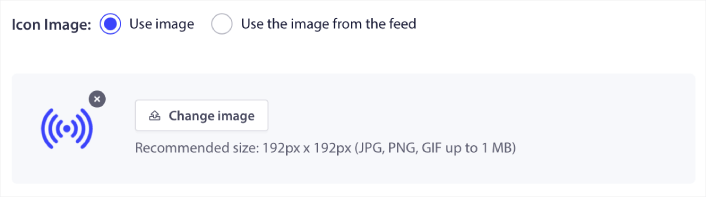
Du kan anpassa både notifikationsikonen och notifikationens stora bild direkt från ditt RSS-flöde. För notifikationsikonen kan du antingen ladda upp ikonen manuellt:
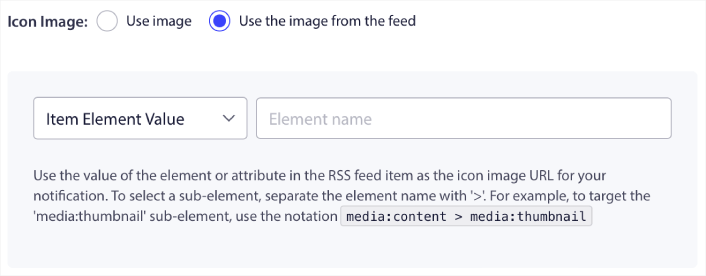
Eller så kan du ställa in ett mönster för PushEngage att dynamiskt skrapa notifikationsikonen från ditt RSS-flöde:
På samma sätt kan du antingen låta PushEngage automatiskt hitta den stora bilden för dina inlägg:

Eller så kan du anpassa vilken typ av stor bild du vill ha genom att hämta den från ditt RSS-flöde:
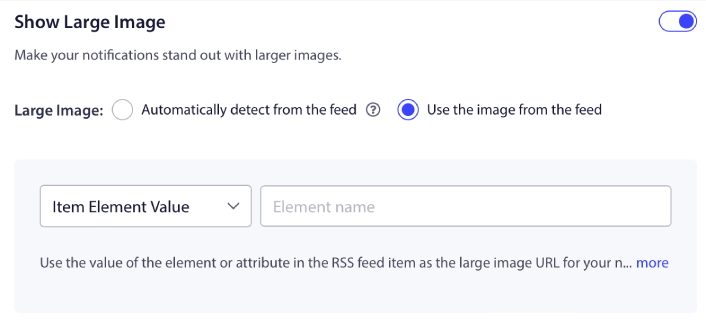
VARNING: Använd endast de avancerade alternativen för bildskrapning om du kan läsa XML i ett RSS-flöde. Om du inte är bekväm med XML bör du låta PushEngage bestämma din stora notifikationsbild åt dig och du bör manuellt ladda upp notifikationsikonen.
Ställ in RSS-notifikationsfrekvens
Du kan också ställa in kampanjfrekvensen för varje RSS-kampanj:
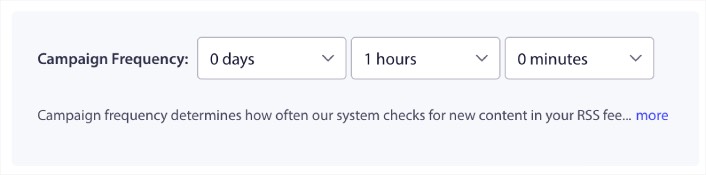
Kampanjfrekvens är hur ofta RSS-flödeskampanjen letar efter nytt innehåll på din blogg för att skicka ett automatiserat pushmeddelande. Minimivärdet är 15 minuter och maxvärdet är 7 dagar.
Vi rekommenderar att leta efter innehåll att marknadsföra ungefär varannan dag om du inte är ett nyhetsbyrå. För nyhetsbyråer bör du hålla det till 15 minuter. Tänk på att PushEngage bara kommer att leta efter nytt innehåll efter att du har ställt in och publicerat din RSS-flödeskampanj.
Ställ in varaktighet för pushmeddelanden
Push-notifikationens varaktighet är hur länge notifikationen stannar i dina prenumeranters notifikationsfönster innan den automatiskt tas bort.
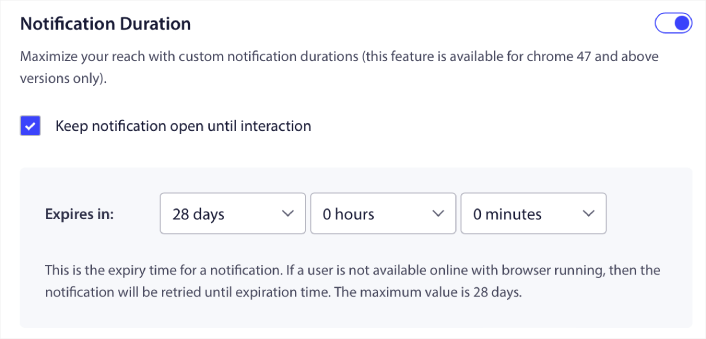
Om du inte vill överväldiga dina prenumeranter med en massa olästa notifikationer är det förmodligen bäst att låta push-notifikationerna löpa ut inom ett par dagar.
Till skillnad från sändningsnotifikationer eller till och med andra automatiserade push-notifikationer kan du inte riktigt schemalägga RSS-push-notifikationer efter tidszon eller en specifik sändningstid. Så du har alltid möjlighet att hålla notifikationen öppen tills din prenumerant interagerar med den, även inom utgångsgränsen.
Ställ in UTM-parametrar för att spåra dina notifikationer
Du kan också ställa in UTM-parametrar för att spåra push-notifikationerna:
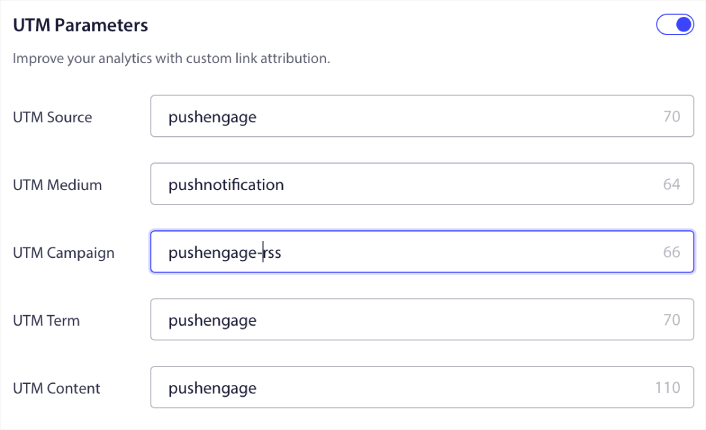
På så sätt kan du enkelt attribuera din trafik från dessa push-notifikationer i Google Analytics. Naturligtvis kan du också få detaljerad analys för hela din kampanj direkt från din PushEngage-instrumentpanel.
Rikta dig mot en specifik målgrupp
Den största uppgraderingen av RSS-push-notifikationer är din möjlighet att välja en målgrupp för att skicka riktade notifikationer. Du kan antingen skicka RSS-flödeskampanjen till alla dina prenumeranter, eller så kan du skapa målgrupper för att skicka personliga push-notifikationer även från ditt RSS-flöde.
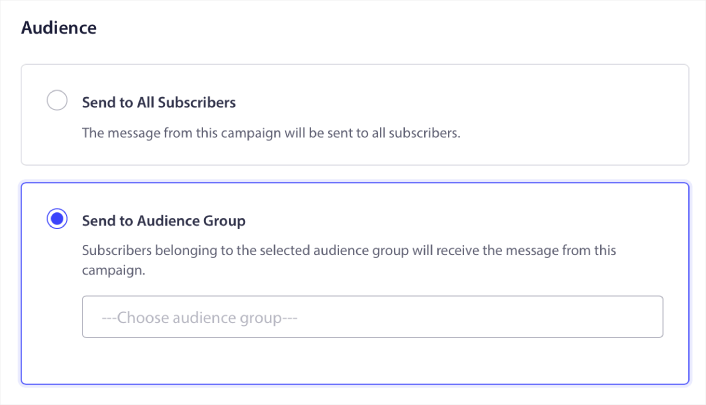
Nu kan du fortfarande skicka ut automatiserade push-notifikationer genom att ställa in dem en gång. Men det är ännu bättre eftersom du kan välja vilken typ av innehåll du vill marknadsföra till specifika målgrupper.
Vad mer?
Vi vet att det är hårt arbete att växa ett företag. På PushEngage strävar vi alltid efter att förbättra vår produkt och din upplevelse. Vi lanserade den här nya funktionen för att hjälpa dig att få ännu mer värde ur din PushEngage-prenumeration.
Tack så mycket för att du läste detta meddelande.
Om du har några frågor finns vårt Customer Success-team här för att hjälpa dig. Starta bara en konversation på Live Chat eller kolla in vår kontaktsida.
Och tack för att du använder PushEngage. Oavsett om du använder gratisversionen eller Enterprise-versionen är du lika viktig för oss. De nya RSS-autopush-funktionerna är avsedda att hjälpa dig att lyckas och vi önskar dig allt gott.
Låt oss veta dina tankar i kommentarerna nedan och om du inte redan har gjort det, kom igång med PushEngage idag!


