Это руководство поможет вам управлять несколькими пользователями в одной учетной записи. Вы можете управлять разрешениями на уровне сайта для членов вашей команды и гибко определять роли.
Прежде чем начать
Вам нужен план Premium или выше с PushEngage, чтобы добавить нескольких пользователей в свою учетную запись.
Добавление пользователей
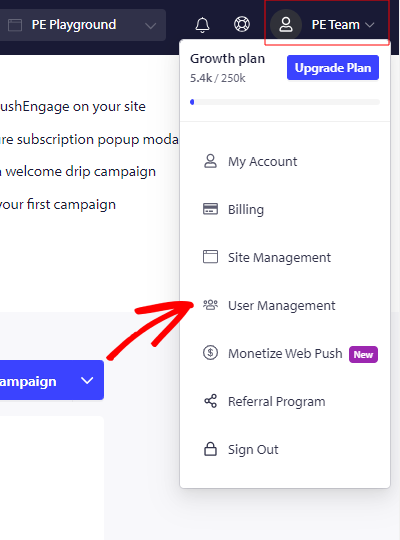
После входа в PushEngage Dashboard нажмите в правом верхнем углу, где вы видите значок профиля, а затем нажмите «Управление пользователями».
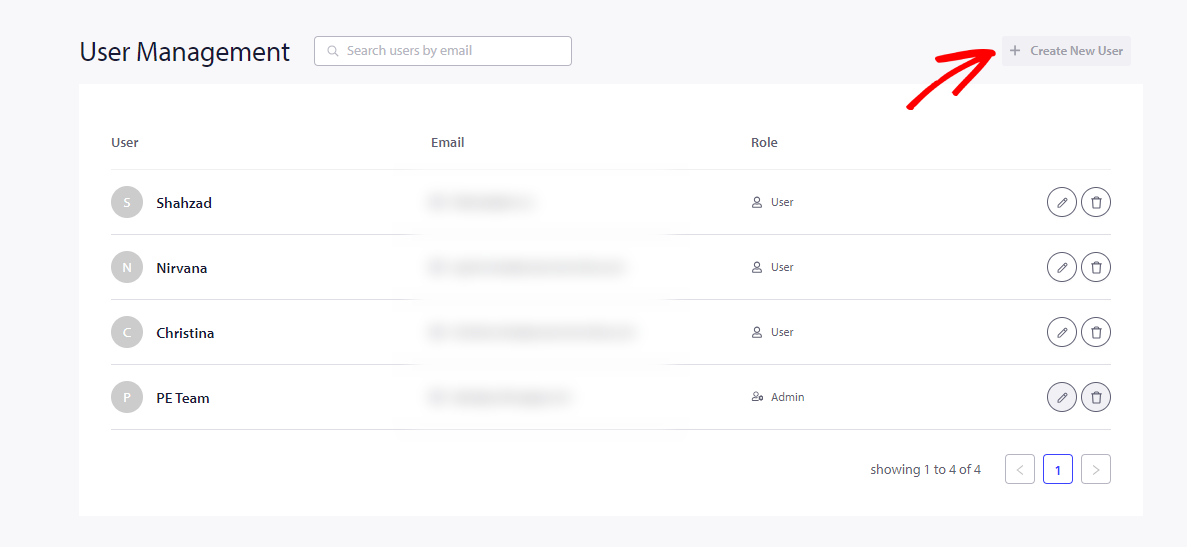
Затем вы можете нажать «Создать нового пользователя» и ввести все данные, связанные с пользователем. Вы можете выбрать переключатель, чтобы предоставить пользователю доступ пользователя/администратора.
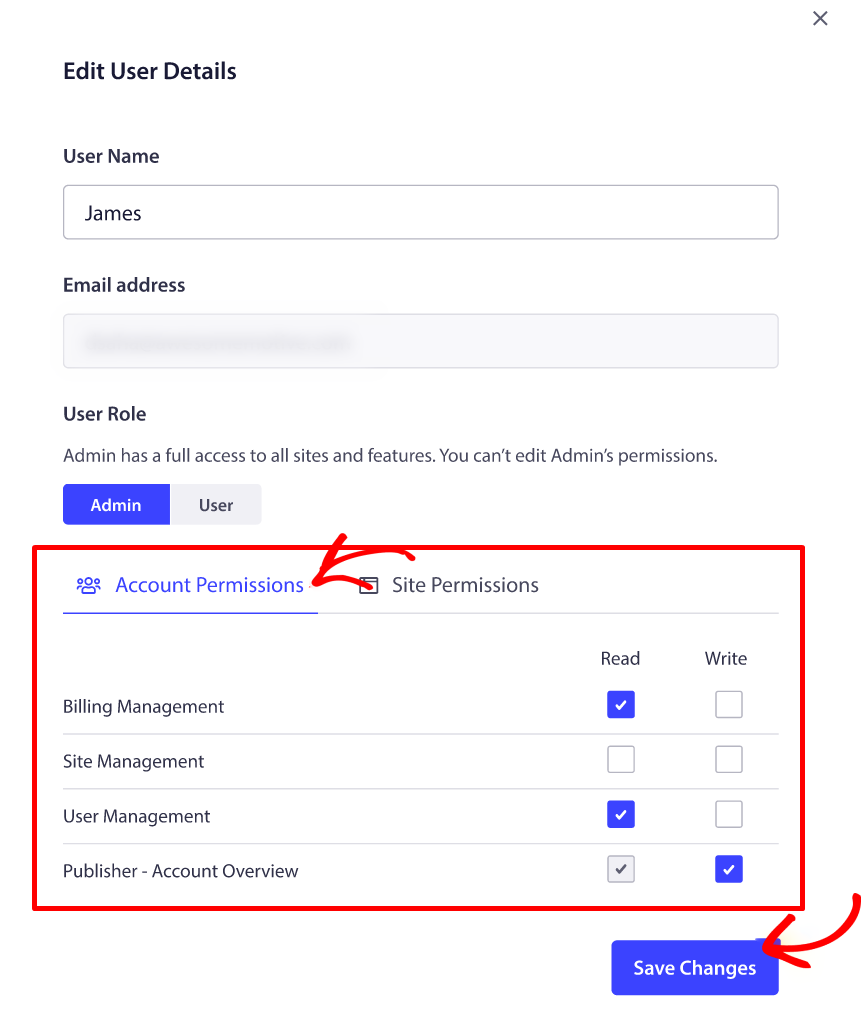
Учетная запись администратора может предоставлять доступ к сайтам и разрешения для каждой учетной записи пользователя. Роль пользователя будет иметь ограниченный доступ и разрешения.
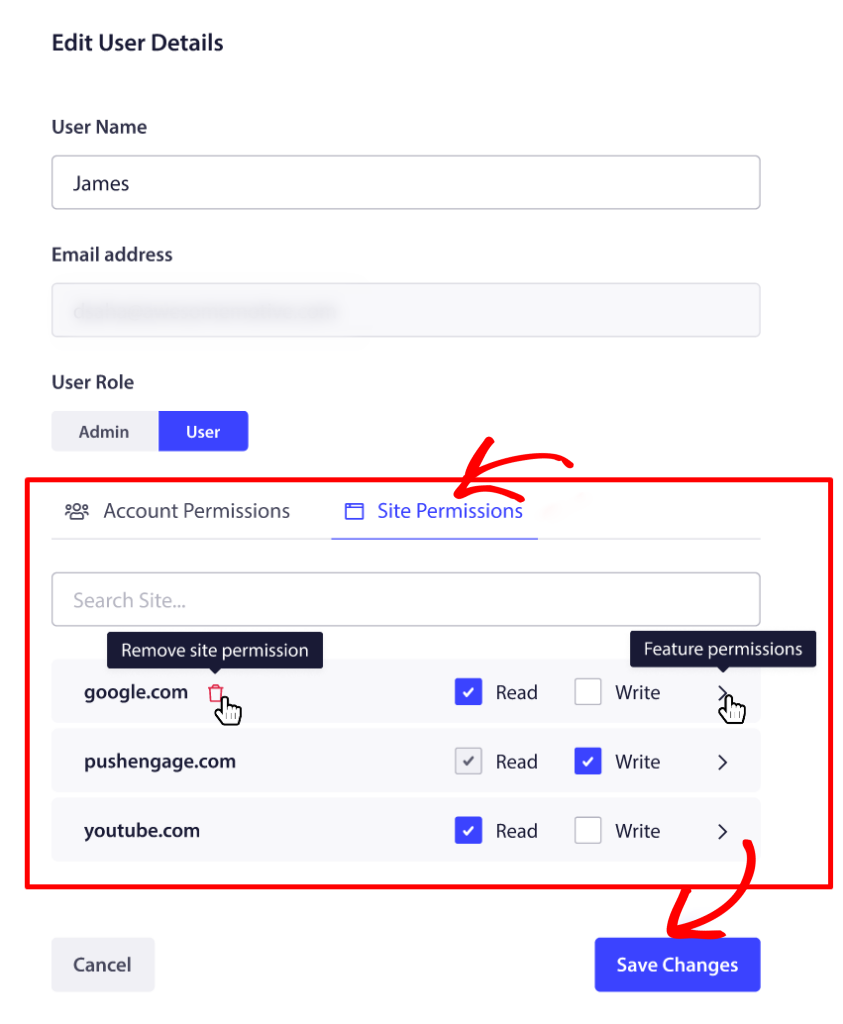
Разрешения на сайт можно предоставить из того же окна для каждого пользователя.
Редактирование или удаление пользователей
Данные пользователя можно отредактировать, нажав на значок пера, как показано ниже.
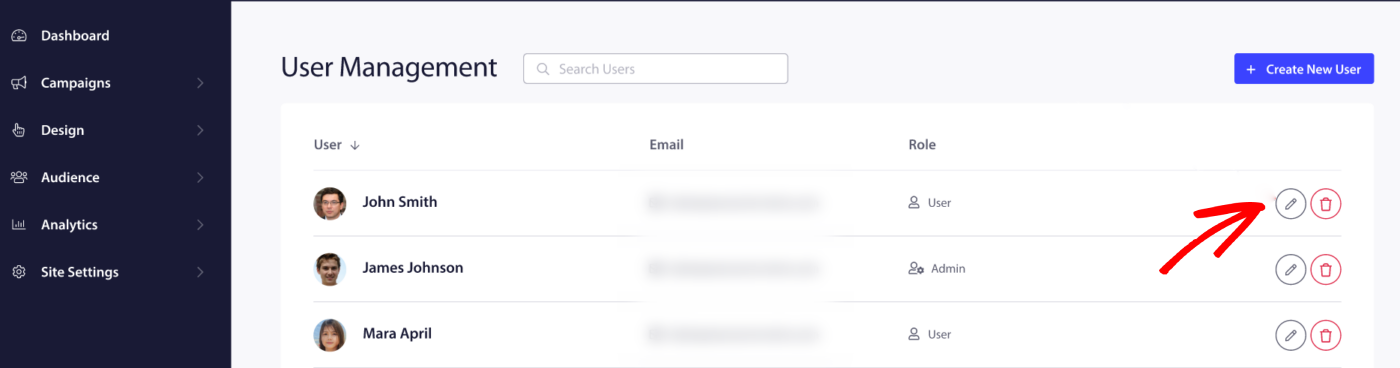
У вас также есть возможность удалить пользователя при необходимости. Вы можете сделать это, нажав на значок «Удалить» рядом с пользователем, которого хотите удалить.
Если у вас возникнут какие-либо проблемы, пожалуйста, не стесняйтесь связаться с нами , нажав здесь. Наша служба поддержки сможет вам помочь.