Det er nemt at opdatere dine faktureringsoplysninger med et andet kort på din konto for at holde dine tjenester uafbrudt. Du lærer at opdatere yderligere kreditkortoplysninger i denne artikel.
Før du starter
Hvis du abonnerede via PayPal, skal du opdatere dine faktureringsoplysninger fra din PayPal-konto. Du kan ikke opdatere faktureringsoplysninger i din PushEngage-konto, medmindre du abonnerer direkte med et kreditkort.
Tilføjelse af et andet kort
Du skal Logge ind på dit PushEngage Dashboard, gå til øverste højre hjørne og navigere til Fakturering.
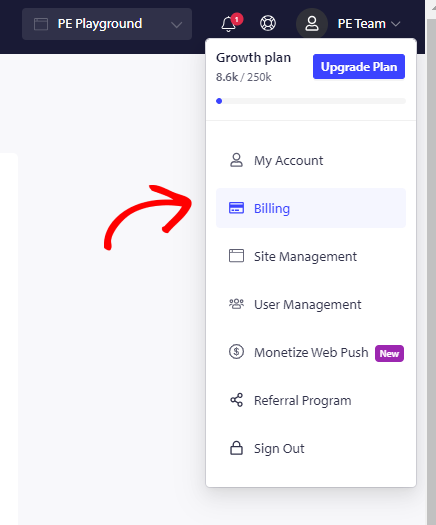
Du vil se alle detaljer om dit abonnement. Klik venligst på Opdater Plan » Gå til 'Fakturering & Betaling'.
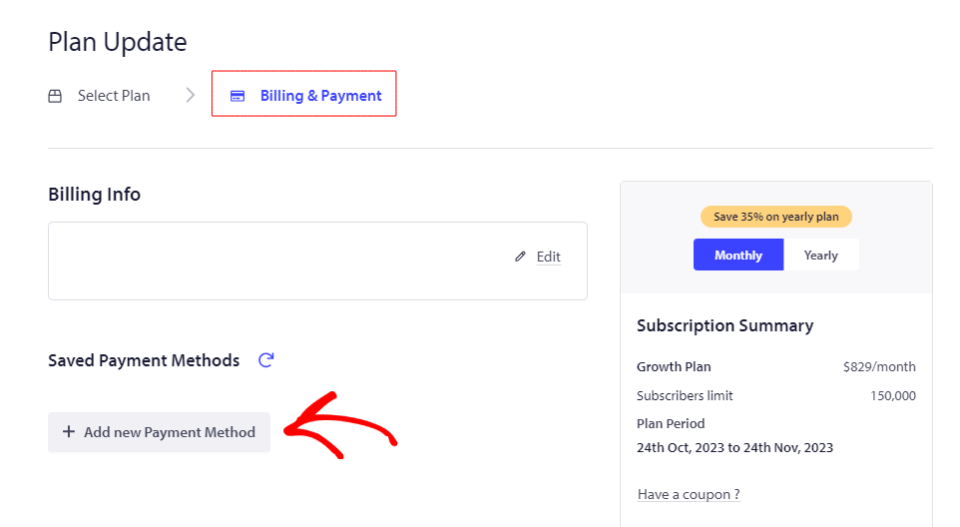
Klik på Tilføj ny betalingsmetode, og indtast dit kortnummer, datoen nævnt på kortet sammen med kortets sikkerhedskode (CVC).
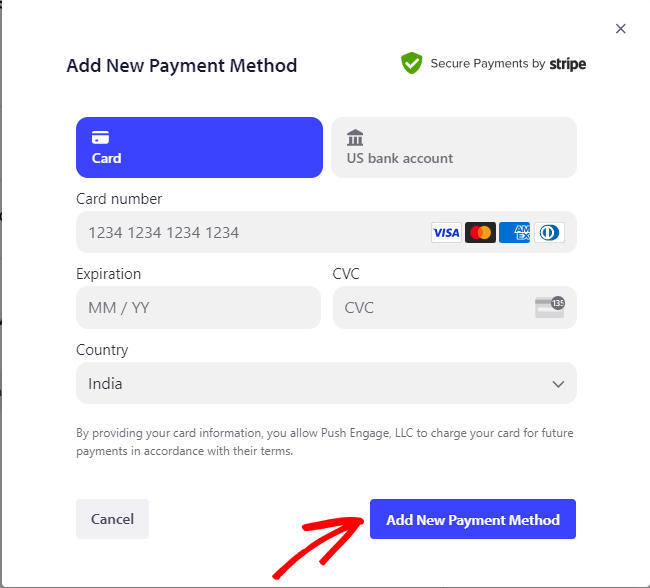
Klik på Tilføj ny betalingsmetode, når du har indtastet alle detaljer.
Dit nye kort er nu opdateret på kontoen og kan bruges til at behandle betalingen.
Bemærk: Bemærk venligst, at du skal tilføje mindst ét kort til din konto, du kan ikke fjerne alle kort fra din konto.
Hvis du støder på problemer, er du velkommen til at kontakte os ved at klikke her. Vores supportteam vil kunne hjælpe dig