
Looking for a quick and easy tutorial on how to add a tweet button to WordPress?
Click-to-tweet buttons make it easy for website visitors to share your content on Twitter. That way, you can reach your target audience with content designed to generate interest, leads, and potential customers.
In this article, we’re going to show you how to add a tweet button to WordPress step-by-step in 2 different ways.
دعنا نتعمق.
Why Add a Tweet Button to WordPress?
Twitter marketing is one of the most effective ways to bring your target audience to your website. Twitter is home to over 217 million active users. So, by adding a tweet button to your WordPress site, you can get your blog readers to share your content on Twitter. That in turn brings in more website traffic to your content.
An effective way to reach people who don’t follow you on Twitter is to add a Tweet button to your website.
When users visit your website, a tweet button will encourage them to share your content on their personal Twitter timelines. As a result, their followers will see your content and can then like, comment, and retweet it to their followers.
How to Add a Tweet Button in WordPress
Now that you know why Twitter buttons can benefit your business let’s look at how to add one to your WordPress site. There are several ways to add a click-to-tweet box or button to your website; however, some are much easier than others.
Add a WordPress Tweet Button Using a WordPress Landing Page Builder
You can use a WordPress landing page builder to directly add a WordPress tweet button. We recommend using SeedProd to create your landing pages in WordPress.

SeedProd is a visual landing page builder that helps you create landing pages that convert really well. It’s a page builder with super powerful features that work with any WordPress theme.
Also, it’s not like a child theme that only extends the theme defaults with some additional styling. SeedProd gives you a full-scale drag-and-drop page builder where you can create custom pages no matter what your theme styles are.
تشمل الميزات الشائعة:
- قوالب صفحات هبوط جاهزة تركز على التحويل
- خيارات تخصيص تصميم سهلة
- إعدادات تصميم عامة مثل لوحة العلامة التجارية وخطوط العلامة التجارية
- كتل صفحات متقدمة لدمج برامج تسويق قوية مباشرة في صفحة الهبوط الخاصة بك
- كتل WooCommerce لتخصيص جميع صفحات التجارة الإلكترونية في مسار التحويل الخاص بك
- One-click deployment for coming soon pages, Maintenance mode, login page, and 404 page
- قواعد صفحات مخصصة لتقييد الوصول إلى صفحات الهبوط الخاصة بك
- تكاملات التسويق عبر البريد الإلكتروني
- تعيين نطاق فوري لإطلاق صفحات الهبوط على أي نطاق تريده
And more! SeedProd is the #1 WordPress landing page builder in the market.
إذا كنت تبحث عن طرق لتنمية عملك أو توسيعه، فيجب عليك بالتأكيد الاستثمار في إحدى الخطط المميزة لـ SeedProd. مقابل المال، تحصل على الكثير من الميزات التي يمكن أن تساعدك في إطلاق موقع احترافي ومُحسَّن للتحويل بسرعة كبيرة.
Go ahead and install and activate the SeedProd WordPress plugin.

Then, edit any page or post using the SeedProd editor:
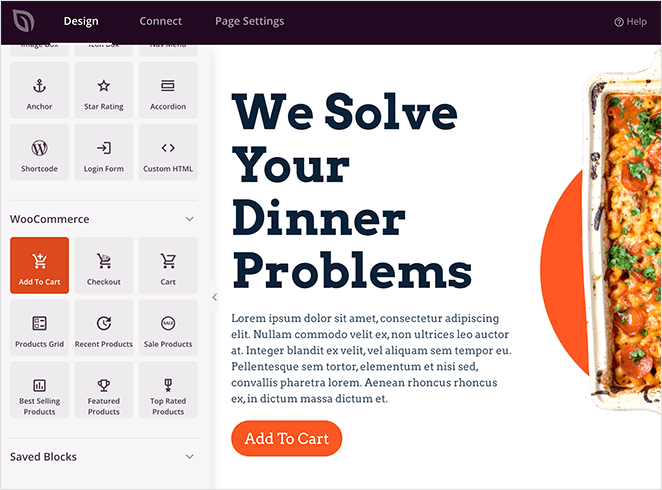
From the blocks in the left, you can drag and drop a Tweet button WordPress block anywhere on your content:
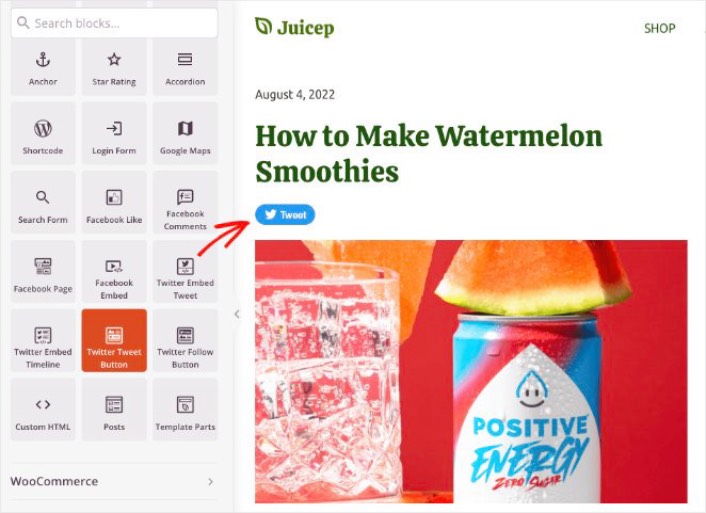
And you’re done! It’s that simple. If you followed along step by step, you can see a tweet button in your WordPress site like this one:

Add a Tweet Button to WordPress Manually
You can add a tweet button to WordPress manually. To get started, go to the Twitter Publish tool website and choose the Twitter Buttons embed type.

Next, a window will pop up asking you to choose a button type:
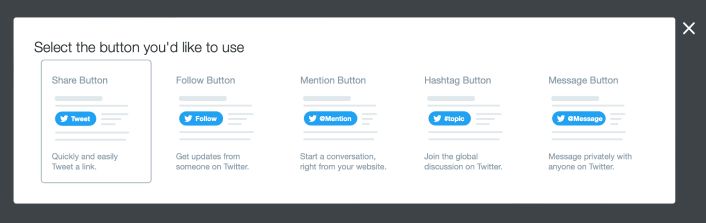
After clicking your button type, you get an embed code to create a Tweet button in WordPress:
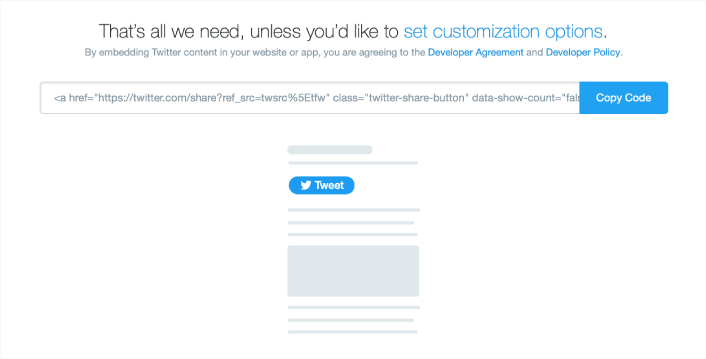
Click the button to copy the embed code, then head back to your WordPress site. You can add a Custom HTML block in your WordPress site and simply paste the tweet button code.
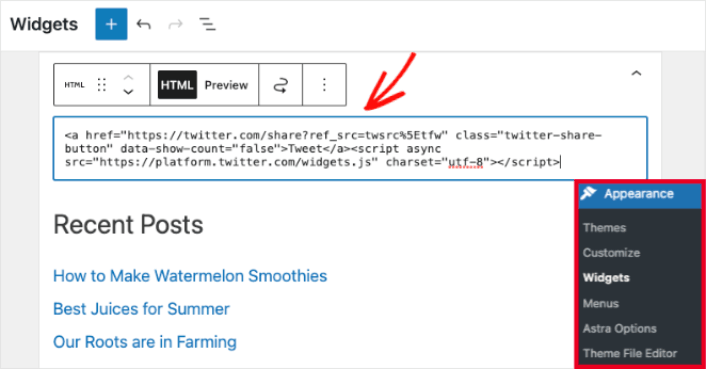
If you add the code in your sidebar widgets, it should look something like this:

And again, it’s that simple.
What to do After You Add a Tweet Button in WordPress
هذا كل شيء لهذا اليوم أيها الأصدقاء!
You should also check out how to embed Instagram photos in WordPress. And if you’re trying to grow your social media following, you should set up a viral giveaway.
After that, all that’s left is generating traffic to your site so that you can get more leads and sales. A simple way to do that is to start using push notifications. Sending push notifications is a great way to generate repeat traffic for your site. If that’s something you’re interested in, you should check out these articles as well:
- تكلفة إشعارات الدفع: هل هي مجانية حقًا؟ (تحليل الأسعار)
- كيفية الحصول على المزيد من حركة المرور إلى مدونة ووردبريس الخاصة بك (9 طرق سهلة)
- كيفية زيادة معدل الاشتراك في إشعارات الدفع على الويب (7 طرق)
- كيفية إضافة إضافة إشعارات الويب لـ WordPress إلى موقعك
نوصي باستخدام PushEngage لإرسال إشعارات الدفع الخاصة بك. PushEngage هو البرنامج رقم 1 لإشعارات الدفع في العالم. لذا، إذا لم تكن قد قمت بذلك بالفعل، ابدأ مع PushEngage اليوم.


