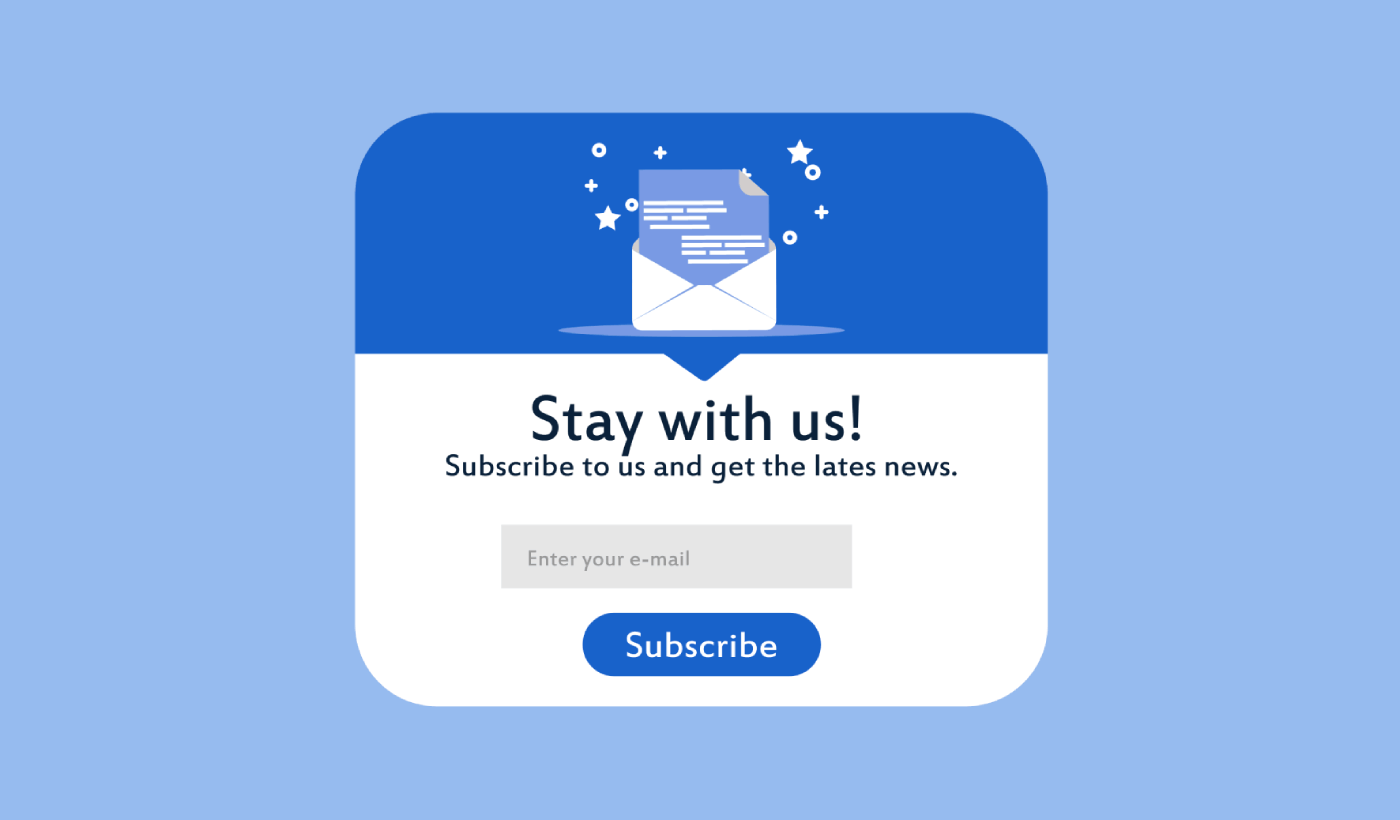
Looking for a way to create a full screen popup for your WordPress site?
A full screen popup can be incredibly effective for capturing leads. They’re designed to convince and convert by pulling the visitor’s entire focus on themselves.
But having to code one from scratch is a real pain. For one thing, you’d have to know enough HTML, CSS, and Javascript to create the popup along with trigger rules for when to show it. Then, you’d have to create a manual integration with your email service provider. And finally, you’d have to deal with any privacy and security issues.
Good news: there’s a much simpler way.
In this article, we’re going to show you how to launch a full screen popup in WordPress with zero coding in less than 10 minutes.
دعنا نتعمق.
What is a Full Screen Popup in WordPress?
A full screen popup is an opt-in form that popups up with a full screen cinematic effect. Think of it as watching a movie on Netflix in full-screen mode. When a full screen optin form pops up, you can’t see the rest of the WordPress site. This way, your entire focus is on the popup.
إليك مثال:
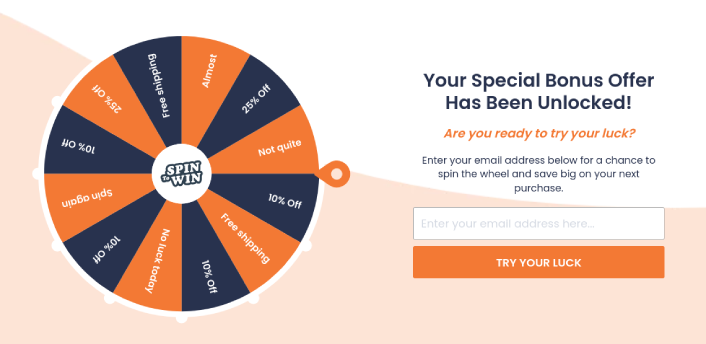
You can use full screen popups to:
- Welcome new visitors
- Offer a discount coupon
- Point visitors to their best content
- Send visitors to their social media profiles
And more. You can even create popup contact forms. Popups are super flexible and as long as you’re creative, you can set up high-converting ones easily.
How to Create a Full Screen Popup in WordPress
Now that you understand what a full screen popup is and why you’d want to create one, how do you create a full screen popup? We recommend using OptinMonster to create all your popups.
OptinMonster هي أداة التحويل رقم 1 في العالم وقد استخدمناها بأنفسنا. OptinMonster تجعل من السهل للغاية إنشاء نوافذ منبثقة قوية تحقق التحويل. ولن تحتاج أبدًا إلى استخدام أي ترميز على الإطلاق.
We even wrote a full review of OptinMonster.
You can check that out, or get started with your campaign right now. All you have to do is signup for OptinMonster and follow along with the rest of this article.
Step #1: Create a Campaign
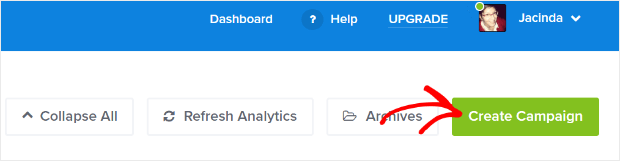
توجه إلى لوحة تحكم OptinMonster الخاصة بك واضغط على زر إنشاء:
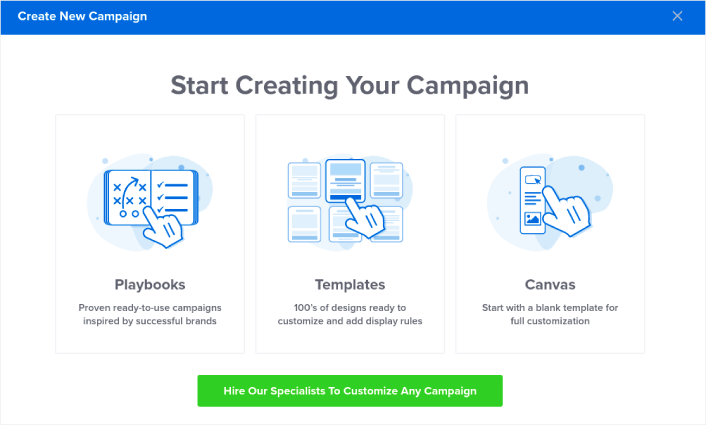
حدد خيار القالب لبدء إنشاء خيار اشتراك باستخدام قالب مصمم مسبقًا:
Select the Fullscreen to get started with full screen popup templates:
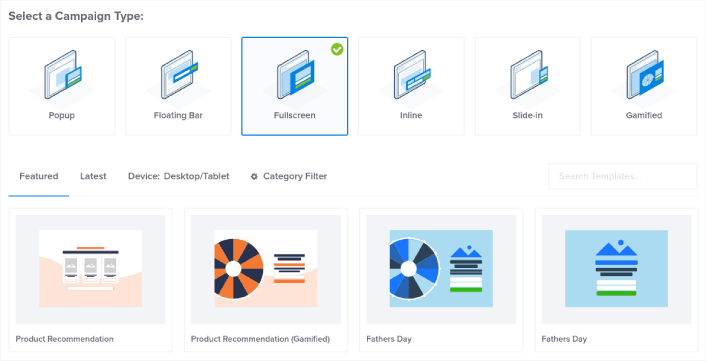
Then, choose a campaign template. You can choose whatever template you like, but we’re going with the Product Recommendation (Gamified) campaign template for this tutorial.
بعد اختيار القالب الخاص بك، قم بتسمية حملتك. تذكر، اسم الحملة هذا خاص بك ومن المحتمل أن تنشئ مجموعة كبيرة من هذه النوافذ المنبثقة بخيارات استهداف مختلفة. لذا، قم بتسمية الحملة باسم ذي معنى وإلا ستنتهي بك الأمور في ارتباك شديد لاحقًا.
Also, depending on your plan, you can also use OptinMonster on multiple sites. So, select the website where you want to display your campaign as well.
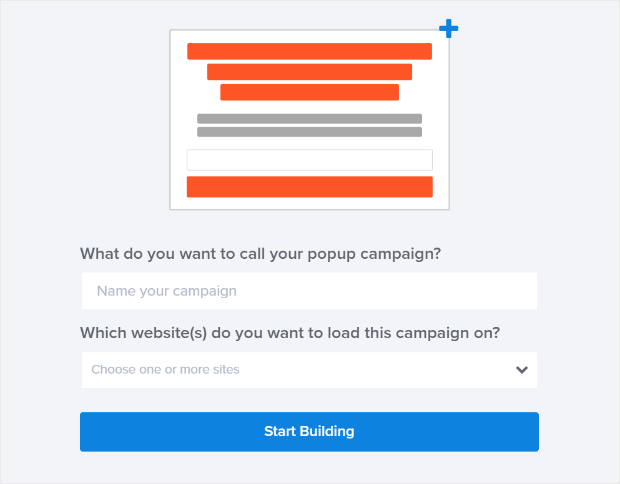
اضغط على ابدأ البناء عند الانتهاء.
Step #2: Edit Your Popup
With OptinMonster, you’ll get a visual drag and drop popup builder. Once you’re done creating your campaign, you’ll be able to edit even the tiniest details about your popup. Start by editing your popup headline:
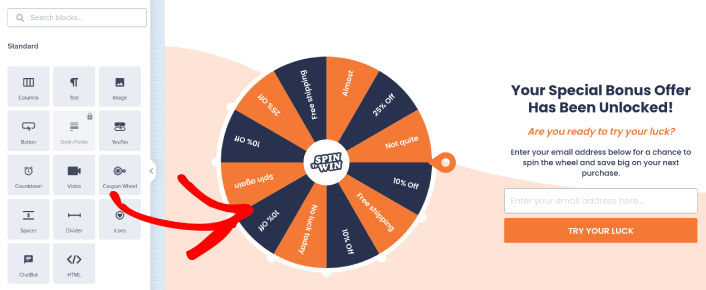
الجزء الأكثر روعة هنا هو أنك تنقر ببساطة على أي نص تريد تعديله وتغييره في مكانه. لا حاجة لملء نموذج أو تعديل أي كود HTML في النافذة المنبثقة.
You can edit everything you want about your full screen popup. When you’re happy with the optin’s appearance, you can move on to more advanced settings.
Step #3: Set Full Screen Popup Display Rules
Display rules are meant to define when your campaign shows up on your site and who sees it.
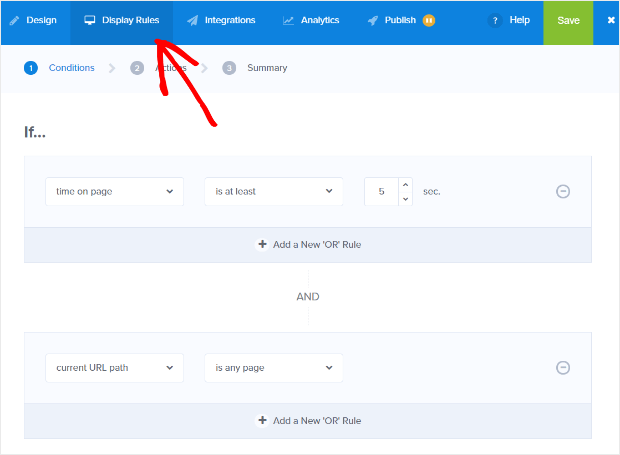
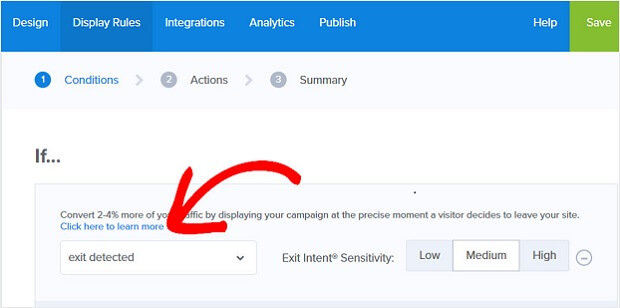
Our recommendation is that you change the trigger condition to exit-intent:
Click Next Step to choose the Action. Here, we recommend that you set Show the campaign view to Optin View, set the show with MonsterEffect to any entry animation you like, and play sound effect to any sound effect for your popup.
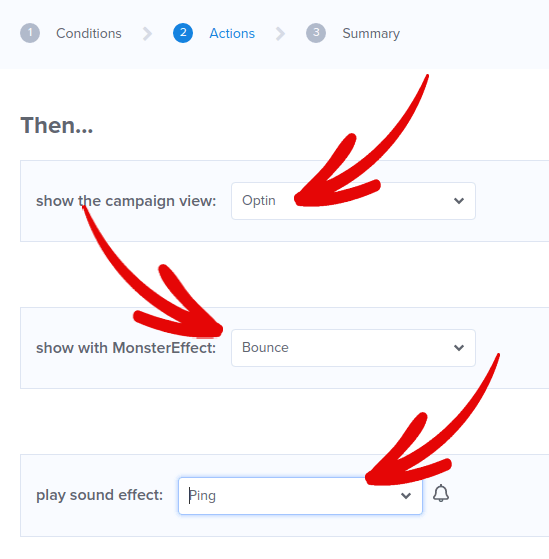
And then, click the Next Step button. You can see the full extent of your settings in the Summary tab.
الخطوة #4: إضافة زر "انقر للاشتراك" إلى النافذة المنبثقة الخاصة بك
تساعدك إشعارات الدفع على زيادة حركة مرور موقعك الإلكتروني ومشاركتك تلقائيًا. وإذا كنت تدير متجرًا عبر الإنترنت، فإن PushEngage يساعدك أيضًا على زيادة مبيعاتك من خلال مساعدتك في إنشاء إشعارات دفع آلية للتجارة الإلكترونية.
يمكنك البدء مجانًا، ولكن إذا كنت جادًا بشأن تنمية عملك، فيجب عليك شراء خطة مدفوعة. أيضًا، قبل شراء أي خدمة إشعارات دفع، يجب عليك الاطلاع على هذا الدليل حول تكاليف إشعارات الدفع.
إليك نظرة سريعة على ما تحصل عليه مع PushEngage:
- حملات آلية عالية التحويل
- خيارات استهداف وجدولة حملات متعددة
- تتبع الأهداف وتحليلات متقدمة
- اختبار A/B ذكي
- مدير نجاح مخصص
سترى أن PushEngage هو الخيار الأفضل بلا منازع إذا كنت ترغب في زيادة حركة المرور والمشاركة والمبيعات لعملك. وإذا كانت ميزانيتك محدودة، يمكنك دائمًا أن تكون مبدعًا بعض الشيء مع إشعارات الدفع الخاصة بك.
أولاً، أضف كتلة HTML إلى النافذة المنبثقة الخاصة بك من الشريط الجانبي في OptinMonster.
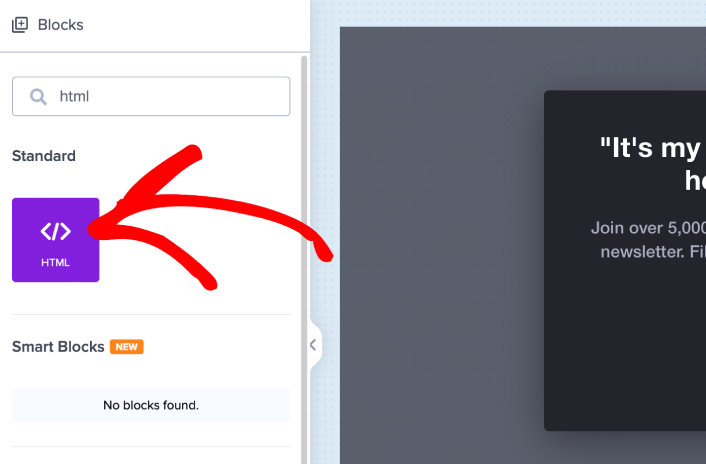
هذا هو المكان الذي سنضيف فيه الرمز لجمع مشتركين إشعارات الدفع. أولاً، الصق الرمز التالي لإنشاء زر قابل للنقر:
<button onclick="subscribeOnClickButton()" style="border: none; width: 100%; padding-left: 15%; padding-right:15%; text-align: center; display: inline-block; color: white;">Get Updates via Push Notifications</button>الصق الكود حيث يُقال لك أنه يمكنك إضافة HTML:
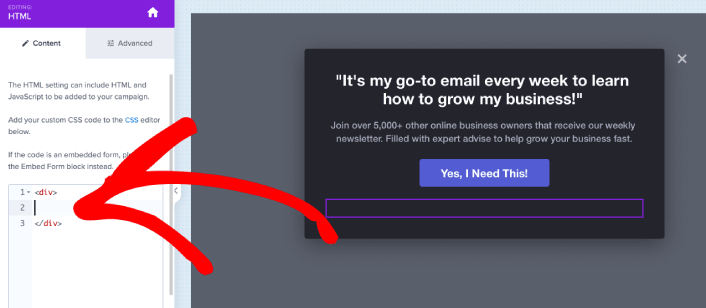
بالطبع، يمكنك اللعب بالأنماط لجعلها تبدو أكثر جاذبية. بعد ذلك، سنجعل الزر يجمع المشتركين في إشعارات الدفع عند النقر عليه.
توجه إلى الصفحة الرئيسية لـ PushEngage وانقر على زر البدء:

بعد ذلك، ستحتاج إلى تحديد الخطة المجانية لتجربة PushEngage أو اختيار خطة مدفوعة إذا كنت جادًا بشأن تنمية عملك. تأتي الخطط المدفوعة مع المزيد من خيارات الحملات والقدرة على بناء قوائم مشتركين أكبر.
في لوحة تحكم PushEngage الخاصة بك، انتقل إلى إعدادات الموقع » تفاصيل الموقع وانقر على زر انقر هنا لتعليمات الإعداد. ضمن أي موقع، ستحصل على كود التثبيت الخاص بك:

تحذير: تحتاج إلى نسخ الكود الذي تحصل عليه من لوحة التحكم الخاصة بك. الكود فريد لكل مستخدم PushEngage. لن تتمكن من نسخ الكود الموجود في الصورة وجمع المشتركين في إشعارات الدفع.
بمجرد حصولك على الرمز في لوحة تحكم PushEngage الخاصة بك، خذ النص البرمجي الثاني وأضف إليه بعض التعليمات البرمجية الإضافية. يجب أن يبدو الرمز النهائي الخاص بك شيئًا كهذا:
<script src="https://clientcdn.pushengage.com/core/02a6e92667ae2279fcba8932356c1d93.js" async></script>
<script> window._peq = window._peq || [];
function subscribeOnClickButton(){
window._peq.push(['subscribe',{}.pe,function(res){
console.log(res);
}]);
}
</script>
أضف هذا الرمز إلى كتلة HTML في OptinMonster مباشرة بعد الرمز الخاص بالزر الخاص بك وفيما بين كتلة الرمز <div></div>، وستكون قد انتهيت!
Step #5: Setup Your Email Integration
The next step is to set up your email integration. Click Add New Integration from the Integrations tab and select your email service provider:
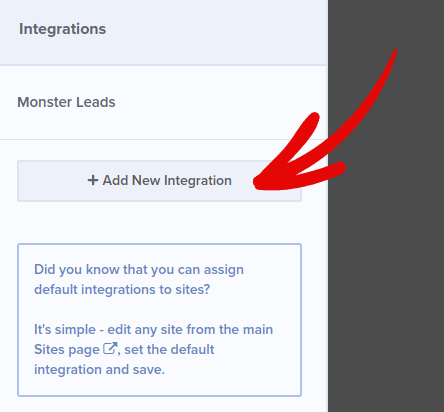
We recommend using Drip for your email marketing if you don’t already have an email service provider.
Step #6: Publish Your Full Screen Popup in WordPress
عند إنشاء حملة جديدة، تكون متوقفة مؤقتًا بشكل افتراضي.
انتقل إلى علامة التبويب نشر من القائمة العلوية لرؤية خيارات النشر. ثم، قم بتعيين الحالة إلى نشر وحدد منصة موقع الويب:
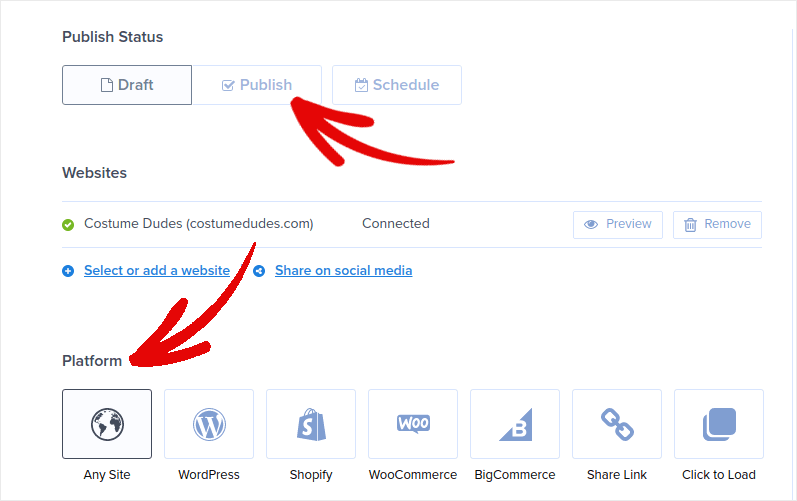
إذا كنت تدير موقع WordPress، فإن إضافة OptinMonster تقوم بالباقي تلقائيًا. الأمر نفسه ينطبق على Shopify و BigCommerce. لأي موقع آخر، انقر فوق أي موقع والصق رمز التضمين في رأس موقع الويب الخاص بك:
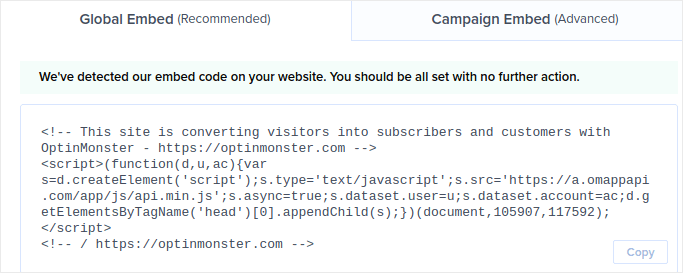
وأنت انتهيت!
What to do After Creating a Full Screen Popup in WordPress
هذا كل شيء لهذا اليوم أيها الأصدقاء!
Let us know if this article helped. Creating popups on your site can help you convert your traffic into email subscribers and genuine business leads. And we highly recommend that you start creating full screen popups right away.
وإذا كنت تبحث عن طريقة ميسورة التكلفة لزيادة زياراتك، نوصي باستخدام إشعارات الدفع. يمكن أن تساعدك إشعارات الدفع في جلب المزيد من الزيارات المتكررة وتفاعل الموقع. يمكنك أيضًا إنشاء حملات إشعارات دفع آلية تولد مبيعات.
غير مقتنع؟ تحقق من هذه الموارد:
- 7 استراتيجيات ذكية لزيادة تفاعل العملاء
- هل إشعارات الدفع فعالة؟ 7 إحصائيات + 3 نصائح خبراء
- كيفية إعداد إشعارات الدفع للسلات المتروكة (دليل سهل)
- كيفية إضافة إضافة إشعارات الويب لـ WordPress إلى موقعك
We recommend using PushEngage to create your push notification campaigns. PushEngage is the #1 push notification software in the world. So, if you haven’t already, get started with PushEngage today!


