
Looking for a quick and easy way to create the most high-converting squeeze page WordPress has to offer?
Creating a squeeze page is the best way to build an email list to promote your business and sell your products. But what if you’ve never designed a web page before? What if you have no coding experience and you don’t know how to add custom functionality to your pages?
Fortunately, there’s an easy way to create a squeeze page in WordPress. In this article, we’re going to help you launch a squeeze page in less than 15 minutes.
هل أنت مستعد؟ دعنا نبدأ.
What’s a Squeeze Page and Why Should You Care?
A squeeze page is a fully customizable web page that’s focused on selling a product or a service to your website visitors. Unlike a social media site or a marketplace like Amazon or Etsy, your squeeze page focuses on exclusively getting your visitors to give up their email addresses. Even better, it doesn’t showcase all your competitors in the same web page!
Every squeeze page is designed to convince and convert website visitors into paying customers. Depending on how much time you have, your business model, and how much money you’re expecting to make from your subscribers, you could:
- تقديم خصومات وعروض
- استضافة هبة
- إنشاء دليل مجاني أو قائمة مرجعية كـ مغناطيس للعملاء المحتملين
- قبول التبرعات من المعجبين
وأكثر من ذلك بكثير!
ولكن قبل أن تبدأ، تذكر أن يكون لديك هدف واضح ومحدد جدًا لصفحة الهبوط الخاصة بك. لمجرد أنه يمكنك القيام بالكثير من الأشياء لا يعني أنه يجب عليك القيام بها جميعًا في صفحة واحدة. في كثير من الأحيان، إذا أعطيت زوارك الكثير من الأشياء للنقر عليها، فلن ينقروا على أي شيء على الإطلاق.
What do All Successful Squeeze Pages Have?
Now that you know what a squeeze page in WordPress does and why you should build one, it’s time to create a blueprint for your landing page. If you check out any successful landing pages, you’ll notice that they all have some very basic common elements:
- العنوان الرئيسي: العنوان الرئيسي هو المكان الذي تجذب فيه انتباه الناس وتجعلهم يرغبون في التمرير لأسفل ومعرفة المزيد عنك.
- Description: Just below the headline, you should have a description of what your viewers should expect from the rest of the page. This is a great place to convince readers to buy your product as well.
- أحدث الحلقات: بمجرد أن يعرف الناس ما يمكن توقعه من علامتك التجارية، امنحهم لمحة عن برنامجك عن طريق سرد أحدث حلقاتك. نوصي بعرض 3-5 حلقات على الأكثر.
- Buy button: Follow up with a purchase button so that your visitors can directly add your product to cart. This is known as the call to action (CTA) button. It’s how you nudge your visitors to take action on your page. Depending on your goal for the landing page, your CTA will vary.
- الدليل الاجتماعي: طريقة رائعة لمنح القراء سببًا قويًا للاشتراك هي تقديم دليل اجتماعي. يخبر الدليل الاجتماعي زوارك ببساطة أن هناك أشخاصًا آخرين يتخذون بالفعل نفس الإجراء الذي تريد منهم اتخاذه.
- الاشتراك في النشرة الإخبارية: بمجرد أن تعرض على زوارك العرض الأساسي، يمكنك أيضًا أن تطلب منهم أن يصبحوا مشتركين عبر البريد الإلكتروني. يمكنك أيضًا أن تطلب منهم أن يصبحوا مشتركين في الإشعارات الفورية باستخدام زر النقر للاشتراك. من الأفضل دائمًا إذا قدمت شيئًا ذا قيمة في المقابل.
- أزرار المشاركة الاجتماعية: كلما تحدث المزيد من الأشخاص عنك على وسائل التواصل الاجتماعي، زادت فرصك في زيادة عدد المشتركين لديك بشكل كبير. لذا، ضع أزرار المشاركة الاجتماعية على صفحة الهبوط الخاصة بك لتشجيع الأشخاص على مشاركتها على وسائل التواصل الاجتماعي.
Here’s a sneak peek at the WordPress squeeze page we’ll be creating in our tutorial.
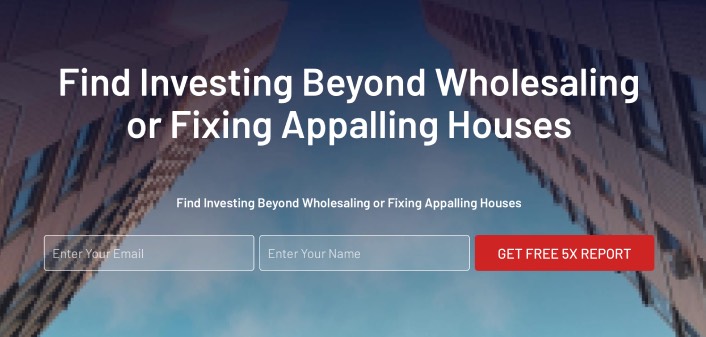
تذكر، هذه هي الأجزاء الأساسية فقط لأي صفحة هبوط ناجحة. بالنسبة لصفحتك، يمكنك إضافة العديد من الأقسام الأخرى وإنشاء عروض مخصصة لزيادة تحويلاتك.
How to Create a Squeeze Page in WordPress
Now that you know what to create, it’s time to launch your squeeze page in WordPress. We highly recommend using SeedProd to create your landing pages.

SeedProd هو أفضل منشئ صفحات هبوط لووردبريس. إنه مثالي للشركات والمدونين وأصحاب المواقع الذين يتطلعون إلى بناء صفحات هبوط عالية التحويل دون أي مهارات تطوير.
With SeedPreed, you get pre-built templates for high-converting landing pages that you can publish instantly. This includes templates for:
- صفحات المبيعات
- صفحات قريباً
- صفحات 404
- صفحات الصيانة
- صفحات الضغط
- صفحات تسجيل الدخول
- صفحات الشكر
- صفحات الندوات عبر الإنترنت
- صفحات الفيديو
وغيرها الكثير!
الخطوة #1: تثبيت وتفعيل SeedProd
أولاً، ستحتاج إلى الحصول على إضافة SeedProd Pro وتفعيلها. إذا لم تكن متأكدًا من كيفية القيام بذلك، فراجع هذه المقالة حول كيفية تثبيت إضافة ووردبريس. بعد ذلك، انتقل إلى SeedProd » Settings في لوحة تحكم ووردبريس الخاصة بك وقم بتفعيل الإصدار الاحترافي:

بعد ذلك، انتقل إلى SeedProd » Pages للحصول على نظرة عامة على لوحة تحكم صفحات الهبوط في SeedProd. هذا هو المكان الذي يمكنك فيه رؤية الأنواع المختلفة من صفحات الهبوط التي يمكنك إنشاؤها باستخدام SeedProd:

Keep in mind that these are all special pages with pre-built functionality and design templates. For a squeeze landing page, you don’t want to use ANY of these special landing pages. Instead, you’re going to create a custom landing page.
مرر لأسفل وانقر على زر إضافة صفحة هبوط جديدة للبدء:

Step #2: Create a New Squeeze Page in WordPress
بعد النقر على زر إضافة صفحة هبوط جديدة، سترى مكتبة SeedProd لقوالب صفحات الهبوط. هذه قوالب صفحات هبوط مصممة باحترافية ومتجاوبة بالكامل.
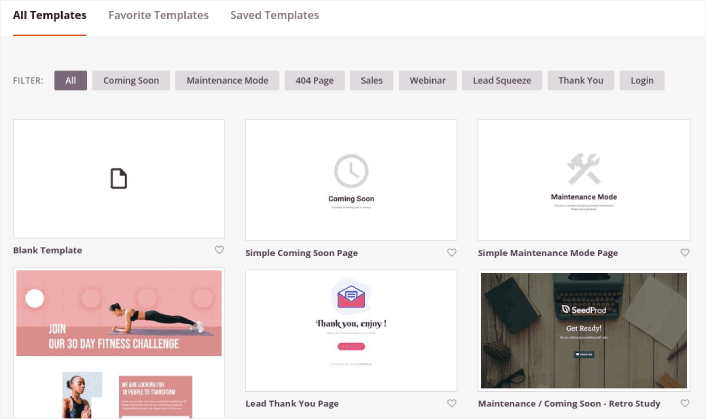
Next, you can select one of these templates to help you get started. Remember, the template is just a starting point. you can customize everything about the page later on. For now, find a template that you think will fit. When the templates page opens, you can click Squeeze Page to filter the list:
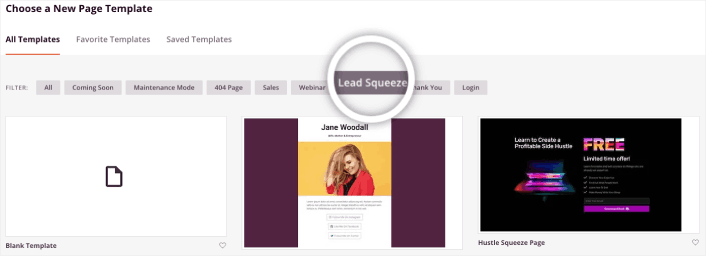
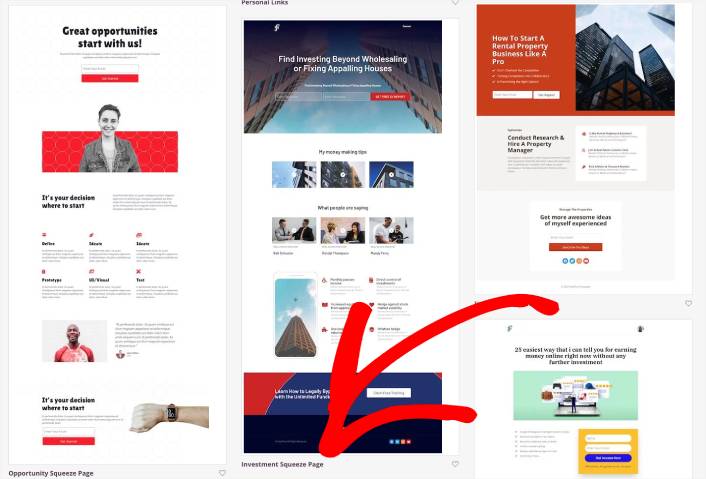
For this guide, we’ll select the Investment Squeeze Page.
A squeeze page has only one objective. It’s to “squeeze” you just enough to get your email address. Know anyone in the investment and personal finance space? Yeah, they can squeeze for sure!
Go ahead and click on it now.
Next, we’re going to customize the landing page.
الخطوة رقم 3: تخصيص تصميم صفحة الهبوط الخاصة بك
يتيح لك منشئ SeedProd المرئي تخصيص صفحة الهبوط الخاصة بك باستخدام كتل محتوى بالسحب والإفلات.
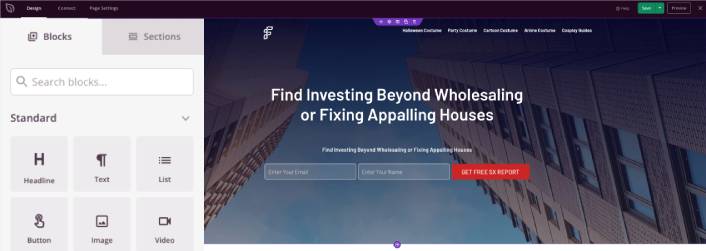
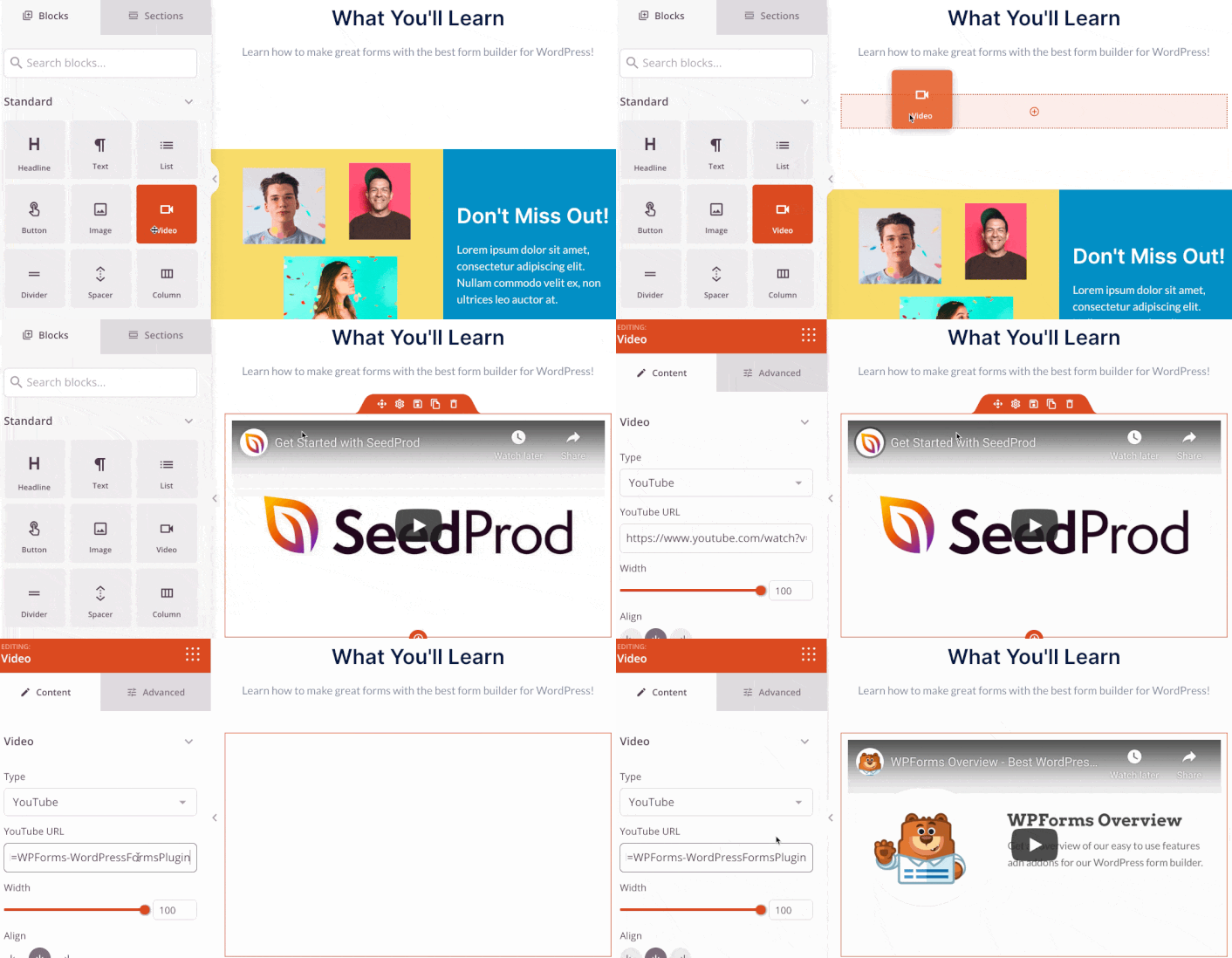
You can create a fully customized header for your landing page in a matter of minutes. You can even add custom elements to convince and convert your traffic. For instance, you can create a video module and embed a YouTube video to convince your visitors to buy your product or service.
It’s also super easy to add a section with a brief description of your product or service . Head over to the Sections tab in the visual builder and under the Hero section, you’ll find several pre-built templates that you can import with a single click.
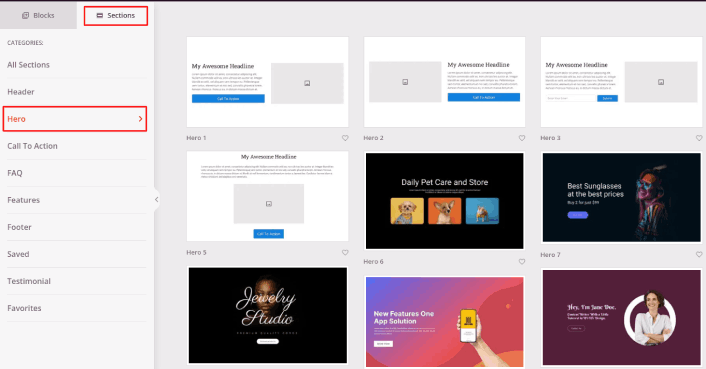
Go ahead and select one that you like.
Don’t worry about the colors or the content. You can edit all of it. What you should look for is a layout that goes well with your template.
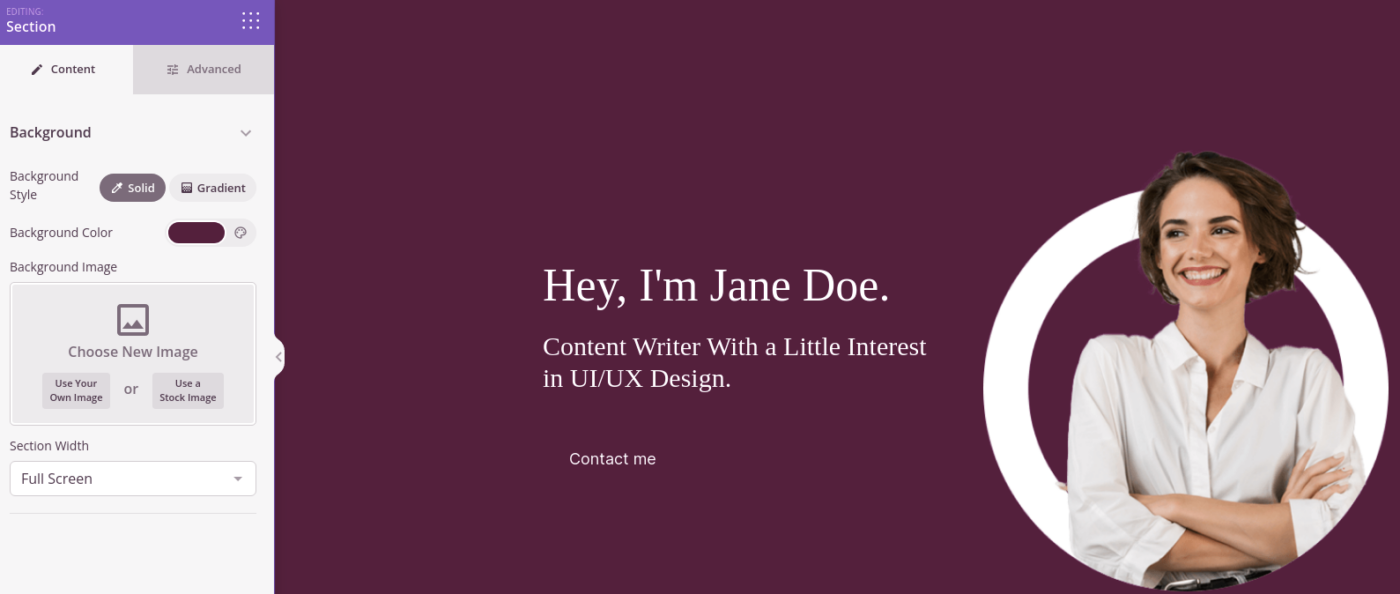
You can customize the hero section the same way we did earlier by choosing a different image and changing the headline and description. While you’re at it, add a call-to-action button that nudges visitors to buy from you.
بعد ذلك، من علامة التبويب الأقسام، حدد عنوان الشهادات، واختر تصميمًا يعجبك. وبهذه البساطة، لديك قسم شهادات في صفحة الهبوط الخاصة بك.
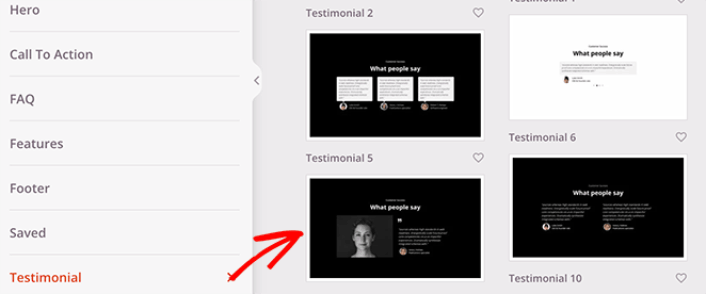
إنه بسيط للغاية!
Step #4: Add a Click to Subscribe Button to Your Squeeze Page
يمكنك أيضًا إضافة زر انقر للاشتراك لجمع مشتركين في الإشعارات الفورية. تعد الإشعارات الفورية طريقة رائعة لزيادة حركة المرور المتكررة، والحصول على المزيد من التفاعل، وحتى بيع البضائع الرسمية إذا كان لديك بعض منها.
في SeedProd، قم فقط بسحب وإفلات وحدة HTML المخصصة من الشريط الجانبي.
لقد وضعنا زر الاشتراك مباشرة أسفل نموذج الاشتراك عبر البريد الإلكتروني في الطية الأولى.
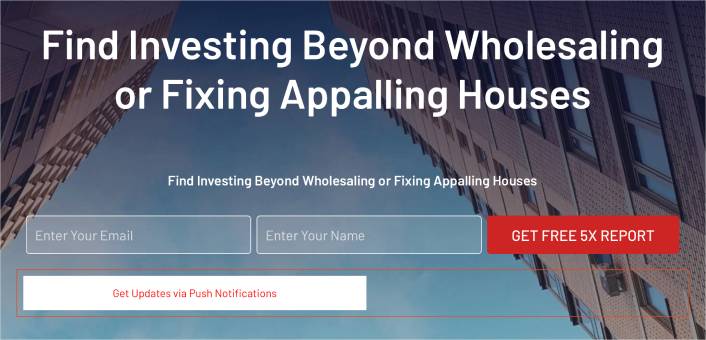
ولكن يمكنك إدراج الزر في أي مكان تريده.
لهذا الجزء، تحتاج إلى بعض الخبرة في HTML و CSS. أو، يمكنك نسخ هذا الكود ولصقه في كتلة HTML المخصصة الخاصة بك:
<button onclick="subscribeOnClickButton()" style="border: none; padding-left: 5%; padding-right:5%; text-align: center; display: inline-block; color: blue;">Get Updates via Push Notifications</button>هذا زر قياسي في HTML مع القليل جدًا من التنسيق. الشيء الوحيد المميز هو وظيفة onclick في الكود. هذا يعني بشكل أساسي أنه يمكن لزوارك النقر على الزر للاشتراك في شيء ما. الآن، نحتاج إلى إضافة بعض الأكواد الإضافية للزر للسماح لزوارك بالاشتراك في إشعارات الدفع.
توجه إلى الصفحة الرئيسية لـ PushEngage وانقر على زر البدء:

بعد ذلك، ستحتاج إلى تحديد الخطة المجانية لتجربة PushEngage أو اختيار خطة مدفوعة إذا كنت جادًا بشأن تنمية عملك. تأتي الخطط المدفوعة مع المزيد من خيارات الحملات والقدرة على بناء قوائم مشتركين أكبر.
في لوحة تحكم PushEngage الخاصة بك، انتقل إلى إعدادات الموقع » تفاصيل الموقع وانقر على زر انقر هنا لتعليمات الإعداد. ضمن أي موقع، ستحصل على كود التثبيت الخاص بك:

تحذير: تحتاج إلى نسخ الكود الذي تحصل عليه من لوحة التحكم الخاصة بك. الكود فريد لكل مستخدم PushEngage. لن تتمكن من نسخ الكود الموجود في الصورة وجمع المشتركين في إشعارات الدفع.
بمجرد حصولك على الكود في لوحة تحكم PushEngage الخاصة بك، أضف هذا المقتطف إلى الكود الخاص بك:
<script> window._peq = window._peq || [];</script> <script>
function subscribeOnClickButton(){
window._peq.push(['subscribe',{}.pe,function(res){
if(res.statuscode==1)
{
// Code to return response
console.log(res);
}
}]);
}
</script>
يجب أن يبدو الكود النهائي الخاص بك شيئًا كهذا:
<script src="https://clientcdn.pushengage.com/core/02a6e92667ae2279fcba8932356c1d93.js" async></script>
<script> window._peq = window._peq || [];</script> <script>
function subscribeOnClickButton(){
window._peq.push(['subscribe',{}.pe,function(res){
if(res.statuscode==1)
{
// Code to return response
console.log(res);
}
}]);
}
</script>
ستحتاج إلى إضافة هذا الكود إلى كتلة HTML في صفحة الهبوط الخاصة بك بعد الكود الخاص بالزر. يجب أن يبدو شيئًا كهذا:

Feel free to customize the styles for the button any way you please. When you’re done customizing your squeeze page, go ahead and hit the Save button.
Step #4: Configure Your Page Settings
After you’re done designing your squeeze page, click the Connect tab at the top of your page builder, and select your email marketing provider to collect leads on your site.

بعد ذلك، انقر فوق علامة التبويب إعدادات الصفحة في أعلى شاشتك.

Here, you can add an SEO plugin and a Google Analytics plugin to your squeeze page. You can even set up custom tracking codes such as a Facebook Pixel or a Pinterest pixel to track ad performance.
Step #5: Publish Your Squeeze Page in WordPress
Now let’s go ahead and publish your design. To do this, click the dropdown arrow next to the save button and click Publish.
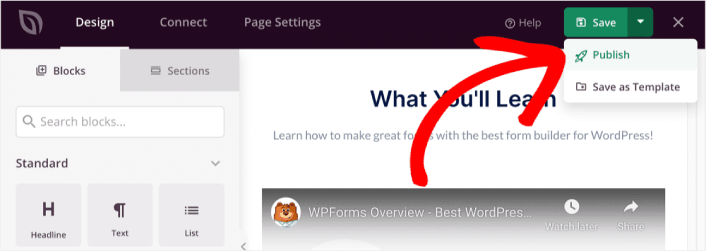
يمكنك بعد ذلك النقر فوق زر عرض الصفحة المباشرة لرؤية كيف تبدو.
Congratulations! You just published your very first squeeze page.
What to do After You Build a Squeeze Page
Now that your squeeze page is live, it’s time to work on your traffic, engagement, and sales. You should try using push notifications on your site. Push notifications are a great marketing tool that can help you grow your business.
ألقِ نظرة على هذه الموارد الرائعة وستعرف ما نعنيه:
- 7 استراتيجيات ذكية لزيادة تفاعل العملاء
- هل إشعارات الدفع فعالة؟ 7 إحصائيات + 3 نصائح خبراء
- كيفية إعداد إشعارات الدفع للسلات المتروكة (دليل سهل)
نوصي باستخدام PushEngage لإنشاء حملات إشعارات الدفع الخاصة بك. PushEngage هو البرنامج رقم 1 لإشعارات الدفع في العالم. لذا، إذا لم تكن قد قمت بذلك بالفعل، ابدأ مع PushEngage اليوم!


