
Sitenize WordPress Açık Grafik meta etiketleri eklemek için basit bir öğretici mi arıyorsunuz?
Açık Grafik, Facebook gönderilerinizde veya sayfalarınızda paylaştığınızda Facebook'un meta verileri nasıl işlediğidir. Facebook'un yalnızca URL'den öne çıkan resmi ve meta açıklamayı otomatik olarak nasıl çektiğidir.
Ancak bunu sitenize manuel olarak eklemek gerçek bir baş belası olabilir.
Birincisi, Açık Grafik yapılandırılmış verilerinin nasıl yazıldığını öğrenmeniz gerekecek. Ardından, bunu WordPress tema dosyalarınıza eklemeniz gerekecek. Ve bu çok riskli. Tüm sitenizin düzgün çalışmasına yardımcı olan dosyaları düzenlemeniz gerekecek. Yerinden oynayan tek bir satır tüm sitenizi çökertir.
Bu makalede, kodlama gerektirmeden WordPress Açık Grafik meta etiketlerini kolay yoldan ekleyeceğiz.
Hadi başlayalım.
Adım #1: All in One SEO'yu Yükleyin
All in One SEO, dünyanın 1 numaralı WordPress SEO eklentisidir. Sitenize kodlama yapmadan WordPress Açık Grafik meta etiketleri eklemek için mükemmel bir eklentidir.

All in One SEO (AIOSEO), WordPress topluluğundaki en beğenilen SEO eklentilerinden biridir. Orijinal sürüm, bir sürü yeni özellik ve eklenti eklemek için tamamen yeniden düzenlendi. Bu nedenle, geçmişte AIOSEO kullandıysanız, eklentiyi bir kez daha kontrol etmeniz gerekir.
AIOSEO, en son SEO en iyi uygulamalarını uygulamak için yeterince güçlü olmakla kalmaz, aynı zamanda belirli SEO sorunlarını kutudan çıkar çıkmaz çözmek için gelişmiş seçenekler de elde edersiniz. Buna şunlar dahildir:
- Yerel bir kitleye sahip küçük işletmeler için Yerel SEO modülleri
- Çevrimiçi mağazalar için WooCommerce SEO
- WordPress düzenleyiciniz içinde bir SEO iyileştirici
- Arama Motorlarında anında indeksleme için Akıllı Site Haritaları
- İçeriğinizin Zengin Snippet'lerde sıralanmasını sağlamak için bir Schema eklentisi
Ve daha fazlası! All in One SEO'nun tüm özelliklerini görmek için eklenti incelememize göz atın.
Yapmanız gereken ilk şey All in One SEO eklentisini yüklemek ve etkinleştirmektir. Bunu nasıl yapacağınızdan emin değilseniz, WordPress eklentileri nasıl yüklenir hakkındaki bu kılavuza göz atmalısınız.
Eklentiyi indirdikten ve yükledikten sonra, bir Kurulum Sihirbazı alırsınız:
Ve kurulum süreci 10 dakikadan az sürecektir.
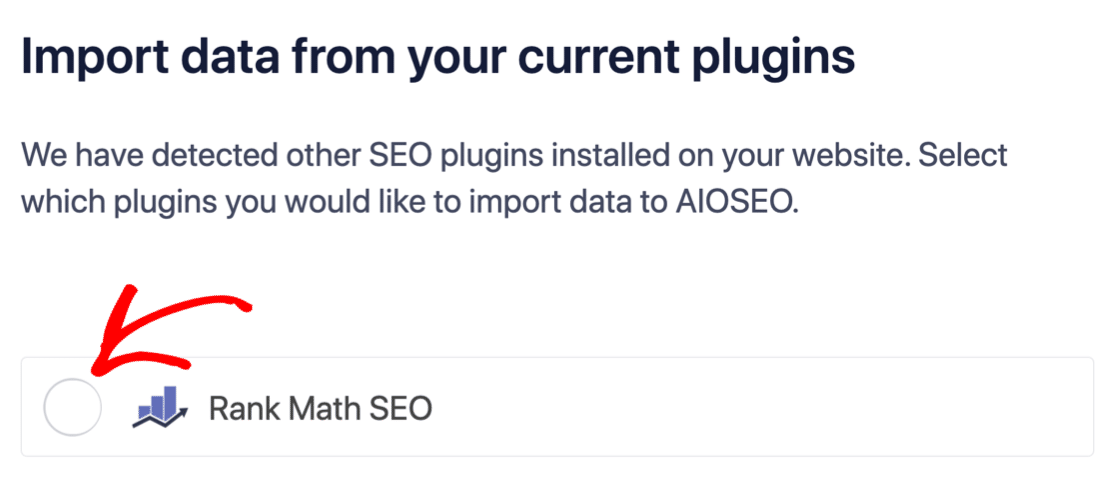
Peki ya başka bir SEO eklentisinden geçiş yapıyorsanız? Her eklenti meta verileri farklı şekilde işler. Yani, her şeyi sıfırdan mı yapmanız gerekiyor? Önceki tüm çabalarınız boşa mı gitti?
Hayır! Hepsi Bir Arada SEO, Kurulum Sihirbazı sırasında başka bir SEO eklentisi algılarsa, temel ayarları sizin için kopyalamayı teklif edecektir:
Kurulumun sonunda, Kurulum Sihirbazı sizden eski SEO eklentinizi de devre dışı bırakmanızı isteyecektir. Bu şekilde, eklenti çakışmaları ve hataları olmaz:
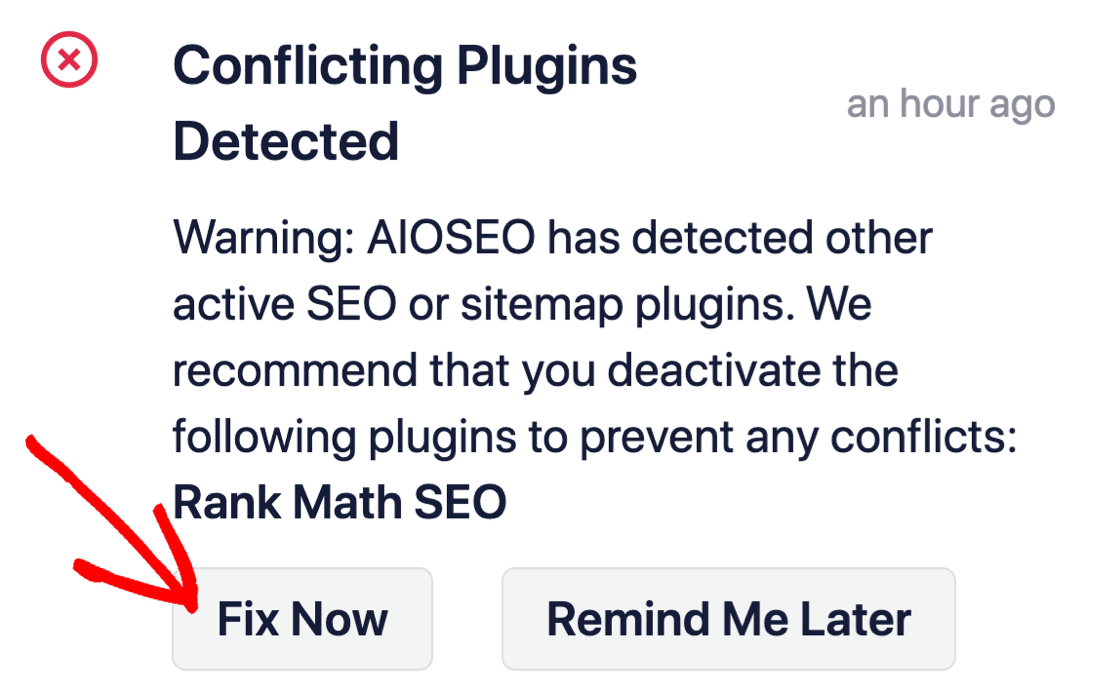
Şimdi Düzelt'e tıklamak, eski SEO eklentinizdeki ayarları silmez. Yalnızca çakışmaları önlemek için eklentiyi devre dışı bırakır.
Adım #2: Sosyal Medya Ayarlarını Yapılandırın
WordPress kontrol panelinizde All in One SEO » Sosyal Ağlar » Sosyal Profiller bölümüne gidin ve sitenize sosyal profillerinizi ekleyin:
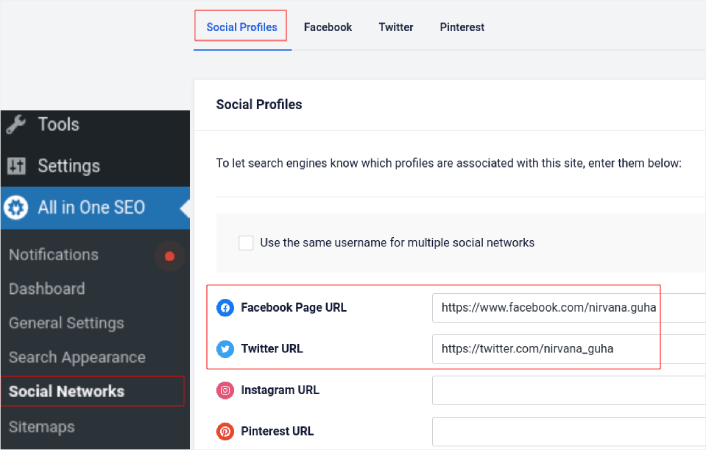
Bu adım, Google ve Bing gibi arama motorlarının sitenizle hangi sosyal medya profillerinin ilişkili olduğunu bilmesini sağlar. Aynı zamanda, bu sosyal medya paylaşım ayarlarınızda da size yardımcı olur. Bu da sırada.
Adım #3: Facebook Genel Ayarlarını Düzenleyin
All in One SEO » Sosyal Ağlar bölümüne gidin ve Facebook sekmesine tıklayın. Burada, Genel Facebook Ayarlarınızı yapılandırabilirsiniz:
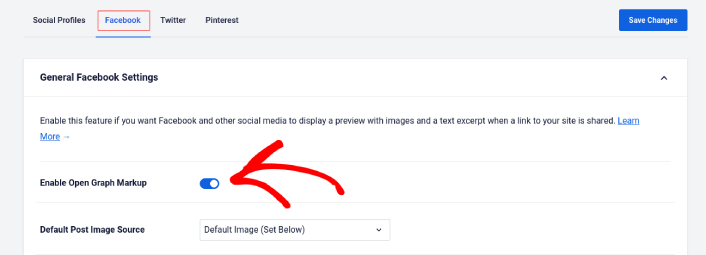
Etkinleştirmek için Açık Grafik İşaretlemesini Etkinleştir düğmesini açın.
Burada, Varsayılan Gönderi Görüntüsü Kaynağını ve Varsayılan Gönderi Facebook Görüntüsünü ayarlayabilirsiniz:
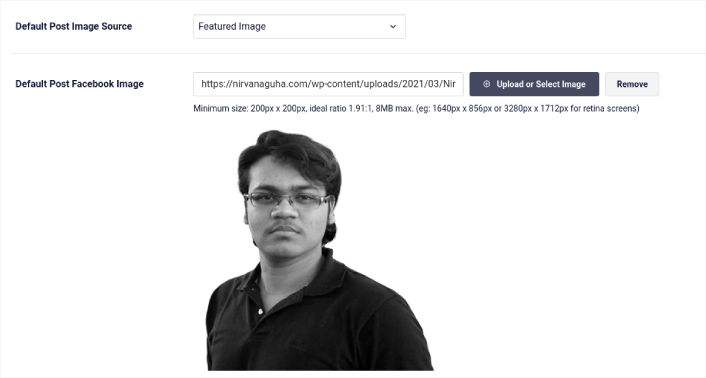
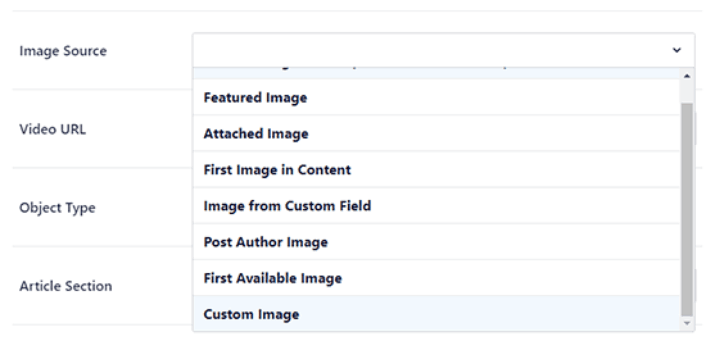
Gönderileriniz için görüntü kaynağı olarak Öne Çıkan Görüntü seçeneğini kullanmanızı öneririz. Ancak diğer seçeneklere de göz atmalısınız:
Varsayılan Facebook görüntüsünü logonuz veya markanızı temsil eden herhangi bir şey olarak ayarlayabilirsiniz. Varsayılan görüntüyü değiştirmek için Görüntü Yükle veya Seç düğmesine tıklayın. Örneğimizde, kişisel bir marka kullanıyoruz. Bu nedenle, varsayılan Facebook görüntüsü yazarın bir fotoğrafıdır.
İşiniz bittiğinde, Kaydet düğmesine basın.
Ve bu kadar! İşiniz bitti. Değişiklikleri kaydettikten sonra, sitenizdeki bir gönderiyi Facebook sayfanızda veya profilinizde paylaşmayı deneyebilirsiniz.
WordPress Açık Grafik Meta Etiketleri Ekledikten Sonra Yapılacaklar
Bu kadar, millet!
Ardından, sosyal medya hesaplarınızdan getirdiğiniz trafiği etkilemenin ve dönüştürmenin birden çok yolunu düşünmeye başlamalısınız. Bunu yapmanın harika bir yolu anlık bildirimleri kullanmaktır. Anlık bildirimler, işletmeniz için trafik, etkileşim ve doğrudan satış getiren güçlü bir pazarlama aracı olabilir.
Eğer %100 ikna olmadıysanız, anlık bildirimleri etkili bir şekilde nasıl kullanacağınıza dair bu kaynaklara göz atmalısınız:
- Müşteri Etkileşimini Artırmak İçin 7 Akıllı Strateji
- Anlık Bildirimler Etkili mi? 7 İstatistik + 3 Uzman İpucu
- Terk Edilmiş Sepet Anlık Bildirimleri Nasıl Ayarlanır (Kolay Eğitim)
- Sitenize Bir Web Bildirimleri WordPress Eklentisi Nasıl Eklenir
Anlık bildirim kampanyalarınızı oluşturmak için PushEngage'ı kullanmanızı öneririz. PushEngage, dünyanın 1 numaralı anlık bildirim yazılımıdır. Bu nedenle, henüz yapmadıysanız, bugün PushEngage'ı kullanmaya başlayın!


