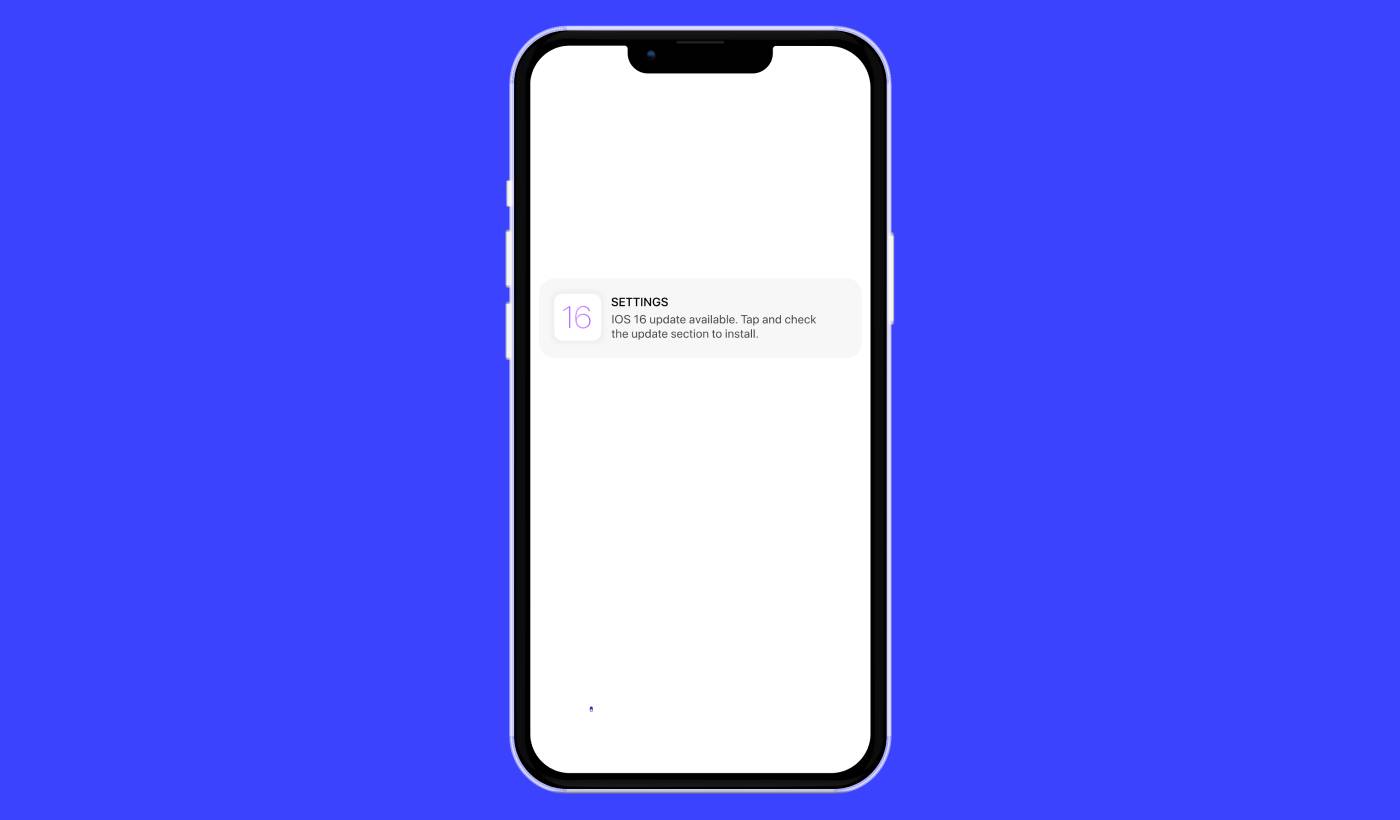
iOS anlık bildirim kampanyaları için basit bir rehber mi arıyorsunuz? iOS anlık bildirimleri, ekranınızda beliren o kullanışlı küçük mesajlar, doğru kullanıldığında işletmeniz için gerçek bir oyun değiştirici olabilir.
Şimdi şunu hayal edin: Bir işletme sahibisiniz ve web sitenizde ve uygulamanızda bir flaş satış başlattınız. Müşterileri hemen sitenize nasıl çekeceksiniz? Basit, bir iOS anlık bildirimi göndererek. Tıpkı bunun gibi, alışveriş yapanlar satış hakkında zamanında bir bildirim alır ve web sitenizin ve uygulamanızın trafiği tavan yapar.
Peki, iOS anlık bildirimi tam olarak nedir? Bunu kişisel, cep boyutunda bir reklam panosu olarak düşünün. Cihazdaki uygulamalardan iOS cihazlarına (iPhone'lar, iPad'ler) gönderilen kısa bir mesaj veya bildirimdir.
En iyi yanı, tüm bunları süper hızlı bir şekilde ayarlayabilmeniz! Kulağa ilginç geliyor, değil mi? Hadi dalalım.
iOS Anlık Bildirimi Nedir?
iOS anlık bildirimi, Apple mobil cihazlarınızda görünen küçük bir dijital not gibidir. En sevdiğiniz sosyal medya platformlarından, haber dağıtımcılarından veya çevrimiçi alışveriş uygulamalarından gelebilir – hepsi sizi döngüde, etkileşimde ve bağlantıda tutmayı amaçlar.
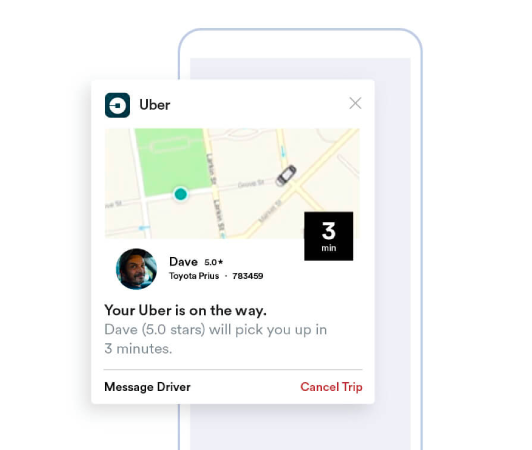
Bu mini mesajları, Apple Anlık Bildirim hizmeti (APNs) aracılığıyla gönderilen iOS cihazınıza yapılan nazik dokunuşlar olarak düşünün. (Bir satıcı seçmeye hazır olduğunuzda, en iyi iOS anlık bildirim hizmetlerini karşılaştırın.) Uygulamanın cihazınıza fısıldayarak dikkatini istediği neredeyse aynı. iOS anlık bildirimlerinin dikkate değer yönü, uygulamayı aktif olarak kullanmanız veya kullanıyor olmanız bile gerekmemesidir. Sihirli bir dokunuşla bildirimler kilit ekranınızda bile belirir ve önemli güncellemeleri veya istemleri asla kaçırmamanızı sağlar.
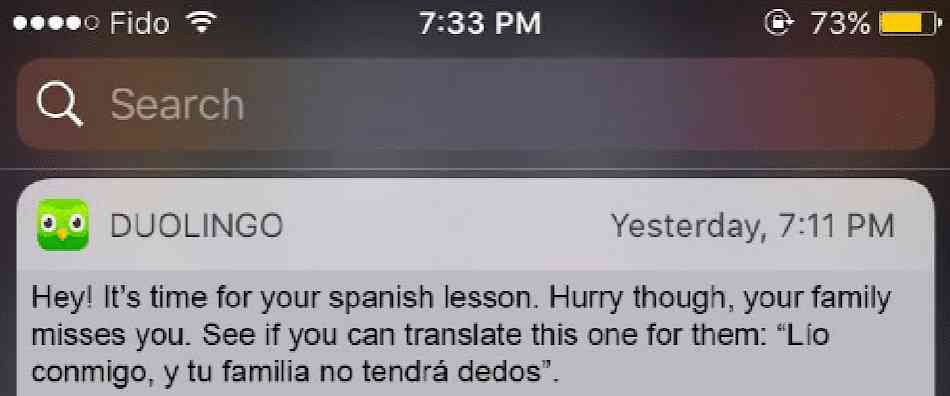
iOS anlık bildirimleri pek çok fayda sunar. Her şeyden önce, sizi en güncel bilgilerle haberdar etmek için olağanüstü bir araçtır. Mevcut bir indirim hakkında sizi bilgilendiren çevrimiçi bir alışveriş uygulamasından gelen bir uyarıyı hayal edin.

Ayrıca, değerli zamandan tasarruf etmenizi sağlayabilirler. Bankacılık uygulamanızın başarılı bir işlemi onaylayan bir uyarı gönderdiğini ve manuel olarak giriş yapıp kontrol etme ihtiyacını ortadan kaldırdığını hayal edin. Bu pratik faydaların yanı sıra, iOS anlık bildirimleri, uygulamayı daha canlı ve etkileşimli hale getirerek genel uygulama deneyiminizi geliştirir.
Bu bildirimlerde gezinmek, PushEngage gibi platformlar tarafından kullanıcı dostu hale getirilir. Gelişmiş özelliklerle donatılmış PushEngage, ilgi alanlarınıza hizmet eden bu küçük bilgi parçalarının size zamanında ulaşmasını ve tercihlerinize göre akıcı hale getirilmesini sağlar. Bildirim sıklığı veya uyarı türü olsun; PushEngage kontrolü sizin elinize verir.
iOS anlık bildirimlerinin ne olduğu ve mekanizmaları hakkında temel bir anlayışa sahip olarak, çeşitli bildirim türlerini daha derinlemesine inceleyelim ve uygulamaların kullanıcılarını etkilemek ve dönüştürmek için bunları nasıl kullandığını ortaya çıkaralım.
Kullanabileceğiniz iOS Anlık Bildirim Kampanyası Türleri
Kitlenizle etkileşimi artırmak için kullanılabilecek birçok iOS anlık bildirim türü vardır. Bu farklı türleri anlayarak etkinliklerini artırabilir ve daha kişiselleştirilmiş ve etkileşimli bir kullanıcı deneyimi oluşturabilirsiniz.
- Uygulama İçi Uyarılar: Kullanıcı uygulamanızı aktif olarak kullanırken bu uyarılar gönderilebilir. Örneğin, bir e-ticaret uygulaması, kullanıcının ilgilendiği bir üründeki özel indirim hakkında bir uyarı gönderebilir. PushEngage ile işletmeler, kullanıcı etkileşimini artırmak için bu ilgili ve zamanında mesajları kolayca gönderebilir.
- Konum Tabanlı Bildirimler: Bu uyarılar kullanıcının coğrafi konumuna göre gönderilir. Yakındaki kullanıcılara özel teklifler hakkında bilgi vermek isteyen perakende satış noktaları veya etkinlikler gibi işletmeler için harikadır. PushEngage, işletmelerin nerede olurlarsa olsunlar hedef kitlelerine etkili bir şekilde ulaşabilmelerini sağlayarak coğrafi hedeflemeyi basitleştirir.
- Davranış Tabanlı Uyarılar: Bu bildirimler, kullanıcının uygulamada aldığı (veya almadığı) belirli eylemlere yanıt olarak gönderilir. Örneğin, bir kullanıcı sepetine bir ürün ekler ancak satın almazsa, davranış tabanlı bir uyarı onu hatırlatabilir. PushEngage ile işletmeler bu tür bildirimleri hassas bir şekilde yönetebilir.
- Zamanlanmış Bildirimler: Bu anlık bildirimler önceden belirlenmiş zamanlarda gönderilecek şekilde ayarlanır ve tekrarlayan etkinlikler veya bildirimler için kullanılabilir. PushEngage ile bu bildirimler önceden zamanlanabilir, böylece kullanıcılar önemli güncellemeler veya etkinlikler hakkında bilgilendirilir.
Başarılı bir anlık bildirim kampanyası, hedefleri için doğru türde bildirim gerektirir. Bu nedenle, iOS anlık bildirim kampanyalarını kullanarak işletmenizi büyütmek istiyorsanız, stratejinizi maksimum etkileşim için optimize etmek üzere birçok seçeneği bulunan bir iOS anlık bildirim hizmetine ihtiyacınız var.
Bir iOS Anlık Bildirimi Nasıl Çalışır?
Belirli uygulama iOS cihazınızda APN'lerle iletişim kurduğunda bir iOS anlık bildirimi oluşturulur. Bildirim oluşturulup gönderildikten sonra, APN'ler onu birkaç mikrosaniye içinde hedeflenen cihaza yönlendirir.
Şimdi iOS anlık bildirimleri dünyasına daha derinlemesine dalalım. Telefonunuzu kontrol ettiğinizi ve en sevdiğiniz haber uygulamasından son dakika haberleriyle ilgili bir bildirim veya favori alışveriş uygulamanızdan bir flaş indirim hakkında uyarı aldığınızı düşünün. İşte iOS anlık bildirimlerinin devreye girdiği anlar bunlardır. Bu bildirimler, uygulama şu anda kullanılmasa bile cihazın ana veya kilit ekranında görünmesi için uygulamaların gönderdiği küçük mesajlardır.
iOS anlık bildirimleri, günlük dijital etkileşimimizin hayati parçalarıdır. APN olarak bilinen Apple'ın anlık bildirim hizmeti tarafından desteklenirler. Bu hizmet, uygulamalarınızın sunucularından Apple cihazlarınıza bildirimlerin teslim edilmesini koordine eder. Bu işlem, uygulamalarınızı manuel olarak kontrol etmek zorunda kalmadan gerçek zamanlı güncellemeler alarak her zaman döngüde kalmanızı sağlar.
Bu uyarılar yalnızca bilgi sağlamakla kalmaz, aynı zamanda zamandan tasarruf etmenizi ve bağlantıda kalmanızı sağlar. İş ortağımız PushEngage'ı kullanarak işletmeler, kullanıcıların dopamin ve etkileşim düzeylerini artıran hedeflenmiş iOS anlık bildirimleri gönderebilir. Örneğin, PushEngage tarafından gönderilen bildirimler, e-ticaret sepetinizde kalan ürünleri akıllıca hatırlatabilir veya çok beklenen bir ürünün gelişini size bildirebilir. Bu anlamda, optimize edilmiş ve kişiselleştirilmiş bildirimler sağlayarak genel kullanıcı deneyimini zenginleştirirler.
Bunu şöyle düşünün: iOS anlık bildirimleri, cihazınızın kapı eşiğine kadar faydalı güncellemeler sağlayan arkadaş canlısı kapı bekçileri gibidir. Dahası, rolleri zaman geçtikçe giderek daha çeşitli ve heyecan verici hale geliyor. Bu nedenle, PushEngage gibi güçlü bir araç kullanarak hem işletmeler hem de kullanıcılar bu gelişmiş uyarı sistemlerinden önemli faydalar sağlayabilir.
Uygulamanıza iOS Anlık Uyarıları Nasıl Eklenir
Bir yapay zeka kodlama yardımcısıyla mı entegre oluyorsunuz? Açık kaynaklı PushEngage Agent Skills, Claude Code, Cursor ve herhangi bir SKILL.md uyumlu ajana bu SDK'yı entegre etmeyi ve hatalarını ayıklamayı öğretir. Ve gönderdikten sonra, PushEngage MCP sunucusu aynı yardımcının kampanyalarınızı çalıştırmasına olanak tanır — segmentler, gönderimler, A/B testleri ve raporlar. Replit, Lovable veya Bolt'ta mı geliştiriyorsunuz? Açık kaynaklı vibe-coding kitleri, hazır bir demo mağazası, bir Flutter başlangıç paketi ve PushEngage'in önceden yapılandırıldığı tek komutluk demolar içerir.
Temelde iki tür iOS anlık uyarı kampanyası vardır:
- Bir iOS web anlık bildirimi
- Bir iOS uygulama anlık bildirimi
İşletmenize bağlı olarak hem web hem de uygulama anlık bildirimleri gönderebiliyor olabilirsiniz. Ve her iki tür anlık uyarı göndermenizi şiddetle tavsiye ederiz. Ancak bir iOS anlık bildirimi oluşturmadan önce bir anlık bildirim hizmeti seçmeniz gerekir. Anlık bildirim hizmeti, kodlama yapmadan anlık bildirim kampanyaları oluşturmanıza olanak tanıyan bir yazılımdır.
PushEngage kullanmanızı öneririz.

PushEngage, dünyadaki 1 numaralı anlık bildirim eklentisidir.
Anlık bildirimler, web sitesi trafiğinizi ve etkileşiminizi otomatik olarak artırmanıza yardımcı olur. Ve bir çevrimiçi mağaza işletiyorsanız, PushEngage ayrıca otomatik e-ticaret anlık bildirimleri oluşturmanıza yardımcı olarak satışlarınızı artırmanıza da yardımcı olur.
Ücretsiz başlayabilirsiniz, ancak işletmenizi büyütme konusunda ciddiyseniz, ücretli bir plan satın almalısınız. Ayrıca, herhangi bir anlık bildirim hizmeti satın almadan önce, anlık bildirim maliyetleri hakkındaki bu kılavuza göz atmalısınız.
PushEngage ile nelerin geldiğine hızlı bir bakış:
- Yüksek dönüşüm sağlayan otomatik kampanyalar
- Birden fazla hedefleme ve kampanya zamanlama seçeneği
- Hedef takibi ve gelişmiş analizler
- Akıllı A/B Testi
- Daha fazla trafik ve dönüşüm elde etmenize yardımcı olacak kanıtlanmış anlık bildirim şablonları
- Özel Bir Başarı Yöneticisi
İşletmeniz için trafik, etkileşim ve satış oluşturmak istiyorsanız, PushEngage'in tartışmasız en iyi seçenek olduğunu göreceksiniz. Ve bütçeniz kısıtlıysa, anlık bildirimlerinizle biraz yaratıcı olabilirsiniz.
Ücretsiz Bir PushEngage Hesabı Nasıl Oluşturulur
PushEngage'a gidin ve Şimdi Ücretsiz Başlayın:'a tıklayın
Ücretsiz planla başlayabilirsiniz. Ancak en güçlü tarayıcı bildirimlerini arıyorsanız, işletmenizin ihtiyaçlarına göre ücretli bir plan seçmelisiniz. Hangi planı istediğinizi bildiğinizde, PushEngage hesabınızı oluşturmak için Başlayın'a tıklayın.
PushEngage'a Kaydolun
Şimdi PushEngage hesabınızı oluşturma zamanı. Bir e-posta adresi veya Gmail kimliği ile kaydolarak başlayın:
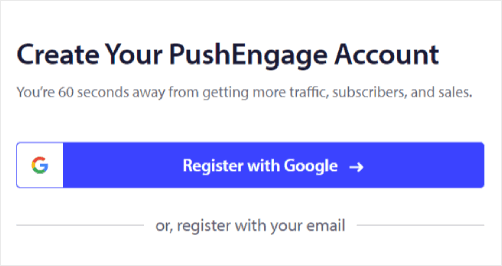
Ardından, hesap bilgilerinizi doldurun:
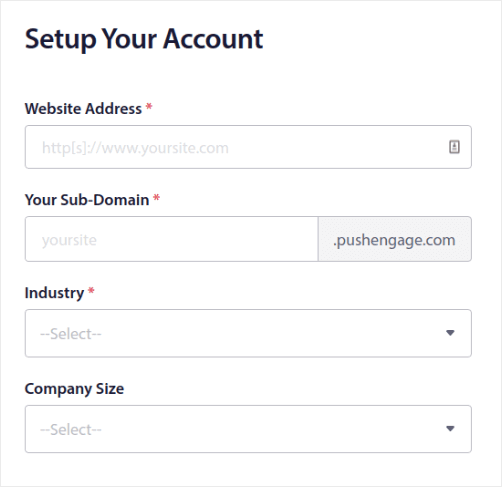
Ve planınızı satın almak için kredi kartı bilgilerinizi ekleyin:
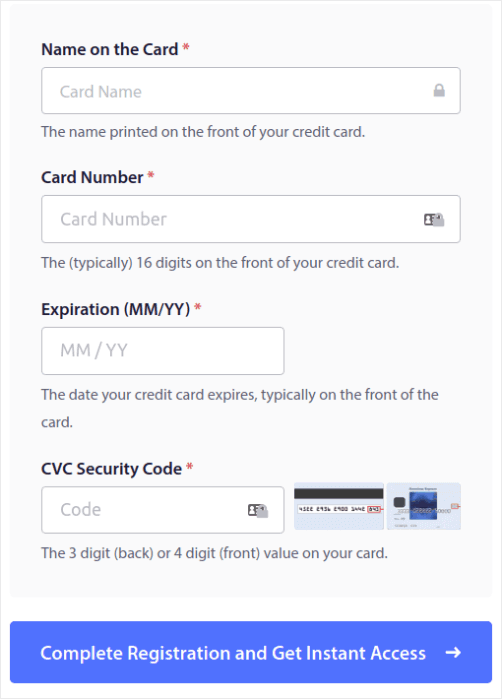
Ücretsiz hesabı seçtiyseniz, planınızı yükseltmeyi seçene kadar kredi kartınızdan hiçbir ücret alınmayacaktır. Ve şimdi, PushEngage kontrol panelinize erişmek için hazırsınız. Sadece Kaydı Tamamlayın ve Anında Erişim Sağlayın'a tıklayın.
Daha önce OneSignal veya PushAlert kullandıysanız, PushEngage'ın kontrol panelinden çok daha temiz bir deneyim sunduğunu göreceksiniz. OneSignal kontrol paneli gelişmiş kampanyalar için tasarlanmamıştır. Bunun için OneSignal eklentisinden çok API'ye ihtiyacınız olacak.
Web Sitenize Web Uygulaması iOS Anlık Uyarı Kampanyaları Nasıl Eklenir
Web sitenizden iOS anlık bildirimleri ayarlayarak başlayalım. Bunun arkasındaki fikir basittir. Web sitenizi iOS ve iPadOS anlık bildirimleri gönderebilen basit bir web uygulamasına dönüştürüyoruz. Bu yaklaşım, web uygulaması anlık bildirimleri göndermek için idealdir.
Adım #1: Web Anlık Bildirimleri Göndermek İçin Web Sitenize Bir Web Uygulaması Manifesti Ekleyin
Bir web uygulaması manifestini, birinin telefonuna veya bilgisayarına yüklendiğinde web siteniz için bir rehber gibi davranan özel bir dosya olarak düşünün. JSON adlı bir dilde yazılmıştır, ancak bu kısımla ilgili endişelenmenize gerek yok.
Manifest dosyası, Adı, açıklaması, simgeleri ve renkleri gibi İlerici Web Uygulamanız (PWA) hakkında önemli bilgiler içerir. Yani, biri web sitenizi ana ekranına eklediğinde veya cihazına yüklediğinde, tarayıcı uygulamanızın nasıl görüneceğini ve davranacağını bilmek için bu manifesti kullanır. Bu, PWA anlık bildirimleri göndermenize olanak tanır.
Örneğin, manifest tarayıcıya ana ekranda veya uygulama çekmecesinde uygulamanız için hangi simgenin kullanılacağını söyler, böylece güzel ve tanınabilir görünür. Ayrıca tutarlı ve çekici bir görünüm vermek için uygulamanızın renklerini ve temasını belirtir.
Ek olarak, manifest, biri uygulamanızı başlattığında açılması gereken URL'yi içerir. Bu şekilde, tarayıcı onlara önce web sitenizin hangi sayfasını veya bölümünü göstereceğini bilir.
Bir manifest dosyası oluşturmak, sizin için zor işi yapan çevrimiçi araçlarla hızlı bir şekilde yapılabilir. Web uygulaması manifestinizi birkaç tıklamayla ve sıfır kodlama ile oluşturmak için bu ücretsiz uygulama manifesti oluşturucusunu kullanmanızı öneririz.
Manifest hazır olduğunda, genellikle ona “manifest.json” adını verir ve web sitenizin kök klasörüne yüklersiniz.
Özetle, web uygulaması manifesti, insanlar web uygulamanızı cihazlarında kullandıklarında doğru görünmesini ve hissetmesini sağlayan bir kılavuz gibidir. Web sitesi ziyaretçileriniz için harika bir kullanıcı deneyimi oluşturmanın önemli bir parçasıdır.
Tipik bir manifest şuna benzer:
{
	"name": "PushEngage",
	"short_name": "PushEngage",
	"start_url": "/",
	"display": "standalone",
	"theme_color": "#3b43ff",
	"background_color": "#ffffff",
	"icons": [
		{
			"src": "icon/icon-128x128.png",
				"sizes": "128x128",
				"type": "image/png"
		},
		{
			"src": "img/icon-192x192.png",
			"sizes": "192x192",
			"type": "image/png"
		},
		{
			"src": "img/icon-512x512.png",
			"sizes": "512x512",
			"type": "image/png"
		}
 	]
}
Manifest dosyanızı web sitenizin kök klasörüne ekledikten sonra, web sitenizin HTML başlığına bir kod parçacığı eklemeniz gerekir. Parçacık şuna benzerdi:
<link rel="manifest" href="/manifest.json">WordPress kullanıyorsanız ve bu kod parçasını sitenizin başlığına ekleme konusunda yardıma ihtiyacınız varsa, manifest dosyasını yüklemek için WPCode kullanabilirsiniz. WordPress için en iyi kod parçacığı eklentilerinden biridir.
Adım #2: WordPress Sitenize PushEngage'ı Yükleyin
Hesabınızı oluşturdunuz. Bu nedenle, PushEngage kontrol paneline gidin ve takip edin.
NOT: WordPress sitesi kullanmıyorsanız, diğer kurulum kılavuzlarımıza göz atmalısınız.

Site Ayarları » Site Detayları'na tıklayın ve Kurulum Talimatları İçin Buraya Tıklayın düğmesine tıklayın:

WordPress sekmesine tıklayın ve eklentiyi web sitenize yüklemek için PushEngage WordPress Eklentisini Yükle düğmesine tıklayın.

İşte harika kısım: PushEngage hesabınızı oluşturduğunuzda, web sitenizi zaten PushEngage hesabınızla senkronize ettiniz. Bu nedenle, PushEngage WordPress eklentisini web sitenize otomatik olarak yüklemek için PushEngage kontrol panelindeki yükleme bağlantısına tıklayın.
Adım #3: WordPress Sitenizi PushEngage ile Bağlayın
PushEngage WordPress eklentisini yükleyip etkinleştirmeyi bitirdiğinizde, PushEngage başlangıç sihirbazını göreceksiniz:
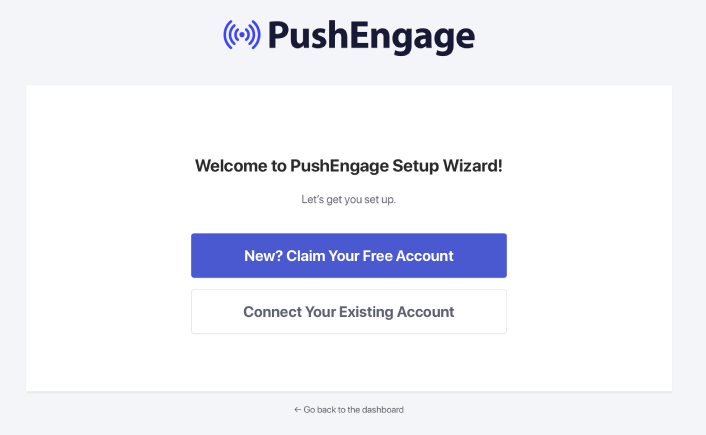
Sihirbaz oldukça basittir. Yeni bir kullanıcıysanız, Yeni mi? Ücretsiz Hesabınızı Talep Edin'e tıklayın. Zaten kaydolduysanız, Mevcut Hesabınızı Bağlayın'a tıklayın.
Ardından, kayıt sırasında bir site kaydettiyseniz, Kayıtlı bir site bağla altında Bir Site Seçin açılır menüsünden sitenizi seçebilirsiniz:
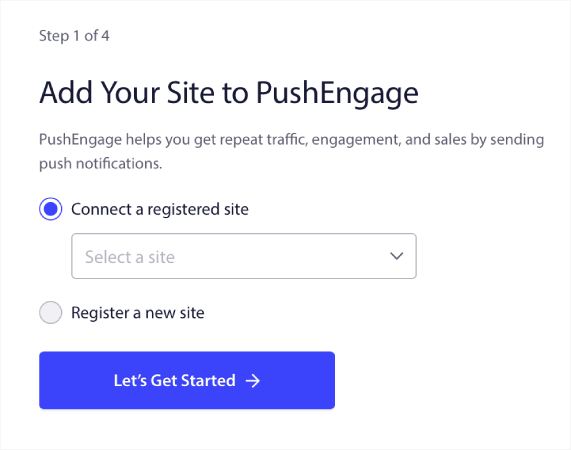
Veya, Premium fiyatlandırma planınız veya daha üstü varsa yeni bir site eklemek için Yeni bir site kaydet'e tıklayabilirsiniz. Bir sonraki adımda, karşılama sihirbazı sizi diğer mutlaka sahip olunması gereken WordPress eklentilerini yüklemeniz için yönlendirecektir.
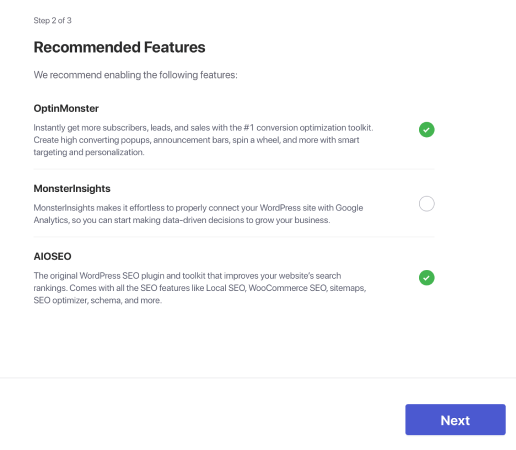
Her adımı doğru bir şekilde takip ettiyseniz, sihirbazdan bu başarı mesajını göreceksiniz:
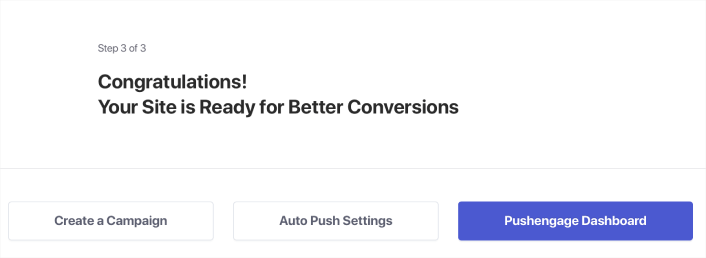
Artık kampanyalar oluşturmaya ve anlık bildirim açılır pencereleri göndermeye hazırsınız.
Adım #4: Web Sitesi Manifestinizi Test Edin
Tamam, web uygulamanızı test etmek ve her şeyin sorunsuz çalıştığından emin olmak için adımları gözden geçirelim.
Öncelikle, iPhone veya iPad'inizdeki Safari tarayıcısını kullanarak web sitenizi açın. Cihazınızın iOS 16.4 veya daha yeni bir sürüm çalıştırdığından emin olun. Web siteniz yüklendikten sonra, Paylaş düğmesini göreceksiniz. Yukarı doğru bir ok içeren bir kareye benziyor. Paylaşım menüsünü açmak için o düğmeye dokunun.
Paylaşım menüsünde, Ana Ekrana Ekle adlı bir seçenek bulmalısınız. O seçeneğe tıklayın.
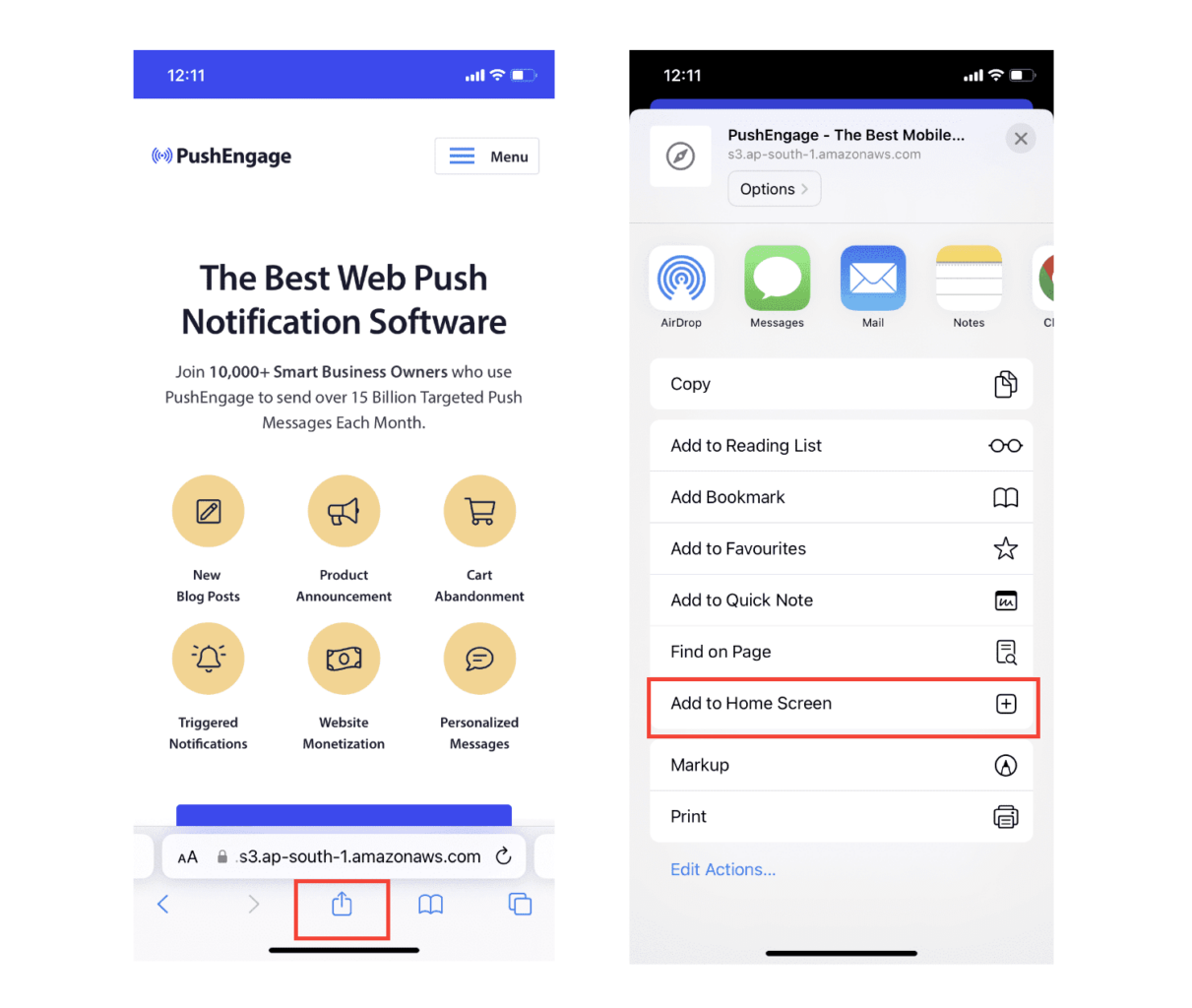
Şimdi, web uygulaması App Store'dan indirdiğiniz diğer uygulamalar gibi cihazınızın Ana Ekranına kaydedilecektir.
Her şey doğru ayarlanmışsa, uygulamayı Ana Ekranınızdan açtığınızda artık Safari tarayıcısında açılmayacaktır. Bunun yerine, iPhone veya iPad'inizde normal bir uygulama kullanıyormuş gibi hissettirecektir.
Kullanıcılarınızın uygulamanızdan web anlık bildirimleri alabileceğini bilmelerini sağlamak için ekranda bir banner gösterebilirsiniz. Bu banner, onları uygulamanızı Ana Ekranlarına eklemeye ve web anlık bildirimlerine abone olmaya yönlendirecektir. Kullanıcılarınızı uygulamanızla etkileşimde tutmak ve önemli güncellemeler almak için kullanışlı bir yoldur.
Bu nedenle, bu adımları izleyin ve iOS cihazlarındaki kullanıcılarınıza sorunsuz ve uygulama benzeri bir deneyim sunmaya hazır olacaksınız! Anlık bildirimlerinizi test etme hakkında tam bir rehber için, iOS web anlık bildirimleri hakkındaki belgelerimize göz atın.
Mobil Uygulama iOS Anlık Uyarı Kampanyalarını Uygulamanıza Nasıl Eklersiniz
Yerel iOS uygulamanızdan mobil iOS mobil uygulama anlık bildirimleri göndermenin en kolay yolu PushEngage iOS SDK'sını kullanmaktır. Şu ana kadar, uygulama anlık bildirimleri göndermek için iskelet SDK'ları kullanmanız gerekiyordu. Bu SDK'ları kullanmanın sorunu, oldukça temel olmalarıdır.
Teorik olarak, onlarla her türlü mobil uygulama anlık bildirim kampanyasını gönderebilirsiniz. Ancak o zaman, şunları da oluşturmanız gerekir:
- Kampanyalarınızı yönetmek için bir arayüz
- Kampanya performansınızı izlemek için bir analiz paketi
- Zengin medya ve uygulama içi yönlendirme bağlantıları (veya derin bağlantılar) için daha iyi destek
- Hem pazarlama hem de geliştirme ekiplerini koordine etmek için süreçler
Tüm bunlar, tek bir büyüme kanalı tanıtmak uğruna. Mobil uygulama anlık bildirimleri göndermek için eski araçları kullanmak sıkıcı, pahalı, kaynak yoğun ve zaman alıcıdır. Ve tabii ki, oluşturduğunuz her şeyi geliştirmek ve yönetmek için ekibinizde derin kodlama becerileri gerektirir.
PushEngage Android ve iOS SDK'ları ile, harika teslimat oranları için aynı güvenilir yazılımı kullanarak mobil uygulama anlık bildirimleri gönderebilirsiniz. Ancak, uygulamanızla özel entegrasyonlar oluşturmayı çok kolaylaştıran birkaç katman ekledik. Ve PushEngage tüm SDK'yı yönetir. Bu nedenle, entegrasyonlarınızı yönetmek için çok fazla zaman ve para harcamanıza bile gerek kalmaz.
Tek yapmanız gereken oluşturmak!
Uygulamanızı PushEngage'in SDK'sını kullanarak mobil uygulama anlık bildirimleri gönderecek şekilde ayarladıktan sonra, yayın bildirimlerini doğrudan PushEngage kontrol panelinizden gönderebilirsiniz. Evet, uygulamanıza kod eklemeniz ve uygulamanız ile PushEngage API'si arasındaki bağlayıcıları geliştirmeniz hala gereklidir. Ancak bu yapıldıktan sonra, aşağıdakilere de sahip olan önceden oluşturulmuş bir yazılım arayüzünden kolayca mobil uygulama anlık bildirim kampanyaları oluşturabilirsiniz:
- Yüksek etkileşimli anlık bildirim kampanyası türleri
- Yüksek dönüşüm oranlarına sahip kanıtlanmış kampanya şablonları
- İçeriğinizi yayınladığınızda tanıtmak için otomatik kampanyalar
- Birden fazla hedefleme ve kampanya zamanlama seçeneği
- Tamamlayıcı bir büyüme kanalı olarak web anlık bildirim kampanyaları
- Veriye dayalı kişiselleştirme kullanarak artırılmış kitle tutma
- Hedef takibi ve gelişmiş analizler
- Akıllı A/B testi
- Özel Bir Başarı Yöneticisi
Ve çok daha fazlası. PushEngage, uygulamanız için Android ve iOS mobil anlık bildirim kampanyaları geliştirmeyi zahmetsiz hale getirir.
PushEngage için iOS uygulama anlık bildirimleri ayarlama konusunda ayrıntılı bir adım adım kılavuz oluşturduk. Hemen iOS uygulama anlık bildirimleri göndermeye başlamak için bunu inceleyin.
iOS Uygulamanıza Anlık Bildirimler Ekleyin
İşte PushEngage iOS SDK 1.0 kullanılarak yapılan gerçek entegrasyon. iOS 12+, Xcode 15+, PushEngage kontrol panelinize yüklenmiş bir APNs anahtarı (beş dakikada bunu kapsayan APNs sertifikaları ve anahtarları açıklayıcısı) ve yaklaşık bir öğleden sonraya ihtiyacınız var. SDK iki modül olarak gönderilir: uygulama hedefiniz için PushEngage ve bildirim uzantısı hedefleri için PushEngageExtension. Bu bağlantı kurulduktan sonra kampanyalar kontrol paneline taşınır ve mühendislik biletleri olmaktan çıkar.
Adım 1: Paketi Ekle
Xcode'da, Dosya → Paket Bağımlılıkları Ekle'ye gidin ve depo URL'sini girin veya CocoaPods'u kullanın:
# Swift Package Manager
https://github.com/awesomemotive/pushengage-ios-sdk

# CocoaPods
target 'YourApp' do
  pod 'PushEngage', '~> 1.0.0'
end
target 'YourNotificationServiceExtension' do
  pod 'PushEngageExtension', '~> 1.0.0'
end
Adım 2: Uygulama Grubunu Yapılandırın
Uygulama Grupları özelliğini, aynı grup kimliğini kullanarak uygulamanızın hedefi ve her bildirim uzantısı hedefi için ekleyin ve her hedefin Info.plist dosyasında bildirin:
<key>PushEngage_App_Group_Key</key>
<string>group.com.yourcompany.yourapp</string>
Uygulama ve uzantıları, bu kapsayıcı aracılığıyla abone durumunu paylaşır. Atlamak, en yaygın entegrasyon hatasıdır. Olmadan, uzantılarınız her teslimatta boş başlar.
Adım 3: Başlat ve İzin İste
import PushEngage

@main
class AppDelegate: UIResponder, UIApplicationDelegate {
    func application(_ application: UIApplication,
                     didFinishLaunchingWithOptions launchOptions: [UIApplication.LaunchOptionsKey: Any]?) -> Bool {
        PushEngage.setAppID(id: "YOUR_APP_ID")
        PushEngage.setInitialInfo(for: application, with: launchOptions)
        return true
    }
}

// Later, at a value moment — not on first launch:
PushEngage.requestNotificationPermission { granted, error in
    if granted { /* subscribed */ }
}
Bu izin çağrısını nereye yerleştirdiğiniz, bu bölümdeki diğer herhangi bir satırdan daha önemlidir. iOS size yükleme başına tam olarak bir yerel istem hakkı verir ve izin ön hazırlık kılavuzu onu koruyan yumuşak istem desenini kapsar.
Zengin Anlık Bildirimler: Resimler, Düğmeler ve Sesler
Zengin medya, her bildirimi kesen ve görüntülemeden önce medyayı ekleyen küçük bir hedef olan bir Bildirim Hizmeti Uzantısı gerektirir. Hedefi Xcode'da ekleyin, PushEngageExtension'ı ona bağlayın ve iki yaşam döngüsü çağrısını iletin:
import PushEngageExtension

class NotificationService: UNNotificationServiceExtension {
    override func didReceive(_ request: UNNotificationRequest,
                             withContentHandler contentHandler: @escaping (UNNotificationContent) -> Void) {
        PushEngageExtension.didReceiveNotificationExtensionRequest(request,
                                                                   bestContentHandler: contentHandler)
    }

    override func serviceExtensionTimeWillExpire() {
        // hand back the best content prepared so far
    }
}
Buradan, zengin medya bir kontrol paneli özelliği haline gelir. Pazarlama ekibiniz kampanyayı oluştururken ürün resmini ekler ve uzantı onu oluşturur. Kampanya başına uygulama değişikliği yok.
Kullanıcıları Tanımlayın ve Nitelikler Ekleyin
// Identify the signed-in user (12 predefined fields supported)
PushEngage.identify(fields: [
    "first_name": "Priya",
    "email": "[email protected]",
    "profile_id": "user-42",
    "city": "Austin"
]) { success, error in }

// Attach custom attributes for segmentation
PushEngage.addSubscriberAttributes([
    "favorite_category": "outerwear",
    "loyalty_tier": "gold"
]) { success, error in }

// On sign-out, clear PII but keep the anonymous subscription
PushEngage.logout(fieldNames: nil) { success, error in }
Değişmeyen verilerle tanımlama çağrılarını tekrarlamak yerel olarak kısa devre yapar, bu nedenle her başlatmada çağırmak güvenlidir. Nitelikler aktıktan sonra, Teksas'taki altın seviye dış giyim alışverişçileri gibi bir segment, bir veri isteği yerine kontrol panelinde kaydedilmiş bir kitle haline gelir.
Derin Bağlantılar: Her Dokunuşu Doğru Ekrana İndirin
PushEngage.setNotificationOpenHandler { result in
    // actionID is nil when the SDK already opened the URL itself
    guard let deepLink = result.notificationAction.actionID else { return }
    DispatchQueue.main.async {
        router.navigate(to: deepLink)   // e.g. myapp://cart
    }
}
İşleyiciyi bir kez ayarlayın ve her kampanyanın taşıdığı derin bağlantı üzerinden yönlendirin. Pazarlamacı bağlantıyı kampanya formuna yapıştırır; işleyiciniz navigasyonu yapar. Evrensel bağlantılar dahil tüm desenler derin bağlantı kılavuzunda bulunur.
Uygulama Etkinliklerinden Kampanyaları Tetikleyin
PushEngage.trackEvent(name: "cart_updated",
                      properties: ["cart_value": 89.50, "item_count": 2],
                      profileId: currentUserId,
                      provider: nil, eventType: nil) { _, _ in }
trackEvent çağrısı, herhangi bir uygulama içi davranışı bir kampanya tetikleyicisine dönüştürür: terk edilmiş bir sepet, tamamlanmış bir başlangıç adımı, göz atılan bir kategori. Etkinliği bir kez ölçün ve pazarlama, onu sonsuz kez yineleyerek kampanyalar oluştursun. Etkinlik tetiklemeli kampanyalar kılavuzu sepet, başlangıç ve geri kazanma bağlantılarını içerir ve kurulum belgeleri sonraki her kontrol paneli ekranını adım adım açıklar.
Kampanyalarınızı Kişiselleştirme
Bir kampanya oluşturmadan önce, kişiselleştirilmiş push mesajları göndermek için segmentler ve hedef kitle grupları ayarlamalısınız.
Anlık bildirim aboneleriniz için segmentler ve kitle grupları oluşturarak elde edebileceğiniz kişiselleştirme düzeyini hiçbir şey geçemez. PushEngage » Kitle'ye gidin ve hemen segmentler ve kitle grupları oluşturmaya başlayın.
Segmentler sekmesi altında yeni segmentler oluşturabilir veya mevcut olanları düzenleyebilirsiniz:
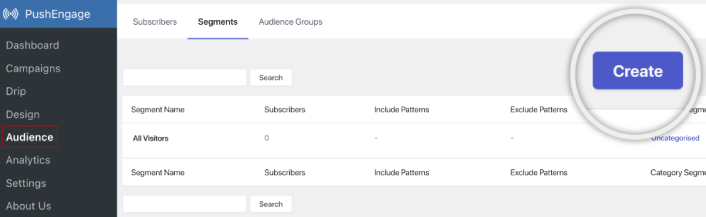
Ve daha derin kişiselleştirmeye ihtiyacınız varsa, Kitle Grupları sekmesinde bir kitle grubu oluşturun:
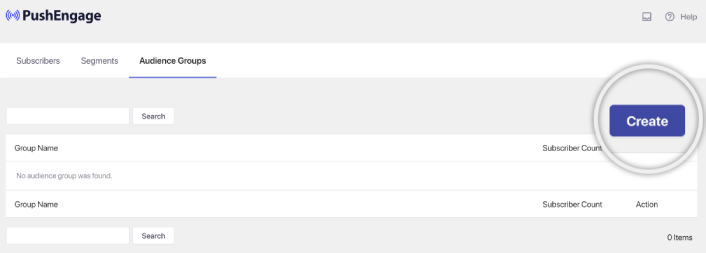
Anlık bildirim segmentleri ve kişiselleştirilmiş anlık bildirimler konusunda yeniyseniz, segment oluşturma hakkındaki makalemizi ve gelişmiş kitle gruplama duyurumuzu incelemelisiniz.
En havalı yanı, yalnızca iOS ve iPadOS kullanıcılarınız için bir Kitle Grubu oluşturarak hedeflenmiş anlık bildirim kampanyaları oluşturabilmenizdir:
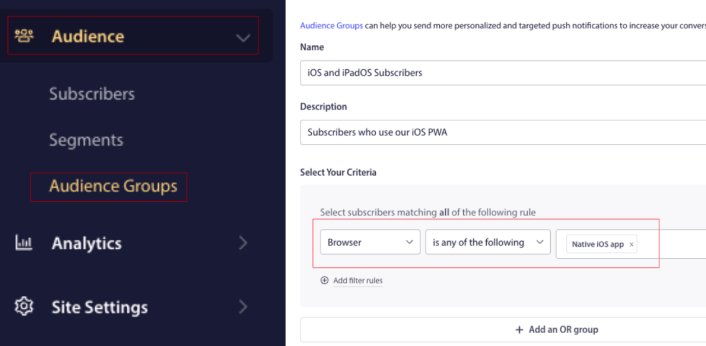
Ve bu Kitle Grubunu damla kampanyalarınız ve yayınlarınız için kullanabilirsiniz.
Anlık Bildirim Drip Kampanyası Oluşturma
PushEngage kontrol paneline gidin ve Kampanya » Otomatik Yanıtlayıcılar bölümüne gidin ve Yeni Otomatik Yanıtlayıcı Oluştur'a tıklayın:

Ardından, kampanyanıza bir ad verin (Hoş Geldin Drip gibi bir şey öneririz) ve Content altında, “Kullanıcı abone olduktan hemen sonra bildirim gönder“ seçeneğini seçin):

Bu noktada, bildirimin içeriğini düzenlemek için bildirimin yanındaki oka tıklayabilirsiniz.
PushEngage'in Premium veya Enterprise planına sahipseniz, bir dizi otomatik karşılama mesajı oluşturmak için birden fazla bildirim ekleyebilirsiniz. Yeni Bildirim Ekle'ye tıklamanız ve içeriği düzenlemeniz yeterlidir.
İşiniz bittiğinde, Drip Ayarları'na tıklayın ve karşılama kampanyasını tüm abonelere gönderme seçeneğini belirleyin:

Ardından, anlık bildirimleri izlemek için kendi UTM parametrelerinizi ayarlamak üzere aşağı kaydırın:
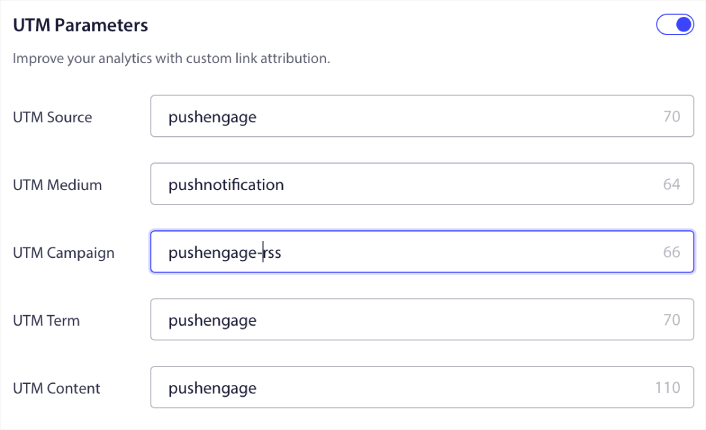
Ve işiniz bittiğinde, yukarı kaydırın ve Otomatik Yanıtlayıcıyı Etkinleştir düğmesine tıklayın:

Ve işte bu kadar!
Bir iOS Web Anlık Bildirim Yayını Nasıl Gönderilir
PushEngage kontrol panelinize gidin ve Campaign » Push Broadcasts bölümüne gidin ve Create a New Push Broadcast düğmesine tıklayın:
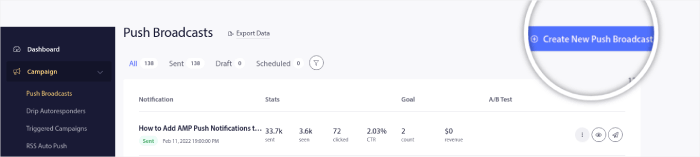
Content sekmesi altında, anlık bildirim içeriğinizi ekleyin:
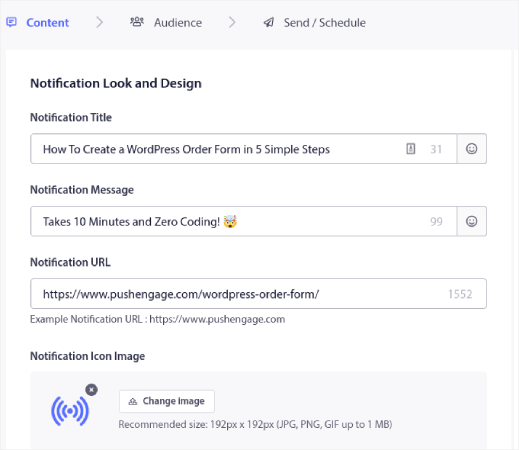
Ve tıklama oranlarınızı artırmak için A/B testi kurabilir veya daha fazla görüntüleme elde etmek için anlık bildirim yayınlarınızı zamanlayabilirsiniz. Her iki durumda da, en iyi sonuçlar için anlık bildirim en iyi uygulamalarımızı incelemelisiniz.
Bir iOS Anlık Bildirim Pop-up Modalı Nasıl Oluşturulur
Anlık bildirim açılır penceresi, web sitesi ziyaretçisine bir mesaj veya bildirim göstermek için bir web sitesi veya mobil uygulama arayüzünün üzerine çıkan küçük bir penceredir.
Açılır pencere, çeşitli olaylarla tetiklenebilir. Sayfa ziyareti, kaydırma derinliği ve hatta düğme tıklaması gibi özel eylemlerle tetiklenecek açılır pencereler ayarlayabilirsiniz.
Genellikle, ziyaretçilerden anlık bildirim gönderme izni almak için açılır pencere modallerinde "Abone Ol" veya "İzin Ver" gibi bir harekete geçirici mesaj görürsünüz. Bu öğreticiyi takip ederseniz, buna benzer bir açılır pencere oluşturabilirsiniz:
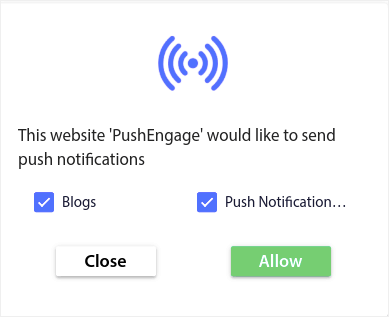
Aboneleri doğrudan segmentleyebilen açılır pencere modalleri oluşturabilir veya coğrafi konum ve tarayıcı gibi varsayılan özniteliklerle yalnızca aboneleri toplayan normal açılır pencereler oluşturabilirsiniz.
WordPress kontrol panelinize geri dönün. PushEngage » Tasarım'a gidin:
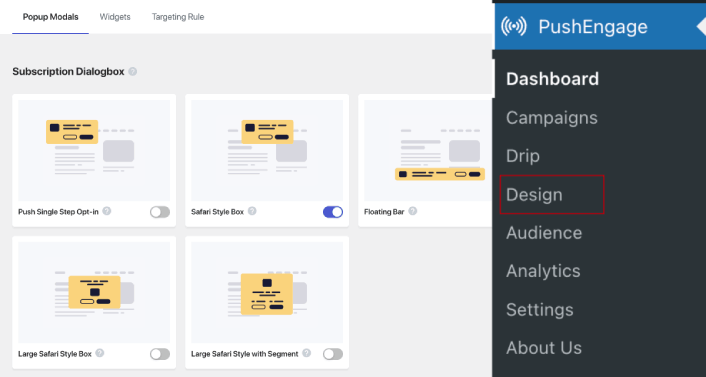
Ve istediğiniz kadar açılır pencere modülü ayarlayabilirsiniz. Elbette, her açılır pencere modülü için Görüntüleme Seçenekleri altında farklı zamanlarda tetikleneceklerinden emin olabilirsiniz.
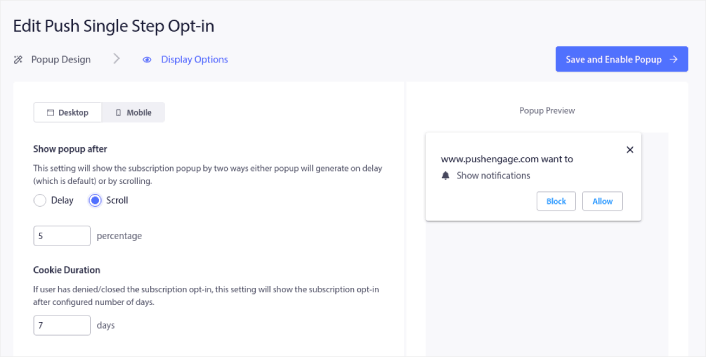
Buradaki fikir, ziyaretçilerinize abone olmaları için sağlam bir neden vermektir. Bu konuda yardıma ihtiyacınız varsa, özel bir anlık bildirim kayıt formu nasıl oluşturulur hakkındaki makalemize göz atın.
Ve daha hedeflenmiş açılır pencere modülleri oluşturmak istiyorsanız, Hedefleme Kuralı sekmesi altındaki hedefleme kurallarını kullanabilirsiniz:
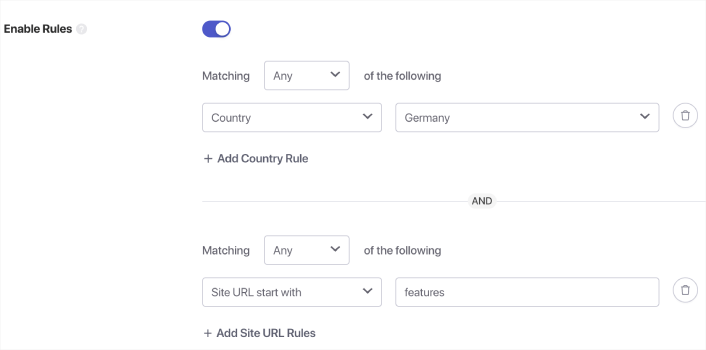
Bunlar genel hedefleme kurallarıdır ve bireysel açılır pencere modülleri için hedefleme kurallarına göre önceliklendirilir. Ancak isterseniz, bunları düzenleyerek her modül için sağlam hedefleme kuralları oluşturabilirsiniz.
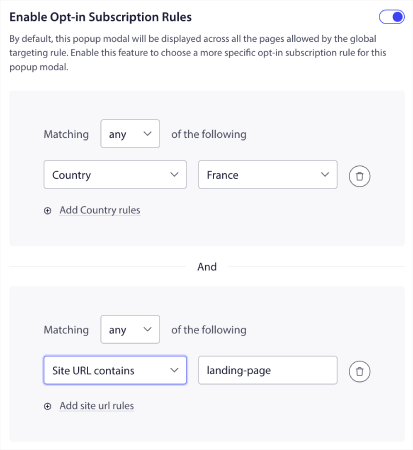
Örneğin, farklı ülkelerden ziyaretçileri hedeflemek için farklı dillerde açılır pencere modelleri oluşturabilirsiniz.
Ve başlamak için yüksek tıklama oranına sahip bazı şablonlar istiyorsanız, yüksek dönüşümlü anlık bildirim kayıt formları hakkındaki bu makaleye göz atmalısınız.
iOS Anlık Bildirimleri Göndermeden Önce Yapılması Gerekenler
Neredeyse bitti.
iOS ve iPadOS için web anlık bildirimleri göndermeye başlamadan önce, web siteniz için bir abonelik onay ayarı yapmanız gerekecektir. Onayınız, web ziyaretçilerini anlık bildirim abonelerine dönüştürecektir. Bu nedenle, bu kritik bir unsurdur.
İlham almak isterseniz, yüksek dönüşüm sağlayan anlık bildirim kayıtları hakkındaki bu makaleye göz atabilirsiniz. Kayıt seçeneğini ayarlamayı bitirdikten sonra, siteniz aboneleri toplayabilir. Peki, kaydınızın düzgün çalıştığını nasıl anlarsınız?
Bu nedenle, mantıklı olan bir hoş geldin anlık bildirimi ayarlamaktır.
İpucu: Anında iletme bildirimlerinizi tam ölçekli bir testten geçirmek için biraz zaman ayırmalısınız. Bu, en yaygın sorunları gidermenize yardımcı olacak ve daha sonra sorunları çözmeye çalışırken zaman kaybetmenizi önleyecektir.
iOS Anlık Bildirimleri Gönderdikten Sonra Yapılması Gerekenler
Bu kadar, millet!
Bu makaleyi faydalı bulduysanız, aşağıya bir yorum bırakmayı unutmayın.
Anlık bildirimlerle başlamak göz korkutucu görünebilir. Ancak hedef takibi ve analitik özelliklerine dikkat ederseniz, iyi olursunuz. Daha da önemlisi, anlık bildirim kampanyalarının yardımıyla çok daha fazla kar edeceksiniz. İşte başlamanıza yardımcı olacak birkaç harika kaynak:
- Gelirinizi 2 Katına Çıkarmak İçin Yeniden Hedefleme Anlık Bildirimleri Nasıl Kullanılır
- Anlık Bildirimlerinizi Nasıl Sıralarsınız ve Kazanan Kampanyaları Bulursunuz
- Anlık Bildirim Aboneli Listelerini Temizleme (Kolay)
- Otomatik Olarak RSS Anlık Bildirimleri Gönderme
- Bir Haber Sitesini Tanıtmak İçin Anlık Bildirimleri Kullanma
- Satışlarınızı 2 Katına Çıkarmak İçin Çapraz Satış Anlık Bildirimlerini Kullanma
- Göz Atma Terk Etme Anlık Bildirimlerini Kullanma (4 Adım)
Anlık bildirimlere yeni başlıyorsanız, PushEngage’ı denemelisiniz. Strateji hakkında daha derin bilgi edinmek için uygulama anlık bildirim pazarlama kılavuzumuz doğal bir sonraki okumadır. PushEngage, pazardaki 1 numaralı anlık bildirim yazılımıdır. Ve kampanyalarınız güvende olacaktır.
Bu yüzden, henüz yapmadıysanız, bugün PushEngage ile başlayın!


