
Sitenizin AMP sürümüne anlık bildirim eklemenin bir yolunu mu arıyorsunuz? AMP anlık bildirimleri eklemek biraz teknik olabilir. Ancak bunu kolay yoldan yapmanıza yardımcı olacağız.
AMP veya Hızlandırılmış Mobil Sayfalar, temelde sitenizin mobil sürümüdür. Bu nedenle, AMP sitenizde web anlık bildirimleri ayarlamıyorsanız, bir sürü aboneyi kaybedeceksiniz çünkü kitlenizin büyük bir kısmı sitenizi ziyaret etmek için mobil cihazları kullanacaktır.
Bu makalede, AMP anlık bildirimlerini yüklemek için PushEngage'ı kullanacağız çünkü işleri manuel olarak yapmaktan çok daha kolay.
Hadi başlayalım.
AMP Anlık Bildirimleri Nasıl Yüklenir
AMP anlık bildirimlerini yüklemek gerçekten hızlı ve kolay bir işlemdir. Bu adımları izleyin ve bu makalenin sonunda, sitenizden bunun gibi anlık bildirim kampanyaları gönderebileceksiniz:

Kulağa hoş geliyor, değil mi? Hadi başlayalım.
Adım #1: PushEngage Hesabınızı Kurun
PushEngage ana sayfasına gidin ve Başlayın düğmesine tıklayın:

PushEngage'ı denemek için ücretsiz planı seçebilir veya işletmenizi büyütme konusunda ciddiyseniz ücretli bir planı tercih edebilirsiniz. Ücretli planlar daha fazla kampanya seçeneği ve daha büyük abone listeleri oluşturma olanağı ile birlikte gelir.
PushEngage hesabınıza kaydolduktan sonra, PushEngage kontrol panelinize gidin ve Site Ayarları » Site Detayları bölümüne gidin:

Burada logonuzu, site adınızı ve site URL'nizi ayarlayabilirsiniz. Tüm kurulumunuzu daha sonra test edebilmeniz için bu şeyleri şimdi halletmeniz gerçekten önemlidir.
Adım #2: AMP Anlık Bildirimleri Yükleme Kodunu Alın
AMP sitenize web anlık bildirimleri yüklemek için bir yükleme koduna ihtiyacınız olacak. Site Ayarları ekranınızda aşağı kaydırın ve Kurulum Talimatları İçin Buraya Tıklayın düğmesine tıklayın:

Yükleme ayarlarını almak için AMP sekmesine gidin.
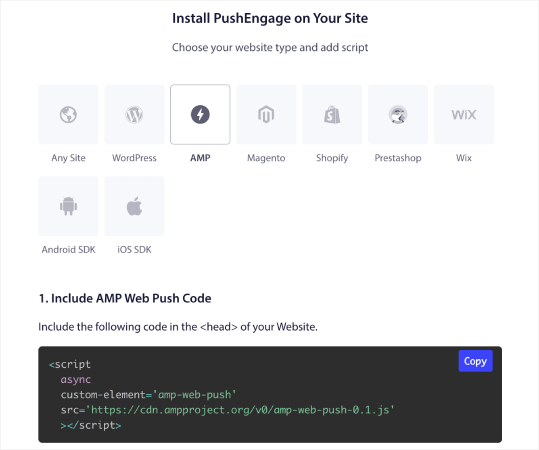
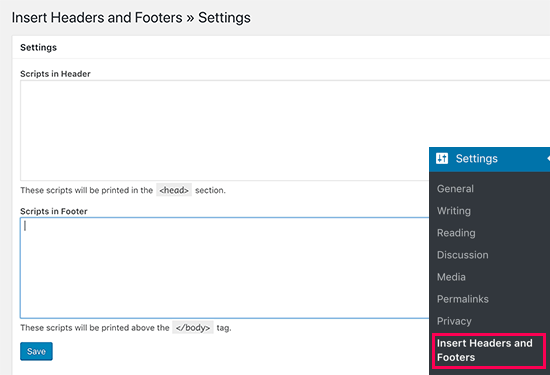
Bu kodu kopyalayın. Bu kodu sitenizin HTML <head> etiketine yapıştırmanız gerekecek. AMP sürümüne sahip bir WordPress sitesi kullanıyorsanız, bunu yapmanın en basit yolu Insert Headers and Footers eklentisini kullanmaktır. Bu, sitenizin gerçek HTML'ine girmeden AMP yükleme kodunu yapıştırabileceğiniz ücretsiz bir eklentidir:
Adım #3: AMP Sitenize Servis Çalışanı Yükleyin
Ardından, servis çalışanını içeren paket dosyasını indirin.
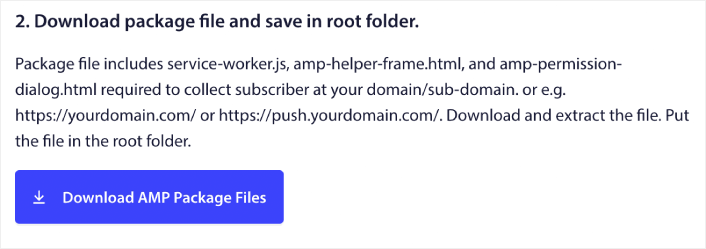
Bunlar şunları içerir:
- service-worker.js
- amp-helper-frame.html
- amp-permission-dialog.html
Paketi açın ve bu dosyaları sunucunuzun kök klasörüne yerleştirin. Bu kısım çok önemli. Bu adımı atlarsanız, siteniz anlık bildirim abonelerini toplayamaz.
Profesyonel İpucu: Kök klasörün ne olduğunu ve dosyaları oraya nasıl yükleyeceğinizi bilmiyorsanız, WordPress Dosya ve Dizin Yapısı hakkındaki bu makaleye göz atmalısınız. Yeni başlayanlar için gerçekten basit bir rehberdir ve WordPress'in nasıl çalıştığına dair çok fazla bilgi edinirsiniz.
Adım #4: AMP Anlık Bildirim HTML Kodunu Sitenize Ekleyin
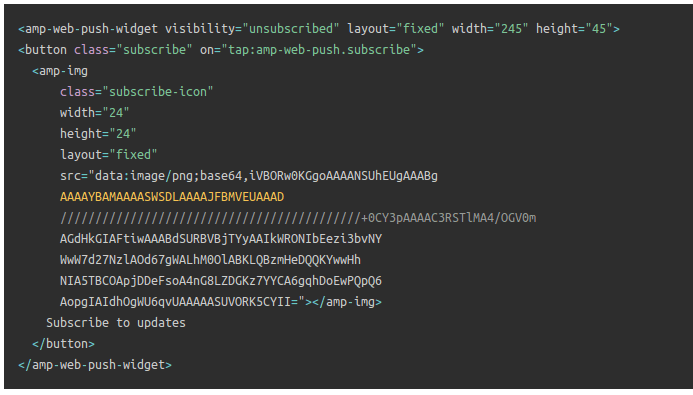
Ardından, tıklandığında abone ol düğmesini ve anlık bildirim kampanyalarından abonelikten çıkma düğmesini etkinleştirmek için HTML kodunu ekleyin.
Bu kod, yüklediğiniz servis çalışanı dosyasını etkinleştirir ve sitenizin abone olma ve abonelikten çıkma düğmelerini görüntülemesine olanak tanır. Aboneleri toplamak için ziyaretçilerinize anlık bildirim kampanyalarınıza abone olmaları için basit bir yol sunmanız gerekir. Abonelikten çıkma düğmesi, aktif abonelerinize içeriklerinizle ilgilenmiyorlarsa vazgeçmeleri için bir yol sunacaktır. Her ikisi de oldukça önemlidir.
'Güncellemelerime abone ol' düğmesini sitenizde görünmesini istediğiniz yere ekleyin:
Ve 'Güncellemelerden çık' düğmesini ekleyin:
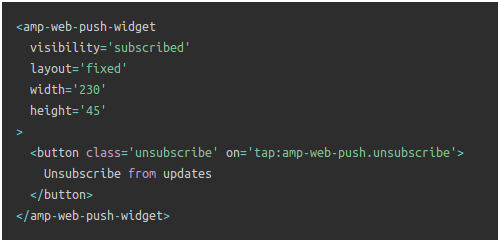
Abonelikten çıkma düğmesi basit bir 'abonelikten çıkmak için dokunun' düğmesi olacaktır. Hem mobil hem de masaüstü cihazlarda sitenizin AMP olmayan sürümü için çok daha fazla özelleştirme seçeneği elde edersiniz. Bu nedenle, AMP CSS'yi <body> bölümünüze eklemenizi öneririz.
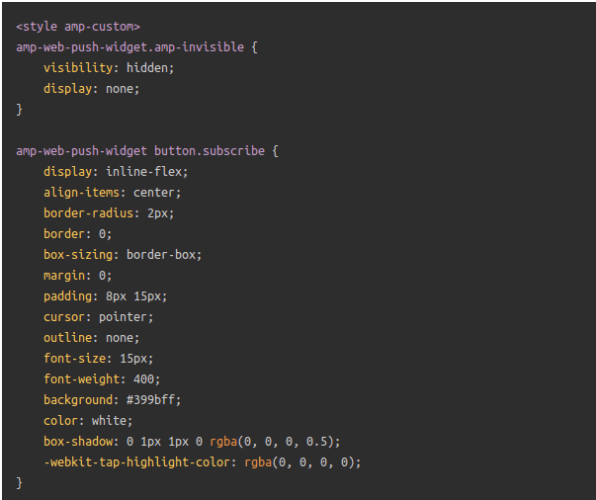
Bu kod parçacığı, hem Abonelik hem de Abonelikten Çıkma düğmelerinin görünümünü ve hissini özelleştirmek için tasarlanmıştır. Bu stillerle oynamak isterseniz, devam edin. Sadece kodun stilize ettiği AMP HTML etiketlerini değiştirmemeye dikkat edin.
Ve bu kadar. İşiniz bitti.
Adım #5: PushEngage Onayını Yapılandırma
Şimdi PushEngage kontrol panelinize geri dönün. Tasarım » Açılır Modallar bölümüne gidin ve istediğiniz kaydolma seçeneğini belirleyin:
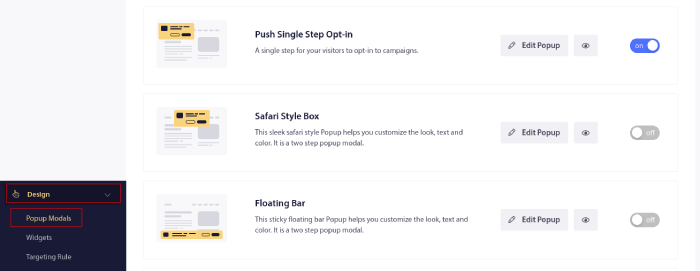
Buradaki fikir, ziyaretçilerinize abone olmaları için sağlam bir neden vermektir. Bu konuda yardıma ihtiyacınız varsa, özel bir anlık bildirim kayıt formu nasıl oluşturulur hakkındaki makalemize göz atın.
Ve başlamanız için bazı şablonlar isterseniz, yüksek dönüşüm sağlayan anlık bildirim kaydolma seçenekleri hakkındaki bu makaleye göz atmalısınız.
EK Adım: Karşılama Kampanyası Oluşturma
İsteğe bağlıyı ayarlamayı bitirdiğinizde siteniz abone toplayabilir.
Ancak push kampanyalarınızın düzgün çalışıp çalışmadığını nasıl anlarsınız?
Kurulumunuzun sorunsuz ilerlediğini test etmek için bir karşılama push bildirimi oluşturmanızı öneririz. Karşılama bildirimi, yeni bir aboneye aboneliğini onaylamak ve onları hoş karşılamak için gönderdiğiniz bir web push bildirimidir.
PushEngage kontrol paneline gidin ve Kampanya » Otomatik Yanıtlayıcılar bölümüne gidin ve Yeni Otomatik Yanıtlayıcı Oluştur'a tıklayın:

Ardından, kampanyanıza bir ad verin (Hoş Geldin Drip gibi bir şey öneririz) ve Content altında, “Kullanıcı abone olduktan hemen sonra bildirim gönder“ seçeneğini seçin):

Bu noktada, bildiriminizin içeriğini düzenlemek için bildirim yanındaki oka tıklayabilirsiniz. PushEngage ile Premium veya Enterprise planınız varsa, bir dizi otomatik hoş geldin mesajı oluşturmak için birden fazla bildirim ekleyebileceksiniz. Sadece Add New Notification'a tıklayın ve içeriği düzenleyin.
İşiniz bittiğinde, Drip Ayarları'na tıklayın ve karşılama kampanyasını tüm abonelere gönderme seçeneğini belirleyin:

Ardından, push kampanyalarını izlemek için kendi UTM parametrelerinizi ayarlamak üzere aşağı kaydırın:

Ve işiniz bittiğinde, yukarı kaydırın ve Otomatik Yanıtlayıcıyı Etkinleştir düğmesine tıklayın:

Ve hepsi bu kadar!
Web sitenize başarıyla AMP web push bildirimleri kurdunuz. PushEngage kontrol panelinize geri dönüp push kampanyalarınızı oluşturmaya başlama zamanı.
Sitenize AMP Push Bildirimleri Ekledikten Sonra Ne Yapmalı
Bu kadar, millet!
Push kampanyalarına yeni başlıyorsanız, yayına geçmeden önce tam teşekküllü bir push bildirimi test sürecini izlemelisiniz. Ziyaretçileriniz bunları görmeden ve bozuk bir kullanıcı deneyimi hakkında şikayet etmeye başlamadan önce yaygın sorunları gidermenize yardımcı olacaktır.
Ayrıca aşağıdaki gibi daha fazla otomatik anlık bildirim kampanyasına da göz atmalısınız:
Bu konularda takılırsanız, Müşteri Başarı Yöneticilerimizle iletişime geçmenizi öneririz. Herhangi bir konuda size yardımcı olmaktan mutluluk duyarız.
Ve henüz yapmadıysanız, PushEngage'ı deneyin. PushEngage, dünyada 1 numaralı anlık bildirim hizmetidir. Bu nedenle, işinizi büyütme konusunda ciddiyseniz, PushEngage doğru seçenektir.


Bu ipuçları ve bilgileri için teşekkürler. Anlaması çok kolay.
iyi açıklama