Pop-up'larınıza anlık bildirim abonelik düğmesi eklemenin bir yolunu mu arıyorsunuz?
Pop-up'lar, dönüşüm oranlarınızı artırmak ve bir e-posta listesi oluşturmak için harika bir yoldur. Ancak onlarla yapabilecekleriniz bunlarla sınırlı değil. Doğru pop-up oluşturucuyu kullanırsanız, pop-up'larınızla ilgili her şeyi özelleştirebilirsiniz.
Varsayılan olarak, anlık bildirimler pop-up pencereleriyle birlikte gelir. Ancak bir pop-up oluşturucu ile çok daha fazla özelleştirme seçeneği elde edebilirsiniz.
Bu nedenle, pop-up oluşturmak ve anlık bildirim aboneleri toplamak için bir abonelik bağlantısı eklemek üzere bir pop-up oluşturucu kullanacağız.
Pop-up'larınızdan doğrudan anlık bildirim aboneleri toplamak için kolayca bir düğme ekleyebilirsiniz. Ve bunu yapmak çok kolay. Tek ihtiyacınız olan bir pop-up oluşturucu ve anlık bildirim aboneleri toplamak için özel pop-up'lar ayarlamak üzere bir anlık bildirim yazılımıdır.
Hadi başlayalım.
Anlık Bildirim Aboneleri Toplamak İçin Pop-up Oluşturma
Tüm pop-up'larınızı oluşturmak için OptinMonster kullanmanızı öneririz. Hadi bir pop-up oluşturarak başlayalım.
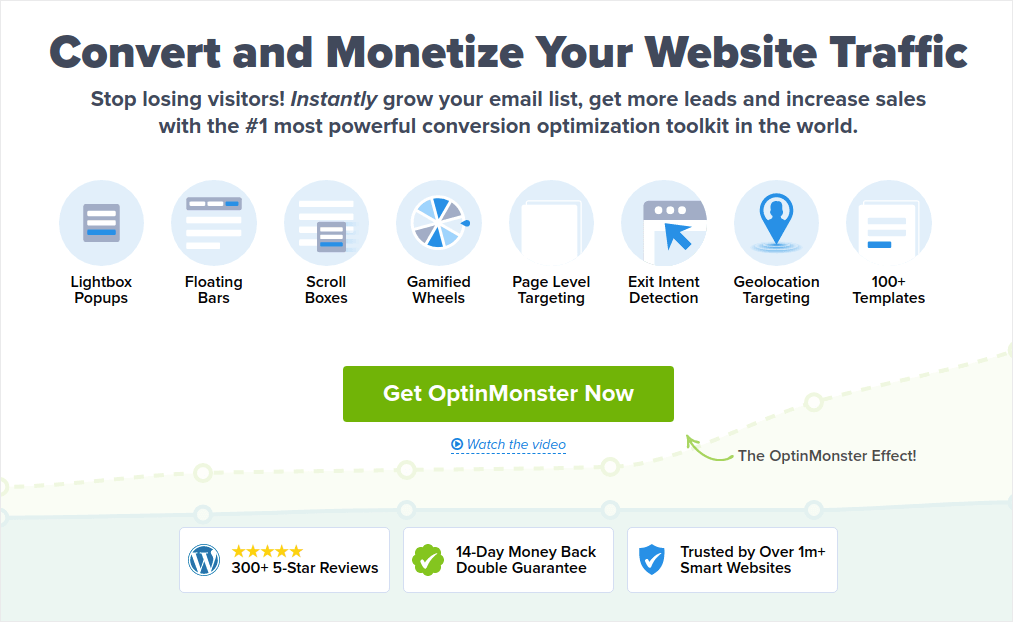
OptinMonster, dünyanın 1 numaralı dönüşüm araç setidir ve biz de kendimiz kullandık. OptinMonster, güçlü ve dönüşüm sağlayan pop-up'lar oluşturmayı çok basit hale getirir. Ve hiç kodlama kullanmanız gerekmez.
OptinMonster, potansiyel müşteri oluşturma sürecinize başlamak, büyütmek ve ölçeklendirmek için ihtiyacınız olan hemen hemen her şeye sahiptir.
Araç setini kullanarak neler yapabileceğinize hızlı bir genel bakış:
- Pop-up kullanarak anlık bildirim aboneleri toplama
- İlk kez gelen ziyaretçileri düzenli okuyuculara dönüştürme
- Sepet terk etme ve göz atma terk etme oranlarını azaltma
- Gerçek geri sayım sayaçlarıyla sınırlı süreli teklifler oluşturma
- E-kitap indirmelerini ve dijital ürün satışlarını artırma
- Canlı etkinlikler için bir hunisi oluşturma
- Oyunlaştırılmış pop-up'lar kullanarak site etkileşimini iyileştirme
- Trafiğinizi size para kazandıran sayfalara ve gönderilere yönlendirme
OptinMonster'ı oldukça sık kullanıyoruz ve hatta tam bir OptinMonster incelemesi yazdık. Bunu inceleyebilir veya kampanyanıza hemen başlayabilirsiniz. Tek yapmanız gereken OptinMonster'a kaydolmak ve bu makalenin geri kalanını takip etmektir.
1. Adım: Aboneleri Toplamak İçin Bir Pop-up Kampanyası Oluşturun
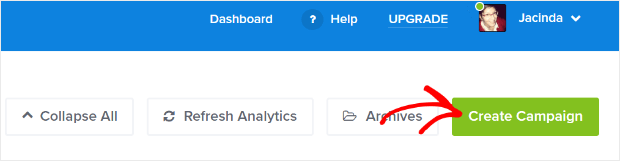
OptinMonster kontrol panelinize gidin ve Oluştur düğmesine basın:
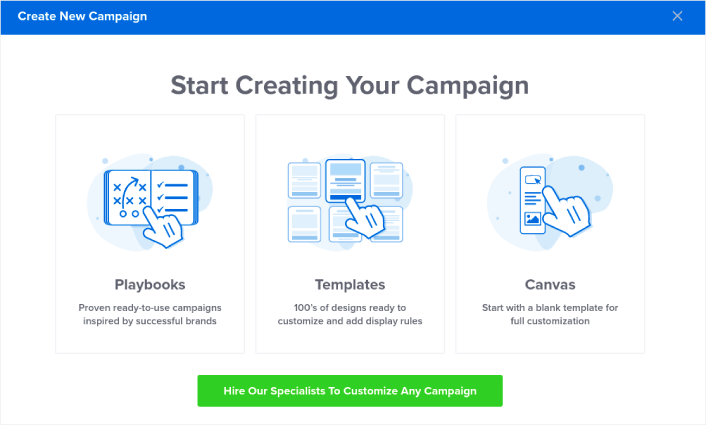
Önceden tasarlanmış bir şablon kullanarak bir opt-in oluşturmaya başlamak için Şablon seçeneğini belirleyin:
Bu eğitim için Kara Cuma için bir pop-up oluşturacağız. Pop-up kampanya türünü seçin ve bir kampanya şablonu arayın
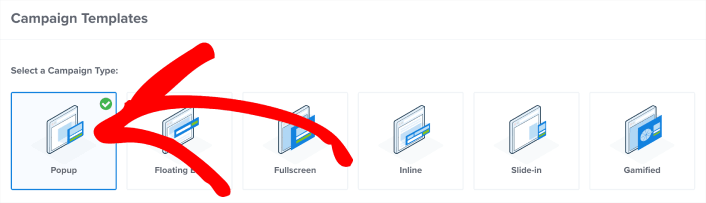
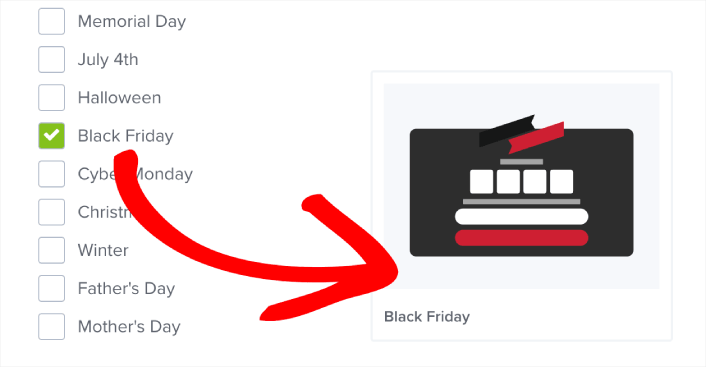
Beğendiğiniz herhangi bir şablonu seçebilirsiniz, ancak bu eğitim için Kara Cuma kampanya şablonunu kullanacağız.
Şablonunuzu seçtikten sonra, kampanyanıza bir ad verin. Unutmayın, bu kampanya adı sizin içindir ve muhtemelen farklı hedefleme seçenekleriyle bu pop-up'lardan birçoğunu oluşturacaksınız. Bu nedenle, kampanyaya anlamlı bir ad verin, yoksa daha sonra gerçekten kafanız karışır.
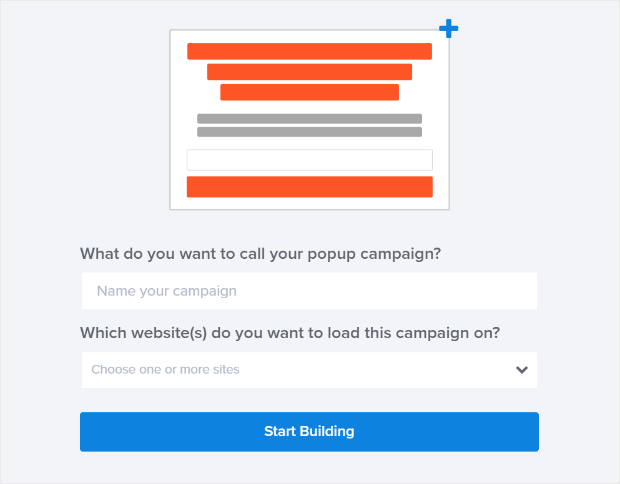
Ayrıca, planınıza bağlı olarak OptinMonster'ı birden fazla sitede de kullanabilirsiniz. Bu nedenle, kampanyanızın görüntülenmesini istediğiniz web sitesini de seçin. İşiniz bittiğinde Oluşturmaya Başla düğmesine basın.
Adım #2: Açılır Pencerenin Görünümünü Özelleştirmek İçin Düzenleyin
OptinMonster ile görsel bir sürükle ve bırak açılır pencere oluşturucu elde edersiniz. Kampanyanıza ad verdikten sonra, açılır pencerenizle ilgili en küçük ayrıntıları bile düzenleyebileceksiniz.
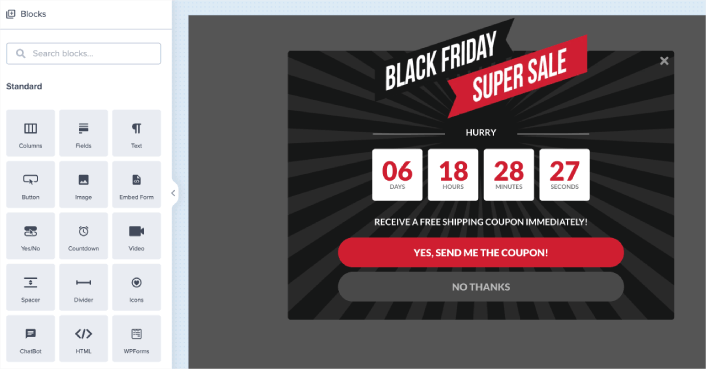
Buradaki en inanılmaz şey, düzenlemek istediğiniz herhangi bir metne tıklayıp satır içi değiştirebilmenizdir. Açılır pencerede bir formu doldurmaya veya herhangi bir HTML kodu düzenlemeye gerek yoktur.
Açılır pencerenizle ilgili görseller de dahil olmak üzere istediğiniz her şeyi düzenleyebilirsiniz. İndirim teklifinin görünümünden memnun kaldığınızda, daha gelişmiş ayarlara geçebilirsiniz.
Bu özel şablonun kurulumu, açılır pencerenin üç bölümden oluşması şeklindedir. Ziyaretçilerin Black Friday'de bir kupon için kaydolduğu ilk Evet/Hayır ekranınız var. Yukarıdaki resimde gördüğünüz budur. Varsayılan olarak, ücretsiz kargo kuponudur. Ancak istediğiniz herhangi bir teklifi veya kuponu ekleyebilirsiniz.
Ziyaretçileriniz açılır penceredeki Evet düğmesine tıkladığında, Kayıt Ol ekranına yönlendirilirler. Abone toplama işlemini burada yaparsınız. Varsayılan olarak, kayıt ekranı e-postaları toplar. Bunu, anlık bildirim abonelerini toplamak için bir düğmeyle değiştireceğiz.
Son olarak, ziyaretçiniz abone olduğunda görünen bir Başarı ekranınız var.
Bunu adım adım yapalım.
Adım #3: Açılır Pencereden E-posta Kaydını Kaldırın
Açılır penceredeki istediğiniz herhangi bir modülü düzenleyebilirsiniz. Alt bardaki Kayıt Ol ekranına gidin:
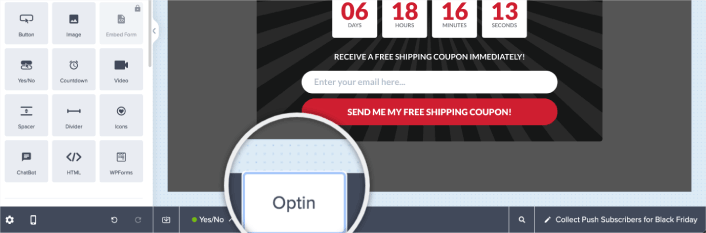
Burada, e-posta kayıt modülünün üzerine gelebilir ve kaldırmak için sil düğmesine tıklayabilirsiniz:
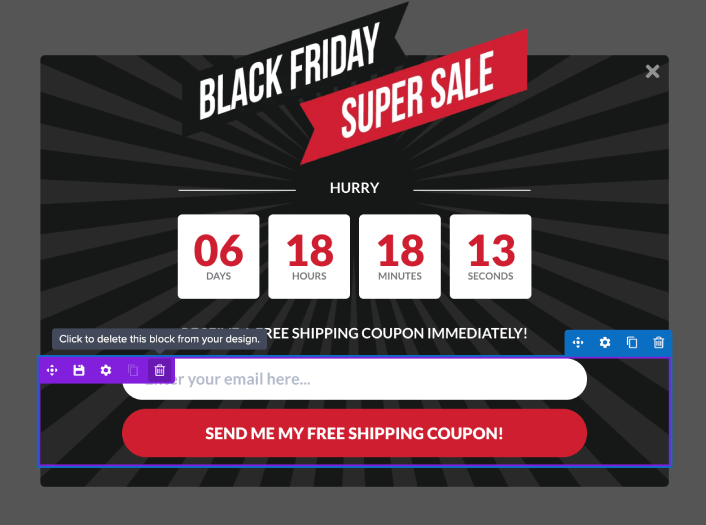
E-posta kaydı artık kaldırıldığına göre, anlık bildirim abonelerini toplayacak bir düğme ekleyeceğiz.
Adım #4: Açılır Pencerenize Tıklayarak Abone Ol Düğmesi Ekleyin
Öncelikle, OptinMonster'daki kenar çubuğundan açılır pencerenize bir HTML bloğu ekleyin.
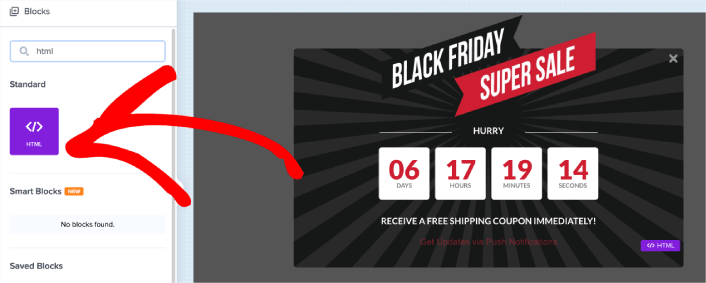
Burada anlık bildirim abonelerini toplamak için kodu ekleyeceğiz. Öncelikle, tıklanabilir bir düğme oluşturmak için aşağıdaki kodu yapıştırın:
<button class = "btn" onclick="subscribeOnClickButton()">Get Updates via Push Notifications Instead</button>Kodu, HTML ekleyebileceğinizi belirttiğiniz yere yapıştırın. Bu noktada, açılır pencerenizde yeni bir düğme görmelisiniz:
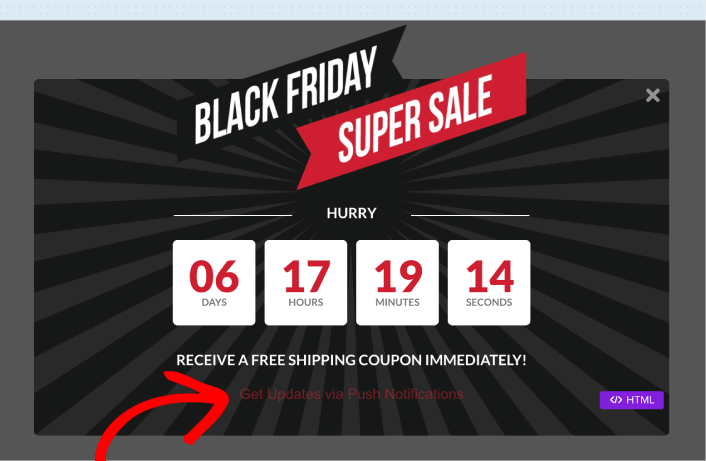
Ardından, aşağı kaydırın ve aşağıdaki CSS'yi CSS kapsayıcısına yapıştırın:
html div#om-{{id}} .btn
{
    font-family: Arial, sans-serif;
    font-weight: 0;
    font-size: 14px;
    color: #fff;
    background-color: #cf1f31;
    padding: 10px 30px;
    width: 100%;
    margin: auto;
    border: solid #cf1f31 2px;
    box-shadow: rgb(0, 0, 0) 0px 0px 0px 0px;
    border-radius: 50px;
    transition : 1000ms;
    transform: translateY(0);
    display: grid;
    align-text: center;
    cursor: pointer;
}

html div#om-{{id}} .btn:hover
{
    transition : 1000ms;
    padding: 10px 35px;
    transform : translateY(-0px);
    background-color: #ffffff;
    color: #cf1f31;
    border: solid 2px #ffffff;
}
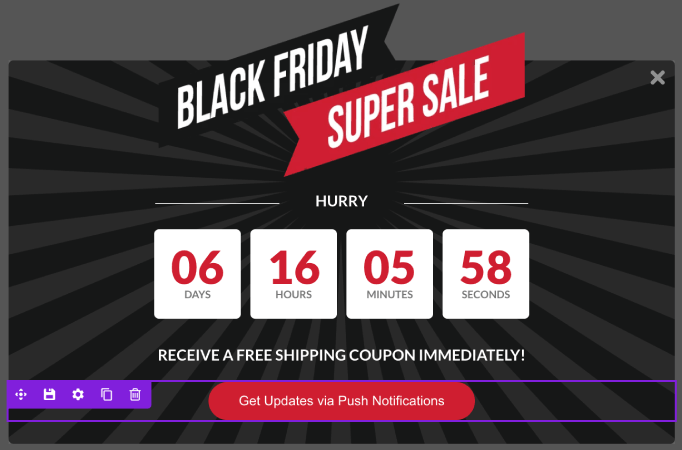
Bu noktada, açılır pencerenizde güzel görünen bir düğme görmelisiniz:
Adım #5: PushEngage'dan Abonelik Kodu Alın
Anlık bildirimler, web sitesi trafiğinizi ve etkileşiminizi otomatik olarak artırmanıza yardımcı olur. Web anlık bildirimleri, oturumunu terk etmiş veya web sitesinden ayrılmış kullanıcıları geri getirmenin etkili bir yoludur. Yeni içerik, teklifler veya etkinliklerden onları haberdar ederek kullanıcıları yeniden etkilemeye yardımcı olur.
Anlık bildirimler ayrıca, kullanıcıları belirli eylemleri gerçekleştirmeye teşvik eden net ve eyleme geçirilebilir mesajlar ve eylem çağrısı düğmeleri içerir; örneğin bir makale okumak, bir satın alma işlemini tamamlamak veya bir etkinliğe katılmak gibi.
Mesajların her kullanıcı için alakalı ve değerli olmasını sağlamak amacıyla anlık bildirimleri kullanıcıların tercihlerine, davranışlarına ve ilgi alanlarına göre uyarlayabilirsiniz. Kullanıcıların web anlık bildirimlerini almayı kabul etmesi gerekir. Bu, mesajların spam olarak görülmemesini ve kullanıcıların izniyle gönderilmesini sağlar.
En havalı yanı, e-posta açılır pencerenizden push bildirim aboneleri toplayabilmenizdir. Yani, site ziyaretçileriniz e-posta kimliklerinden vazgeçmek istemeseler bile, onları yine de web push bildirimleri kullanarak abone yapabilirsiniz.
Web push bildirimleri göndermek için PushEngage kullanmanızı öneririz.

PushEngage ile neleri elde ettiğinize hızlı bir bakış:
- Yüksek dönüşüm sağlayan otomatik kampanyalar
- Birden fazla hedefleme ve kampanya zamanlama seçenekleri
- Hedef izleme ve gelişmiş analizler
- Akıllı A/B testi
- Özel Bir Başarı Yöneticisi
Ücretsiz başlayabilirsiniz, ancak işletmenizi büyütme konusunda ciddiyseniz, ücretli bir plan satın almalısınız. Ayrıca, herhangi bir anlık bildirim hizmeti satın almadan önce, anlık bildirim maliyetleri hakkındaki bu kılavuza göz atmalısınız.
Ve bir çevrimiçi mağaza işletiyorsanız, PushEngage ayrıca otomatik e-ticaret push bildirimleri oluşturmanıza yardımcı olarak satışlarınızı artırmanıza yardımcı olur.
İşletmeniz için trafik, etkileşim ve satış oluşturmak istiyorsanız, PushEngage'in tartışmasız en iyi seçenek olduğunu göreceksiniz. Ve bütçeniz kısıtlıysa, anlık bildirimlerinizle biraz yaratıcı olabilirsiniz.
PushEngage ana sayfasına gidin ve Başlayın düğmesine tıklayın:

Ardından, PushEngage'i denemek için ücretsiz planı seçmek isteyeceksiniz veya işletmenizi büyütme konusunda ciddiyseniz ücretli bir planı seçin. Ücretli planlar daha fazla kampanya seçeneği ve daha büyük abone listeleri oluşturma olanağı sunar.
PushEngage kontrol panelinizde, Site Ayarları » Site Detayları bölümüne gidin ve Kurulum Talimatları İçin Buraya Tıklayın düğmesine tıklayın. Herhangi Bir Site altında, kurulum kodunuzu alacaksınız:

UYARI: Kontrol panelinizden aldığınız kodu kopyalamanız gerekir. Kod, her PushEngage kullanıcısı için benzersizdir. Görüntüdeki kodu kopyalayarak anlık bildirim aboneleri toplayamazsınız.
Kodunuzu PushEngage kontrol panelinizde aldıktan sonra, ikinci betiği alın ve ona ek kod ekleyin. Nihai kodunuz şuna benzer olmalıdır:
<script src="https://clientcdn.pushengage.com/core/02a6e92667ae2279fcba8932356c1d93.js" async></script>
<script> window._peq = window._peq || [];
function subscribeOnClickButton(){
window._peq.push(['subscribe',{}.pe,function(res){
console.log(res);
}]);
}
</script>
Adım #6: Abonelik Kodunuzu Açılır Pencerenizdeki HTML Bloğuna Ekleyin
Bu kodu OptinMonster'daki HTML bloğuna ekleyin ve hazırsınız!
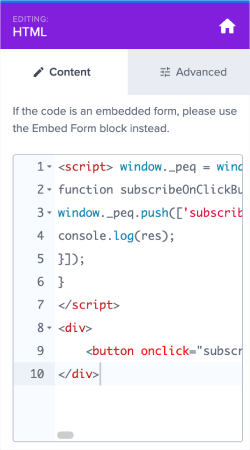
İşiniz bittiğinde, Kaydet ve Yayınla düğmelerine basın.
Adım #7: Tıklama Takibi ve Kampanya Kapatmayı Ekleme
Yapmamız gereken son şey, her aboneyi OptinMonster'da bir dönüşüm olarak kabul etmek için tıklama takibi kodu eklemektir. Ayrıca, ziyaretçi abone olduğunda, onları Başarı ekranına yönlendirmek veya kampanyadan çıkmak isteyeceksiniz.
Javascript kod parçacığı içine aşağıdaki kod satırlarını ekleyin:
Dönüşüm takibini etkinleştirmek için bu kodu ekleyin:
om{{id}}.Listeners.convert(); //Track submission as a conversion in OptinMonsterAbonenizi Başarı ekranına taşımak için bu kodu ekleyin:
om{{id}}.changeView('success'); // Show Success view on submissionAbonelikte kampanyayı kapatmak için bu kodu ekleyin:
om{{id}}.startClose();// Close campaign on submissionBirden fazla kod parçacığı da ekleyebilirsiniz. Aboneleri Başarı ekranına taşımanızı ve dönüşümü izlemenizi öneririz. Bu nedenle, kullanmanızı önerdiğimiz son kod parçacığı (düğme ve tüm Javascript dahil) şudur:
<script src="https://clientcdn.pushengage.com/core/02a6e92667ae2279fcba8932356c1d93.js" async></script>
<script> window._peq = window._peq || [];
function subscribeOnClickButton(){
window._peq.push(['subscribe',{}.pe,function(res){
console.log(res);
om{{id}}.Listeners.convert(); //Track submission as a conversion in OptinMonster
om{{id}}.startClose();// Close campaign on submission
}]);
}
</script>
<div>
	<button class="btn" onclick="subscribeOnClickButton()">Get Updates via Push Notifications</button>
</div>
Alternatif olarak, kampanyayı doğrudan kapatmak için bunun yerine bu kodu kullanabilirsiniz:
<script src="https://clientcdn.pushengage.com/core/02a6e92667ae2279fcba8932356c1d93.js" async></script>
<script> window._peq = window._peq || [];
function subscribeOnClickButton(){
window._peq.push(['subscribe',{}.pe,function(res){
console.log(res);
om{{id}}.Listeners.convert(); //Track submission as a conversion in OptinMonster
om{{id}}.changeView('success'); // Show Success view on submission
}]);
}
</script>
<div>
	<button onclick="subscribeOnClickButton()">Get Updates via Push Notifications</button>
</div>
Kodu OptinMonster açılır pencerenizin HMTL bloğuna kopyalayıp yapıştırmanız yeterlidir.
Ve her iki kod parçacığı için de, HTML bloğunuzun CSS bölümüne aşağıdaki CSS'yi eklemeyi unutmayın:
html div#om-{{id}} .btn
{
    font-family: Arial, sans-serif;
    font-weight: 0;
    font-size: 14px;
    color: #fff;
    background-color: #cf1f31;
    padding: 10px 30px;
    width: 100%;
    margin: auto;
    border: solid #cf1f31 2px;
    box-shadow: rgb(0, 0, 0) 0px 0px 0px 0px;
    border-radius: 50px;
    transition : 1000ms;
    transform: translateY(0);
    display: grid;
    align-text: center;
    cursor: pointer;
}

html div#om-{{id}} .btn:hover
{
    transition : 1000ms;
    padding: 10px 35px;
    transform : translateY(-0px);
    background-color: #ffffff;
    color: #cf1f31;
    border: solid 2px #ffffff;
}
İşiniz bittiğinde Kaydet'e tıklayın. Web sitenizi kontrol ederseniz, şimdi açılır pencerenin hem e-posta hem de push bildirim aboneleri topladığını görmelisiniz:
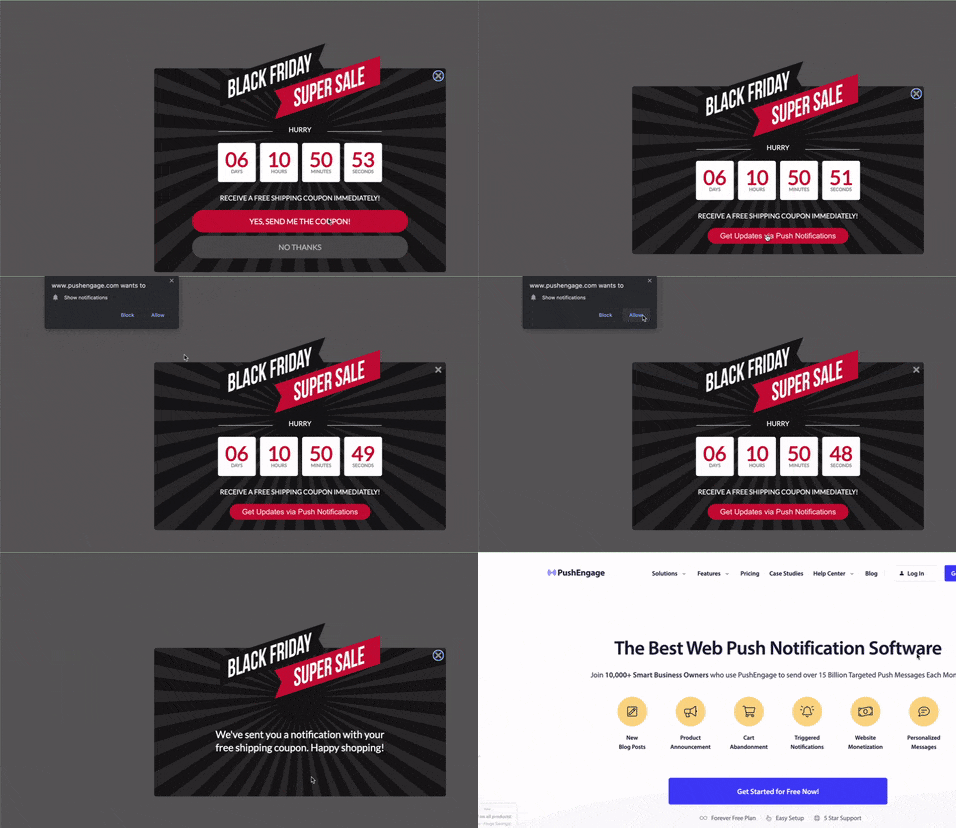
Ve işte bu kadar, açılır pencerenizden push abone topluyorsunuz. Push bildirimleri kendi açılır pencere modalleriyle birlikte gelir. Ancak özelleştirmeleri biraz zordur. Bu nedenle, OptinMonster kullanarak güzel açılır pencereler oluşturabilir ve bunları push bildirim açılır pencereleriniz olarak kullanabilirsiniz.
Adım #8: Çıkış Niyeti Açılır Pencerenizi WordPress'te Yayınlayın
Yeni bir kampanya oluşturduğunuzda, varsayılan olarak Duraklatılmış durumdadır.
Yayın Seçenekleri'ni görmek için üst menüden Yayınla sekmesine gidin. Ardından durumu Yayınla olarak ayarlayın ve web sitesi platformunu seçin:
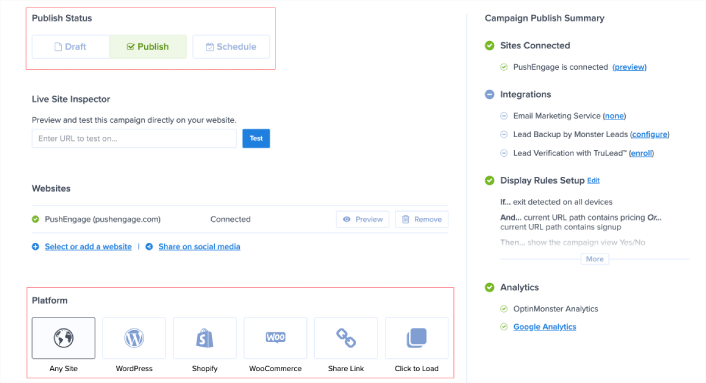
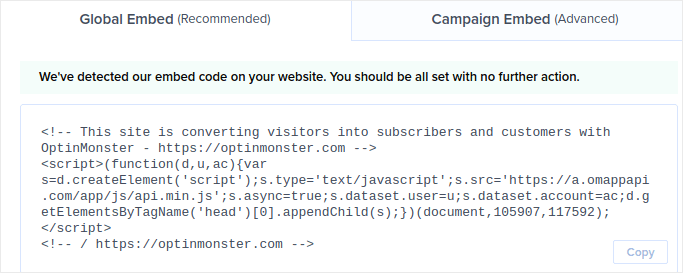
Bir WordPress siteniz varsa, OptinMonster eklentisi geri kalan kurulumu otomatik olarak halleder. Shopify ve BigCommerce için de aynıdır. Diğer herhangi bir site için Herhangi Bir Site'ye tıklayın ve ekleme kodunu web sitenizin başlığına yapıştırın:
Ve işte bu kadar!
Bonus Adım: PushEngage'de Hızlı Kurulumu Devre Dışı Bırakın
Hızlı Kurulum, SSL sertifikası olmayan bir web sitesine push bildirim aboneleri ekleme yöntemidir. Günümüzde neredeyse tüm sitelerde bir SSL sertifikası bulunmaktadır, ancak sizde yüklü değilse, hemen bir tane yüklemenizi şiddetle tavsiye ederiz. WordPress'te SSL sertifikası nasıl kurulur hakkındaki bu makaleye göz atın.
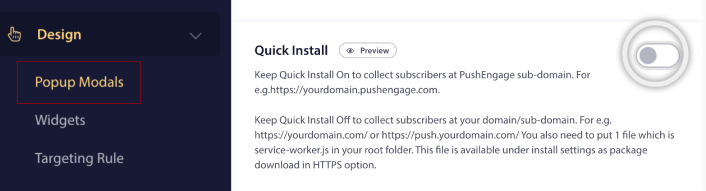
Bu nedenle, sitenizde abone toplamaya başlamadan önce, Hızlı Kurulumu da devre dışı bırakmanızı öneririz. PushEngage panosuna gidin ve Tasarım » Popup Modalleri'ne gidin. Ardından, Hızlı Kurulum'u devre dışı bırakın:
Ve şimdi, web sitenizi tanıtmak ve Black Friday için daha fazla abone toplamak için hazırsınız!
Push Abonelerini Toplamaya Başladıktan Sonra Ne Yapmalı
Bu kadar, millet!
Bu makalenin yardımcı olup olmadığını bize bildirin. Sitenizde pop-up'lar oluşturmak, trafiğinizi push abonelerine ve gerçek işletme potansiyel müşterilerine dönüştürmenize yardımcı olabilir. Ve hemen çıkış niyeti pop-up'ları oluşturmaya başlamanızı şiddetle tavsiye ederiz.
Ve trafiğinizi artırmanın uygun fiyatlı bir yolunu arıyorsanız, push bildirimlerini kullanmanızı öneririz. Push bildirimleri, daha fazla tekrar trafik ve site etkileşimi getirmenize yardımcı olabilir. Ayrıca satışları artıran otomatik push bildirim kampanyaları da oluşturabilirsiniz.
İkna olmadınız mı? Bu kaynaklara göz atın:
- Müşteri Etkileşimini Artırmak İçin 7 Akıllı Strateji
- Anlık Bildirimler Etkili mi? 7 İstatistik + 3 Uzman İpucu
- Terk Edilmiş Sepet Anlık Bildirimleri Nasıl Ayarlanır (Kolay Eğitim)
- Sitenize Bir Web Bildirimleri WordPress Eklentisi Nasıl Eklenir
Anlık bildirim kampanyalarınızı oluşturmak için PushEngage kullanmanızı öneririz. PushEngage, dünyanın 1 numaralı anlık bildirim yazılımıdır. Bu nedenle, henüz yapmadıysanız, bugün PushEngage ile başlayın!


