
WordPress siteniz için bir çıkış niyeti açılır penceresi oluşturmanın bir yolunu mu arıyorsunuz?
Bir çıkış niyeti açılır penceresi, potansiyel müşterileri yakalamak için inanılmaz derecede etkili olabilir. Ziyaretçinin tüm odağını kendilerine çekerek ikna etmek ve dönüştürmek için tasarlanmışlardır.
Ancak sıfırdan bir tane kodlamak gerçek bir baş belasıdır. Birincisi, açılır pencereyi oluşturmak için yeterli HTML, CSS ve Javascript bilgisine sahip olmanız gerekir, ayrıca ne zaman göstereceğinize dair tetikleyici kuralları da bilmeniz gerekir. Ardından, e-posta hizmeti sağlayıcınızla manuel bir entegrasyon oluşturmanız gerekir. Ve son olarak, gizlilik ve güvenlik sorunlarıyla uğraşmanız gerekir.
İyi haber: çok daha basit bir yol var.
Bu makalede, size kodlama yapmadan 10 dakikadan kısa sürede WordPress'te tam ekran bir açılır pencereyi nasıl başlatacağınızı göstereceğiz.
Hadi başlayalım.
Çıkış Niyeti Açılır Penceresi Nedir?
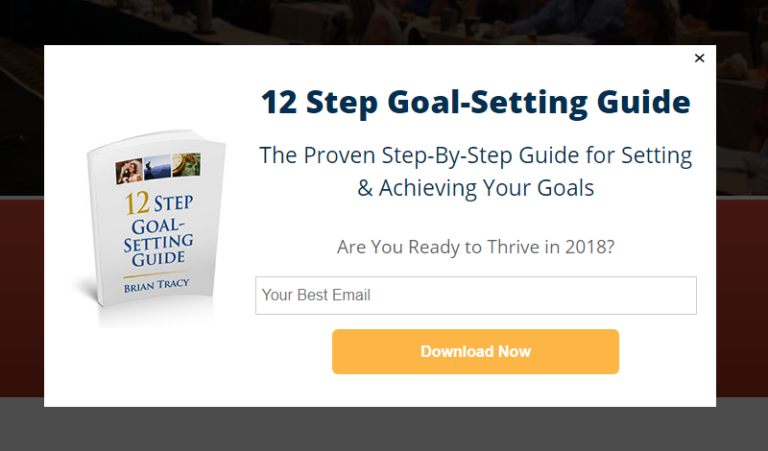
Çıkış niyeti açılır penceresi, ziyaretçileriniz sitenizden ayrılmaya çalıştığında açılan bir kayıt formudur. Çıkış niyeti açılır pencereniz genellikle ayrılan ziyaretçilere e-posta adresleri karşılığında bir teklif sunar. Ancak isterseniz, onları indirim kodlu bir ürüne veya en çok dönüşüm sağlayan içeriğinize de yönlendirebilirsiniz.
Kısacası: çıkış niyeti açılır penceresi, aksi takdirde dönüşüm sağlamadan ayrılacak ziyaretçileri dönüştürmek için oluşturulmuştur.
İşte bir örnek:
Çıkış niyeti açılır pencerelerini şunlar için kullanabilirsiniz:
- Yeni ziyaretçileri karşılama
- İndirim kuponu sunma
- Ziyaretçileri en iyi içeriğinize yönlendirin
- Ziyaretçileri sosyal medya profillerinize gönderin
Ve daha fazlası. Hatta açılır formlar oluşturabilirsiniz. Açılır pencereler süper esnektir ve yaratıcı olduğunuz sürece, kolayca yüksek dönüşüm sağlayanlar ayarlayabilirsiniz.
WordPress'te Çıkış Niyeti Açılır Penceresi Nasıl Oluşturulur
Artık çıkış niyeti açılır penceresinin ne olduğunu ve neden bir tane oluşturmak istediğinizi anladığınıza göre, nasıl oluşturursunuz? Tüm açılır pencerelerinizi oluşturmak için OptinMonster kullanmanızı öneririz.
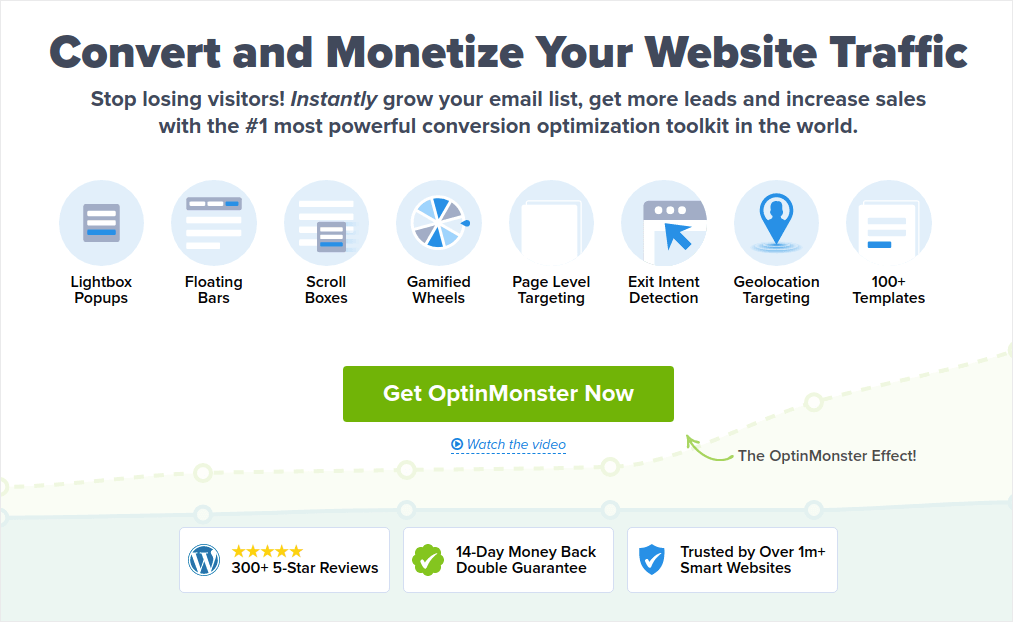
OptinMonster, dünyanın 1 numaralı dönüşüm araç setidir ve biz de kendimiz kullandık. OptinMonster, güçlü ve dönüşüm sağlayan pop-up'lar oluşturmayı çok basit hale getirir. Ve hiç kodlama kullanmanız gerekmez.
OptinMonster, e-posta müşteri adayı oluşturma sürecinizi başlatmak, büyütmek ve ölçeklendirmek için ihtiyacınız olan hemen hemen her şeye sahiptir.
Araç setini kullanarak neler yapabileceğinize hızlı bir genel bakış:
- Yeniden pazarlama için e-posta listenizi sorunsuz bir şekilde büyütün
- İlk kez gelen ziyaretçileri düzenli okuyuculara dönüştürme
- Sepet terk etme ve göz atma terk etme oranlarını azaltın
- Gerçek geri sayım sayaçlarıyla sınırlı süreli teklifler oluşturma
- eKitap indirmelerini ve dijital ürün satışlarını artırın
- Canlı etkinlikler için bir huni oluşturun
- Oyunlaştırılmış pop-up'lar kullanarak site etkileşimini iyileştirme
- Trafiğinizi size para kazandıran sayfalara ve gönderilere yönlendirme
- İki adımlı kayıt formları kullanarak gerçek potansiyel müşterilerden oluşan bir liste oluşturun ve sahte e-postaları kaldırın
OptinMonster'ı oldukça sık kullanıyoruz ve hatta tam bir OptinMonster incelemesi yazdık. Bunu inceleyebilir veya kampanyanıza hemen başlayabilirsiniz. Tek yapmanız gereken OptinMonster'a kaydolmak ve bu makalenin geri kalanını takip etmektir.
Adım #1: Bir Kampanya Oluşturun
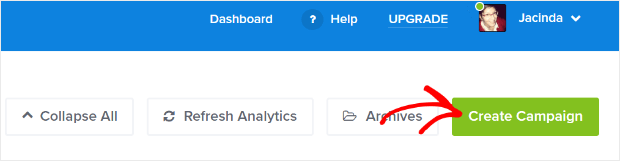
OptinMonster kontrol panelinize gidin ve Oluştur düğmesine basın:
Önceden tasarlanmış bir şablon kullanarak bir opt-in oluşturmaya başlamak için Şablon seçeneğini belirleyin:
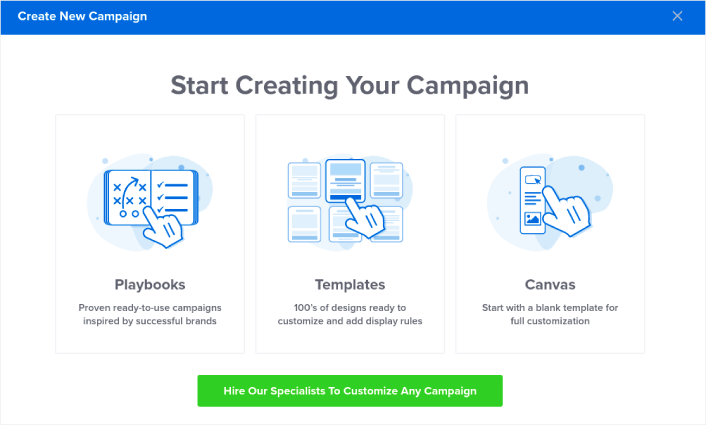
Bu eğitim için tam ekran bir açılır pencere oluşturacağız. Tam ekran açılır pencere şablonlarıyla başlamak için Tam Ekran seçeneğini seçin:
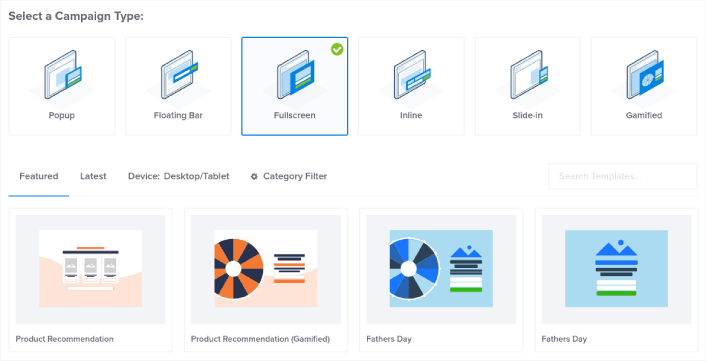
Ardından, bir kampanya şablonu seçin. İstediğiniz şablonu seçebilirsiniz, ancak bu eğitim için Ürün Önerisi (Oyunlaştırılmış) kampanya şablonunu kullanacağız.
Şablonunuzu seçtikten sonra, kampanyanıza bir ad verin. Unutmayın, bu kampanya adı sizin içindir ve muhtemelen farklı hedefleme seçenekleriyle bu pop-up'lardan birçoğunu oluşturacaksınız. Bu nedenle, kampanyaya anlamlı bir ad verin, yoksa daha sonra gerçekten kafanız karışır.
Ayrıca, planınıza bağlı olarak OptinMonster'ı birden fazla sitede de kullanabilirsiniz. Bu nedenle, kampanyanızın görüntülenmesini istediğiniz web sitesini de seçin.
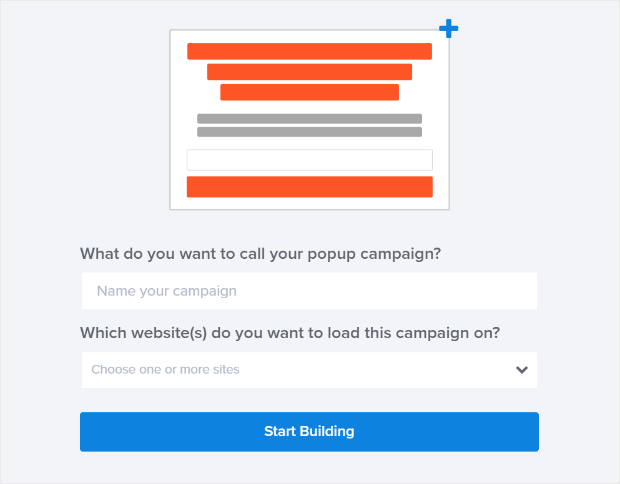
İşiniz bittiğinde Oluşturmaya Başla düğmesine basın.
Adım #2: Açılır Pencerenizi Düzenleyin
OptinMonster ile sürükle ve bırak görsel açılır pencere oluşturucuya sahip olursunuz. Kampanyanızın oluşturulmasını tamamladığınızda, açılır pencerenizin en küçük ayrıntılarını bile düzenleyebileceksiniz. Açılır pencere başlığınızı düzenleyerek başlayın:
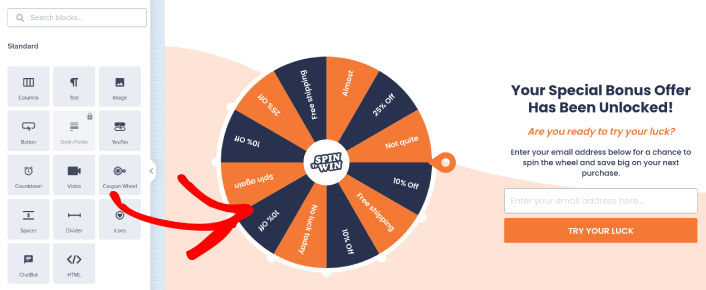
Buradaki en inanılmaz şey, düzenlemek istediğiniz herhangi bir metne tıklayıp satır içi değiştirebilmenizdir. Açılır pencerede bir formu doldurmaya veya herhangi bir HTML kodu düzenlemeye gerek yoktur.
Açılır pencerenizle ilgili istediğiniz her şeyi düzenleyebilirsiniz. Kayıt formunun görünümünden memnun kaldığınızda, daha gelişmiş ayarlara geçebilirsiniz.
3. Adım: Açılır Pencerenize Abone Olmak İçin Tıklayın Düğmesi Ekleyin
Anlık bildirimler, web sitesi trafiğinizi ve etkileşiminizi otomatik olarak artırmanıza yardımcı olur. Ve bir çevrimiçi mağaza işletiyorsanız, PushEngage ayrıca otomatik e-ticaret anlık bildirimleri oluşturmanıza yardımcı olarak satışlarınızı artırmanıza da yardımcı olur.
Ücretsiz başlayabilirsiniz, ancak işletmenizi büyütme konusunda ciddiyseniz, ücretli bir plan satın almalısınız. Ayrıca, herhangi bir anlık bildirim hizmeti satın almadan önce, anlık bildirim maliyetleri hakkındaki bu kılavuza göz atmalısınız.
PushEngage ile nelerin geldiğine hızlı bir bakış:
- Yüksek dönüşüm sağlayan otomatik kampanyalar
- Birden fazla hedefleme ve kampanya zamanlama seçeneği
- Hedef takibi ve gelişmiş analizler
- Akıllı A/B testi
- Özel Bir Başarı Yöneticisi
İşletmeniz için trafik, etkileşim ve satış oluşturmak istiyorsanız, PushEngage'in tartışmasız en iyi seçenek olduğunu göreceksiniz. Ve bütçeniz kısıtlıysa, anlık bildirimlerinizle biraz yaratıcı olabilirsiniz.
Öncelikle, OptinMonster'daki kenar çubuğundan açılır pencerenize bir HTML bloğu ekleyin.
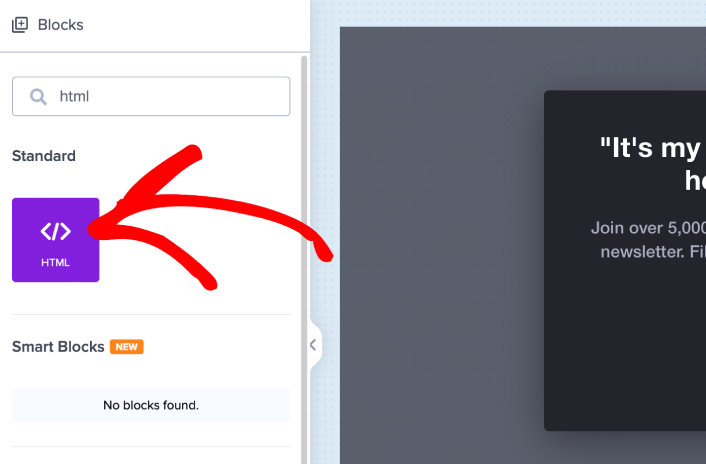
Burada anlık bildirim abonelerini toplamak için kodu ekleyeceğiz. Öncelikle, tıklanabilir bir düğme oluşturmak için aşağıdaki kodu yapıştırın:
<button onclick="subscribeOnClickButton()" style="border: none; width: 100%; padding-left: 15%; padding-right:15%; text-align: center; display: inline-block; color: white;">Get Updates via Push Notifications</button>Kodu, HTML ekleyebileceğinizi söylediği yere yapıştırın:
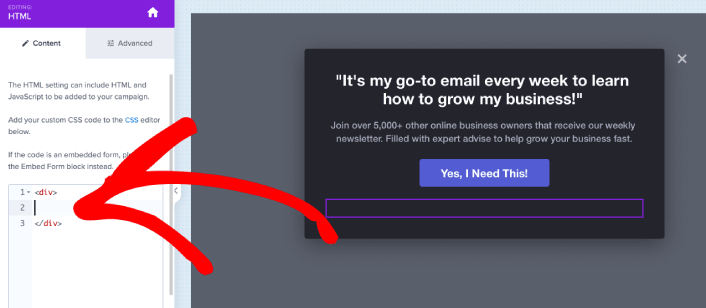
Elbette, daha çekici görünmesini sağlamak için stillerle oynayabilirsiniz. Ardından, düğmeye tıklandığında anlık bildirim abonelerini toplayacağız.
PushEngage ana sayfasına gidin ve Başlayın düğmesine tıklayın:

Ardından, PushEngage'i denemek için ücretsiz planı seçmek isteyeceksiniz veya işletmenizi büyütme konusunda ciddiyseniz ücretli bir planı seçin. Ücretli planlar daha fazla kampanya seçeneği ve daha büyük abone listeleri oluşturma olanağı sunar.
PushEngage kontrol panelinizde, Site Ayarları » Site Detayları bölümüne gidin ve Kurulum Talimatları İçin Buraya Tıklayın düğmesine tıklayın. Herhangi Bir Site altında, kurulum kodunuzu alacaksınız:

UYARI: Kontrol panelinizden aldığınız kodu kopyalamanız gerekir. Kod, her PushEngage kullanıcısı için benzersizdir. Görüntüdeki kodu kopyalayarak anlık bildirim aboneleri toplayamazsınız.
Kodunuzu PushEngage kontrol panelinizde aldıktan sonra, ikinci betiği alın ve ona ek kod ekleyin. Nihai kodunuz şuna benzer olmalıdır:
<script src="https://clientcdn.pushengage.com/core/02a6e92667ae2279fcba8932356c1d93.js" async></script>
<script> window._peq = window._peq || [];
function subscribeOnClickButton(){
window._peq.push(['subscribe',{}.pe,function(res){
console.log(res);
}]);
}
</script>
Bu kodu, düğmeniz için olan kodun hemen ardından ve <div></div> kod bloğunun arasına OptinMonster'daki HTML bloğuna ekleyin ve işiniz bitti!
4. Adım: Çıkış Niyeti Açılır Penceresi Görüntüleme Kurallarını Ayarlayın
Görüntüleme kuralları, kampanyanızın sitenizde ne zaman görüneceğini ve kimin göreceğini tanımlamak için kullanılır.
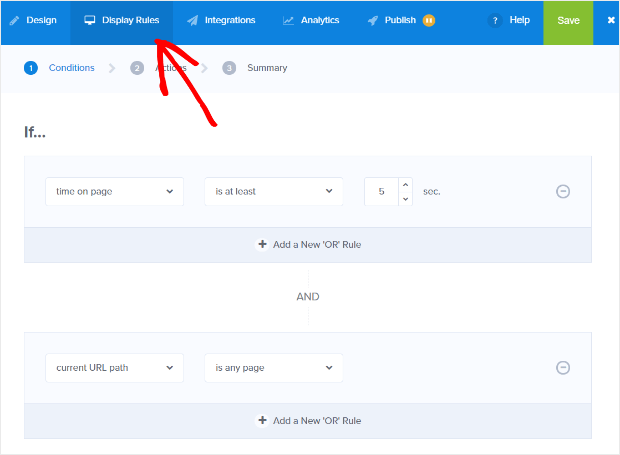
Önerimiz, açılır pencerenin çıkış algılandığında görüntülenecek şekilde ayarlanmasıdır:
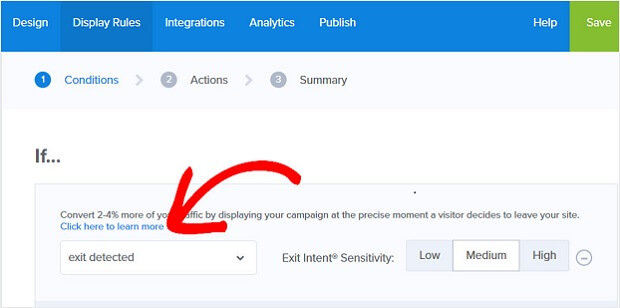
Bu, bir çıkış niyeti açılır penceresi oluşturur. Açılır pencerenizin çıkış niyetiyle tetiklenmesi için tam ekran bir açılır pencere olması gerekmez. Görüntüleme kurallarını değiştirerek herhangi bir açılır pencereyi çıkış niyeti açılır penceresine dönüştürebilirsiniz.
Eylem'i seçmek için Sonraki Adım'a tıklayın. Burada, Kampanya görünümünü göster seçeneğini Optin Görünümü olarak ayarlamanızı, MonsterEffect ile göster seçeneğini istediğiniz herhangi bir giriş animasyonuna ayarlamanızı ve açılır pencereniz için ses efekti çal seçeneğini istediğiniz herhangi bir ses efektine ayarlamanızı öneririz.
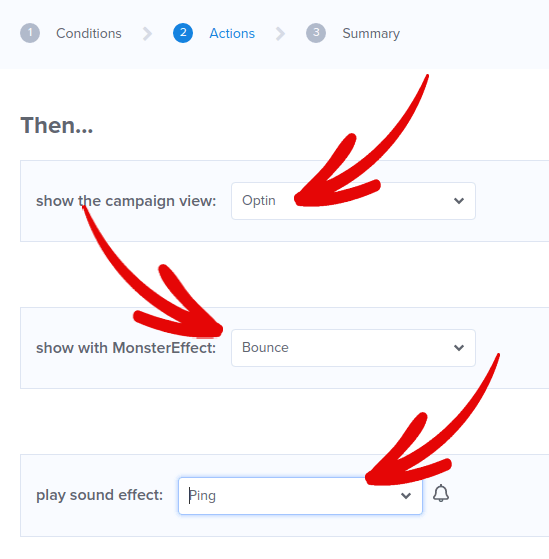
Ardından, Sonraki Adım düğmesine tıklayın. Ayarlarınızın tam kapsamını Özet sekmesinde görebilirsiniz.
Adım #5: E-posta Entegrasyonunuzu Kurun
Bir sonraki adım e-posta entegrasyonunuzu kurmaktır. Entegrasyonlar sekmesinden Yeni Entegrasyon Ekle'ye tıklayın ve e-posta hizmeti sağlayıcınızı seçin:
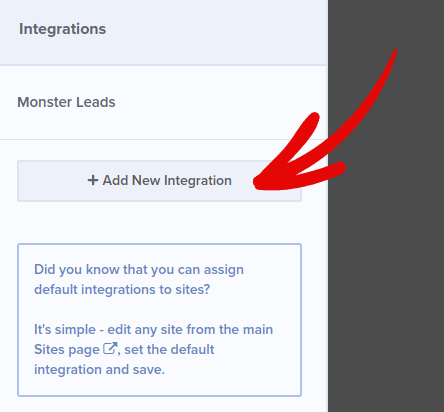
Eğer henüz bir e-posta hizmeti sağlayıcınız yoksa, e-posta pazarlamanız için Drip kullanmanızı öneririz.
6. Adım: Çıkış Niyeti Açılır Pencerenizi WordPress'te Yayınlayın
Yeni bir kampanya oluşturduğunuzda, varsayılan olarak Duraklatılmış durumdadır.
Yayın Seçenekleri'ni görmek için üst menüden Yayınla sekmesine gidin. Ardından durumu Yayınla olarak ayarlayın ve web sitesi platformunu seçin:
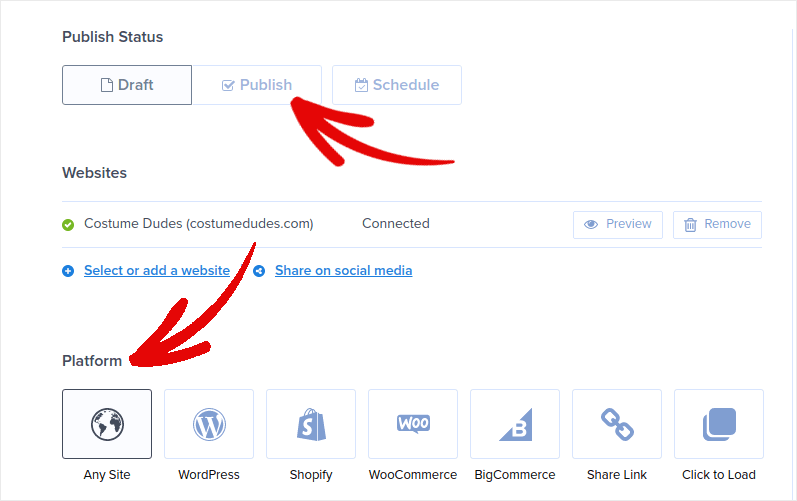
Bir WordPress siteniz varsa, OptinMonster eklentisi geri kalan kurulumu otomatik olarak halleder. Shopify ve BigCommerce için de aynıdır. Diğer herhangi bir site için Herhangi Bir Site'ye tıklayın ve ekleme kodunu web sitenizin başlığına yapıştırın:
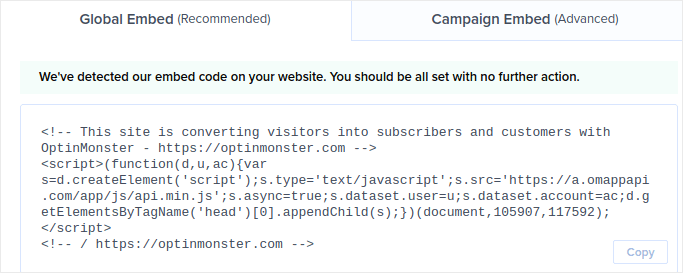
Ve işte bu kadar!
WordPress'te Çıkış Niyeti Açılır Penceresi Oluşturduktan Sonra Ne Yapmalı
Bu kadar, millet!
Bu makalenin yardımcı olup olmadığını bize bildirin. Sitenizde açılır pencereler oluşturmak, trafiğinizi e-posta abonelerine ve gerçek iş potansiyel müşterilerine dönüştürmenize yardımcı olabilir. Ve hemen çıkış niyeti açılır pencereleri oluşturmaya başlamanızı şiddetle tavsiye ederiz.
Ve trafiğinizi artırmak için uygun fiyatlı bir yol arıyorsanız, anlık bildirimleri kullanmanızı öneririz. Anlık bildirimler, daha fazla tekrar eden trafik ve site etkileşimi getirmenize yardımcı olabilir. Ayrıca satış üreten otomatik anlık bildirim kampanyaları da oluşturabilirsiniz.
İkna olmadınız mı? Bu kaynaklara göz atın:
- Müşteri Etkileşimini Artırmak İçin 7 Akıllı Strateji
- Anlık Bildirimler Etkili mi? 7 İstatistik + 3 Uzman İpucu
- Terk Edilmiş Sepet Anlık Bildirimleri Nasıl Ayarlanır (Kolay Eğitim)
- Sitenize Bir Web Bildirimleri WordPress Eklentisi Nasıl Eklenir
Anlık bildirim kampanyalarınızı oluşturmak için PushEngage kullanmanızı öneririz. PushEngage, dünyanın 1 numaralı anlık bildirim yazılımıdır. Bu nedenle, henüz yapmadıysanız, bugün PushEngage ile başlayın!


