
Letar du efter en recension av WP Mail SMTP för att bestämma dig för pluginet?
Du är definitivt på rätt plats.
WP Mail SMTP kan hjälpa dig att minska mängden spam-e-post från din WordPress-webbplats.
Men är det verkligen det främsta WordPress SMTP-pluginet? Varför skulle du behöva ett SMTP-plugin från första början? WordPress har sin egen PHP-mailer. Varför investera i att köpa ett SMTP-plugin som också hjälper dig att skicka e-post?
I den här artikeln kommer vi att besvara alla dessa frågor och mer.
Viktigast av allt är att vi kommer att sätta WP Mail SMTP på prov och ta reda på om det verkligen är värt att köpa.
Låt oss dyka rakt in.
Vad är WP Mail SMTP?
WP Mail SMTP är ett plugin som hjälper dig att förbättra leveransbarheten av dina WordPress-e-postmeddelanden. Pluginet kringgår standardfunktionen wp_mail() och tvingar din webbplats att använda SMTP-inställningar istället.
Enkelt uttryckt: Du kan använda vilken e-postleverantör som helst, inklusive Gmail, för att skicka e-post. Men mer om det senare.
Att använda WP Mail SMTP eliminerar några av de största problemen med e-postleverans i WordPress. Standardmetoden för WordPress-webbplatser att skicka e-post kan flaggas som spam. Och det är om de ens levereras från första början.
WP Mail SMTP kan också vara användbart när:
- din hosting inte stöder mail()-funktionen och WordPress inte kan skicka e-post
- din server inte är korrekt konfigurerad för att leverera e-post från din WordPress-webbplats
- du vill skicka dina affärse-postmeddelanden via Gmail eller Google Apps
- förfrågningsmeddelanden från dina WordPress-formulär skickas aldrig till din inkorg
Och här är grejen: Nästan ALLA WordPress-webbplatser lider av samma problem.
Så, även om du driver en personlig blogg och samlar e-postadresser för att skicka ut ett nyhetsbrev eller om du är en rörmokare som tar emot bokningar på en liten företagswebbplats, kommer du att ha exakt samma problem med e-post på WordPress.
Om du redan har drabbats av problem med e-postleverans från WordPress eller WooCommerce och vet vad vi pratar om, bör du definitivt komma igång med WP Mail SMTP idag.
Tänk inte ens på det. Skaffa pluginet direkt nu.
Men om du vill förstå problemet djupare och få en tydligare bild av vad WP Mail SMTP har att erbjuda, fortsätt läsa.
Varför använda WP Mail SMTP?
De flesta WordPress-värdar är inte riktigt korrekt konfigurerade för att skicka e-post. Som ett resultat kanske du inte ens får meddelanden om inlämningar via kontaktformulär. Att använda WP Mail SMTP låter dig kringgå standardfunktionen wp_mail() och tvingar din webbplats att använda SMTP-inställningar istället.
På så sätt, även om din webbvärd inte är korrekt konfigurerad för att skicka e-post, kommer du fortfarande att kunna skicka automatiserade e-postmeddelanden och e-postaviseringar från din webbplats.
Vi ska inte ens börja prata om vilken mardröm detta är för WooCommerce-butiker!
WordPress hanterar e-postmeddelanden för användarregistrering med hjälp av inbyggd PHP-kod som kallas funktionen wp_mail():

Detta är ett stort problem eftersom inte alla WordPress-värdar erbjuder servrar som är korrekt konfigurerade för att använda PHP mail.
Och även om servrarna är korrekt konfigurerade, använder Gmail och andra e-postleverantörer strikta spamfilter. Dessa spamfilter försöker autentisera att din e-post kommer från ditt företag och inte från en bedräglig tredje part. Det är där de flesta av dina e-postmeddelanden blockeras eller flaggas som spam.
Du kan arbeta dig runt detta problem med hjälp av WP Mail SMTP.
Hur man ställer in WP Mail SMTP på din webbplats
I den här sektionen visar vi hur du använder en SMTP-tjänst för att säkerställa att dina e-postmeddelanden levereras. Vi visar också vilken SMTP-tjänst vi använder, men oavsett vilken SMTP-tjänst du väljer behöver du installera WP Mail SMTP-pluginet.
Så, fortsätt och installera och aktivera pluginet. Om du är osäker på hur du gör det, kommer den här handledningen att visa dig hur man installerar ett WordPress-plugin.
Steg #1: Konfigurera pluginet
När du har installerat pluginet, gå till din WordPress-instrumentpanel och klicka på WP Mail SMTP för att konfigurera pluginet:
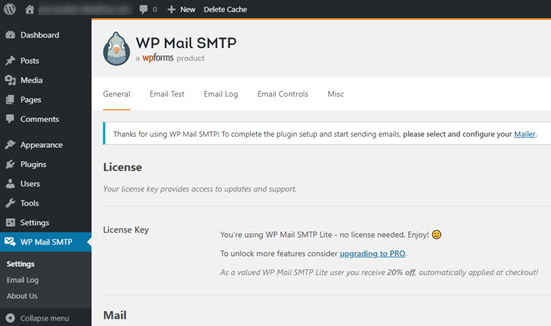
När du har angett din licensnyckel, börja fylla i avsnittet E-post:
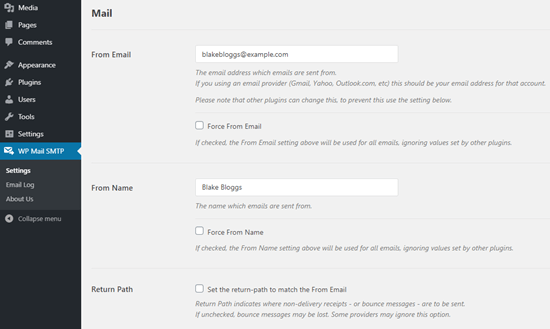
OBS: Se till att du anger samma e-postadress som den du kommer att använda för din SMTP-tjänst. Om det finns motstridiga e-postadresser kommer du att fortsätta få fel från SMTP-tjänstens instrumentpanel.
Det bästa med det här pluginet är att även om dina andra WordPress-plugins som WP Forms använder andra e-postadresser, kan WP Mail SMTP tvinga dem att använda den här e-postadressen.
Det var allt för nu.
Därefter behöver du välja en SMTP-e-posttjänst för din webbplats. Vi rekommenderar att använda SMTP.com. Men du kan hitta många olika tjänster där.
För att slutföra installationen av WP Mail SMTP-pluginet måste du sedan skapa ett konto hos SMTP.com. Det är en mycket populär SMTP-tjänst som låter dig skicka massutskick med höga leveransgrader.
Steg #2: Uppdatera WP Mail SMTP-pluginet
Gå till WP Mail SMTP-pluginet och klicka på WP Mail SMTP » Inställningar.
Välj sedan under Mailer en tjänsteleverantör. Du kan välja mellan en hel rad alternativ:
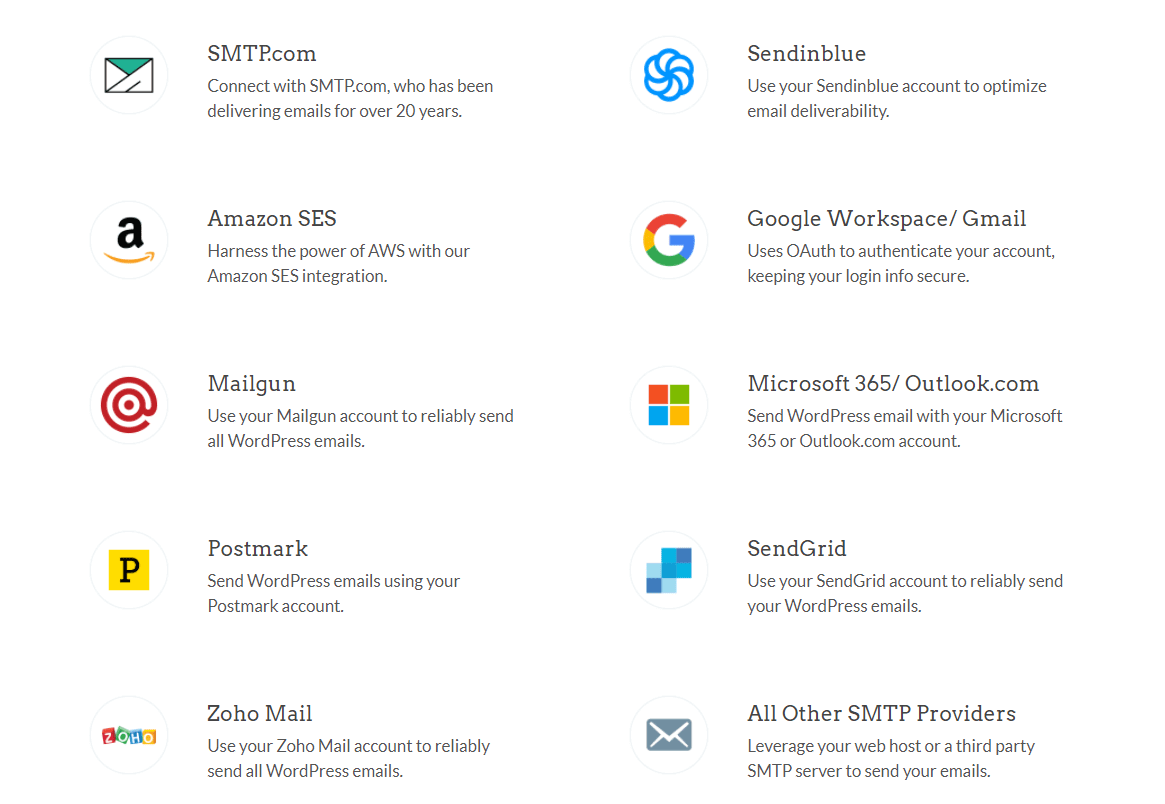
Vi rekommenderar att använda SMTP.com:
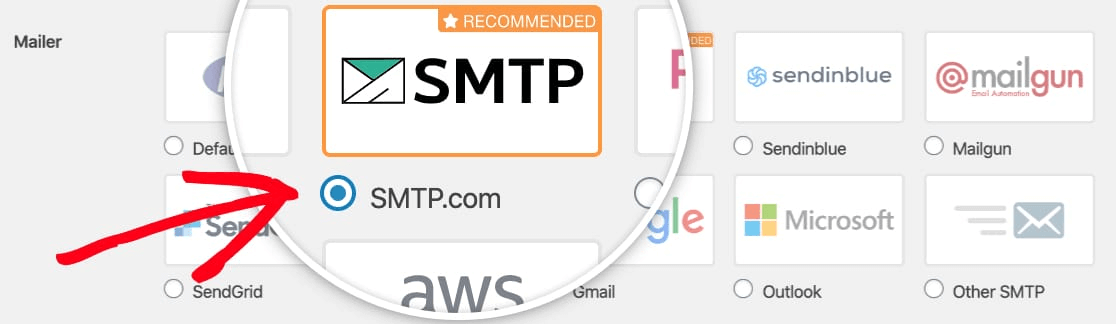
Steg 3: Skapa ett SMTP-konto
Skapa ett nytt konto:

När du har registrerat dig kommer du att bli ombedd att klicka på en aktiveringslänk via e-post och bekräfta din identitet. Så håll utkik efter flera e-postmeddelanden.
Och sedan, gå tillbaka till WP Mail SMTP-pluginet för att ansluta ditt SMTP-konto till pluginet.
Popupen kommer att be om en API-nyckel som du kan hämta från din SMTP.com-instrumentpanel. Klicka på länken Hämta API-nyckel (klicka på den här länken för att komma dit direkt):
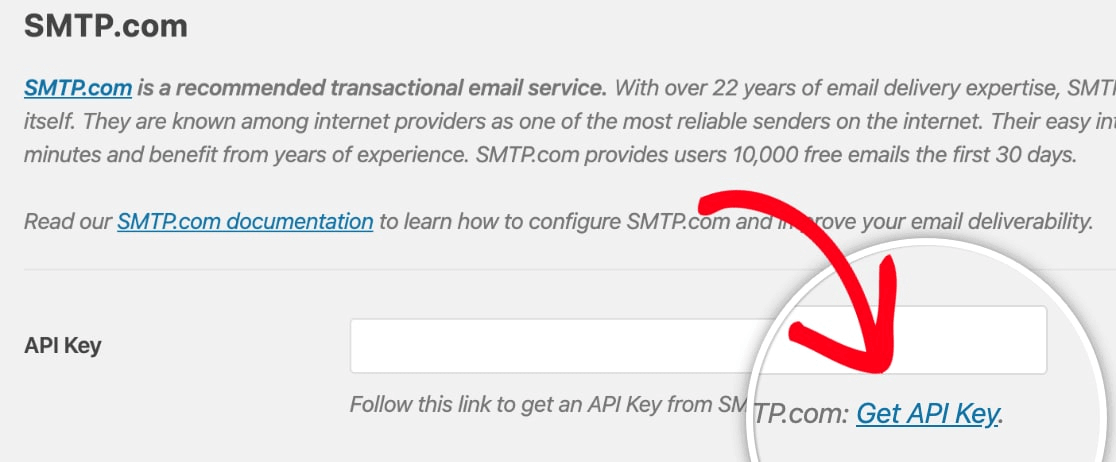
Du bör se en tabell på den här sidan. Kopiera API-nyckeln i kolumnen Nyckel:
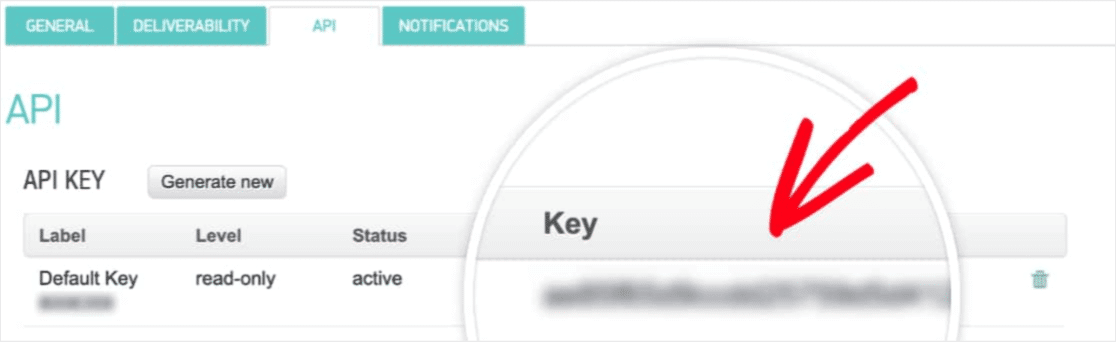
Klistra sedan in den här API-nyckeln i WP Mail SMTP:
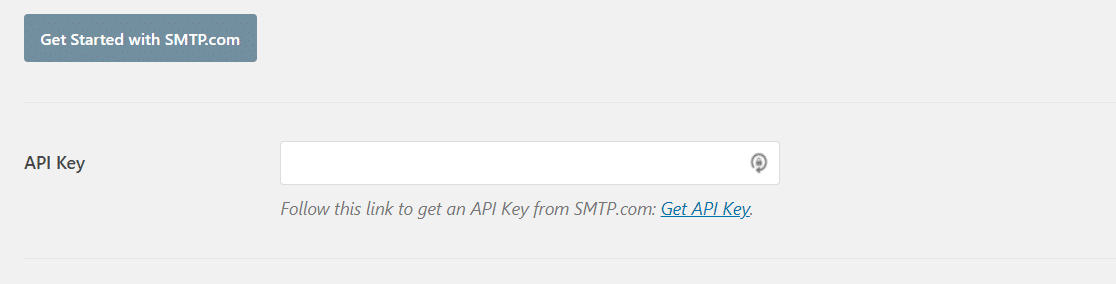
Slutligen, i fältet Avsändarnamn, klicka på länken Hämta avsändarnamn:

Kopiera namnet i kolumnen Namn:
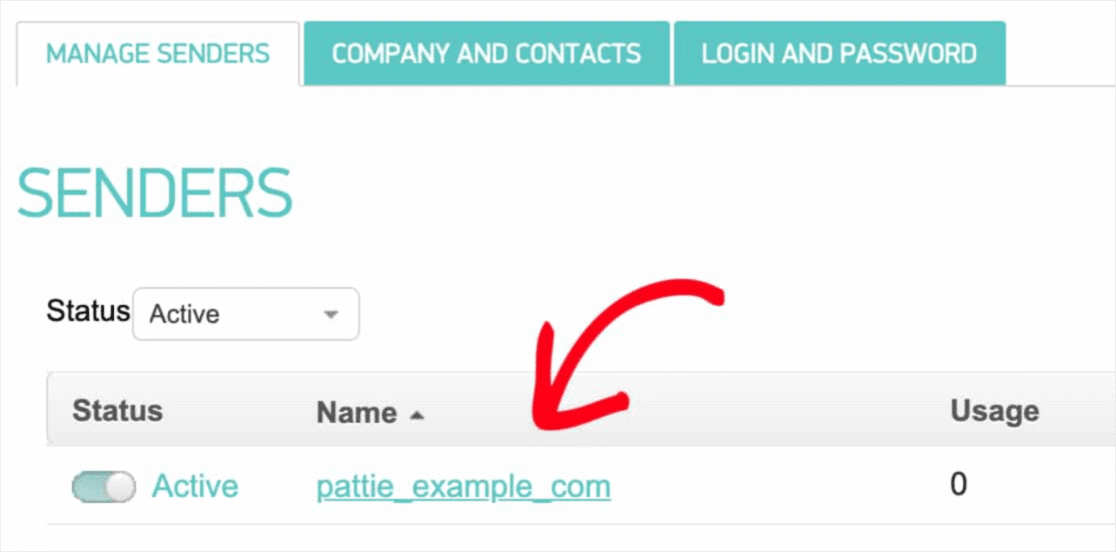
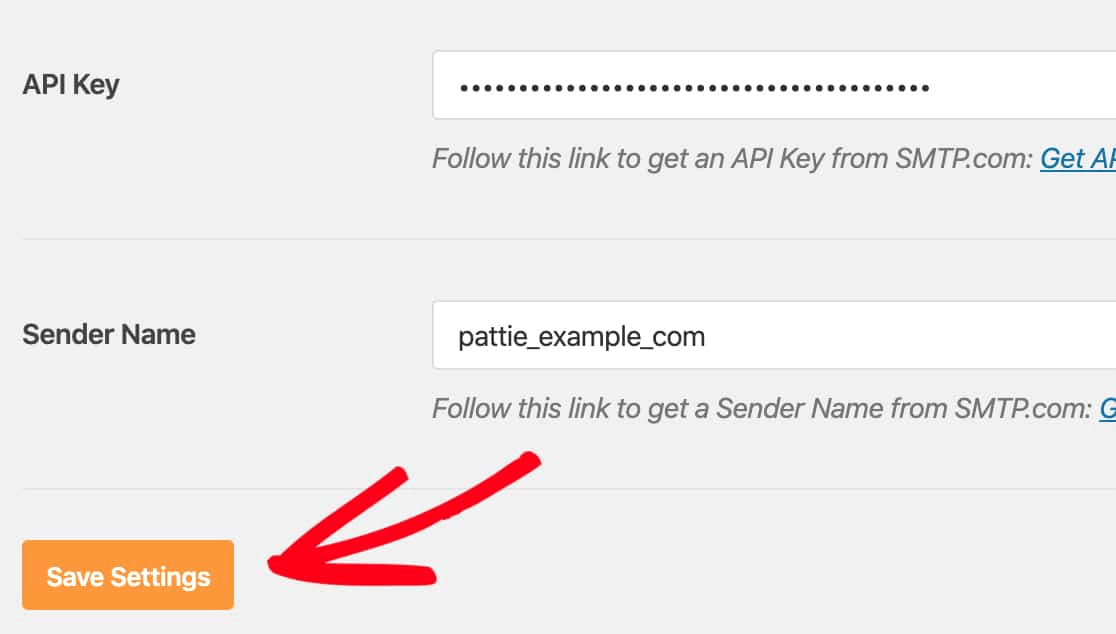
Och klistra in det i WP Mail SMTP.
Tryck sedan på Spara inställningar:
Steg 4: Lägg till SPF-posten i din DNS
Efter autentiseringen börjar din viktigaste uppgift: Att lägga till SPF-posten i dina DNS-poster. Om saker och ting blev för tekniska för dig för snabbt, oroa dig inte. Det är en enkel process.
Sender Policy Framework (SPF) är hur SMTP.com autentiserar dina e-postmeddelanden. Att inkludera detta steg säkerställer att dina e-postmeddelanden inte hamnar i skräppostmappen.
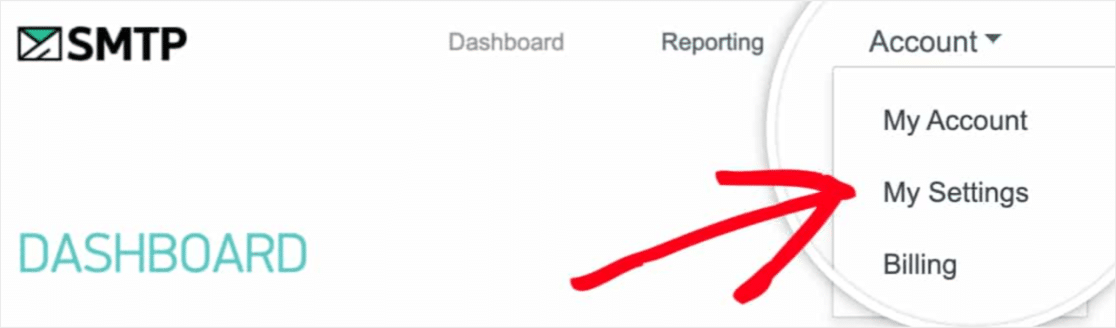
Gå till navigeringsmenyn i ditt SMTP.com-konto och klicka på Konto » Mina inställningar:
Gå till Allmänna inställningar och leta under SPF-post:
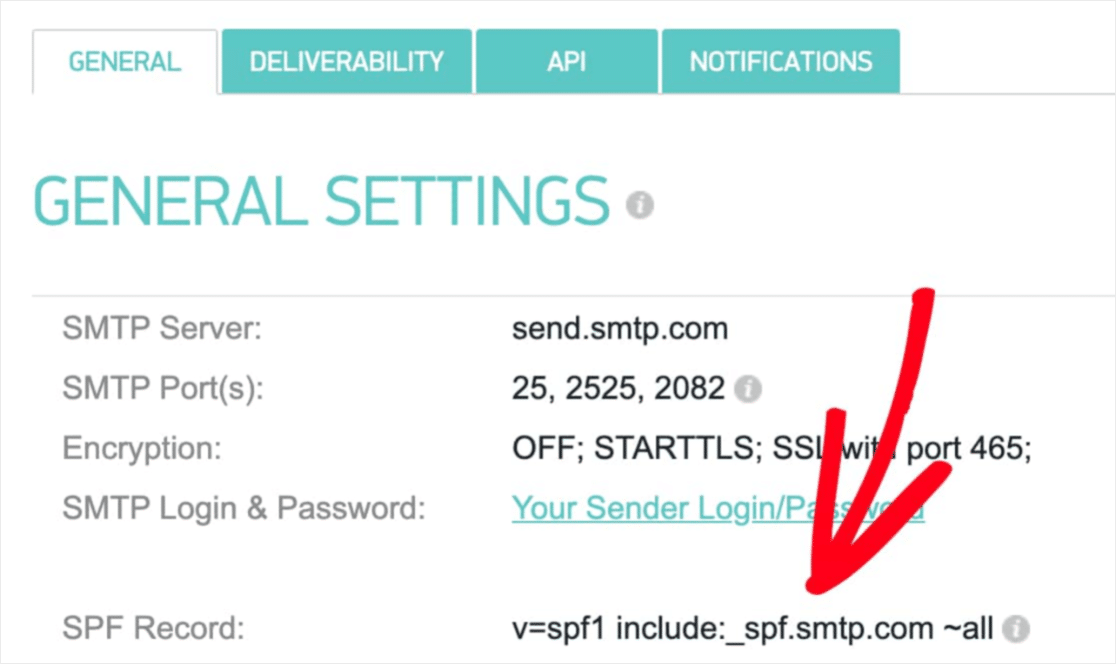
Du måste lägga till denna SPF-post i DNS-inställningarna för din webbplats. Om du inte vet hur du gör detta, kolla in den här artikeln om hur du lägger till SPF-poster.
OBS: I DNS-inställningarna ser du ett fält som heter TTL (Time To Live). Standardvärdet är vanligtvis 1 timme. Om du kan ändra denna post, rekommenderar vi att ändra den till 1 dag eller 86400 sekunder. Detta gör att servern kan cachelagra denna information under en hel dag.
Steg #5: Validera dina SPF-poster
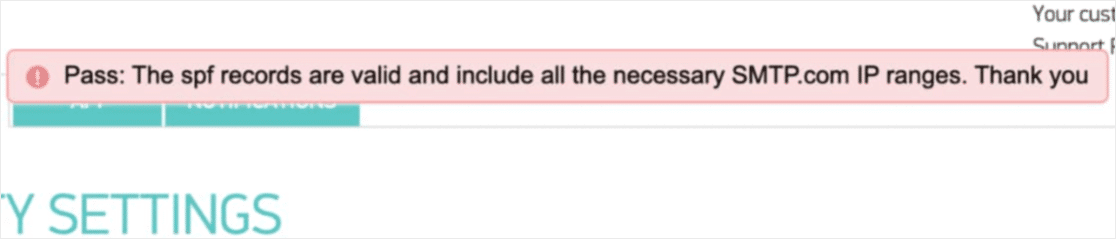
Om du har lagt till SPF-posten är det dags att validera att ändringarna har uppdaterats. Det kan ta upp till 48 timmar för ändringarna att reflekteras. Så det är en bra idé att validera resultaten innan du går vidare till nästa steg.
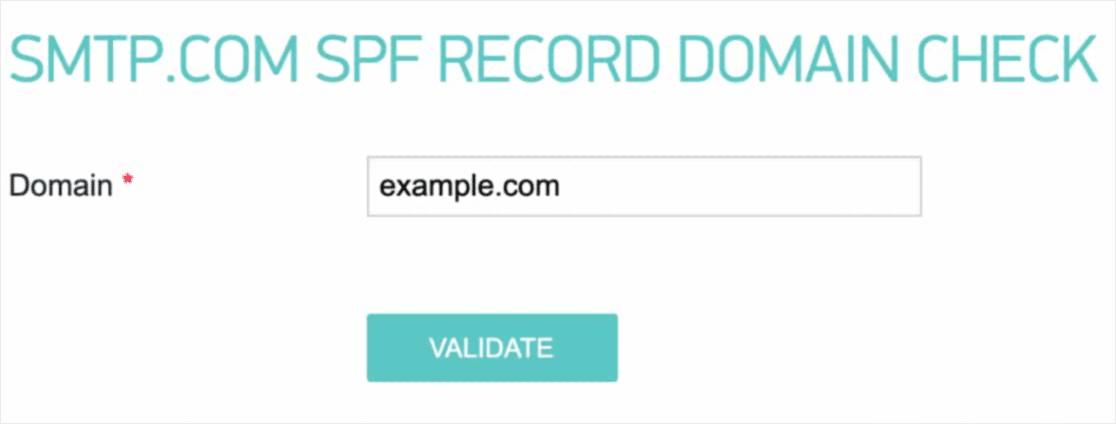
Klicka på den här länken och gå till avsnittet som säger SMTP.com SPF Record Domain Check.
I fältet Domän, skicka in din webbplats URL och klicka på Validera:
Om allt gick bra bör du se meddelandet Godkänd:
Och du är klar!
Steg #6: Skicka ett testmeddelande
Du är klar. Detta är det sista steget där du verifierar att allt fungerar som det ska. Lyckligtvis har WP Mail SMTP en inbyggd funktion för 'Testmeddelande'.
Gå till WP Mail SMTP och klicka på fliken E-posttest:
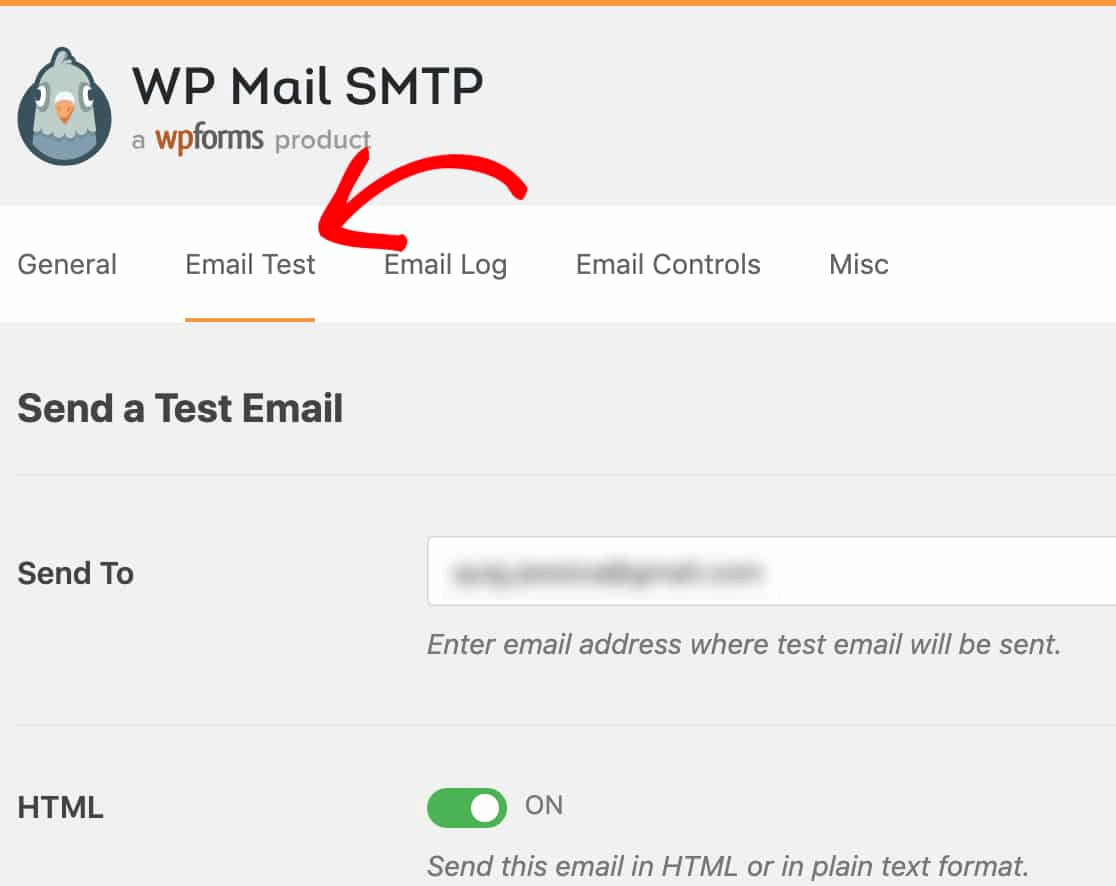
Ange en e-postadress som du har tillgång till och skicka ett test-e-postmeddelande. Om allt gick bra bör du se detta framgångsmeddelande:
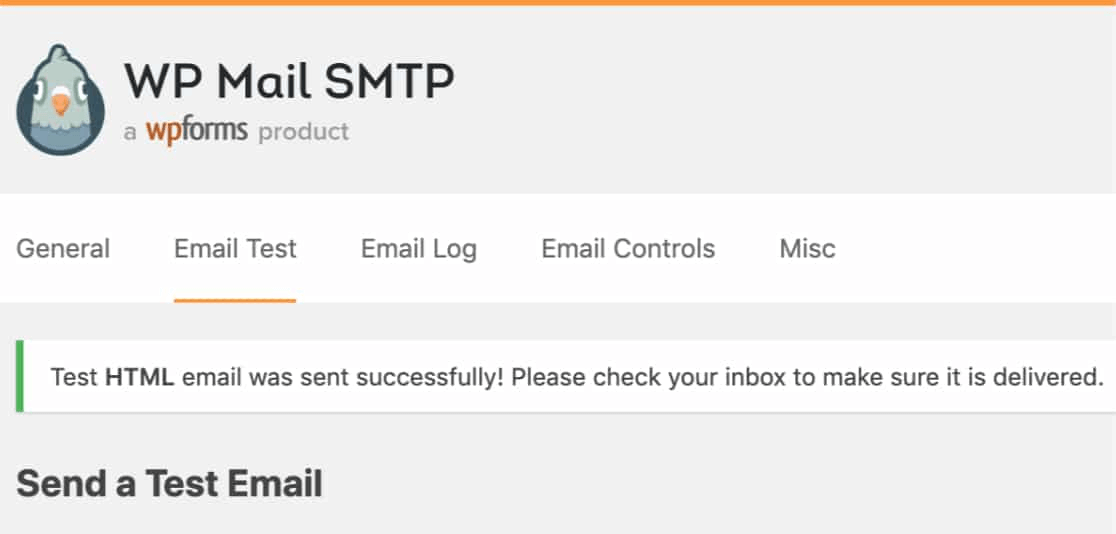
Kontrollera nu din inkorg och bekräfta att du fick e-postmeddelandet i din Primära inkorg. Vi är mycket säkra på att du hittar det där.
Slutligen, allt du behöver göra är att verifiera att e-postmeddelandet gick igenom ditt SMTP.com-konto. Klicka på den här länken för att gå till sidan Leveransinställningar. Om du ser 'Godkänd'-meddelandet som detta, gjorde du ett utmärkt jobb:
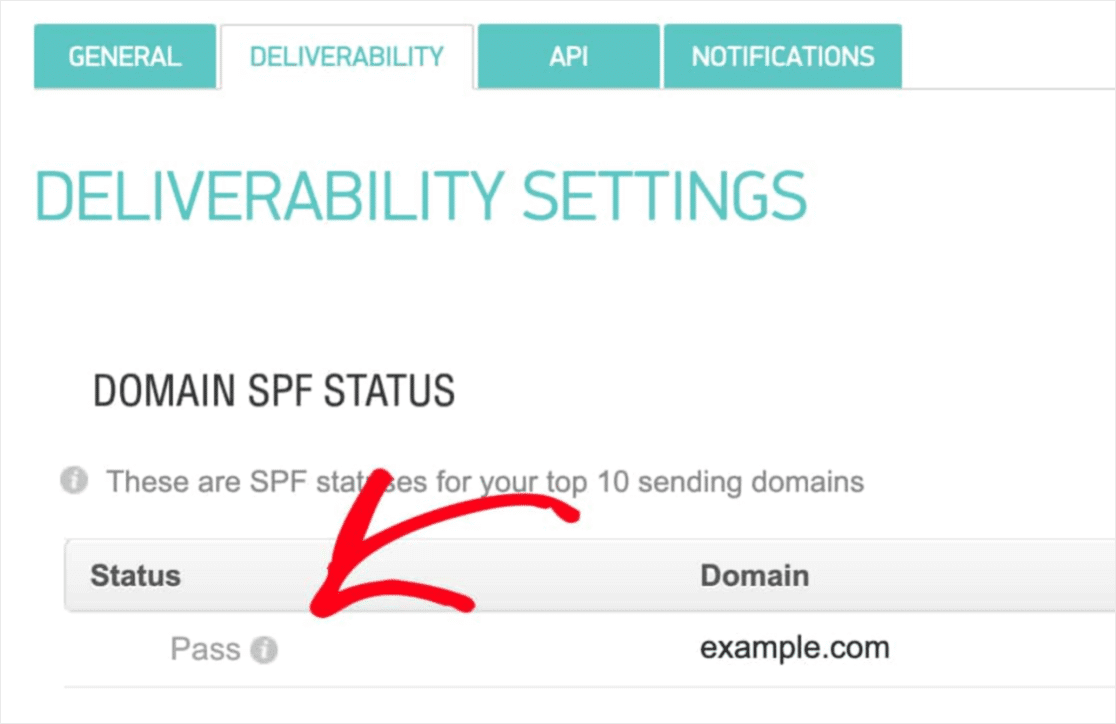
Om du inte ser statusen 'Godkänd', då gjorde du ett misstag. Gå tillbaka till föregående avsnitt och gå igenom steg 1-4 och se till att du inte missade något.
Prissättning
Den sista överväganden här är prissättning.
Det är ganska tydligt att WP Mail SMTP är mer inriktat på att lösa ett vanligt problem utan någon kodning.
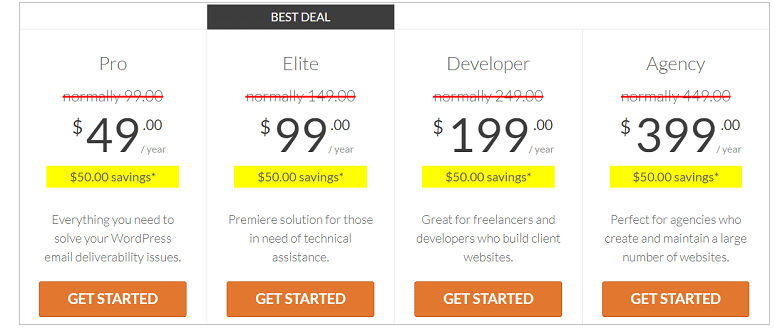
Ju h sare du g fr fr h WP Mail SMTP.
WP Mail SMTP kommer i 4 olika prisniv :
- Pro Plan: Finns f 49 USD/r. Den erbjuder ett fritt nedladdningar, support och uppdateringar.
- Elite Plan: Finns f 99 USD/r. Denna plan inkluderar gratis White Glove-installation och prioriterad support.
- Developer Plan: Finns f 199 USD/r. Du f ett fritt nedladdningar, support och uppdateringar. Du kan l upp till 20 olika webbplatser.
- Agency Plan: Finns f 399 USD/r. Denna licens inkluderar allt i Developer Plan och du kan l upp till 100 webbplatser.
Vilken passar b dina behov? L en kommentar och ber oss veta.
Avslutning
Det var allt för den här gången, gott folk!
V dom? WP Mail SMTP r definitivt en bra investering f v xande f retag.
Som vi sa, vilken WordPress-sida som helst kan potentiellt drabbas av exakt samma problem med e-post. ven om du driver ett riktigt litet f retag, kan du sluta med att din int f svinner eftersom din sida inte l t dig veta n en kund gjorde en f resp .
F inga misstag, niv den enkelhet med vilken du kan l leveransproblem f e-post med WP Mail SMTP r oslagbar. Och om du ter priset, r det nu mer lockande.
Enligt oss r WP Mail SMTP definitivt det b sta SMTP-pluginet f WordPress. Och om du r redo att l problemet, borde du skaffa pluginet just nu.
Om du inte är redo att lösa sådana problem än, bör du fokusera mer på marknadsföring. Ett bra sätt att få mer trafik, engagemang och konverteringar skulle vara att använda push-notiser för din webbplats. Vi rekommenderar att använda PushEngage för att skapa dina push-notis-kampanjer.
PushEngage är den främsta mjukvaran för push-notiser i världen. Så, om du inte redan har gjort det, kom igång med PushEngage idag!


