
Letar du efter en enkel handledning för att lägga till WordPress Open Graph-metataggar på din webbplats?
Open Graph är hur Facebook hanterar metadata när du delar ditt inlägg eller din sida i Facebook-inlägg. Det är så Facebook automatiskt hämtar den markerade bilden och metabeskrivningen bara från URL:en.
Men att lägga till det manuellt på din webbplats kan vara en riktig plåga.
För det första måste du lära dig hur Open Graph-strukturerad data skrivs. Sedan måste du infoga den i dina WordPress-temafiler. Och det är extremt riskabelt. Du måste redigera filer som hjälper hela din webbplats att fungera korrekt. En enda felplacerad rad kan krascha hela din webbplats.
I den här artikeln kommer vi att lägga till WordPress Open Graph-metataggar på det enkla sättet utan någon kodning.
Låt oss dyka in.
Steg #1: Installera All in One SEO
All in One SEO är det främsta WordPress SEO-pluginet i världen. Det är det perfekta pluginet för att lägga till WordPress Open Graph-metataggar på din webbplats utan någon kodning.

All in One SEO (AIOSEO) är ett av de mest hyllade SEO-pluginen i WordPress-communityt. Den ursprungliga versionen har helt byggts om för att lägga till en mängd nya funktioner och tillägg. Så om du använde AIOSEO tidigare måste du titta på pluginet igen.
AIOSEO är inte bara tillräckligt kraftfullt för att implementera de senaste SEO-bästa praxis, utan du får också avancerade alternativ för att lösa specifika SEO-problem direkt ur lådan. Detta inkluderar:
- Lokala SEO-moduler för småföretag med en lokal publik
- WooCommerce SEO för onlinebutiker
- En SEO-optimerare inuti din WordPress-redigerare
- Smarta Sitemaps för omedelbar indexering på sökmotorer
- Ett Schema-plugin för att få ditt innehåll att rankas i Rich Snippets
Och mycket mer! För en fullständig lista över All in One SEO:s funktioner, kolla in vår recension av pluginet.
Det första du behöver göra är att installera och aktivera All in One SEO-pluginet. Om du är osäker på hur du gör det bör du kolla in den här guiden om hur man installerar WordPress-plugins.
Efter att du har laddat ner och installerat pluginet får du en installationsguide:
Och installationsprocessen tar mindre än 10 minuter.
Men tänk om du migrerar från ett annat SEO-plugin? Varje plugin hanterar metadata på olika sätt. Så, måste du göra allt från början? Är all din tidigare ansträngning bortkastad?
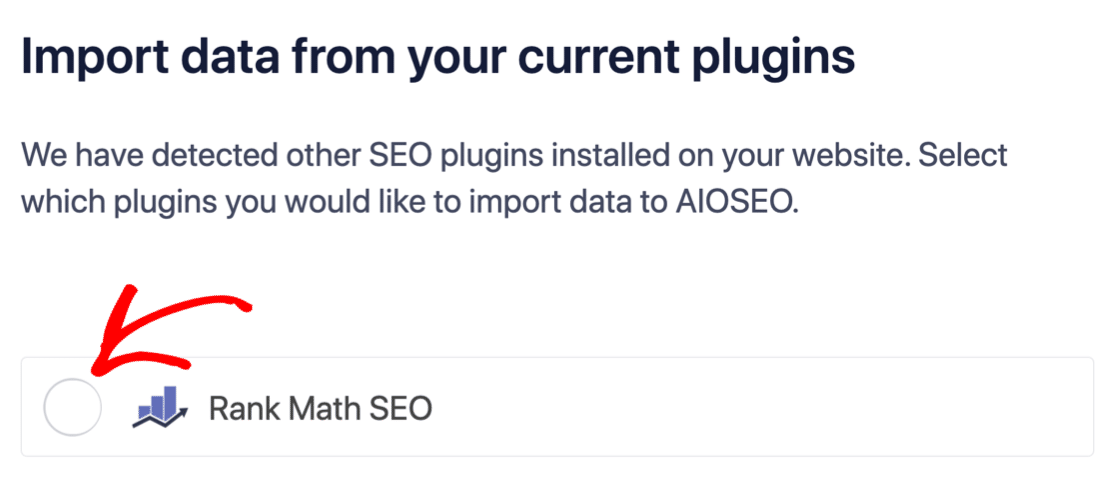
Nej! Om All in One SEO upptäcker ett annat SEO-plugin under installationsguiden, kommer det att erbjuda sig att kopiera över grundinställningarna åt dig:
I slutet av installationen kommer installationsguiden att uppmana dig att avaktivera ditt gamla SEO-plugin också. På så sätt finns det inga plugin-konflikter och fel:
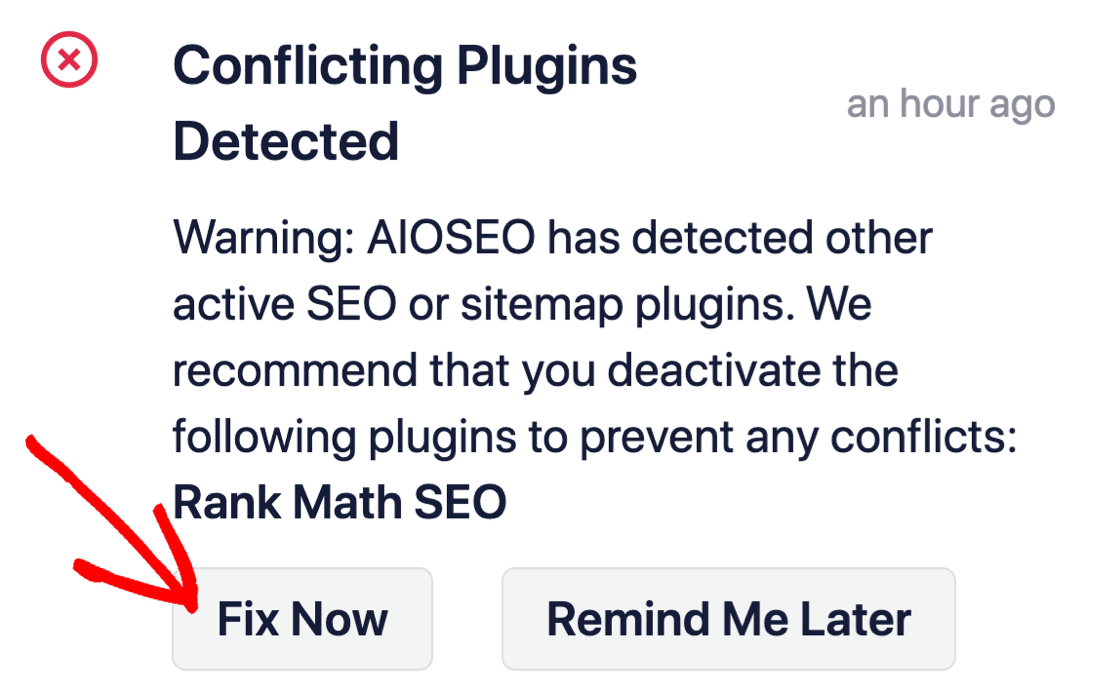
Att klicka på Fixa nu raderar inte inställningarna i ditt gamla SEO-plugin. Det avaktiverar bara pluginet för att förhindra konflikter.
Steg #2: Konfigurera inställningar för sociala medier
Gå till All in One SEO » Social Networks » Social Profiles i din WordPress-instrumentpanel och lägg till dina sociala profiler på webbplatsen:
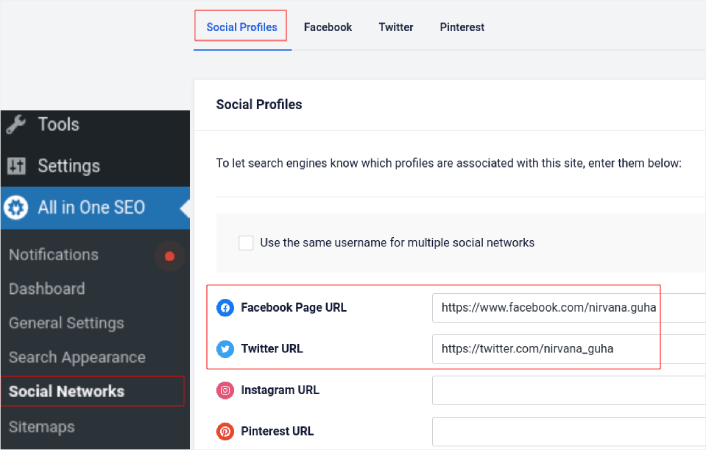
Det här steget säkerställer att sökmotorer som Google och Bing vet vilka sociala medieprofiler som är associerade med din webbplats. Samtidigt hjälper detta dig även med dina inställningar för delning i sociala medier. Det är dags för det.
Steg #3: Redigera allmänna Facebook-inställningar
Gå till All in One SEO » Social Networks och klicka på fliken Facebook. Här kan du konfigurera dina allmänna Facebook-inställningar:
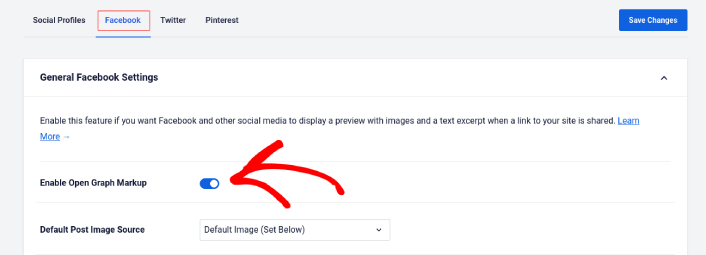
Växla omkopplaren Aktivera Open Graph-markup för att aktivera den.
Här kan du ställa in Standardkälla för inläggsbild och en Standardbild för Facebook-inlägg:
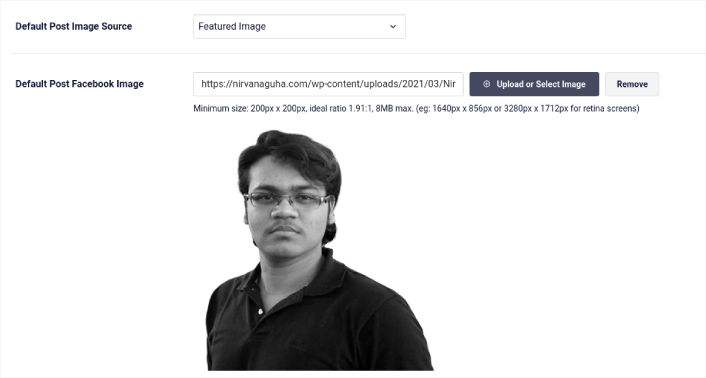
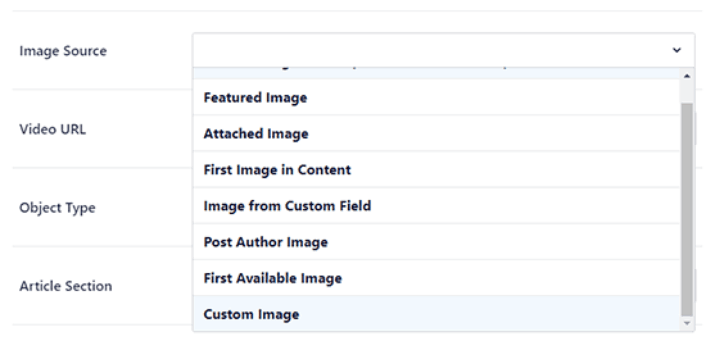
Vi rekommenderar att använda alternativet Markerad bild som bildkälla för dina inlägg. Men du bör även titta på de andra alternativen:
Du kan ställa in standardbilden för Facebook till att vara din logotyp eller något som representerar ditt varumärke. Klicka på knappen Ladda upp eller välj bild för att ändra standardbilden. I vårt exempel använder vi ett personligt varumärke. Så standardbilden för Facebook är ett foto av författaren.
När du är klar, klicka på knappen Spara.
Och det är allt! Du är klar. När du har sparat ändringarna kan du prova att dela ett inlägg på din webbplats till din Facebook-sida eller profil.
Vad du ska göra efter att du har lagt till WordPress Open Graph-metataggar
Det var allt för den här gången, gott folk!
Därefter bör du börja tänka på flera sätt att engagera och konvertera trafiken du får från dina sociala mediekonton. Ett bra sätt att göra det är att använda push-notiser. Push-notiser kan vara ett kraftfullt marknadsföringsverktyg för att generera trafik, engagemang och direkta försäljningar för din verksamhet.
Om du inte är 100% övertygad bör du kolla in dessa resurser om hur du effektivt använder push-meddelanden:
- 7 smarta strategier för att öka kundengagemanget
- Är push-notiser effektiva? 7 statistik + 3 experttips
- Hur du ställer in pushmeddelanden för övergivna kundvagnar (Enkel handledning)
- Hur man lägger till ett WordPress-plugin för webbnotiser på din webbplats
Vi rekommenderar att använda PushEngage för att skapa dina push-notiskampanjer. PushEngage är den främsta push-notisprogramvaran i världen. Så, om du inte redan har gjort det, kom igång med PushEngage idag!


