Letar du efter ett snabbt sätt att lägga till och redigera din ikon för push-notiser?
Det är faktiskt superenkelt. Notifikationsikonen talar om för dina prenumeranter vem du är. Det är ett varumärke på varje push-notifikation du skickar. Och det kan vara ovärderligt eftersom det hjälper din publik att komma ihåg ditt varumärke. (På Android-appar kan du gå längre och ändra notifikationsfärgen för att matcha din varumärkespalett.)
Kostnaden för att säkerställa att varje push-notifikation du skickar hjälper dig att bli mer minnesvärd? Mindre än 5 minuter.
I den här artikeln kommer vi att visa dig hur du lägger till och redigerar din ikon för push-notiser. Och som vi sa, det är superenkelt.
Låt oss dyka in.
Varför lägga till en ikon för push-notiser?
En ikon för push-notiser är en liten, distinkt bild som representerar en app på användarens enhet. Den visas tillsammans med push-notiser för att visuellt identifiera källappen för meddelandet eller varningen.
Den här ikonen hjälper användare att snabbt känna igen vilken app eller webbplats som kommunicerar med dem utan att behöva läsa notisens text.
Att lägga till en ikon för push-notiser är ett smart drag av några anledningar:
- igenkänning: Precis som att se ett bekant ansikte i en folkmassa, känner vi igen ikoner direkt. När din app skickar en notifikation fungerar ikonen som en liten vinkning och säger: ”Hej, det är jag!” Detta hjälper användare att snabbt identifiera vilken app som kräver deras uppmärksamhet.
- Varumärkesbyggande: Din ikon är som en liten reklamtavla för din app. Den är en del av din varumärkesidentitet. Varje gång användare ser den påminns de om din app. Detta kan hjälpa till att hålla din app i åtanke.
- Användarupplevelse: Användare har ofta många installerade appar, och det kan vara en riktig röra. En unik ikon hjälper dem att hantera sina notifikationer mer effektivt. De kan se med en blick vilka notifikationer de vill kolla in först.
- Professionalism: En app med sin egen notifikationsikon ser mer polerad och professionell ut. Det visar att du har tänkt på även de små detaljerna, vilket kan förbättra den totala användarnöjdheten.
- Funktionalitet: Ibland kan ikonen också förmedla ytterligare information. Till exempel kan en meddelandeapp visa olika ikoner för ett nytt meddelande jämfört med ett missat samtal. Detta ger ett extra lager av funktionalitet och användarkomfort.
Så, en ikon för push-notiser kan vara liten, men den spelar en stor roll i hur användare interagerar med din app och uppfattar den!
Så här lägger du till en ikon för pushmeddelanden
Nu när vi förstår vad en ikon för push-notiser är och varför du bör lägga till den, låt oss titta på hur du enkelt kan lägga till den utan någon kodning alls.
Steg #1: Välj en push-notistjänst
Push-notifikationer är ett marknadsföringsverktyg som hjälper dig att ansluta till webbesökare även efter att de lämnar din webbplats. Du kan skicka riktade notifikationer till dina push-prenumeranter och till och med anpassa dina notifikationer för olika kundsegment. Men vilken push-notifikationstjänst bör du välja?
Vi rekommenderar att använda PushEngage för att skicka push-notifikationskampanjer.

PushEngage är den bästa push-aviseringstjänsten i världen. Och vi pratar inte bara om gratisversionen. Den låter dig ansluta med besökare efter att de har lämnat din webbplats med riktade push-meddelanden.
PushEngage är vårt förstahandsval för push-tjänster och verktyg eftersom det är:
- Den är så enkel att använda
- Effektivt på HTTP- och HTTPS-webbplatser
- Levereras med en visuell byggare som kräver lite eller ingen kodning för att ställa in
- Ställ enkelt in helt automatiserade pushnotiskampanjer för alla typer av webbplatser
- Har flera alternativ för att skicka personliga push-meddelanden för högre klickfrekvens
- Utrustad med anpassad målföljning, UTM-parametrar och avancerad analys
Och detta är knappt ytan. Kolla in PushEngages fullständiga lista över funktioner innan du går vidare.
Den mest otroliga delen med PushEngage är att det har en evigt gratis plan som du kan prova innan du fattar ett köpbeslut.
Proffstips: Läs vår artikel om kostnadsanalys för push-meddelanden innan du köper någon tjänst.
Steg #2: Installera PushEngage-pluginet
När du har skapat ditt konto, gå till PushEngage-instrumentpanelen och följ med:

Klicka på Webbplatsinställningar » Webbplatsdetaljer och klicka på knappen Klicka här för installationsinstruktioner:

Klicka på fliken WordPress och klicka på knappen Installera PushEngage WordPress-plugin för att installera pluginet på din webbplats.

Här är den coola delen: När du skapade ditt PushEngage-konto synkroniserade du redan din webbplats med ditt PushEngage-konto. Så klicka på installationslänken i PushEngage-instrumentpanelen för att automatiskt installera PushEngage WordPress-pluginet på din webbplats.
Och du är klar! Du har framgångsrikt installerat ett WordPress-plugin för webbnotiser på din webbplats. Du behöver inte logga in på ditt WordPress-adminpanel alls. För en mer detaljerad guide, kolla in vår artikel om hur man installerar webbnotiser på WordPress.
Steg #3: Lägg till eller redigera din ikon för push-notiser
Gå tillbaka till din PushEngage-instrumentpanel. Klicka på Webbplatsinställningar » Webbplatsdetaljer och under Ladda upp din webbplatsikon kan du ladda upp en bild:
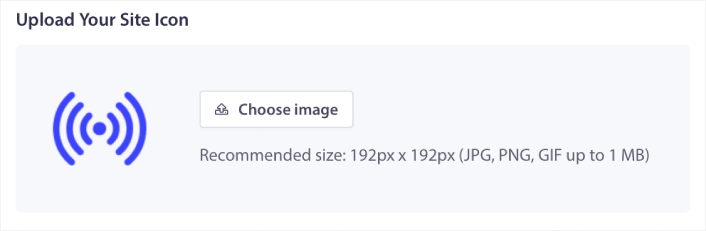
Bilden du laddar upp är din ikon för push-notiser. Håll bildens dimensioner på 192px x 192px för bästa resultat och se till att bildstorleken är mindre än 1 MB. Du kan använda en JPG, PNG eller till och med en GIF för animerade varumärken. Se bara till att ikonen är konsekvent med varumärken som du använder på sociala nätverkssidor.
Om du behöver redigera din ikon senare är det här du gör det. Ladda bara upp en annan bild och du är klar!
Steg #4: Skicka ett testmeddelande för att kontrollera din ikon för pushmeddelanden
Vi rekommenderar att du skapar ett välkomstmeddelande för webbplatsen för att testa dina push-notiser. Välkomst-push-notiser är utmärkta för:
- Bekräftelse: Du vill bekräfta att din nya prenumerant faktiskt är prenumererad på dina webb push-notiser.
- Återengagemang: Välkomstkampanjer är ett utmärkt sätt att få dina prenumeranter att komma tillbaka till din webbplats.
- Försäljning: Du kan ge dina nya prenumeranter ett välkomsterbjudande med rabatter, gratis gåvor och kuponger.
Låt oss skapa en välkomstkampanj för push-notiser nu. Gå till din PushEngage-instrumentpanel och navigera till Kampanj » Drip Autoresponders » Skapa ny Drip Autoresponder:
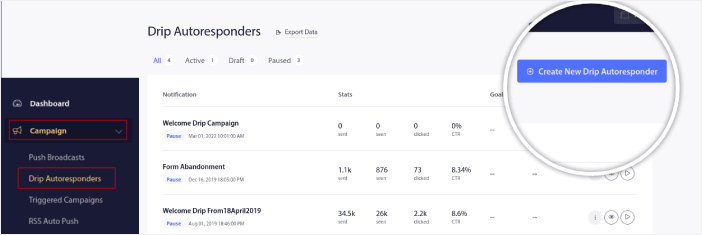
Ge din drip-kampanj ett namn som du lätt kan komma ihåg. Ställ sedan in den första push-notisen att skickas omedelbart efter att en besökare prenumererar på dina push-notiser.

Du kan redigera notisen för att skapa anpassat innehåll för ditt välkomstmeddelande. När du är klar klickar du på knappen Lägg till ny notis för att lägga till fler notiser i sekvensen. Du kan redigera de nya notiserna och ställa in en anpassad fördröjning mellan varje notis.
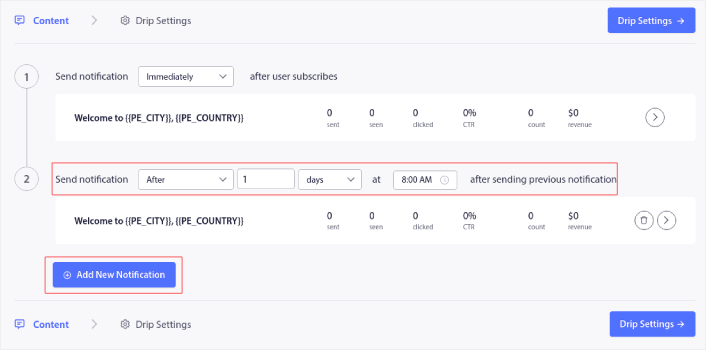
Du kan lägga till så många notiser som du vill, men vi rekommenderar att skapa en välkomst-drip med 5-7 notiser.
Välj därefter din målgrupp i Drip-inställningar:
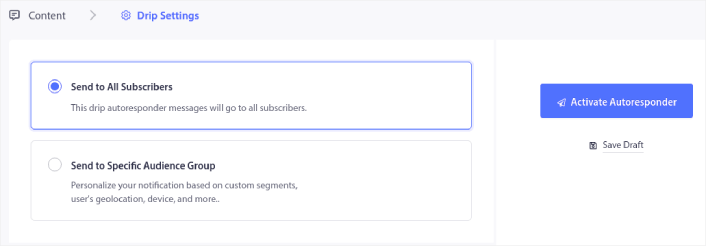
Du kan skicka olika välkomstmeddelanden för olika segment genom att använda alternativet Skicka till specifik målgruppsgrupp. Detta är särskilt användbart när du segmenterar besökare när de väljer push-notiser.
När du är nöjd med din målinriktning, klicka på knappen Aktivera autosvarare.
Och du är klar!
Om dina push-notiser installerades korrekt bör du se en välkomstnotis som denna:
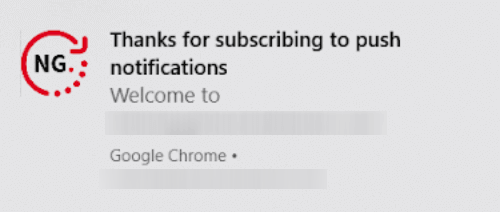
Och som du kan se är ikonen för pushmeddelanden ganska framträdande i vårt exempel!
Om du är nybörjare på pushmeddelanden bör du följa en fullständig testprocess för pushmeddelanden innan du går live. Det hjälper dig att felsöka vanliga problem med funktionaliteten innan dina besökare ser dem och börjar klaga på en trasig användarupplevelse.
Vad du ska göra efter att du har lagt till en notisikon
Nu när du vet hur du lägger till en ikon för push-notiser är det dags för dig att börja skapa dina egna kampanjer. Men innan du börjar med kampanjerna bör du först studera några utmärkta exempel på push-notiser.
Och om du är nybörjare på push-notiser bör du kolla in vår artikel om bästa praxis för push-notiser innan du börjar skapa kampanjer. Några av de bästa praxis som vi aktivt rekommenderar inkluderar:
- Öka klick med nyfikenhet
- Personifiera varje push-notis
- Stick ut med rikt media
- Återaktivera inaktiva push-prenumeranter
- Håll kunderna informerade
- Använd emojis där du kan
- Skapa en känsla av brådska
Vi rekommenderar att använda PushEngage för att skapa dina push-notiskampanjer. PushEngage är den främsta mjukvaran för push-notiser på marknaden och dina kampanjer kommer att vara i trygga händer.
Så, om du inte redan har gjort det, kom igång med PushEngage idag.


