På PushEngage tror vi på transparens och vill säkerställa att det inte finns någon VENDOREN BINDNING när du registrerar dig. Vi har till och med om du vill aktivera webb push-aviseringar på Safari och ha dina prenumeranter portabla, då måste du skapa ditt eget Safari webb push-certifikat och konfigurera det i PushEngage. Detta steg liknar att skapa din egen FCM-nyckel för Chrome.
Här är steg-för-steg-genomgången som du kan följa för att skapa ditt eget certifikat.
Innan du skapar certifikatet behöver du några saker –
- Ett aktivt Apple Developer-konto – För närvarande kostar detta utvecklarkonto 99 USD/år.
- Unikt Push-ID för din webbplats (kan skapas med utvecklarkonto)
Genom att följa de fyra stegen kan du skapa ditt eget Safari web push-certifikat.
Steg 1 – Skapa en certifikatbegäran
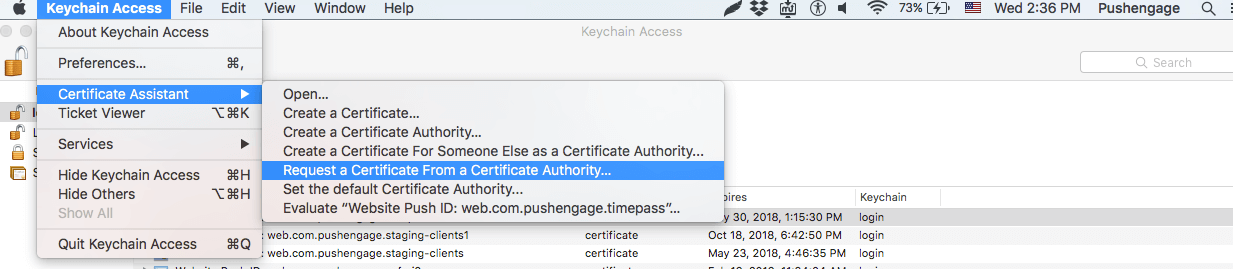
- Starta appen Nyckelringsåtkomst och navigera till Nyckelringsåtkomst > Certifikatassistent > Begär certifikat från certifikatutfärdare.
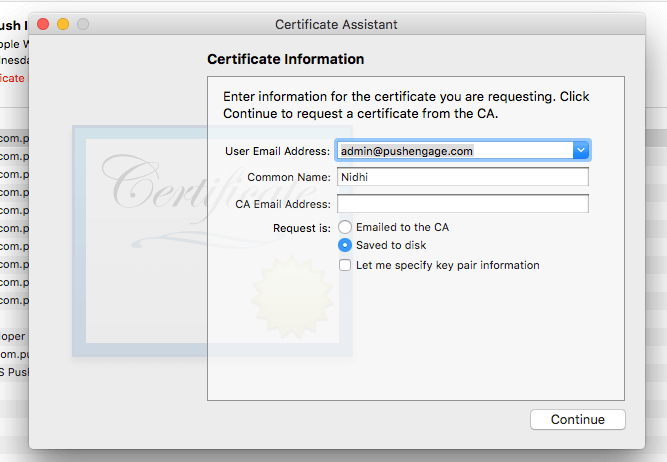
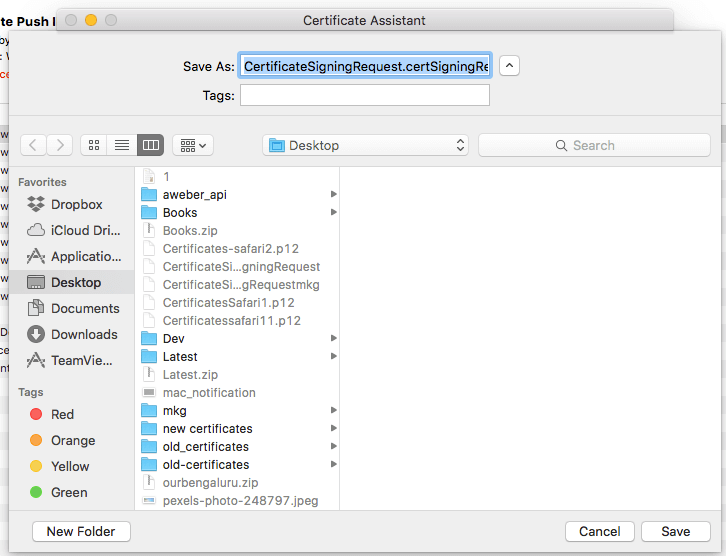
- I certifikatinformationen, lägg till en e-postadress och ett namn och klicka sedan på Spara.
Steg 2 – Konfigurera Web Push-ID för APNS
- Logga in på Apple Developer Console > Identifierare > Webbplats Push-ID:n och klicka i det övre högra avsnittet på +
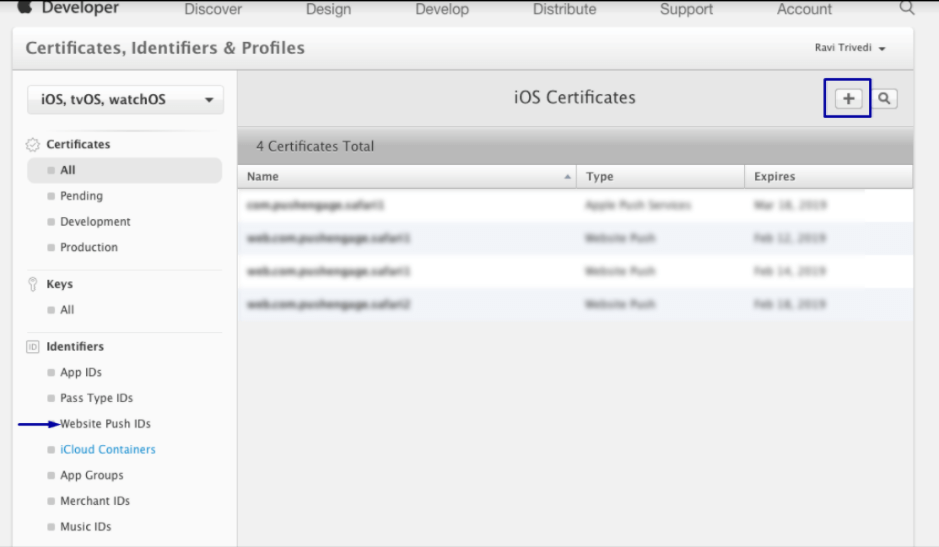
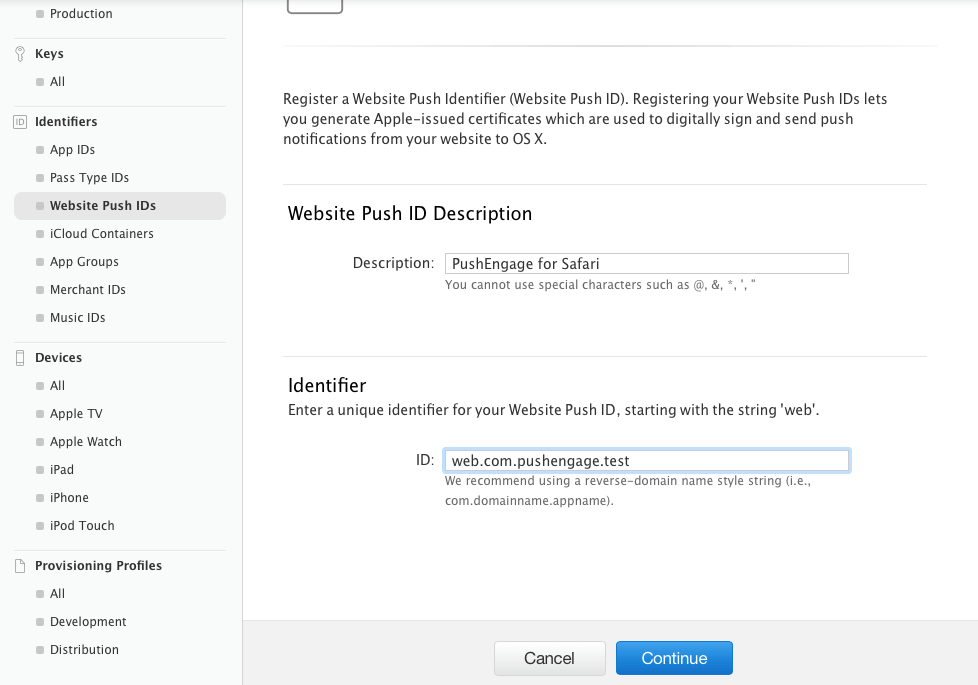
- Du kommer att omdirigeras till nästa fönster och där lägger du till webbplatsens Push ID-beskrivning och unika identifierare. När du är klar klickar du på Fortsätt.
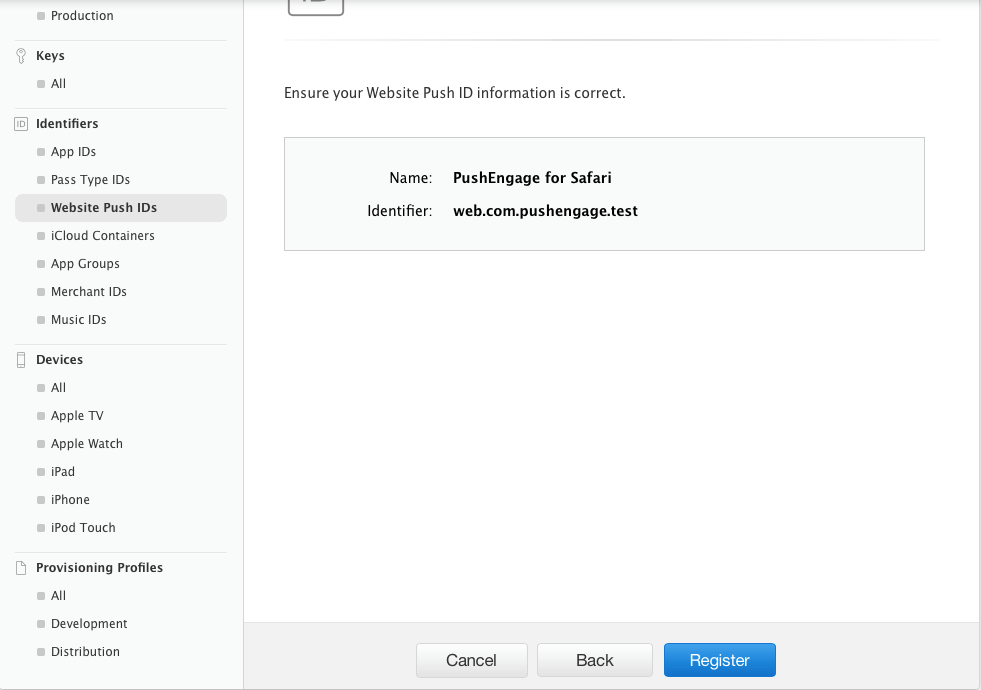
- I nästa fönster, se till att ditt webbplats Push ID är korrekt och klicka sedan på Registrera
Steg – 3 Generera Web Push-certifikat
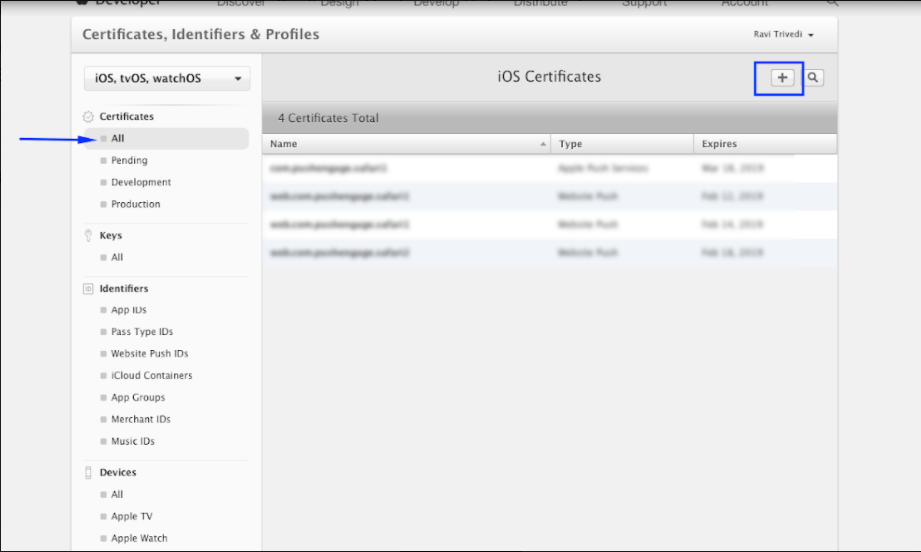
- Navigera till Certifikat > Alla > klicka på +
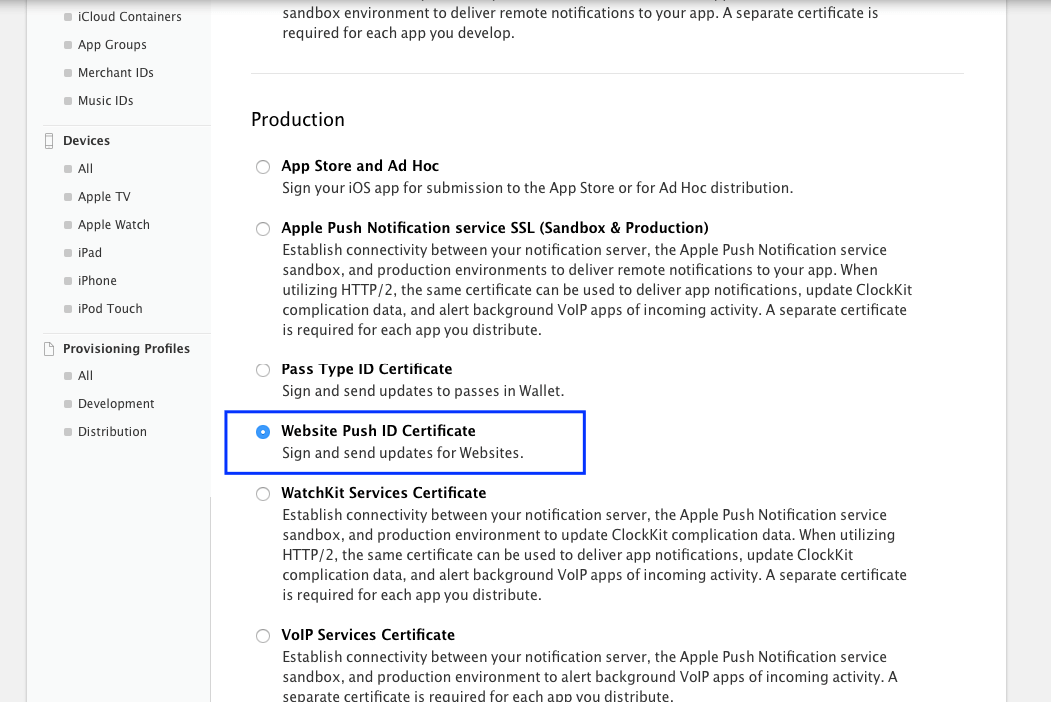
- Välj Webbplats Push ID-certifikat > Fortsätt
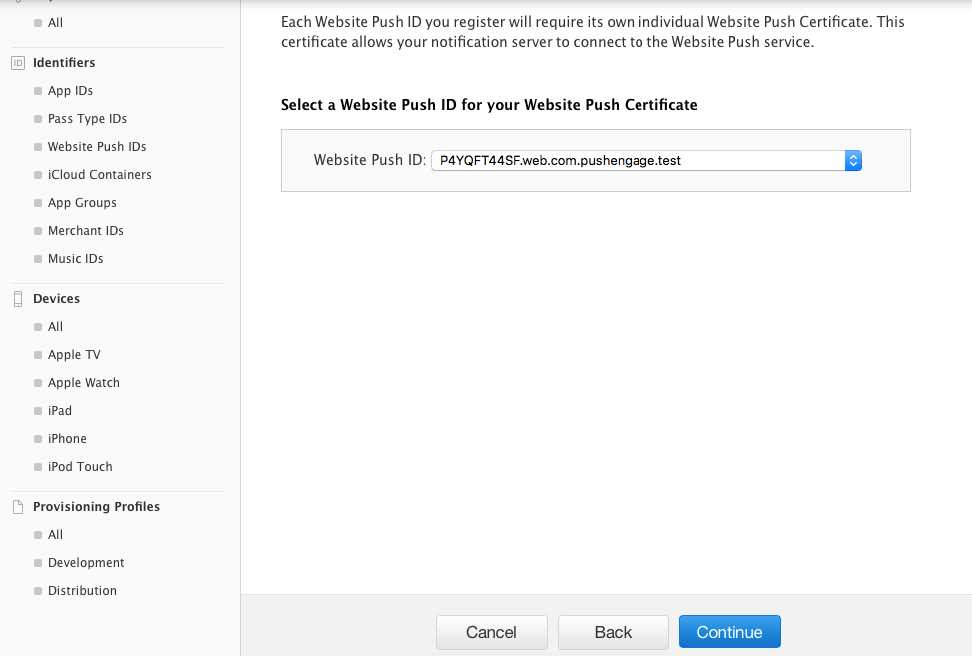
- Välj Webbplats Push ID som du skapade i Steg 2 och klicka på Fortsätt
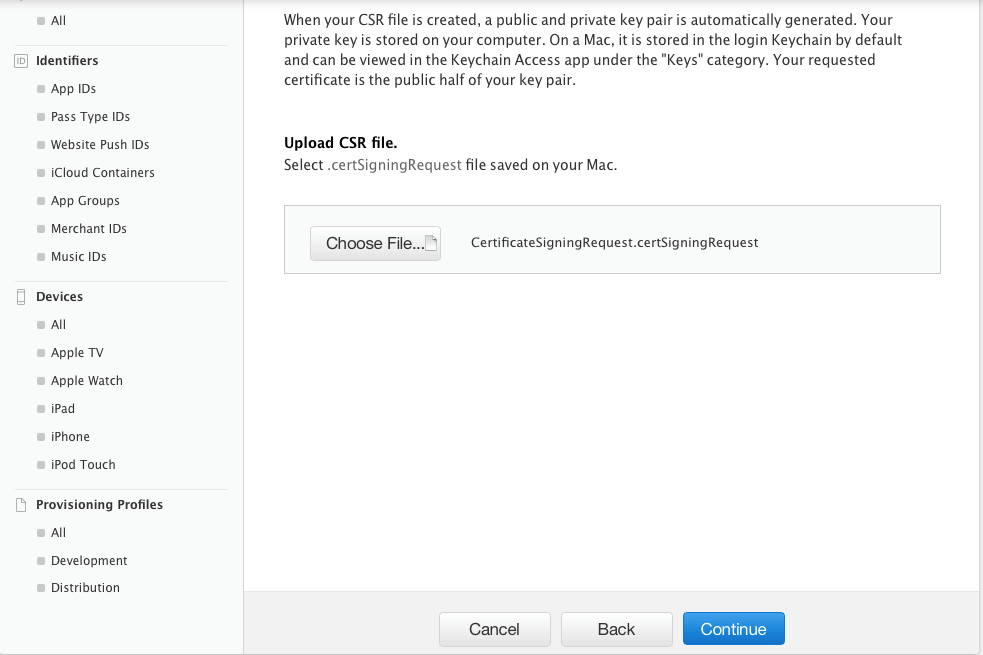
- Lägg nu till CSR-certifikatet som du skapade i Steg 1 och klicka på Fortsätt
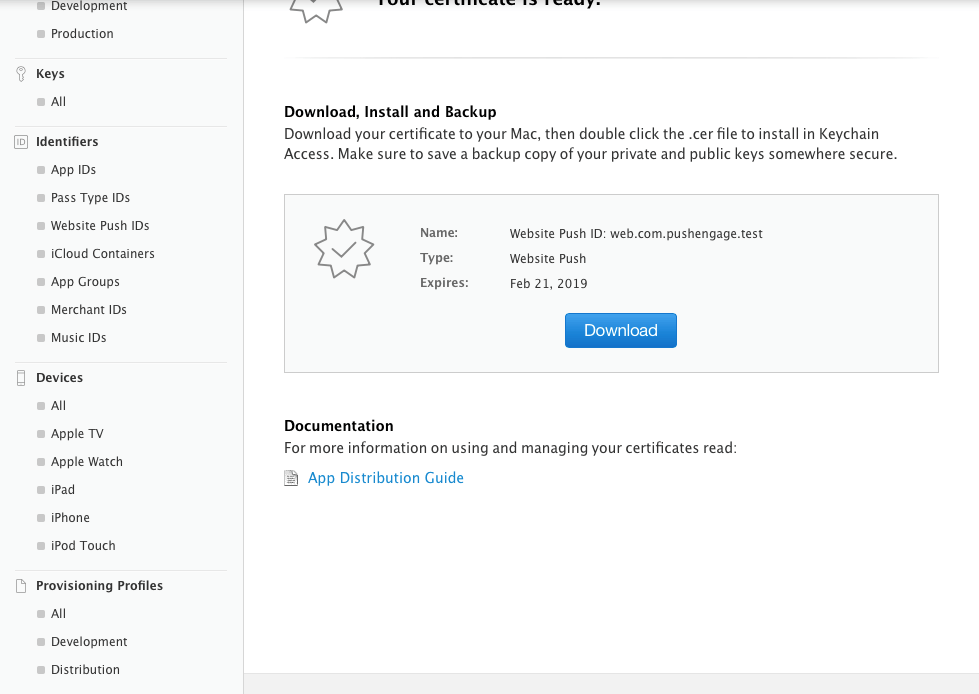
- I nästa fönster får du meddelandet "Ditt certifikat är klart". Ladda ner det eftersom det kommer att användas för att skicka meddelanden till dina prenumeranter.
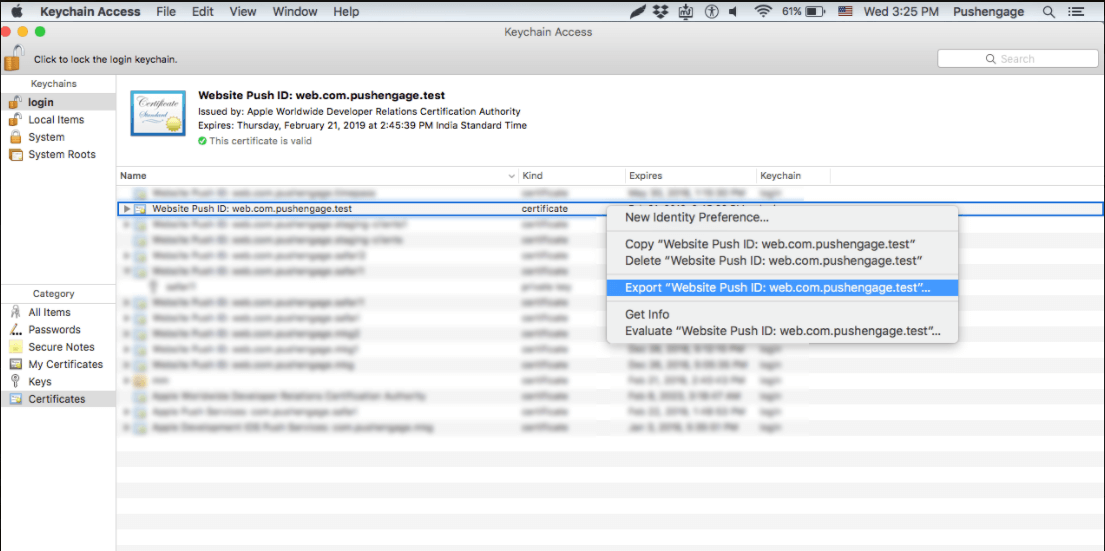
- Nu måste du installera och exportera certifikatet. Dubbelklicka därför på det nedladdade certifikatet så installeras det i appen Nyckelringsåtkomst.
- För att exportera certifikatet – Gå till Nyckelringsapp > Certifikat > Högerklicka på certifikatet > välj Webbplats Push ID som certifikatet skapades för > klicka sedan på Exportera
- Använd formatet Personal Information Exchange (.p12) när du sparar certifikatet
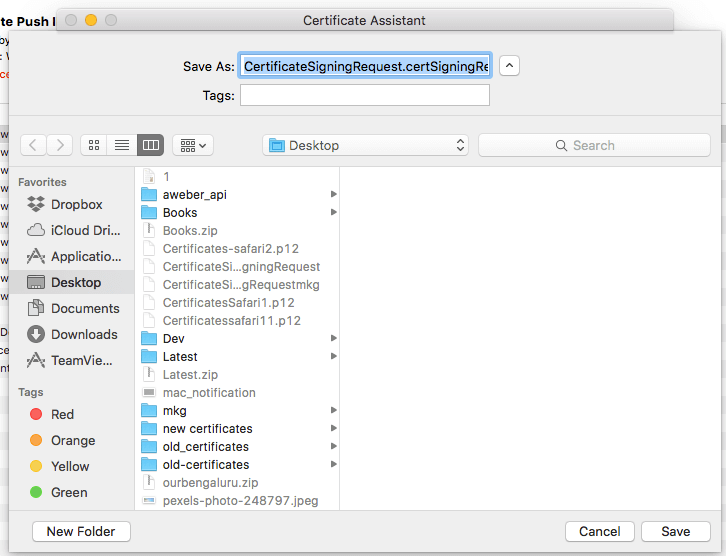
- I nästa fönster kan du välja att skapa ett lösenord eller lämna det tomt och sedan klicka på OK
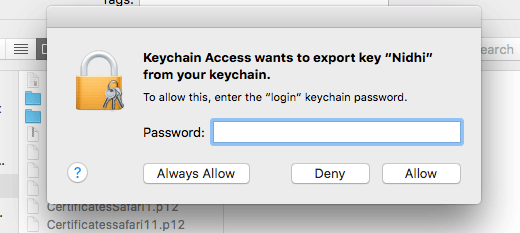
- Klicka på Tillåt för att exportera certifikatet till MAC.
Steg 4 – Ladda upp ditt certifikat till PushEngage
- Navigera till Inställningar > Safari webb Push-inställningar > Ange Webbplats Push ID > Privat nyckelfil och lösenord. När du är klar klickar du på Uppdatera.
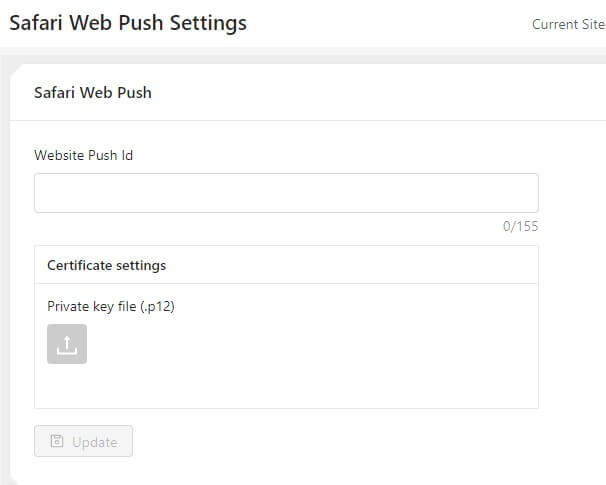
- Om inställningarna är korrekta får du ett meddelande "Inställningar framgångsrikt uppdaterade"
Det var allt och du kan nu skicka aviseringar till dina prenumeranter med Safari. Vi stöder även push-aviseringar i Chrome och Firefox-webbläsare.



Första meningen: På PushEngage tror vi på transparens och vill säkerställa att det inte finns någon leverantörslåsning när du registrerar dig.
Bör vara:
På PushEngage tror vi på transparens och vill säkerställa att det inte finns någon VENDOREN BINDNING när du registrerar dig.