
Looking for a tutorial to create a WordPress multi-step form?
A multi-step form splits up large forms into smaller parts. Multi-step forms reduce the clutter and make it simpler for your visitors to sign up. It’s a great way to increase conversions and improve the overall user experience.
But creating one from scratch is really tiring and if you have to hire a developer to create one, it’s going to be expensive as well.
In this article, we’re going to show you how to create a WordPress multi-step form the easy way without coding.
Lad os dykke ned.
Step 1: Create a New Form With WPForms
Det første, du skal gøre, er at installere og aktivere WPForms.

WPForms er det #1 WordPress formularbygger-plugin i verden. Hvis du er usikker på, hvordan du installerer WPForms, bør du se denne trin-for-trin guide om hvordan man installerer et plugin i WordPress.
Gå derefter til dit WPForms-dashboard og gå til Downloads for at få dit plugin:
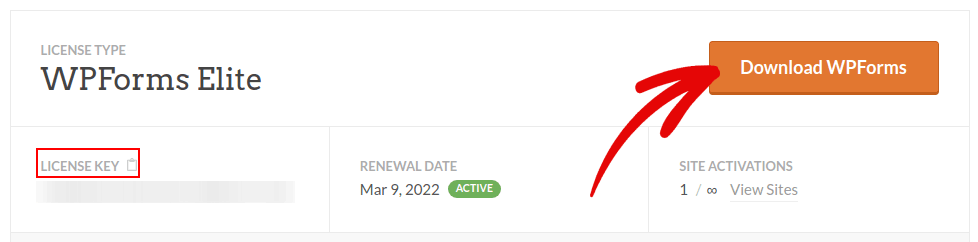
Installer og aktiver derefter pluginnet på din hjemmeside. Og kopier din licensnøgle i samme fane.
Til sidst skal du gå til dit WordPress-dashboard og gå til WPForms » Indstillinger og indsæt din licensnøgle:
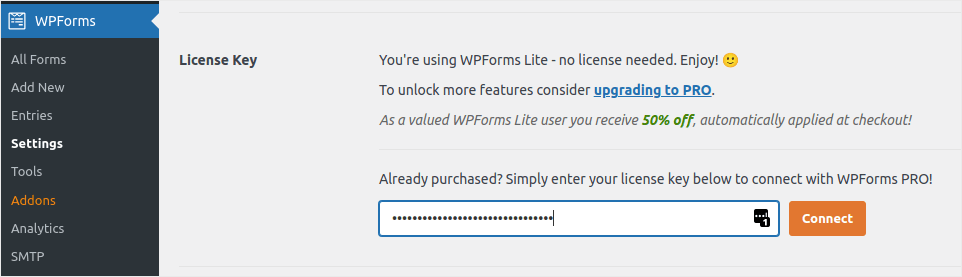
Når du er færdig, skal du klikke på Forbind.
Nu hvor WPForms er installeret og aktiveret, er det tid til at oprette din første formular. Gå til WPForms » Tilføj ny:

Dette åbner WPForms' træk-og-slip-formularbygger.
For at oprette en ny formular skal du give den et navn og vælge din formularskabelon:
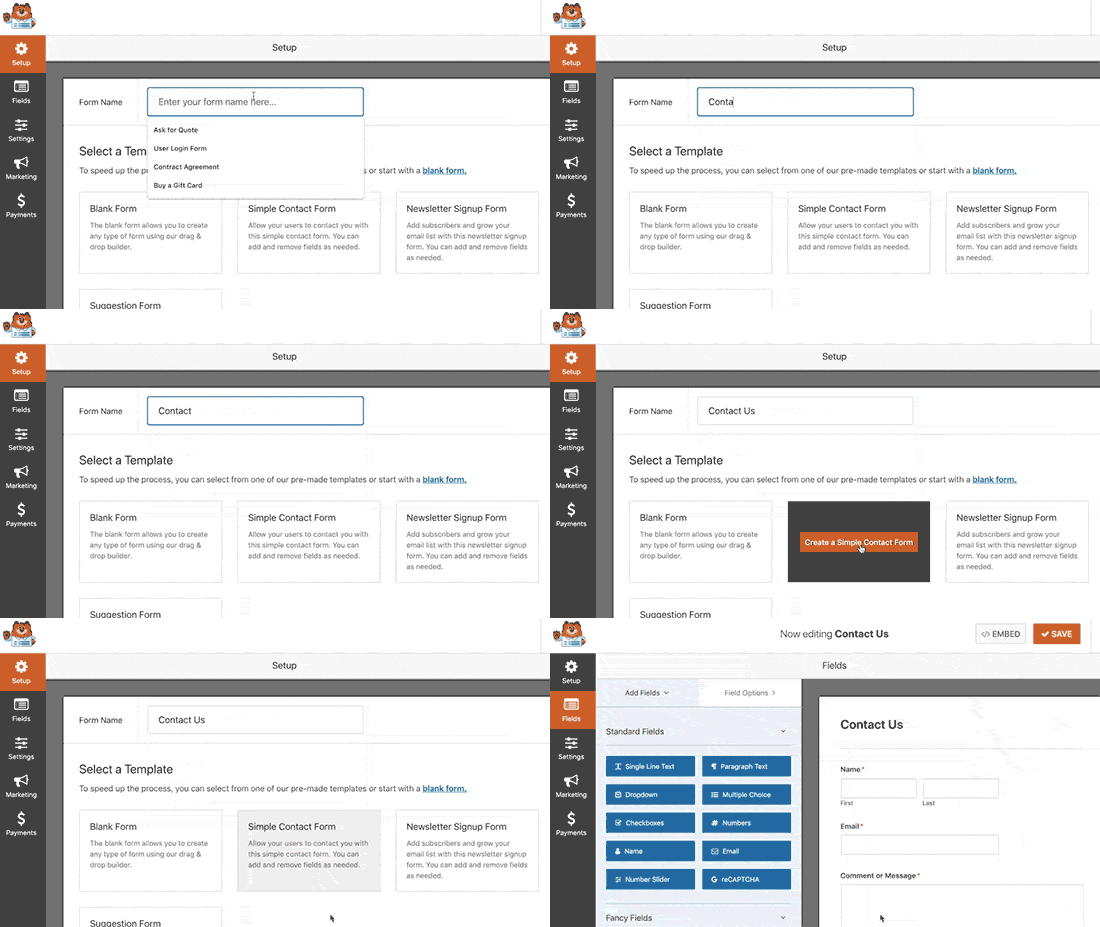
Og det er det! Hvis du vil tilføje eller redigere felterne i din kontaktformular, kan du gøre det fra sidebjælken. Træk og slip formularfelter for at tilføje nye, og klik på eksisterende felter for at redigere dem:
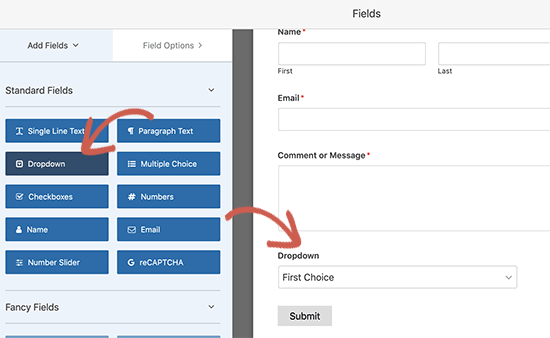
Når du er færdig, skal du trykke på Gem.
Step 2: Insert the Page Break Field Into Your Form
Splitting your form into multiple pages is very simple and easy with WPForms.
Once you’ve added and customized all the form fields on your form, you need to add the Page Break form field to your site to split it into different pages.
To do this, drag the Page Break form field, found under Fancy Fields, from the left-hand panel to the right-hand panel.
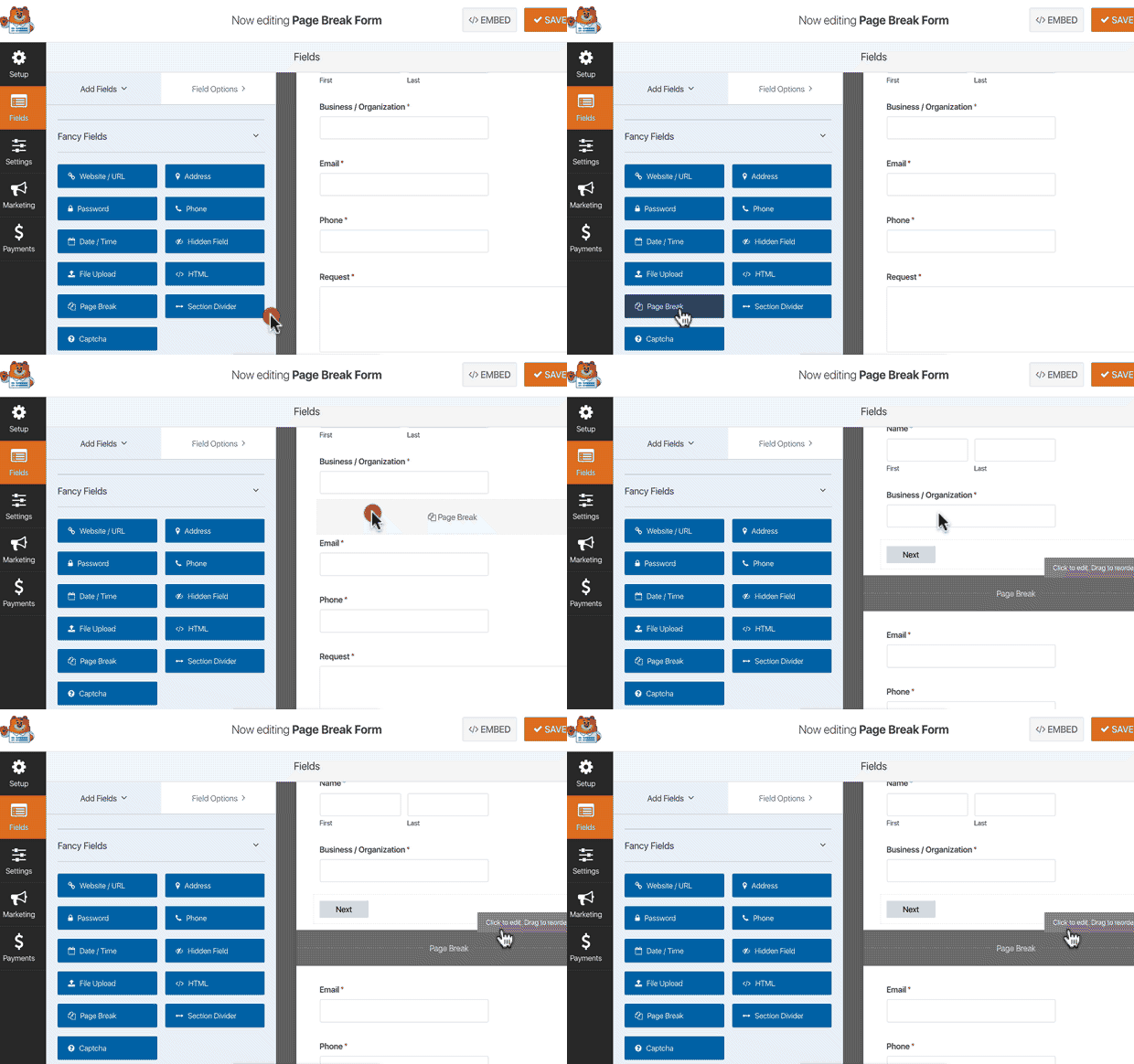
Place the field where you want the form to split. If you want multiple breaks, just use multiple page break modules.
Step 3: Customize the Multi-Page Form Progress Bar
Most of your work in designing the form is done at this point. But for any multi-page form, we recommend using a progress bar to let your visitors know how far along they are in the signup process. You can go above and beyond to give your pages titles as well.
To customize the progress bar and page title of the first page of your multi-step form, click on the First Page break section.
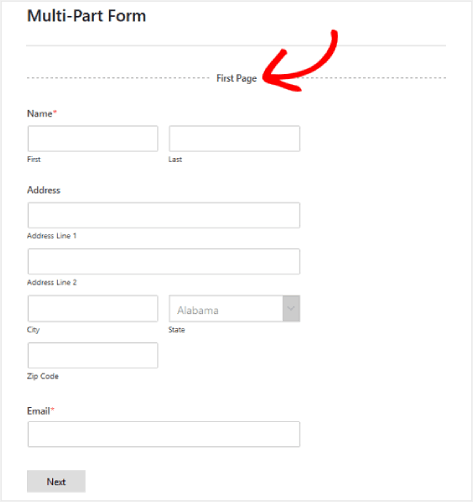
In the sidebar, you can set the type of progress indicator as either Circles or Connectors. You can also set the title for the page.
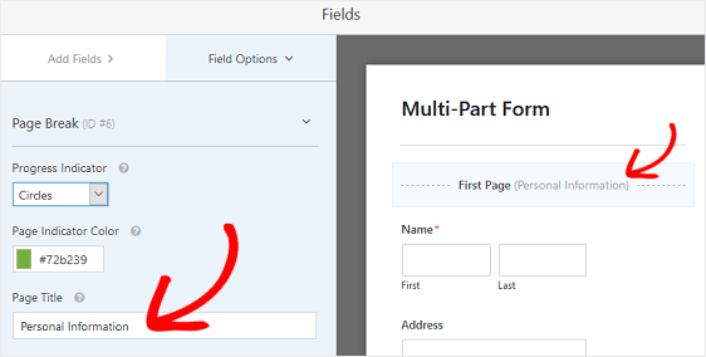
The epic thing is that you can also set a custom Page Indicator Color. When you’re happy, you can also customize the other page breaks in the exact same way.
You can also toggle on the feature that lets you show site visitors a Previous page button. This way they can return to the previous page of your form if they need to.
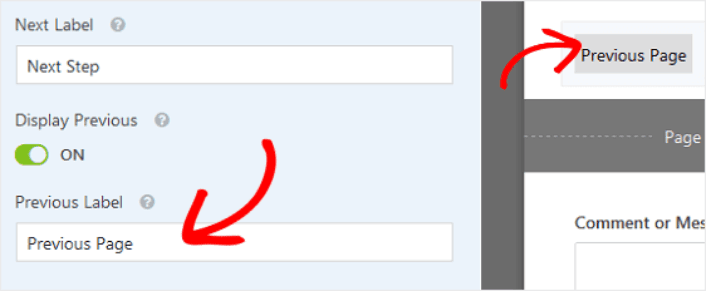
When you’re done, just hit the Save button.
Step 4: Configure Your Multi-Step Form Settings
Dernæst vil du opsætte notifikationer og bekræftelser.
Notifikationer er e-mails, du modtager, når nogen udfylder formularen. Bekræftelser er beregnet til at advare brugeren om, at de har udfyldt formularen succesfuldt. Normalt er dette en "Tak"-besked, men du kan også omdirigere dine brugere til en dedikeret side.
Gå til Indstillinger » Bekræftelser for at konfigurere bekræftelsesindstillinger:

Og derefter i samme menu, gå til Notifikationer for at konfigurere dine notifikationsbeskeder:

Som standard sendes notifikationerne til WordPress-administrator-e-mailen. Så hvis du ønsker, at e-mailsene skal sendes et andet sted hen, såsom e-mail-ID'et for din salgschef, kan du gøre det lige her.
Step 5: Add Your Multi-Step Form to Your WordPress Website
You’re done configuring your WordPress contact form at this point. So, let’s go ahead and add it to a page. There are 3 basic methods to add a WPForms contact form to your WordPress site. We’re going to take a look at each.
Method#1: Add the Form Using the Block Editor
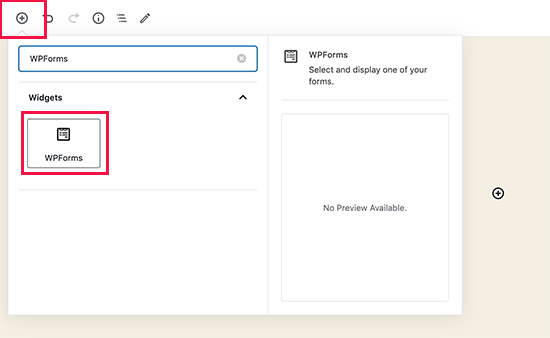
Head over to whichever page you want to add your contact form and add a new WPForms block:
Then, select your newly created form using the dropdown menu:
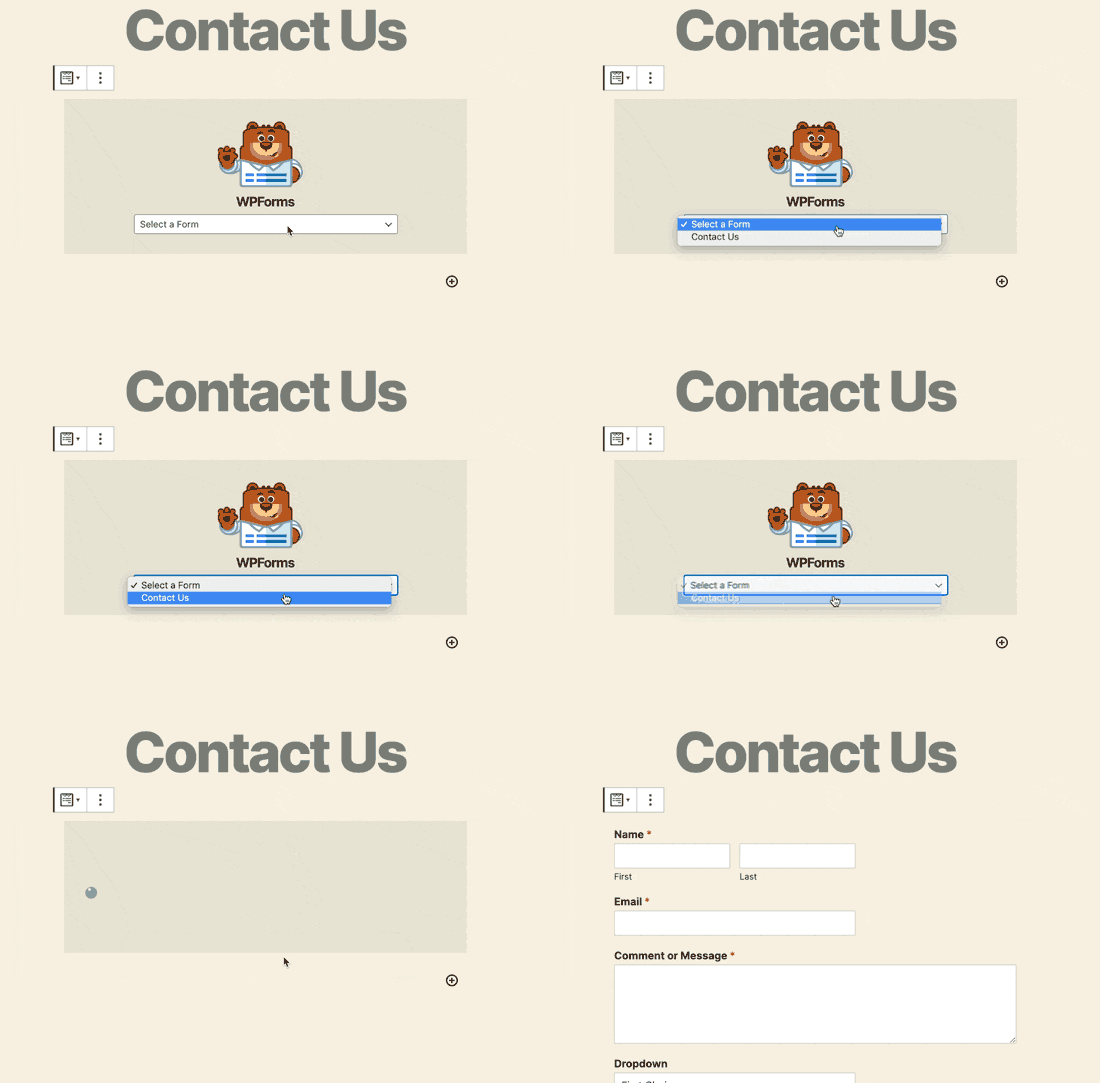
And you should see your contact form get inserted automatically into your page.
Just hit Save and Publish to see your WordPress form in action.
Method #2: Add Your Contact Form Using WPForms Shortcodes
WPForms also generates a shortcode for each WordPress contact form. You can copy the contact form shortcode by visiting WPForms » All Forms:
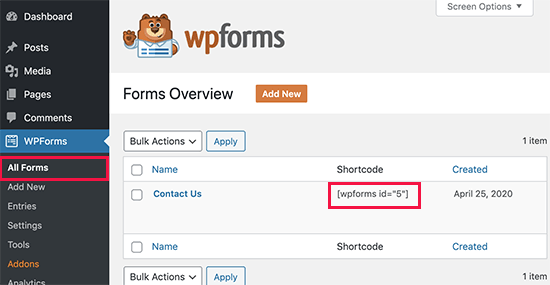
And then, paste the shortcode into any post or page you want. It’s that simple.
If you’re new to shortcodes, you should check out this article on how to add a shortcode on WordPress sites.
Method #3: Add Your Contact Form to the Sidebars
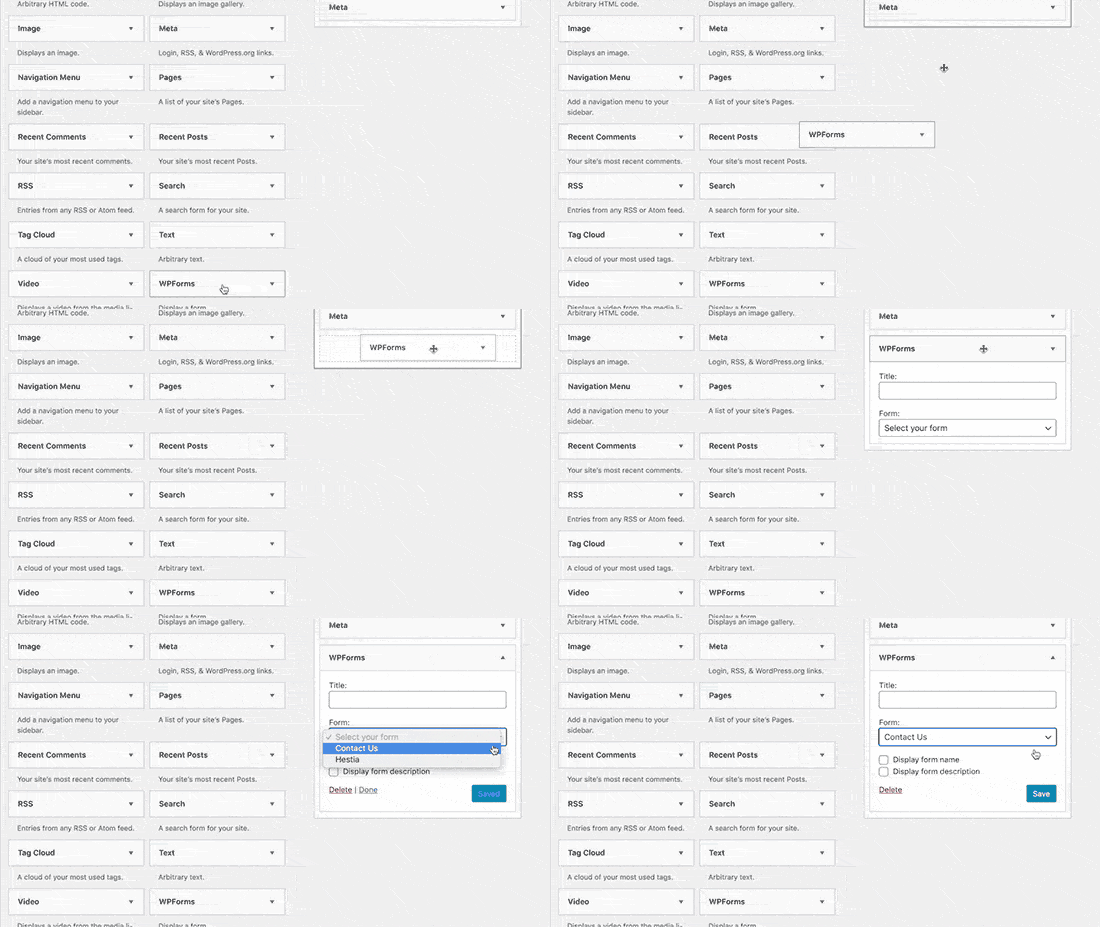
The sidebar is one of the most underused features in most WordPress sites. We highly recommend inserting a contact form in your site’s sidebars. Head over to Appearance » Widgets in your WordPress dashboard and add the WPForms widget to your sidebar:
Og du er færdig!
How to Promote Your WordPress Multi-Step Form
Det var alt for denne gang, folkens!
By now, you’ve created a WordPress multi-step form. Next, you should set up form abandonment tracking to reduce your form abandonment rates.
After that, all that’s left is generating traffic to your site so that your contact forms can get to work. A simple way to do that is to start using push notifications. Sending push notifications is a great way to generate repeat traffic for your site. If that’s something you’re interested in, you should check out these articles as well:
- Push-meddelelsesomkostninger: Er det virkelig gratis? (Prisanalyse)
- Sådan får du mere trafik til din WordPress-blog (9 nemme måder)
- Sådan øger du din opt-in-rate for web push-meddelelser (7 måder)
- Sådan tilføjer du et Web Notifications WordPress-plugin til dit websted
We recommend using PushEngage to send your push notifications. PushEngage is the #1 push notification software in the world. So, if you haven’t already, get started with PushEngage today.


