
Looking for a way to create a video popup in WordPress?
Videos can skyrocket the engagement rates on your site. While you can technically embed a video directly on your WordPress site, there are some drawbacks to that idea:
- If someone wants to make the video larger, they’ll click the ‘See on YouTube‘ button and exit your site.
- Embedded videos create an HTTPS connection from your site to the video hosting site to fetch a video preview. This can slow down your site a lot.
- You can’t trigger the video based on some user action with video embeds like you can with a popup. since there’s no way to control how the video is shown, the conversions from an embedded video will be lower than a popup.
- Typically, you can’t use an embedded video to collect leads unless you place it directly above a form. Placing an optin form like that can seem quite unnatural because visitors usually expect more content right after the video.
A video popup can resolve most of these issues without a hitch.
In this article, we’re going to set up a video popup on your WordPress site in less than 10 minutes.
Lad os dykke ned.
What You Need to Know Before You Start
We recommend using OptinMonster to create your popups.
OptinMonster is the #1 conversion toolkit in the world and we’ve used it ourselves. OptinMonster makes it super simple to create powerful popups that convert. And you’ll never have to use any coding at all.
We even wrote a full review of OptinMonster.
You can check that out, or get started with your campaign right now. All you have to do is sign up for OptinMonster and follow along with the rest of this article. If you follow along with this tutorial, you’ll be able to create a video popup in WordPress like this one:
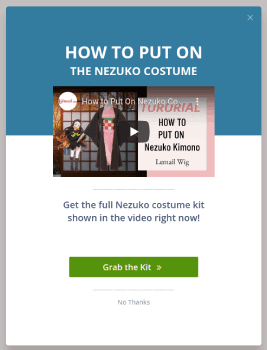
How to Create a Video Popup
Now that you have a basic understanding of how a video popup works, let’s get into creating a video popup.
Step #1. Create Your Campaign
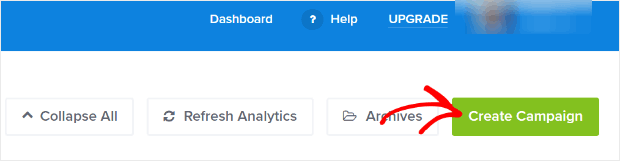
Now, it’s time to create your first campaign. Head over to your OptinMonster dashboard and click on Create Campaign:
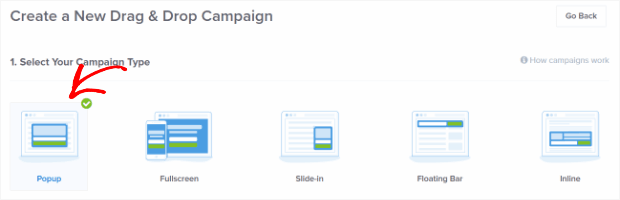
We recommend getting started with the super high-converting lightbox popup:
Then, choose a campaign template. We’re going with the Simple campaign type for this tutorial but you can use any template you want to create a video popup for your WordPress site:
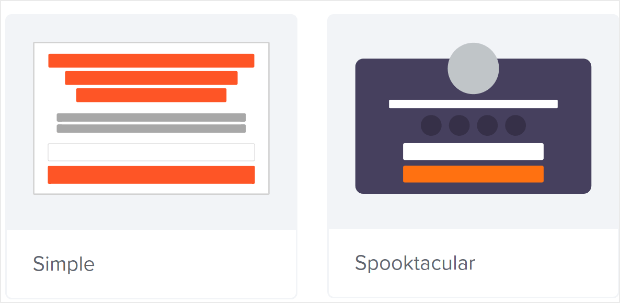
The Simple campaign template has very few elements. So, you can easily add elements to the optin without cluttering it.
Now, give your campaign a name. The campaign name is mainly for you and you’ll likely create a whole bunch of these popups with different targeting options. So, give the campaign a meaningful name so that you can manage your campaigns easily.
Also, depending on your plan, you can also use OptinMonster on multiple sites. So, select the website where you want to display your campaign as well.
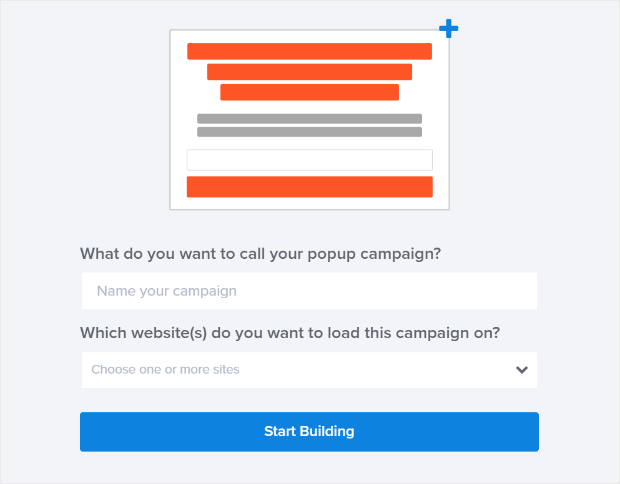
Press Start Building when you’re done.
Step #2: Get Your Video Embed URL
Next, you’ll want to get the URL for the video you want to embed. We’re going to use YouTube in this tutorial, but OptinMonster also works with other video hosting platforms such as Vimeo and Wistia.
For this tutorial, we’re using a YouTube video on push notifications powered by PushEngage. Click on the Share button:

Then, click on the Embed button:
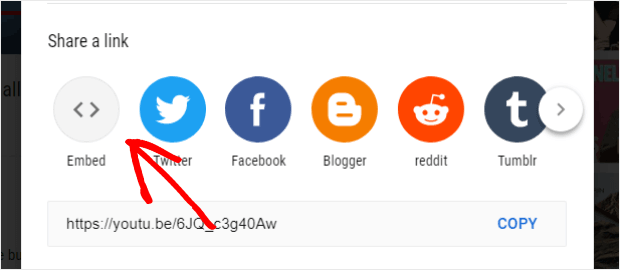
You’ll see a preview of the code snippet:
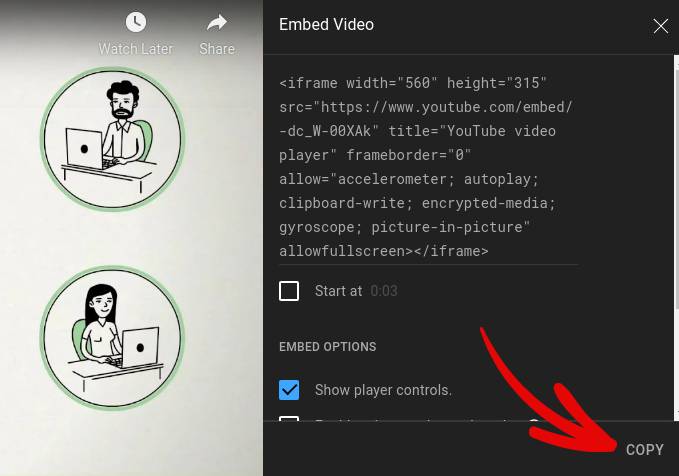
Copy only the video embed link instead of the full code:
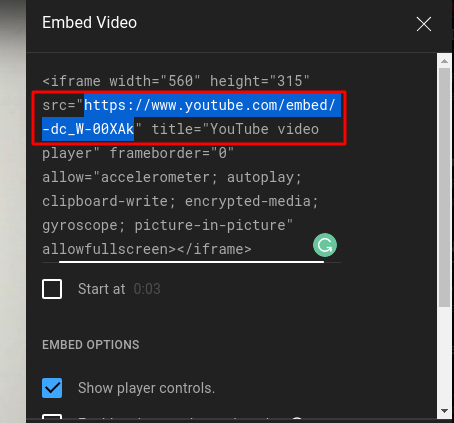
Save this video embed link because you’ll need it for your campaign in the next step.
Step #3: Embed the Video in Your Campaign
Return to the OptinMonster campaign builder. From the Design view of the campaign builder drag and drop an Video block into your campaign design where you would like the popup to show up.
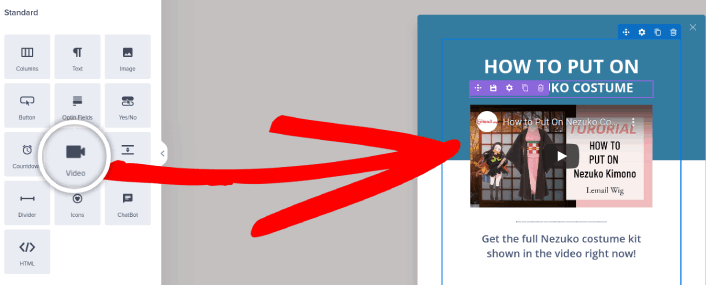
Click directly on the video in the live preview to bring up the editing tools. Enter the embed URL for the video in the Hosted Video URL box:
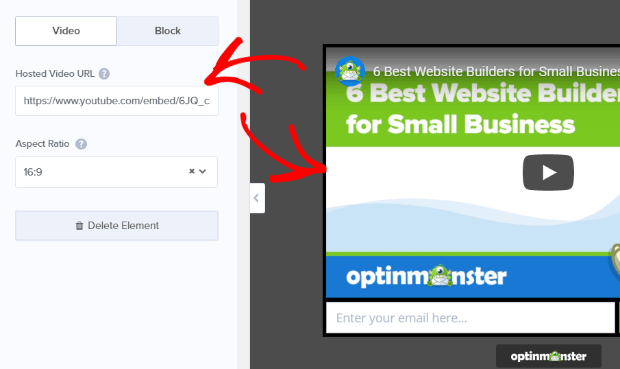
The campaign preview will update to show the updated YouTube lightbox video popup campaign. Be sure to save your campaign by clicking on the Save button in the upper right-hand corner of the screen.

Trin #4: Tilføj en Klik for at abonnere-knap til din popup
Push-notifikationer hjælper dig med at øge din webtrafik og dit engagement automatisk. Og hvis du driver en onlinebutik, hjælper PushEngage dig også med at øge dit salg ved at hjælpe dig med at oprette automatiserede e-handels-push-notifikationer.
Du kan komme i gang gratis, men hvis du er seriøs omkring at vækste din forretning, bør du købe en betalt plan. Før du køber en push-notifikationstjeneste, bør du også se denne guide til priser på push-notifikationer.
Her er et hurtigt overblik over, hvad du får med PushEngage:
- Højt konverterende automatiserede kampagner
- Flere målretnings- og kampagneplanlægningsmuligheder
- Målsporing og avanceret analyse
- Smart A/B-test
- En dedikeret succesmanager
Du vil se, at PushEngage uden tvivl er det bedste valg, hvis du vil opbygge trafik, engagement og salg for din virksomhed. Og hvis du har et stramt budget, kan du altid være lidt kreativ med dine push-notifikationer.
Tilføj først en HTML-blok til din popup fra sidepanelet i OptinMonster.
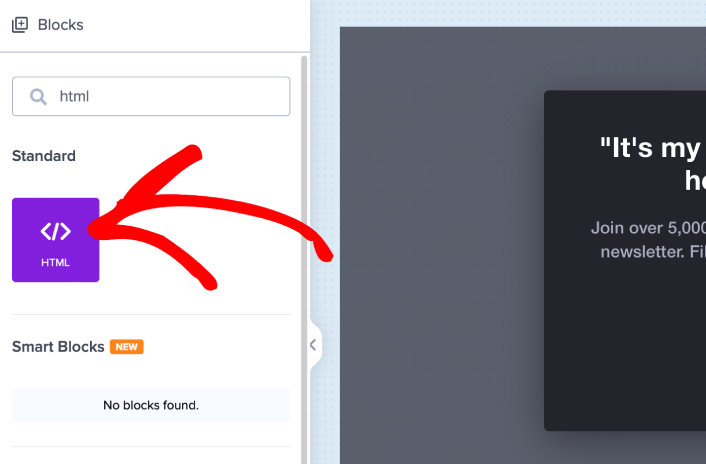
Her er, hvor vi skal tilføje koden til at indsamle push-notifikationsabonnenter. Indsæt først følgende kode for at oprette en klikbar knap:
<button onclick="subscribeOnClickButton()" style="border: none; width: 100%; padding-left: 15%; padding-right:15%; text-align: center; display: inline-block; color: white;">Get Updates via Push Notifications</button>Indsæt koden, hvor der står, at du kan tilføje HTML:
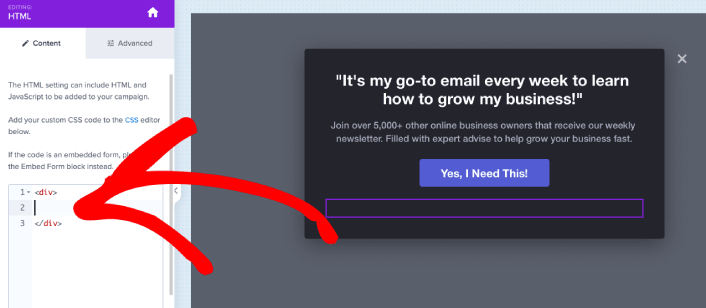
Selvfølgelig kan du lege med stilarterne for at gøre den mere tiltalende. Dernæst vil vi få knappen til at indsamle push-notifikationsabonnenter, når der klikkes på den.
Gå til PushEngage hjemmeside og klik på knappen Kom i gang :

Vælg derefter gratisplanen for at prøve PushEngage, eller vælg en betalt plan, hvis du er seriøs omkring at udvide din virksomhed. De betalte planer kommer med flere kampagnemuligheder og muligheden for at opbygge endnu større abonnentlister.
På dit PushEngage dashboard skal du gå til Sideindstillinger » Sideoplysninger og klikke på knappen Klik her for opsætningsinstruktioner. Under Enhver side får du din installationskode:

ADVARSEL: Du skal kopiere den kode, du får fra dit dashboard. Koden er unik for hver PushEngage-bruger. Du kan ikke kopiere koden på billedet og indsamle push-notifikationsabonnenter.
Når du har koden i dit PushEngage-dashboard, skal du tage det andet script og tilføje lidt ekstra kode til det. Din endelige kode skal se nogenlunde sådan ud:
<script src="https://clientcdn.pushengage.com/core/02a6e92667ae2279fcba8932356c1d93.js" async></script>
<script> window._peq = window._peq || [];
function subscribeOnClickButton(){
window._peq.push(['subscribe',{}.pe,function(res){
console.log(res);
}]);
}
</script>
Tilføj denne kode til HTML-blokken i OptinMonster lige efter koden til din knap og mellem <div></div> kodeblokken, og du er færdig!
Step #5. Set Display Rules for Your Video Popup
Next, you’ll want to specify when visitors should see your video popup campaign.
To do that, go to the Display Rules tab.
Check out the Default Display Rule for any campaign:
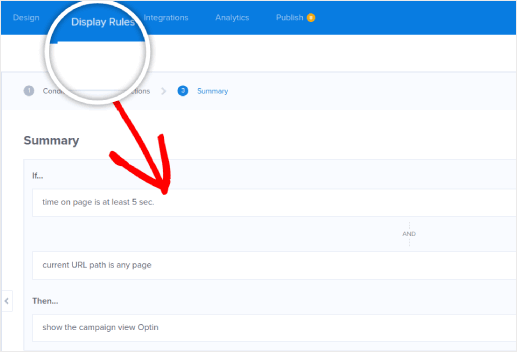
This means that even if you forget to set a custom display rule, visitors will see your video popup after spending at least 5 seconds on your site.
Step #6. Add Your Email Service Integration
Click Add New Integration from the Integrations tab and add your Email Service Provider. Just choose your email service provider from the Email Provider dropdown.
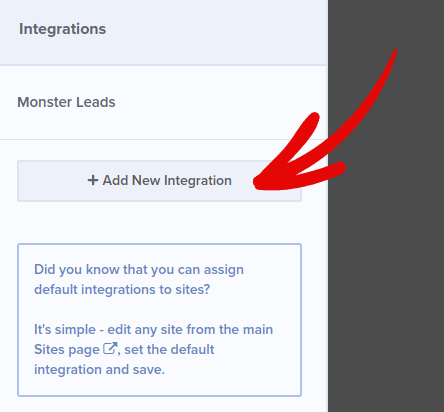
We recommend using ConstantContact for your email campaigns. ConstantContact offers multiple email automation campaigns that can help you engage and sell to your email list on autopilot.
Step #7. Publish Your Campaign
Every campaign on OptinMonster is Paused by default. So, we’re going to publish your campaign so that your site visitors can see the popup when they land on your site.
Head back to the OptinMonster dashboard. Go to the Publish tab from the top menu to see the Publish Options. Then, set the status to Publish and select the website platform:
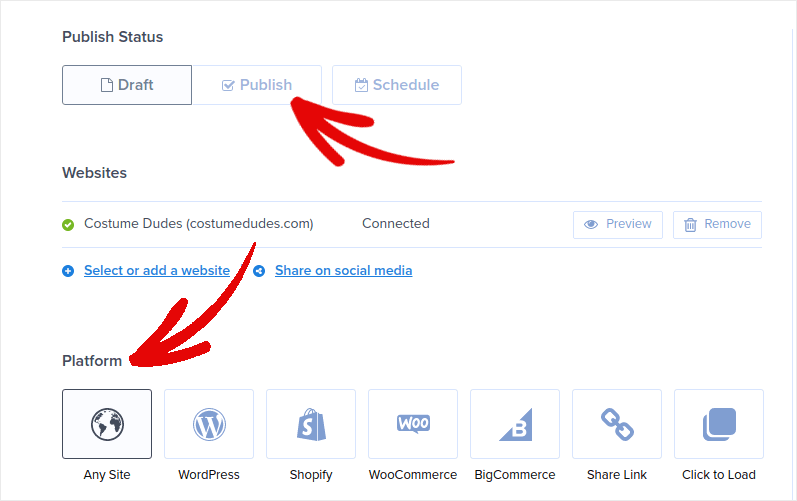
If you’re running a WordPress site, the OptinMonster plugin handles the rest of the setup automatically. Just remember to hit Save when you’re done. When you go back to your site, you will see the video popup you just created.
What to do After You Create a Video Popup in WordPress
Det var alt for denne gang, folkens!
Creating video popups for your WordPress site is a super effective way to convert your traffic into email subscribers and genuine business leads. the only challenge you have after setting up a video popup is to grow your site traffic.
Og hvis du leder efter en overkommelig måde at øge din trafik på, anbefaler vi at bruge push-notifikationer. Push-notifikationer kan hjælpe dig med at tiltrække mere gentagen trafik og engagement på webstedet. Du kan også oprette automatiserede push-notifikationskampagner, der genererer salg.
Ikke overbevist? Tjek disse ressourcer:
- 7 Smarte Strategier til at Øge Kundeengagement
- Er Push-notifikationer Effektive? 7 Statistikker + 3 Eksperttips
- Sådan opsættes push-meddelelser om forladte indkøbskurve (nem vejledning)
- Sådan tilføjer du et Web Notifications WordPress-plugin til dit websted
Vi anbefaler at bruge PushEngage til at oprette dine push-notifikationskampagner. PushEngage er den #1 push-notifikationssoftware i verden. Så hvis du ikke allerede har gjort det, så kom i gang med PushEngage i dag!


