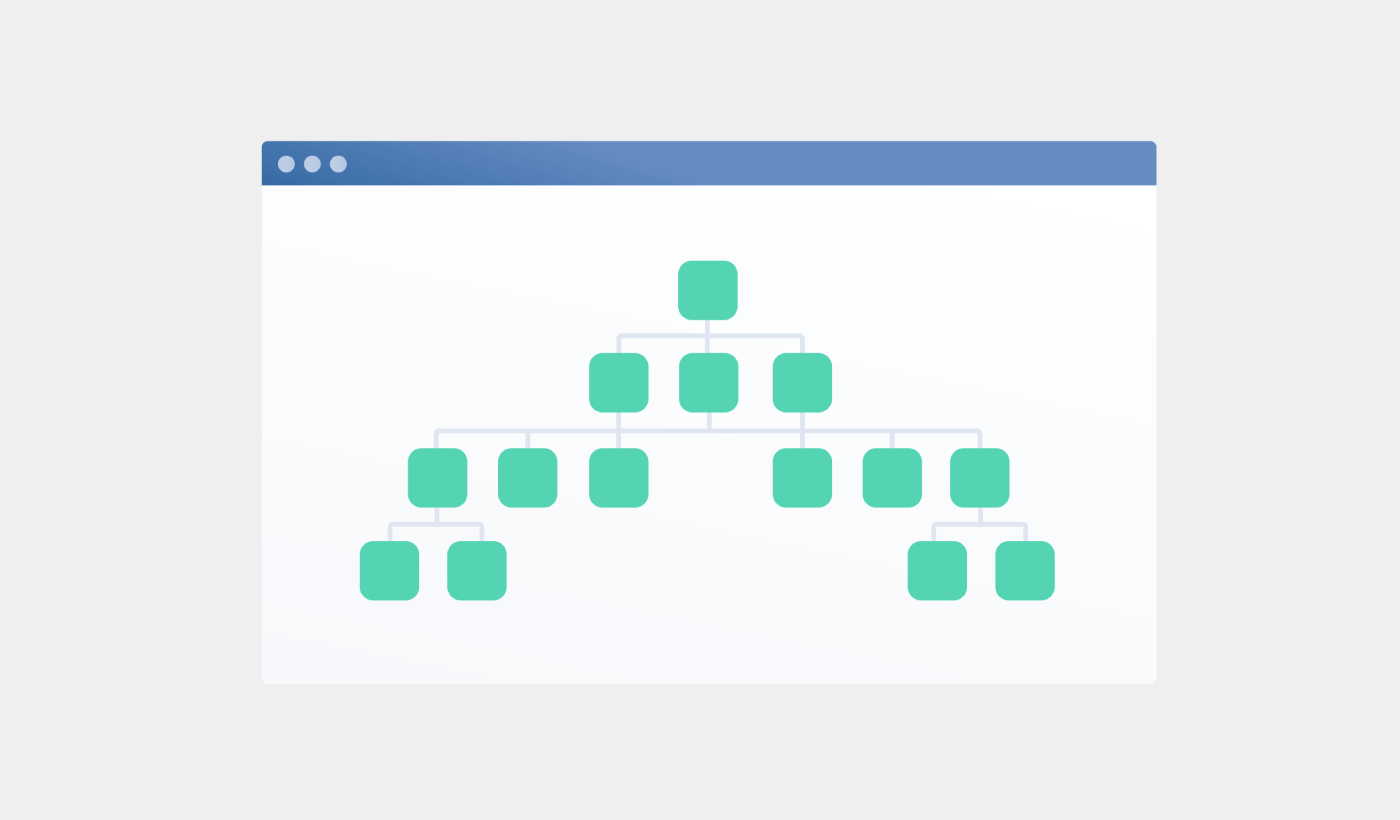
Looking for a detailed tutorial on how to create a sitemap for WordPress?
Sitemaps help search engines to crawl and index your website with ease. In simple terms, a sitemap is a list of all the links on your site. This includes pages, posts, categories, and even media files.
Having a sitemap on your site makes it easy for search engines to discover your site content. But how do you do it?
Simple answer: You can add a WordPress SEO title from any SEO plugin at all. In this article, we’ll show you how to create a sitemap for WordPress in less than a minute with zero coding.
Lad os dykke ned.
What Is a Sitemap for WordPress?
A WordPress sitemap is an XML (extensible markup language) file that contains a list of all (or most of) the pages of your website.
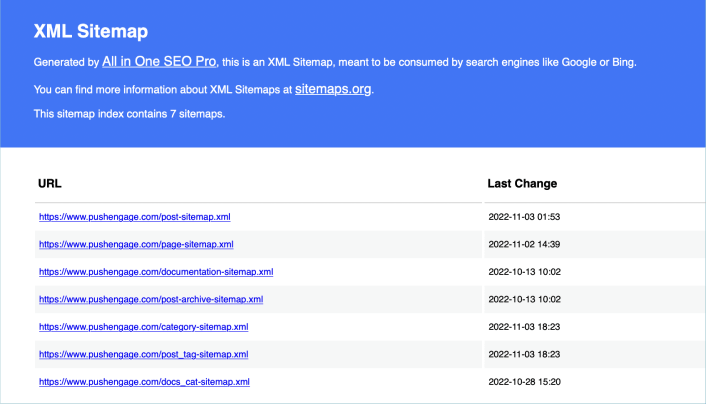
A sitemap tells Google, Bing, DuckDuckGo, and other search engines where your content is located, when was the page last updated, how important is the page for your website, and more information.
If you have no backlinks to your content, it’s difficult for search engines to find your content. Sitemaps get search engines started with indexing your content. And if you use a WordPress SEO plugin, you can easily create an XML sitemap for your WordPress site.
How to Create a Sitemap for WordPress
The simplest way to create a sitemap for WordPress is to use an SEO plugin. WordPress generates a basic sitemap on its own, but it includes anything that you might have no-indexed. There’s also no way to customize the default WordPress sitemap unless you know PHP code.
So, the default WordPress sitemap is usually full of errors. We recommend using AIOSEO as your WordPress SEO plugin.

All In One SEO er det bedste WordPress SEO-plugin i verden.
Ikke alene er AIOSEO kraftfuldt nok til at implementere de nyeste SEO-bedste praksisser, men du får også avancerede muligheder for at løse specifikke SEO-problemer lige ud af boksen. Dette inkluderer:
- Lokale SEO-moduler til små virksomheder med et lokalt publikum
- WooCommerce SEO til onlinebutikker
- En SEO-optimerer inde i din WordPress-editor
- Smarte sitemaps til øjeblikkelig indeksering på søgemaskiner
- Et Schema-plugin til at få dit indhold til at rangere i Rich Snippets
Og selvfølgelig kan du tilføje, redigere og optimere WordPress-titeltagget for enhver side eller ethvert indlæg på dit websted! Tjek funktionerne mere detaljeret fra vores anmeldelse af AIOSEO.
Trin #1: Konfigurer All in One SEO-pluginnet
Efter du har downloadet og installeret pluginnet, får du en opsætningsguide:
Og opsætningsprocessen tager mindre end 10 minutter.
Men hvad nu hvis du migrerer fra et andet SEO-plugin? Hvert plugin håndterer metadata forskelligt. Så skal du gøre alt fra bunden? Er al din tidligere indsats spildt?
Nej! Hvis All in One SEO registrerer et andet SEO-plugin under opsætningsguiden, vil det tilbyde at kopiere de grundlæggende indstillinger for dig:
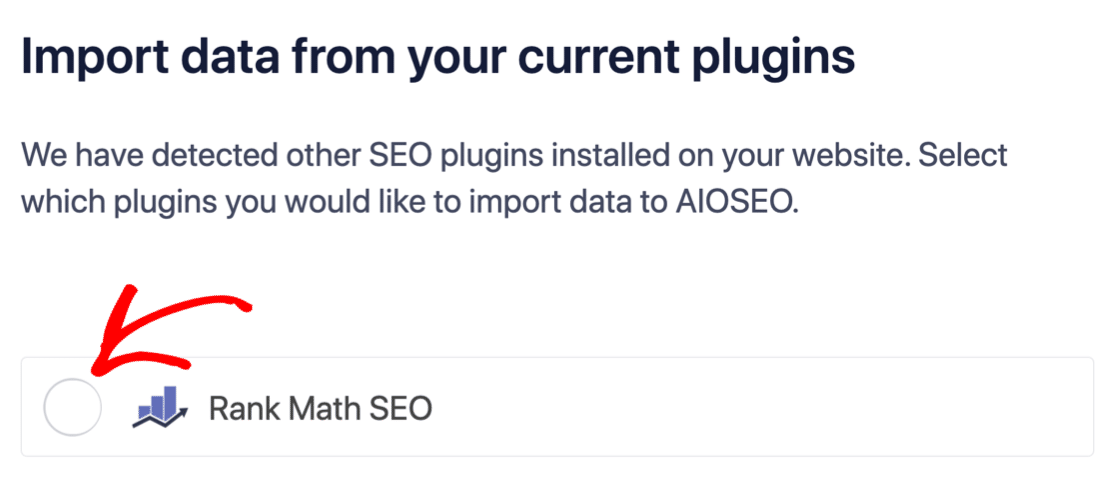
Ved slutningen af opsætningen vil opsætningsguiden bede dig om at deaktivere dit gamle SEO-plugin. På denne måde er der ingen plugin-konflikter og fejl:
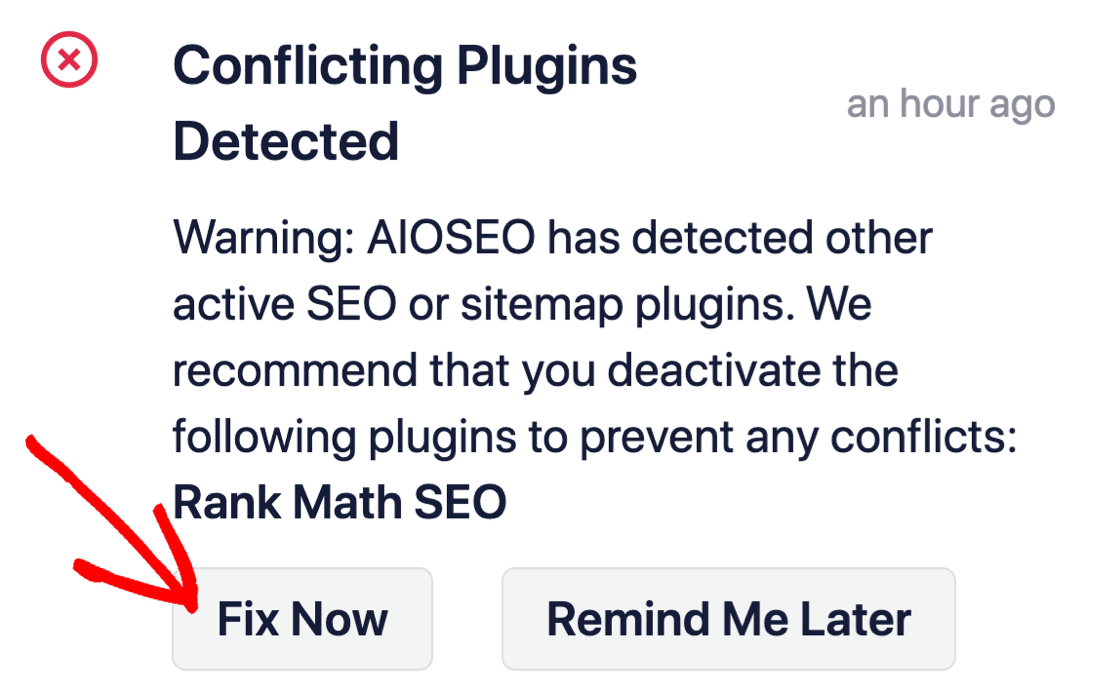
Klik på Fix Now sletter ikke indstillingerne i dit gamle SEO-plugin. Det deaktiverer blot pluginnet for at forhindre konflikter.
Step #2: View Enabled Sitemap in All in One SEO
The best part of the All in One SEO plugin is that the sitemap is enabled by default. So, all you have to do is install the plugin and you’re all set. But if you’re switching SEO plugins, you should double-check that the sitemap is enabled.
Go to All in One SEO » Sitemaps from your WordPress dashboard. Then, go to the Enable Sitemap option and check if the toggle button is set to enabled mode:
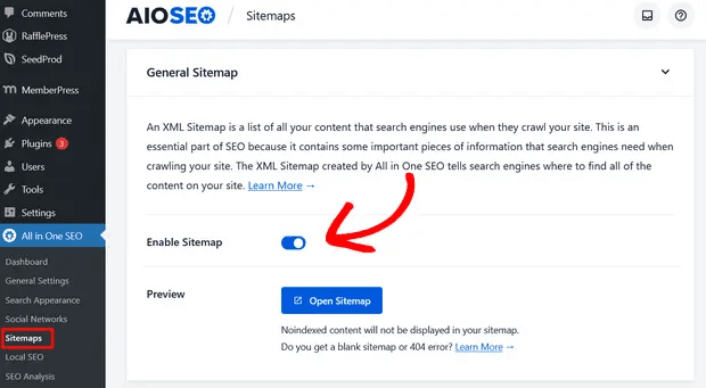
Og du er færdig!
Step #3: Verify Your Site’s Sitemap
After making sure the sitemap is enabled, you can verify your website’s sitemap. Just click on the Open Sitemap button:
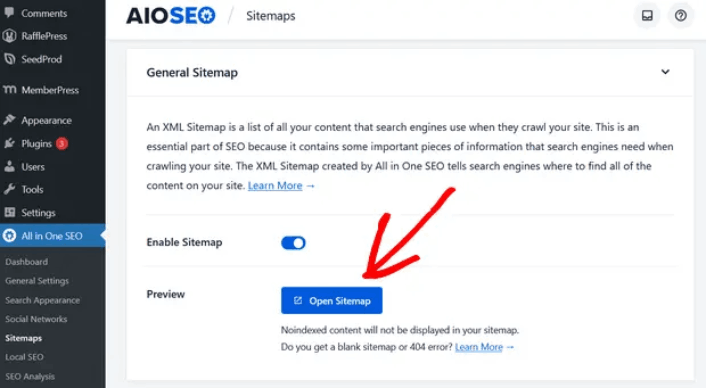
If everything goes well, you should see an XML sitemap like this one:
By default, All in One SEO will create sitemaps for your posts, pages, and categories. And if you have an online store like a eCommerce store or have any products listed, then it will set up a sitemap for them as well.
What to do Once You Know How to Create a Sitemap for WordPress
Now that you know how to create a sitemap for WordPress, it’s time to learn how to get even more traffic to your site. SEO is a great way to bring in fresh traffic to your site using just content. But you also need to bring in repeat traffic, website engagement, and sales.
That’s where push notifications can be super useful for your site.
If you’re not 100% convinced, you should check out these resources on how to effectively use push notifications:
- 7 Smarte Strategier til at Øge Kundeengagement
- Er Push-notifikationer Effektive? 7 Statistikker + 3 Eksperttips
- Sådan opsættes push-meddelelser om forladte indkøbskurve (nem vejledning)
- Sådan tilføjer du et Web Notifications WordPress-plugin til dit websted
Vi anbefaler at bruge PushEngage til at oprette dine push-notifikationskampagner. PushEngage er den #1 push-notifikationssoftware i verden. Så hvis du ikke allerede har gjort det, så kom i gang med PushEngage i dag!


