Looking for a tutorial on how to create an expense approval form in WordPress?
An expense approval form is a superb tool to streamline and monitor company expenditures. But, you might wonder, how do you craft one? Is it worth designing an expense form from the ground up?
The straightforward scoop? Probably not. You can whip up a WordPress expense approval form with a form plugin in significantly less time than starting from zero. And if you’re no tech whiz, leaning on a plugin is will likely be much kinder on your wallet too.
But hold on! The plugin universe is vast. So, which one should you choose?
In this article, we’re going to show you step by step how to create your own expense approval form in WordPress. The best part? You’ll be done in 10 minutes and you don’t need to write a single line of code.
Lad os dykke ned.
Why You Need an Expense Approval Form in WordPress
Incorporating an expense approval form into your WordPress website streamlines the way you manage, monitor, and authorize company expenditures. It becomes an essential tool for maintaining financial discipline and transparency in your organization.
PushEngage er det #1 push-notifikationsplugin i verden. Få det gratis!
Through a clear format like, “What’s the purpose of this expense?” or “Attach your expense receipt here”, you can maintain a consistent record of every penny spent. Expense forms can categorize expenses based on their nature like travel, supplies, or entertainment, ensuring clarity in documentation.
Often, expense approval forms also allow a section for notes or clarifications. This section provides valuable context to approvers, making sure there are no ambiguities when it’s decision time.
By routinely processing expenses through this system, you’re creating a clear financial trail. This periodic review ensures that expenses align with company policies and budgets. Plus, it’s a quick way to spot any irregularities or misuse.
The insights you gather can lead to tangible policy improvements. Over time, you might spot patterns – maybe your team frequently overspends in one area or there are recurrent unjustified expenses. This can guide policy updates or staff training.
To integrate an expense approval form into your WordPress platform, you can use specific plugins or incorporate forms from external finance tools. Ensure your form is straightforward, intuitive, and easily accessible to those who need it.
In essence, expense approval forms in WordPress help synchronize company spending with financial guidelines, ensuring budget adherence and fiscal responsibility.
How to Create an Expense Approval Form in WordPress
Now that you know why you should be creating your expense approval form, it’s time to start building one for your site. To create your expense approval form, we’re going to use a super popular form builder plugin for WordPress called WPForms.
Lad os komme i gang.
Trin #1: Opret en ny WordPress-formular
Det første, du skal gøre, er at installere og aktivere WPForms.

WPForms er det #1 WordPress formularbygger-plugin i verden. Hvis du er usikker på, hvordan du installerer WPForms, bør du se denne trin-for-trin guide om hvordan man installerer et plugin i WordPress.
Gå derefter til dit WPForms-dashboard og gå til Downloads for at få dit plugin:
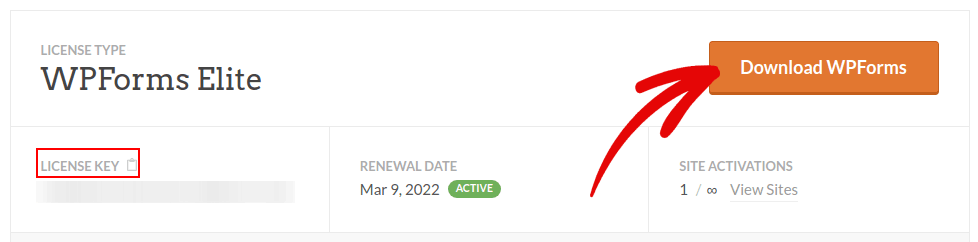
Installer og aktiver derefter pluginnet på din hjemmeside. Og kopier din licensnøgle i samme fane.
Til sidst skal du gå til dit WordPress-dashboard og gå til WPForms » Indstillinger og indsæt din licensnøgle:
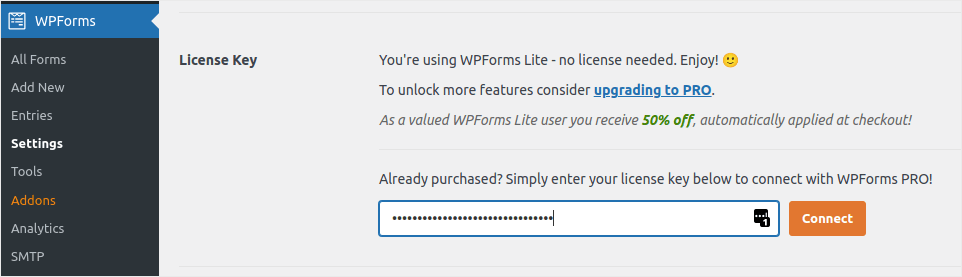
Når du er færdig, skal du klikke på Forbind.
Step #2: Add the Right WPForms Addons
Naviger fra dit WordPress-dashboard til WPForms » Addons.
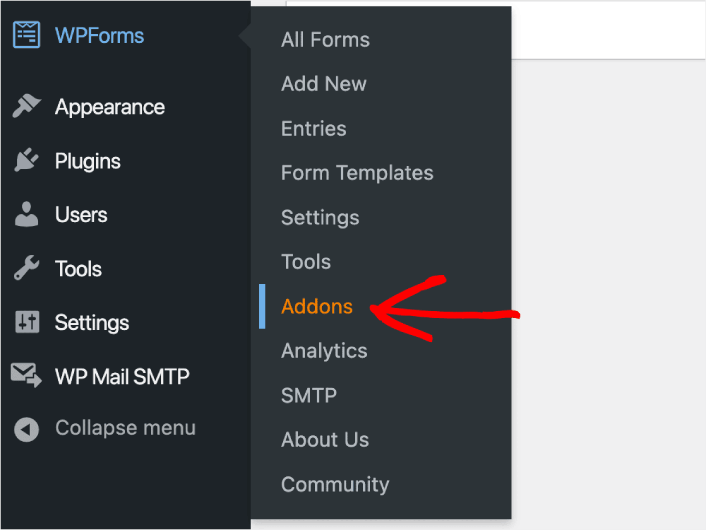
Now, search for the Save and Resume Addon by typing its name in the Search Addons field. Next, click on Install Addon.
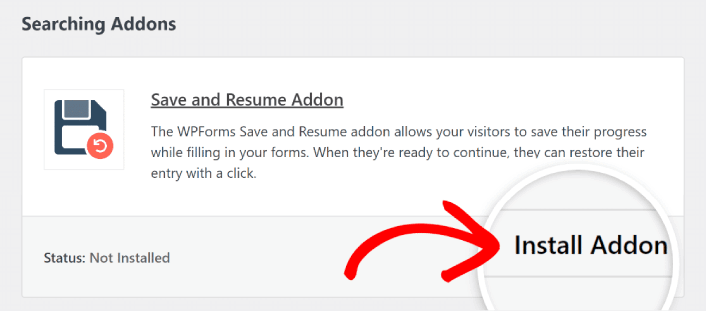
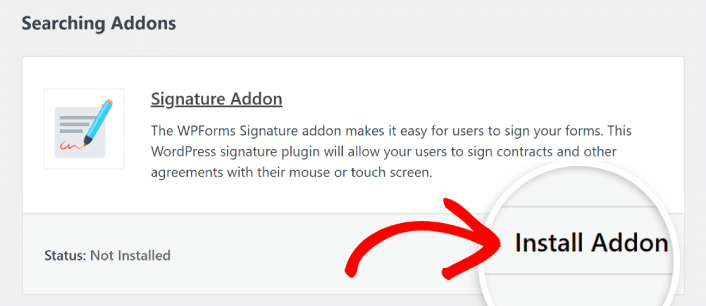
After the addon has been installed successfully, press the same button again to Activate it. And do the same thing for the Signature Addon.
Nu hvor WPForms er installeret og aktiveret, er det tid til at oprette din første formular. Gå til WPForms » Tilføj ny:

Dette åbner WPForms' træk-og-slip-formularbygger.
Step #3: Select Expense Approval Form Template
For at oprette en ny formular skal du give den et navn og vælge din formularskabelon:
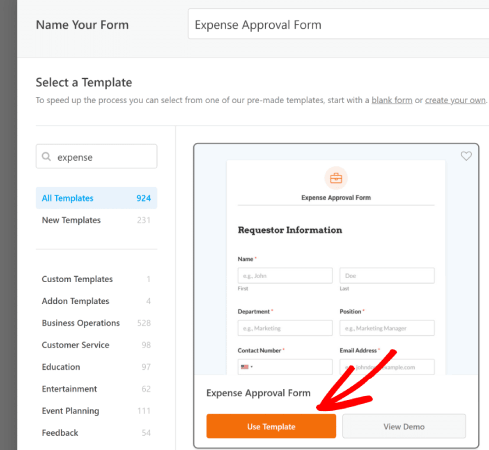
Med WPForms får du en masse foruddesignede formularskabeloner, som du blot kan importere med et enkelt klik og derefter tilpasse efter behov. For et nærmere kig på hele listen over funktioner, bør du tjekke vores anmeldelse af WPForms.
Step #4: Customize Your Expense Form
Next, you’ll be taken to the form builder with your template loaded.
You can use the template straight off the rack to collect feedback from your customers. But you’re free to make changes to this template if you’d like to add additional fields to collect more details and insights from your customers.
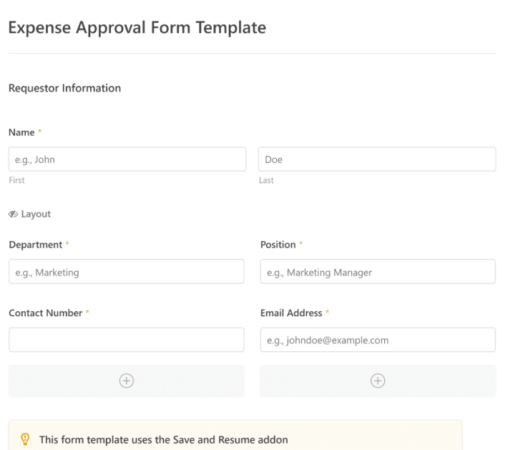
You’ll notice that this template is built with fields that automate capturing the requestor’s information, expense details, and approval via Signature.
If required, you can use WPForms’ intuitive form builder to easily add, modify, and arrange fields to tailor the form to your liking.
Du kan også få formularer til at se flotte ud ved at følge trinene i vores indlæg om hvordan man opretter en trinvis formular i WordPress. Det er en god måde at forbedre brugeroplevelsen på og reducere frafaldsrater i indkøbskurven. Men vi holder os til en enkelt side til denne vejledning.
Step #4: Enable Save and Resume Settings
First, you’ll want to add the Save and Resume feature to your expense approval form. Go to Settings » Save and Resume from the form builder. To turn on save and resume functionality, toggle on the Enable Save and Resume option.
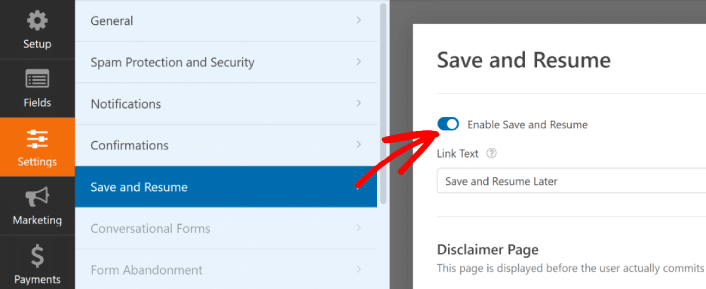
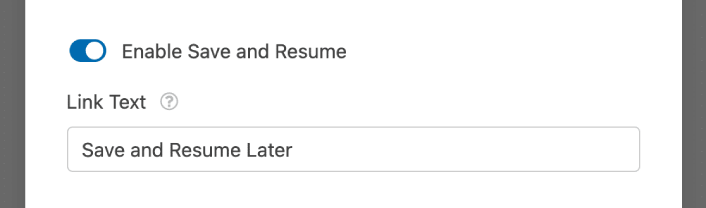
To begin, you can personalize the wording on the link that users will click to save their progress in your form.
You can change the text in the supplied field. By default, it says Save and Resume Later, but you can change it to anything you like.
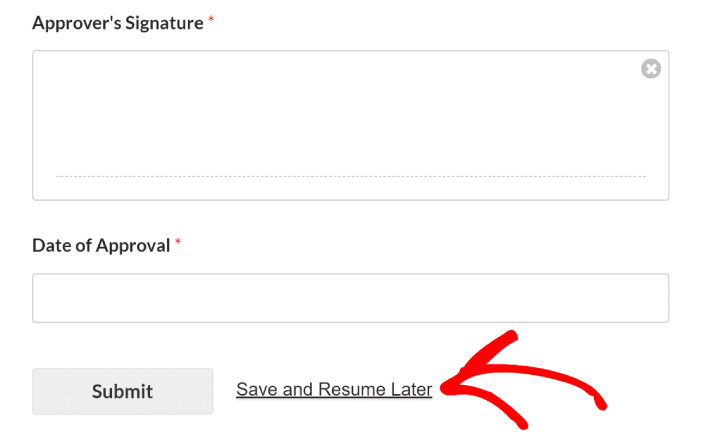
This link will show up at the bottom of your form, next to the button labeled Submit.
NOTE: The resume URLs will stop working after 30 days. So, make sure to add a disclaimer on your form that mentions this fact.
Step #5: Configure Your WordPress Expense Approval Form Settings
Dernæst vil du opsætte notifikationer og bekræftelser.
Notifikationer er e-mails, du modtager, når nogen udfylder formularen. Bekræftelser er beregnet til at advare brugeren om, at de har udfyldt formularen succesfuldt. Normalt er dette en "Tak"-besked, men du kan også omdirigere dine brugere til en dedikeret side.
Gå til Indstillinger » Bekræftelser for at konfigurere bekræftelsesindstillinger:

Og derefter i samme menu, gå til Notifikationer for at konfigurere dine notifikationsbeskeder:

Som standard sendes notifikationerne til WordPress-administrator-e-mailen. Så hvis du ønsker, at e-mailsene skal sendes et andet sted hen, såsom e-mail-ID'et for din salgschef, kan du gøre det lige her.
Step #6: Add the Expense Approval Form to Your Site
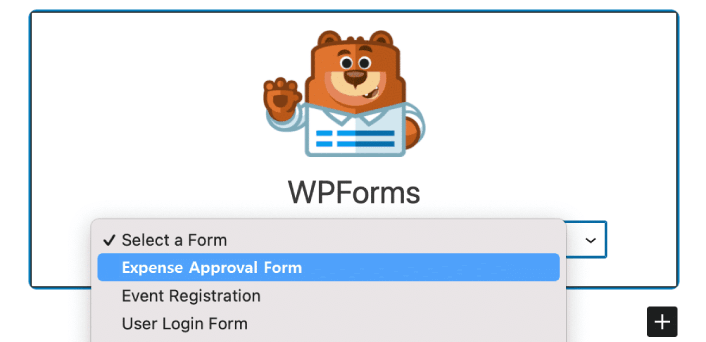
You can add the expense approval form on your site using the WPForms Gutenberg block:
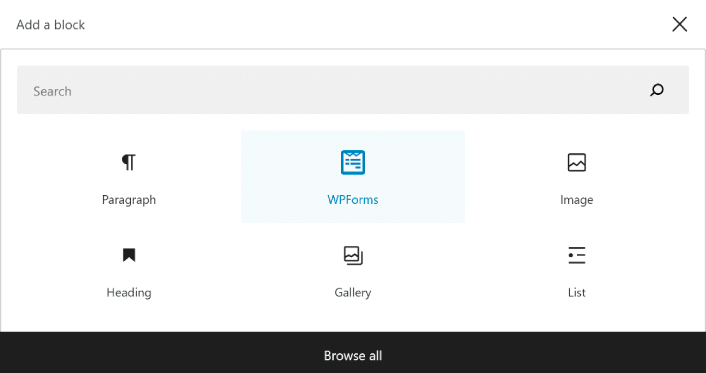
All you need to do is select your expense approval form.
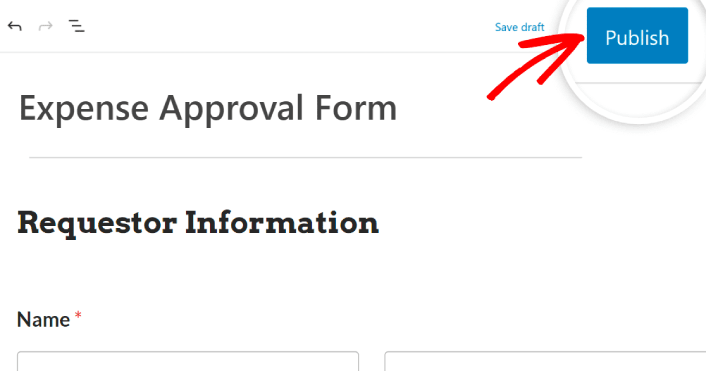
If you’re satisfied with the way your form looks, hit the Update or Publish button, and your form will go live.
Og du er færdig!
How to Promote Your Expense Approval Form
Det var alt for denne gang, folkens!
By now, you’ve learned how to create expense approval form in WordPress. Next, you should set up form abandonment tracking to reduce your form abandonment rates.
Derefter er alt, der er tilbage, at generere trafik til dit websted, så din formular kan komme i gang og begynde at konvertere. En enkel måde at gøre det på er at begynde at bruge push-notifikationer. Afsendelse af push-notifikationer er en god måde at generere gentagen trafik til dit websted. Hvis det er noget, du er interesseret i, bør du også se disse artikler:
- Push-meddelelsesomkostninger: Er det virkelig gratis? (Prisanalyse)
- Sådan får du mere trafik til din WordPress-blog (9 nemme måder)
- Sådan øger du din opt-in-rate for web push-meddelelser (7 måder)
- Sådan tilføjer du et Web Notifications WordPress-plugin til dit websted
Vi anbefaler at bruge PushEngage til at sende dine push-meddelelser. PushEngage er den førende software til push-meddelelser i verden. Så hvis du ikke allerede har gjort det, kom i gang med PushEngage i dag.


