
正在寻找一个简单的教程来为您的网站添加 WordPress Open Graph 元标签?
Open Graph 是 Facebook 在您将帖子或页面分享到 Facebook 时处理元数据的方式。它允许 Facebook 仅通过 URL 自动获取特色图片和元描述。
但手动添加到您的网站可能会非常麻烦。
首先,您需要了解 Open Graph 结构化数据的编写方式。然后,您需要将其插入 WordPress 主题文件。这非常危险。您需要编辑有助于您的整个网站正常运行的文件。一行代码出错就可能导致您的整个网站崩溃。
在本文中,我们将通过最简单的方式添加 WordPress Open Graph 元标签,无需任何编码。
让我们开始吧。
第 1 步:安装 All in One SEO
All in One SEO 是全球排名第一的 WordPress SEO 插件。它是无需任何编码即可为您的网站添加 WordPress Open Graph 元标签的完美插件。

All in One SEO(AIOSEO)是 WordPress 社区中最受好评的 SEO 插件之一。最初的版本经过彻底的改版,增加了大量新功能和附加组件。因此,如果您过去使用过 AIOSEO,则需要再次查看该插件。
AIOSEO不仅功能强大,足以实施最新的SEO最佳实践,而且您还可以获得高级选项,开箱即用地解决特定的SEO问题。这包括:
- 面向本地受众的小型企业的本地SEO模块
- 在线商店的WooCommerce SEO
- WordPress编辑器内的SEO优化器
- 智能站点地图,可即时索引搜索引擎
- 一个Schema插件,可让您的内容在富摘要中排名
还有更多!有关 All in One SEO 功能的完整列表,请查看我们的插件评测。
您需要做的第一件事是安装并激活 All in One SEO 插件。如果您不确定如何操作,请查看这篇关于如何安装 WordPress 插件的指南。
下载并安装插件后,您将看到一个设置向导:
设置过程不到10分钟即可完成。
但是,如果您要从另一个SEO插件迁移怎么办?每个插件处理元数据的方式都不同。那么,您是否必须从头开始做所有事情?您以前的所有努力都白费了吗?
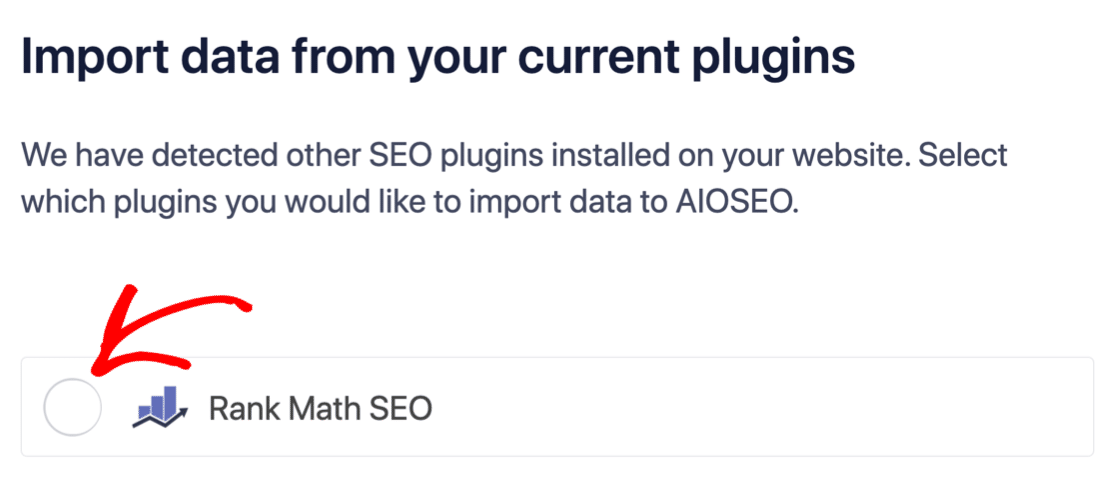
不!如果All in One SEO在设置向导期间检测到另一个SEO插件,它将为您复制基本设置:
设置结束时,设置向导会提示您停用旧的SEO插件。这样,就不会有插件冲突和错误:
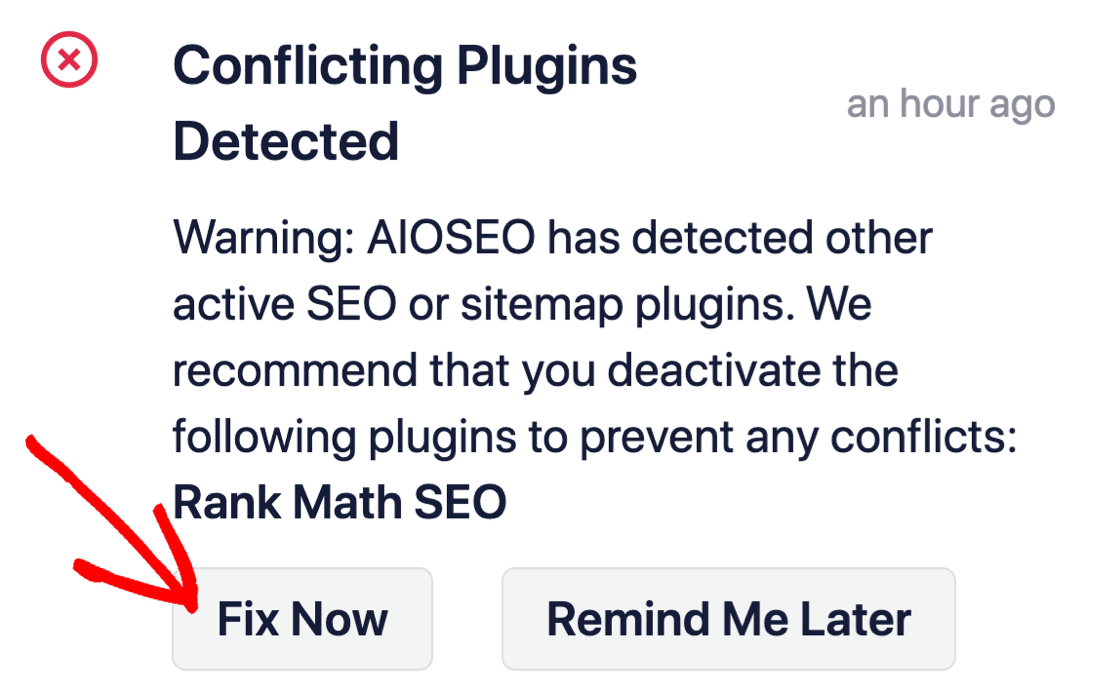
点击立即修复不会删除旧SEO插件中的设置。它只是停用该插件以防止冲突。
第 2 步:配置社交媒体设置
在您的 WordPress 后台,转到 All in One SEO » Social Networks » Social Profiles 并将您的社交资料添加到网站:
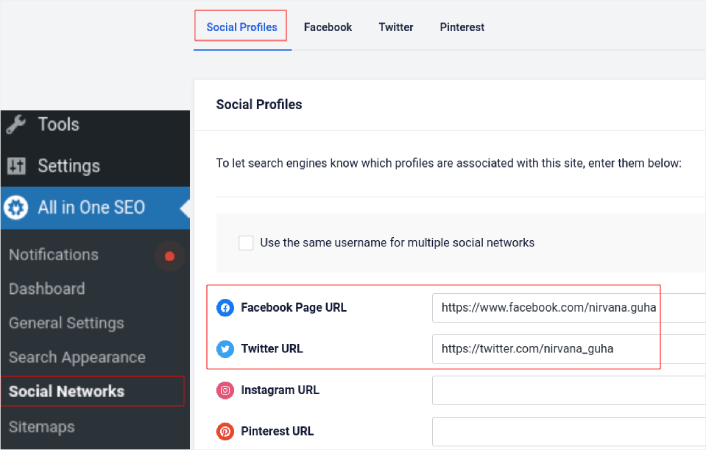
此步骤可确保 Google 和 Bing 等搜索引擎了解与您的网站关联的社交媒体资料。同时,这也有助于您进行社交媒体分享设置。接下来就是这个。
第 3 步:编辑 Facebook 常规设置
转到 All in One SEO » Social Networks 并点击 Facebook 选项卡。在这里,您可以配置您的 General Facebook Settings:
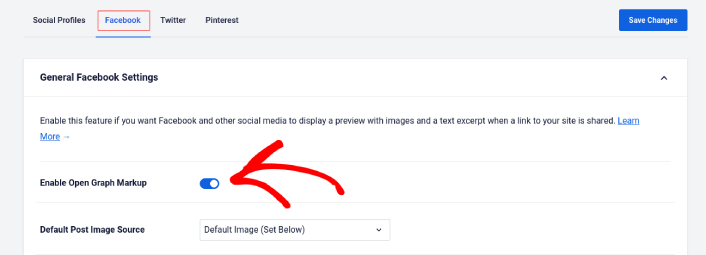
切换 Enable Open Graph Markup 开关以激活它。
在这里,您可以设置 Default Post Image Source 和 Default Post Facebook Image:
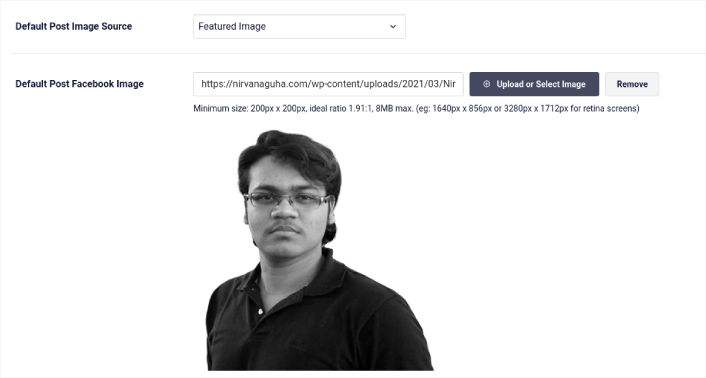
我们建议使用 Featured Image 选项作为您帖子的图片来源。但您也应该查看其他选项:
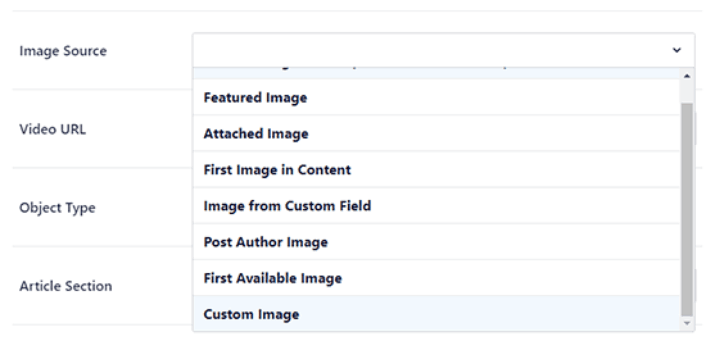
您可以将默认的 Facebook 图片设置为您的徽标或任何代表您品牌的图片。点击 Upload or Select Image 按钮更改默认图片。在我们的示例中,我们使用的是个人品牌。因此,默认的 Facebook 图片是作者的照片。
完成后,点击 Save 按钮。
就是这样!您已完成。保存更改后,您可以尝试将您网站上的帖子分享到您的 Facebook 页面或个人资料。
添加 WordPress Open Graph 元标记后该怎么做
好了,各位,本次分享就到这里!
接下来,您应该开始考虑多种方法来吸引和转化您从社交媒体帐户带来的流量。一种很好的方法是使用推送通知。推送通知可以成为一个强大的营销工具,为您的企业带来流量、互动和直接销售。
如果您不完全确信,您应该查看这些关于如何有效使用推送通知的资源:
我们建议使用PushEngage来创建您的推送通知广告系列。PushEngage是全球排名第一的推送通知软件。所以,如果您还没有,请立即开始使用PushEngage!


