
正在寻找无需插件安装 WordPress 推送通知的指南?
你来对地方了。
在本文中,我们将向你展示如何在不使用推送通知插件的情况下,为 WordPress 安装推送通知:
- 即使……你从未在没有插件的情况下自定义过 WordPress 的任何内容;
- 即使……你从未写过一行代码;
- 即使……你以前尝试过但已经失败了;
我们将把推送通知安装到你的网站上。
听起来不错?让我们开始吧!
如何在不使用插件的情况下安装推送通知
在 WordPress 中不使用插件安装推送通知并不难。但它确实有几个步骤,你需要一步一步地按照本指南进行操作。
在任何时候都不要跳过步骤,您就会没事的。
开始吧!
第一步:设置你的 PushEngage 账户
让我们开始吧。你可以从 PushEngage 主页开始。只需点击 开始使用 按钮:

你可以选择免费套餐来试用 PushEngage,或者如果你想认真发展你的业务,可以选择付费套餐。
注册账户后,请前往 PushEngage 控制面板,然后转到 设置 » 网站设置 » 安装设置:
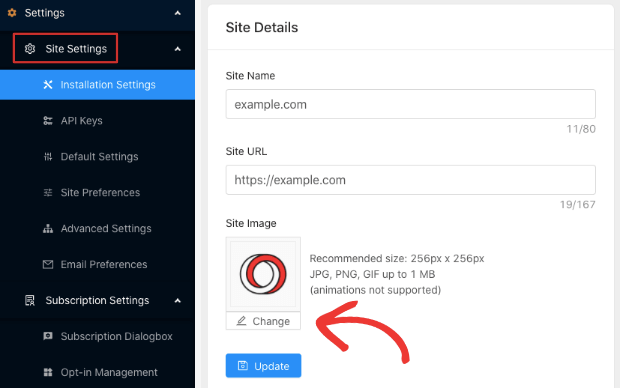
在这里你可以配置你的网站详细信息和品牌。请立即设置你的推送通知的徽标和网站 URL。你应该立即这样做,以便能够正确测试你的推送通知。
第二步:获取安装代码
接下来,你需要前往 PushEngage 控制面板并获取安装代码。转到 设置 » 网站设置 » 安装设置:
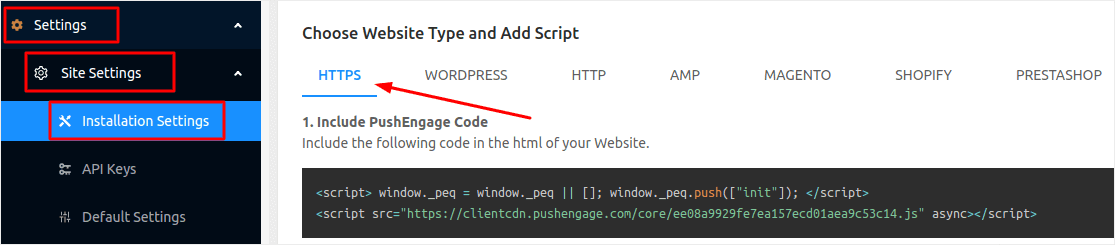
根据你的网站是否安装了 SSL,你将需要转到 HTTPS 或 HTTP 选项卡来获取安装代码。
专业提示: 如果你的网站没有 HTTPS,你应该 安装 SSL 证书。
第三步:添加一个插件将代码插入 WordPress
从上一步获取安装代码后,将其复制。接下来我们将把这段代码插入到你的 WordPress 网站中。
但首先,我们需要一个插件来轻松完成此操作。
你可以通过编辑 WordPress 主题编辑器中的 header.php 文件来插入代码。但如果你不懂代码,这是一种极其危险的方法。一个错误的半冒号就可能彻底搞垮你的网站。
所以,我们将使用 Insert Headers and Footers 插件。它 100% 免费且非常易于使用。
继续安装该插件。如果你不确定如何操作,请按照此分步指南 安装 WordPress 插件。
激活插件后,你将需要将来自 PushEngage 控制面板的代码添加到页眉部分:
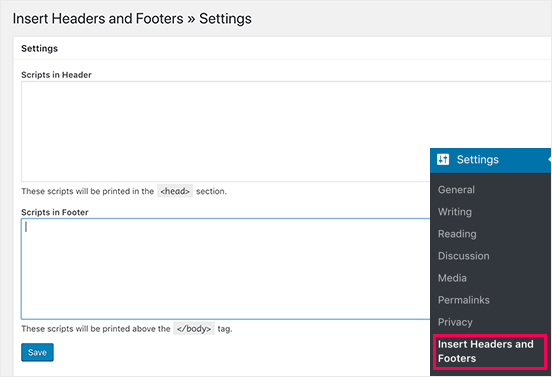
您就完成了!
第四步:添加 Service Worker 文件(仅限 HTTPS 网站)
如果你运行的是没有 SSL 证书的网站,请继续并跳过此步骤。
对于 HTTPS 网站,还有一个额外的步骤:将 service-worker.js 文件添加到你的网站根目录。
返回您的 PushEngage 仪表板,然后转到 设置 » 站点设置 » 安装设置。在 HTTPS 选项卡下,您将看到下载 service-worker.js 文件的选项:
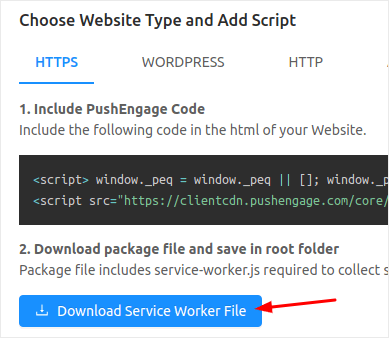
下载后,您需要从 zip 文件夹中解压缩该文件。接下来,您需要将其上传到 WordPress 站点的根文件夹。如果您不确定如何操作,请查看这篇关于如何使用 FTP 上传文件到 WordPress的文章。
将文件上传到 WordPress 后,在浏览器中访问 example.com/service-worker.js。如果一切顺利,您应该可以在浏览器中访问该文件,并且会看到类似以下内容:

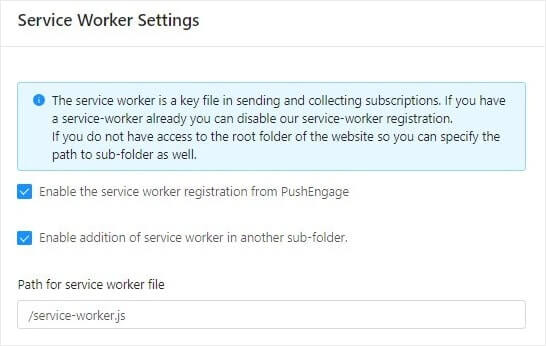
注意: 如果您无法将 service-worker 文件上传到根文件夹,您可以选择将其上传到另一个文件夹。转到 PushEngage 仪表板 » 设置 » 站点设置 » 高级设置。
只需按照服务工作线程设置中的说明操作即可:
就这样!
您已成功在未安装插件的情况下为 WordPress 安装了网络推送通知。
发送推送通知前的准备工作
您已接近完成。
在开始发送推送通知之前,您需要为您的网站设置订阅选择加入。您的选择加入将把网站访问者转化为推送通知订阅者。因此,这是一个关键要素。
如果您需要一些灵感,可以查看这篇关于高转化率的推送通知选择加入的文章。设置好选择加入后,您的网站就可以收集订阅者了。但您怎么知道您的选择加入是否正常工作呢?
因此,明智的做法是设置欢迎推送通知。
专业提示:您应该花一些时间对推送通知进行全面测试。这将解决最常见的问题,并且您不必浪费时间以后再解决问题。
总结
好了,各位,本次分享就到这里!
如果您觉得这篇文章有帮助,请务必在下方留言。
开始使用推送通知可能看起来令人生畏。但是,如果您遵循最佳实践,您应该会没事的。更重要的是,您将通过推送通知广告系列获得更多利润。
如果您是推送通知的新手,您应该尝试 PushEngage。PushEngage 是市场上排名第一的推送通知软件。您的营销活动将得到妥善处理。
所以,如果您还没有,请立即开始使用 PushEngage!


感谢分享这篇信息丰富的帖子。
感谢分享这篇信息丰富的帖子。