当访客访问您的网站时,他们的心态并非完全一致。浏览产品页面的访客正在评估购买。阅读博客文章的访客则在学习、研究或仅仅是探索。
向所有访客展示相同的聊天小部件是导致转化率下降、客服人员不堪重负以及用户意图混淆的最快方法之一。
借助 PushEngage 面向 WordPress 和 WooCommerce 的新聊天小部件,您可以为不同类型的页面创建不同的聊天小部件 — 每个小部件都有其独特的设计、消息、渠道、客服人员和规则。
本指南将准确地指导您如何为产品页面设置一个聊天小部件,为博客文章设置另一个聊天小部件。
立即发送多渠道消息!
推送和 WhatsApp 消息是非常有效且低成本的营销工具,可帮助您自动增加重复流量、参与度和销售额。
并非每个WordPress 的实时聊天小部件都支持按页面显示的小部件,因此在选择工具之前,请检查此功能。
为什么产品页面和博客页面需要不同的聊天体验
产品页面 = 高意向,低耐心
当有人在产品页面上时,他们正在考虑购买 — 或放弃。他们正在比较价格、检查库存、询问运费,并犹豫于质量。
此页面上的聊天小部件需要:
- 即时响应或高可见性
- 连接销售专家
- 提供保证
- 减少阻碍
- 完成销售
如果您延迟聊天或使用含糊的消息,您就会错失良机。
博客页面 = 低意向,高好奇心
博客文章上的访客尚未准备好购买。他们正在学习、研究或形成一个问题陈述。
这里的聊天小部件应:
- 提供帮助,而非强迫
- 延迟触发
- 引导他们找到资源
- 捕获电子邮件或潜在客户意向
- 温和地引导他们了解产品
在此处进行激进的销售会推开读者。
将聊天与意向匹配 = 更多转化
将您的聊天策略与访客的心态保持一致,是提高参与度、减少支持负载和提升销售的最简单方法之一。
自定义聊天小部件能让您做什么
PushEngage 允许您创建多个小部件 — 每个小部件都有其自己的:
- 设计
- 渠道(WhatsApp、实时聊天、电子邮件)
- 座席分配
- 主动消息
- 定位规则
- 行为触发器
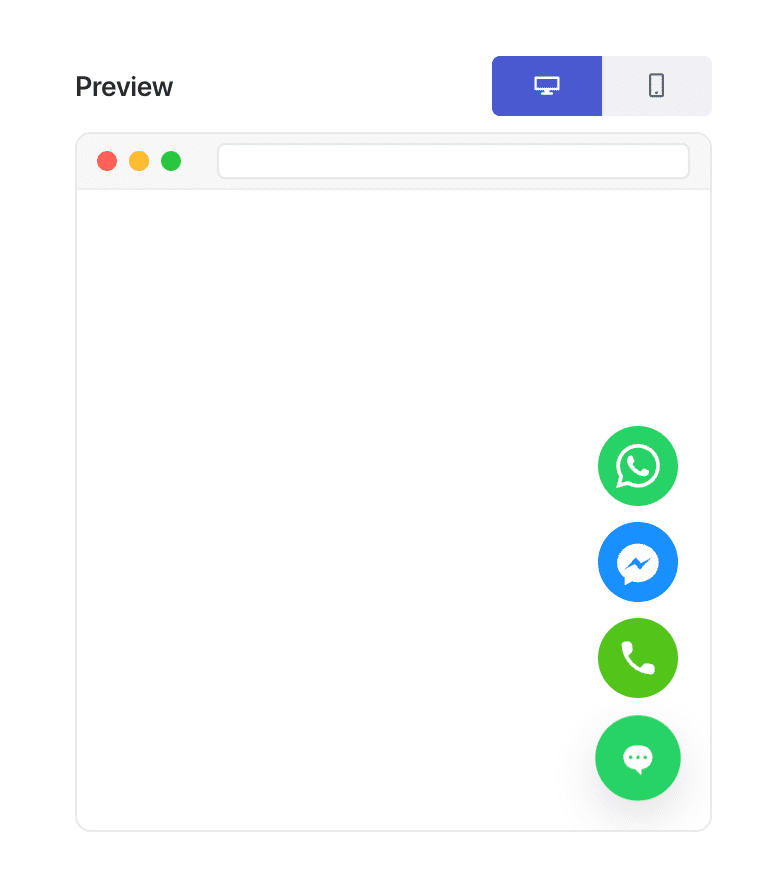
正是这种灵活性使得“基于页面类型的个性化”成为可能。
示例:产品页面 vs 博客页面聊天策略
产品页面小部件创意
这些消息能将访客转化为买家:
- “下单前有疑问?与产品专家在线聊天。”
- “询问发货时间或产品规格。”
- “需要帮助选择合适的型号?”
使用:
- 销售座席
- WhatsApp + 实时聊天
- 快速触发行为(0-5 秒或 20-30% 滚动)
博客页面小部件创意
这些消息在学习环境中感觉很自然:
- “需要帮助理解这个主题吗?”
- “正在寻找产品推荐?我可以帮忙。”
- “想要摘要或指南?尽管问!”
使用:
- 支持座席
- 可选的电子邮件捕获
- 延迟触发(40-60 秒或 60-70% 滚动)
如何使用PushEngage设置不同的聊天小部件
这正是您将在 WordPress/WooCommerce 中与 PushEngage 一起使用的配置。
步骤1:创建您的第一个聊天小部件
- 在 WordPress 中,转到:PushEngage → Chat Widgets → Create New Widget
- 命名:产品页面聊天
- 选择醒目的颜色和样式
- 添加 WhatsApp + Live Chat 等渠道
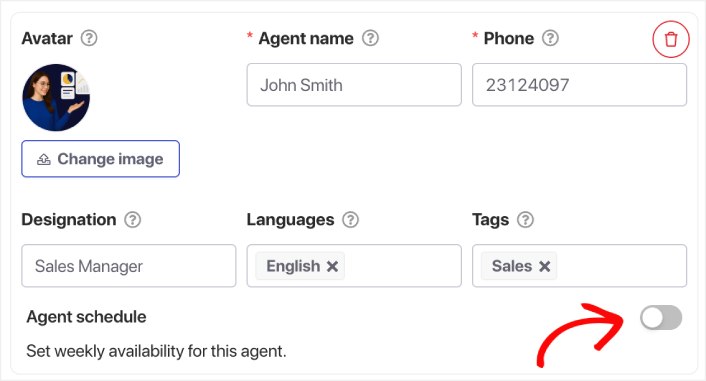
- 分配您的 销售或产品座席
步骤2:添加以销售为重点的消息
在内容 » 外观 » 高级视图下,向下滚动到CTA 文本字段并添加销售消息。
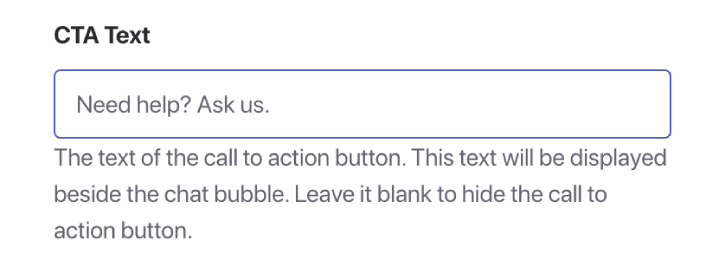
示例:
- “购买前需要帮助?随时问我们。”
- “不确定尺码或合身度?我可以帮忙。”
- “更快地获得您的产品 — 询问如何操作!”
此消息旨在促使采取行动。
步骤3:将小部件定位到WooCommerce产品页面
转到触发器选项卡并向下滚动到显示规则。
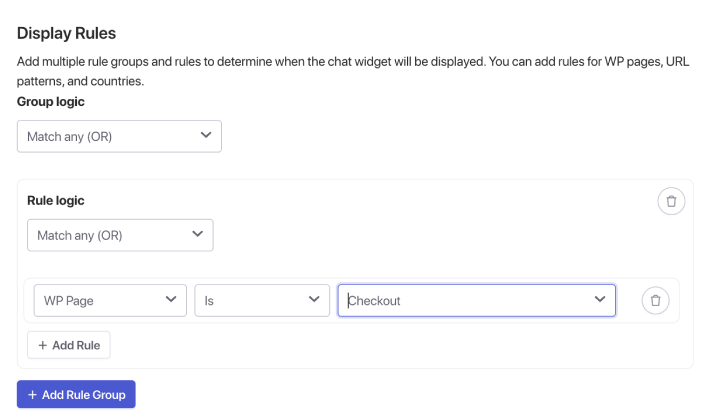
在这里,您可以使用WP 页面选项查找 WooCommerce 页面,例如产品、结账等。但如果您宁愿使用特定 URL,只需单击该下拉菜单并选择URL,然后相应地修改您的定位。
完成后,只需保存您的聊天小部件并激活它。
设置博客页面聊天小部件也是如此。创建一个单独的小部件,专门针对博客页面。
推荐的行为规则
- 显示 45–60 秒后
- 或滚动 60–70% 后
- 仅限桌面版(可选)
这使得小部件感觉像是支持,而不是打扰。
运行多个聊天小部件的最佳实践
1.保持您的设计一致性
即使小部件因上下文而异,它们仍应感觉像是同一个品牌。
2. 避免让访客不知所措
避免过多的主动弹出窗口。让上下文发挥主要作用。
3. 分配合适的客服
产品页面 → 销售
博客页面 → 支持或教育人员
4. 每月检查分析数据
查看:
- 触发会话
- 平均响应时间
- 转化流程
- 用户放弃的页面
根据实际数据进行微调。
5. 记住移动端与桌面端的差异
移动预览至关重要。相应地调整消息长度和触发时机。
设置聊天小部件后该怎么做
为产品页面和博客文章创建不同的聊天小部件是您可以为 WordPress 或 WooCommerce 体验做出的最简单、影响最大的改进之一。
产品页面需要快速、以销售为导向的支持。
博客页面需要缓慢、支持性的指导。
使用 PushEngage,您可以在几分钟内完成设置 — 并立即开始看到更好的参与度、更高的转化率和更高效的座席工作量。
- 客户始终能看到有人在线
- 响应时间缩短
- 售前转化率上升
- 支持感觉更快、更可靠
- 您的商店感觉已准备好面向全球
一旦设置好时间表,您的团队就可以更高效地运作,您的客户也能获得他们期望的体验。
如果您还没有在 PushEngage 中设置客服资料和排班,现在就是时候了。
不信?请查看这些关于多渠道营销活动的精彩资源:


