正在寻找一种创建点击订阅链接并收集推送通知订阅用户的方法?
我们明白。有时,在增长订阅用户的方式上拥有一定的灵活性会更加方便。
别担心。我们已经为您准备好了。
在本文中,我们将一步一步地向您展示如何创建自己的订阅按钮或链接。
我们将使用 PushEngage 向您展示如何操作。
但即使您使用的是其他供应商,也不必担心。过程应该大同小异。但如果您想认真发展订阅用户,您应该尝试 PushEngage。PushEngage 是全球排名第一的推送通知软件。
所以,如果您还没有,请立即开始使用 PushEngage。
准备好了吗?让我们开始吧。
如何使用 PushEngage 创建点击订阅按钮
如果您还没有设置 PushEngage,现在是时候去设置一下了。
第 1 步:开始使用 PushEngage
访问 PushEngage 主页,然后点击 开始使用 按钮:

然后,您可以选择免费计划来试用 PushEngage,或者如果您想认真发展您的业务,可以选择付费计划。付费计划提供更多的营销活动选项,并能够建立更大的订阅用户列表。
第 2 步:复制代码段
在您的 PushEngage 仪表板 中,转到 网站设置 » 网站详情,然后点击 点击此处获取设置说明 按钮。在 任何网站 下,您将获得安装代码:

警告:您需要复制从仪表板获取的代码。该代码对于每个 PushEngage 用户都是唯一的。您将无法复制图片中的代码来收集推送通知订阅用户。
在您的 PushEngage 仪表板中获取代码后,将此代码段添加到您的代码中:
<script> window._peq = window._peq || [];</script>您的最终代码应如下所示:
<script src="https://clientcdn.pushengage.com/core/02a6e92667ae2279fcba8932356c1d93.js" async></script>
<script> window._peq = window._peq || [];</script>
第 3 步:创建按钮或链接
如何在 HTML 中创建点击订阅按钮
现在您已经有了代码,大部分困难的工作已经完成。接下来,您需要创建一个按钮,在被点击时触发您的代码。这就是我们所说的“点击事件”。
要创建点击订阅按钮,请使用此 HTML 代码段:
<button onclick="subscribeOnClickButton()">Subscribe</button>订阅按钮可以作为首屏的号召性用语,效果很好。
未经样式设置,它看起来会是这样的:
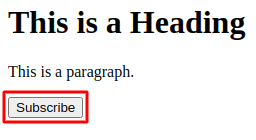
请忽略截图中的标题和段落。它们只是为了向您展示它在网站首屏上可能是什么样子。HTML 代码段不会生成标题和段落。
当然,粘贴代码后,您应该使用 CSS 来设置按钮的样式。如果您不知道如何设置 HTML 元素的样式,这里有一个很好的示例列表供您参考。
如何在 HTML 中创建点击订阅链接
您也可以使用订阅链接来收集订阅用户。在这种情况下,请使用此 HTML 代码段:
<a onclick="subscribeOnClickButton();" href="javascript:void(0)">Subscribe</a>这适用于您创建文本内超链接的情况。如果您想在博文中插入推送通知订阅宣传,这会非常方便。
它看起来应该像这样:
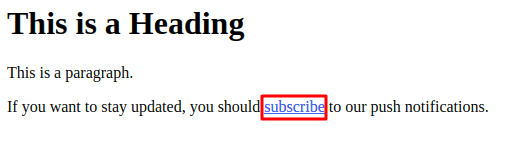
您的 HTML 代码片段只会创建一个显示“订阅”的链接。您可以随意添加我们图片中所示的其余内容。这样会感觉更自然。
搞定!您的链接已准备就绪。
第 4 步:在 WordPress 中嵌入代码
完成了吗?那我们继续处理剩余的代码吧。
现在,如果您只想在按钮被点击时收集订阅者,请粘贴此代码:
<script>
function subscribeOnClickButton() {
window._peq.push(['subscribe']);
}
</script>
这里没有任何花哨的功能。只有一个按钮,点击时会收集订阅者。
但如果您想要更高级的功能,也可以将从 PushEngage 服务器收到的响应记录到控制台:
function subscribeOnClickButton(){
window._peq.push(['subscribe',{}.pe,function(res){
if(res.statuscode==1)
{
// Code to return response
console.log(res);
}
}]);
}
如果您想在按钮被点击时收集订阅者,然后自动对这些订阅者进行分段,可以使用此代码代替:
function subscribeOnClickButton(){
window._peq.push(['subscribe','segment_name',function(res){
if(res.statuscode==1)
{
// Code to return response
console.log(res);
}
}]);
}
这样就完成了。选择最适合您的代码片段,并将其粘贴到您网站的 HTML 代码中。
现在,为了让按钮或链接生效,您需要在页面底部粘贴更多 Javascript 代码。
如果您运行的是 WordPress 网站,最简单的方法是使用插件。最适合此任务的插件是 Insert Headers and Footers 插件。安装该插件(免费),然后转到 设置 » Insert Headers and Footers:
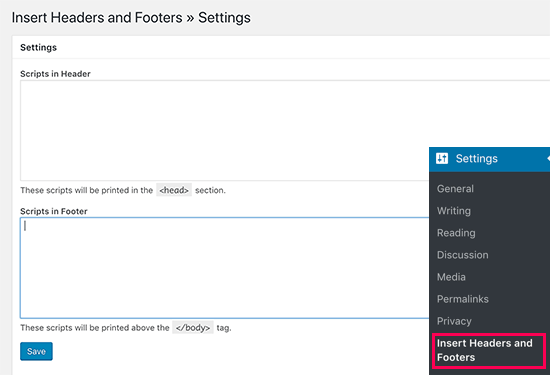
并将您的完整代码粘贴到 页脚脚本框中。您应该在此处粘贴从 PushEngage 仪表板获取的代码以及运行按钮或链接所需的 Javascript 代码。
第 5 步:在您的网站上粘贴按钮或链接的 HTML 代码
最后,您需要在页面和帖子中粘贴按钮或链接的 HTML 代码。
如果您使用的是 WordPress,可以直接将 HTML 代码粘贴到文章中。
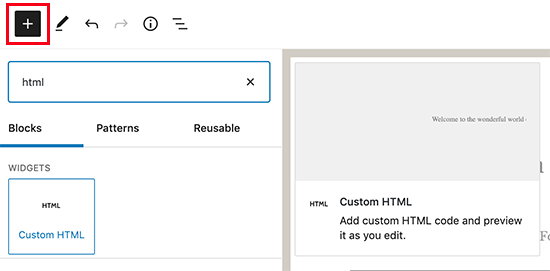
如果您以前从未做过,也没关系。
这是一篇关于 如何在 WordPress 中添加 HTML 代码 的文章,其中包含分步说明。
此时,我们强烈建议您 测试您的推送通知 以检查一切是否正常运行。
如果一切顺利,您的网站上将有一个按钮或链接,点击时可以收集订阅者。如果有什么不正常,请随时 联系我们的客户成功团队。我们非常乐意为您提供帮助。
总结
好了,各位,本次分享就到这里!
在为您的网站创建点击订阅按钮后,您应该查看我们的 高级分段规则。
创建精细的细分可以帮助您在很大程度上个性化您的推送通知。这意味着更高的参与度、更高的点击率以及从您的推送通知广告系列中获得更多销售额。
如果您是推送通知的新手,应该尝试 PushEngage。PushEngage 提供了一些市面上最强大、最灵活的推送通知广告系列。因此,如果您想认真发展您的业务,请 立即开始使用 PushEngage!


在尝试了许多工具后,Push Engage 绝对是我最喜欢的工具。