正在为您的网站设置废弃购物车推送通知,寻找一种简单的方法?
使用废弃购物车软件是您的完美解决方案。
但是,设置废弃购物车推送通知可能会非常困难。大多数教程都关于废弃购物车电子邮件,即使是那些也可能相当复杂。
这正是我们发布本文的原因。
我们将一步一步地向您展示如何以简单易行的方式设置废弃购物车软件。
而且,您不需要很多技术专长来理解本文中的步骤。
此外,如果您在任何步骤中遇到困难,只需联系我们的客户成功团队,我们将为您设置一个废弃购物车活动!
听起来不错?
让我们开始吧。
为什么使用推送通知进行购物车恢复
大约 70% 的将商品添加到购物车的购物者在未付款的情况下离开。Baymard Institute 将长期平均值定为 69.57%。这是您漏斗中最大的单一漏洞,它位于您已付费获取的流量和您从未收到的收入之间。挽回其中哪怕一小部分都比您本季度运行的任何获客活动都便宜。
推送通知是实现此恢复的最强大的首次触达渠道,原因有三,且均可衡量:
- 触达范围。 网页推送的opt-in(选择加入)只需在浏览器提示上单击一次,因此您的可触达受众增长速度远超电子邮件列表。在相同流量下,购物车放弃推送活动比电子邮件触达的放弃者多约 5 倍。
- 速度。 平均而言,电子邮件在超过 6 小时后才会被阅读。推送通知会实时显示在购物者的屏幕上,此时购物车仍在他们的脑海中,并且通常标签页仍然打开着。
- 转化。 根据我们的活动数据,购物车放弃推送活动比相应的电子邮件序列的有效性高约 37%,并且每条通知都会报告其挽回的收入,以便您在预算审查中为该渠道辩护。
每条通知都包含被放弃的商品名称、图片、价格以及直接返回结账页面的链接,并为每位购物者进行个性化设置。实际商店的效果会累积:MyDeal 通过这种确切的活动类型将收入提高了 20%,而 SuperJeweler 将 8% 的放弃者转化为买家。购物车恢复是更大图景的一部分。有关完整的预防加恢复手册,请参阅我们关于如何减少购物车放弃的指南。
下面您将找到两种设置活动的方法:标准的仪表板方法,以及如果您希望在 GTM 中管理脚本,则可以使用 Google Tag Manager 方法。最后,九个即用型通知模板涵盖了文案内容。
如何使用 PushEngage 创建废弃购物车活动
在本文中,我们将向您展示如何使用 PushEngage 创建废弃购物车活动。PushEngage 是全球排名第一的推送通知软件,您可以直接从 PushEngage 仪表板设置购物车放弃活动。
因此,如果您还没有这样做,请继续 创建 PushEngage 帐户。要设置废弃购物车活动,您需要获取 PushEngage 的企业版套餐。因此,选择企业版套餐并完成 PushEngage 帐户的设置。
然后,前往仪表板以跟随本教程。
第 1 步:创建新的废弃购物车推送通知活动
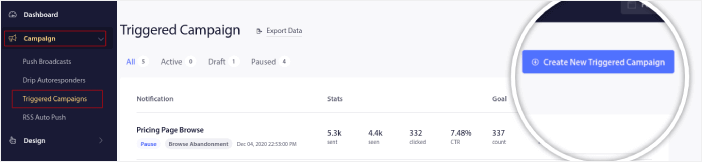
转到 PushEngage 仪表板,然后转到 **Campaign » Triggered Campaigns**,然后点击 **Create New Triggered Campaign**:
然后,选择 **Cart Abandonment** 模板,然后点击 **Create New**:
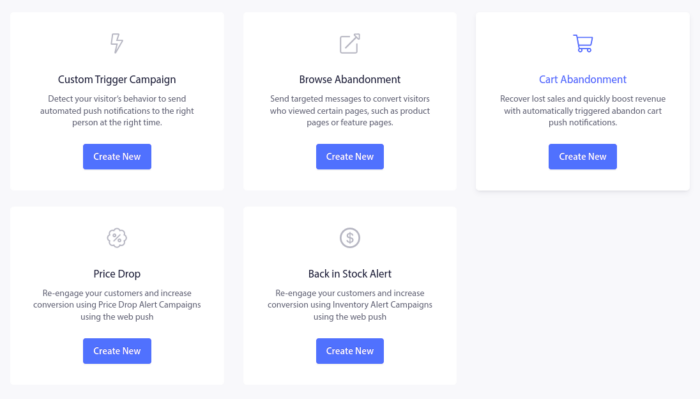
然后,您可以开始起草废弃购物车自动回复器。
第 2 步:起草活动详情
接下来,您需要在 PushEngage 仪表板中起草活动。在 **Content** 下,您可以创建一系列推送通知:
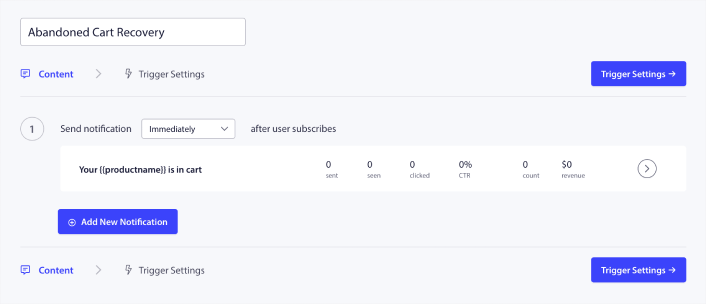
要编辑通知,只需点击旁边的箭头,即可自定义推送通知:
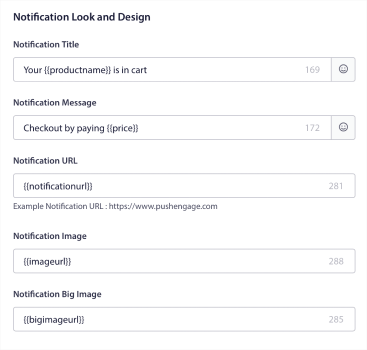
您可以使用变量自动获取大多数这些字段。
如果您注意到,有多个用括号括起来的变量,例如 {{productname}} 和 {{price}}。稍后,您可以使用这些变量来定义代码段的参数。这些字段将帮助您个性化您的推送通知。例如,{{bigimageurl}} 会根据放弃的商品自动获取商品图片。
与任何推送通知一样,您可以在此处自定义内容的所有内容。
您还可以添加结账按钮:
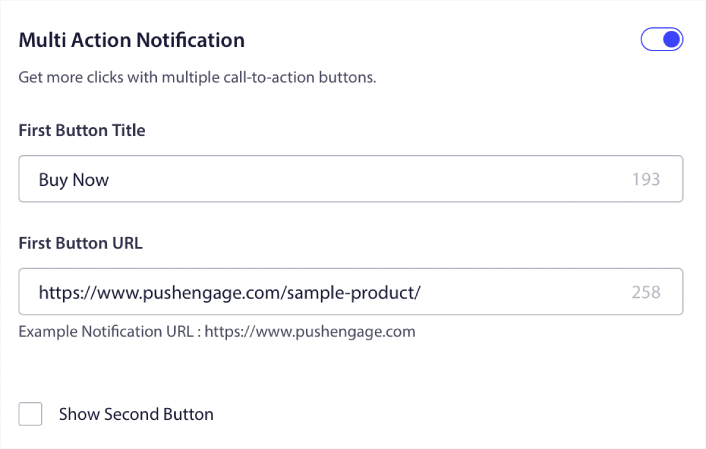
或者,您可以添加自定义通知时长:
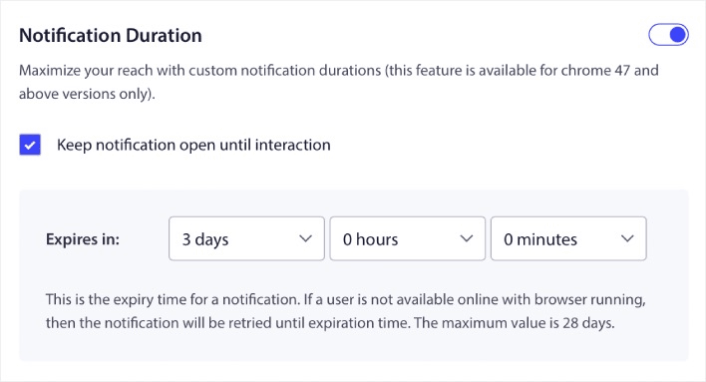
完成后,转到 **Trigger Settings** 选项卡以激活您的活动。
第 3 步:复制活动代码段
我们不建议更改 **Trigger Settings** 中的任何内容,因为购物车放弃模板已为您处理好一切。
因此,只需点击 **Integration Code** 按钮并复制代码:
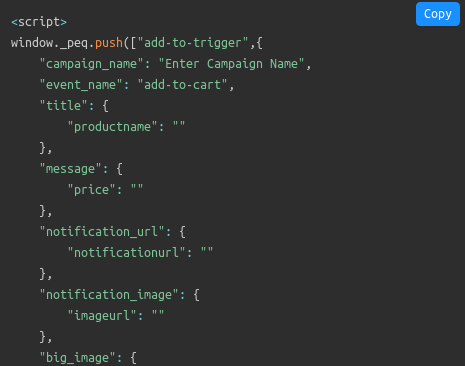
注意:您需要在此处复制多个代码片段。有用于加购事件、结账事件以及您需要添加的目标跟踪机制的代码片段。
您需要让您的开发人员在使用这些变量之前,用您网站上使用的变量填写此代码片段。 但如果您没有开发人员,请直接联系我们的客户成功团队。我们将为您设置广告系列。完全免费!
例如,产品名称和价格等变量是完全动态的。因此,您的开发人员必须将此代码片段中的字段与实际值配对。
您可以进一步自定义代码以发送个性化推送通知,但这相当高级(稍后会详细介绍)。
然后,将代码片段放置在您的网站上。
第 4 步:保存并启动广告系列
就是这样!
只需点击激活自动回复器按钮:

您就完成了。
方法 2:通过 Google Tag Manager 设置购物车放弃
如果您的团队已经在 Google Tag Manager 中管理跟踪脚本,则可以改用 GTM 来运行整个购物车放弃设置。您的网站 HTML 不需要手动编辑任何内容,并且您的产品数据将通过 dataLayer 流入活动。此方法比上面的仪表板方法技术性稍强,但它将所有脚本保留在一个受管容器中。
步骤 1:通过 GTM 安装 PushEngage
您的网站需要 PushEngage 代码段来收集订阅者,然后才能触发任何活动。请遵循我们关于如何使用 Google Tag Manager 安装 PushEngage 的教程,然后返回此处。
步骤 2:创建购物车放弃活动
在您的 PushEngage 仪表板中,转到活动 » 触发式活动,点击创建新触发式活动,选择购物车放弃模板,然后点击创建新活动。按照方法 1 中的说明精确起草您的通知序列。区别仅在于触发数据如何到达活动。
步骤 3:创建 dataLayer 对象
dataLayer 是 GTM 读取的产品信息源。它是一个 JavaScript 对象,包含购物车中产品的属性,例如名称、ID、价格和图片 URL。将 dataLayer 对象添加到您网站的 HTML body 中,然后为您的“添加到购物车”和“立即购买”按钮附加一个触发器事件,以便点击可以激活广告系列。广告系列不会在点击时立即触发。它仅在购物者在您设定的延迟(通常为 30 分钟)后仍未购买时触发。
第 4 步:在 GTM 中创建 dataLayer 变量
在 GTM 中,转到 工作区 » 变量 » 配置,滚动到 点击,然后启用所有点击变量。然后,在 用户定义的变量下,点击 创建新变量,并为 dataLayer 中的每个产品属性添加一个变量:products.name、products.id、products.price、products.productname 和 products.image。请严格匹配语法。变量名称不匹配是 GTM 购物车放弃广告系列从不触发的最常见原因。
第 5 步:创建触发器
转到 触发器 » 添加新触发器,创建一个 自定义事件,当购物者点击带有“立即购买”(或您商店的等效文本)的按钮时触发。这是将购物车标记为有风险的事件。
第 6 步:配置代码段并上线
回到 PushEngage 信息中心,打开 广告系列 » 触发广告系列,点击 您的代码,然后复制广告系列代码。将其粘贴到您网站的 HTML 中,放在“立即购买”按钮的上方,将其连接到您创建的 dataLayer 变量和触发器,然后发布 GTM 容器。在您认为大功告成之前,请用您自己的设备放弃一个测试购物车。
这两种方法最终都会得到相同的结果:一个自动触发的实时广告系列。接下来是其中的文案。
如何创建个性化的购物车放弃广告系列
您可以使用自定义属性创建个性化的购物车放弃广告系列。
这意味着您可以将 PushEngage 与您的客户关系管理 (CRM) 软件连接起来,以获取每个客户的个人详细信息。默认情况下,PushEngage 会捕获每个客户的设备和地理位置信息。但您可以使用 PushEngage Attributes API 来扩展个性化范围。
您可以使用用户的姓名创建自定义的购物车放弃推送通知,例如这个:
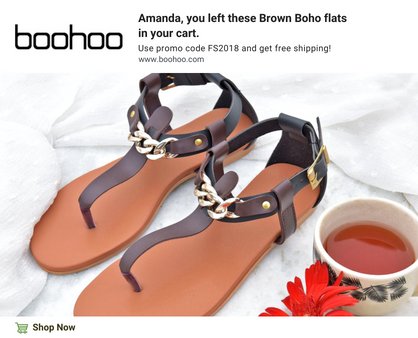
或添加更多元素,例如降价或未使用的忠诚度积分:
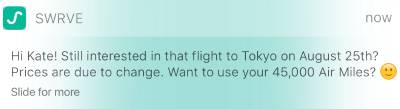
甚至交叉销售其他产品:
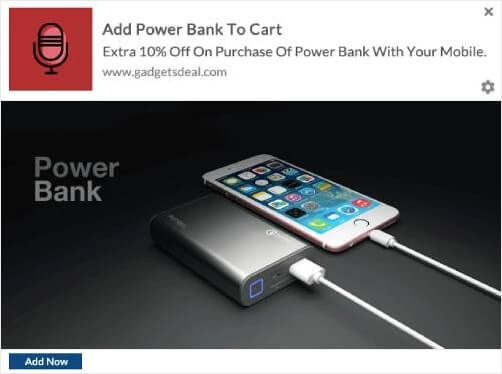
使用我们的 API,您可以设置的广告系列类型确实没有限制。尽情发挥吧!
即用型购物车放弃推送模板
您的广告系列的好坏取决于其中的文案。这九个模板涵盖了挽回购物车的心理角度,每个模板都符合推送通知 40 到 120 个字符的长度限制。将个性化提醒用作第一次触达,然后根据您的利润和受众选择另外两个角度作为第二次和第三次触达。将方括号中的字段替换为您广告系列的变量,例如 {{productname}} 和 {{price}}。
1. 个性化提醒
默认的第一次触达。包含姓名、产品、图片,仅此而已。它读起来像一个友好的提醒,而不是促销。
标题:还在考虑,[name]?
正文:您的 [product] 已保存在购物车中。结账不到一分钟。
2. 稀缺性
在库存确实有限时有效。切勿捏造。收到虚假库存警告的订阅者将停止点击您发送的所有内容。
标题:仅剩 [count] 件
正文:您购物车中的 [product] 几乎售罄。请在售完之前完成订单。
3. 限时折扣
有截止日期的折扣比无期限的折扣效果更好。将窗口期设置得短一些,两到 24 小时,并遵守它。
标题:您的购物车立减 15%,仅限今日
正文:在午夜前使用代码 CART15 购买您的 [product]。之后恢复原价。
4. 套装优惠
比直接打折更能保护利润。向购物者展示他们通过多买而不是少买而节省的金额。
标题:买二享更多优惠
正文:再添加一个 [product] 即可节省 [amount]。您随时可以完成购买。
5. 积极情绪
表明您在为购物者保留商品,而不是催促他们。即使不能立即转化,这里的温暖语调也能建立品牌价值。一两个表情符号自然地适合此模板。
标题:我们为您保留了
正文:您的 [product] 正在购物车中等待,直到您做出决定为止。
6. 建立信心
最适合服装和礼品,因为犹豫不决会扼杀销售。肯定他们已经做出的选择。
标题:眼光真好,确实如此
正文:您选择的 [product] 是我们最受欢迎的款式之一。它仍在您的购物车中。
7. 使用场景
适用于其价值需要场景说明的产品。向购物者展示产品在他们生活中的应用,而不是在您的目录中。
标题:升级您的工作日晚餐
正文:购物车中的 [product] 可以在 15 分钟内准备好一顿完整的晚餐。立即查看其效果。
8. 免费送货
意外的运费是导致放弃购买的首要原因,因此免除运费可以消除阻碍订单的直接障碍。设置截止日期以促使他们做出决定。
标题:我们承担运费
正文:您的 [product] 免费送货,限时 24 小时。无需代码。
9. 惊喜礼物
好奇心会起作用。一份小小的无名礼物比折扣成本更低,并且能转化折扣无法吸引到的犹豫不决的顾客。
标题:额外的小惊喜
正文:今天完成您的 [product] 订单,我们将附赠一份惊喜礼物。
无论您选择哪个模板,发送前都要进行细分。在我们的营销活动数据中,细分后的购物车放弃通知的点击率是“一刀切”发送的两倍。有关文案之上的策略层面,请参阅关于如何减少购物车放弃的完整指南。
总结
好了,各位,本次分享就到这里!
如果您觉得这有帮助,您还应该查看我们关于 如何减少购物车放弃的文章。那里有一些非常有用的想法。
如果您才刚开始使用推送通知,您应该试试 PushEngage。PushEngage 是全球排名第一的推送通知软件,您可以使用 PushEngage 创建各种推送通知广告系列。
所以,如果您还没有,请立即开始使用 PushEngage。


很棒的帖子
感谢提供信息,这对于实施非常有帮助
不错的帖子……对于安装了 push engage 的电子商务网站来说非常有用