How to Create Your Own Safari Web Push Certificate for Subscriber Portability?

At PushEngage we believe in transparency and want to ensure there is NO vendor locked-in when your sign up. We have even If you wish to enable web push notifications on safari, and have your subscribers portable, then you need to create your own safari web push certificate, and configure it in PushEngage. This step is similar to creating your own FCM key for Chrome.

Here’s the step-wise breakdown that you can follow to create your own certificate.

Before creating the certificate, you would need a few things –

  1. An active Apple Developer Account – Currently this developer account costs $99/year.
  2. Unique Push ID for your website (can be created using developer account)

Following the four steps, you can create your own safari web push certificate

Step 1 – Create a Certificate Request

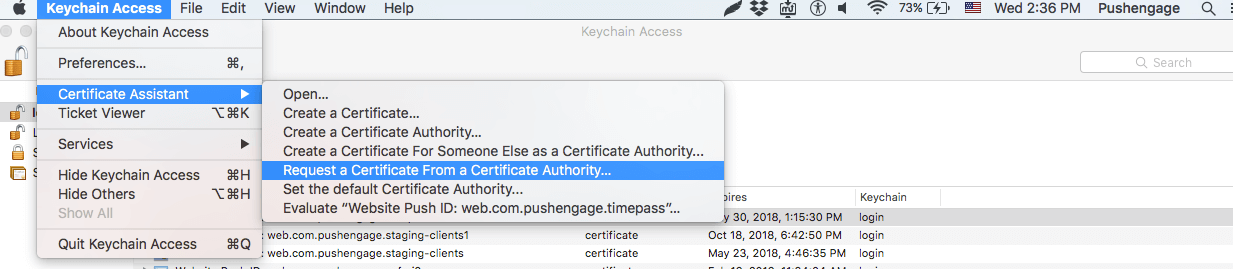
  • Launch Keychain Access App and navigate to Keychain Access > Certificate Assistant > Request certificate from Certificate Authority
 keychain step 1
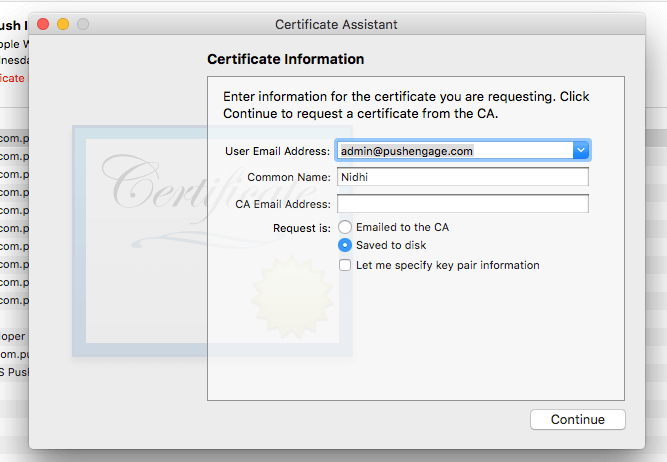
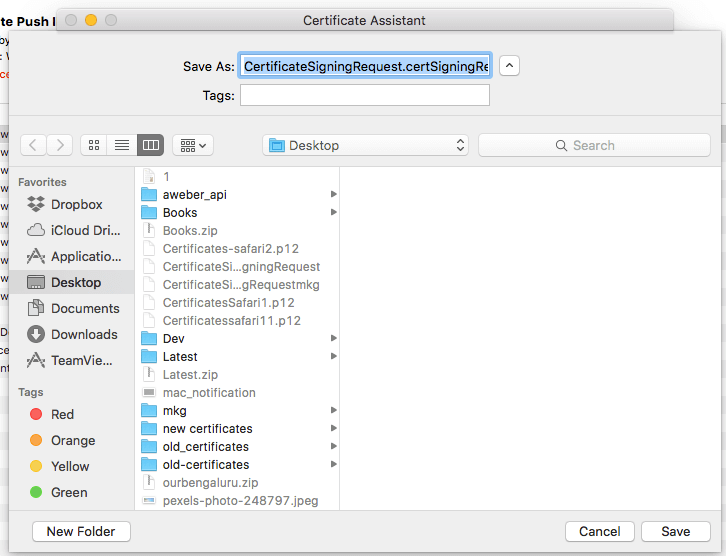
  • In certificate information add an email address and name then click on Save.
create information
save certificate

Step 2 – Set up Web Push Id for APNS

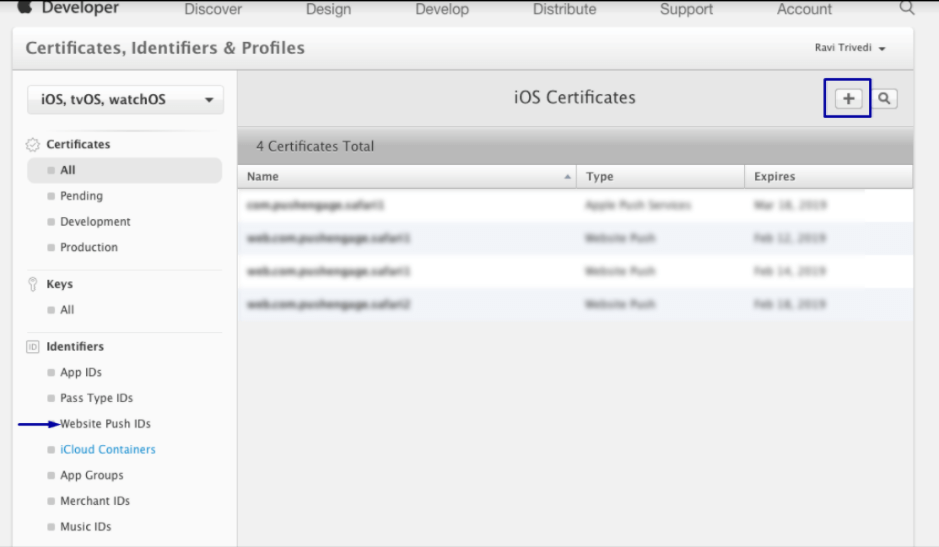
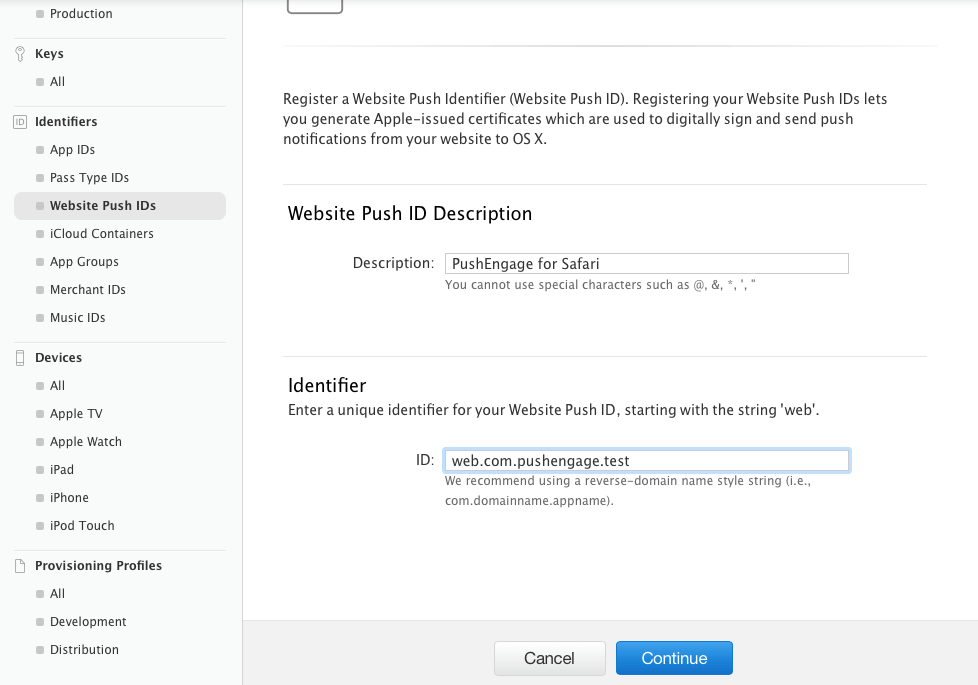
  • Login to Apple Developer Console > Identifiers > Website Push IDs and on top right section click on +
identifier
  • You will be redirected to the next window and there add website Push ID Description and unique identifier. Once done, click on Continue.
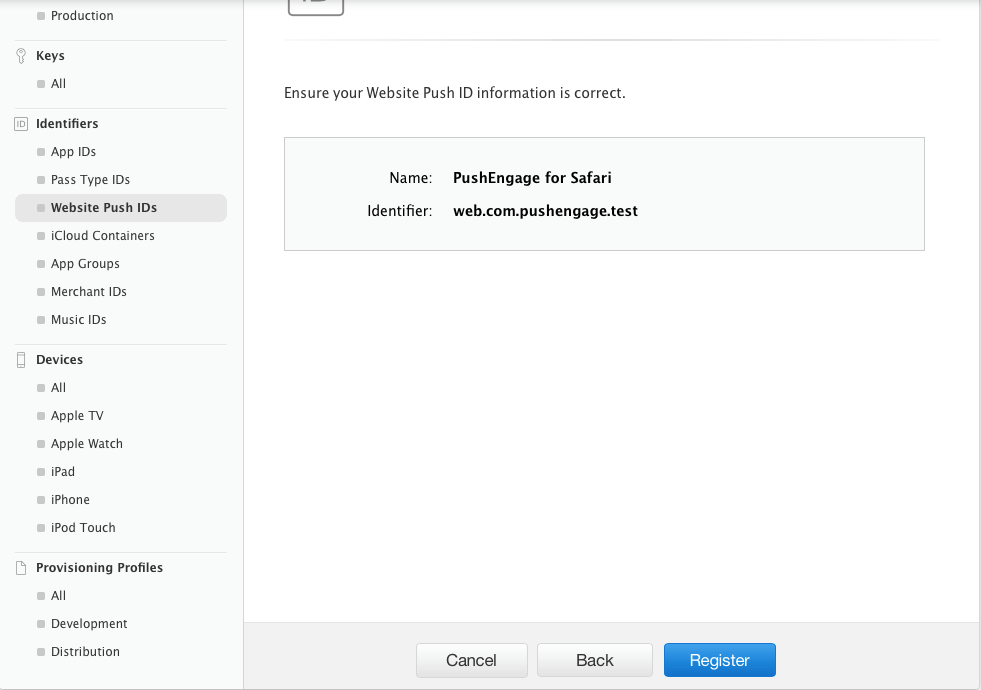
  • In the next window ensure that your website Push Id is correct and then click on Register
Ensure-Information-is-correct

Step – 3 Generate Web Push Certificate

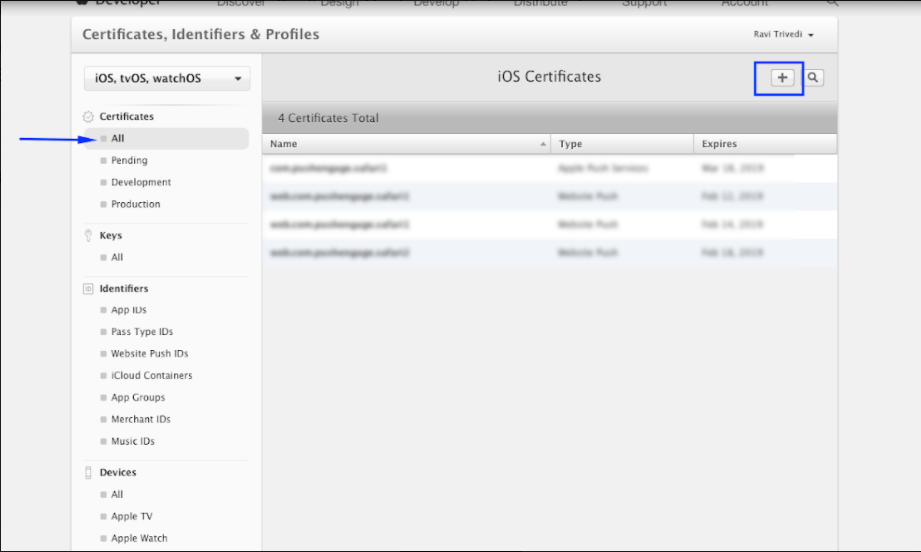
  • Navigate to Certificate > All > click on +
certificates all
  • Select Website Push Id Certificate > Continue
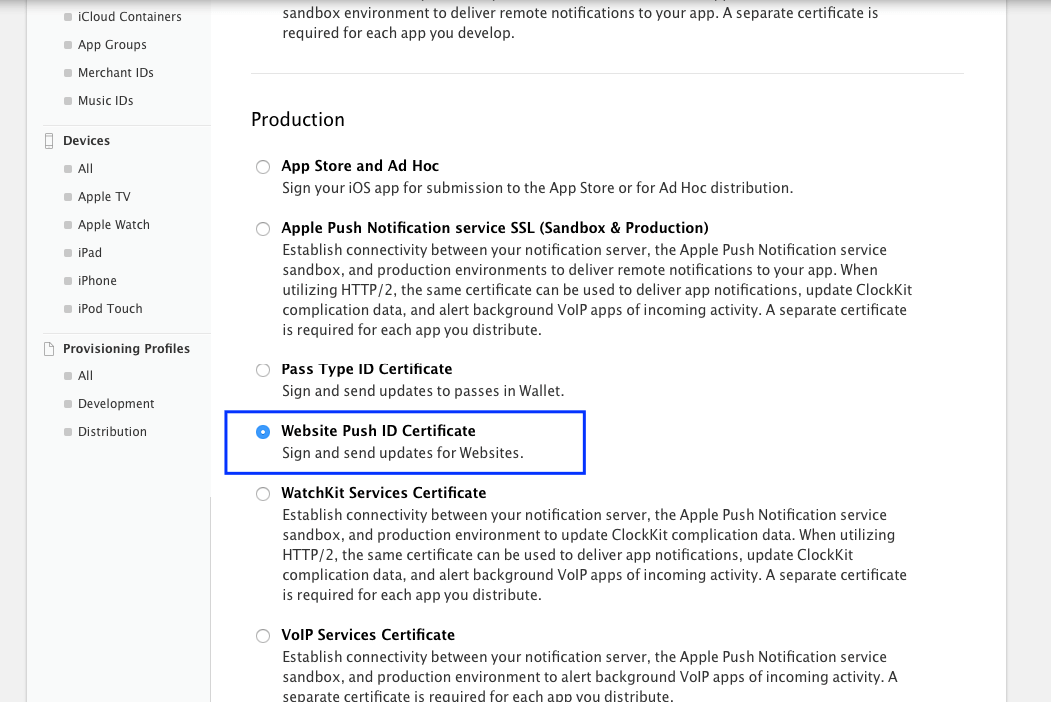
website with push id certificate
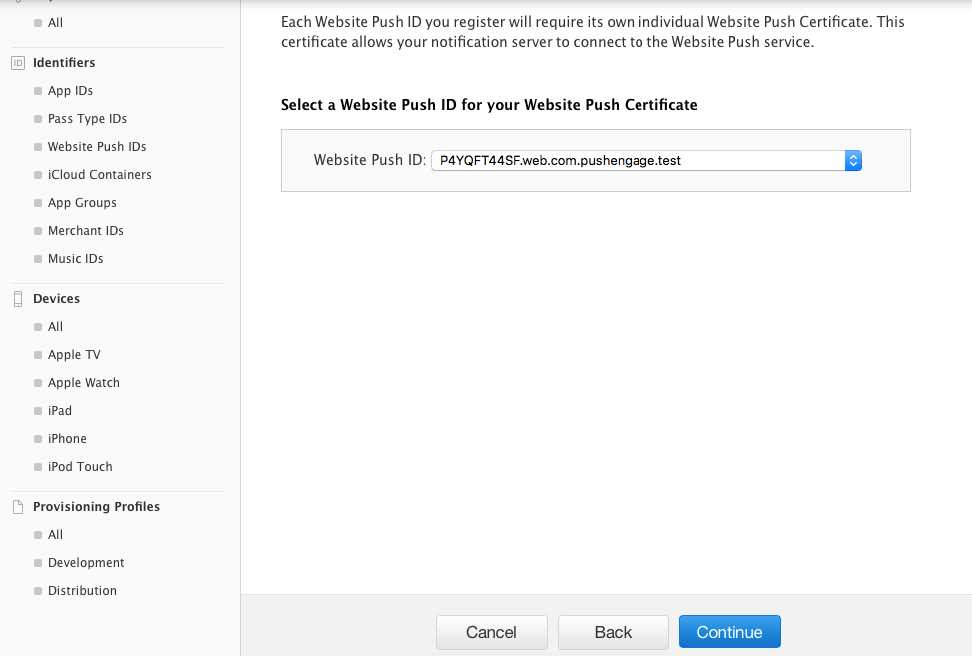
  • Select the Website Push Id that you created in Step 2 and click on continue
select-website-push-id-from-step-2
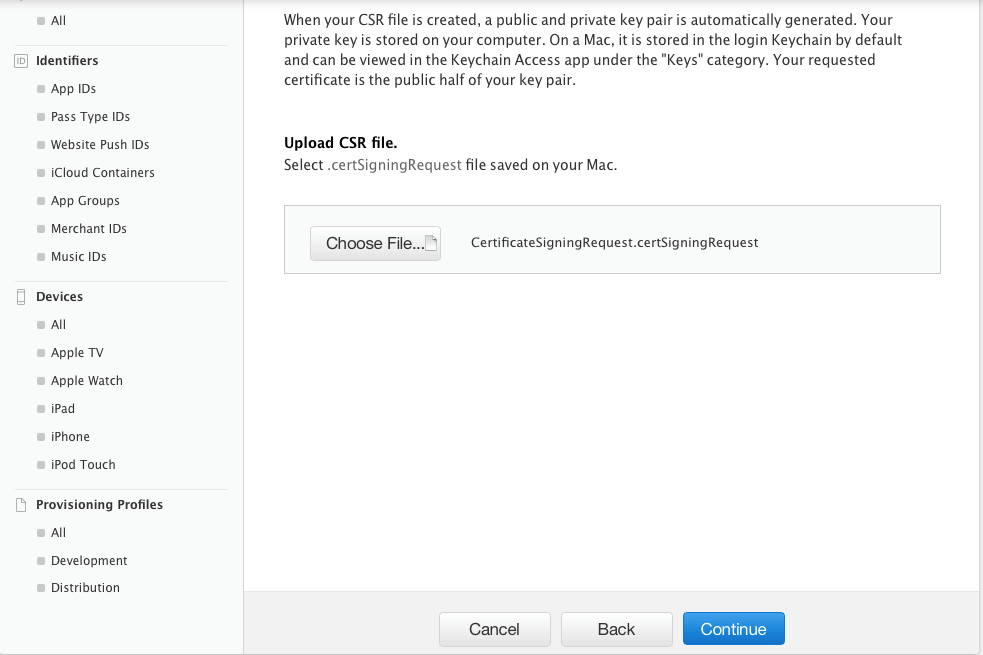
  • Now add the CSR certificate that you created in Step 1 and click on continue
choose certificate
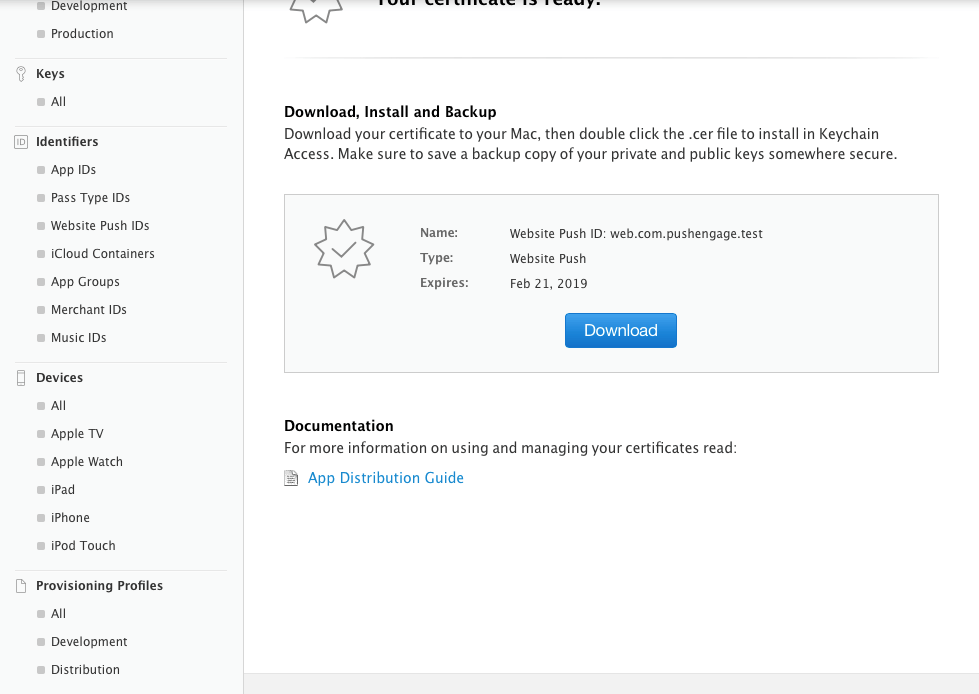
  • On the next window, you will get a message “Your Certificate Is Ready”. Download it as it will be used to send notifications to your subscribers.
 certificate is ready
  • Now you must install and export the certificate. So, double click on Downloaded Certificate and your certificate will be installed in keychain Access App
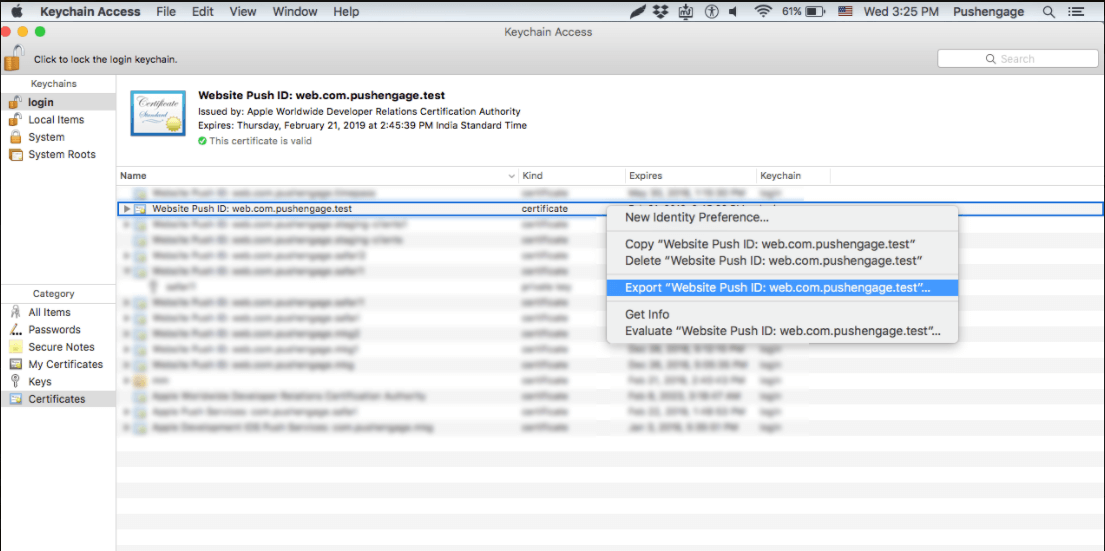
  • To export the certificate – Go to keychain App > Certificate > Right click on certificate > select Website Push ID for which certificate was created > then click on Export
export certificate
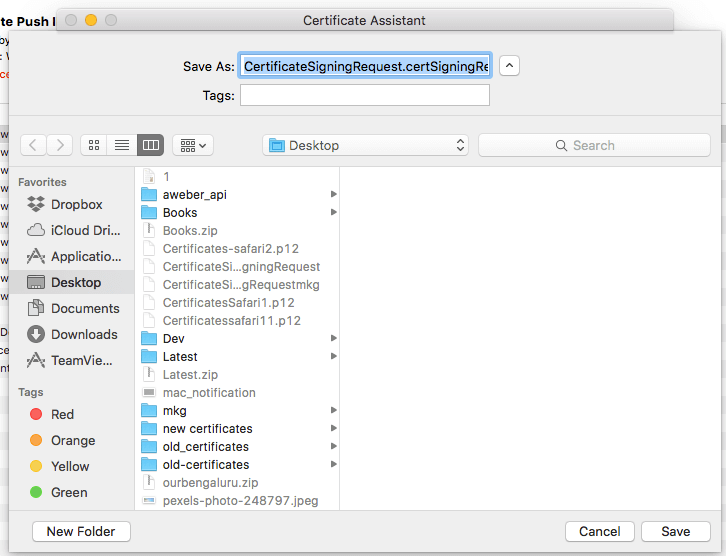
  • Use Personal Information Exchange (.p12) format while saving certificate
save certificate1
  • In next window, you can choose to create a password or to leave it blank then click on OK
create pwd
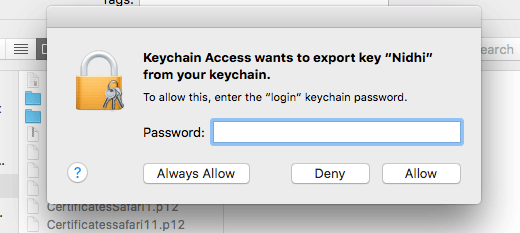
  • Click Allow to export the certificate to MAC

 Step 4 – Upload Your Certificate to PushEngage

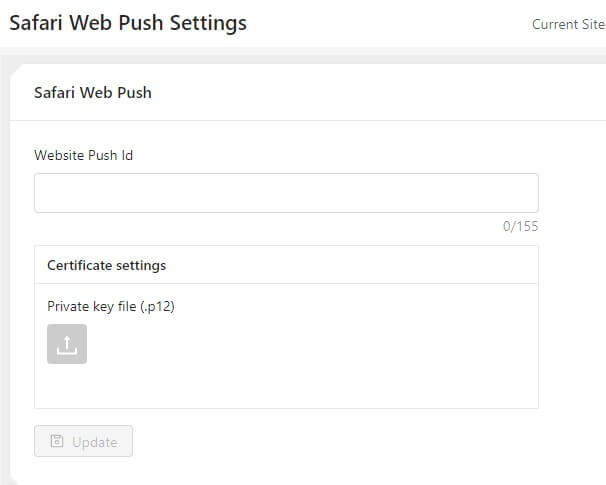
  • Navigate to Settings > Safari web Push Settings > Enter Website Push Id > Private key file and password. Once done click on Update.
safari settings for web push
  • If settings are done correctly you will get a message “Settings successfully updated “

That’ all and you can now send notifications to your subscribers using Safari. We also support push notification on chrome and firefox browser as well.

PushEngage 用于 Chrome 推送通知

添加评论

我们很高兴您选择留下评论。请记住,所有评论都将根据我们的隐私政策进行审核,并且所有链接都将是 nofollow。请勿在姓名字段中使用关键字。让我们进行一次个人化且有意义的对话。

1 comment on “How to Create Your Own Safari Web Push Certificate for Subscriber Portability?

  1. First sentence: At PushEngage we believe in transparency and want to ensure there is vendor locked-in when your sign up.

    Should be:
    At PushEngage we believe in transparency and want to ensure there is NO vendor locked-in when your sign up.

在访客离开您的网站后与他们互动并挽留他们

通过难以忽略的推送通知,增加每次网站访问的价值。

  • 永久免费套餐
  • 轻松设置
  • 五星支持