
正在寻找为您的WordPress网站创建退出意图弹窗的方法?
退出意图弹窗在捕获潜在客户方面非常有效。它们旨在通过将访问者的全部注意力吸引到自身上来说服和转化。
但从头开始编写一个弹窗会非常麻烦。首先,您需要了解足够的 HTML、CSS 和 Javascript 来创建弹窗以及何时显示它的触发规则。然后,您需要与您的电子邮件服务提供商进行手动集成。最后,您还需要处理任何隐私和安全问题。
好消息:有一个更简单的方法。
在本文中,我们将向您展示如何在不到10分钟的时间内,在WordPress中零代码启动全屏弹窗。
让我们开始吧。
什么是退出意图弹窗?
退出意图弹窗是一种选择加入表单,当您的访问者试图离开您的网站时会弹出。您的退出意图弹窗通常会向任何放弃的访问者提供一个优惠,以换取他们的电子邮件地址。但如果您愿意,您也可以将他们重定向到带有折扣码的产品,甚至您转化率最高的内容。
简而言之:退出意图弹窗旨在转化那些本已离开但未转化的访问者。
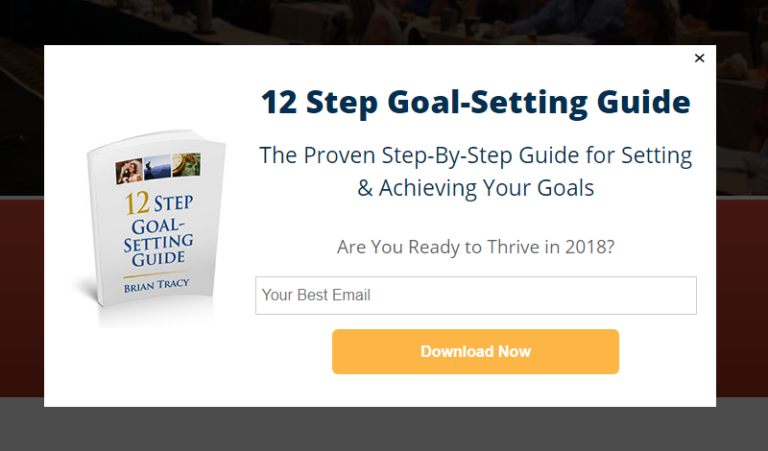
这是一个示例:
您可以使用退出意图弹窗来:
等等。您甚至可以创建弹窗联系表单。弹窗非常灵活,只要您有创意,就可以轻松设置高转化率的弹窗。
如何在WordPress中创建退出意图弹窗
现在您已经了解了什么是退出意图弹窗以及为什么您想创建一个,那么如何创建呢?我们建议使用OptinMonster来创建您的所有弹窗。
OptinMonster 是全球排名第一的转化工具包,我们自己也使用它。OptinMonster 可以非常轻松地创建强大的、能够带来转化的弹出窗口。而且您永远不需要编写任何代码。
OptinMonster 几乎拥有您开始、发展和扩展电子邮件潜在客户生成流程所需的一切。
以下是使用该工具包可以执行的操作的快速概述:
- 顺畅地增长您的电子邮件列表以进行再营销
- 将首次访问者转化为常规读者
- 降低购物车放弃率和浏览放弃率
- 创建带有实际倒计时器的限时优惠
- 增加电子书下载和数字产品销售
- 为直播活动创建漏斗
- 使用游戏化弹出窗口提高网站参与度
- 将您的流量重定向到能为您带来收入的页面和帖子
- 通过两步选择加入来创建真实的潜在客户列表并删除虚假电子邮件
我们经常使用 OptinMonster,甚至撰写了完整的 OptinMonster 评测。您可以查看一下,或者立即开始您的营销活动。您只需注册 OptinMonster 并按照本文其余部分的说明进行操作即可。
第 1 步:创建营销活动
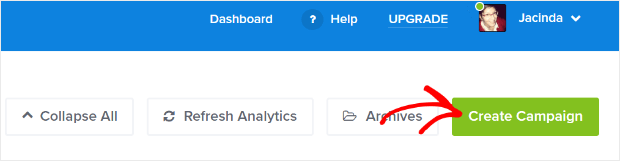
前往您的 OptinMonster 仪表板,然后点击 创建 按钮:
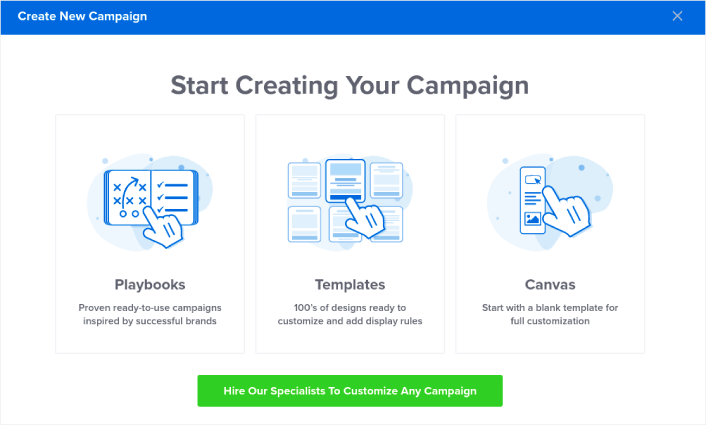
选择 模板 选项,开始使用预设计的模板创建注册表单:
在本教程中,我们将创建一个全屏弹窗。选择全屏以开始使用全屏弹窗模板:
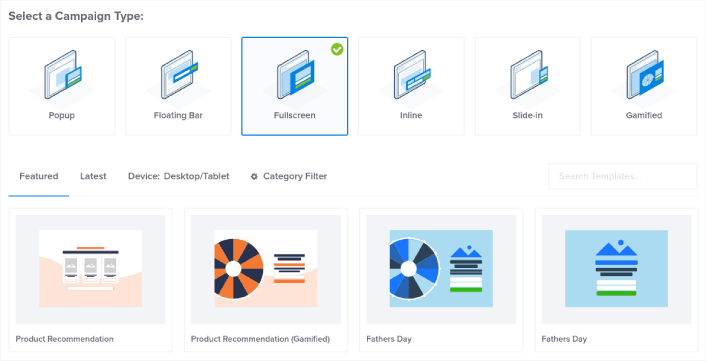
然后,选择一个广告系列模板。您可以选择任何喜欢的模板,但在此教程中,我们将使用产品推荐(游戏化)广告系列模板。
选择模板后,为您的营销活动命名。请记住,此营销活动名称仅供您自己参考,您很可能会创建大量具有不同定位选项的弹出窗口。因此,请为营销活动起一个有意义的名称,否则以后您会非常困惑。
此外,根据您的套餐,您还可以在多个网站上使用OptinMonster。因此,请选择您希望展示广告系列的网站。
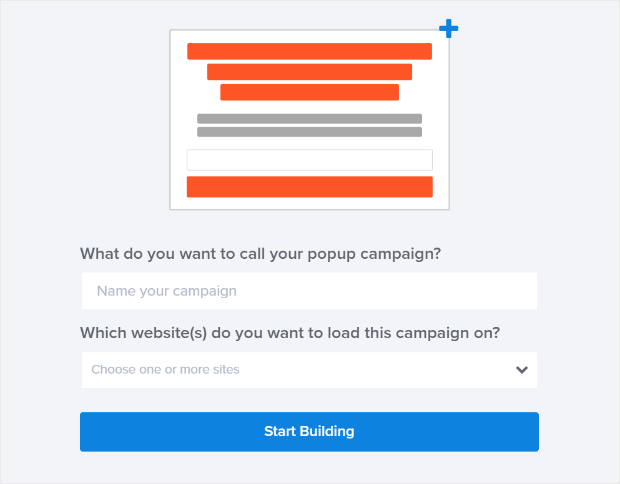
完成后,按开始构建。
第2步:编辑您的弹窗
使用 OptinMonster,您将获得一个可视化的拖放式弹窗构建器。完成营销活动创建后,您将能够编辑弹窗的每一个细微之处。首先编辑您的弹窗标题:
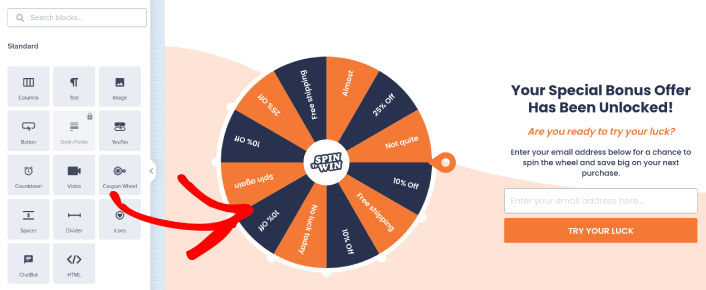
这里最神奇的部分是,您只需点击想要编辑的任何文本即可在线更改。无需填写表单或编辑弹出窗口中的任何 HTML 代码。
您可以编辑弹窗的所有内容。当您对选择加入的外观满意后,就可以继续进行更高级的设置了。
第3步:在弹窗中添加点击订阅按钮
推送通知可帮助您自动增加网站流量和参与度。如果您经营在线商店,PushEngage 还可以通过帮助您创建自动电子商务推送通知来帮助您增加销售额。
您可以免费开始使用,但如果您想认真发展业务,则应购买付费套餐。此外,在购买任何推送通知服务之前,您应该查看这篇关于 推送通知成本的指南。
PushEngage 提供以下功能,快速概览:
- 高转化率的自动化营销活动
- 多种定位和营销活动调度选项
- 目标跟踪和高级分析
- 智能 A/B 测试
- 专属客户成功经理
您会发现,如果您想为您的业务带来流量、参与度和销售额,PushEngage 绝对是最佳选择。而且,如果您预算有限,您总是可以 在推送通知方面发挥创意。
首先,从 OptinMonster 中的侧边栏将一个HTML块添加到您的弹出窗口。
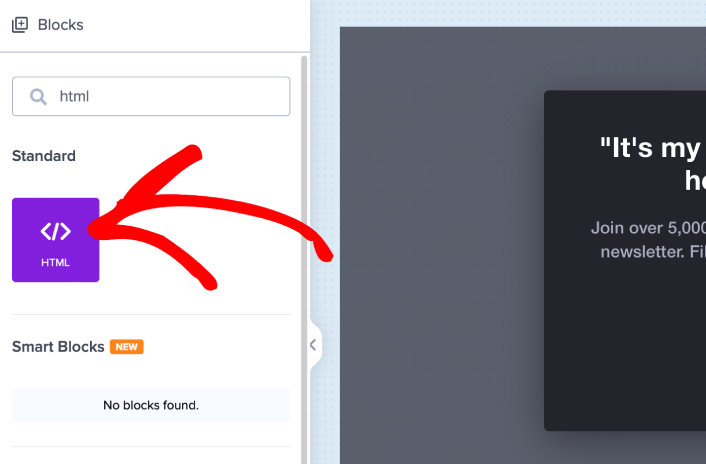
这是我们将添加代码以收集推送通知订阅者的地方。首先,粘贴以下代码以创建可点击按钮:
<button onclick="subscribeOnClickButton()" style="border: none; width: 100%; padding-left: 15%; padding-right:15%; text-align: center; display: inline-block; color: white;">Get Updates via Push Notifications</button>将代码粘贴到显示可以添加 HTML 的位置:
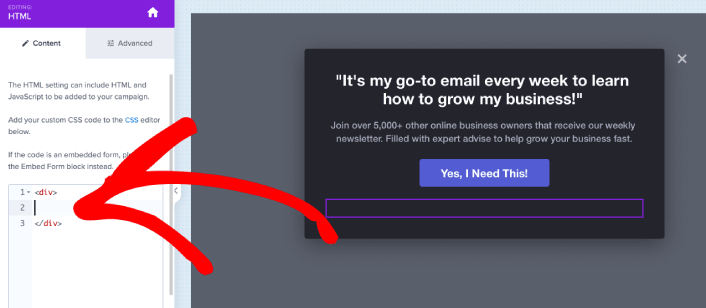
当然,您可以调整样式使其看起来更具吸引力。接下来,我们将使按钮在被点击时收集推送通知订阅者。
前往 PushEngage 主页,然后点击“开始使用”按钮:

然后,您可以选择免费计划来试用 PushEngage,或者如果您想认真发展您的业务,可以选择付费计划。付费计划提供更多的营销活动选项,并能够建立更大的订阅用户列表。
在您的 PushEngage 仪表板中,转到“网站设置”»“网站详细信息”,然后点击“单击此处获取设置说明”按钮。在“任何网站”下,您将获得安装代码:

警告:您需要复制从仪表板获取的代码。该代码对于每个 PushEngage 用户都是唯一的。您将无法复制图像中的代码并收集推送通知订阅者。
在您的 PushEngage 仪表板中获得代码后,复制第二个脚本并为其添加一些额外的代码。您的最终代码应如下所示:
<script src="https://clientcdn.pushengage.com/core/02a6e92667ae2279fcba8932356c1d93.js" async></script>
<script> window._peq = window._peq || [];
function subscribeOnClickButton(){
window._peq.push(['subscribe',{}.pe,function(res){
console.log(res);
}]);
}
</script>
将此代码添加到 OptinMonster 中的HTML块,紧跟在按钮代码之后,并放在<div></div>代码块之间,这样就完成了!
第4步:设置退出意图弹窗显示规则
显示规则用于定义您的营销活动何时在您的网站上显示以及谁可以看到它。
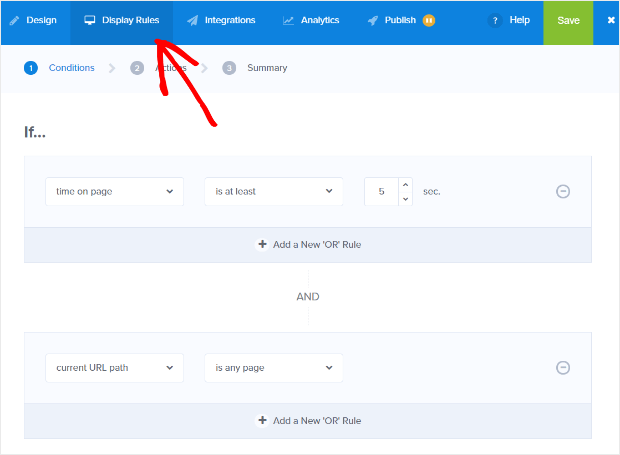
我们的建议是设置弹窗在检测到退出时显示:
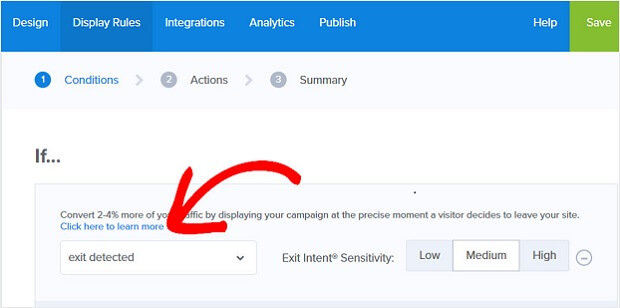
这样就创建了一个退出意图弹窗。您的弹窗不一定非得是全屏弹窗才能被退出意图触发。只需更改显示规则,您就可以将任何弹窗转换为退出意图弹窗。
点击 下一步 选择 操作。在这里,我们建议您将 显示营销活动视图 设置为 Optin 视图,将 显示 MonsterEffect 设置为您喜欢的任何进入动画,并将 播放声音效果 设置为您弹窗的任何声音效果。
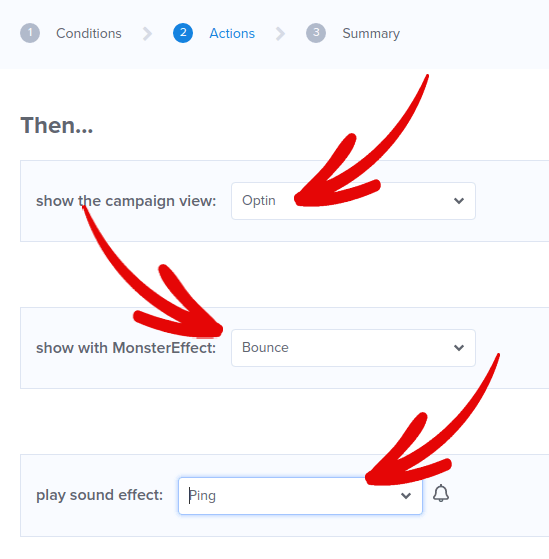
然后,点击 下一步 按钮。您可以在摘要选项卡中查看所有设置的完整范围。
第5步:设置您的电子邮件集成
下一步是设置您的电子邮件集成。从 集成 选项卡中点击 添加新集成 并选择您的电子邮件服务提供商:
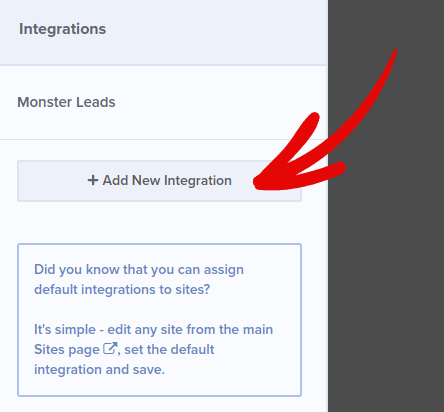
如果您还没有电子邮件服务提供商,我们建议您在电子邮件营销中使用Drip。
第6步:在WordPress中发布您的退出意图弹窗
创建新广告系列时,它默认处于暂停状态。
转到顶部菜单的发布选项卡,查看发布选项。然后,将状态设置为发布并选择网站平台:
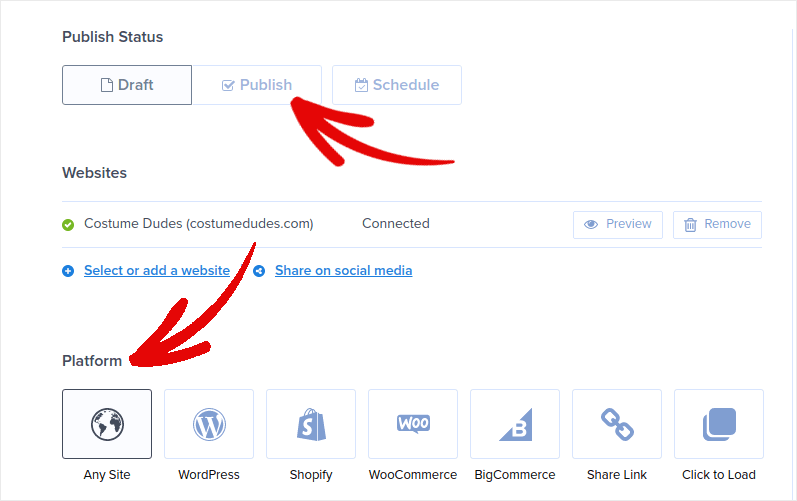
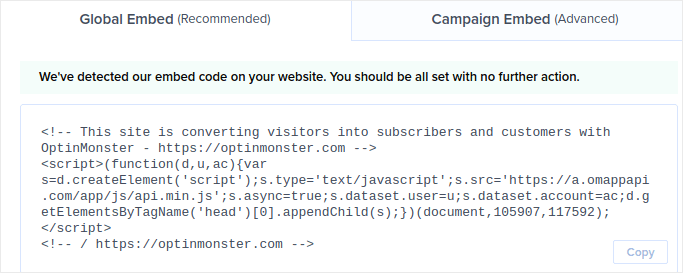
如果您运行的是 WordPress 网站,OptinMonster 插件会自动处理其余的设置。Shopify 和 BigCommerce 也是如此。对于任何其他网站,请点击任何网站并将嵌入代码粘贴到您网站的 head 中:
您就完成了!
在WordPress中创建退出意图弹窗后该做什么
好了,各位,本次分享就到这里!
如果本文对您有帮助,请告诉我们。在您的网站上创建弹窗可以帮助您将流量转化为电子邮件订阅者和真正的业务潜在客户。我们强烈建议您立即开始创建退出意图弹窗。
如果您正在寻找一种经济高效的方式来增加流量,我们建议使用推送通知。推送通知可以帮助您带来更多重复流量和网站互动。您还可以创建自动推送通知广告系列来产生销售。
不信?查看这些资源:
我们建议使用 PushEngage 来创建您的推送通知广告系列。PushEngage 是全球排名第一的推送通知软件。所以,如果您还没有,请立即开始使用 PushEngage!


