为 WooCommerce 商店客户设置推送活动

Are you looking to keep your customers informed with updates on their recent orders, give them a nudge to retry purchase requests, or boost your store’s reviews through web push notifications in your WooCommerce store?

If so, you’ve come to the right place! In this guide, we will walk you through the steps to set up and effectively manage web push notifications for your customers in your WooCommerce store.

开始之前

请确保您的 WooCommerce 商店已安装 PushEngage 插件。本指南假定您已安装 WooCommerce 和 PushEngage

There are multiple campaigns that you can send out to customers for many use cases –

  • Default Campaigns
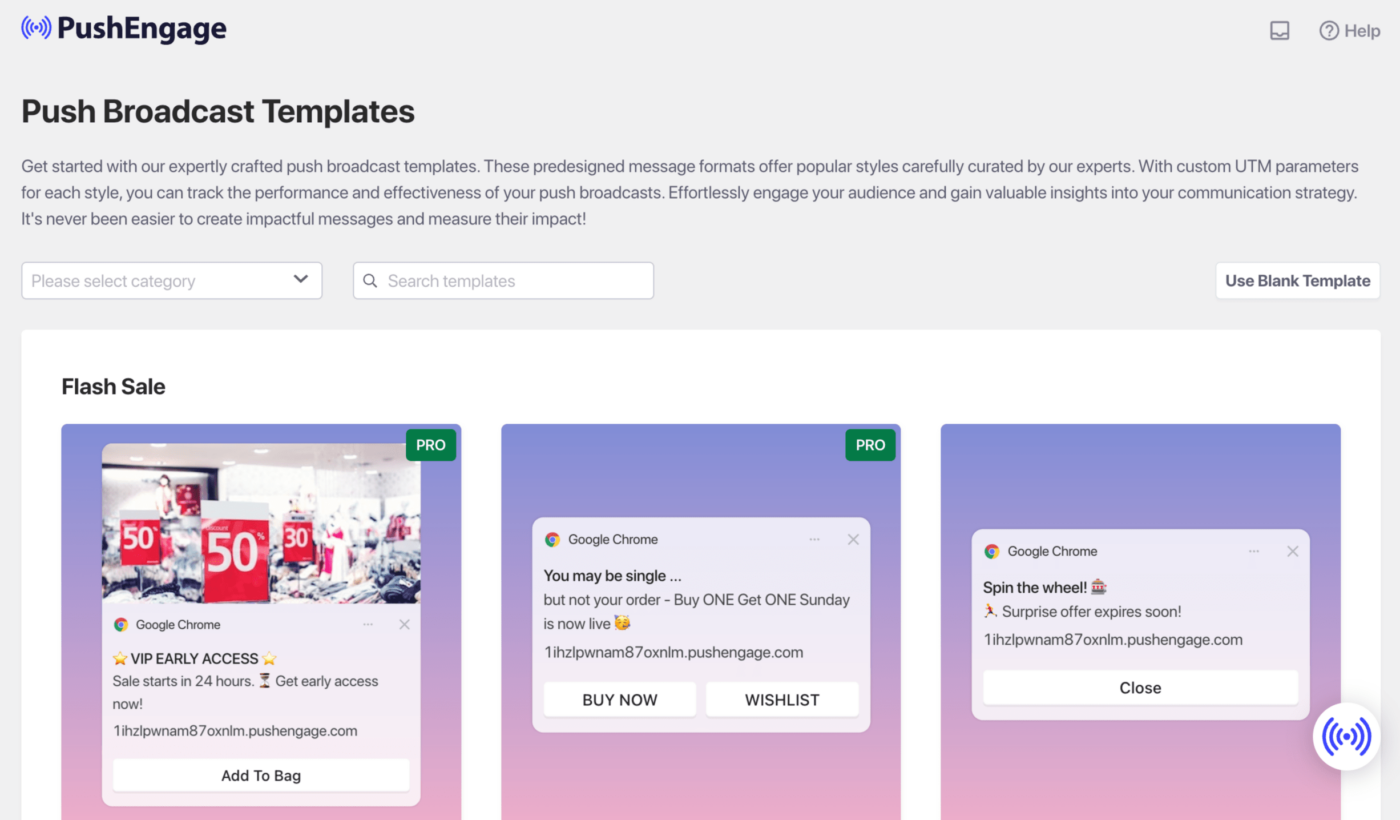
  • Push Broadcasts & Templates
  • 渐进式自动回复
  • Trigger Campaigns & Automation

Managing Default Notifications Settings

您可以导航到 WooCommerce » 设置

然后导航到 推送通知 选项卡

在此选项卡下,您可以继续并切换您想立即启用的所有通知类型。此字段还允许您决定是仅发送给管理员还是发送给客户。
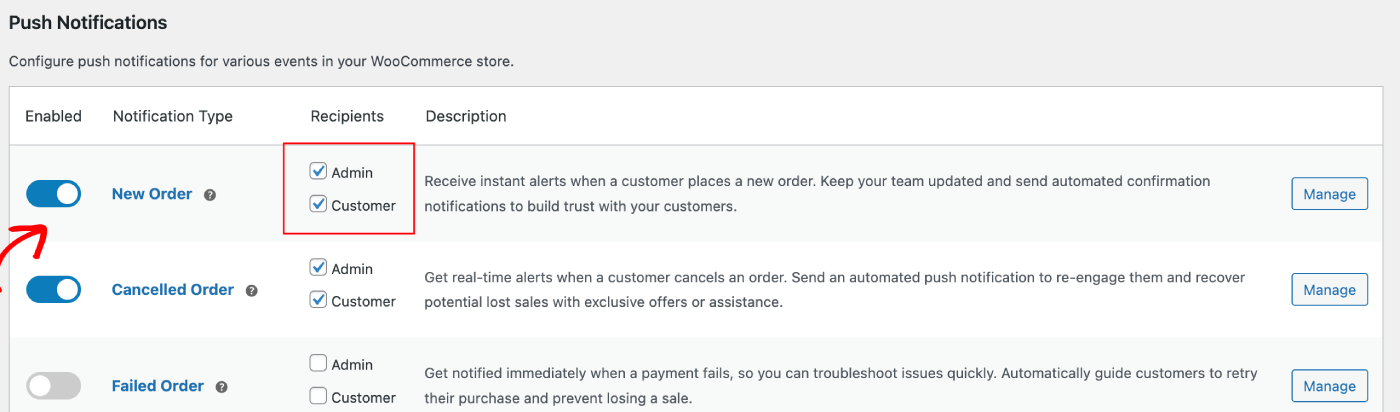
您可以选择要编辑的营销活动,然后点击管理按钮。您可以勾选将营销活动发送给客户的复选框。例如,我们在这里设置重试购买请求的推送通知。

您可以设置通知标题和消息以及结账页面 URL。
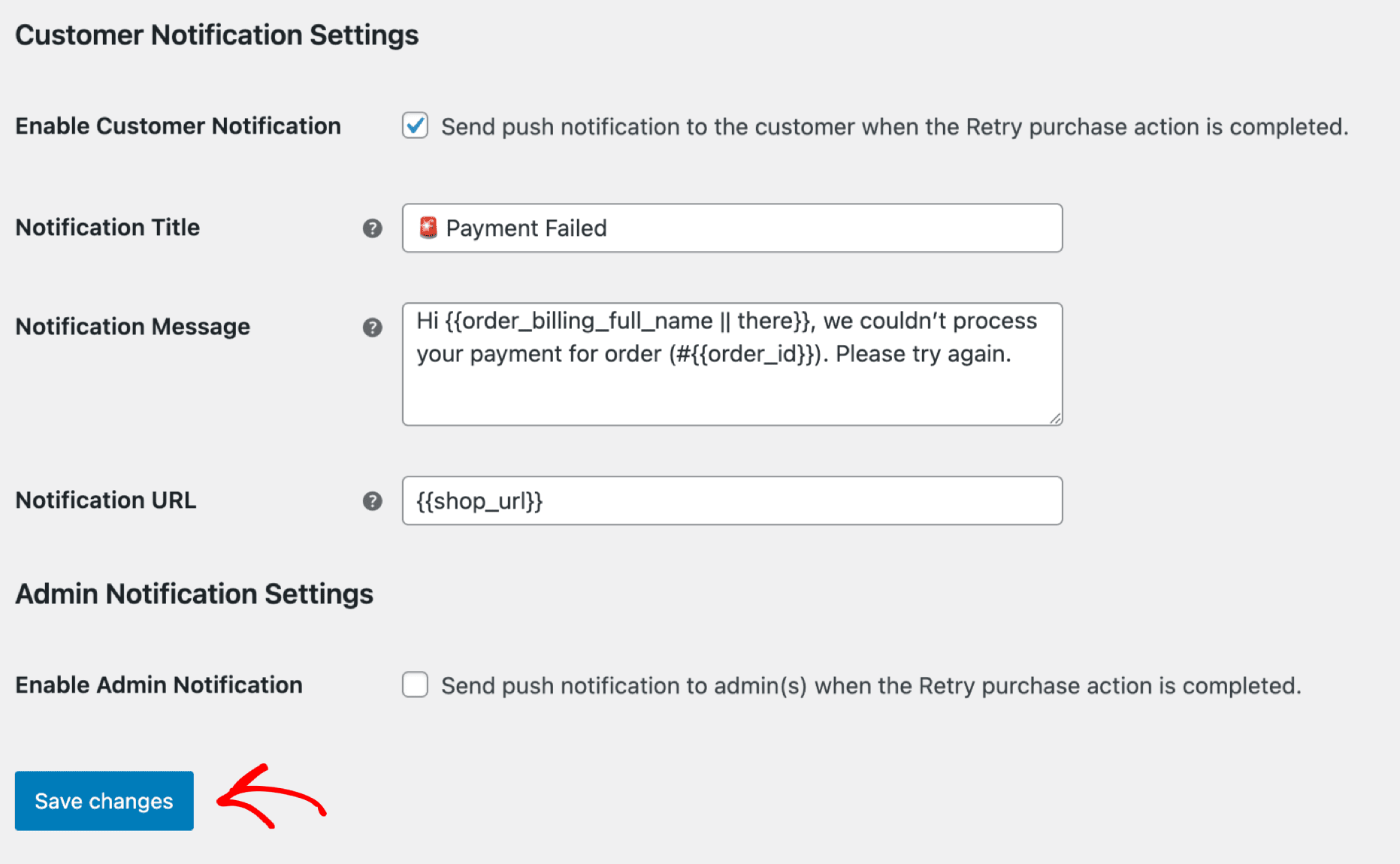
更新详细信息后,您可以点击保存更改按钮。

Push Broadcasts & Templates

You can send out Push Broadcasts for Flash sale, seasonal offers or upselling the products.

You can log in to PushEngage Dashboard and then move to Push Broadcasts. It will help you to choose from variety of templates & categories and you can customize the Audience & Send/Scheduling options.

Here is the guide you can refer to creating the push campaigns within WordPress dashboard.

渐进式自动回复

You can enable a Web Push Notification Autoresponder campaign and send it to all subscribed users or to a list/segment of users in PushEngage. Segment your users into specific lists, which can happen on specific pages, or when the user subscribes to a curriculum of notifications.

This is perfect to send out a Welcome Drip with discount coupon, or send out cross-selling campaigns, review requests and seasonal offers.

Here is the guide that will help you build a drip campaign.

Trigger Automation Campaigns

We have Triggered Campaigns, which are event specific campaigns. It is specific to goals, some examples are – Cart & Browse Abandonment Campaigns. These campaigns are pre-created for your store. You only need to ensure that the campaigns are enabled once your store is connected.

启用购物车和浏览放弃设置

We have an automated Cart & Browse Abandonment Campaign, which is directly integrated with your store’s product feed. We have a start event and a stop event to prevent further notifications from being sent after the intended goal is completed.

集成完成后,您可以管理 WooCommerce 商店的购物车和浏览放弃设置。

导航到“设置 » 集成”选项卡,然后在 WooCommerce 部分下。

通过打开开关来启用“购物车放弃”和“浏览放弃”。
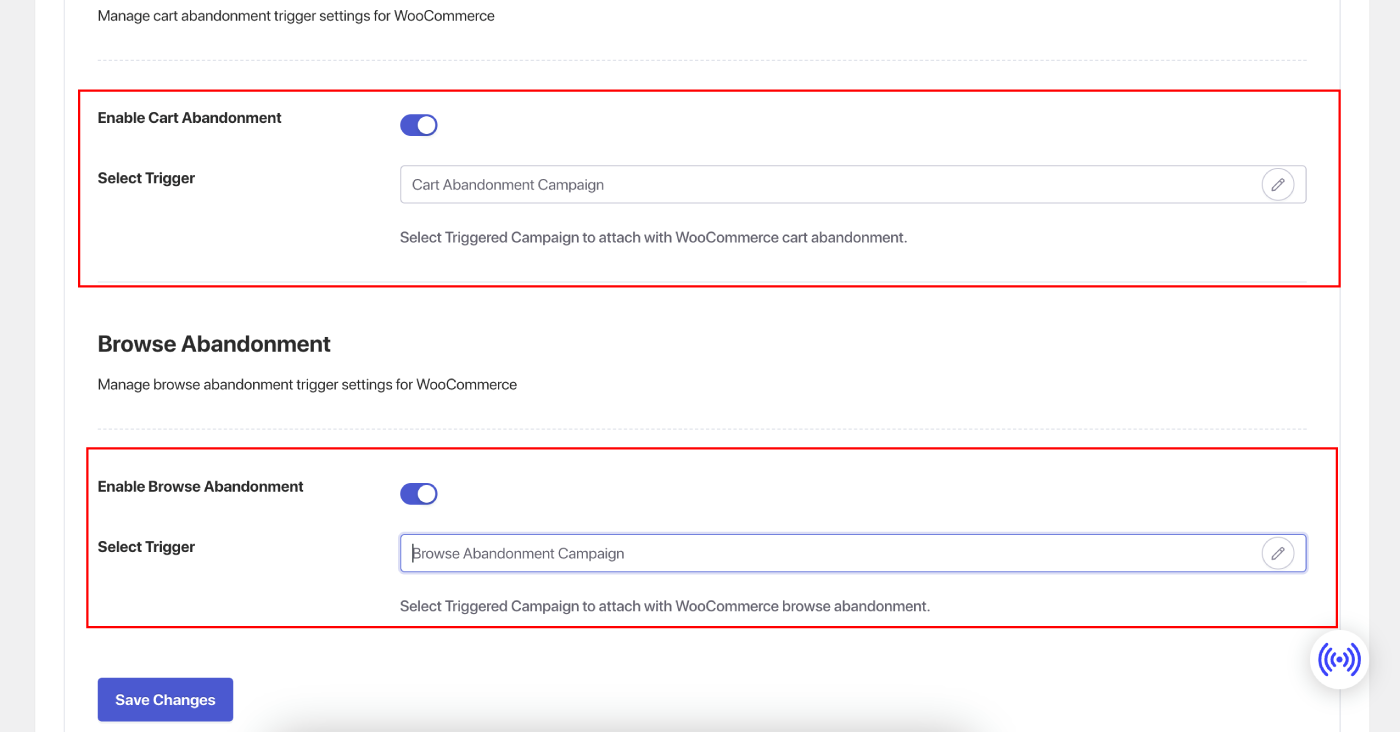
自定义营销活动

导航到“触发的营销活动”,并为您的营销活动添加多个通知。

为每个通知指定延迟和条件,并添加备用变量。
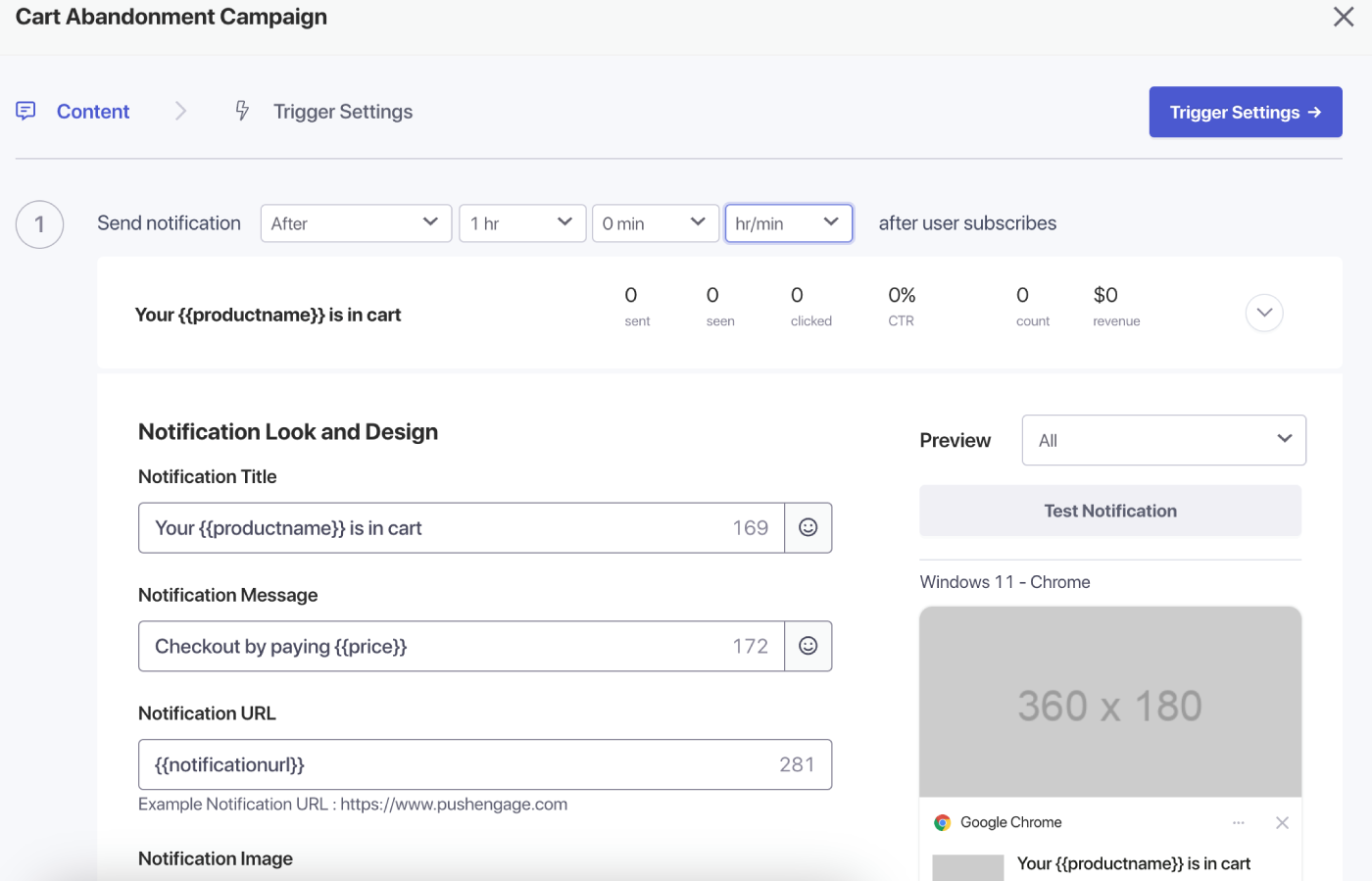
Trigger Settings

在“触发器设置”下,限制通知频率以防止垃圾邮件。您可以在此处选择每日或每周限制。例如,如果您设置了每日2条通知的限制,那么每周限制就设置为14条,这样即使人们每天放弃超过2件商品,他们也不会收到所有推送通知的垃圾邮件。

您还可以为这些营销活动添加 UTM 参数,以便在 Google Analytics 中更轻松地跟踪。

设置好触发器后,保存您的更改并激活营销活动。如果已启用,您可以查看营销活动分析并了解目标收入的转化情况。

That’s it, you have created some powerful campaigns for your WooCommerce Store.

如果您在过程中遇到任何问题,请随时联系我们。我们的支持团队可以为您提供帮助。

仍然卡住了?我们能帮您什么?
最后更新于 2026 年 3 月 9 日

在访客离开您的网站后与他们互动并挽留他们

通过难以忽略的推送通知,增加每次网站访问的价值。

  • 永久免费套餐
  • 轻松设置
  • 五星支持