使用 WPCode 进行 WooCommerce 购物车和浏览放弃活动

WooCommerce stores excel at offering diverse products but often face challenges with cart and browse abandonment. PushEngage offers an innovative solution, enabling campaigns that directly engage with your product feed and turning potential losses into conversions with the help of WPCode.

Your customers can receive push notification reminders after their abandonment, and it can encourage them to complete the checkout.

开始之前

开始之前,您需要了解以下几点:

  • Our WooCommerce integration requires a PushEngage Growth subscription to create a Cart and Browse Abandonment Campaign using our Trigger Campaign feature.
  • This guide assumes you already have the WooCommerce and WPCode plugins installed on your WordPress website.

Creating Trigger Campaign in PushEngage Dashboard

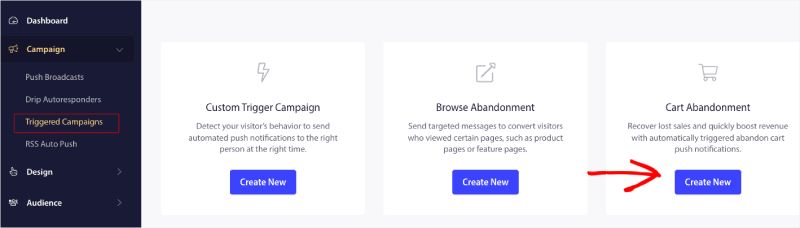
You need to log in to your dashboard and navigate to Campaign » Triggered Campaigns. 

Select Cart/Browse Abandonment Campaign, and click on Create New.

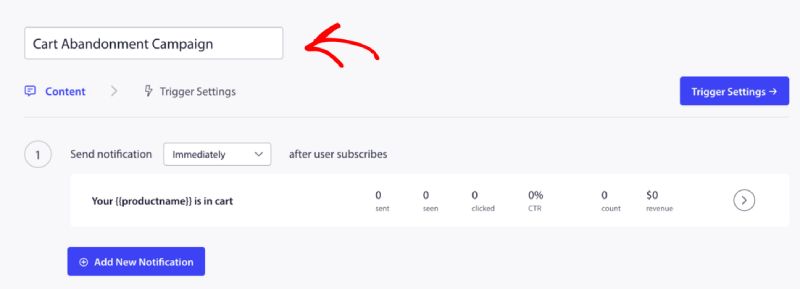
Now you can enter the Campaign Name.

Adding Campaign Content

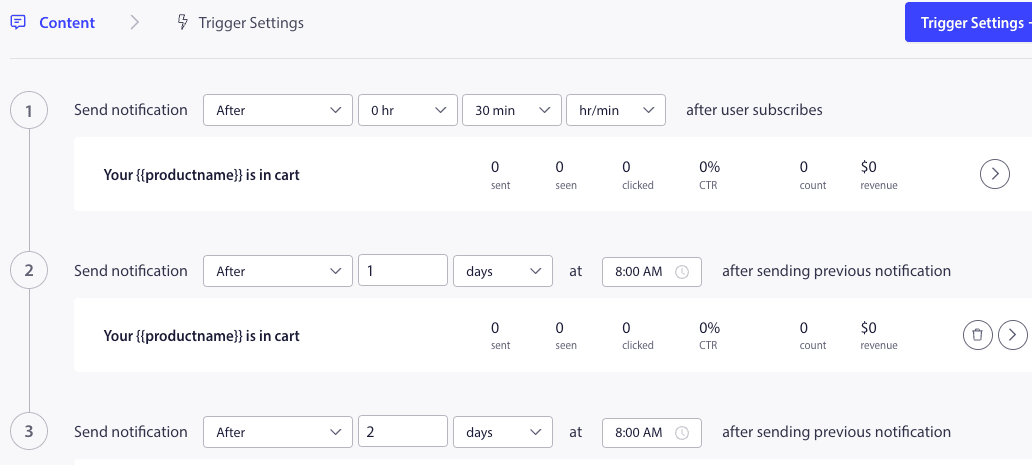
The next step is to configure the journey schedule – You can select either of the options immediately, after n hours and minutes, or after a certain day.

通常,我们不建议将时间安排为立即。您应该为系列中的第一个营销活动至少留出 15 或 30 分钟的间隔。

When setting up a series, you can have at least three campaigns. You can customize the title and message for every campaign in the series. Please ensure that you are not changing variables if you are willing to use these variables in the campaign.

根据营销活动在代码中添加的默认变量是 – {{productname}}、{{price}} 和 {{notificationurl}}
管理触发器设置

Once you have added notification content, you can move to Trigger Settings.

这里的触发器是预定义的。如果一个人将产品添加到购物车但未完成结账,则营销活动将开始。如果他完成了结账,他将不会收到购物车放弃通知。但这些只是定义的事件;除非将它们放置在网站上,否则它们无法执行。

这里的触发器是开始营销活动(如果添加商品到购物车)和停止营销活动(如果完成结账)。
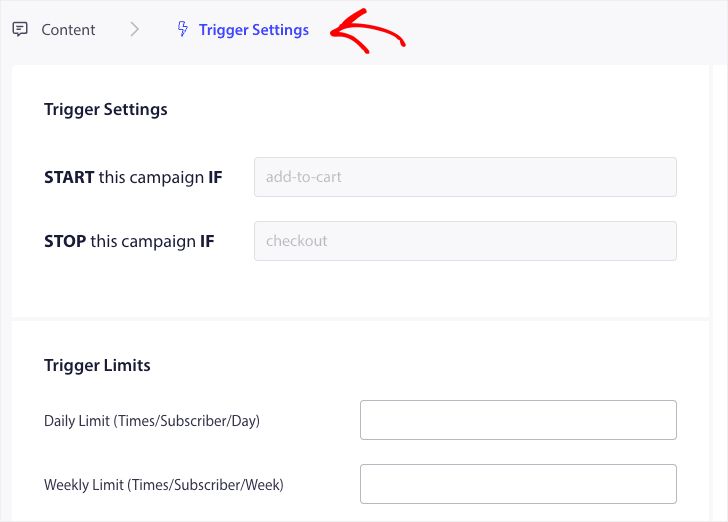
The next step is to add the daily and weekly trigger limits. This will define the total number of notifications a subscriber may receive daily and weekly. For example – If 2 notifications are daily, then it should be 14 weekly; this way, the frequency will be capped even if more than two products are abandoned.

在 WPCode 中编辑和激活代码片段

首先,请访问您 WordPress 仪表板中的 Code Snippets 选项卡。

Here you would need two snippets to edit based on your campaign.

  • For Cart Abandonment Campaign – On Add to Cart Event in WooCommerce and After Checkout Event In WooCommerce.
  • For Browse Abandonment Campaign – On Browsing WooCommerce Products and On Add to Cart Event in WooCommerce

Choose based on your campaign and click on Use Snippet. Once you have the snippet open in Editor.

Adding the Campaign Name

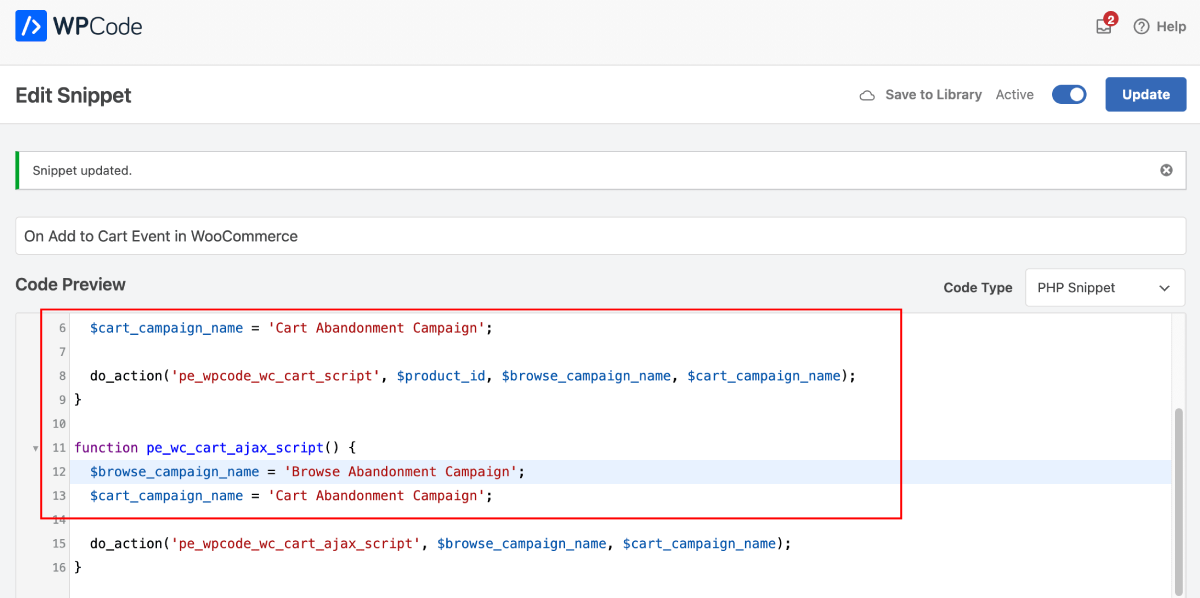
Please ensure that the correct campaign name is added for both events. You do not need to change the Location, let the snippet be added site-wide.

After the snippet is finalized, you can activate it. Without activating, the snippet will not be functional.

Troubleshooting Trigger Campaigns

  • 广告系列名称在代码和 PushEngage 仪表板中必须相同。
  • PushEngage installation code should be present where the cart abandonment campaign code is present else. The campaigns will not be fired without it.
  • 确保在将代码放置在您的网站上后,广告系列在仪表板中处于活动状态。
  • 您需要成为您网站的网络推送订阅者;否则,您将无法测试您是否在您的系统中收到了购物车放弃广告系列。

That’s all! You’ve now activated a Cart/Browse Abandonment campaign on your WooCommerce Store using WPCode.

If you run into any issues, please feel free to contact us by clicking here. Our support team would be able to help you

仍然卡住了?我们能帮您什么?
最后更新于 2026 年 3 月 9 日

在访客离开您的网站后与他们互动并挽留他们

通过难以忽略的推送通知,增加每次网站访问的价值。

  • 永久免费套餐
  • 轻松设置
  • 五星支持