正在寻找指南来测试您的Web推送通知是否正常工作?
推送通知是一种相对较新的营销工具。因此,对 Web 推送通知进行故障排除可能有点麻烦,因为很难在网上找到好的教程。
好消息:本文是您将需要测试推送通知的唯一指南。我们的Web推送通知软件专家撰写了本文,它将帮助您测试任何浏览器或操作系统的推送通知。
我们在本文中以 PushEngage 为例,但这些测试是通用的。因此,即使您使用的是其他供应商,也应该没问题。
PushEngage 是市场上最好的推送通知软件。因此,如果您还没有,请立即开始使用 PushEngage。
现在,在您可以测试推送通知之前,还有一些事情需要处理。
别担心。我们在本文开头包含了所有先决条件。只需确保您按部就班地进行操作,一切都会顺利。
听起来不错?太棒了!让我们开始吧。
在测试推送通知之前需要做什么
测试推送通知的 opt-in 或是否正确安装可能很棘手。
如果您订阅了 Web 推送通知,您将不会再次看到订阅弹出窗口。这使得测试 Web 推送通知变得困难。
进行测试的最简单方法是从 Chrome 开始(任何操作系统都可以)。
Google Chrome 是使用最广泛的浏览器之一,并且由于您可以在 Chrome 中创建多个配置文件进行测试,因此测试与 Chrome 的兼容性变得超级简单。
明确一点:只要是 PushEngage 支持的任何浏览器,您也可以在其中进行相同的测试(稍后会详细介绍)。
让我们开始忙碌吧。
第 1 步:创建新的 Google Chrome 配置文件
您可以在 Chrome 浏览器中创建新配置文件,以模拟对您网站的多次独立用户访问。
每次使用不同配置文件访问您的网站时,Chrome 都会自动模拟一个新用户。这样,您就可以在本文的所有测试中为多个用户测试您的推送通知。
那么,现在就在 Chrome 上设置一个新配置文件吧!
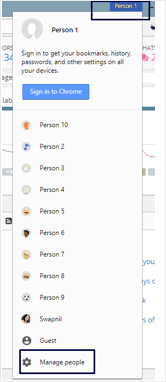
在您的计算机上,打开您的 Chrome 浏览器并登录 Google。在右上角,您会看到一个用户配置文件。选择您的个人资料图片或用户名,然后点击管理用户:
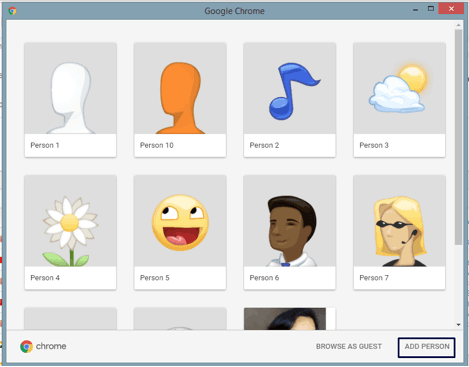
接下来,点击添加用户:
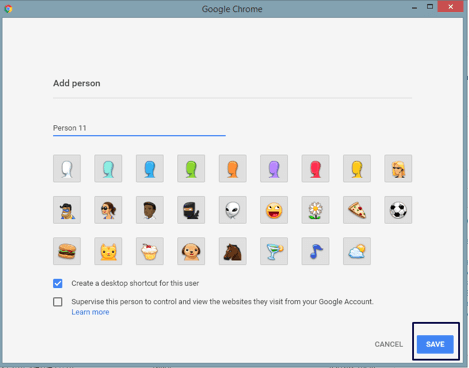
创建一个新帐户并点击保存:
您完成了。现在测试推送通知对您来说会容易得多。
第 2 步:检查浏览器对 Web 推送通知的支持
PushEngage 支持所有主流浏览器以及一系列网站构建平台。您可以查看完整的支持的集成列表,以确保您已涵盖。
任何供应商都应为您提供相同的支持。如果您使用的是其他供应商,并且在任何主要浏览器或平台上都未获得支持,您可以与我们联系。我们的客户成功团队将立即帮助您迁移到PushEngage。
完全披露:某些访问者不允许使用浏览器推送通知。例如,在Facebook应用中打开的浏览器或任何不支持Javascript的浏览器都无法使用推送通知。
但是,您的大多数网站访问者都将来自支持Javascript的流行浏览器。因此,这不是一个主要问题。
第3步:检查SSL证书
您无需拥有HTTPS网站即可使用PushEngage的推送通知。但是,如果您尚未安装SSL证书,我们强烈建议您在网站上安装SSL证书。
无论哪种方式,您仍然可以在网站上安装Web推送通知。如果您尚未完成安装过程,请查看我们的安装指南。HTTP和HTTPS网站的安装过程略有不同。
您也可以使用Google Tag Manager添加安装代码。
但在测试推送通知之前,您需要完成安装过程。
第4步:启用欢迎推送通知
在您的网站上安装推送通知后,您应该接下来设置欢迎推送通知。
前往您的PushEngage仪表板,然后转到设置»网站设置»安装设置,并为新订阅者启用欢迎通知:
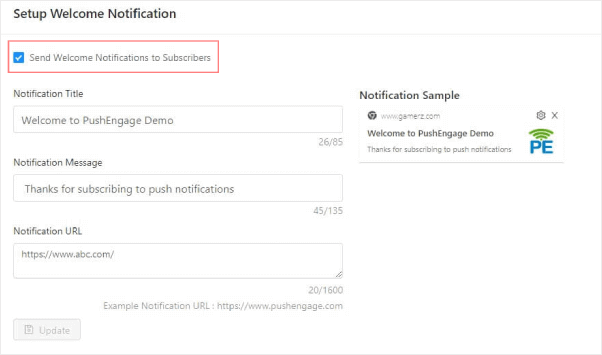
这是一个实际的步骤,因为它有助于我们验证订阅是否已完成。
在深入测试之前,您需要做的就是这些。
如何为您的网站测试Web推送通知
我们终于要开始为您的网站测试推送通知了。
注意:在完成所有测试先决条件之前,请不要直接开始测试。相信我们,您会因为跳过它而后悔的!
您是否已完成所有先决条件?
非常酷。
现在让我们开始测试。
测试1:在Chrome中使用不同的配置文件
到目前为止,您已经在Chrome上创建了不同的用户配置文件,并使用PushEngage设置了欢迎通知。因此,当您从新用户配置文件访问您的网站时,您应该会收到一个选择加入提示,如下所示:
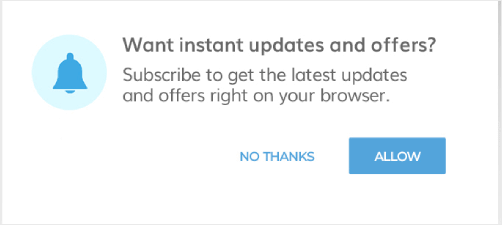
根据您设置的选择加入类型,您将获得单步选择加入或两步选择加入。继续进行选择加入,如果是两步选择加入,请为两个选择加入都点击“允许”。
如果您的推送通知已正确安装,您现在应该会看到欢迎通知。
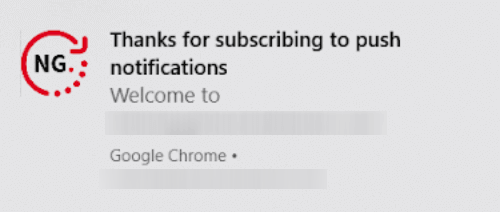
至少为五个不同的用户配置文件尝试此操作,以确保无误。您也可以让您的某些员工或朋友选择加入并进行测试。
测试2:测试分段是否有效
客户分段可以在您的推送通知策略中发挥巨大作用。
PushEngage 最好的功能之一是您可以在用户选择接收通知时对其进行细分。这是一个很好的测试,因为它可以一次性测试您的选择加入、细分功能以及您的推送通知。
太棒了!
第一步是转到您的 PushEngage 仪表板并创建两个细分。如果您不确定如何创建细分或使用哪种类型的细分,可以尝试根据博客类别或功能创建细分。
如果您是细分创建新手,您应该查看这篇关于如何创建推送通知细分的文章。
一旦您在网站上添加了代码以标记选择接收通知的用户所属的细分,您就可以继续测试选择加入功能了。
与一群人分享链接,并请他们订阅您的通知。
一旦他们订阅,您就可以向特定细分的用户发送推送通知。如果他们收到了通知,则表示您的推送通知已正确安装,一切正常。
测试 #3:HTTP 网站故障排除
正如我们之前所说,您不必在网站上安装 SSL 证书即可发送推送通知。如果您按照安装说明操作并将代码片段添加到您的网站,当您使用新的 Chrome 配置文件访问您的网站时,应该会看到一个选择加入提示:
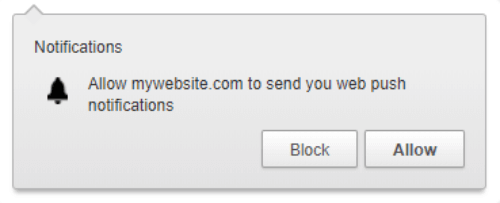
本文的这一部分是针对不显示选择加入提示的 HTTP 网站的故障排除。
按 Ctrl + U 查看网站源代码,并查找 PushEngage Javascript 代码片段。这与您在安装过程中从 PushEngage 仪表板获取并粘贴到网站上的代码片段相同。
代码应位于网站的 head 部分,因为它可能在您将其添加到 <footer> 或 <body> HTML 标签内时不起作用。如果您在 head 部分看不到代码,那就是您的问题所在。请让您的开发人员将其添加到 head 部分。
但是,如果它在 head 部分,而您在使用新的 Chrome 配置文件访问网站时仍然看不到选择加入提示,请确保您没有使用任何 defer 标签。
您的代码看起来应该像这样:
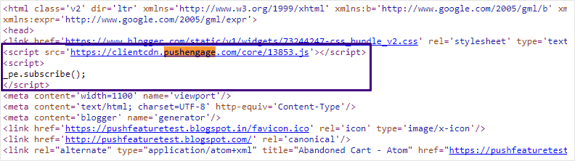
如果代码显示:
或者,<script defer> _pe.subscribe(); </script>
请让您的开发人员从代码中删除此 defer 标签,它应该可以正常工作。
测试 #4:HTTPS 网站故障排除
如果您运行的是 HTTPS 网站,则故障排除的第一步与 HTTP 网站相同。集成 PushEngage 的代码应存在于网站的 head 部分。
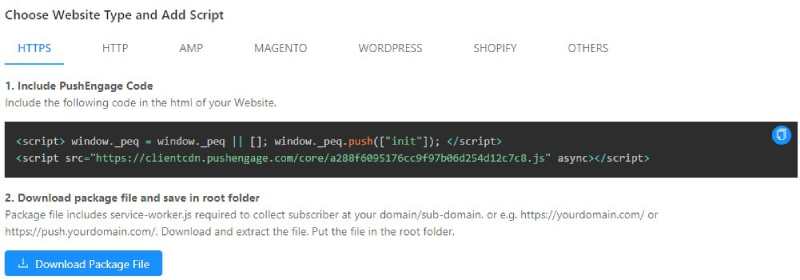
如果此代码不存在于 head 部分,您需要将其删除并添加到 <head> 标签内。如果问题不在于此,则可能是您在安装过程中添加的 service-worker.js 文件。
转到此 URL(将 your-site-name 替换为您实际的网站名称):
https://www.example.com/service-worker.js
并检查它是否返回了 404 错误。404 错误意味着在获取此文件时存在某些问题,这就是您无法发送推送通知的原因。此时,您应立即联系我们的客户成功团队。
我们将仔细检查问题并帮助您解决。
但如果问题也不是这个,您需要检查您的 JSON manifest。请访问此 URL(将 your-site-name 替换为您实际的网站名称):
https://www.example.com/manifest.json
如果链接可访问,您将获得类似这样的结果:
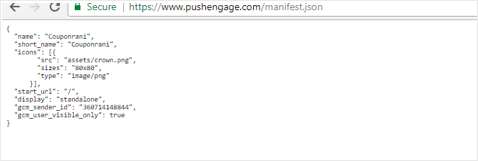
如果您没有收到此响应,很可能是因为您未能将必要的文件添加到您网站的根文件夹中。
别担心,有一个称为“快速安装”的解决方法。
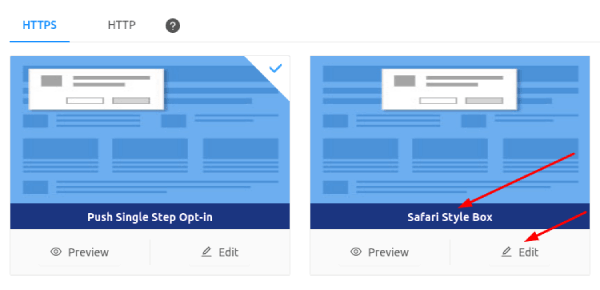
登录您的 PushEngage 帐户,然后转到设置 » 订阅设置 » 订阅对话框:
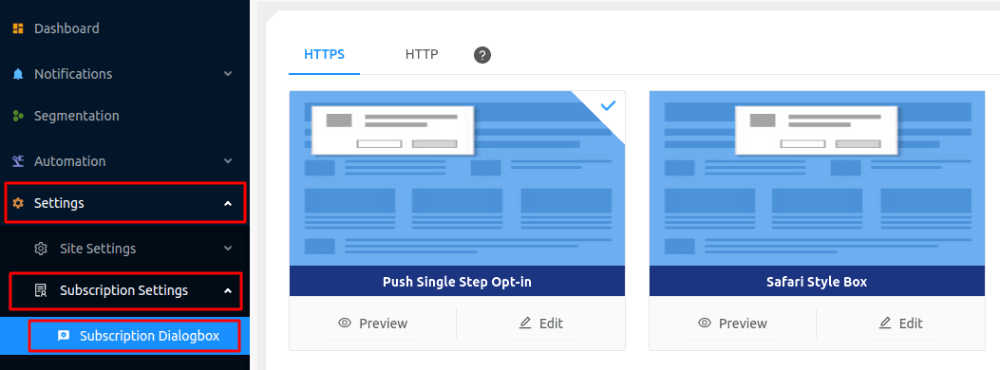
然后转到Safari 样式框 » 编辑:
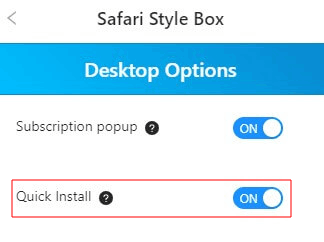
最后,转到选项并启用快速安装:
然后您就大功告成了。
测试 #5:使用控制台调试问题
警告:此测试仅适用于开发人员,并且仅在所有其他测试都失败时才使用。如果您自己不是开发人员,请立即与我们联系。
使用新配置文件访问您的网站,然后按 Ctrl + Shift + l(检查元素)并单击控制台,然后在控制台窗口中键入 _pe.subscribe();:
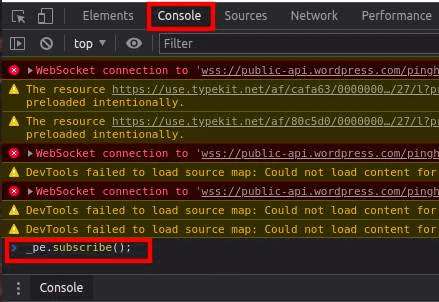
现在按 Enter。
现在您应该会看到阻止推送通知正常工作的确切错误消息。您现在要做的就是调试它。
总结
好了,各位,本次分享就到这里!
如果您觉得本指南有帮助,您还应该查看我们关于高转化率选择加入示例的文章。这是在测试推送通知后正确设置广告系列的完美方式。
PushEngage 提供了许多非常强大的广告系列,您也应该了解一下。毕竟,PushEngage 是全球排名第一的推送通知软件。大多数高级广告系列都是完全自动化的推送通知。
即使在您睡觉时,您也可以自动赚钱。
所以,如果您还没有,请立即开始使用 PushEngage。


