Black Friday Push Notifications

如何创建完美的黑色星期五推送通知营销活动

Are you looking for a detailed, step-by-step guide to creating Black Friday push notifications that convert?

Sure, you can send out a simple push notification broadcast. But will that work? We’ve figured out a rock solid process to help you get more sales from holiday season. And we’ve tested it out multiple times with multiple brands.

In this article, we’re covering how we create push notifications for PushEngage’s Black Friday Sale. And how you can do the same thing as well. We’re going to check out what you need to get started, how you would create the campaigns, and what an ideal schedule would look like.

听起来不错?让我们开始吧。

Before You Get Started with Black Friday Push Notifications

Push notifications are a marketing tool that helps you to connect with web visitors even after they leave your website. You can send targeted notifications to your push subscribers and even personalize your notifications for difference customer segments. But which push notification service should you choose?

We recommend using PushEngage to send push notification campaigns.

PushEngage 推送通知服务

PushEngage 是世界上最好的推送通知服务。我们不仅仅是指免费版本。它允许您通过定向推送消息在访问者离开您的网站后与他们建立联系。

PushEngage 是我们推送通知服务和工具的首选,因为它:

  • 易于使用
  • 在 HTTP 和 HTTPS 网站上均有效
  • 附带可视化构建器,设置所需编码很少或无需编码
  • 轻松设置完全 自动化的推送通知广告系列 ,适用于任何类型的网站
  • 提供多种选项,可发送个性化推送通知以提高点击率
  • 配备自定义目标跟踪、UTM 参数和高级分析功能

这仅仅是冰山一角。在继续之前,请查看PushEngage的完整功能列表。PushEngage最令人难以置信的部分是它有一个永久免费套餐,您可以在做出购买决定之前进行试用。

Pro Tip: Check out our article on push notification cost analysis before you buy any service.

Once you’re done creating your account, head over to the PushEngage dashboard and follow along:

PushEngage 仪表板

点击 网站设置 » 网站详细信息,然后点击 点击此处获取设置说明 按钮:

PushEngage 安装设置

点击 WordPress 选项卡,然后点击 安装 PushEngage WordPress 插件 按钮将插件安装到您的网站上。 

PushEngage WordPress 安装

Here’s the cool part: When you created your PushEngage account, you already synced your website with your PushEngage account. So, click on the installation link in the PushEngage dashboard to automatically install the PushEngage WordPress plugin to your website.

And you’re done! You have successfully set up a web notifications WordPress plugin on your website. website. You don’t have to login to your WordPress admin panel at all. For a more detailed guide, check out our article on how to install web notifications on WordPress.

Before you start creating Black Friday push notifications, you should also check out these resources to help you get started.

I highly recommend using these resources to get started with PushEngage quickly.

How to Create Your Push Notification Campaign

Now that we have a basic understanding of how PushEngage works, let’s create our campaign. Currently, PushEngage only offers the Audience Group feature for Push Broadcasts.

So, in your PushEngage dashboard, go to Campaign » Push Broadcasts to create your push notifications.

推送广播

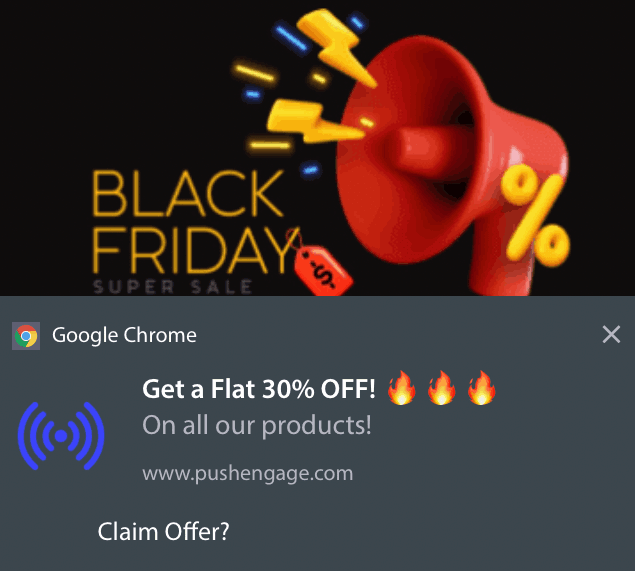
Next, follow our step-by-step process to create a powerful Black Friday Sale. If you follow every step, you should have powerful push notifications like this one:

黑色星期五超级促销

Step #1: Draft Your Push Notification Content

Your push notification content will include:

  • A Notification Title
  • A Notification Message
  • A URL to redirect to
  • A Large Image for the Notification
  • Call-to-Action Buttons
  • A notification expiration limit

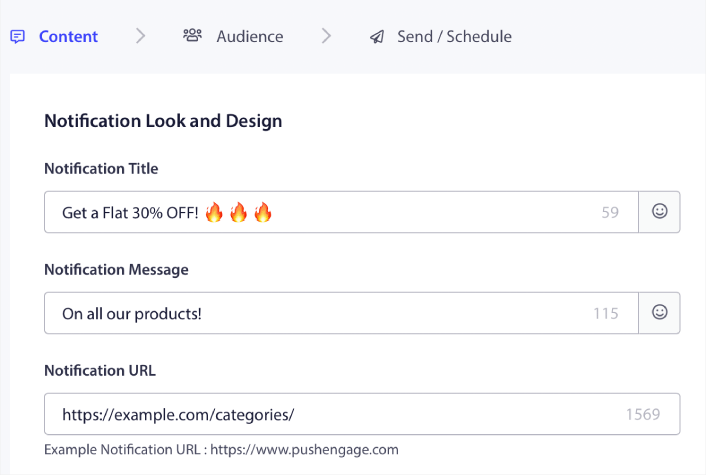
Start with the basic content of your notification first:

Black Friday Push Notification

Notice the use of emojis in the Notification Title. We recommend using emojis in the title and the message for all your push notifications for higher open rates. You can A/B test your notifications as well for better performance.

Step #2: Add a Large Image to Your Notification

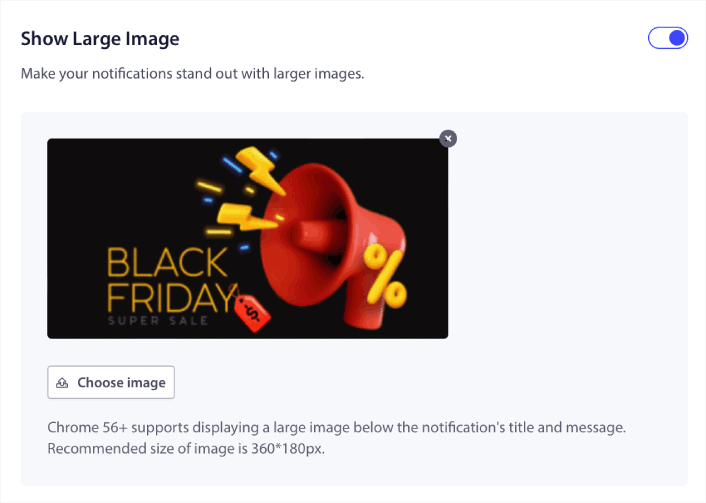
It’s difficult to stand apart from a bunch of notifications in the Notification Tray. That’s why you need a Large Image to make your notifications pop:

Push Notification Large Image

You can use PNG and JPEG formats for images.

Step #3: Add CTAs for Higher Click Rates

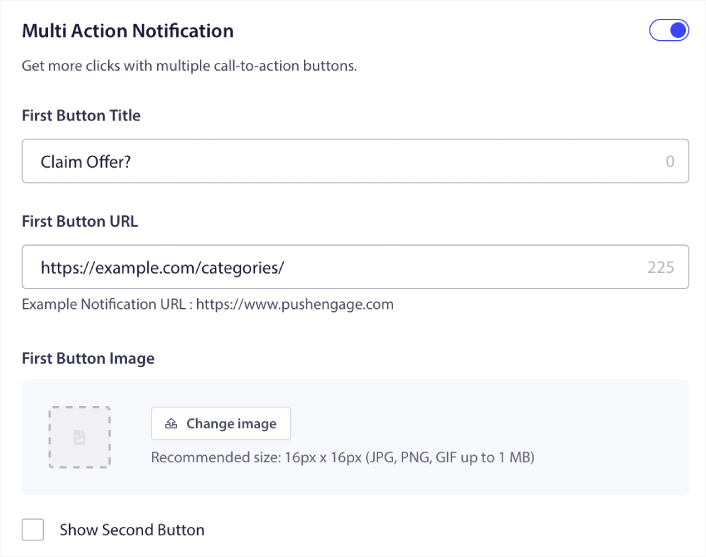
We’ve seen that using custom call-to-action buttons increase the click rates on your notifications. So, we highly recommend using the Multi Action Notification option to create a custom CTA:

Multi Action Notification Buttons

You can add at most two CTAs. If you want, you can create a split test with one CTA or two. In our experience, it’s usually best to use multiple CTAs unless you are super focused on ONLY one action.

One thing you want to be careful about is push notification character limits. Everything in push notifications has a character limit based on your subscriber’s browser and device. If your notifications are too wordy, they simply won’t show up the right way.

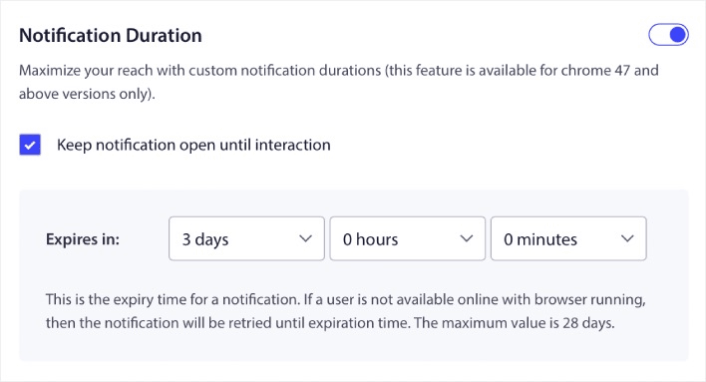
Step #4: Set Notification Duration

The Notification Duration is a time limit after which your push notification expires. After expiry, your subscriber won’t be able to see the notification even if it was delivered to them.

设置推送通知时长

Setting a Notification Duration is a great practice for all sales. This way, your subscribers won’t get flooded with a bunch of notifications.

Pro Tip: Make sure to set the right duration for a Flash Sale. If your subscribers click through to an offer that’s already expired, they will be very unhappy.

Step #5: Select Your Audience Group

Now that you have your content in place, it’s time to find the right audience for your notifications.

How to Send Your Notification to All Subscribers

We want the maximum reach for 3 notifications:

  • Early Black Friday Announcement
  • Black Friday Flash Sale
  • Cyber Monday Sale

So, we’re sending those 3 notifications to everyone. In the Audience tab, select Send to All Subscribers:

向所有订阅者发送推送通知

How to Retarget Subscribers Who Didn’t Click the Broadcast to Everyone

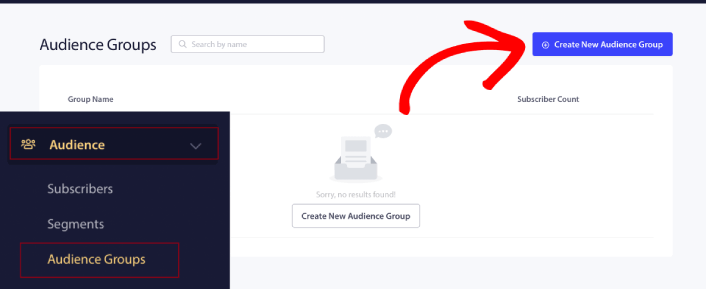
If you’re not sending the notification to all subscribers, you’ll need to create an Audience Group

Go to Audience » Audience Groups and click Create New Audience Group:

创建新的受众群组

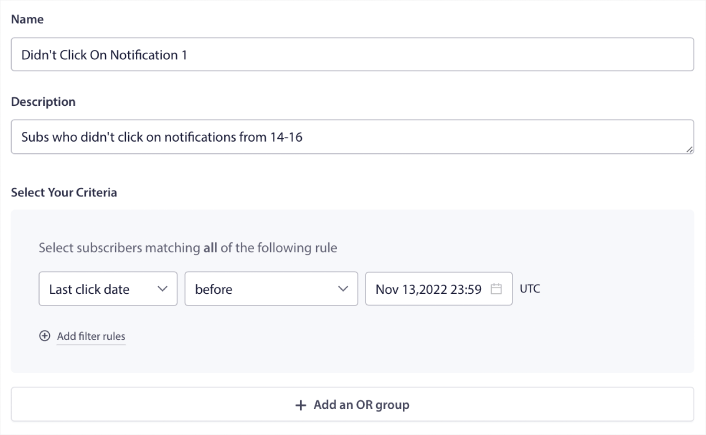
To target subscribers who didn’t click the last notification, you’ll need to filter by Last click date:

Audience Group to Retarget No Clicks

Filter by last click date before the date you sent your previous notification. So, if you sent the last push notification on 14th November, filter for subscribers who clicked on notifications only before 13th November at midnight.

NOTE: Unlike an email campaign, you can’t actually filter by click rate on the last notification. The closest approximation is to filter for clicks in a date range. 

When you’re done, click on Save Notification.

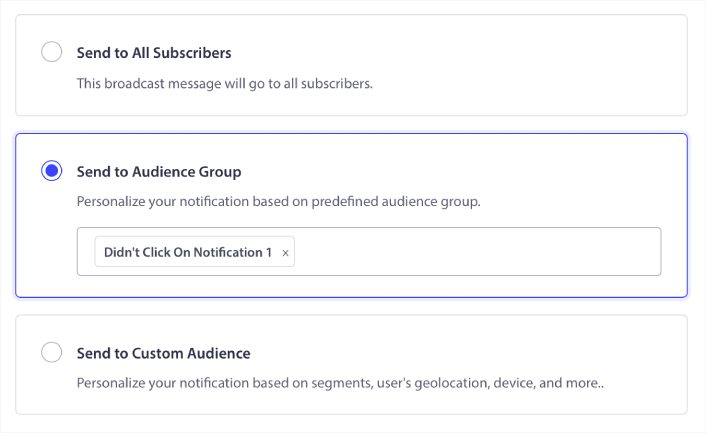
Then, head back to your push notification broadcast and select Send to Audience Group. From the dropdown, select your Group:

Select Audience Group

How to Retarget Subscribers Who Clicked the Broadcast to Everyone

If you want to target subscribers who did click on your last notification, you can create another Audience Group. 

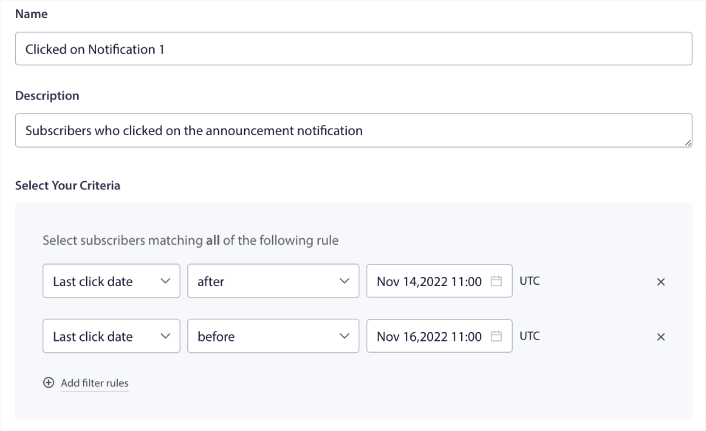
Filter your subscribers by Last click date after the date you sent your previous notification AND before the date you want to send your next notification:

重新定位点击了链接的订阅者的受众群组

You can add AND criteria to your filter by clicking on Add filter rules. A filter like this is great for cross-selling push notifications.

Step #6: Schedule Your Push Notification

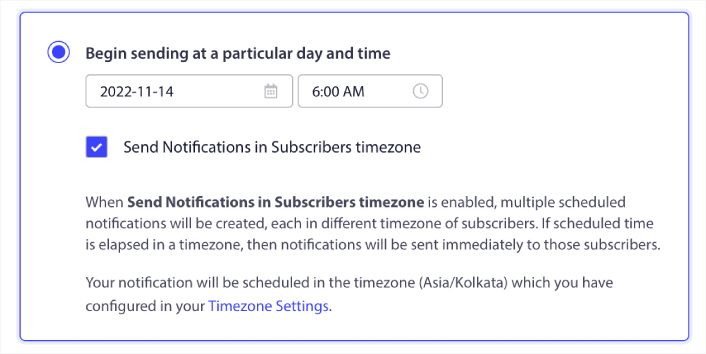
In the Schedule tab, select the Begin sending at particular day and time for granular scheduling options.

We’re sending the notification at 11:00 AM. Since browser push notifications get shown no matter when you actually sent the notification, you can send it even earlier if you want.

Since my default Timezone Setting is not in EST, I’m using the Send Notifications in Subscribers timezone option:

在订阅者时区安排推送通知

Don’t forget to test your notifications by clicking the Test Notification button. When you’re done, click Schedule Notification.

What’s the Ideal Black Friday Push Notifications Schedule

There’s no one right or wrong schedule with holiday campaigns. But we follow a very strict schedule and it works:

  • 3 notifications for an early Black Friday sale
  • 1 notification for Black Friday
  • 1 notification for Small Business Saturday
  • 1 notification for Cyber Monday
  • 1 notification for Cyber Monday Extended sale

And retargeting push notifications to target the subscribers who clicked on them or didn’t. Let us know how that works for you. In the meantime, check out these resources:

如果您还没有开始,请立即开始使用PushEngage

添加评论

我们很高兴您选择留下评论。请记住,所有评论都将根据我们的隐私政策进行审核,并且所有链接都将是 nofollow。请勿在姓名字段中使用关键字。让我们进行一次个人化且有意义的对话。

在访客离开您的网站后与他们互动并挽留他们

通过难以忽略的推送通知,增加每次网站访问的价值。

  • 永久免费套餐
  • 轻松设置
  • 五星支持