正在寻找有关如何发送自动通知的指南?
自动通知是单个网络推送通知或一系列在后台持续运行的推送通知。与推送通知广播不同,它们无需您的任何手动操作即可运行。您只需设置一次,它们将永远运行下去。
但是应该发送哪些通知?您如何知道它们是否适合您的业务?又该如何开始?
在本文中,我们将向您展示如何使用简单、可操作的技巧,让您的流量和销售额自动增长。
听起来不错?让我们直接开始吧。
广播通知 vs. 触发式通知 vs. 自动通知
广播通知是您作为单个通知发送的推送通知。您可以安排它们,但它们只会触发一次。触发式广告系列涉及设置一个推送通知,定义一个触发器来启动它,以及一个工作流来控制其调度。自动通知是一系列在特定时间或满足特定条件时自动触发的通知。
就所有意图和目的而言,它们从外部看起来是相同的。关键区别在于,触发式广告系列更加灵活和可定制。如果您考虑到推送通知的成本远低于大多数其他渠道,那么触发式广告系列是明智之举。
但是,大多数触发式广告系列需要一些开发经验。您需要使用 API 来充分利用触发式通知。如果您有兴趣,请查看我们关于电子商务推送通知的文章,以获得更好的了解。
您应该使用什么服务来发送自动通知?
让我们先说明一点,市面上大多数“免费推送通知服务”实际上是免费试用。我们在此列出的一些提供商是试用软件,而另一些则提供您可以选择的永久免费套餐。
还有一些其他的免费增值选项,例如 Firebase Cloud Messaging (FCM),但那实际上并不是一个好的选择。您可以阅读更多关于为什么 FCM 无法与 PushEngage 等服务提供商竞争。但现在,请相信我们的话,直接选择更好的选项。
我们推荐使用PushEngage。

PushEngage 是世界上最好的推送通知服务。我们不仅仅是指免费版本。它允许您通过定向推送消息在访问者离开您的网站后与他们建立联系。
为什么?因为它……
- 对初学者和高级用户来说都超级容易设置;
- 在HTTP和HTTPS网站上都有效;
- 拥有大量您可以使用的 自动推送通知营销活动(付费版本);
- 提供大量选项以发送个性化推送通知(在付费版本中);
- 配备了目标跟踪和高级分析功能(在付费版本中);
这仅仅是冰山一角。在继续之前,请查看 PushEngage 的完整功能列表。
但PushEngage最吸引人的地方在于,您可以从一个永久免费的计划开始。而且您可以使用它通过多种自定义选项来发展您的业务。
免费版最多支持 200 位订阅者和 30 次终身通知。这足以让您的业务发展到可以轻松负担付费套餐的程度。付费套餐起价为每年 9 美元(首年),包含 1,000 位订阅者(按年结算),并根据您的订阅者数量进行扩展;100,000 位订阅者为高级套餐,具体数字请参见定价页面。
如果您完全不懂编码,也请不用担心。您可以使用我们为任何网站和 CMS 提供的众多安装指南之一来安装 PushEngage。
如何发送自动通知
现在您已经知道什么是自动通知以及需要使用什么服务来发送它们,是时候了解如何发送不同的通知了。出于实际目的,我们这里不讨论您可以使用 API 服务创建的自定义触发式广告系列。如果您对自定义通知更感兴趣,应该查看我们的文档。
#1. 自动欢迎推送通知
欢迎通知是一条简单的推送通知,旨在感谢任何新订阅者。
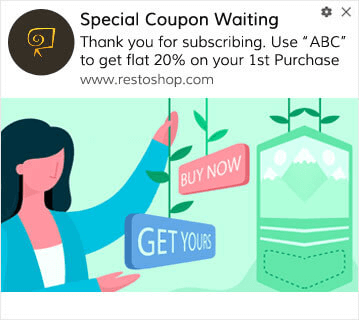
您还可以为订阅您的推送通知提供优惠或礼品。这在我们许多客户中非常普遍。您可以使用欢迎推送通知来:
- 分享欢迎优惠券
- 提供高级功能
- 发送免费送货
- 提供免费礼品
- 通过演练引导您的订阅者
现在,让我们使用 PushEngage 设置您的第一个欢迎推送通知。
以下是如何在PushEngage中启用欢迎通知。 前往PushEngage仪表板,然后转到Campaign » Drip Autoresponders,然后点击Create New Drip Autoresponder:

然后,为您的广告系列命名(我们建议使用类似“欢迎滴灌”的名称),然后在内容下,选择显示“用户订阅后立即发送通知”的选项):

此时,您可以单击通知旁边的箭头来编辑通知的内容。如果您拥有PushEngage的高级或企业版套餐,您将能够添加多个通知来创建一系列自动欢迎消息。只需点击Add New Notification并编辑内容。
完成后,点击邮件序列设置并选择将您的欢迎广告系列发送给所有订阅者的选项:

然后,向下滚动以设置您自己的 UTM 参数以跟踪推送通知:

完成后,滚动回顶部并点击激活自动回复器按钮:

现在您知道欢迎推送通知的重要性。您也知道如何设置它。现在就去激活欢迎推送通知以重新吸引新订阅者,或查看这篇文章,了解网站欢迎消息以获取灵感。
#2. 废弃购物车广告系列
购物车放弃是指潜在客户将产品添加到购物车但未完成结账过程。
您的工作是尽可能减少购物车放弃。
挽回损失销售额的一种方法是使用购物车放弃推送通知广告系列。购物车放弃恢复广告系列会定位有废弃购物车的订阅者,并向他们发送后续消息、提醒、优惠、优惠券和折扣。
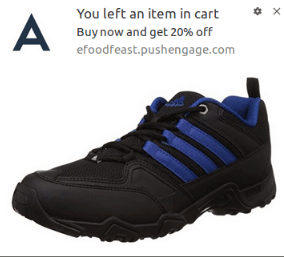
这是一个简单的想法:让尽可能多的人购买东西。
购物车放弃推送通知对您的最终利润有着非常实际的影响。例如,WickedWeasel 的购物车放弃推送活动每周可带来 2,000 至 4,000 美元的额外销售额。
现在,让我们来设置您的第一个购物车放弃活动。
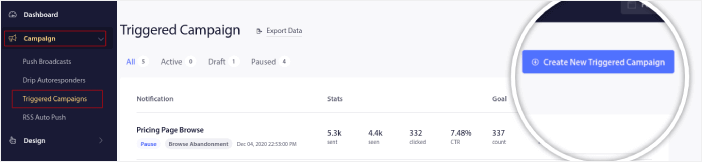
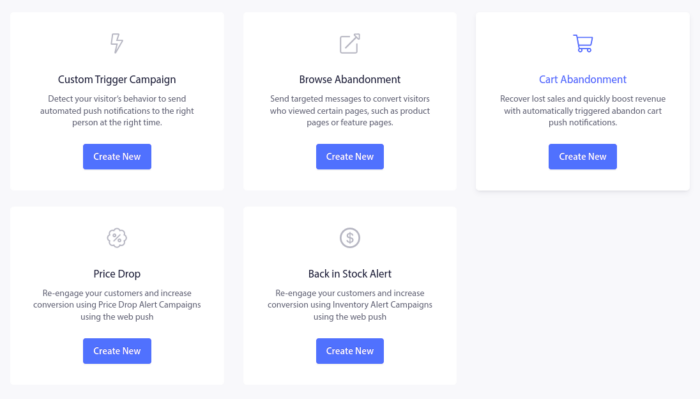
转到 PushEngage 仪表板,然后转到 **Campaign » Triggered Campaigns**,然后点击 **Create New Triggered Campaign**:
然后,选择 **Cart Abandonment** 模板,然后点击 **Create New**:
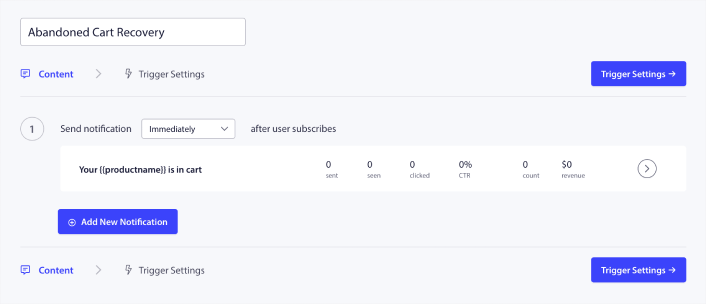
您还可以开始起草一个废弃购物车自动回复器。在“内容”选项卡下,您可以创建一系列推送通知:
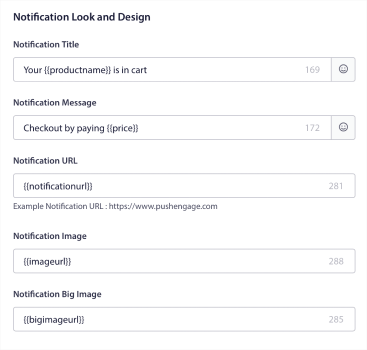
要编辑通知,只需点击旁边的箭头,即可自定义推送通知:
有关更详细的教程,请参阅这篇关于如何设置废弃购物车推送通知的文章。
#3. 浏览废弃广告系列
浏览放弃顾名思义。当网站访问者浏览您的网站并突然离开时发生。其他供应商也将这些事件称为漏斗放弃。
浏览放弃几乎在所有行业中都非常普遍。
而且很难减少或控制,因为没有办法激励随机用户留在您的网站上。这就是浏览放弃活动如此强大的原因。
这是发布商的浏览放弃推送通知示例:
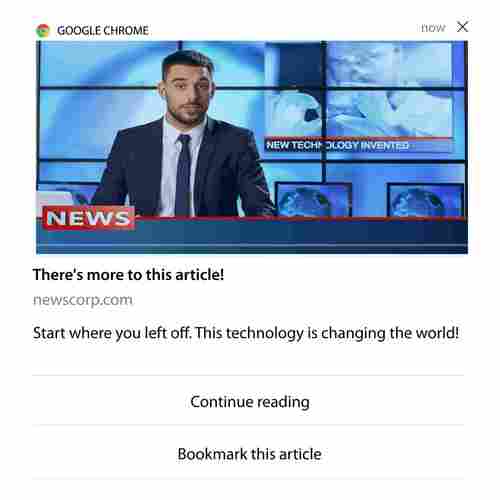
PushEngage 的出色之处在于,您可以为几乎任何行业设置活动。因此,您也可以为 SaaS 和旅游网站发送浏览放弃推送通知。
那么,如何设置浏览放弃活动?
对于购物车放弃,有一个非常明确的参数来触发您的推送通知。对于浏览放弃,您可能需要考虑以下参数:
- 将产品添加到心愿单
- 查看同一产品的次数超过 X 次
- 浏览同一类别中的产品超过 X 件
- 搜索网站上的特定产品
- 在跳出之前至少在网站上停留 X 分钟
对于电子商务网站,此活动背后的想法是让订阅者将产品添加到购物车。对于发布商来说,这可能是他们正在阅读的文章的点击或下载。
再次转到 PushEngage 仪表板,然后转到营销活动 » 触发式营销活动以创建新的触发式营销活动:

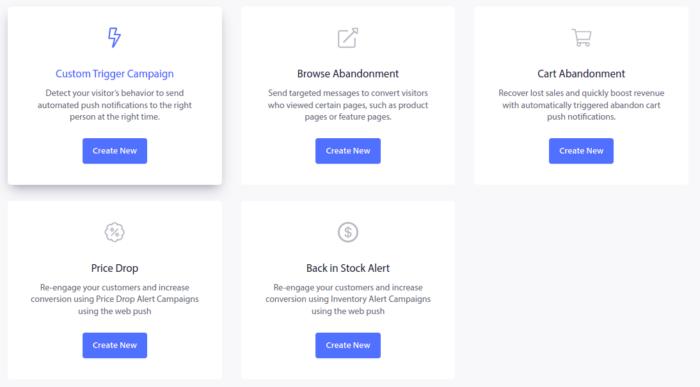
然后,通过单击“创建新”按钮来创建新的浏览放弃营销活动:
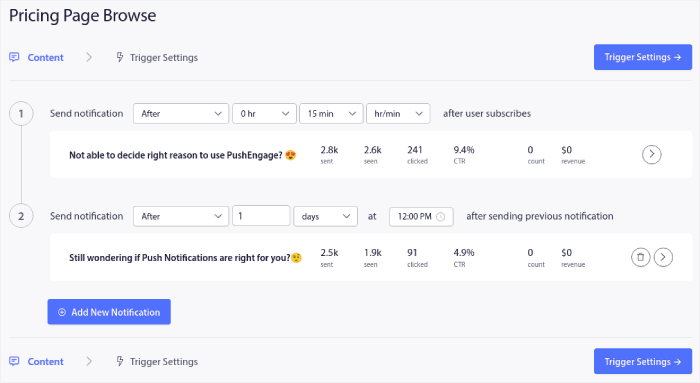
接下来,您将能够设置整个推送通知序列,并在每个通知之间设置延迟:
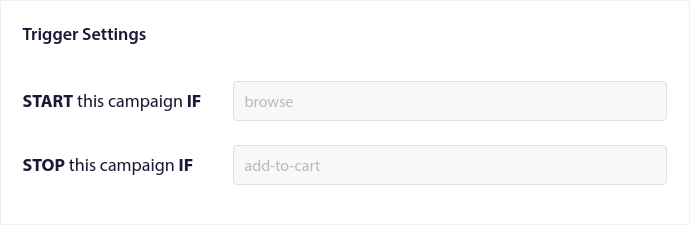
如果您是推送通知的新手,您应该查看我们关于推送通知最佳实践的文章。当您对推送通知内容满意后,请点击触发设置。您会看到浏览放弃营销活动的条件已预先配置到序列中。
点击“集成代码”按钮可获取您需要在网站上嵌入浏览放弃营销活动的复制代码段。
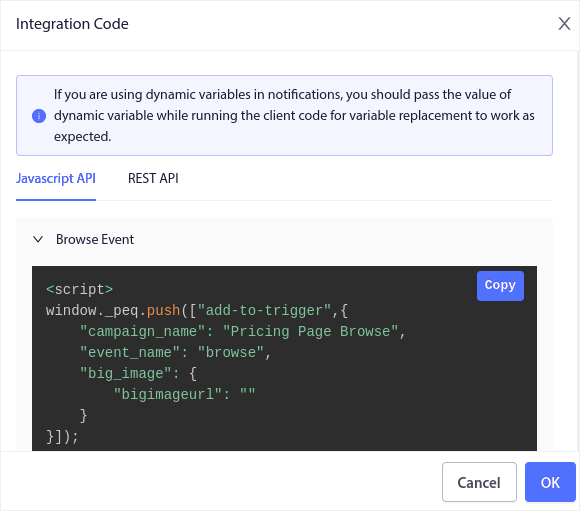
然后,复制代码并将其粘贴到您的网站上。您需要将该代码粘贴到您要跟踪的页面的 HTML <head> 部分。最后,点击“激活触发式营销活动”按钮:
您就完成了!
#4. RSS Feed 广告系列
RSS 自动推送允许您通过 RSS 自动发送通知。
PushEngage 每 10 分钟检查一次 RSS Feed 中是否添加了新帖子。如果找到新帖子,PushEngage 会将其转换为推送通知并发送给所有订阅者。最棒的是,这一切都是完全自动完成的。
RSS Feed 活动非常适合发布商和新闻网站:
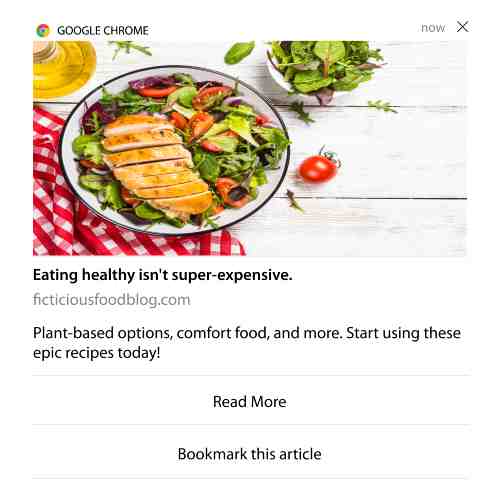
如果您是大型发布商,并且发布帖子的频率高于每 30 分钟 1 篇,PushEngage 会在 2 个帖子通知之间保持 5 分钟的延迟。
在我们继续之前,您应该阅读这篇关于如何使用 RSS Feed 的文章,以获取更多精彩的技巧和窍门。
现在,让我们在 PushEngage 上设置一个 RSS Feed 广告系列。
转到营销活动 » RSS 自动推送并将其打开即可:
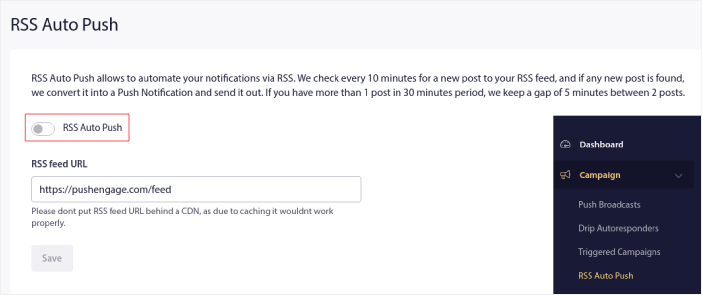
您需要粘贴您的 RSS Feed URL。对于 WordPress 网站,它通常的格式是:
然后,点击验证 RSS。 最后,点击保存。
就是这样!您已全部设置完毕。每次发布新帖子时,它都会自动发送给所有订阅者。
5. 自动重新互动通知
您可以为一段时间未与您的内容互动的订阅者设置自动化的再互动广告系列。
但您为什么要这样做呢?
怎么样:
- 获取新客户的成本是留住现有客户的 5 倍
- 我们可以轻松地定位和再营销给一个我们已经了解其个人偏好的已知受众。
- 从长远来看,互动的客户为公司带来的业务比那些几乎不与您的品牌联系的人更多。
Ofertia 通过提供个性化优惠的推送通知,将其重复用户增加了 39%。他们不是唯一的例子。您可以有效地将此用于电子商务网站:
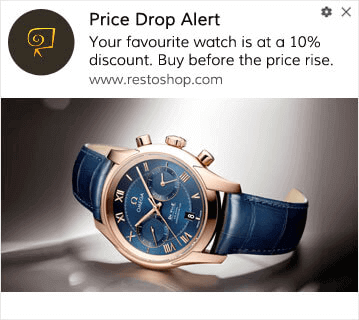
有很多重新吸引订阅者的方法。
但最有效的方法之一是使用细分。使用动态细分,您可以了解很多关于您的订阅者的情况,并向他们发送他们会喜欢个性化内容。
在您的 PushEngage 仪表板中,转到细分并创建一个新的细分:

这使您可以根据行为和浏览模式创建细分。您实际上可以设置一系列 AND/OR 操作,以决定何时向特定细分发送自动推送通知。
您甚至可以在用户订阅推送通知时对他们进行细分。转到设计 » 弹出窗口模型并选择带细分的 Safari 大号样式。
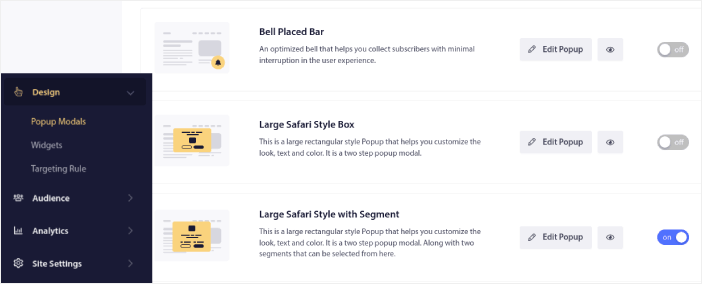
如果您需要更多细分用户的方法,可以使用PushEngage Javascript API 根据用户操作创建自定义细分。
6. 页面访问触发广告系列
页面访问触发器是推送通知细分的扩展。您所要做的就是创建一个细分,当网站访问者浏览包含特定短语或模式的 URL 时。
然后,您只需转到受众 » 细分并将您的受众设置为特定细分即可:
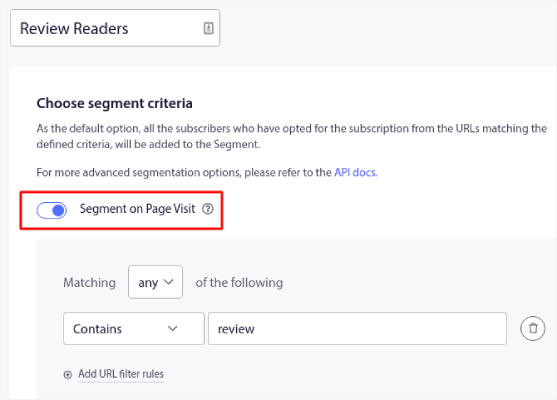
这使您可以创建真正个性化和自动化的推送通知。
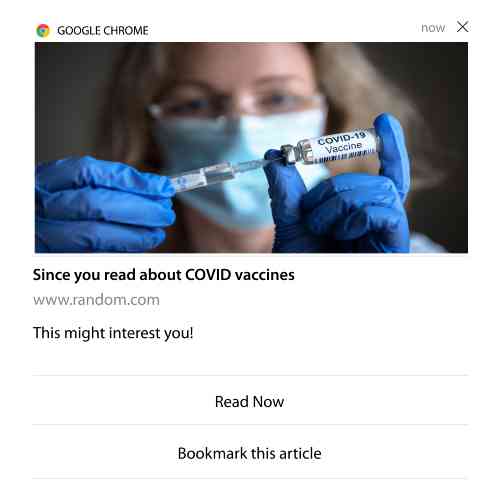
最棒的是,您可以在几分钟内创建 PushEngage 中的自定义细分。
7. 点击即可自动发送的推送通知
您无法使用 PushEngage 创建在订阅者点击已发送的通知时触发的推送通知。
但有一个非常巧妙的变通方法。
您可以根据特定通知指向的网址创建一个细分。每次有人访问此网址时,他们都会被添加到细分中,然后您可以使用此细分来发送有针对性的通知。
推送通知点击广告系列本质上是滴灌广告系列标准受众细分的延伸。
查看此有关如何创建点击订阅按钮的教程。
8. 重复自动推送通知
想象一下,您有……
- 每周的跳蚤市场促销;
- 或周末促销;
- 或清仓促销;
- 或每月闪购。
为每次活动手动创建推送通知将是多么不方便?
幸运的是,您可以使用 PushEngage 设置重复通知。
重复通知是针对周期性事件安排的自动化推送通知。您可以一次设置它们,指定一个时间表,然后就完成了。
这只是 MyDeal 使用推送通知 的一种方式。请务必阅读完整的案例研究!
转到营销活动并在您的 PushEngage 仪表板中添加一个自动通知。然后,向下滚动到计划部分并转到发送/计划选项卡:
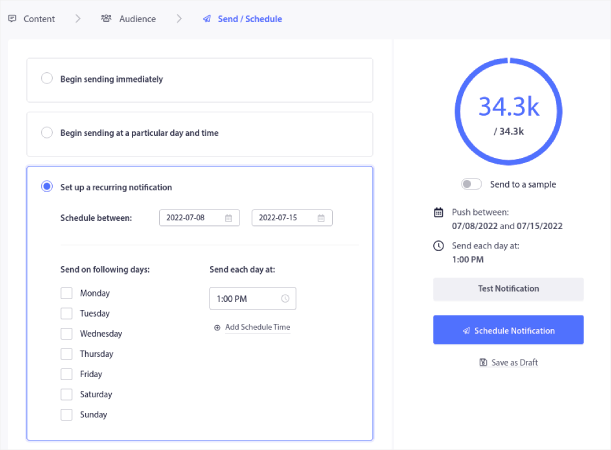
只需设置好时间即可!
9. 订阅者时区通知
订阅者时区通知顾名思义。您会在订阅者的时区向他们发送自动推送通知。
这为什么如此重要?
订阅者时区通知的打开率更高。通常,即使您的订阅者离线,任何推送通知都会被发送。这些通知会堆积起来,当您的订阅者最终上线时就会被忽略。
另一方面,订阅者时区通知会在您知道订阅者最有可能在线时发送。
专业提示:使用 A/B 测试 来找出向订阅者发送推送通知的最佳时间。
订阅者时区通知感觉更加个性化。而且,如果您足够聪明,可以将它与地理位置数据结合起来,以进一步个性化您的通知。这正是 Phoot 在使用本地语言 来使其打开率飙升时所做的。
现在让我们在 PushEngage 中设置订阅者时区通知。
创建新通知时,请转到计划选项,然后点击显示“在订阅者时区发送通知”的复选框:
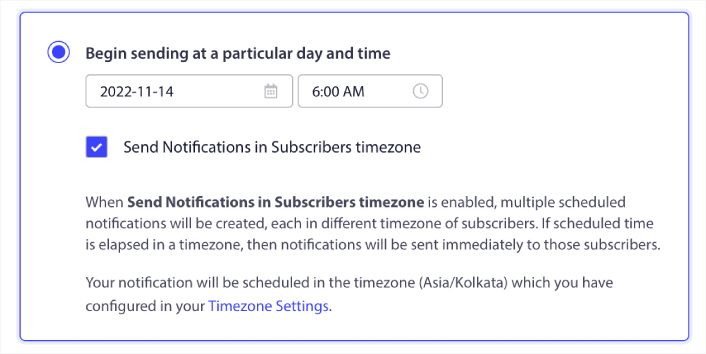
就这样!您也必须为您的滴灌广告系列执行相同的操作,但结果绝对值得为每个广告系列单击一个按钮的努力。
专业提示:最后两个策略都与安排推送通知有关。但这两种并不是安排自动推送通知的唯一方法。请查看我们的文章 如何安排推送通知 以获取更多精彩技巧。
10. 电子邮件选择加入通知
电子邮件营销早已是获取和培养潜在客户的最佳方式。自动推送通知最棒的一点是,你可以利用它们来吸引更多电子邮件订阅者。
设置非常简单,并且结合使用电子邮件和推送通知比单独使用其中一种要有效得多。
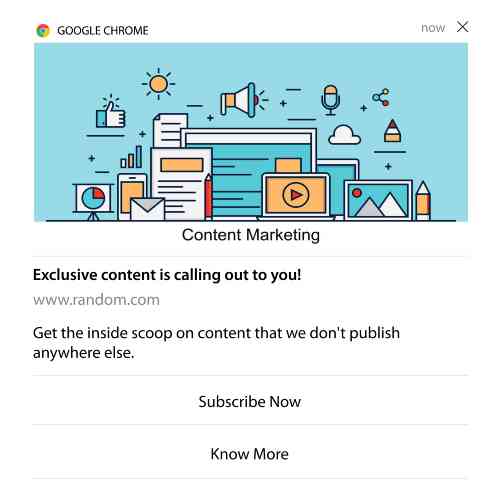
你所要做的就是发送一个触发通知,要求用户选择接收电子邮件通知。
只需创建一个自定义号召性用语 (CTA) 按钮,并将订阅链接插入为按钮的 URL。这真的就是你所需要的一切。如果你不确定如何获取订阅按钮,请继续操作。
在任何通知中,您都可以向下滚动并打开多操作按钮:
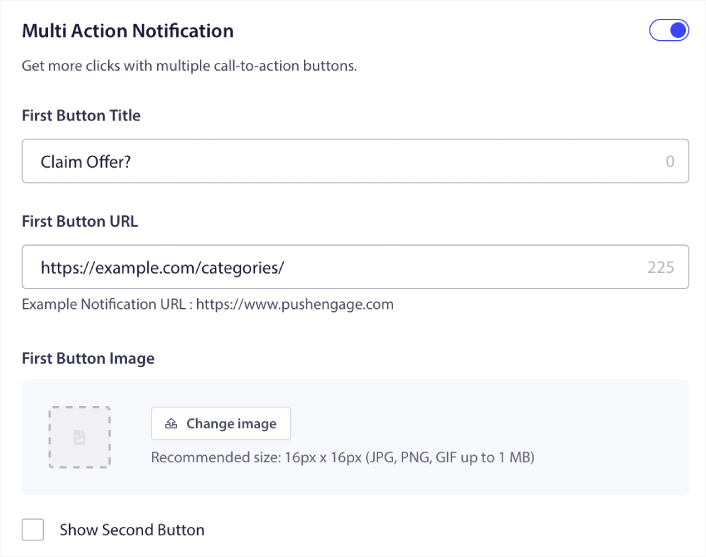
URL 应为电子邮件注册表单的链接。你可以使用几乎任何电子邮件服务提供商(如 Drip)创建一个。只需点击注册表单的共享选项并复制该 URL。然后,将其粘贴到推送通知的按钮 URL 中。
查看我们关于多操作按钮的教程了解更多详情。您甚至可以在按钮上添加电子邮件图标,以便非常清楚地表明您要求用户订阅您的电子邮件通知:
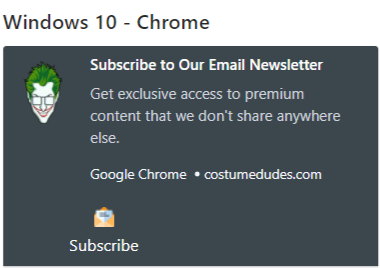
专业提示: 你可以使用相同的想法来发展你的 YouTube 频道。只需在你的频道 URL 末尾添加“?sub_confirmation=1”,然后将其粘贴到你的推送通知按钮 URL 中。
每次有人点击推送通知上的订阅按钮时,他们都会被重定向到你的 YouTube 频道并收到订阅提示。
设置自动通知后该怎么做
自动通知不能保证成功。与任何营销工具一样,您需要测试和改进您的消息传递和细分。不幸的是,您不能直接对自动通知进行 A/B 测试。但这些资源将帮助您快速入门:
- 如何将Web通知WordPress插件安装到您的网站
- 如何进行推送通知 A/B 测试(最佳实践)
- 7 个推送通知最佳实践,立即获取流量
- 2022 年 21 款最佳电子商务 WordPress 插件(免费和付费)
- 2022 年 7 款最佳 WordPress 新闻插件(已比较)
此外,PushEngage 还提供了相当多的 集成。你甚至可以使用 Zapier 设置一些自定义触发器。这些是相当高级的广告系列,我们建议在你熟悉我们其他内置自动化功能后,再进行设置。
你还应该知道 PushEngage Javascript API 非常灵活,你可以为网站上的几乎任何操作设置自定义触发器。
一旦你阅读了所有这些资源,你就会意识到 PushEngage 是市场上排名第一的推送通知软件。
所以,如果你还没有开始,请 立即开始使用 PushEngage!


