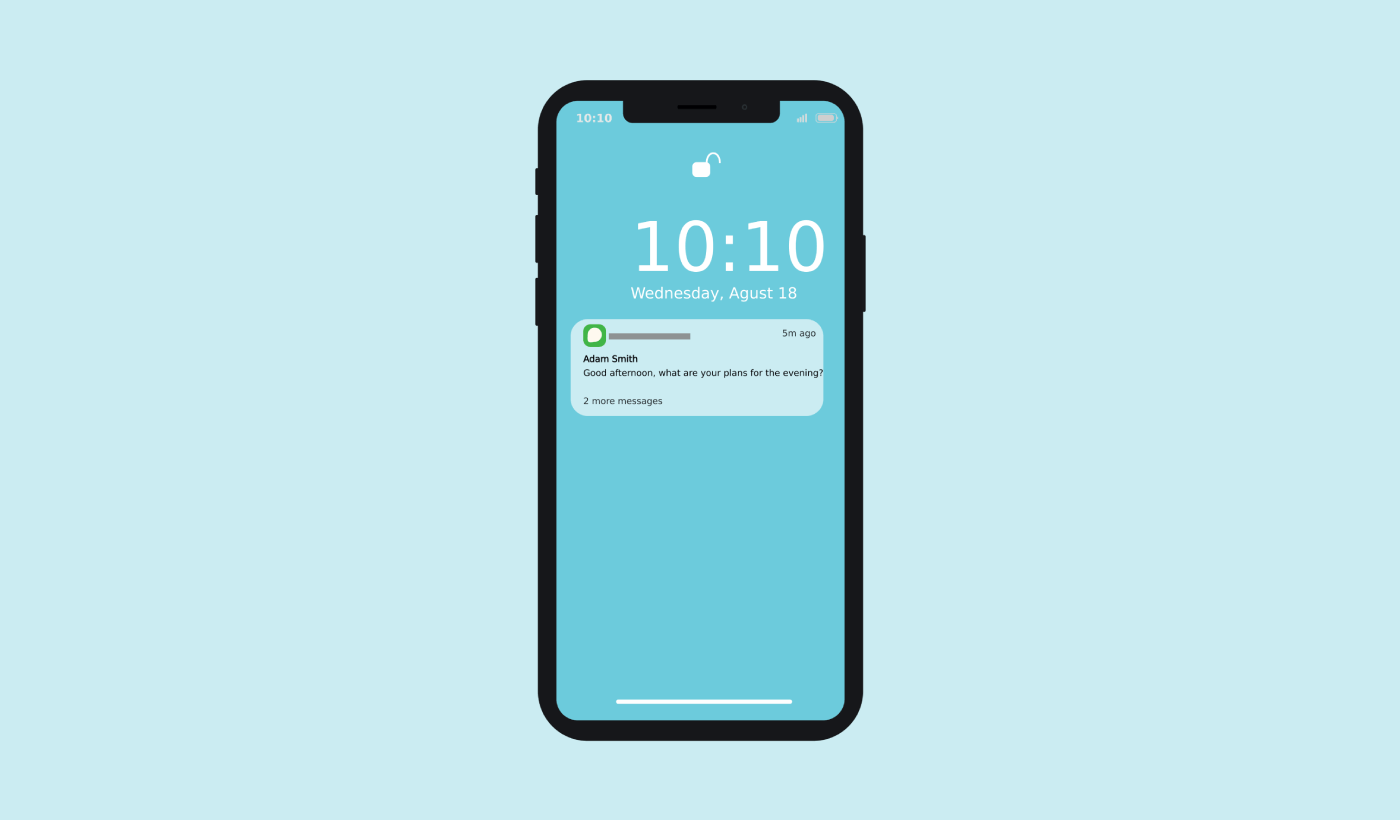
您是否仍在努力让用户在关闭应用后重新参与到您的 Android 应用中?您并不孤单。大多数用户会在几天内放弃应用,如果没有合适的工具让他们回来,他们将永远离开。这时 Android 推送消息就能派上用场。
这些简短、及时的提醒可以在用户不主动使用您的应用时,重新吸引他们,增加重复会话,并推动转化。
在本指南中,我们将详细介绍:
- 什么是 Android 推送消息
- 它们如何工作(附带图示)
- 为什么它们对应用增长很重要
- 以及如何开始有效使用它们
让我们深入了解,将您的应用打造成一个留存引擎。
立即发送移动应用推送通知!
推送通知是一种超级有效、低成本的营销工具,可帮助您自动增加重复流量、互动和销售。
什么是 Android 推送消息?
Android 推送消息是一种简短的、可点击的弹出消息,会显示在订阅者的设备上,并引导订阅者一键访问您的内容。
总的来说,您可以发送两种类型的 Android 推送消息:
- Android 网页推送消息: 在用户浏览器中传递的浏览器推送消息。只要您的推送通知服务兼容多种浏览器,您就可以定位 Android 设备上的用户。
- Android 移动推送消息: 通过您的 Android 移动应用,使用 Google 的 Firebase Cloud Messaging (FCM) 传递的推送消息。
因此,您可以通过应用或简单的网站发送 Android 推送消息。如果您运行的是渐进式 Web 应用 (PWA),则可以同时向这两个受众发送推送消息。
如果您选择发送网页推送通知,那么即使订阅者没有使用浏览器,推送消息也会弹出。这就像电子邮件群发一样,但通过网页推送通知;您的订阅者无需使用应用即可看到您的消息。
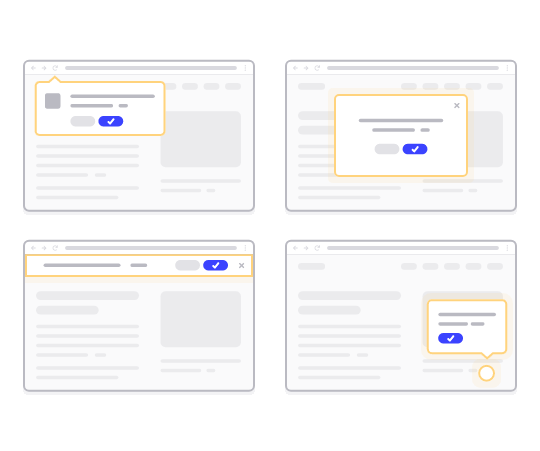
但是,如果您经营的是应用业务,并且想向您的应用用户发送 Android 推送消息,您也可以做到。
简而言之: Android 推送消息是一种简单的方式,可以向任何已选择加入的用户发送可点击的深度链接或可点击的内容 URL。
通过推送通知序列,您的受众现在没有任何借口可以忽略您。与社交媒体网站不同,没有算法会限制您的覆盖范围以迫使您付费投放广告。
重要提示: 对于任何设备,网页和应用推送消息的工作方式都有根本不同。网页推送要求您的网站访问者在您发送推送消息之前手动选择加入。应用推送不需要任何选择加入。如果有人下载了您的应用,只要他们在设备上启用了通知,您就可以向他们发送消息。
您应该选择哪种 Android 推送消息服务?
我强烈建议使用 PushEngage 发送 Android 推送消息。
让我们先说明一下,市面上大多数免费推送消息服务实际上都是免费试用。一些提供商提供试用软件,而另一些则提供可以供您选择的永久免费套餐。但在您这样做之前,您应该查看我们关于推送通知成本分析的文章。
我花了很多时间比较最佳推送通知应用并分析它们实际提供的功能。
现在,我将快速回顾一下为什么您应该选择PushEngage。
获取 Android 推送消息的低代码解决方案
到目前为止,您必须使用骨架 SDK 来发送应用推送通知。使用这些 SDK 的问题在于它们非常基础。
理论上,您可以使用它们发送任何类型的移动应用推送广告系列。但是,您还必须构建:
- 管理您广告活动的界面
- 用于跟踪广告活动效果的分析套件
- 更好地支持富媒体和应用内重定向链接(或深度链接)
- 协调营销和开发团队的流程
这一切都是为了引入单一的增长渠道。使用旧工具发送移动应用推送通知既繁琐、昂贵、耗费资源,又耗时。当然,这需要您的团队具备深厚的编码技能来开发和管理您构建的一切。
借助新的 PushEngage Android 和 iOS SDK,您可以使用相同的可靠软件发送移动应用推送,以获得出色的送达率。但我们在此基础上构建了多层功能,可以轻松地与您的应用构建自定义集成。PushEngage 管理整个 SDK。因此,您甚至不必花费大量时间和金钱来管理您的集成。
您要做的就是构建!
一旦您设置好应用以使用 PushEngage 的 SDK 发送移动应用推送通知,您就可以直接从您的PushEngage 仪表板发送广播通知。是的,您仍然需要将代码添加到您的应用中,并开发您的应用与 PushEngage API 之间的连接器。但一旦完成,您就可以从预构建的软件界面轻松创建移动应用推送广告系列,该界面还附带:
- 高度吸引人的推送广告系列类型
- 经过验证的营销活动模板,转化率高
- 自动化营销活动,在您发布内容时推广您的内容
- 多种定位和营销活动调度选项
- 网络推送营销活动,作为补充增长渠道
- 通过基于数据的个性化提高受众留存率
- 目标跟踪和高级分析
- 智能 A/B 测试
- 专属客户成功经理
等等,还有更多。我们消除了为您的应用开发 Android 和 iOS 移动推送广告系列时的麻烦。
建立您的品牌形象
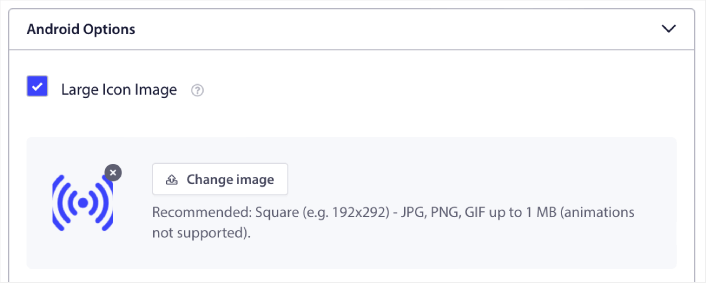
您可以轻松地为 Android 移动应用推送设置图标:
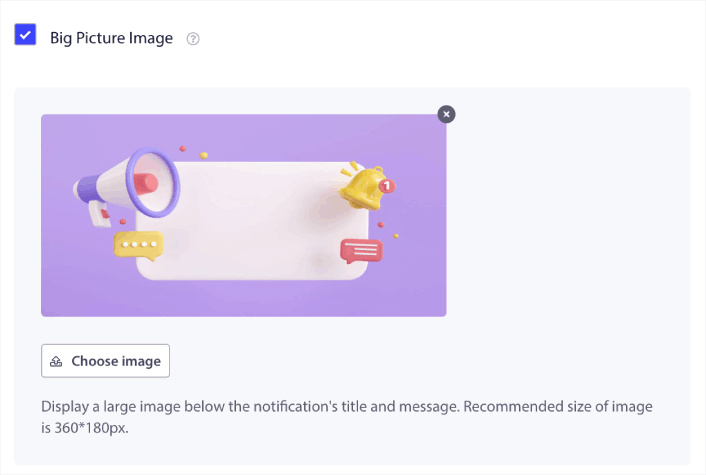
以及一个显示图片,使您的移动应用推送通知更具点击率:
您也可以为 iOS 移动应用推送做同样的事情。为您的 iOS 应用推送通知设置媒体图片,使您的广告系列更具吸引力:
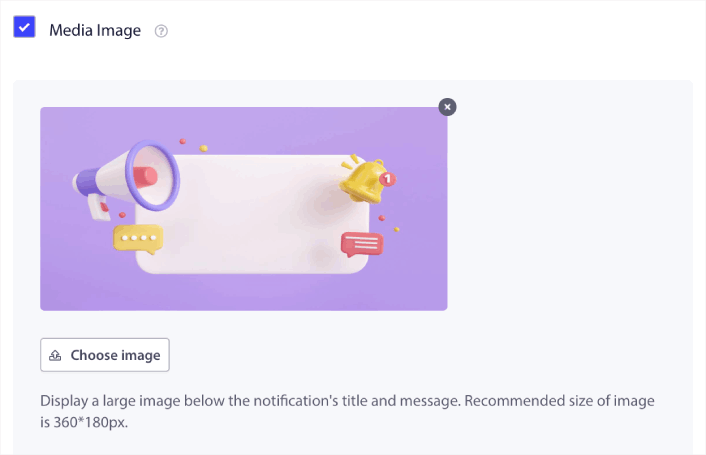
换句话说,在发送移动推送通知时,您可以轻松地保留您的品牌设计指南。所有这些,都来自一个易于使用的界面,您永远不必管理它!
发送更具针对性和个性化的消息
对于安卓应用推送,您可以创建群组和频道来精确自定义通知的外观、感觉和声音。
组是具有通用名称的通知类型的集合。
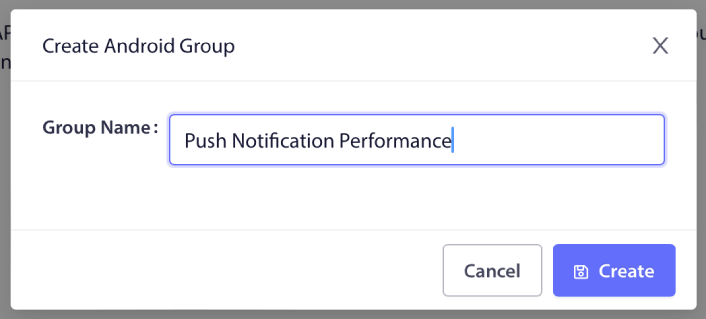
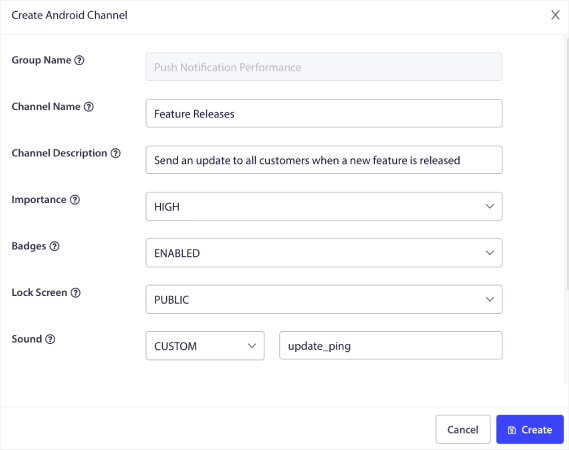
可以将其视为博客中的类别。在每个组内,您可以添加频道:

频道描述了当用户收到通知时您的应用通知将如何表现。它会显示在锁屏界面上吗?它应该显示应用图标作为徽章吗?它对您的用户有什么优先级?您希望在用户收到通知时播放自定义通知声音吗?
所有这些设置都可以在频道内配置。
对于 iOS 移动应用通知,没有组和频道的概念。但是,您可以使用其他设置创建个性化通知。您可以设置通知声音、通知类别以及用于将它们捆绑在一起的通用线程 ID。
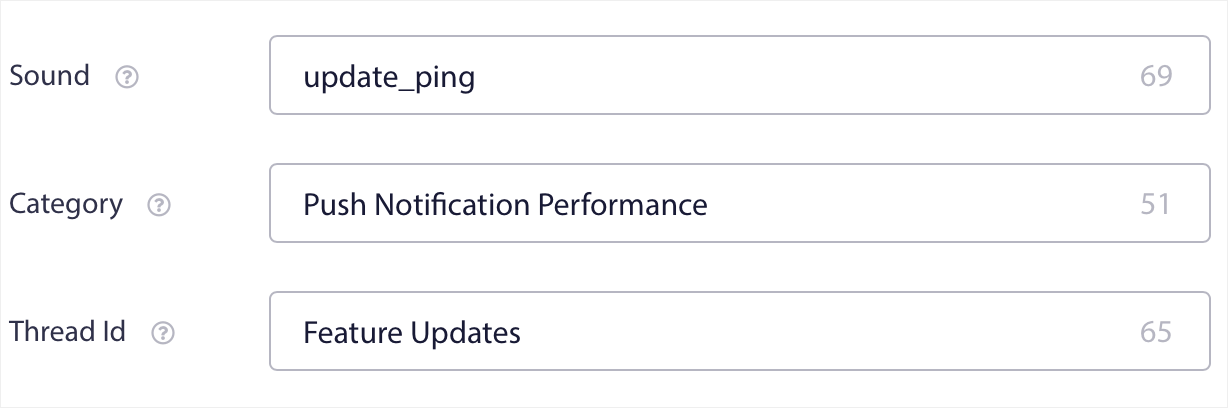
您甚至可以为该通知设置自定义徽章,显示用户收到了多少来自您应用的未读通知。
将用户重定向到您应用内或应用外的任何链接
移动应用推送具有一项称为深度链接的独特功能。深度链接就像 URL,但它们指向您应用内的某个屏幕。您可以使用来自 PushEngage 仪表板的深度链接将用户发送到您想要的任何屏幕,或者您可以将他们发送到网络上的任何常规 URL。
这意味着您可以让用户在您想要的时候打开您的应用。
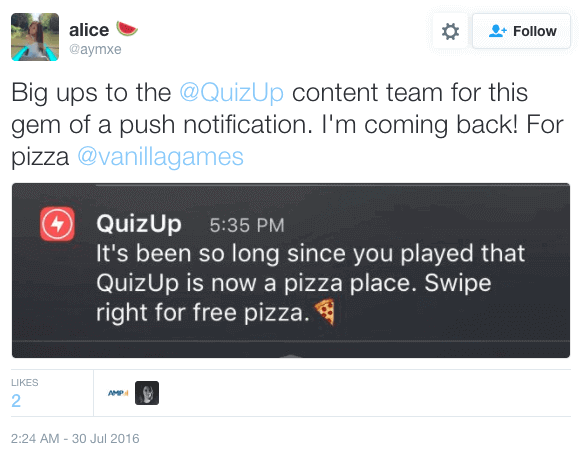
或者,甚至将他们重定向到应用商店或您的网站以留下对您应用的评价。
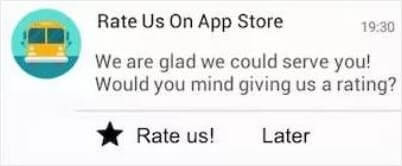
当然,这些只是基本想法。您可以使用这些链接来运行复杂的多步参与广告系列,无论是在您的应用内部还是外部!
如何在您的网站上安装 Android 推送消息
与 AI 编码助手集成?开源的 PushEngage Agent Skills 可教会 Claude Code、Cursor 和任何兼容 SKILL.md 的助手集成和调试此 SDK。一旦您发布,PushEngage MCP 服务器即可让同一助手运行您的广告系列 — 分段、发送、A/B 测试和报告。在 Replit、Lovable 或 Bolt 中构建?开源的 vibe-coding kits 包括现成的演示商店、Flutter 入门程序以及预先连接了 PushEngage 的一键式演示。
我们建议使用PushEngage免费开始使用Android网页推送消息。每次发布博文时,PushEngage都会自动向所有订阅者发送推送通知。
让我们开始免费增长您的受众群体,发送Android推送消息。
第 1 步:创建免费的 PushEngage 账户
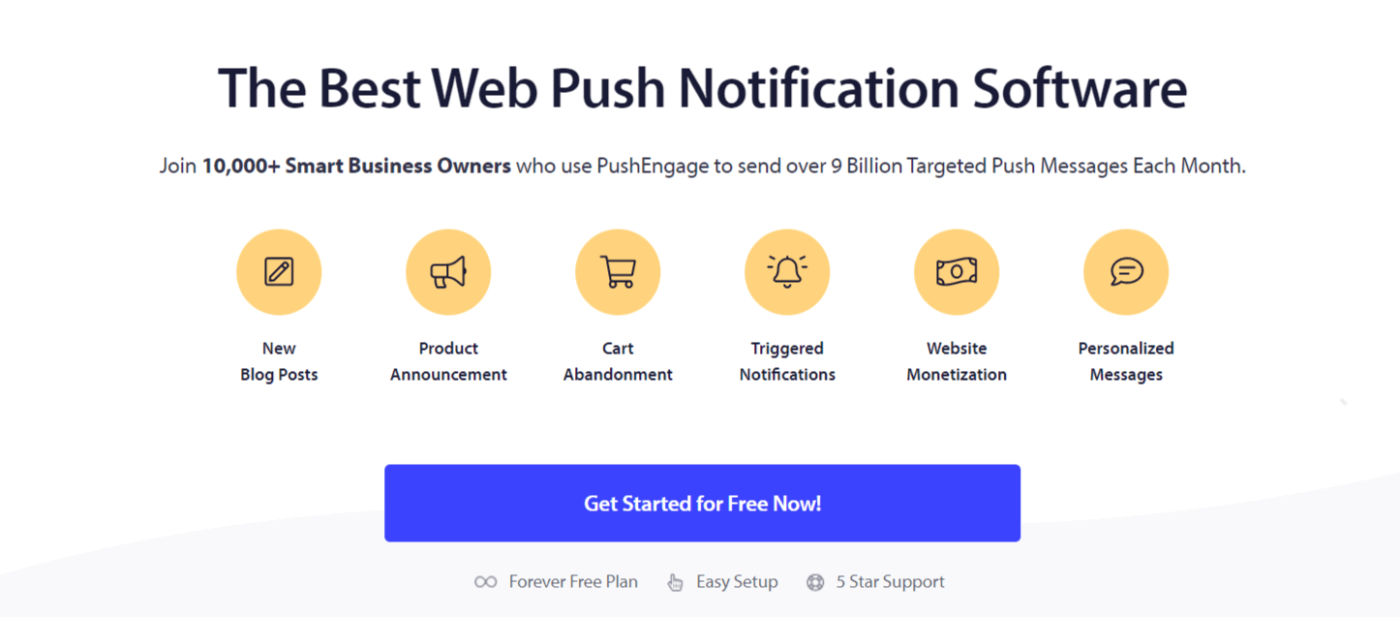
前往PushEngage并点击免费开始:
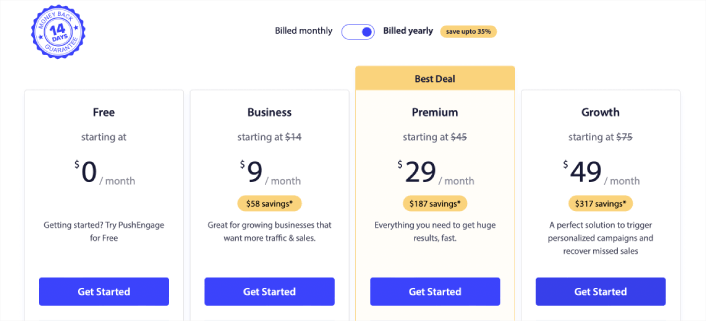
选择免费套餐或最适合你需求的套餐:
第 2 步:注册 PushEngage
使用你的用户详细信息或 Gmail ID 注册插件:
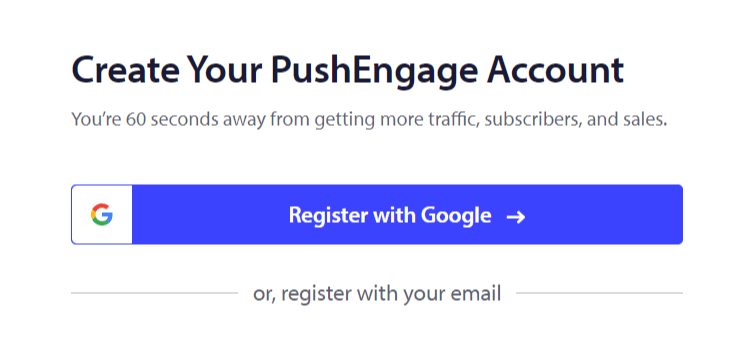
只需按照说明完成账户设置即可。
第 3 步:安装 WordPress 插件
注意:如果您的网站不是使用WordPress构建的,您可以通过其他方法安装Android推送消息。本文档不涵盖这些方法,但如果您有兴趣,可以查看我们的安装指南。
注册后,您将进入PushEngage仪表板:

前往网站设置 » 网站详细信息:

点击 点击此处获取设置说明 按钮:

然后,点击安装 WordPress 插件按钮:

如果你已经设置了网站的 URL,PushEngage 将自动安装在你的网站上。
第 4 步:将您的 WordPress 网站与 PushEngage 连接
安装并激活 PushEngage WordPress 插件后,您将看到 PushEngage 设置向导:
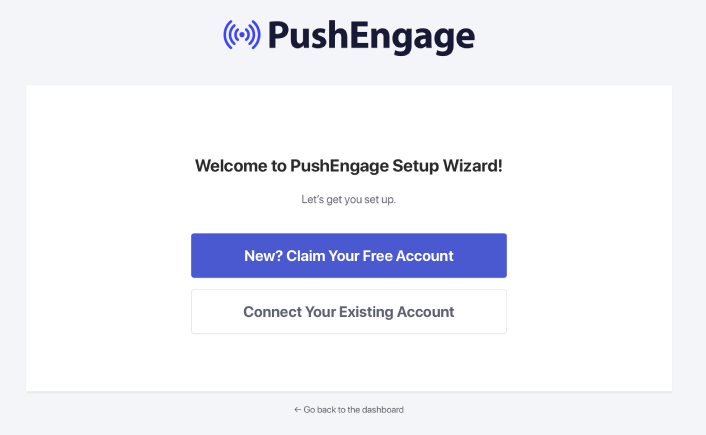
该向导相当直接。如果您是新用户,请点击 新用户?认领您的免费帐户。如果您已经注册,请点击 连接您现有的帐户。
接下来,您可以在 连接已注册的网站 下的 选择网站 下拉菜单中选择您的网站,如果您在注册过程中已注册了网站:
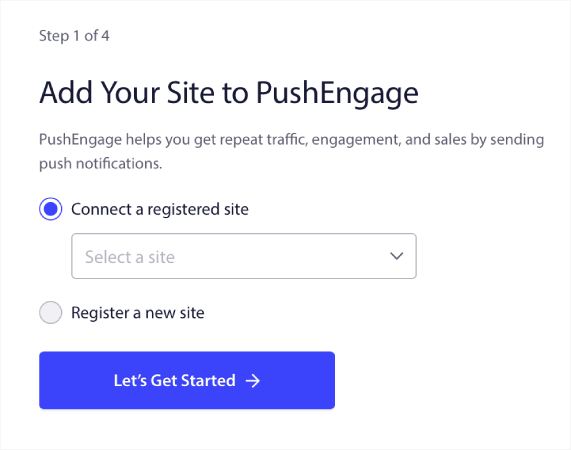
或者,您可以点击 注册新网站 来添加新网站,如果您有 高级定价计划或更高版本。在下一步中,入门向导将提示您安装其他 必备的 WordPress 插件。
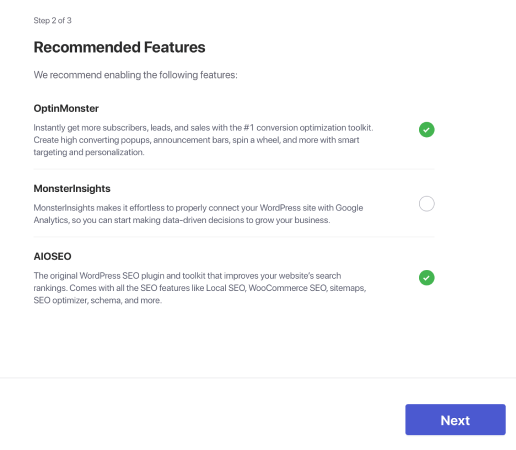
如果您正确遵循了每个步骤,您将从向导中看到此成功消息:
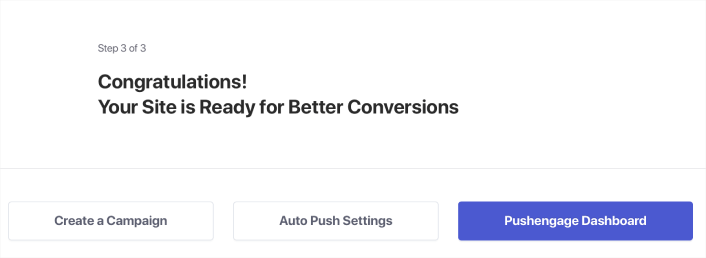
您现在已准备好创建广告系列和推送通知弹出窗口。最好的开始方式是安装一个网页通知WordPress插件。
如何在 Android 上发送应用推送消息
现在,您可以通过 PushEngage 为您的 Android 应用程序实现推送通知。只需集成一次 SDK,即可让您的营销团队能够向您的 Android 应用用户发送情境化和个性化的消息。您需要开发人员的帮助才能为您运行此程序。
设置 Firebase 项目
在开始使用应用推送通知之前,您需要确保您有一个现有的Firebase帐户。使用您的Google帐户登录到您的Firebase控制台,然后点击添加项目或选择一个现有项目。

输入项目名称,然后点击继续。在下一屏幕上,点击带有您的项目名称的创建项目。

然后,点击继续。Firebase完成配置您的帐户后,您可以点击创建项目。

最后,点击Android图标将Android应用添加到项目中。

接下来,输入您的Android应用的包名称。我建议使用您要集成的Android应用的名称,然后点击注册。

下载google-services.json文件,并将其放入您的Android应用模块根目录。

在Firebase控制台中,点击左上角项目概览旁边的设置图标,然后选择项目设置。
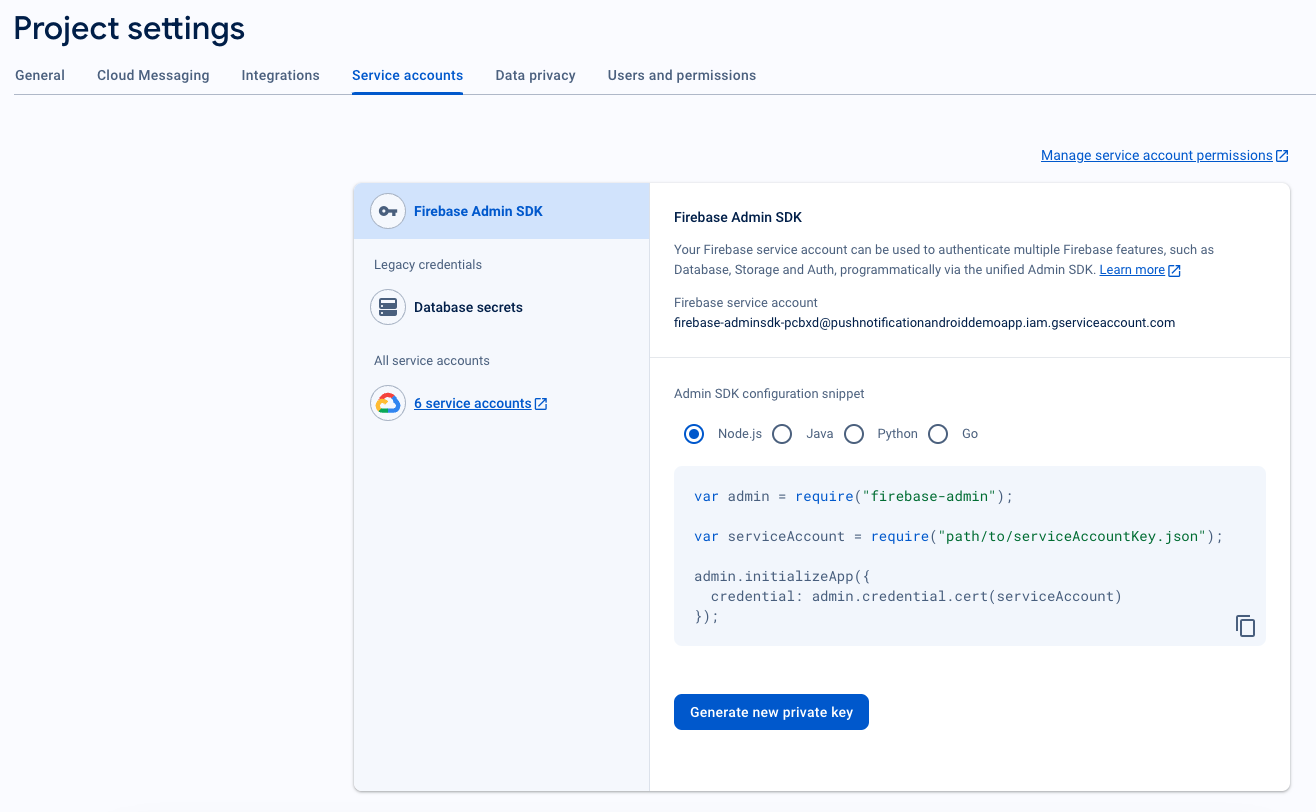
点击生成新的私钥。
重要提示:将上一步下载的.json文件保存在安全的地方。您将在PushEngage仪表板中设置它。
在Firebase控制台中,点击左上角项目概览旁边的设置图标,然后选择“项目设置”。转到Cloud Messaging选项卡,找到您的Sender ID。
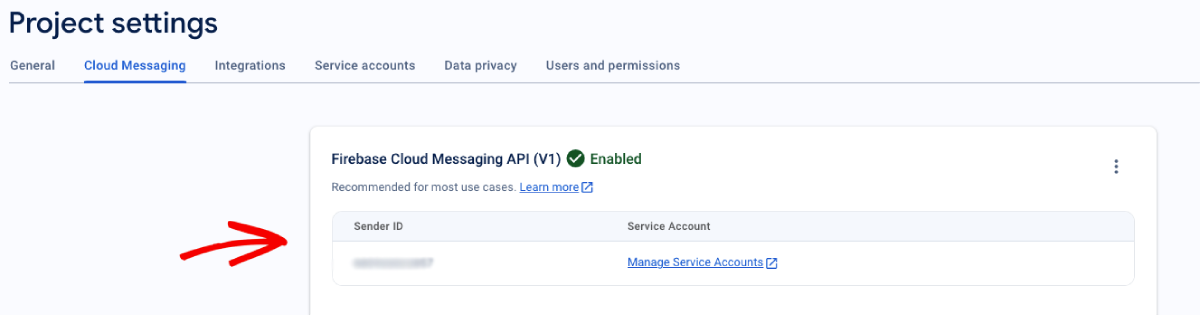
将 FCM 与 PushEngage 信息中心集成
在Firebase中创建项目后,您就可以在PushEngage仪表板中集成Sender ID了。在您的PushEngage帐户中,导航到网站设置»安装并选择Android SDK选项卡。
在这里,您可以配置您的Sender ID和Service Account JSON:
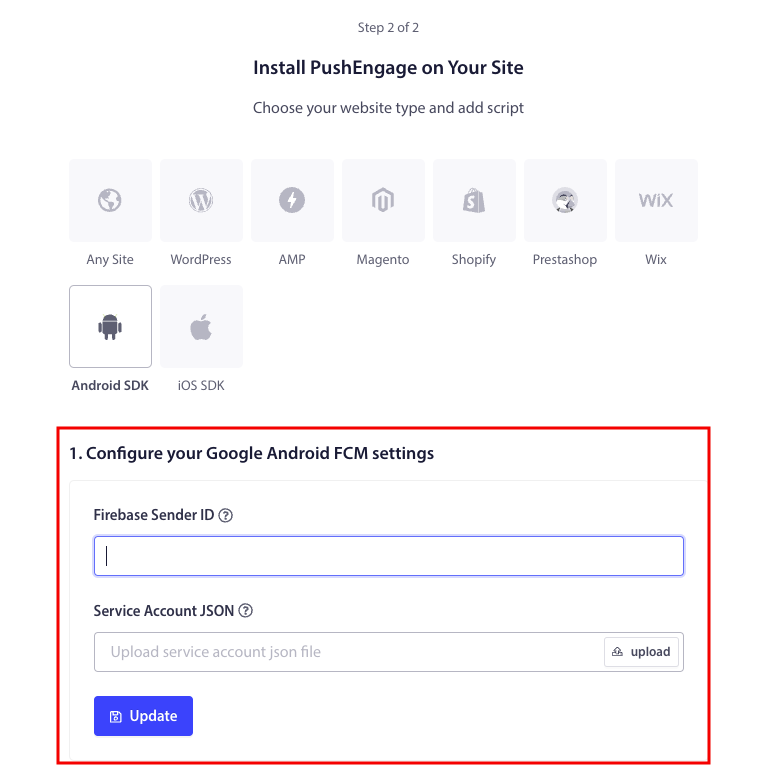
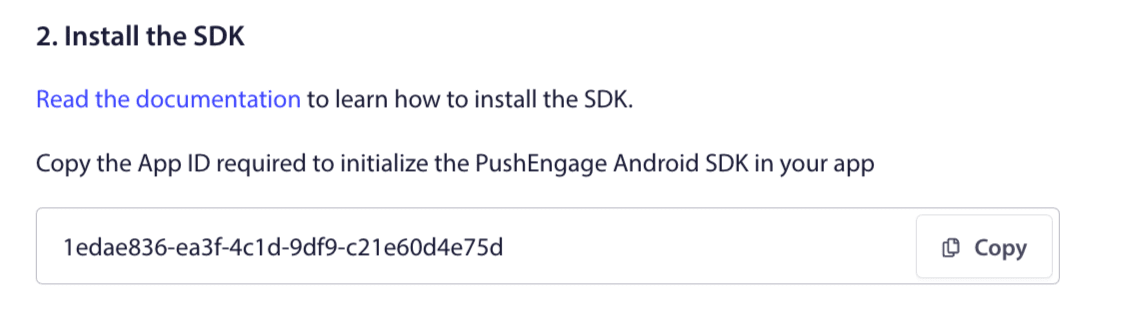
复制初始化PushEngage Android SDK在您的应用程序所需的App ID。
添加 SDK 依赖项
现在是时候添加SDK依赖项了。我们将以下行添加到您的根build.gradle。
1.如果您的项目未使用集中式存储库声明,请在项目级别的build.gradle文件中添加以下行。否则,您可以跳到第二部分。
// Project level build file where you can add configuration options common to all sub-projects/modules.
buildscript {
   repositories {
       google()
       jcenter()
   }
   dependencies {
       // ...
       // Add this line
       classpath "com.google.gms:google-services:4.3.10"

   }
}

allprojects {
   repositories {
      // ...
      // Check that you have the following line (if not, add it):
      google()
      maven {url 'https://jitpack.io' }
   }
}
如果您的项目使用集中式存储库声明,请将以下内容添加到您的 settings.gradle 文件中。
dependencyResolutionManagement {
    repositoriesMode.set(RepositoriesMode.FAIL_ON_PROJECT_REPOS)
    repositories {
        //add this line
        maven { url 'https://jitpack.io' }
    }
接下来,在应用程序级别的“build.gradle”文件中添加以下内容:
plugins {
   id 'com.android.application'
   // Add this line
   id 'com.google.gms.google-services'
}

dependencies {
   // ...
   // Add the following lines
   implementation 'com.github.awesomemotive:pushengage-android-sdk:0.0.5'
   implementation platform('com.google.firebase:firebase-bom:26.1.1')
}
初始化 Android 推送消息 SDK
将 PushEngage SDK 初始化代码块添加到 Application 类中的 onCreate 方法。PUSHENGAGE_APP_ID 应替换为您从 PushEngage 仪表板获取的应用 ID。
注意:如果您的移动应用程序没有自定义类扩展Application类以用于PushEngage,则需要创建一个扩展Application类的类。
以下是Java示例:
public class PEApplication extends Application {
@Override
public void onCreate() {
super.onCreate();

// PushEngage SDK Initialization code
PushEngage pushEngage = new PushEngage.Builder()
.addContext(getApplicationContext())
.setAppId("PUSHENGAGE_APP_ID")
.build();
// The small icon is displayed on the top status bar and in the notification.
// By default PushEngage displays a bell icon, however It is recommended to
// customize this so users easily recognize notifications from your app.
PushEngage.setSmallIconResource("your_icon_name");
}
}
以下是Kotlin示例:
class PEApplication : Application() {
   override fun onCreate() {
       super.onCreate()
       // PushEngage SDK Initialization code
       val pushEngage = PushEngage.Builder()
           .addContext(applicationContext)
           .setAppId("PUSHENGAGE_APP_ID")
           .build()
        // The small icon is displayed on the top status bar and in the notification.
       // By default PushEngage displays a bell icon, however It is recommended to
       // customize this so users easily recognize notifications from your app.
       PushEngage.setSmallIconResource("your_icon_name");
   }
}
要注册您的自定义类名(扩展Application类),请导航到应用程序的Manifest.xml文件。找到显示“android:name=.”PEApplication”,”的行,并将“PEApplication”替换为您自定义类的名称。它看起来应该是这样的:
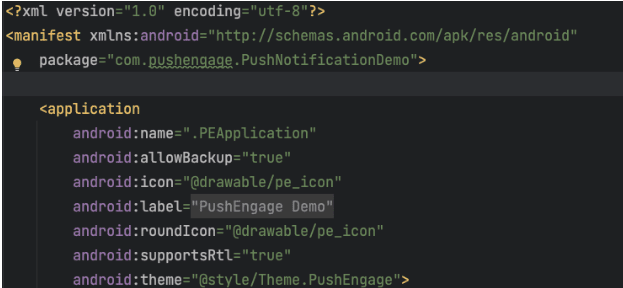
配置完以上所有步骤后,您就可以向Android应用程序发送推送通知了。在实体设备上构建并运行应用程序,然后从PushEngage仪表板发送测试推送通知。
处理 Android 13 及更高版本的通知权限
Android 13在发送任何通知之前,需要某些设备的权限。因此,如果您使用的是Android 13或更高版本,则需要以下权限代码:
 @RequiresApi(api = Build.VERSION_CODES.TIRAMISU)
    private void requestNotificationPermissionIfNeeded() {
        int permissionState = ContextCompat.checkSelfPermission(this, android.Manifest.permission.POST_NOTIFICATIONS);

        if (permissionState == PackageManager.PERMISSION_DENIED) {
            ActivityCompat.requestPermissions(this, new String[]{android.Manifest.permission.POST_NOTIFICATIONS}, 100);
        }
    }
您可以处理通知权限提示的结果:
@Override
    public void onRequestPermissionsResult(int requestCode, String[] permissions, int[] grantResults) {
        super.onRequestPermissionsResult(requestCode, permissions, grantResults);
        if (requestCode == 100) {
            if (grantResults.length > 0 && grantResults[0] == PackageManager.PERMISSION_GRANTED) {
                PushEngage.subscribe();
            } else {
                Log.d("MainActivity", "onRequestPermissionsResult: Permission denied");
            }
        }
    }
就是这样!您已完成。现在您可以返回PushEngage仪表板,直接从同一仪表板发送Android推送消息。
如果您想进一步了解我们的Android SDK,可以查阅我们详细的API文档。
Android 网页推送消息如何工作?
现在让我们深入技术层面,探讨Android Web推送消息的工作原理。
简而言之,每当有新访客进入您的网站时,他们都会收到成为推送通知订阅者的提示。
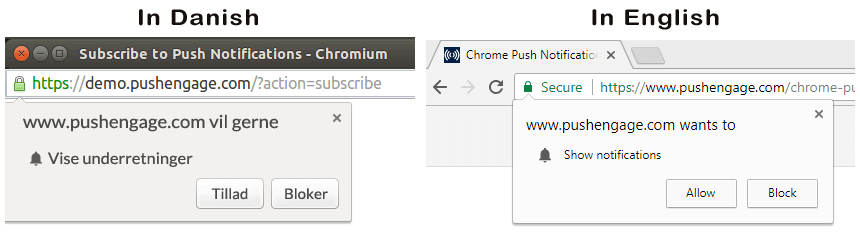
接下来,您可以使用PushEngage之类的Web推送通知服务来创建和安排您想要发送给订阅者的Android推送消息。您可以选择将其发送给列表中的所有订阅者,或发送给特定细分受众群的订阅者。
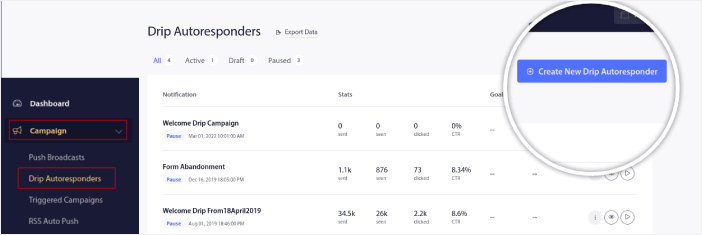
您需要先创建一个滴灌自动回复器:
最后,当您的订阅者的设备上线时,他们会收到您的推送消息并采取建议的操作。

这一切都是完全正确的,但这只是后台发生的一部分。所以,让我们来看看技术细节。但首先,如果您还没有,请立即开始使用 PushEngage。
首先,PushEngage拥有连接到订阅者设备的服务器,并向他们发送您的Android推送消息。现在,这些服务器不存储任何个人信息,例如任何订阅者的姓名或电子邮件地址。
那么,这些服务器存储了什么?
对于 PushEngage 和我们的服务器来说,您的订阅者是基于订阅者的设备和浏览器生成的唯一哈希号。此外,服务器还可以存储订阅者的地理位置。
现在,您将无法直接访问这些服务器。您只能使用 PushEngage 仪表板来创建、优化和管理推送通知广告系列。
换句话说,PushEngage是您的服务提供商。这意味着您无需了解任何有关编码或如何维护原始服务器的知识。所有这些我们都会为您处理。您需要担心的只是设置您的广告系列并获利!
到目前为止,您可能想知道,如果服务器只存储哈希号而没有个人详细信息,个性化推送通知是如何工作的。这就是服务提供商API发挥作用的地方。对您而言,那就是PushEngage Javascript API。
您可以使用此API并将其连接到您可能拥有的任何其他CRM或数据库。这使您可以使用订阅者的个人详细信息向他们发送个性化的Android推送消息。
您还可以使用 PushEngage API 发送高级广告系列,例如 购物车放弃广告系列。
移动 Android 推送消息如何工作?
Android 推送消息通过一个名为 Firebase Cloud Messaging (FCM) 的服务传递给用户。以下是您的应用发送推送通知时后台发生的情况:
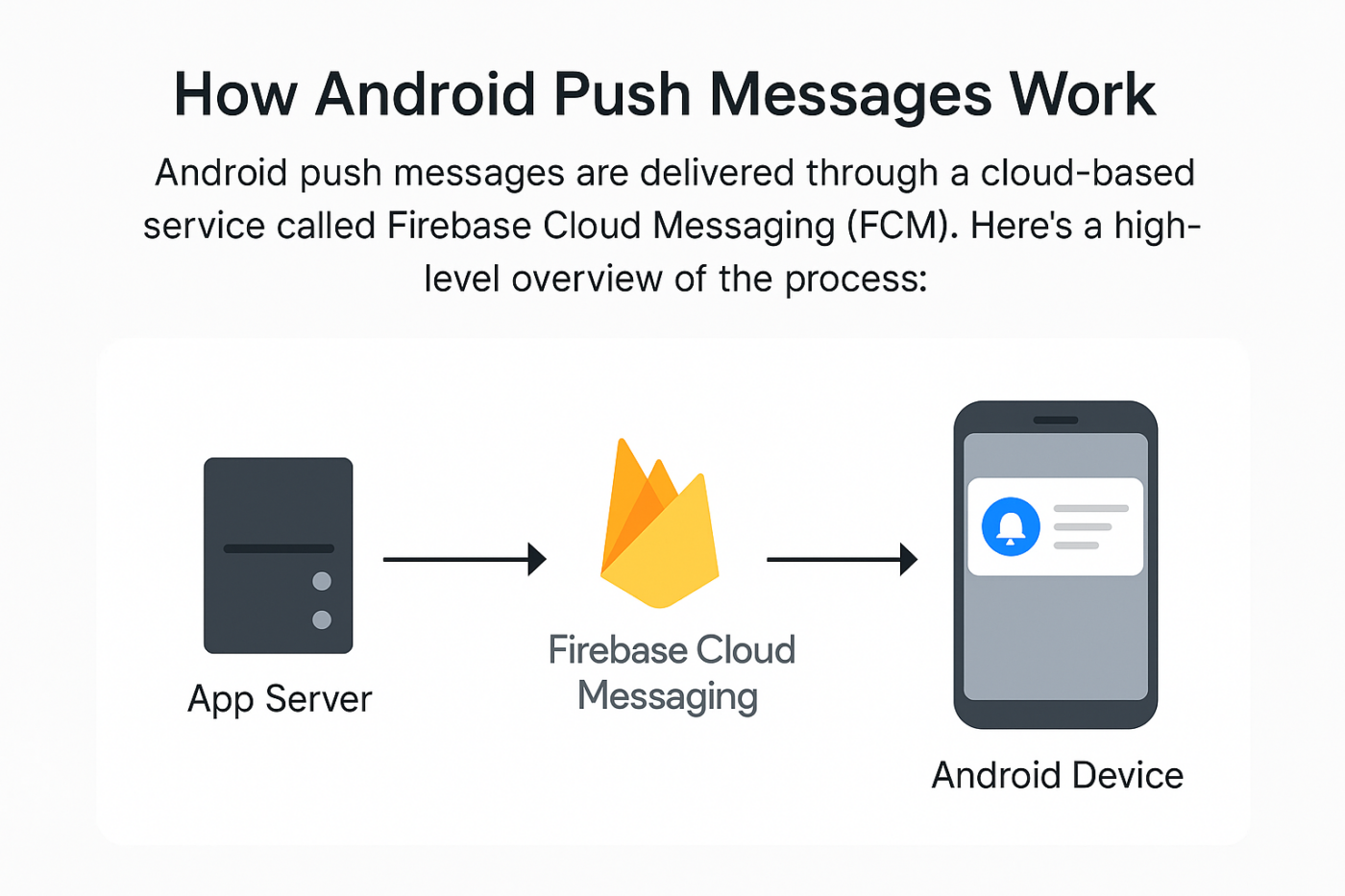
第 1 步:用户安装您的应用
当用户下载并打开您的应用时,该应用会向 Firebase Cloud Messaging (FCM) 注册并获取一个 唯一的设备令牌。
第 2 步:您的服务器准备通知
您的后端(或像 PushEngage 这样的通知提供商)会创建一个包含 富媒体 的消息,并选择要接收消息的用户。它还会为每条推送消息设置全面的自动化流程。
第 3 步:PushEngage 将其发送给 FCM
通知被发送到 Firebase Cloud Messaging,它充当您的服务器和用户手机之间的中间人。
第 4 步:FCM 发送到 Android 设备
FCM 会将推送消息安全地路由到用户的 Android 设备——即使应用已关闭。
第 5 步:用户看到通知
Android 操作系统会根据设备设置,在状态栏、锁屏或横幅中显示推送通知。
Android 推送消息的不同组成部分是什么?
现在我们了解了 Android 推送消息的工作原理,让我们来看看推送通知中您可以自定义(或无法自定义)的各个部分:
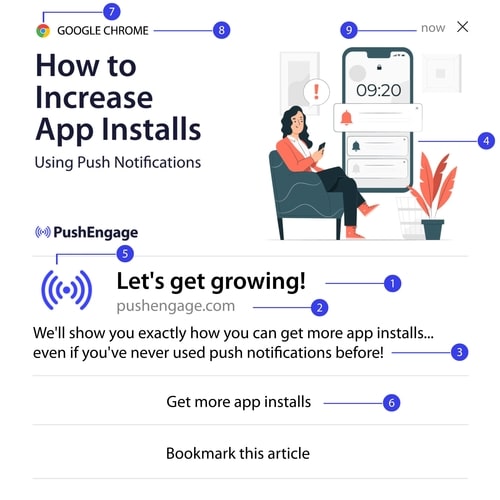
1. 推送通知标题
标题是推送通知中最突出的文本。为了清晰可见,它限制在 60-80 个字符。此标题的目的是吸引订阅者的注意力。因此,让整个标题清晰可见非常重要。
查看我们的 推送通知文案指南,创建您的订阅者会喜欢的杀手级标题。
2. 域名
推送通知的域名就是您网站的 URL。您也无法更改此项。但与浏览器图标不同,您的域名需要清晰可见,因为它有助于提升品牌认知度。
现在,您可以选择将推送通知数据存储在 PushEngage 的子域上。如果您使用子域,那么此推送通知部分将显示 PushEngage 子域的 URL,而不是您的品牌。
我们不建议使用此选项,因为它会降低您的品牌价值。
3. 推送通知内容
通知内容包含整个通知中最大部分的文本。为了可见性,它像标题一样限制在 120-150 个字符。虽然您可以输入更多字符,但我们建议保持简洁。
通常,这部分用于提供有关标题的更多上下文信息或完成一项优惠。不要在文本本身中使用号召性用语。通过推送通知,您可以添加号召性用语按钮。
专业提示:您可以使用当地语言使您的推送通知感觉更个性化。阅读这篇关于 Phooto 如何在推送通知中使用当地语言 来提高参与度的案例研究。
4. 通知大图
大图是万众瞩目的焦点,也是您在任何通知中首先看到的东西。它通常是一张 360×180 的图片,是推送通知中最具吸引力的部分。
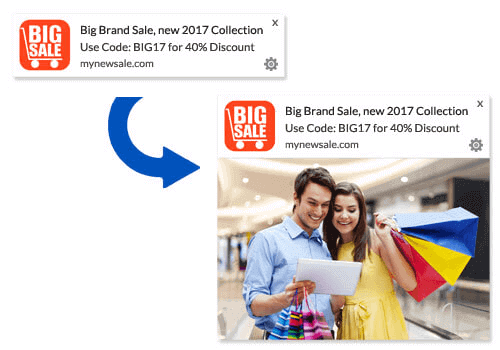
通知图片也是完全可选的。如果您愿意,可以选择不使用。使用通知图片会让您的推送通知感觉像广告。这可能导致许多订阅者忽略该通知。
但如果做得好,图片可以将点击率(CTR)提高高达 62%。查看我们关于 图片在推送通知中的行业影响 的研究。
如果您不确定是否应使用大图像,我们建议您对通知进行A/B测试,分别测试有无图像的效果。
#5. 推送通知图标
推送通知图标就像您网站上的网站图标,但用于您的推送广告系列。它是一个 192×192 或更大的图像,用于代表您的业务。通常,这将是您的网站图标,并且您只能为所有 Android 推送消息设置一次。
专业提示:如果您在任何时候进行品牌重塑,请记住也要在PushEngage中更改推送通知图标。另外,请记住您不能为图标使用动画图像。因此,GIF在这里不起作用。
#6. 行动号召按钮
每个推送通知最多支持2个按钮。我们建议为您的广告系列使用自定义的行动号召按钮。您甚至可以为每个CTA添加单独的URL和按钮图标。
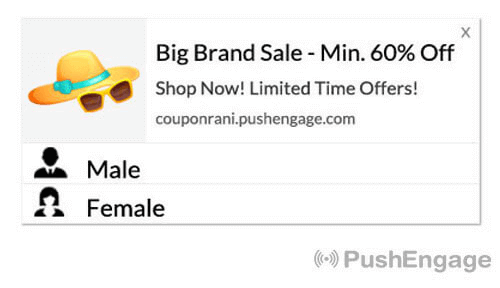
查看此网络推送通知技巧列表,以获取一些不错的CTA创意。
#7. 浏览器图标
推送通知中最小的部分是浏览器图标,它表示订阅者当前正在使用的浏览器。这是最容易被忽略的部分之一,因为您无法以任何方式更改它,而且在大多数情况下,订阅者也不会注意到浏览器图标。
#8. 浏览器标签
浏览器标签只是浏览器图标的文本版本。与图标一样,您无法更改浏览器名称标签。
#9. 时间戳
时间戳是一种简单的方式,供您的订阅者了解消息何时收到。它是系统生成的,您也无法更改。
推送通知选择加入的不同类型
每个网站推送通知广告系列都始于同意。这是 Seth Godin 的许可营销理念的延伸。这个理念非常简单:在向网站访问者发送他们可能想看也可能不想看的内容之前,征求许可。
获得发送任何推送通知许可的过程称为“选择加入”。因此,在发送推送通知广告系列之前,您需要先让您的网站访问者选择加入并订阅您的通知。
如果您是YouTube的内容创作者,那么您已经熟悉订阅者如何工作。唯一的区别是,您不拥有YouTube订阅者列表,也无法控制发送给他们的通知。
使用 PushEngage,您确实拥有该列表,因为该信息存储在您的域上。现在,您可以在网站上使用两种类型的选择加入:
- 单次选择加入
- 双重选择加入
它们之间的主要区别非常明显。单次选择加入仅请求一次发送推送消息的许可。二次选择加入要求每个订阅者确认他们的决定。
那么,您应该选择哪一个?
我们观察到,单次选择加入的订阅者比二次选择加入多 150%。如果您在这方面遇到困难,请查看我们关于如何提高选择加入率的文章。
从法律角度来看,GDPR 要求您只能使用单次确认。但通过双重确认,您可以获得更好的参与度,因为您的订阅者实际上想要更多您的内容。不过,就纯粹的确认数量而言,单次确认更有效。
另一个需要考虑的点是,您需要在网站上安装 SSL 证书才能使用单次确认。但即使没有安全网站,您也可以安装双重确认。
因此,如果您安装了 SSL 证书,请使用单次确认。如果没有,请查看这篇关于如何在 WordPress 网站上安装 SSL 证书的文章。
注意: 除非您使用的是 Android 13 或更高版本,否则您不需要选择加入应用推送通知。
如何个性化您的 Android 推送消息
在创建广告系列之前,您应该设置细分和受众群体,以发送个性化的推送消息。
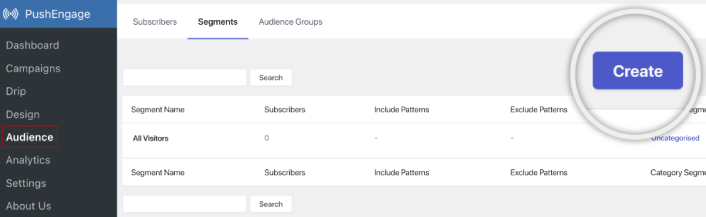
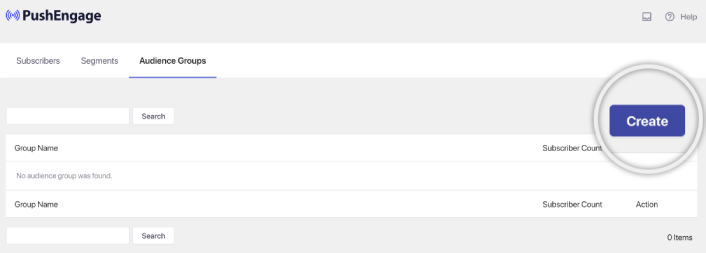
通过为您的推送通知订阅者创建细分和受众群组,您可以获得无与伦比的个性化体验。前往 PushEngage » 受众 并立即开始创建细分和受众群组。
在 Segments 选项卡下,您可以创建新细分或编辑现有细分:
如果您需要更深入的个性化设置,请在 Audience Groups 选项卡中创建一个受众群体:
如果您是首次接触推送通知细分和 个性化推送通知,建议您阅读我们的文章 如何创建细分 以及关于 高级受众分组 的公告。
如何创建有针对性的 Android 推送消息
转到PushEngage仪表板,然后导航到广告系列 » 滴灌自动回复器,然后点击创建新的滴灌自动回复器:

然后,为您的广告系列命名(我们建议使用类似“欢迎滴灌”的名称),然后在内容下,选择显示“用户订阅后立即发送通知”的选项):

此时,您可以点击通知旁边的箭头来编辑通知内容。
如果您拥有 PushEngage 的高级或企业版套餐,您将能够添加多个通知来创建一系列自动欢迎消息。只需点击添加新通知并编辑内容。
完成后,点击邮件序列设置并选择将您的欢迎广告系列发送给所有订阅者的选项:

然后,向下滚动以设置您自己的 UTM 参数以跟踪推送通知:

完成后,滚动回顶部并点击激活自动回复器按钮:

您就完成了!
如何发送有针对性的 Android 推送消息
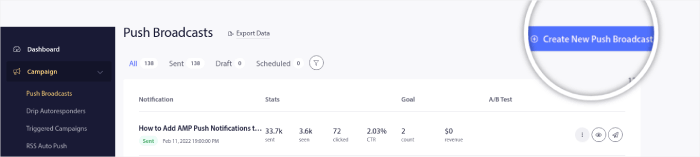
前往您的 PushEngage 信息中心,然后转到“广告系列”»“推送广播”,然后点击“创建新的推送广播”按钮:
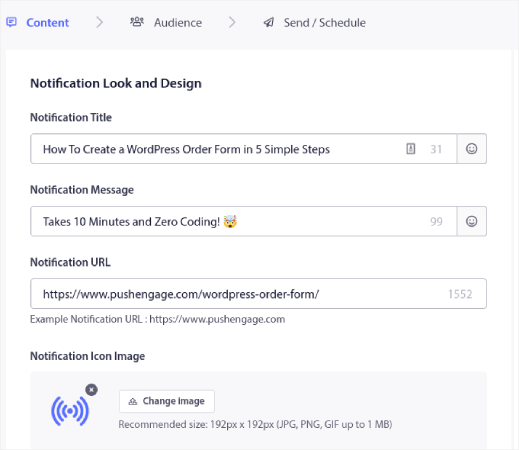
在 **Content** 选项卡下,添加您的推送通知内容:
您还可以设置 A/B 测试以提高您的点击率,或者您可以安排您的推送广播以获得更多浏览量。无论哪种情况,您都应该查看我们的推送通知最佳实践以获得最佳效果。
如何创建 Android 推送消息弹出窗口
推送通知弹出窗口是一种出现在网站或移动应用程序界面之上的小窗口,用于向网站访问者显示消息或通知。
弹出窗口可以由各种事件触发。您可以设置在访问页面、滚动深度甚至自定义操作(例如 点击按钮)时触发的弹出窗口。
通常,您会在弹出窗口中看到一个号召性用语,例如“订阅”或“允许”,以征得访问者发送 Android 推送消息的同意。如果您遵循本教程,您可以创建一个类似这样的弹出窗口:
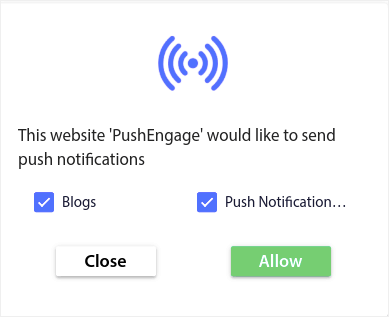
您可以创建可以直接细分订阅者的弹出窗口,或者创建仅收集具有地理位置和浏览器等默认属性的订阅者的常规弹出窗口。
返回您的 WordPress 仪表板。转到 PushEngage » 设计:
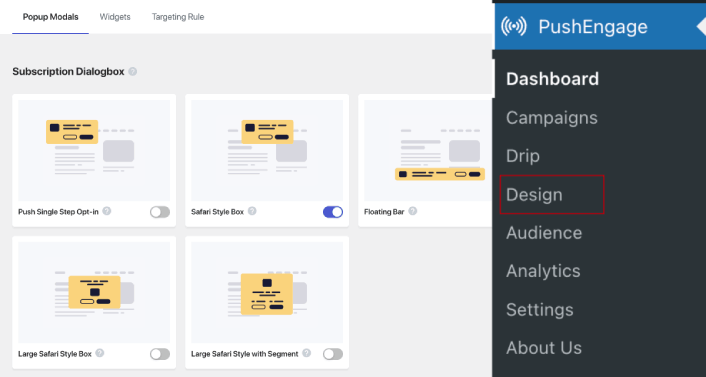
您可以根据需要设置任意数量的弹出窗口。当然,您可以确保它们在每个弹出窗口的“显示选项”下在不同时间触发。
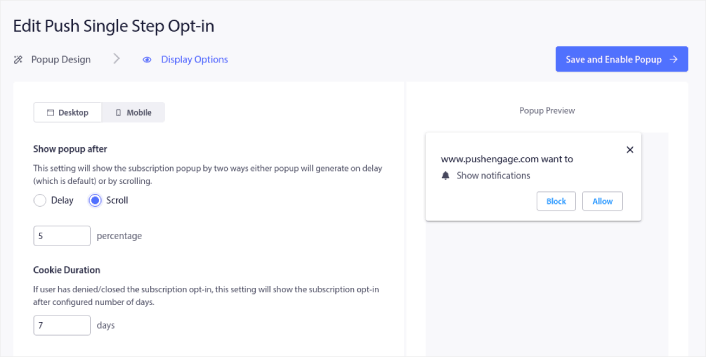
这里的想法是为您的访问者提供订阅的充分理由。如果您需要这方面的帮助,请查看我们关于 如何创建自定义推送通知选择加入的文章。
如果您想创建更具针对性的弹出窗口,可以使用“定位规则”选项卡下的定位规则:
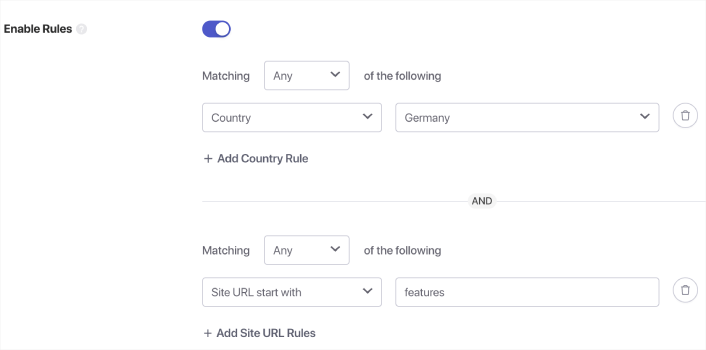
这些是全局目标规则,将优先于单个弹出窗口的目标规则。但是,如果您愿意,可以通过编辑它们为每个弹出窗口创建强大的目标规则。
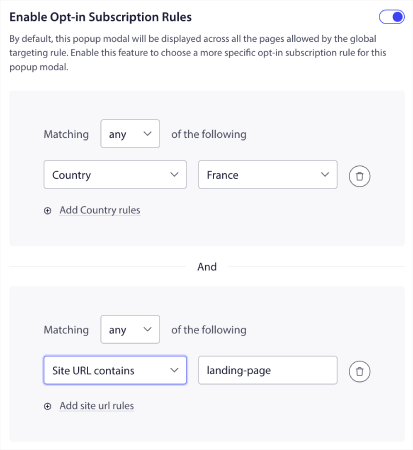
例如,您可以创建不同语言的弹出窗口,以定位来自不同国家的访问者。
如果您想要一些点击率高的模板来开始,您应该查看这篇关于 高转化率的推送通知选择加入的文章。
在发送有针对性的 Android 推送消息之前该做什么
您已接近完成。
在开始发送推送通知之前,您需要为您的网站设置订阅选择加入。您的选择加入将把网站访问者转化为推送通知订阅者。因此,这是一个关键要素。
如果您需要一些灵感,可以查看这篇关于高转化率的推送通知选择加入的文章。设置好选择加入后,您的网站就可以收集订阅者了。但您怎么知道您的选择加入是否正常工作呢?
因此,明智的做法是设置欢迎推送通知。
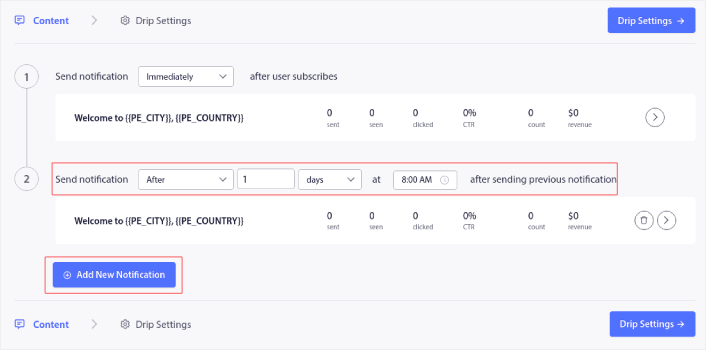
专业提示:您应该花一些时间对推送通知进行全面测试。这将解决最常见的问题,并且您不必浪费时间以后再解决问题。
发送 Android 推送消息后该做什么
好了,各位,本次分享就到这里!
如果您觉得这篇文章有帮助,请务必在下方留言。
开始使用 Android 推送消息可能看起来令人生畏。但是,如果您密切关注 目标跟踪和分析,您应该会做得很好。更重要的是,您将通过推送通知广告系列获得更多利润。以下是一些可帮助您入门的精选资源:
- 如何使用重定向推送通知将收入翻倍
- 如何对推送通知进行排序并找到成功的营销活动
- 如何清理推送通知订阅者列表(简单方法)
- 如何自动发送 RSS 推送通知
- 如何使用推送通知推广新闻网站
- 如何使用交叉销售推送通知将您的销售额提高一倍
- 如何使用浏览放弃推送通知(4 个步骤)
如果您是推送通知的新手,应该尝试一下 PushEngage。当您准备好制定完整的策略时,我们的应用推送营销指南是您的下一本读物。PushEngage 是市场上排名第一的推送通知软件。您的营销活动将得到妥善处理。
所以,如果您还没有,请立即开始使用 PushEngage!


