
如果您面向全球受众销售,那么有一个您可能没有跟踪的无声收入漏洞:客户在无人可回复时联系您。
- 班加罗尔的团队在睡觉时错过了纽约一位购物者的提问?那就错失了销售机会。
- 您的代理商离线时错过了悉尼的潜在客户?那就错失了预订机会。
- 您的团队午餐时错过了伦敦的客户支持请求?那就失去了信任。
PushEngage 的全新 WordPress 和 WooCommerce 代理商可用性日程通过提供一种简单的方法来确保来自任何时区的某个人始终在聊天小部件中“可用”,从而解决了这个问题。
在本指南中,我们将介绍:
- 为什么代理商调度对于国际销售至关重要
- PushEngage 的可用性功能如何运作
- 一个实用的系统,用一小队人覆盖全球时区
- 关于如何在 WordPress 中设置代理商日程的完整教程
- 提高转化率和客户满意度的技巧
让我们开始吧。
立即发送多渠道消息!
推送和 WhatsApp 消息是非常有效且低成本的营销工具,可帮助您自动增加重复流量、参与度和销售额。
代理商排班以前是一项企业级功能,但现在最好的Intercom 的替代品都包含了这项功能,而且价格并非企业级。
为什么代理商调度对全球商店很重要
访问者会快速做出决定——尤其是在移动设备上。当他们看到“代理商在线”时,他们更有可能提出购买前的问题、请求支持或预订演示。
但是,当他们看到“所有代理商离线”时,会发生两件事:
- 放弃率增加——用户不想等待。
- 支持工单增加——您收到更多电子邮件而不是实时聊天问题。
适当的调度可以解决所有这些问题,方法是:
- 将代理商的可用性与客户行为相匹配
- 确保跨多个时区的覆盖
- 消除支持周期中的无声间隙
- 改善 24/7 服务感知
- 在正确的时间将问题路由给正确的人
即使您只有 2-3 名代理商,一个智能的日程安排也可以创造出 24/7 可用的效果。
PushEngage 的代理商日程如何运作
使用 PushEngage 新的 WordPress 和 WooCommerce 聊天小部件,每位代理商都可以设置:
- 工作日(例如,周一至周五,或自定义日期)
- 工作时间(含时区设置)
- 时区(如果您有分布式团队,这一点至关重要)
- 基于角色的配置文件(销售、账单、支持等)
- 自动离线处理(在无人可用时显示离线消息)
配置好日程后:
- 该小部件会自动显示当前“在线”的任何客服
- 如果有多个客服在线,访客可以选择
- 如果没有客服在线,将显示您的离线备用消息
这使得您的聊天小部件感觉动态、智能且随时可用。
简单的时区覆盖计划(即使是小型团队)
以下是一个在不同时区的三个客服团队的示例日程:
| 客服 | 地点 | 工作时间(当地) | 近似全球覆盖范围 |
|---|---|---|---|
| A | 印度(IST) | 上午 9 点 – 下午 5 点 | 亚太地区 + 欧洲早期 |
| B | 欧洲(CET) | 上午 8 点 – 下午 4 点 | 欧洲 + 美国早期 |
| C | 美国(EST) | 上午 9 点 – 下午 5 点 | 覆盖整个美国 + 欧洲晚期 |
有了这个结构:
- 欧洲几乎全天都有覆盖
- 美国上午的覆盖时间与欧洲晚上的覆盖时间重叠
- 亚太地区上午的覆盖时间与欧洲上午的覆盖时间重叠
- 您将自动获得约 18-20 小时的每日实时覆盖
小团队 → 大范围覆盖。
现在,让我们在您的网站上进行设置。
如何在 PushEngage 中设置座席日程(WordPress 教程)
本节将引导您逐步完成 PushEngage 内部的实际设置。
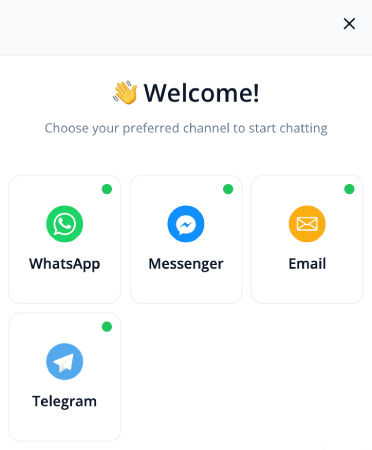
步骤 1:打开您的 WordPress Dashboard 并转到 PushEngage
- 登录 WordPress
- 导航至:PushEngage » Chat Widgets,然后点击 创建新的聊天小部件
- 将渠道添加到您的聊天小部件,然后向下滚动到 已启用渠道
- 点击渠道旁边的编辑图标以更新客服详细信息
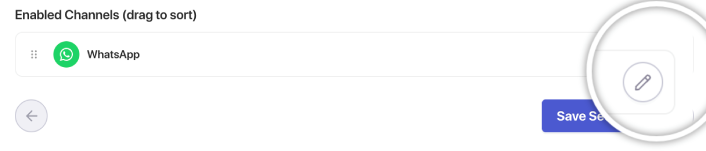
这是您的客服列表所在的位置。
步骤 2:添加或编辑座席
点击添加客服或选择现有客服进行编辑。
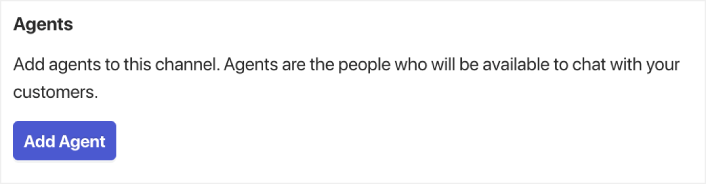
每个客服档案都包含:
- 客服姓名
- 客服照片
- 职位(销售、支持、账单等)
- 联系偏好(实时聊天、WhatsApp、电子邮件等)
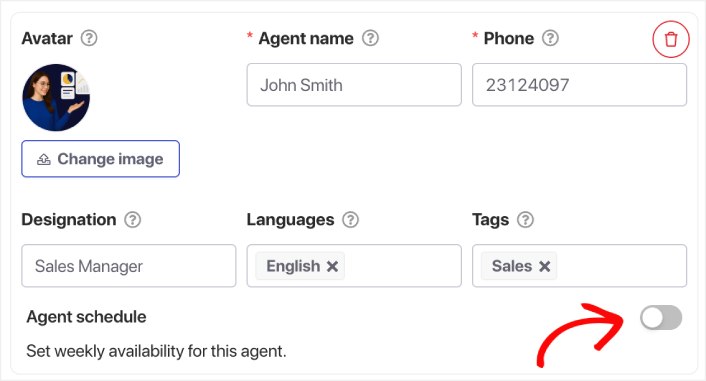
向下滚动到客服日程部分,然后打开切换按钮。
专业提示:您还可以为每个客服选择语言。因此,如果您需要提供多语言聊天支持,该选项就在那里,并且设置起来非常简单。
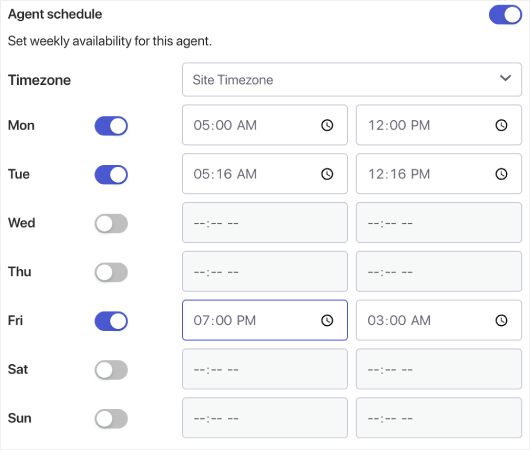
第 3 步:选择代理商的时区
这对于全球覆盖至关重要。
选择客服的当前时区,而不是您自己的时区。
示例:
- IST 代表印度
- EST 或 CST 代表美国团队
- GMT 或 CET 代表欧洲团队
这可确保他们的日程在正确的时间激活。
第 4 步:设置他们的工作日
选择客服应显示“在线”的日期:
- 周一至周五
- 仅周末
- 自定义组合
- 分段工作时间
PushEngage 提供完全的灵活性。
第 5 步:添加工作时间
在“工作时间”部分下:
- 输入开始时间(例如,上午 9:00)
- 输入结束时间(例如,下午 5:00)
您还可以:
- 创建多个时间段(例如,分段工作时间:上午 9 点至下午 1 点,下午 4 点至晚上 9 点)
- 调整季节性工作时间
- 添加特殊日期的例外情况
PushEngage 会实时将这些转换为您小部件的可用性。
第 6 步:保存并为所有代理商重复
设置好日程后,点击保存客服。为每个时区的每个客服重复此操作,以完成覆盖图。
第 7 步:测试小部件
重要步骤。
- 在隐身窗口中打开您的网站
- 更改您的设备/系统时区
- 观察哪个客服上线
这可以确认您的日程安排正在正确运行。
最大化全球覆盖的最佳实践
✔ 创建重叠的窗口
至少有 1-2 小时是两名客服的日程重叠。这可以实现更顺畅的交接,并减少离线时间。
✔ 添加离线备用消息
这可以是一个潜在客户表单、电子邮件捕获或 WhatsApp 聊天选项。
✔ 根据时区分配角色
- 亚太地区客服负责早期时段的销售
- 欧盟客服负责一般支持
- 美国客服负责账单 + 晚间支持
✔ 不要尝试手动实现 24/7 全天候服务
智能日程安排看起来自然;强制安排会破坏信任。
✔ 查看聊天模式
检查访客最常发起聊天的时段,并据此调整排班。
一次设置,自动覆盖所有时区
借助 PushEngage 的客服可用性日程安排,您无需雇佣大量团队即可模拟近乎全天候的覆盖。
- 客户始终能看到有人在线
- 响应时间缩短
- 售前转化率上升
- 支持感觉更快、更可靠
- 您的商店感觉已准备好面向全球
一旦设置好时间表,您的团队就可以更高效地运作,您的客户也能获得他们期望的体验。
如果您还没有在 PushEngage 中设置客服资料和排班,现在就是时候了。
不信?查看这些关于推送通知活动的精彩资源:


