Tetikleyici Kampanyalar, bir alışverişçinin sepeti terk etmesi, bir ürüne göz atması, fiyat düşüşü veya bir ürünün tekrar stoğa girmesi gibi eylemlerine göre otomatik olarak gönderilen anlık bildirimlerdir. Bir tetikleyici belirli bir olayı dinler ve yalnızca bu olay bir abone için gerçekleştiğinde bildirimi gönderir. Bu kılavuz, PushEngage Shopify uygulamasında tetiklenmiş bir kampanya oluşturma, yapılandırma ve etkinleştirme yollarını göstermektedir.
Başlamadan Önce
- Bir tetikleyici oluşturmadan önce PushEngage'i Shopify mağazanıza kurun ve bağlayın.
- Planınızın Tetiklenmiş Kampanyaları içerdiğini onaylayın. İçermiyorsa, oluşturucuyu açtığınızda bir yükseltme istemi görürsünüz.
- Hangi tetikleyici türüne ihtiyacınız olduğunu bilin. Sepet Terk Etme ve Göz Atma Terk Etme, etkinleştirildikten sonra otomatik olarak çalışır çünkü başlangıç ve durdurma olayları yerleşiktir. Özel, Fiyat Düşüşü ve Stokta Yokken Bildir gibi tetikleyiciler, mağazanızın PushEngage'e bir olay göndermesini gerektirir; bu olayı son bölümde ayarlarsınız.
Tetikleyiciler Nasıl Çalışır
Bir tetikleyicinin bir başlangıç olayı ve isteğe bağlı bir durdurma olayı vardır. Bir abone için başlangıç olayı tetiklendiğinde ilk bildirim gönderilir. Daha fazla bildirim eklerseniz, her sonraki bildirim kendi gecikmesini takip eder, durdurma olayı tetiklenip geri kalanları iptal edene kadar. Önce bir tetikleyici türü seçersiniz ve her tür kendi kullanım durumu için önceden yapılandırılmış olarak gelir.
| Tür | Ne işe yarar | Başlangıç / Durdurma Olayı |
|---|---|---|
| Sepet Terk Etme | Alışverişçilere sepetlerinde bıraktıkları ürünleri hatırlatır. | Sepete ekleme ile başlar, ödeme ile durur (yerleşik). |
| Göz Atma Terk Etme | Ürünlere göz atan ancak sepete eklemeyen ziyaretçilerle yeniden etkileşim kurar. | Göz atma ile başlar, sepete ekleme ile durur (yerleşik). |
| Fiyat Düşüşü Uyarısı | Abone olunan ürünün fiyatı belirlediğiniz eşiğin altına düştüğünde aboneleri uyarır. | Bir fiyat düşüşü uyarı olayı gönderirsiniz. |
| Stokta Var Uyarısı | Stokta olmayan bir ürün yeniden stoklandığında aboneleri bilgilendirir. | Bir envanter uyarısı olayı gönderirsiniz. |
| Özel Tetikleyici Kampanya | Sitenizden gelen herhangi bir özel olay tetiklendiğinde bir bildirim gönderir, örneğin user.signed_up. | Başlangıç ve isteğe bağlı durdurma olayı adlarını siz tanımlarsınız. |
Tetiklenmiş Bir Kampanya Oluşturun
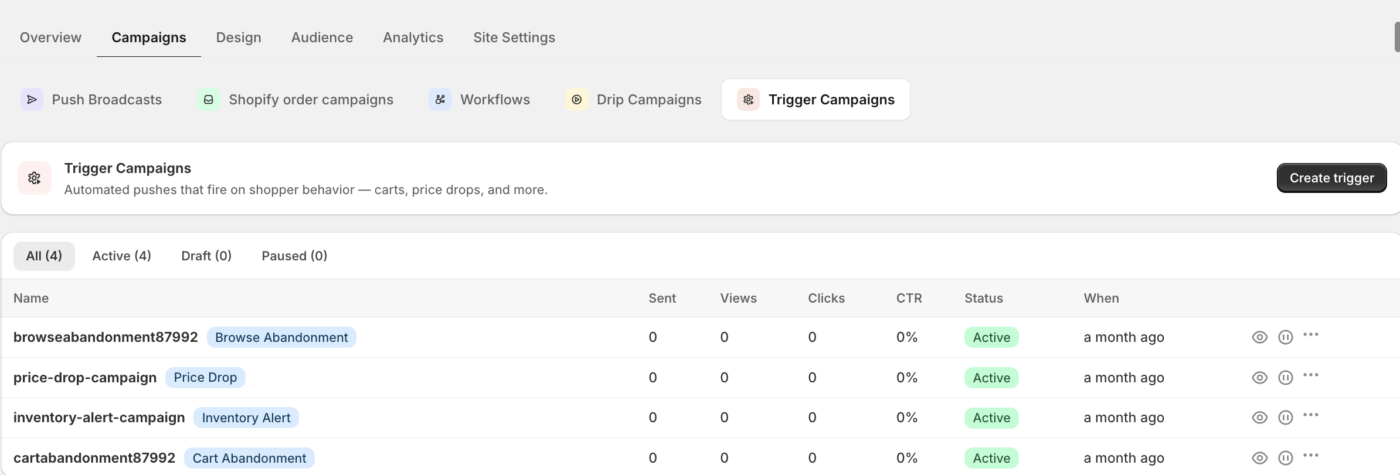
- Web Push » Kampanyalar bölümüne gidin ve kampanya türü şeridinden Tetikleyici Kampanyalar'ı seçin.
- Oluştur'a tıklayın ve bir tetikleyici türü seçin.
- Oluşturucunun en üstündeki bir kampanya adı girin. PushEngage, alandan uzaklaştığınızda adı mevcut kampanyalarınızla karşılaştırır ve eğer zaten alınmışsa sizi uyarır.
- Bildirimlerinizi İçerik adımında oluşturun.
- Kurallarınızı ve sınırlarınızı Ayarlar adımında belirleyin.
- Daha sonra bitirmek için Taslağı kaydet'e veya canlıya almak için Etkinleştir'e tıklayın.
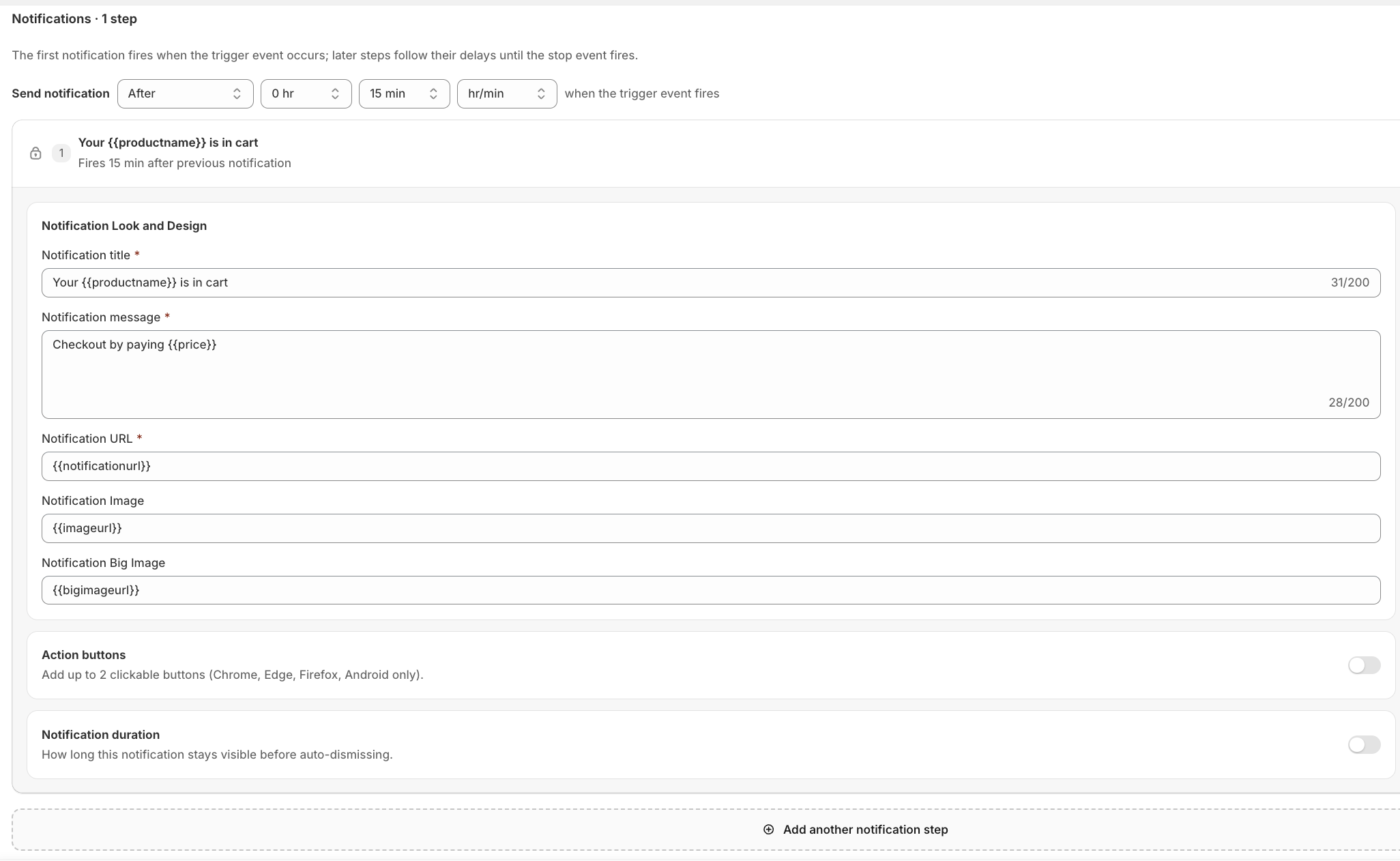
Bildirim dizisini yazın
İçerik adımında, tetikleyici olay gerçekleştiğinde ilk bildirim tetiklenir. Daha fazla adım eklerseniz, her sonraki adım, durdurma olayı tetiklenene kadar kendi gecikmesini izler. Yeni bildirimler, seçtiğiniz türe göre yer tutucu metinle önceden doldurulmuş olarak gelir, bu nedenle sıfırdan başlamak yerine düzenleme yaparsınız.
| Alan | Notlar | Sınır |
|---|---|---|
| Bildirim başlığı | Gerekli. {{productname}} ve {{price}} gibi değişkenleri destekler. | 85 karakter |
| Bildirim mesajı | Gerekli. | 135 karakter |
| Bildirim URL'si | Gerekli. Geçerli bir http veya https URL'si olmalıdır. Uyarılar için {{notificationurl}} veya {{link}} kullanın. | 1600 karakter |
| Bildirim resmi | İsteğe bağlı küçük simge resmi. | |
| Büyük resim | İsteğe bağlı. Etkinleştirilirse gereklidir. | |
| Eylem düğmeleri | İsteğe bağlı. Her biri etiket ve URL'ye sahip en fazla iki düğme. | Etiket 12, URL 256 |
Bir bildirime eklediğiniz herhangi bir {{variable}}, PushEngage'in mağazanızdan gönderdiğiniz olay verilerinde beklediği bir alan haline gelir.
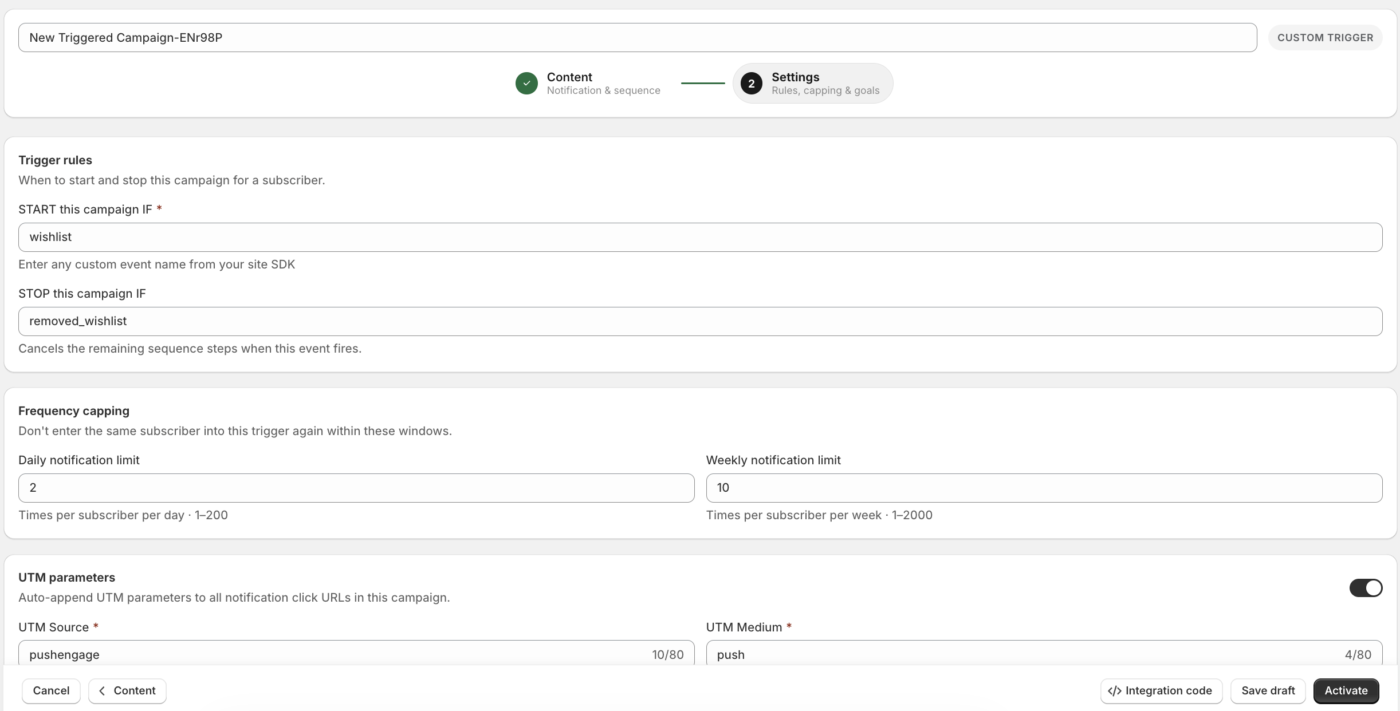
Kuralları ve sınırları yapılandırın
Ayarlar adımında, denetimler tetikleyici türe göre değişir.
Özel, Sepet ve Gözatma tetikleyicileri için tetikleyici kurallarını ayarlayın. Sırayı başlatan olay adı için BU kampanyayı BAŞLAT ve kalan adımları iptal eden olay için BU kampanyayı DURDUR kullanın. Sepet ve Gözatma olayları sabittir ve düzenlenemez. Özel bir tetikleyici için kendi olay adınızı girin.
Fiyat Düşüşü ve Stokta Yok tetikleyicileri için, PushEngage'in her abone için ürünü ne kadar süreyle izleyeceğini kontrol etmek üzere Kampanya süresi (gün) değerini 1 ile 365 arasında ayarlayın. Fiyat Düşüşü için ayrıca yüzde veya mutlak miktar Eşik türü seçin, ardından Düşüş miktarı değerini girin. Fiyat en az bu miktarda düştüğünde uyarı tetiklenir.
Bir abonenin tetikleyiciye çok sık tekrar girmesini önlemek için Sıklık sınırlaması kullanın. Bir Günlük bildirim sınırı (1 ila 200) veya bir Haftalık bildirim sınırı (1 ila 2000) ayarlayın veya sınır olmaması için her ikisini de boş bırakın. Bildirim URL'sine izleme etiketleri eklemek için UTM parametreleri'ni etkinleştirin ve harfler, sayılar, kısa çizgiler ve alt çizgiler kullanarak 1 ila 64 karakter uzunluğunda bir hedef adıyla dönüşümleri ilişkilendirmek için Hedef izleme'yi etkinleştirin.
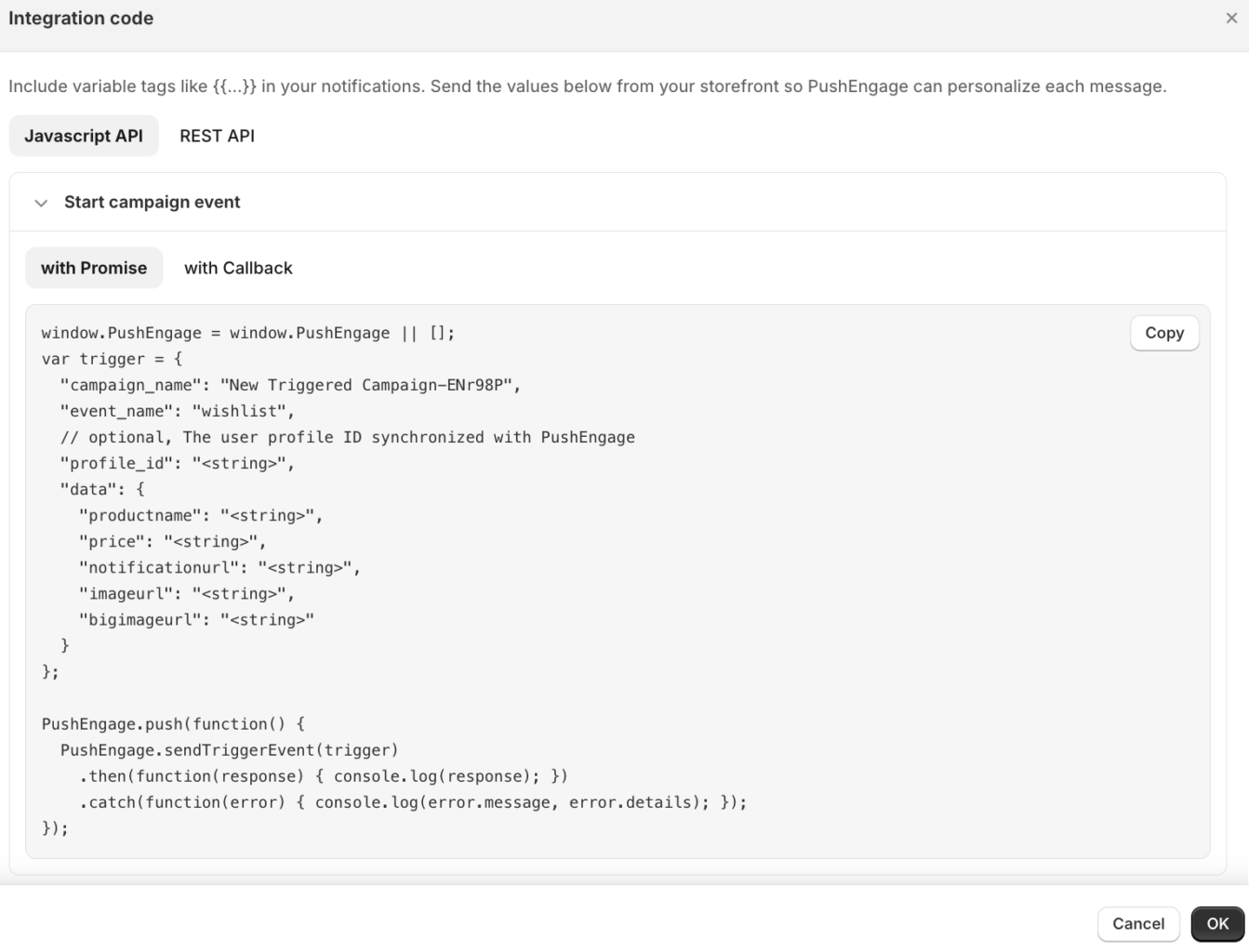
Tetikleyici Olayını Mağazanızdan Gönderin
Sepet ve Gözatma terk tetikleyicileri aktif olur olmaz çalışır. Özel, Fiyat Düşüşü ve Stokta Yok tetikleyicilerinin, olayın ne zaman gerçekleştiğini PushEngage'e mağazanızın bildirmesi gerekir. Oluşturucu altbilgisinde, Promise veya Callback biçiminde bir kopyala-yapıştır parçacığı oluşturan Entegrasyon kodu'na tıklayarak kod modülünü açın.
Sıkça Sorulan Sorular
Özel tetikleyicim neden çalışmıyor?
Entegrasyon kodunuzdaki event_name'in oluşturucudaki BU kampanyayı BAŞLAT değeriyle tam olarak eşleştiğinden ve kampanyanın taslak yerine Aktif olduğundan emin olun. Bir eşleşme hatası veya taslak kampanya, özel bir tetikleyicinin sessiz kalmasının en yaygın nedenidir.
Bildirimim neden ürün detaylarını eksik?
Bildirim içeriğinizdeki her {{variable}} öğesinin, gönderdiğiniz olay verilerinde veya uyarı yükünde eşleşen bir anahtara ihtiyacı vardır. Bir anahtar eksik olduğunda, PushEngage o noktayı boş bırakır, bu nedenle yükünüzün kullandığınız her değişkeni içerdiğini doğrulayın.
Aynı alışverişçiye çok fazla bildirim göndermeyi nasıl durdururum?
Ayarlar adımında günlük veya haftalık bir frekans sınırı belirleyin. Sınır, aynı abonenin seçtiğiniz pencere içinde tetikleyiciye yeniden girmesini önler.
Oluşturucu neden kaydetmeme izin vermiyor?
Oluşturucu, doğrulama hatası veren ilk alanı vurgular. Yaygın nedenler arasında boş bir başlık, ileti veya URL, http veya https olmayan bir URL veya sonraki bir adımda sıfır gecikme bulunur.
Herhangi bir sorunla karşılaşırsanız, lütfen buraya tıklayarak bizimle iletişime geçmekten çekinmeyin. Destek ekibimiz size yardımcı olabilecektir.