WhatsApp Cloud API'niz PushEngage'e bağlandıktan sonra, Shopify müşterilerinize otomatik WhatsApp mesajları gönderebilirsiniz; bunlar arasında sepet kurtarma hatırlatıcıları, sipariş durumu bildirimleri ve promosyon kampanyaları bulunur. Bu kılavuz, otomatik mesajlaşma tarafını kapsar: hangi kampanyaları yürütebileceğiniz, bunları nasıl ayarlayacağınız ve mesaj şablonlarını nasıl kullanacağınız.
Başlamadan Önce
- WhatsApp Cloud API'niz PushEngage'e bağlandı. Bağlanmadıysa, önce Shopify'da Mesajlaşmayı Etkinleştirmek İçin WhatsApp Cloud API Kurulumu bölümünü tamamlayın.
- WhatsApp otomatik mesajları Meta onaylı mesaj şablonlarını kullanır. Meta'dan şablon onayı birkaç saatten birkaç güne kadar sürebilir.
- PushEngage'de WhatsApp mesajlaşması tüm ücretli Shopify planlarında mevcuttur.
WhatsApp Otomatik Mesajlaşma Nasıl Çalışır
WhatsApp otomatik mesajlaşması, anlık bildirimlerden farklı çalışır. İki konuşma türü vardır:
| Tür | Açıklama | Maliyet |
|---|---|---|
| Yardımcı Program / İşlemsel | Sipariş onayları, kargo güncellemeleri, iade bildirimleri — müşterinin beklediği mesajlar | Meta tarafından konuşma başına ücretlendirilir |
| Pazarlama | Sepet kurtarma, promosyonlar, yeniden etkileşim — sizin başlattığınız mesajlar | Meta tarafından konuşma başına ücretlendirilir |
PushEngage teslimatı ve kampanya kurulumunu yönetir. Meta konuşma faturalandırmasını ve şablon onayını yönetir. Tüm mesajlar önceden onaylanmış şablonları kullanmalıdır.
Adım 1: Shopify'da WhatsApp Kampanyalarına Erişin
- Shopify yöneticinize giriş yapın.
- Uygulamalar'a gidin ve PushEngage'i açın.
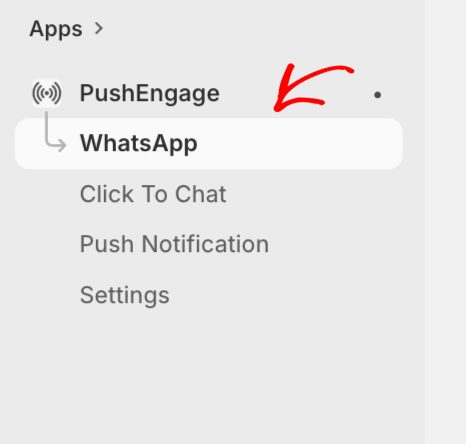
- PushEngage Shopify uygulaması kenar çubuğunda WhatsApp'a gidin.
Adım 2: Mesaj Şablonu Oluşturun veya Kullanın
WhatsApp, tüm giden otomatik mesajlar için önceden onaylanmış mesaj şablonları gerektirir. PushEngage, yaygın Shopify kullanım durumları için Meta'ya onay için gönderebileceğiniz hazır şablonlar sunar.
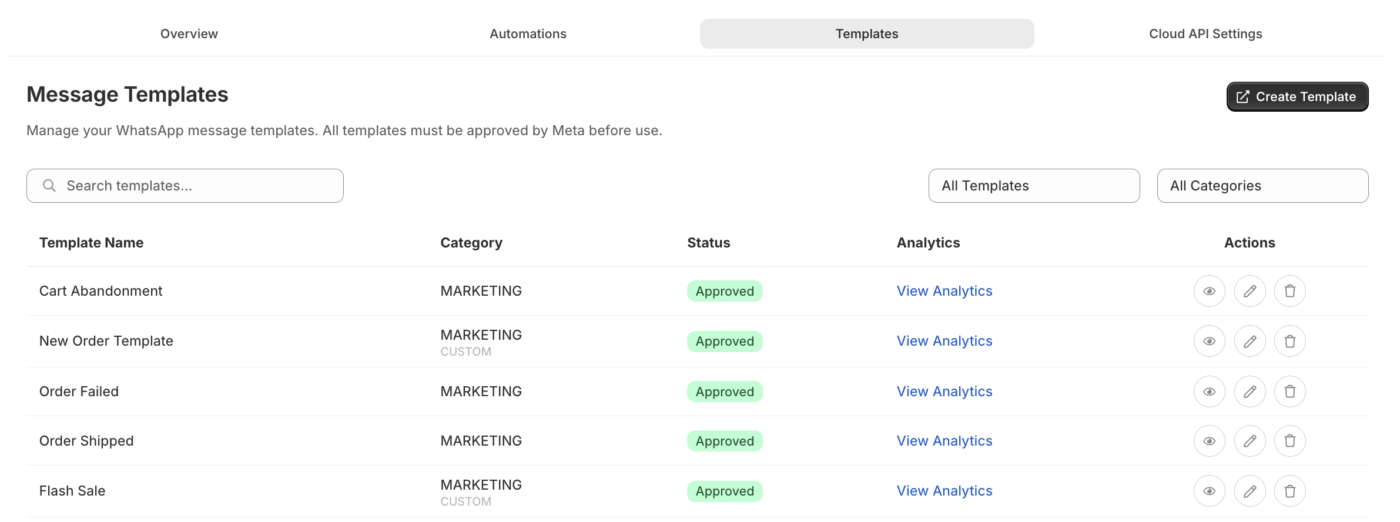
- WhatsApp bölümünde Mesaj Şablonları'na gidin.
- Mevcut şablonlara göz atın veya Şablon Oluştur'a tıklayın.
- Şablon kategorisini seçin: Pazarlama veya Yardımcı Program.
- Şablon adını, dilini, gövde metnini ve herhangi bir değişken yer tutucusunu doldurun.
- Meta onayı için gönderin.
Shopify İçin Yaygın Şablon Değişkenleri
| Değişken | Ne ekler |
|---|---|
{{1}} | Müşteri adı |
{{2}} | Ürün adı veya sipariş kimliği |
{{3}} | Sipariş toplamı |
{{4}} | Takip bağlantısı veya mağaza URL'si |
Sepet kurtarma için şablon örneği:
Merhaba {{1}}, sepetinizde {{2}} bırakmışsınız. Satın alımınızı buradan tamamlayın: {{4}}
Sipariş onayı için şablon örneği:
Merhaba {{1}}, siparişiniz #{{2}} onaylandı. Toplam: {{3}}. Bizimle alışveriş yaptığınız için teşekkür ederiz!
Adım 3: WhatsApp Üzerinden Otomatik Sepet Kurtarma Kurulumu
WhatsApp ile sepet kurtarma, sepetini terk eden müşterilere, WhatsApp mesajlaşmasına izin verdikleri takdirde bir mesaj gönderir.
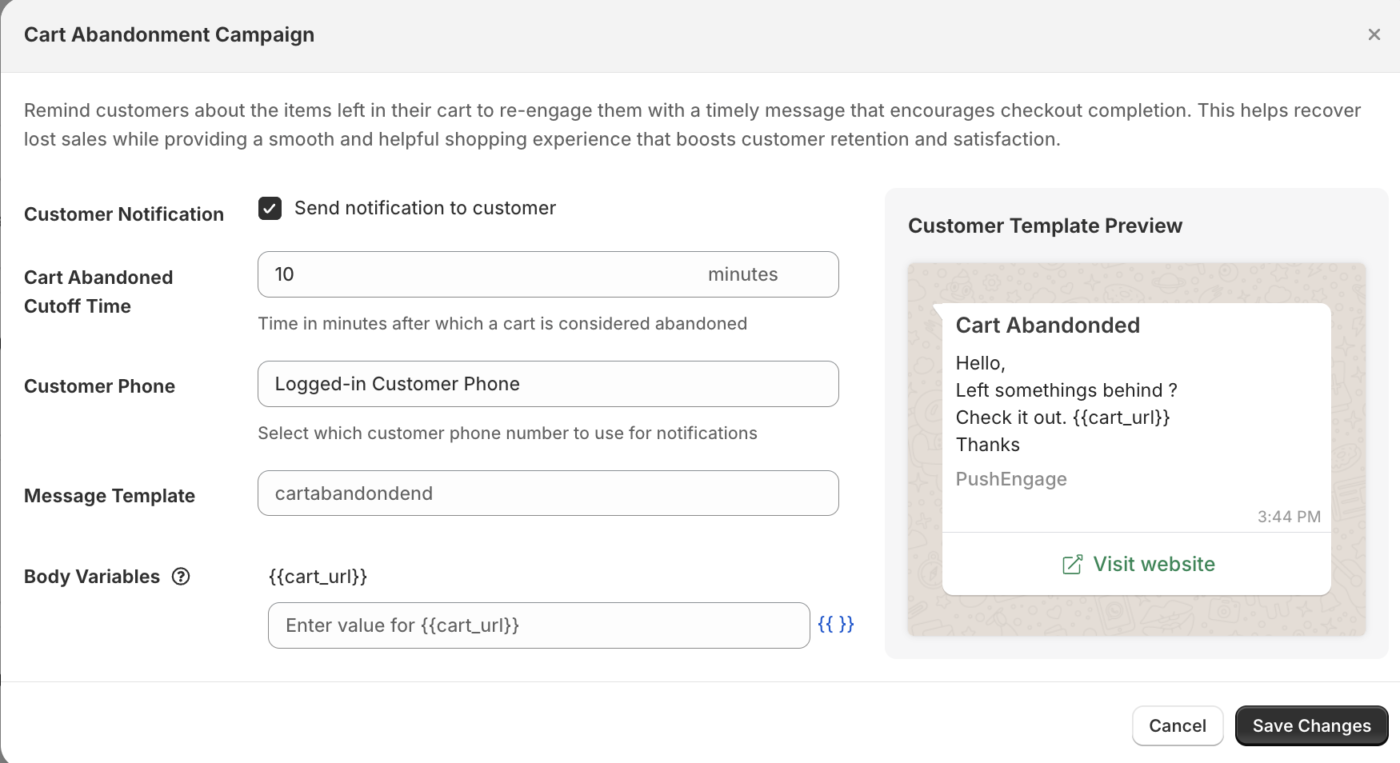
- WhatsApp bölümünde Otomatikleştirme'ye gidin.
- Kullanmak istediğiniz sepet kurtarma şablonunu seçin.
- Gecikmeyi ayarlayın: mesajın gönderilmesinden ne kadar süre sonra (örnek: 1 saat).
- Kampanyayı etkinleştirin.
Not: WhatsApp mesajları yalnızca WhatsApp numaralarını vermiş ve mesaj alma izni vermiş müşterilere gönderilebilir. PushEngage, mevcut olduğunda Shopify sipariş kaydındaki telefon numarasını kullanır.
Adım 4: Sipariş Güncelleme Bildirimlerini Kurulumu
Sipariş bildirimleri, müşterileri e-postaya güvenmeden sipariş yaşam döngüsü boyunca bilgilendirir.
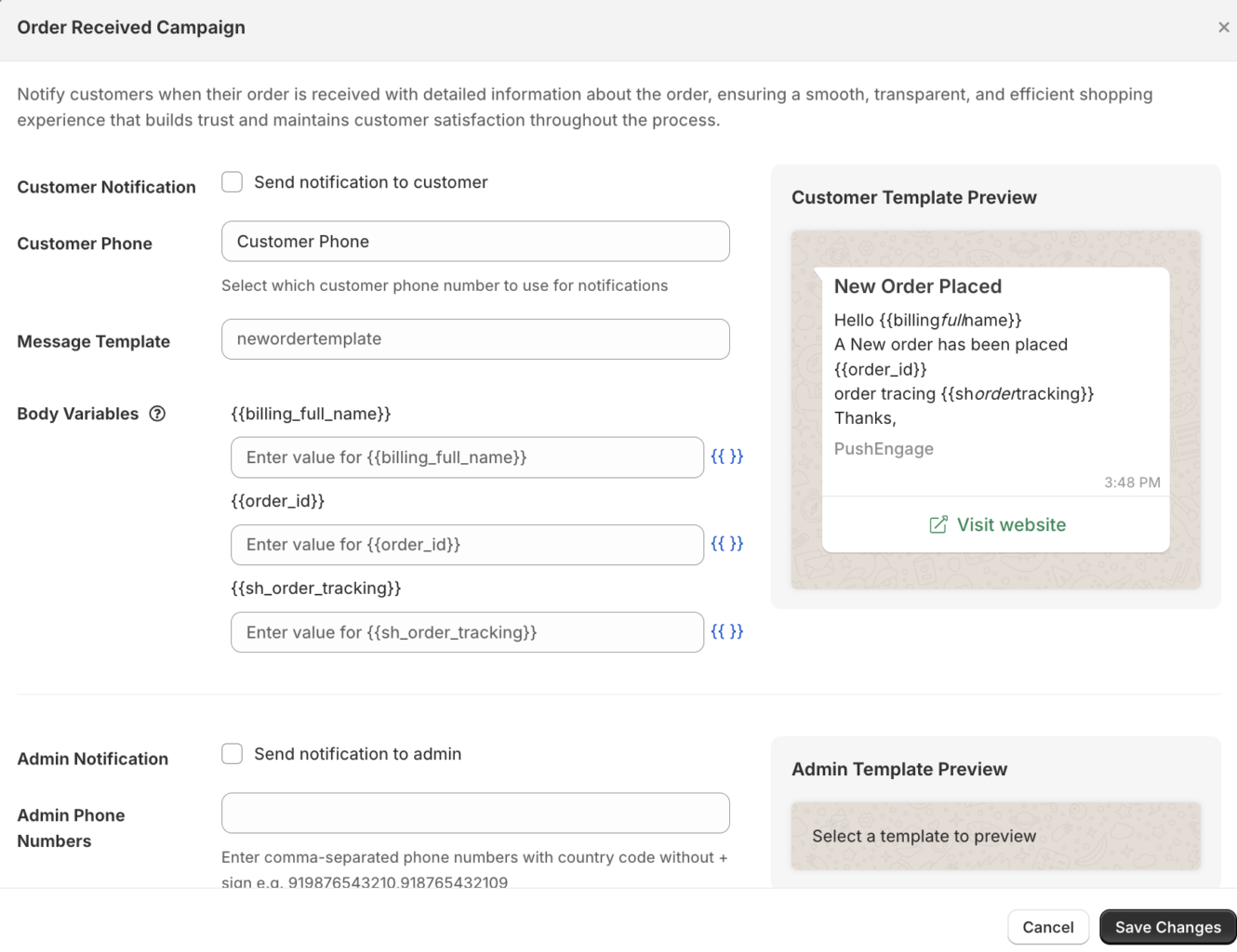
- WhatsApp bölümünde Sipariş Bildirimleri'ne gidin.
- Göndermek istediğiniz bildirim türlerini etkinleştirin:
| Bildirim | Tetikleyici |
|---|---|
| Sipariş Onaylandı | Yeni bir sipariş verildiğinde |
| Sipariş Kargolandı | Sipariş tamamlandı olarak işaretlendiğinde |
| Sipariş Teslim Edildi | Teslimat durumu teslim edildi olarak güncellendiğinde |
| Para İadesi Yapıldı | Bir para iadesi işlendiğinde |
- Her bildirim için kullanılacak önceden onaylanmış şablonu seçin.
- Kaydet'e tıklayın.
WhatsApp Analizlerini Görüntüleme
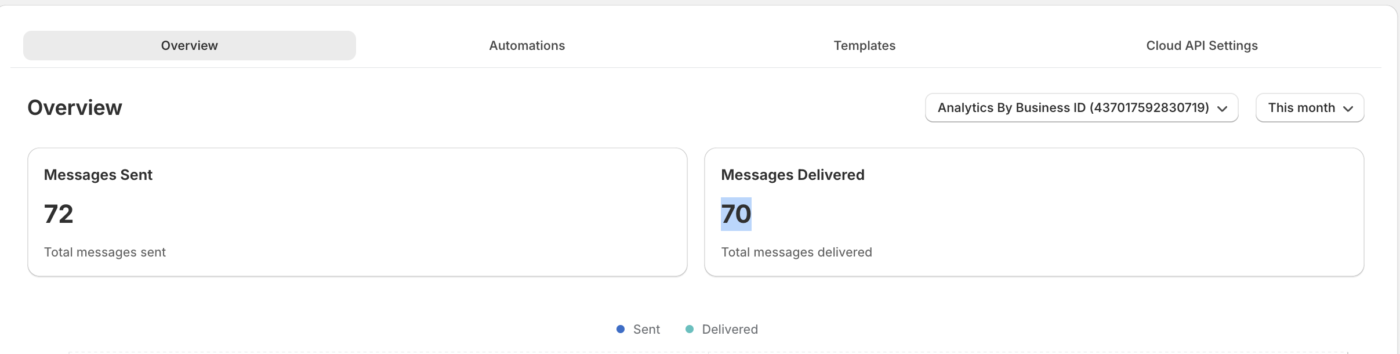
- PushEngage Shopify uygulamasında WhatsApp » Analiz'e gidin.
- Gönderilen, teslim edilen, okunan ve yanıtlanan mesajlar dahil olmak üzere metrikleri inceleyin.
| Metrik | Ne anlama geliyor |
|---|---|
| Gönderildi | Teslimat için kuyruğa alınmış mesajlar |
| Teslim edildi | Mesajlar müşterinin WhatsApp'ına başarıyla teslim edildi |
| Okundu | Müşteri mesajı açtı (WhatsApp okundu bilgisi etkinleştirilmiş olmalı) |
| Yanıtlandı | Müşteri bir yanıt gönderdi |
Sıkça Sorulan Sorular
Müşterilerin WhatsApp mesajı almak için onay vermesi gerekiyor mu? Evet. WhatsApp, pazarlama mesajları almak için müşterilerden açık onay ister. İşlemsel mesajlar (sipariş güncellemeleri), ödeme sırasında numaralarını veren müşterilere Meta'nın yardımcı konuşma kuralları kapsamında gönderilebilir; ancak kendi kullanım durumunuzu Meta'nın WhatsApp İş Politikası'na göre doğrulamanız gerekir.
Meta şablon onayı ne kadar sürer? Genellikle birkaç saatten 2 iş gününe kadar. Bazı şablonlar, Meta'nın içerik yönergelerini karşılamazsa revizyon gerektirebilir.
WhatsApp mesajları ücretsiz mi? WhatsApp konuşmaları, mesaj başına değil, konuşma başına Meta tarafından faturalandırılır. Ayda ilk 1.000 hizmet konuşması ücretsizdir. Pazarlama ve yardımcı konuşmalar, ülkeye göre değişen oranlarda ücretlendirilir. Güncel oranlar için Meta'nın fiyatlandırma sayfasına bakın.
Aynı olay için WhatsApp ve anlık bildirim gönderebilir miyim? Evet. PushEngage çok kanallı kampanyaları destekler. Aynı müşteri için bir WhatsApp sepet kurtarma mesajının yanında çalışan bir sepet terk etme anlık bildirim dizisi oluşturabilirsiniz.
Herhangi bir sorunla karşılaşırsanız, lütfen buraya tıklayarak bizimle iletişime geçmekten çekinmeyin. Destek ekibimiz size yardımcı olabilecektir.