Shoppere besøger din hjemmeside og gennemser dine produkter eller tjenester, men forlader uden at foretage sig noget; PushEngage's browse abandonment-kampagner er designet til at genaktivere dem. Disse kampagner bruger web push-notifikationer til at bringe shoppere tilbage, især dine vinduesshoppere, og opfordrer dem til at gennemføre handlinger som køb eller tilmelding.
Før du starter
Rejsen begynder med Trigger Campaigns, som er nyttige til at skabe personlige oplevelser med skabeloner som cart abandonment, browse abandonment, prisnedslag eller lageropdateringer, og til at bygge enhver hændelsesbaseret kampagne, der er skræddersyet til brugerinteraktioner.
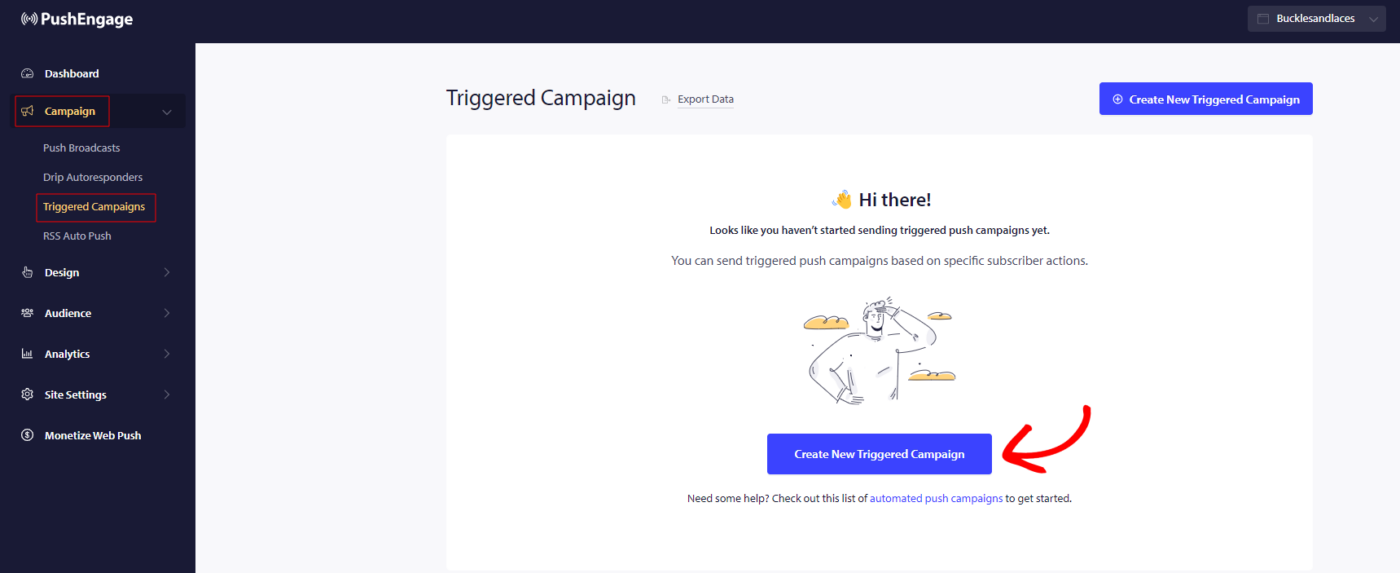
I denne guide lærer du, hvordan du opsætter browse abandonment-kampagner med PushEngage.
Du skal logge ind på dit dashboard og navigere til Kampagne » Udløste Kampagner. Vælg Browse Abandonment Campaign, og klik på Opret Ny.
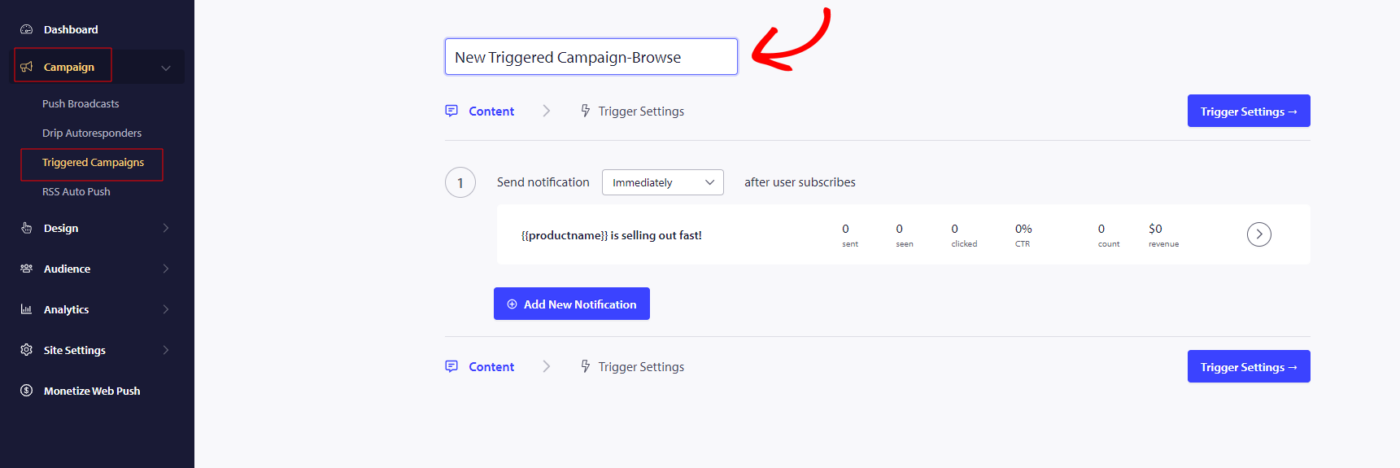
Bemærk: Når du tilføjer et kampagnenavn, vil det også forblive det samme i din kode. Så et korrekt kampagnenavn er vigtigt, da det ikke kan ændres senere, når kampagnen er udgivet.
Her kan du indtaste Kampagnenavn.
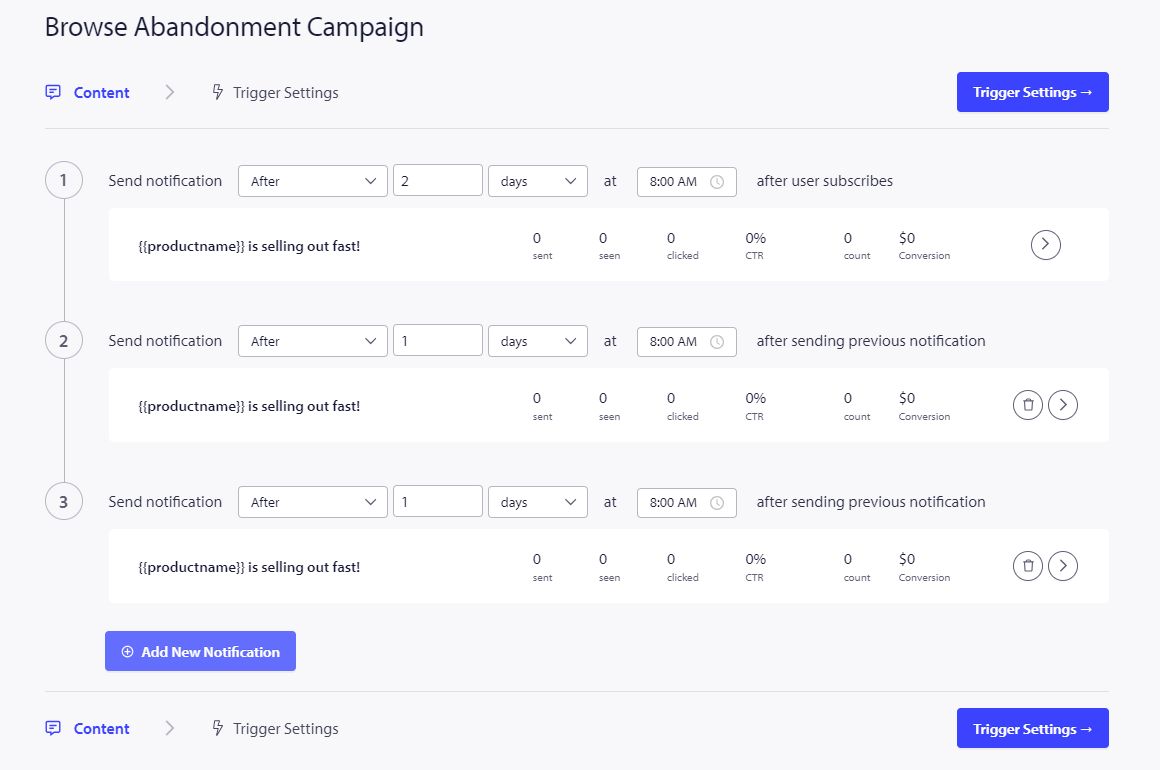
Det næste trin er at konfigurere rejseplanen. Du kan vælge mellem følgende muligheder: send straks, efter et bestemt antal timer og minutter, eller på en bestemt dag.
Det anbefales generelt ikke at planlægge kampagnen til at blive sendt straks. Tillad i stedet mindst 15 eller 30 minutters forsinkelse for den første kampagne i serien.
Når du opsætter en serie, skal du have mindst tre kampagner. Du kan ændre meddelelsen eller titlen, men sørg for ikke at ændre nogen variabler, hvis du planlægger at bruge dem i kampagnen.
Standardvariablerne inkluderet i kampagnekoden er {{productname}}, {{price}} og {{notificationurl}}.
Håndtering af udløserindstillinger
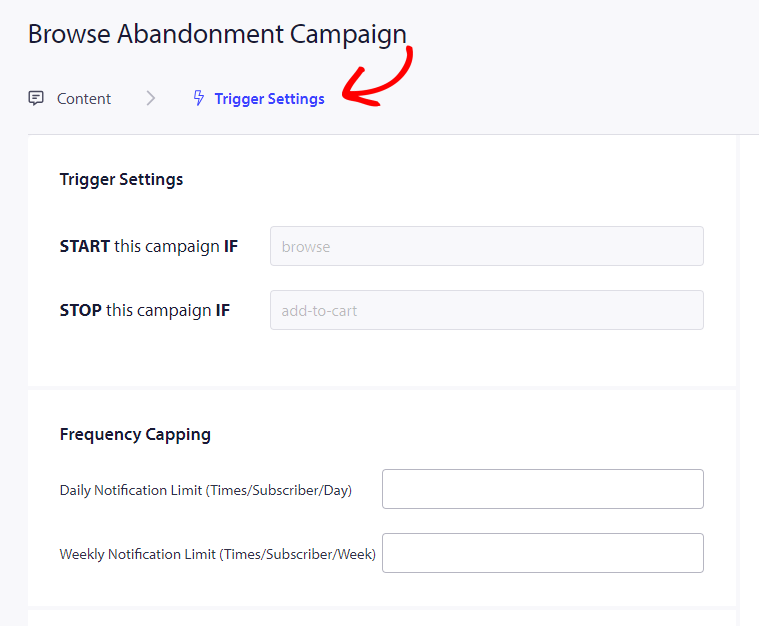
Når du har tilføjet notifikationsdetaljerne, går vi videre til Udløserindstillinger.
I dette setup er udløserne foruddefinerede. Kampagnen starter, hvis nogen tilføjer et produkt til deres kurv, men ikke gennemfører købet. Hvis de gennemfører købet, modtager de ikke notifikationen om kurvforladelse. Husk dog, at disse begivenheder kun er definerede; de virker ikke, medmindre de er implementeret på hjemmesiden.
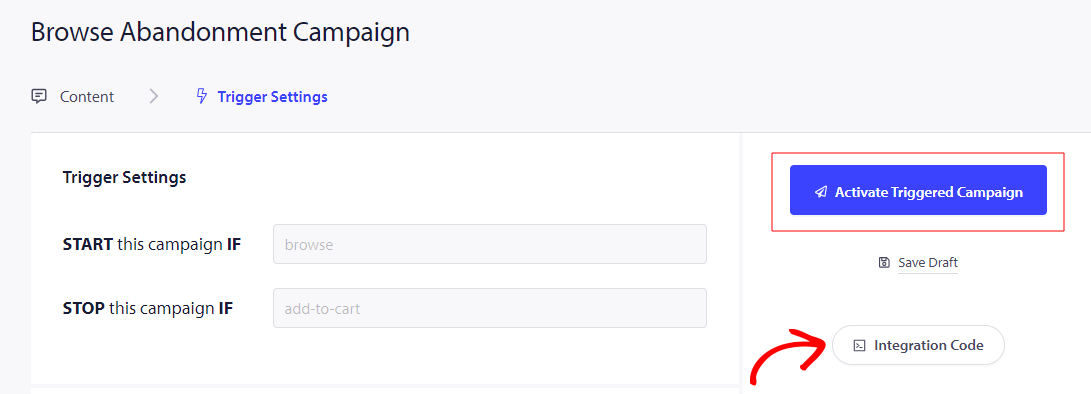
Udløserne her er Start Kampagne Hvis – browse og Stop Kampagne Hvis – tilføj til kurv
Det næste trin er at etablere de daglige og ugentlige udløsergrænser, som styrer antallet af notifikationer en abonnent kan modtage hver dag og uge. For eksempel, hvis du tillader 2 notifikationer pr. dag, svarer det til et maksimum på 14 notifikationer pr. uge. Dette hjælper med at holde notifikationsfrekvensen i skak.
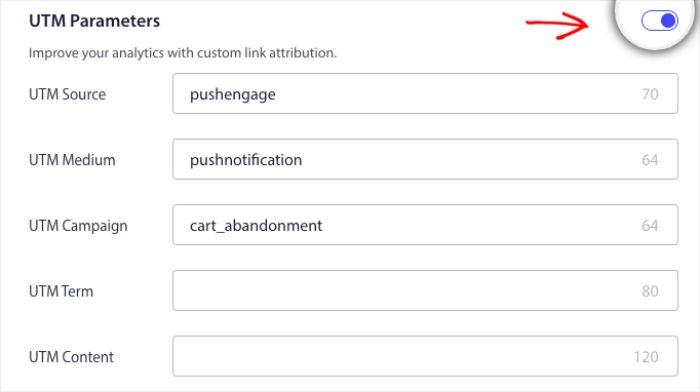
For ikke at glemme kan du spore analyser i Google Analytics, du kan aktivere UTM-parametre, hvilket giver dig mulighed for at opsætte specifikke navne, der gør disse kampagner let identificerbare i dine rapporter
Derefter skal du klikke på knappen Integrer kode, kopiere koden og dele den med dit udviklingsteam. til implementering.
Forståelse af kode og personlige variabler
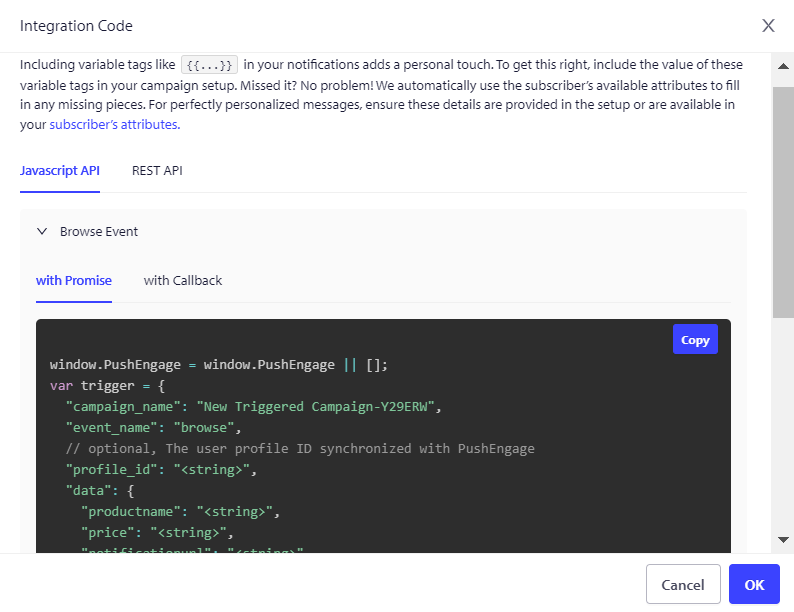
Du skal tilføje produktnavnet, prisen og notifikations-URL'en, så det kan sendes dynamisk med hjælp fra dit produktteam.
For eksempel, hvis en person browser en mobiltelefon, får de en notifikation specifikt om den mobiltelefon, der bliver kigget på, og forlader siden uden at tilføje den til kurven.
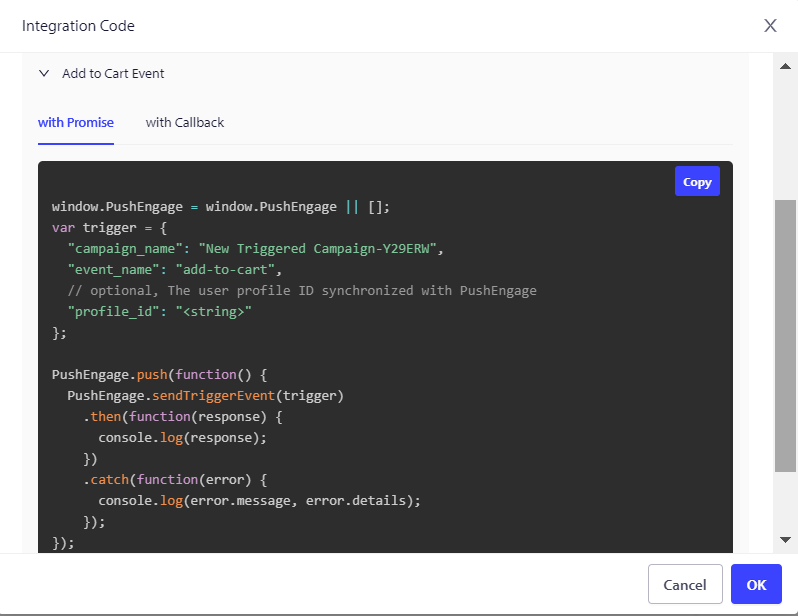
Koden består af to dele: den første del er Startbegivenheden, og den anden del er Stopbegivenheden –
1. Gennemse begivenhed
2. Tilføj til kurv begivenhed
Vi tilbyder også en målsøgnings-pixel, der skal placeres på den endelige konverteringsbegivenhed for effektivt at overvåge og spore dine mål. Denne pixel spiller en afgørende rolle i at sikre, at alle konverteringer registreres nøjagtigt, hvilket giver dig mulighed for at vurdere succesen af dine kampagner og optimere dine strategier derefter.
Fejlfinding af kampagne for opgivne gennemgange
- Kampagnenavnet skal være det samme i koden og på PushEngage-dashboardet.
- PushEngage-installationskoden skal være til stede, hvor kurv-opgivelseskampagnekoden er til stede; ellers vil notifikationerne ikke blive udført.
- Sørg for, at kampagnen er aktiv på dashboardet, efter du har placeret koden på din hjemmeside.
- Du skal være en web push-abonnent på dit websted; ellers kan du ikke teste, om du modtager kampagner for opgivne gennemgange på dit system.
Hvis du støder på problemer, er du velkommen til at kontakte os ved at klikke her. Vores supportteam vil med glæde hjælpe dig.