Du kan overføre dine eksisterende iOS- og Android-app-push-abonnenter til PushEngage ved at genbruge de samme Apple- og Firebase-legitimationsoplysninger, som din app allerede bruger. Fordi enhedstokens udstedes af Apple og Google snarere end af din push-udbyder, lader genbrug af disse legitimationsoplysninger dine tokens fortsætte med at fungere efter skiftet. Denne guide forklarer, hvordan migreringen fungerer, og trinene til at opsætte den. Migrering er en backend-proces, der håndteres sammen med vores team.
Før du starter
- Opret din PushEngage-konto.
- Hav adgang til dine Apple push-legitimationsoplysninger, specifikt dit App Push ID og p12-certifikatet fra din Apple Developer-konto.
- Hav adgang til dine Android Firebase-indstillinger, specifikt dit Firebase Sender ID.
- Hav en måde at eksportere dine abonnentdata fra din nuværende udbyder.
Sådan fungerer mobilapp-migrering
Enhedstokens til app-push kommer fra Apple Push Notification service (APNs) og Firebase Cloud Messaging (FCM), ikke fra din nuværende udbyder. Hvis du konfigurerer PushEngage med de samme APNs- og FCM-legitimationsoplysninger, som du allerede bruger, forbliver disse tokens gyldige, og migreringen sker på backend.
Notifikationstilladelse overføres også. Hvis en bruger allerede har givet notifikationstilladelse i din app, behøver de ikke at give den igen efter migreringen.
Trin til migrering
Trin 1: Eksporter dine abonnenter fra din nuværende udbyder
Eksporter dine abonnentdata ved hjælp af en af de metoder, din udbyder tilbyder:
- API-eksport, ved hjælp af din nuværende udbyders app ID og API-nøgle.
- CSV-eksport, med en fil der indeholder
identifier,device_type,languageog andre relevante felter.
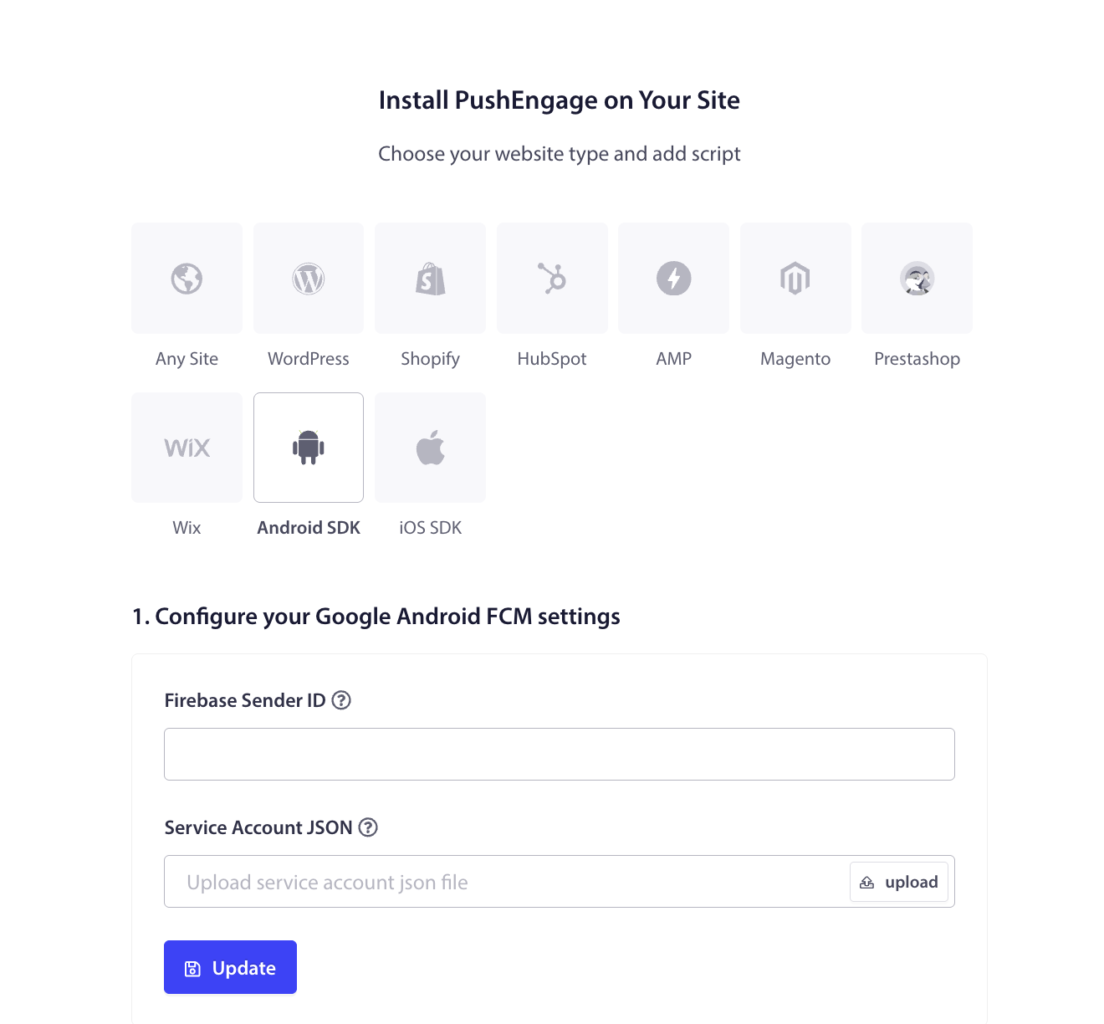
Trin 2: Konfigurer Android FCM i PushEngage
- Log ind på PushEngage-dashboardet.
- Gå til Indstillinger » Installation » Android SDK.
- Konfigurer Google Android FCM-indstillingerne ved hjælp af det samme Firebase Sender ID, som du allerede bruger.
Trin 3: Konfigurer iOS APNs i PushEngage
- I PushEngage-dashboardet skal du gå til Indstillinger » Installation » iOS SDK.
- Konfigurer Apple iOS APNs-indstillingerne ved hjælp af det samme App Push ID fra din nuværende opsætning.
- Upload p12-certifikatet fra din Apple Developer-konto, det samme som du allerede bruger.
Vigtige bemærkninger om app-versionens overgang
App-push-migrering afhænger af, hvilken version af din app en abonnent kører, så planlæg din udgivelsesovergang omhyggeligt.
- Ældre app-versioner med den tidligere udbyders SDK. Efter migrering vil abonnenter, der stadig bruger ældre app-versioner, ikke modtage notifikationer sendt fra PushEngage, fordi PushEngage-payloaden ikke kan afkodes af den gamle SDK.
- Nye app-versioner med PushEngage SDK. Hvis du sender fra din tidligere udbyders dashboard efter migrering, vil disse notifikationer ikke blive vist på nye app-versioner, fordi den gamle payload ikke kan afkodes af PushEngage SDK.
Kort sagt, send fra PushEngage til brugere på den nye app-version, og forvent at brugere, der ikke har opdateret, vil skifte over, efterhånden som de opgraderer appen.
Ofte stillede spørgsmål
Skal abonnenter give notifikationstilladelse igen?
Nej. Hvis tilladelse allerede er givet i din app, behøver den ikke at blive givet igen efter migrering.
Vil alle abonnenter modtage notifikationer lige efter migrering?
Brugere på den nye app-version med PushEngage SDK vil. Brugere, der stadig er på en ældre app-version med den tidligere udbyders SDK, vil ikke modtage PushEngage-notifikationer, før de opdaterer appen.
Hvorfor skal jeg genbruge de samme APNs- og Firebase-legitimationsoplysninger?
Fordi enhedstokens er knyttet til disse legitimationsoplysninger. Genbrug af det samme App Push ID, p12-certifikat og Firebase Sender ID holder dine eksisterende tokens gyldige, hvilket er det, der muliggør migreringen uden at bede brugere om at genregistrere sig.
Hvilke data skal jeg bruge fra min nuværende udbyder?
Enten en API-eksport ved hjælp af din udbyders app ID og API-nøgle, eller en CSV, der indeholder mindst identifier, device_type og language, plus eventuelle andre relevante felter.
Hvis du støder på problemer, er du velkommen til at kontakte os ved at klikke her. Vores supportteam vil kunne hjælpe dig.