默认广告系列是预先构建的一次性设置自动化,一旦启用,PushEngage 就会自动为您的 Shopify 商店运行。有三种类型:为新订阅者提供欢迎通知,为您的目录提供新产品列表警报,以及一套完整的订单状态通知。您启用它们,自定义消息,然后 PushEngage 处理其余部分
本指南将引导您完成查找默认广告系列、启用每个广告系列以及自定义通知副本的过程。
开始之前
- PushEngage 已安装在您的 Shopify 商店中。如果尚未安装,请参阅使用 PushEngage 为您的 Shopify 商店添加推送通知指南。
- 至少有一位订阅者已选择接收您商店的推送通知。
查找默认广告系列
- 登录您的PushEngage 仪表板。
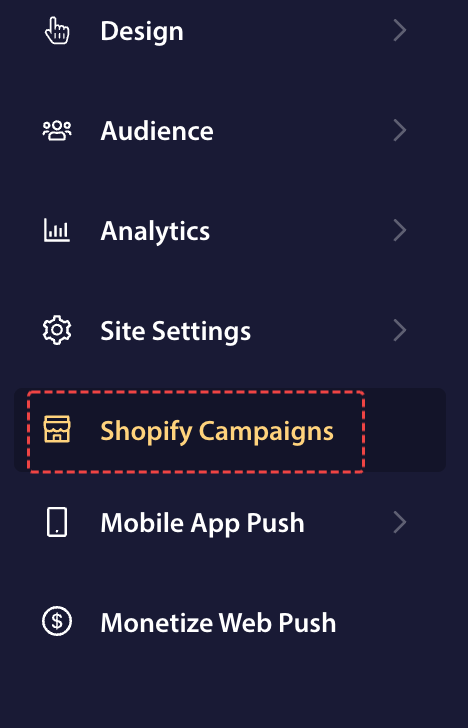
- 在左侧导航菜单中,转到Shopify 广告系列。
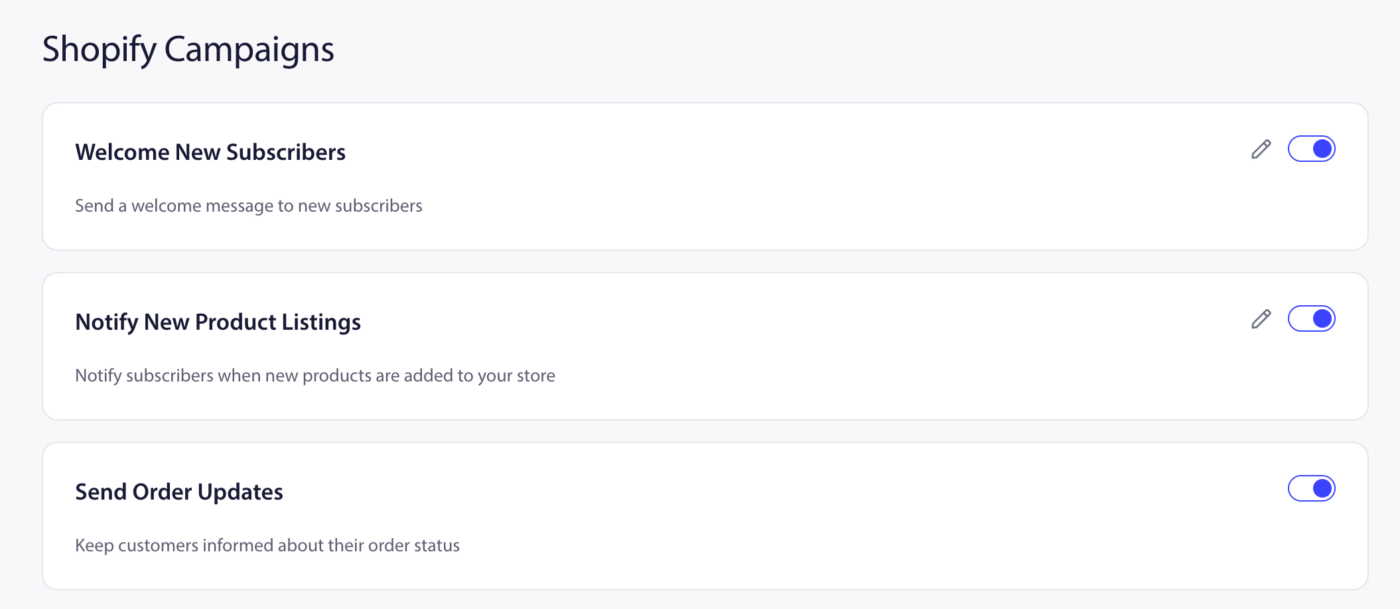
您将看到三个默认广告系列卡:欢迎新订阅者、通知新产品列表和发送订单更新。
1. 欢迎新订阅者
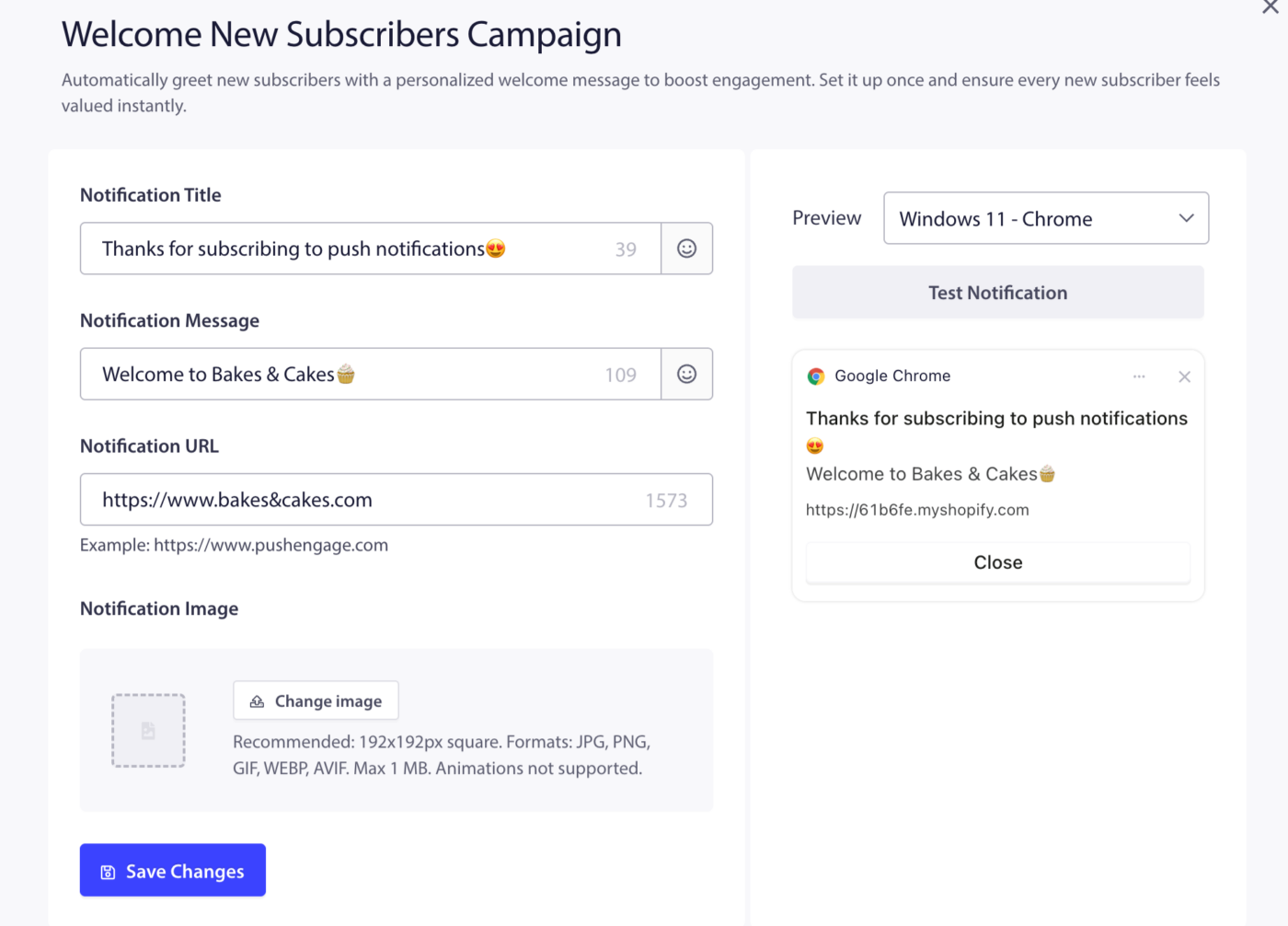
它会在新订阅者选择接收您商店的推送通知的那一刻,向他们发送一次欢迎推送通知。它作为一个包含一个通知步骤的邮件营销活动运行。第一印象很重要。欢迎通知可确认订阅、建立信任,并有机会立即将订阅者带回您的商店。
- 在Shopify 广告系列页面上,找到欢迎新订阅者卡。
- 将开关切换到 “开启”。
该广告系列将立即对所有未来的新订阅者生效。
2. 通知新产品列表
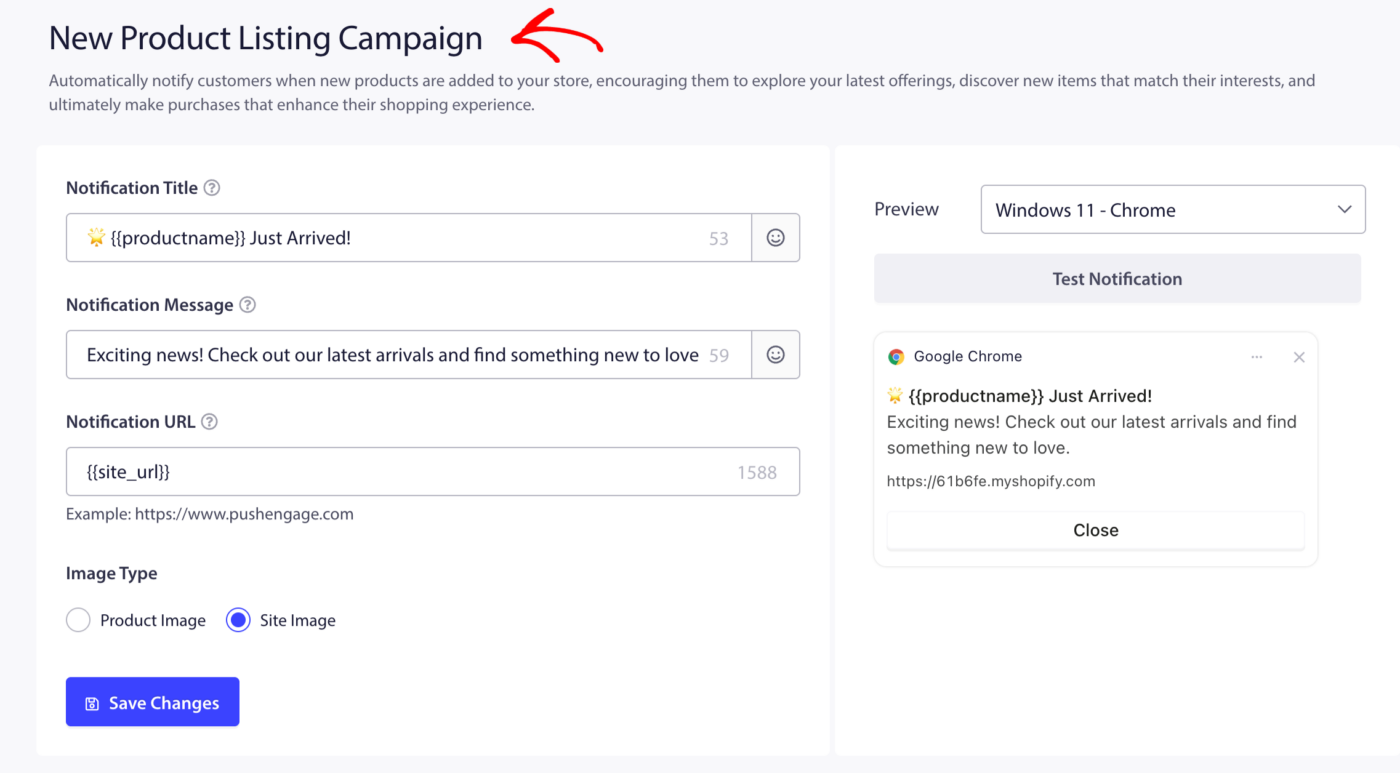
每当您在 Shopify 商店中发布新产品时,它会自动向所有订阅者发送推送通知。它将您的产品目录转变为再互动渠道。一段时间未访问的订阅者将获得一个自动返回的理由。
- 在Shopify 广告系列页面上,找到通知新产品列表卡。
- 将开关切换到 “开启”。
可用占位符
您可以使用这些占位符将动态值插入通知标题和通知消息中。PushEngage 在发送通知时会用实际产品数据替换它们。
| 占位符 | 它插入的内容 |
|---|---|
{{productname}} | 新列出产品的名称 |
{{price}} | 新产品的价格 |
{{site_url}} | 您的 Shopify 商店网址 |
对于通知网址字段,您可以使用:
| 占位符 | 它插入的内容 |
|---|---|
{{site_url}} | 您的 Shopify 商店网址 |
使用占位符的示例标题:
新品到货:{{productname}} — 现价 {{price}}
3. 发送订单更新
它会在订单生命周期的每个阶段向客户发送自动推送通知。这是一个父切换开关,会显示六个单独的订单状态广告系列,每个广告系列都可以独立启用或禁用。订单更新是电子商务中打开率最高的推送通知之一——客户正在积极等待此信息。启用它们可以减少支持查询并建立购后信任。
- 在Shopify 广告系列页面上,找到发送订单更新卡。
- 将“发送订单更新”开关切换到“打开”。
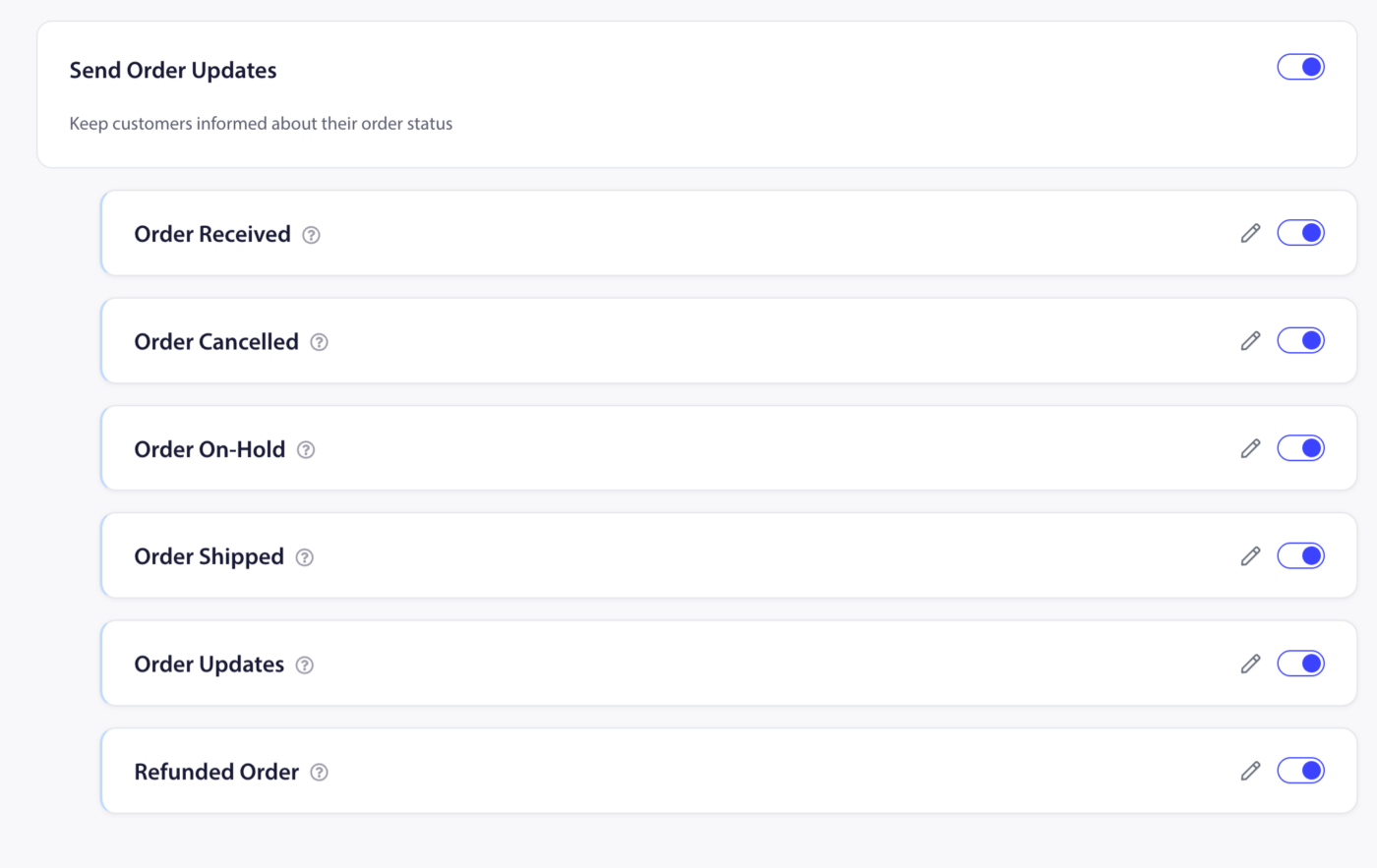
订单状态营销活动
您可以独立启用每项状态通知。所有六项共享相同的编辑工作流程:点击卡片上的铅笔图标,自定义通知,然后保存。
| 营销活动 | 触发器 |
|---|---|
| 收到订单 | 当客户下新订单时触发 |
| 订单已取消 | 当订单被取消时触发 |
| 订单暂挂 | 当订单被暂挂时触发 |
| 订单已发货 | 当订单的履行被标记为已发货时触发 |
| 订单更新 | 当订单有任何其他更新时触发 |
| 已退款订单 | 当订单处理退款时触发 |
要启用或禁用任何单独的状态,请切换其开关。要一次性禁用所有订单通知,请关闭父级“发送订单更新”开关。
可用占位符
对于“通知标题”和“通知消息”,以下占位符在订单状态营销活动中均可用。请注意,可用性因营销活动类型而异。
| 占位符 | 它插入的内容 | 可用在 |
|---|---|---|
{{order_billing_full_name}} | 客户的账单全名 | 所有订单状态营销活动 |
{{order_id}} | 订单ID号 | 所有订单状态营销活动 |
{{order_date}} | 下单日期 | 所有订单状态营销活动 |
{{order_url}} | 客户订单页面的直接链接 | 收到订单、已取消、已发货、更新 |
{{site_url}} | 您的 Shopify 商店网址 | 所有订单状态营销活动 |
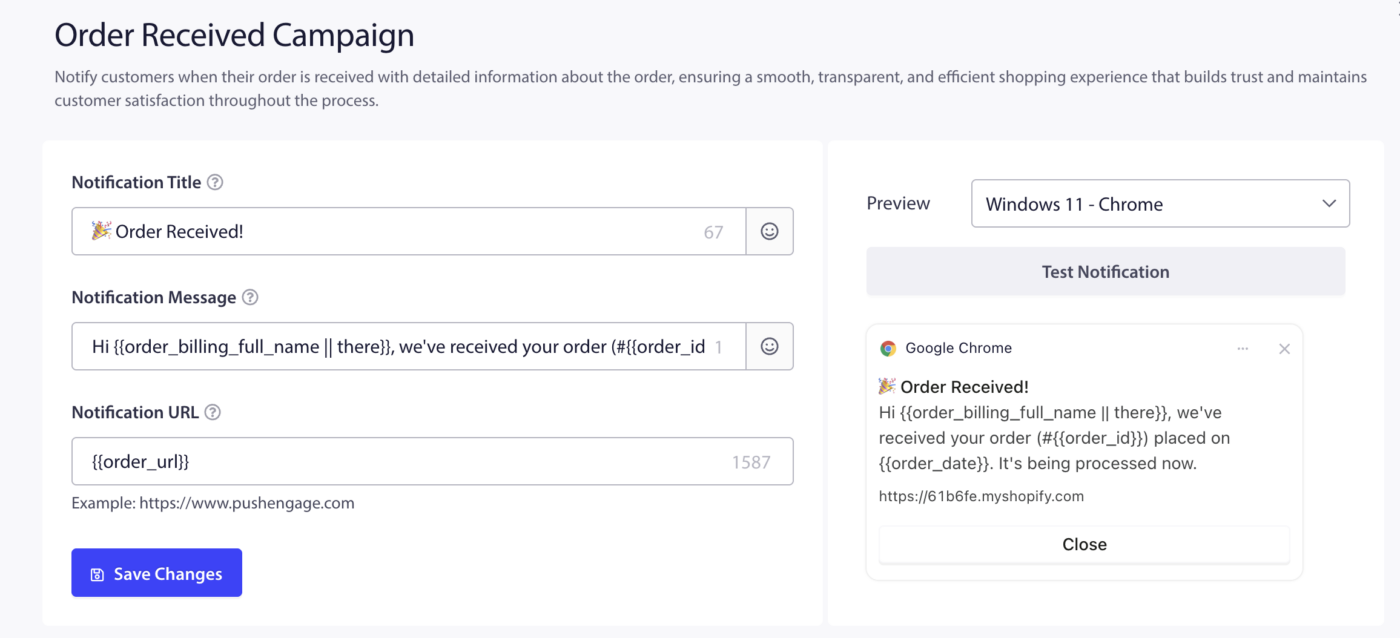
对于通知网址字段,您可以使用:
| 占位符 | 可用在 |
|---|---|
{{order_url}} | 收到订单、已取消、已发货、更新 |
{{site_url}} | 所有订单状态营销活动 |
使用占位符的示例标题:
您好 {{order_billing_full_name}},您的订单 #{{order_id}} 已发货!
使用占位符的消息示例:
您于{{order_date}}下单的订单正在运送途中。点击此处追踪。
常见问题解答
我可以关闭单个订单状态而不禁用所有状态吗?
可以。六个订单状态卡片中的每一个都有自己的开关。您可以只启用您想要的卡片 — 例如,启用“订单已收到”和“订单已发货”,而关闭其他卡片。
欢迎通知是否会针对现有订阅者触发?
不会。欢迎新订阅者广告系列仅针对您启用后选择加入的订阅者触发。它不会向现有订阅者追溯发送。
我可以在标题和消息中使用相同的占位符吗?
可以。占位符可以在任何文本字段(标题、消息)中使用,并在 URL 字段中独立使用。
如果占位符没有数据会怎样?
如果订单通知触发但占位符值为空(例如,不存在订单 URL),PushEngage 将留空该字段。请务必使用真实订单进行测试,以确认您的消息阅读正确。
如果您遇到任何问题,请随时在此处单击 联系我们 。我们的支持团队将能够为您提供帮助。