
Looking for a quick guide to add local business Schema in WordPress?
If you’re running a brick and mortar business and marketing on search engines to get more footfalls to your store, then local business Schema is going to be super helpful for you. But, how do you do it?
Isn’t Schema a lot of code snippets? Do you need to write code to add Schema to your site? Should you hire a developer?
The short answer is: No!
You can simply install a WordPress plugin to add local business Schema. And in this article, we’re going to show you how.
Başlayalım.
Step #1: Select a Local Business Schema WordPress Plugin
Before you can add local business Schema to your WordPress site, you need to pick a WordPress plugin. We recommend using All In One SEO.

All in One SEO (AIOSEO), WordPress topluluğundaki en beğenilen SEO eklentilerinden biridir. Orijinal sürüm, bir sürü yeni özellik ve eklenti eklemek için tamamen yeniden düzenlendi. Bu nedenle, geçmişte AIOSEO kullandıysanız, eklentiyi tekrar kontrol etmeniz gerekir.
AIOSEO yalnızca en son SEO en iyi uygulamalarını uygulamak için yeterince güçlü SEO özelliklerine sahip olmakla kalmaz, aynı zamanda belirli SEO sorunlarını kutudan çıktığı gibi çözmek için gelişmiş SEO ayarlarına de sahip olursunuz. Buna şunlar dahildir:
- Yerel bir kitleye sahip küçük işletmeler için Yerel SEO modülleri
- Çevrimiçi mağazalar için WooCommerce SEO
- WordPress düzenleyiciniz içinde bir SEO iyileştirici
- Arama Motorlarında anında indeksleme için Akıllı Site Haritaları
- İçeriğinizin Zengin Snippet'lerde sıralanmasını sağlamak için bir Schema eklentisi
Ve çok daha fazlası!
Kısacası: All in One SEO, bir uzman kiralamak zorunda kalmadan WordPress SEO'yu düzgün bir şekilde kurmanızı sağlar. Ve eğer All in One SEO'nun 3 milyondan fazla müşterisi (bizim de dahil olduğumuz) inanılacaksa, AIOSEO her SEO gereksinimi için harika bir Arama Motoru Optimizasyonu yazılımıdır.
Profesyonel kiralamak zorunda kalmadan SEO'yu halletmenize yardımcı olduğu için blog yazarları ve küçük işletme sahipleri için mükemmeldir.
Remember: You can only integrate the Google Search Console with All in One SEO. If you need more detailed website analytics, you should consider installing the MonsterInsights plugin to install Google Analytics to your WordPress site.
Step #2: Add Location Schema (Single Location Business)
Once you’ve installed AIOSEO, go to the AIOSEO menu » Local SEO. This will open a page where you can input your location and business information.
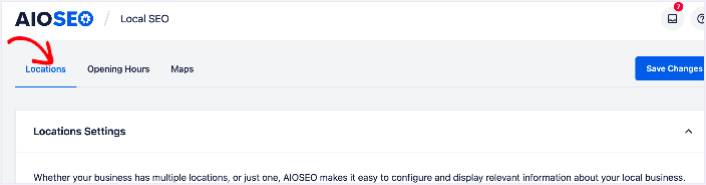
Next, you need to select whether your business is in one location or many.
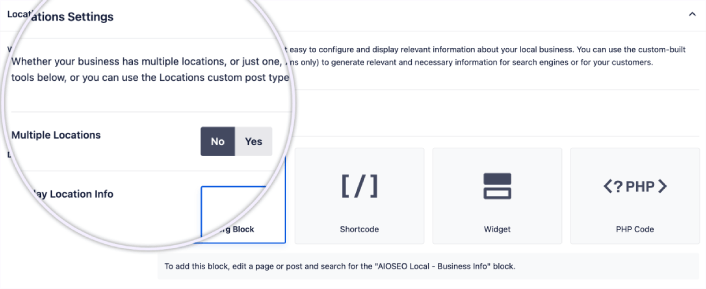
If yours is a single-location business, leave the Multiple Locations toggle set to No.
You can also choose whether you want your location information to be displayed as a:
- Gutenberg Block
- Shortcode
- Widget
- PHP code
Then, add other business information like name, logo (image), business type, and address.
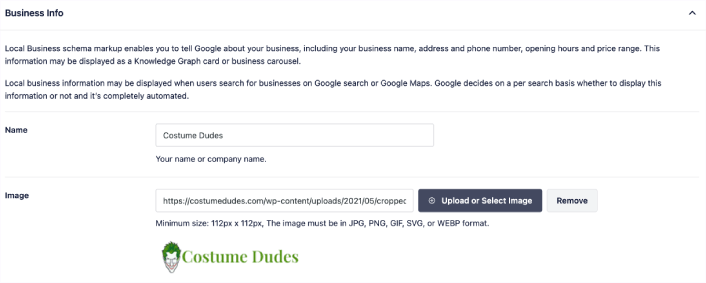
You can also add other information like a map of your location (more on this in a moment), contact information, VAT and Tax IDs, payment information, and the areas you serve.
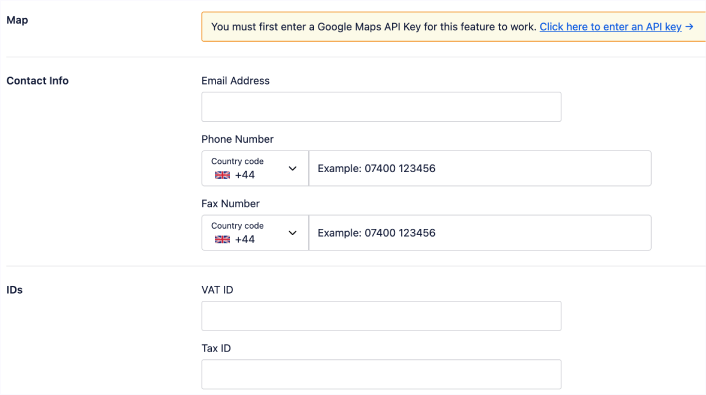
You can also add your payment info under Payment Info and showcase your store locations under Areas Served.
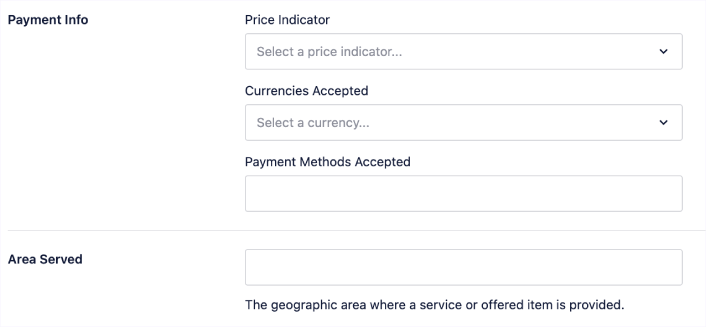
When you’re done, go ahead and hit the Save Changes button.
Step #3: Add Opening Hours
The next step to adding Local Business schema is to add your business hours. Go to the AIOSEO menu » Local SEO » Opening Hours. This will open a window where you can add your opening hours.
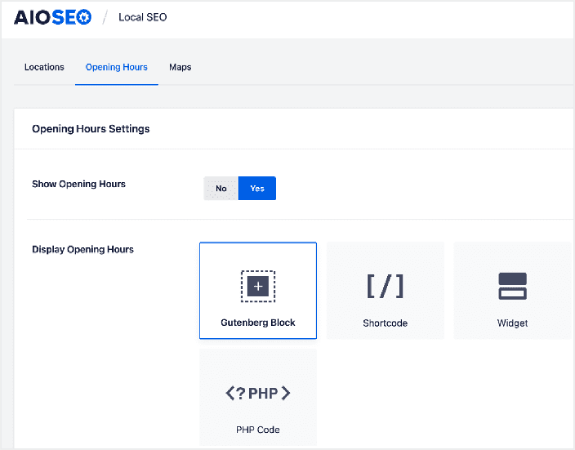
Set the Show Opening Hours toggle to Yes, and you can get options for displaying your opening hours.
If your business is open 24 hours, you can set the toggle to Open 24/7, and that’s it. You’ve added business hours to your Local Business schema.
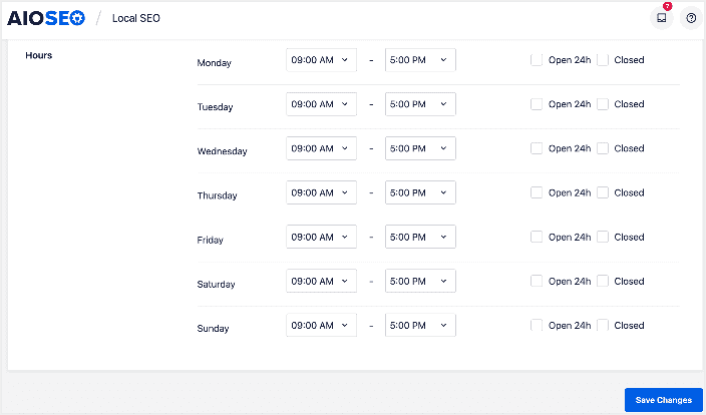
Once you’re done, click Save Changes, and your operating hours will be set.
Step #4: Add Google Maps
The final step to setting your Local Business schema is adding Google Maps, so you can visually display your location. To do that, go to the AIOSEO menu » Local SEO » Maps.
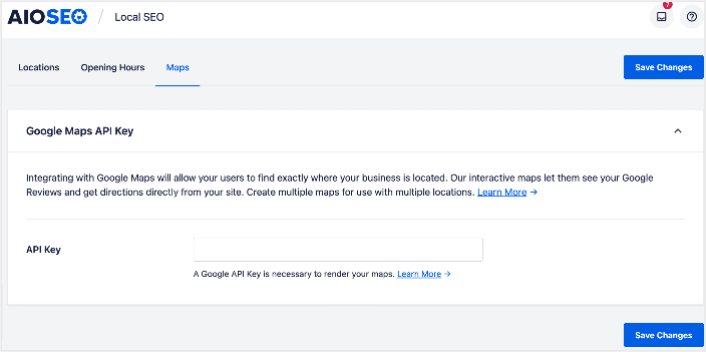
You’ll have to add a Google Maps API key in the API Key field for search engines to render your map.
Once done, click Save Changes.
And that’s it!
What to do After Adding Local Business Schema in WordPress
Adding local business schema is only one part of the puzzle. Our top recommendation is to use All in One SEO to optimize your website content. The right tools can help you with getting repeat traffic, engagement, and sales. For that, we recommend using push campaigns.
Anlık bildirimler, büyüyen işletmeler için güçlü bir pazarlama aracı olabilir. İkna olmadınız mı? Bu harika kaynaklara göz atın:
- Müşteri Etkileşimini Artırmak İçin 7 Akıllı Strateji
- Anlık Bildirimler Etkili mi? 7 İstatistik + 3 Uzman İpucu
- Terk Edilmiş Sepet Anlık Bildirimleri Nasıl Ayarlanır (Kolay Eğitim)
Anlık bildirim kampanyalarınızı oluşturmak için PushEngage'ı kullanmanızı öneririz. PushEngage, dünyanın 1 numaralı anlık bildirim yazılımıdır. Bu nedenle, henüz yapmadıysanız, bugün PushEngage'ı kullanmaya başlayın!


