Gérer et envoyer des campagnes de notifications push web directement depuis votre tableau de bord WordPress est plus efficace que de naviguer vers le tableau de bord PushEngage. Nous avons donc essayé de vous faciliter la tâche grâce à notre plugin WordPress. Vous pouvez rapidement envoyer des campagnes concernant vos nouveaux articles de blog, envoyer des campagnes ciblées, personnaliser les paramètres UTM et concevoir le contenu de la notification lors de la rédaction de vos articles.
Dans cet article, vous apprendrez à envoyer des campagnes de notifications push web à l'aide de l'éditeur de blocs et sans jamais quitter le tableau de bord WordPress.
Avant de commencer
Vous devez activer les paramètres de notification push automatique dans votre tableau de bord WordPress pour envoyer des notifications push à l'aide de l'éditeur de blocs. Voici le guide qui vous aidera à activer les paramètres s'ils ne sont pas déjà activés.
Vous pouvez également envoyer des notifications segmentées, définir des paramètres UTM pour le suivi analytique ou personnaliser le contenu de la campagne push.
Création de campagnes lors de l'ajout de nouveaux articles
Vous pouvez naviguer vers le tableau de bord WordPress. Cliquez sur Articles » Ajouter
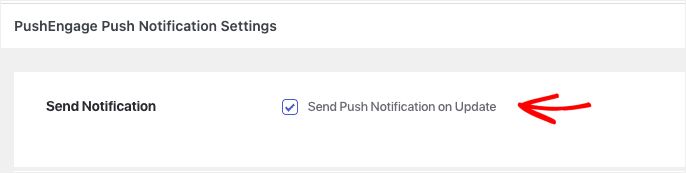
Une fois que vous avez terminé la rédaction de votre nouvel article. Vous pouvez faire défiler jusqu'en bas. Le titre de cette section sera Paramètres des notifications push PushEngage.
Vous devez vous assurer que la case à cocher Envoyer une notification push est cochée si vous souhaitez envoyer des notifications push juste après la publication.
Contenu de la campagne de notifications push web
Ici, vous pouvez ajouter des titres et des messages de notification personnalisés. L'URL de notification sera la page de destination des articles de blog. Ceci sera récupéré automatiquement.
Il est récupéré si vous avez activé l'utilisation d'une image mise en avant d'un article comme grande image de notification.
L'image de notification peut être choisie comme logo du site Web ou comme image mise en avant de l'article.
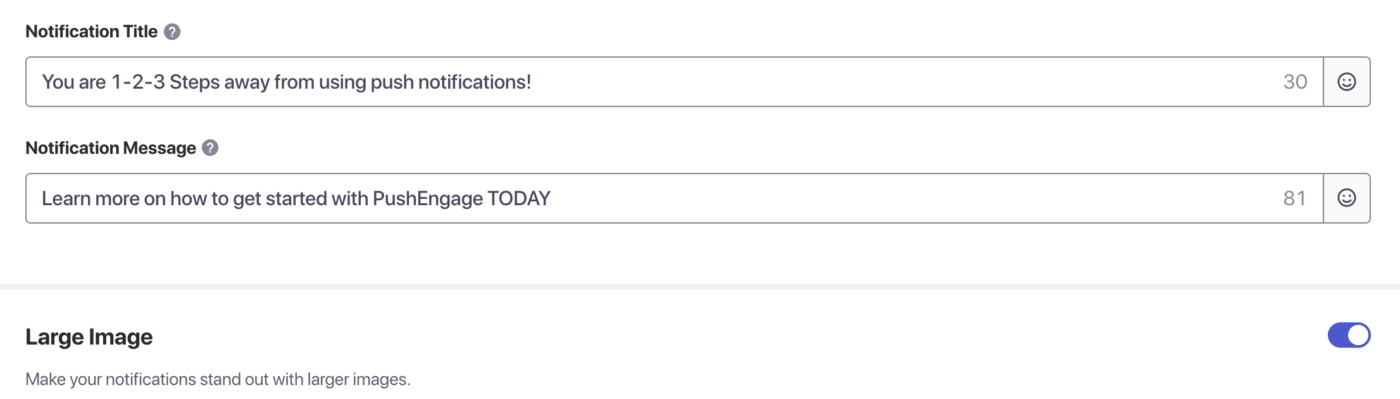
Le titre de la notification est le nom du site par défaut, et le message est le titre de l'article. Cependant, vous pouvez personnaliser les deux et ajouter des emojis ou une grande image pour rendre la campagne plus attrayante.
Sélection de l'audience pour la campagne
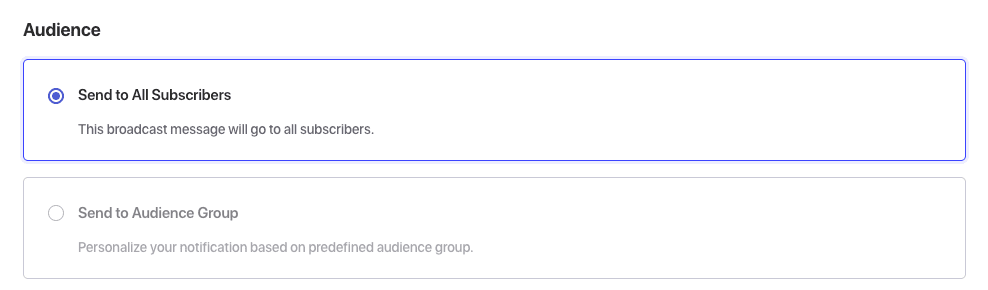
Vous pouvez l'envoyer à tous vos abonnés ou à des segments déjà créés. Vous pouvez l'envoyer à tous les abonnés ou à un groupe d'audience personnalisé. Vous pouvez combiner plusieurs segments personnalisés sous l'audience.
Définition des paramètres UTM
Vous pouvez également personnaliser les paramètres UTM car cela vous aide à comprendre le pourcentage de trafic généré vers le site Web par les notifications push web. Il s'agit d'un paramètre facultatif, et vous pouvez également ajouter les paramètres par défaut dans la page des paramètres PushEngage pour faciliter la publication de nouveaux articles.
Testez votre notification
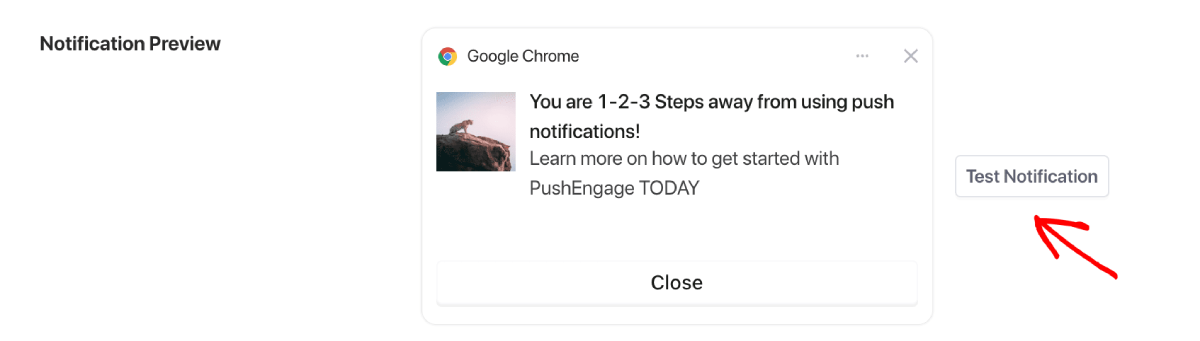
Vous avez également la possibilité de prévisualiser la campagne que vous avez créée lors de la rédaction de votre article, et vous pouvez également tester la notification. La fonction de notification de test vous permet de voir à quoi ressemble la conception de la campagne sur votre appareil et votre navigateur.
Vérifiez avec la liste de contrôle avant publication
Tous les paramètres PushEngage s'affichent juste avant que vous ne soyez sur le point de publier dans la liste de contrôle par défaut de WordPress avant publication. Vous pouvez revoir tous les paramètres, en particulier le titre de la campagne, le message et l'audience à laquelle il est attribué.
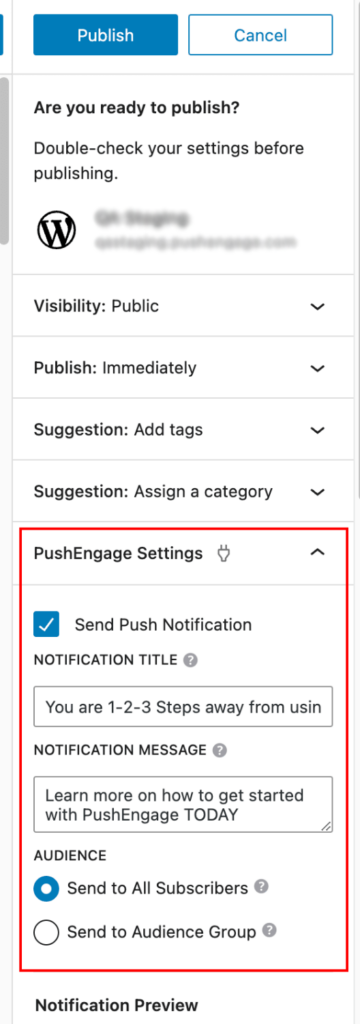
Vous pouvez facilement voir l'aperçu et apporter les modifications si vous n'êtes pas satisfait de la campagne. Une fois que tout est vérifié, vous pouvez cliquer sur le bouton Publier/Planifier pour enregistrer le message ou le publier immédiatement.
C'est tout. Vous avez maintenant envoyé avec succès une campagne via un éditeur de publication WordPress.
Si vous rencontrez des problèmes, veuillez nous contacter en cliquant ici. Notre équipe de support sera en mesure de vous aider.