Aviso: No hay documentación heredada disponible para este elemento, por lo que está viendo la documentación actual.
Una vez que tu WhatsApp Cloud API esté conectada a PushEngage, podrás enviar mensajes automatizados de WhatsApp a tus clientes de Shopify, incluyendo recordatorios de recuperación de carritos, notificaciones de estado de pedidos y campañas promocionales. Esta guía cubre el lado de los mensajes automatizados: qué campañas puedes ejecutar, cómo configurarlas y cómo usar plantillas de mensajes.
Antes de empezar
- Tu WhatsApp Cloud API está conectada a PushEngage. Si no es así, completa primero Configurar WhatsApp Cloud API para Habilitar Mensajería en Shopify.
- Los mensajes automatizados de WhatsApp utilizan plantillas de mensajes aprobadas por Meta. La aprobación de plantillas por parte de Meta puede tardar desde unas pocas horas hasta unos pocos días.
- La mensajería de WhatsApp en PushEngage está disponible en todos los planes de pago de Shopify.
Cómo Funciona la Mensajería Automatizada de WhatsApp
La mensajería automatizada de WhatsApp funciona de manera diferente a las notificaciones push. Hay dos tipos de conversación:
| Tipo | Descripción | Coste |
|---|---|---|
| Utilidad / Transaccional | Confirmaciones de pedido, actualizaciones de envío, notificaciones de reembolso — mensajes que el cliente espera | Facturado por conversación por Meta |
| Marketing | Recuperación de carritos, promociones, reactivación — mensajes que inicias tú | Facturado por conversación por Meta |
PushEngage se encarga de la entrega y la configuración de la campaña. Meta se encarga de la facturación de la conversación y la aprobación de plantillas. Todos los mensajes deben usar plantillas preaprobadas.
Paso 1: Acceder a Campañas de WhatsApp en Shopify
- Inicia sesión en tu panel de administración de Shopify.
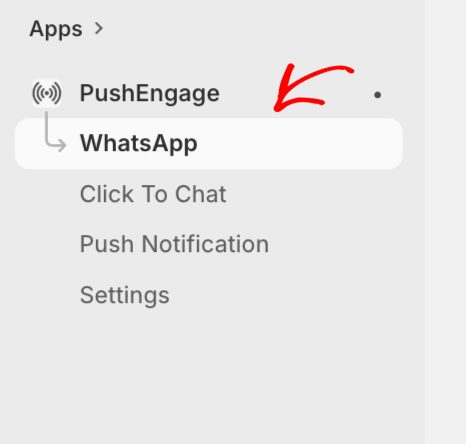
- Ve a Aplicaciones y abre PushEngage.
- Navega a WhatsApp en la barra lateral de la aplicación PushEngage para Shopify.
Paso 2: Crear o Usar una Plantilla de Mensaje
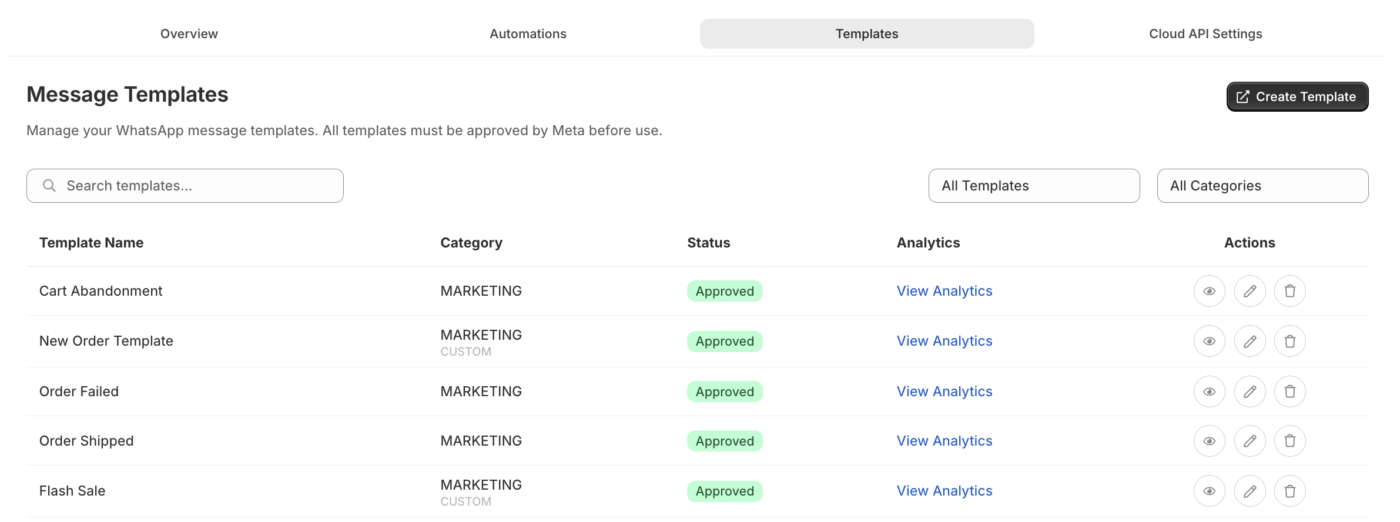
WhatsApp requiere plantillas de mensajes preaprobadas para todos los mensajes automatizados salientes. PushEngage proporciona plantillas listas para usar para casos de uso comunes de Shopify que puedes enviar a Meta para su aprobación.
- En la sección de WhatsApp, ve a Plantillas de Mensajes.
- Explora las plantillas disponibles o haz clic en Crear Plantilla.
- Selecciona la categoría de la plantilla: Marketing o Utilidad.
- Rellena el nombre de la plantilla, el idioma, el texto del cuerpo y cualquier marcador de posición de variable.
- Enviar para aprobación de Meta.
Variables Comunes de Plantillas para Shopify
| Variable | Lo que inserta |
|---|---|
{{1}} | Nombre del cliente |
{{2}} | Nombre del producto o ID del pedido |
{{3}} | Total del pedido |
{{4}} | Enlace de seguimiento o URL de la tienda |
Ejemplo de plantilla para recuperación de carritos:
Hola {{1}}, dejaste {{2}} en tu carrito. Completa tu compra aquí: {{4}}
Ejemplo de plantilla para confirmación de pedido:
Hola {{1}}, tu pedido #{{2}} ha sido confirmado. Total: {{3}}. ¡Gracias por comprar con nosotros!
Paso 3: Configurar recuperación automática de carritos a través de WhatsApp
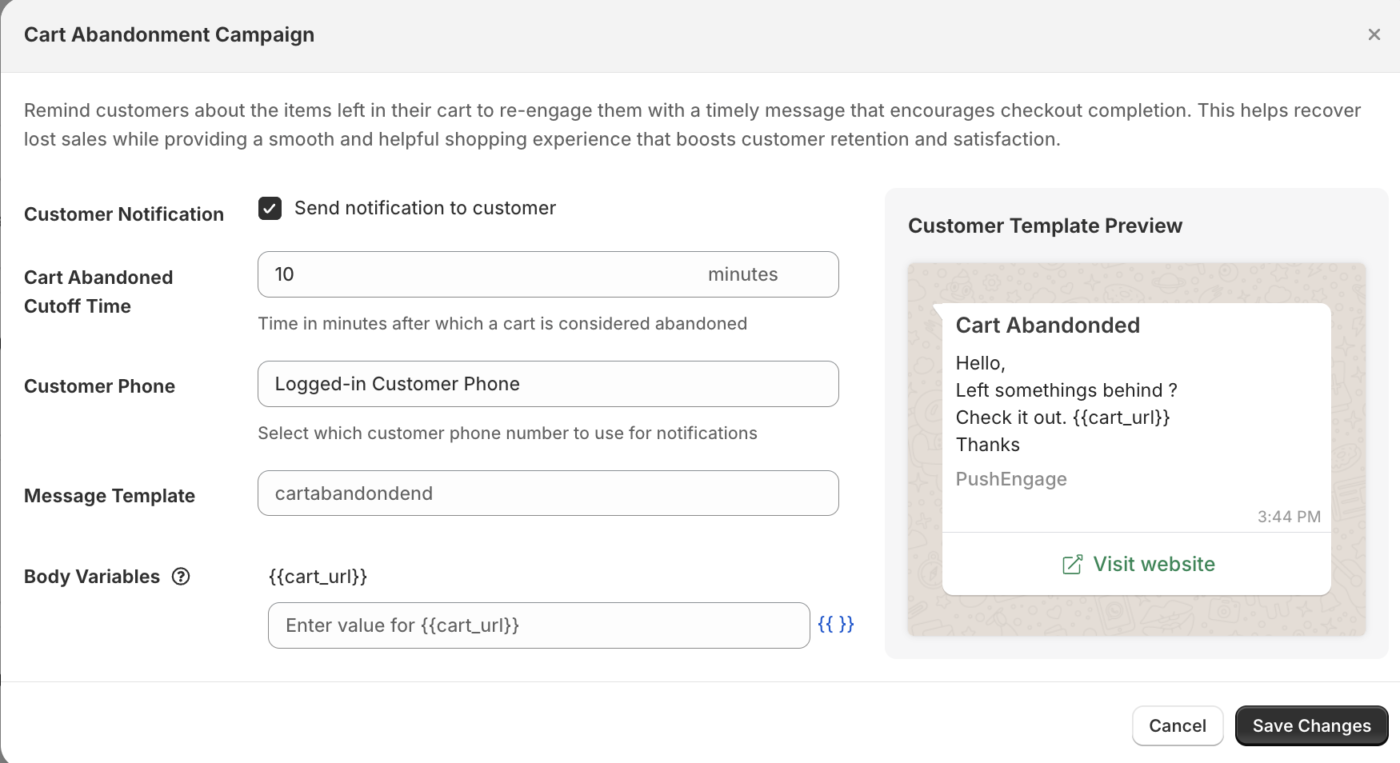
La recuperación de carritos a través de WhatsApp envía un mensaje a los clientes que abandonaron su carrito, siempre que hayan optado por recibir mensajes de WhatsApp.
- En la sección de WhatsApp, ve a Campañas automatizadas o Recuperación de carritos.
- Selecciona la plantilla de recuperación de carritos que deseas utilizar.
- Establece el retraso: cuánto tiempo después del abandono se envía el mensaje (ejemplo: 1 hora).
- Habilita la campaña.
Nota: Los mensajes de WhatsApp solo se pueden enviar a clientes que hayan proporcionado su número de WhatsApp y hayan consentido recibir mensajes. PushEngage utiliza el número de teléfono del registro del pedido de Shopify cuando está disponible.
Paso 4: Configurar notificaciones de actualización de pedidos
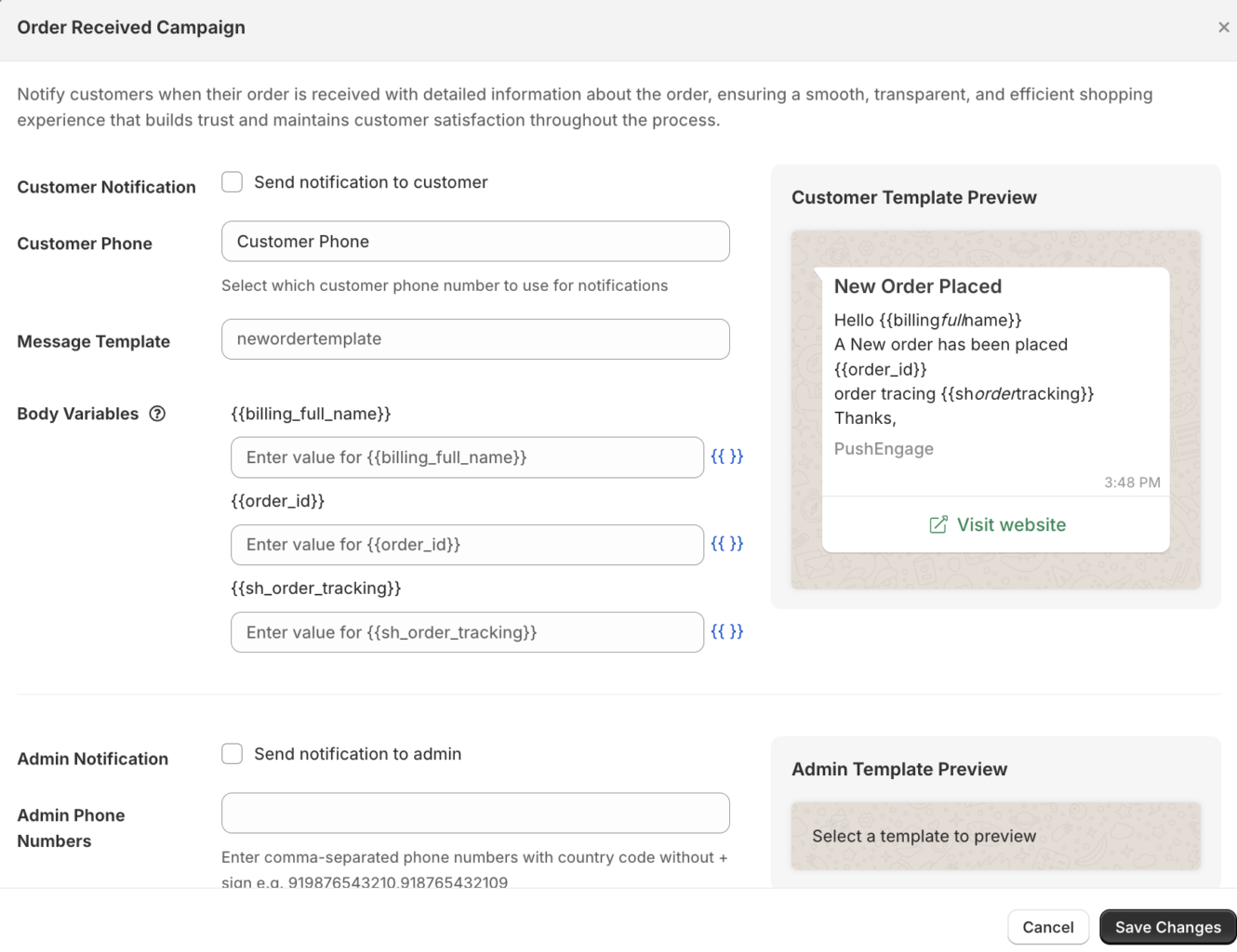
Las notificaciones de pedidos mantienen a los clientes informados durante todo el ciclo de vida de su pedido sin depender del correo electrónico.
- En la sección de WhatsApp, ve a Notificaciones de pedidos.
- Habilita los tipos de notificación que deseas enviar:
| Notificación | Desencadenante |
|---|---|
| Pedido Confirmado | Cuando se realiza un nuevo pedido |
| Pedido enviado | Cuando el pedido se marca como completado |
| Pedido Entregado | Cuando el estado de finalización se actualiza a entregado |
| Reembolso Emitido | Cuando se procesa un reembolso |
- Para cada notificación, selecciona la plantilla preaprobada a utilizar.
- Haz clic en Guardar.
Visualización de análisis de WhatsApp
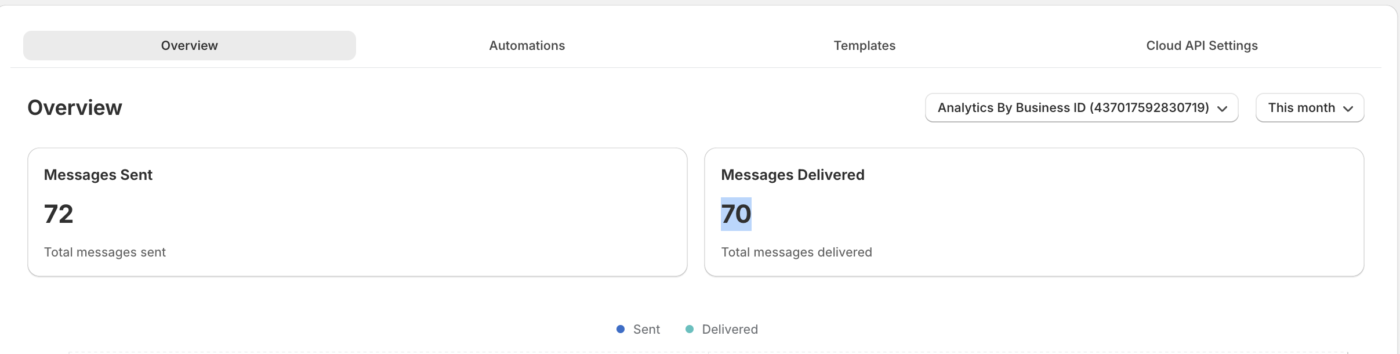
- Ve a WhatsApp » Analíticas en la aplicación Shopify de PushEngage.
- Revisa métricas que incluyen mensajes enviados, entregados, leídos y respondidos.
| Métrica | Lo que significa |
|---|---|
| Enviado | Mensajes en cola para entrega |
| Entregado | Mensajes entregados correctamente al WhatsApp del cliente |
| Leer | El cliente abrió el mensaje (los recibos de lectura de WhatsApp deben estar activados) |
| Respondido | El cliente envió una respuesta |
Preguntas frecuentes
¿Los clientes necesitan aceptar recibir mensajes de WhatsApp? Sí. WhatsApp requiere el consentimiento explícito de los clientes para recibir mensajes de marketing. Los mensajes transaccionales (actualizaciones de pedidos) se pueden enviar a los clientes que proporcionaron su número durante el proceso de pago según las reglas de conversación de utilidad de Meta, pero debes confirmar tu caso de uso específico con la Política de WhatsApp Business de Meta.
¿Cuánto tarda la aprobación de plantillas de Meta? Normalmente, de unas pocas horas a 2 días hábiles. Algunas plantillas pueden requerir una revisión si no cumplen con las directrices de contenido de Meta.
¿Los mensajes de WhatsApp son gratuitos? Las conversaciones de WhatsApp son facturadas por Meta por conversación, no por mensaje. Las primeras 1000 conversaciones de servicio al mes son gratuitas. Las conversaciones de marketing y utilidad se cobran a tarifas que varían según el país. Consulta la página de precios de Meta para conocer las tarifas actuales.
¿Puedo enviar notificaciones de WhatsApp y push para el mismo evento? Sí. PushEngage admite campañas multicanal. Puedes tener una secuencia de notificaciones push de abandono de carrito en ejecución junto con un mensaje de recuperación de carrito de WhatsApp para el mismo cliente.
Si tienes algún problema, no dudes en contactarnos haciendo clic aquí. Nuestro equipo de soporte podrá ayudarte.


