
Ψάχνετε έναν τρόπο να βελτιώσετε την αναζήτηση προϊόντων σας στο WooCommerce;
Το WooCommerce είναι ένας καταπληκτικός τρόπος για να δημιουργήσετε ένα επεκτάσιμο ηλεκτρονικό κατάστημα. Αλλά η αναζήτηση προϊόντων του είναι ειλικρινά απογοητευτική. Θα μπορούσατε να χάνετε έναν ΤΟΝΟ πωλήσεων μόνο και μόνο λόγω της προεπιλεγμένης αναζήτησης προϊόντων στο WooCommerce.
Λοιπόν, τι μπορείτε να κάνετε; Σε αυτό το άρθρο, θα σας καθοδηγήσουμε σε μερικούς πολύ απλούς, εύκολους τρόπους για να ενισχύσετε την αναζήτηση προϊόντων WooCommerce χωρίς να χρησιμοποιήσετε ούτε μία γραμμή κώδικα. Και θα το κάνουμε σε 10 λεπτά ή λιγότερο.
Ακούγεται καλό; Ας βουτήξουμε.
Το PushEngage είναι το #1 plugin ειδοποιήσεων push στον κόσμο. Κατεβάστε το δωρεάν!
Γιατί να βελτιώσετε την αναζήτηση προϊόντων σας στο WooCommerce;
Το WooCommerce χρησιμοποιεί την προεπιλεγμένη αναζήτηση του WordPress αμέσως μόλις το εγκαταστήσετε. Και ενώ το WordPress έρχεται με πολλά υπέροχα χαρακτηριστικά, η λειτουργία αναζήτησής του δεν είναι πραγματικά σχεδιασμένη για εφαρμογές ηλεκτρονικού εμπορίου.
Για παράδειγμα, δεν λαμβάνει υπόψη τα χαρακτηριστικά των προϊόντων, δεν σας δίνει κανέναν τρόπο να ελέγξετε τα αποτελέσματα αναζήτησης, δεν συλλέγει δεδομένα αναζήτησης και πολλά άλλα. Συνιστούμε τη χρήση ενός plugin αναζήτησης προϊόντων WooCommerce για να βελτιώσετε τη χρηστικότητα της μηχανής αναζήτησής σας.
Με το κατάλληλο plugin αναζήτησης, μπορείτε να αναζητήσετε αποτελέσματα από:
- Προσαρμοσμένα Πεδία (μεταδεδομένα ανάρτησης) συμπεριλαμβανομένων των Πεδίων ACF
- Λεπτομέρειες προϊόντων ηλεκτρονικού εμπορίου, παραλλαγές & χαρακτηριστικά
- Κατηγορίες, Ετικέτες, Προσαρμοσμένες Ταξινομήσεις
- Αποτελέσματα συντομεύσεων
- Ανέβασμα εγγράφων (PDF, .docx, .txt, κ.λπ.)
- Περιεχόμενο προσαρμοσμένων πινάκων βάσης δεδομένων
Και φυσικά, μπορείτε επίσης να αναζητήσετε στους τίτλους και το περιεχόμενο των αναρτήσεων.
Μια εναλλακτική θα ήταν να χρησιμοποιήσετε ένα plugin αναζήτησης προϊόντων AJAX στις σελίδες προϊόντων σας. Ένα plugin αναζήτησης AJAX λειτουργεί όπως η αυτόματη συμπλήρωση της Amazon στον ιστότοπό σας. Αλλά γιατί να αρκεστείτε σε αυτό όταν μπορείτε να δημιουργήσετε μια προσαρμοσμένη μηχανή αναζήτησης στον ιστότοπό σας;
Όταν ένας επισκέπτης ιστότοπου αναζητά κάτι μέσα στον ιστότοπό σας, κυριολεκτικά σας λέει ακριβώς τι θέλει από εσάς. Αλλά οι περισσότερες γραμμές αναζήτησης του WordPress απλά δεν μπορούν να εκτελέσουν βαθιές αναζητήσεις. Και σίγουρα δεν μπορούν να σας βοηθήσουν να καταλάβετε τι αναζητούν οι επισκέπτες σας.
Πρέπει να αρχίσετε να χρησιμοποιείτε ένα plugin αναζήτησης που μπορεί να σας βοηθήσει να δημιουργήσετε μια προσαρμοσμένη μηχανή αναζήτησης που παρέχει στους επισκέπτες του ιστότοπού σας σχεσιακά αποτελέσματα αναζήτησης.
Συνιστούμε τη χρήση του SearchWP.
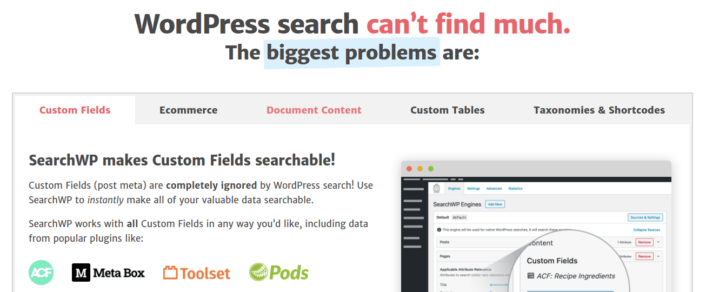
Το SearchWP είναι ένα από τα καλύτερα plugins αναζήτησης WooCommerce που γνωρίζουμε.
Λαμβάνετε μια τεράστια γκάμα χαρακτηριστικών σε προσιτή τιμή. Στην πραγματικότητα, το SearchWP κάνει όλα όσα μπορούν να κάνουν όλα τα άλλα plugins στη λίστα, εκτός από τη δημιουργία φίλτρου προϊόντων.
Το πιο εντυπωσιακό είναι ότι το SearchWP σας λέει ακριβώς τι ψάχνουν οι επισκέπτες του ιστότοπού σας, διατηρώντας λεπτομερή αναλυτικά στοιχεία. Έτσι, σας βοηθά επίσης να δημιουργήσετε περιεχόμενο που λείπει αυτήν τη στιγμή από τον ιστότοπό σας και να αποκτήσετε περισσότερη επισκεψιμότητα, αλληλεπίδραση και πωλήσεις στον ιστότοπό σας.
Προχωρήστε και διαβάστε την πλήρη κριτική μας για το SearchWP και όταν τελειώσετε, προχωρήστε και εγκαταστήστε το plugin.
Πώς να ρυθμίσετε το SearchWP και να αναβαθμίσετε την αναζήτηση προϊόντων σας στο WooCommerce
Το SearchWP είναι μακράν ένα από τα ευκολότερα plugins αναζήτησης για ρύθμιση και χρήση. Αφού κατεβάσετε και εγκαταστήσετε το plugin, λαμβάνετε μια επιβεβαίωση εγκατάστασης:

Μετά από αυτό, μπορείτε να μεταβείτε στις Ρυθμίσεις » SearchWP για να ρυθμίσετε το plugin σας. Και στη συνέχεια κάντε κλικ στην επιλογή μενού ‘Άδεια Χρήσης’:
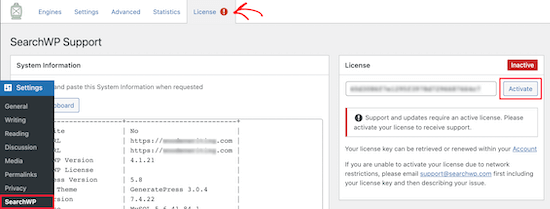
Εισαγάγετε το κλειδί άδειας χρήσης σας στο πλαίσιο ‘Άδεια Χρήσης’ και κάντε κλικ στο κουμπί ‘Ενεργοποίηση’:
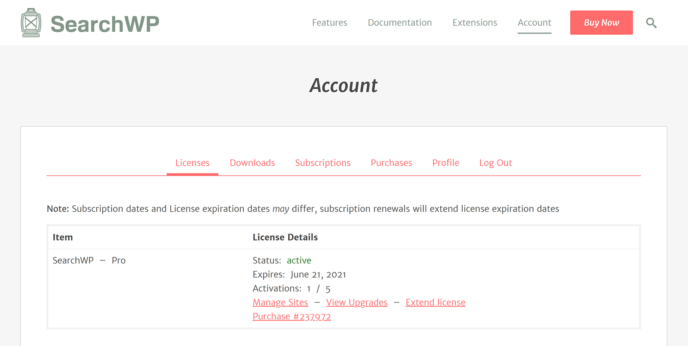
Θα μιλήσουμε περισσότερο για τις ρυθμίσεις σύντομα. Αλλά αυτό είναι κυριολεκτικά ό,τι χρειάζεται να κάνετε για να ξεκινήσετε.
Με το SearchWP, πρέπει να δημιουργήσετε μια μηχανή αναζήτησης για ολόκληρο τον ιστότοπο πριν μπορέσετε να προσαρμόσετε περαιτέρω την αναζήτησή σας.
Μεταβείτε στις Ρυθμίσεις » SearchWP » Μηχανές:
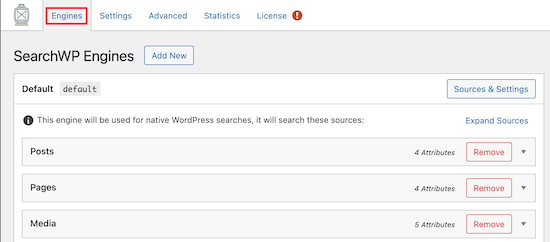
Μπορείτε να προσαρμόσετε τις ρυθμίσεις της μηχανής αναζήτησής σας συμπεριλαμβάνοντας διαφορετικούς τύπους περιεχομένου κάνοντας κλικ στα αναπτυσσόμενα μενού τους. Και μπορείτε να ελέγξετε πόση συνάφεια αποδίδει η μηχανή αναζήτησής σας σε κάθε τύπο περιεχομένου χρησιμοποιώντας ρυθμιστικά:
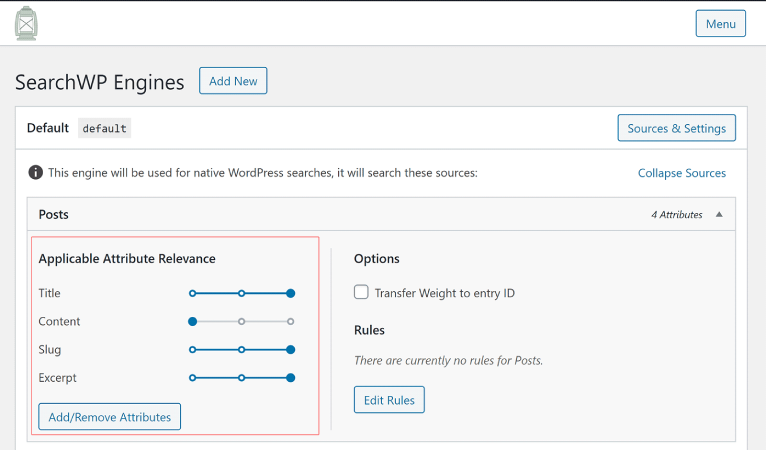
Στο παράδειγμά μας, αποδίδουμε μεγαλύτερη αξία στον Τίτλο Δημοσίευσης, το Ψευδώνυμο και την Περίληψη σε σχέση με το πραγματικό περιεχόμενο όσον αφορά τη συνάφεια για τα αποτελέσματα αναζήτησης.
Μόλις τελειώσετε, απλώς πατήστε ‘Αποθήκευση’.
Ένα πραγματικά ωραίο πράγμα σχετικά με τη μηχανή αναζήτησης που μόλις δημιουργήσατε είναι το γεγονός ότι χρησιμοποιεί Λεξιλογική Στελεχοποίηση αντί για Ακριβείς Αντιστοιχίσεις Αναζήτησης. Αυτό σημαίνει ότι οι χρήστες σας μπορούν να αναζητήσουν το περιεχόμενό σας όπως θέλουν και θα λάβουν εννοιολογικά σχετικά αποτελέσματα, ακόμη κι αν το περιεχόμενό σας δεν περιέχει την ακριβή φράση αναζήτησης!
Πώς να ενισχύσετε την αναζήτηση προϊόντων στο WooCommerce
Στη συνέχεια, ας δούμε τι μπορούμε να κάνουμε για να βελτιώσουμε την αναζήτηση προϊόντων στο WooCommerce.
#1. Περιορίστε την αναζήτηση προϊόντων στο WooCommerce σε προϊόντα WooCommerce
Μόλις εγκαταστήσετε και ενεργοποιήσετε το plugin SearchWP, το πρώτο πράγμα που θα θέλετε να κάνετε είναι να περιορίσετε τα αποτελέσματα αναζήτησης προϊόντων ώστε να αφορούν μόνο προϊόντα WooCommerce αντί να εμφανίζονται όλοι οι τύποι ανάρτησης.
Για να ξεκινήσετε, κάντε κλικ στο κουμπί Sources & Settings κάτω από το Engines.
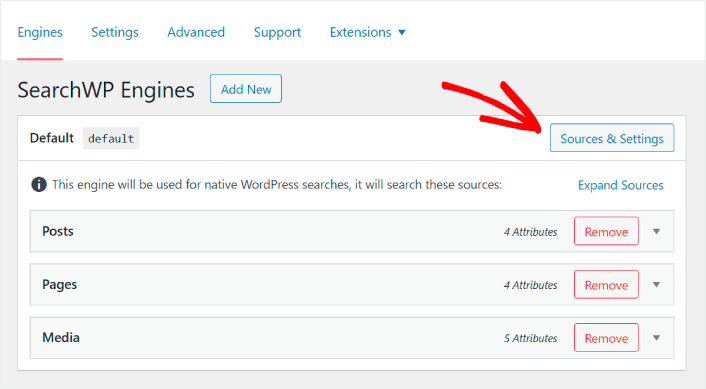
Εδώ, αποεπιλέξτε τα πλαίσια δίπλα σε όλες τις πηγές αναζήτησης εκτός από τα Products.
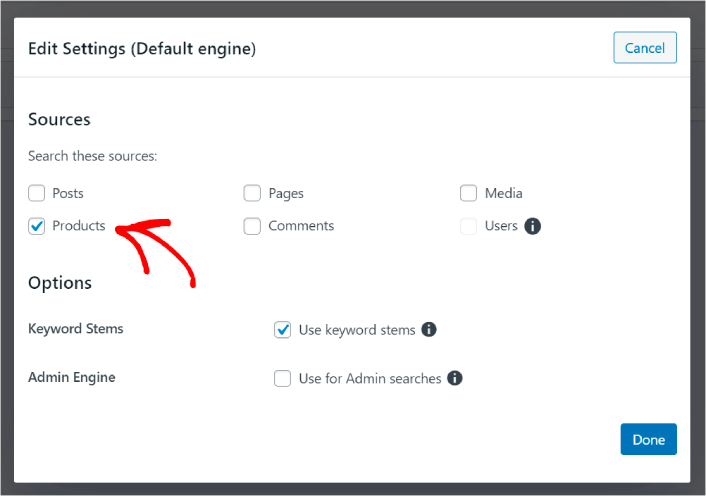
Όταν τελειώσετε, πατήστε το κουμπί Done για να αποθηκεύσετε τις αλλαγές. Και τελειώσατε!
#2. Ενεργοποιήστε την αναζήτηση ανά χαρακτηριστικά προϊόντων
Ας κάνουμε επίσης τα χαρακτηριστικά προϊόντων για όλα τα προϊόντα WooCommerce αναζητήσιμα. Το WooCommerce αποθηκεύει αυτά τα χαρακτηριστικά ως προσαρμοσμένα πεδία ούτως ή άλλως. Εμείς απλώς θα τα κάνουμε αναζητήσιμα.
Έχετε ήδη ρυθμίσει μια μηχανή αναζήτησης για προϊόντα. Έτσι, μπορείτε απλά να συνεχίσετε από το προηγούμενο βήμα. Κάντε κλικ στο κουμπί Add/Remove Attributes για να προσθέσετε προσαρμοσμένα πεδία.
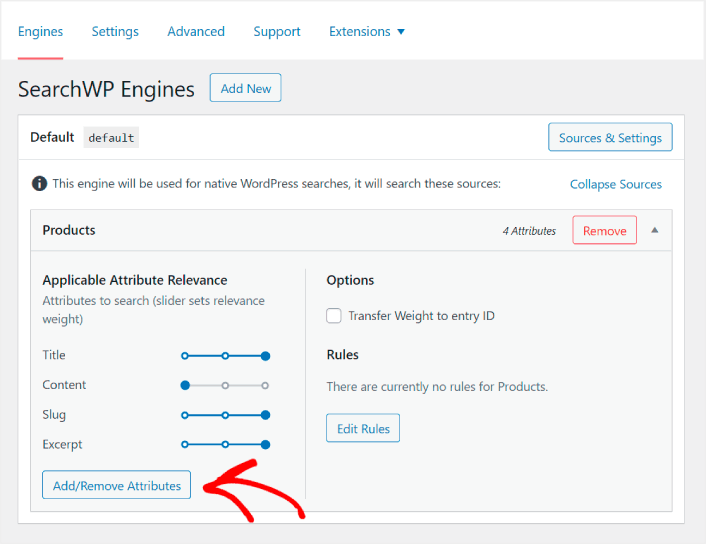
Στη συνέχεια, στην αναπτυσσόμενη λίστα Προσαρμοσμένα πεδία, επιλέξτε την επιλογή Οποιοδήποτε κλειδί μεταδεδομένων.
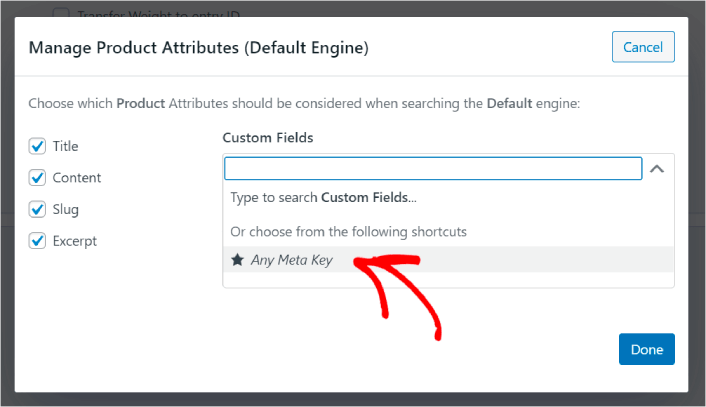
Αυτό σας επιτρέπει να κάνετε αυτόματα αναζητήσιμα τυχόν προσαρμοσμένα πεδία. Και τώρα, η μηχανή αναζήτησης προϊόντων σας μπορεί να αναζητήσει με προσαρμοσμένα πεδία, όπως χαρακτηριστικά προϊόντων.
#3. Ενεργοποίηση αναζήτησης ανά κατηγορία προϊόντων
Έχετε ήδη δει πώς να κάνετε τα χαρακτηριστικά προϊόντων αναζητήσιμα. Τι γίνεται με τις κατηγορίες; Τι θα γινόταν αν οι πελάτες σας δεν έψαχναν για ένα προϊόν, αλλά έψαχναν κάτι σε μια συγκεκριμένη κατηγορία;
Είναι εύκολο. Συνεχίστε από την προηγούμενη συμβουλή. Στην ίδια οθόνη κάτω από το Διαχείριση χαρακτηριστικών προϊόντων, θα δείτε μια άλλη αναπτυσσόμενη λίστα με την ετικέτα Ταξινομήσεις. Απλώς επιλέξτε Κατηγορίες προϊόντων από τη λίστα.
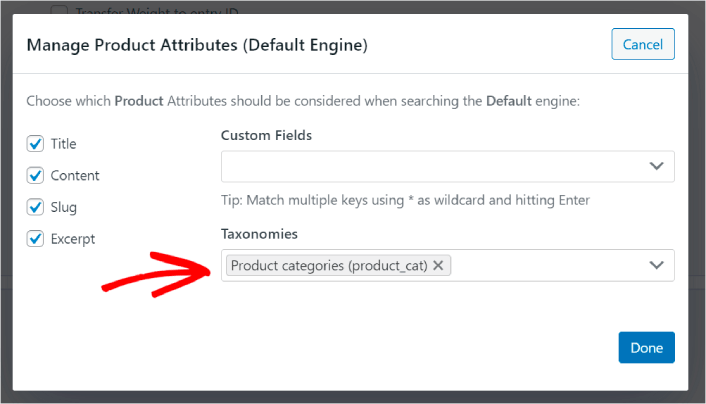
Και τώρα, η μηχανή αναζήτησής σας θα επιτρέπει στους χρήστες να αναζητούν ανά κατηγορία.
#4. Ενεργοποίηση αναζήτησης ανά ετικέτες προϊόντων
Δεν έχετε τελειώσει ακόμα. Στην ίδια οθόνη, μπορείτε να προσθέσετε ακόμη περισσότερες ταξινομήσεις στην αναπτυσσόμενη λίστα Ταξινομήσεις. Τι θα γινόταν αν οι πελάτες σας δεν έψαχναν για ένα προϊόν ή μια γενική κατηγορία; Τι θα γινόταν αν δεν ήξεραν ότι θέλουν μπλε και λευκά Air Jordans ή ακόμα και αθλητικά παπούτσια, αλλά αντ' αυτού έψαχναν για μπλε και λευκά αθλητικά παπούτσια;
Τότε χρειάζεται να ενεργοποιήσετε τις αναζητήσεις ετικετών προϊόντων.
Κάτω από το Ταξινομήσεις, επιλέξτε και τις Ετικέτες προϊόντων.
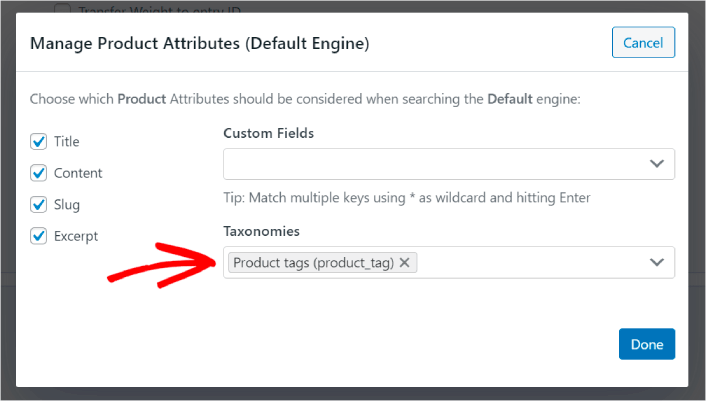
Η δυνατότητα αναζήτησης προϊόντων στο WooCommerce να λαμβάνει υπόψη και τις ετικέτες προϊόντων, της δίνει έναν εντελώς νέο τρόπο αναζήτησης προϊόντων. Για να μην αναφέρουμε, βοηθά επίσης τους πελάτες σας να βρουν αυτό που ψάχνουν πολύ πιο γρήγορα.
#5. Κάντε τα SKU προϊόντων αναζητήσιμα
Τέλος, θα προσθέσουμε ένα τελευταίο προσαρμοσμένο πεδίο στη μηχανή αναζήτησης για να την ενισχύσουμε. Θα επιτρέψουμε επίσης τις αναζητήσεις SKU προϊόντων. Οι Μονάδες Διατήρησης Αποθέματος (SKU) είναι ένας τρόπος για τις επιχειρήσεις ηλεκτρονικού εμπορίου να αναγνωρίζουν γρήγορα διαφορετικά προϊόντα ή ακόμα και παρόμοια προϊόντα.
Σε ένα κατάστημα λιανικής, το SKU είναι συνήθως ένας γραμμικός κώδικας. Με αυτόν τον τρόπο, αναγνωρίζετε γρήγορα την παραλλαγή του προϊόντος, το μέγεθος, την τιμή, το χρώμα, τον τύπο και τον κατασκευαστή χωρίς καν να κοιτάξετε το προϊόν.
Κυρίως, τα SKU χρησιμοποιούνται για τη διαχείριση αποθεμάτων στο WooCommerce. Αλλά είναι επίσης συνηθισμένη πρακτική για dropshipping, affiliate και ιστοσελίδες λιανικής να εμφανίζουν το SKU για τα προϊόντα τους στην περιγραφή του προϊόντος.
Έτσι, για να κάνετε τα SKU προϊόντων αναζητήσιμα, το μόνο που χρειάζεται να κάνετε είναι να προσθέσετε ένα ακόμη Προσαρμοσμένο πεδίο στις ρυθμίσεις Χαρακτηριστικά προϊόντων. Απλώς πληκτρολογήστε ‘_sku’ και το SearchWP θα αναλάβει αυτόματα τα υπόλοιπα.
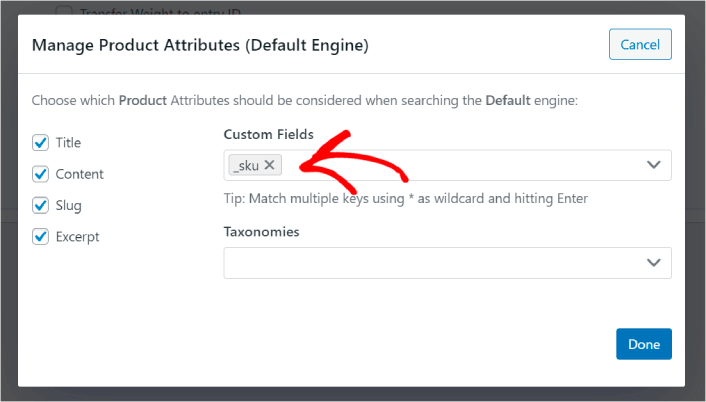
Και είστε έτοιμοι!
Τι να κάνετε μετά τη βελτίωση της αναζήτησης προϊόντων στο WooCommerce
Τώρα που βελτιώσατε την αναζήτηση προϊόντων στο WooCommerce, όλα τα προϊόντα σας είναι έτοιμα να σας φέρουν χρήματα. Είναι καιρός να εστιάσετε στη δημιουργία επισκεψιμότητας, αφοσίωσης και πωλήσεων από το περιεχόμενό σας στη συνέχεια.
Και αν ψάχνετε για νέους τρόπους προσέλκυσης επισκεψιμότητας, αλληλεπίδρασης και πωλήσεων, οι ειδοποιήσεις push μπορούν να είναι εξαιρετικά χρήσιμες για τον ιστότοπό σας.
Αν δεν είστε 100% πεπεισμένοι, θα πρέπει να ελέγξετε αυτούς τους πόρους για το πώς να χρησιμοποιήσετε αποτελεσματικά τις ειδοποιήσεις push:
- 7 Έξυπνες Στρατηγικές για την Ενίσχυση της Αφοσίωσης Πελατών
- Είναι Αποτελεσματικές οι Ειδοποιήσεις Push; 7 Στατιστικά + 3 Συμβουλές Ειδικών
- Πώς να Ρυθμίσετε Ειδοποιήσεις Push για Εγκαταλελειμμένα Καλάθια (Εύκολο Οδηγός)
- Πώς να προσθέσετε ένα πρόσθετο WordPress για ειδοποιήσεις ιστού στον ιστότοπό σας
Συνιστούμε τη χρήση του PushEngage για τη δημιουργία των καμπανιών ειδοποιήσεων push. Το PushEngage είναι το #1 λογισμικό ειδοποιήσεων push στον κόσμο. Έτσι, αν δεν το έχετε κάνει ήδη, ξεκινήστε με το PushEngage σήμερα!


