
Προσπαθείτε να καταλάβετε πώς να πουλήσετε συνδρομές στο διαδίκτυο;
Οι ιστότοποι μελών σάς επιτρέπουν να χρεώνετε τους χρήστες για πρόσβαση σε περιορισμένο περιεχόμενο, ώστε να μπορείτε να εκτοξεύσετε τα έσοδα του ιστότοπού σας. Με άλλα λόγια, μπορείτε εύκολα να δημιουργήσετε έσοδα από μια κοινότητα και να πουλήσετε προϊόντα, μαθήματα και εμπορεύματα στην κοινότητά σας. Μπορείτε ακόμη και να πουλήσετε αποκλειστική πρόσβαση σε συγκεκριμένο περιεχόμενο ή στον χρόνο σας, δημιουργώντας συνδρομές στον ιστότοπο.
Αλλά πώς το κάνετε;
Σε αυτό το άρθρο, θα σας δείξουμε βήμα προς βήμα πώς να πουλήσετε συνδρομές χωρίς καμία εμπειρία προγραμματισμού.
Ακούγεται καλό; Ας βουτήξουμε.
Το PushEngage είναι το #1 plugin ειδοποιήσεων push στον κόσμο. Κατεβάστε το δωρεάν!
- Γιατί να πουλήσετε συνδρομές στον ιστότοπό σας;
- Πώς να πουλήσετε συνδρομές από την αρχή
- Βήμα #1: Αποκτήστε ισχυρή φιλοξενία για να πουλήσετε συνδρομές
- Βήμα #2: Πώς να πουλήσετε συνδρομές με ένα πρόσθετο WordPress για συνδρομές
- Βήμα #3: Πώς να διαμορφώσετε το MemberPress στον ιστότοπό σας
- Βήμα #4: Πώς να ρυθμίσετε μεθόδους πληρωμής και να πουλήσετε συνδρομές στο διαδίκτυο
- Βήμα #5: Πώς να δημιουργήσετε επίπεδα μελών
- Βήμα #6: Πώς να ορίσετε επίπεδα πρόσβασης μελών
- Βήμα #7: Πώς να πουλήσετε συνδρομές με περιεχόμενο μόνο για μέλη
- Βήμα #8: Πώς να δημιουργήσετε μια σελίδα τιμολόγησης για να πουλήσετε συνδρομές
- Βήμα #9: Πώς να δημιουργήσετε μια φόρμα σύνδεσης και εγγραφής
- Πώς να πουλήσετε συνδρομές πιο γρήγορα
- #1. Πώς να πουλήσετε συνδρομές χρησιμοποιώντας ειδοποιήσεις push καλωσορίσματος
- #2. Πώς να πουλήσετε περισσότερες συνδρομές χρησιμοποιώντας ειδοποιήσεις push εγκατάλειψης καλαθιού
- #3. Πώς να αποκτήσετε περισσότερα μέλη με ειδοποιήσεις push εγκατάλειψης περιήγησης
- #4. Cross-Selling ειδοποιήσεις push eCommerce
- #5. Πώς να πουλήσετε συνδρομές χρησιμοποιώντας επαναλαμβανόμενες πωλήσεις
- Τι να κάνετε αφού μάθετε πώς να πουλήσετε συνδρομές
Γιατί να πουλήσετε συνδρομές στον ιστότοπό σας;
Ένας ιστότοπος συνδρομών απαιτεί από τους επισκέπτες να συνδεθούν ή να εγγραφούν για να αποκτήσουν πρόσβαση σε ορισμένες σελίδες, αναρτήσεις ή λειτουργίες. Αυτό τον καθιστά μια εξαιρετική επιλογή για επιχειρήσεις, οργανισμούς ή άτομα που θέλουν να διατηρήσουν ορισμένες πληροφορίες ή περιεχόμενο ιδιωτικά και διαθέσιμα μόνο σε μέλη.
Λοιπόν, γιατί να δημιουργήσετε έναν ιστότοπο μελών WordPress; Λοιπόν, εδώ είναι μερικοί καλοί λόγοι:
- Προστασία ευαίσθητων πληροφοριών: Εάν έχετε πληροφορίες που δεν θέλετε να βλέπει ο καθένας, ένας ιστότοπος μελών WordPress μπορεί να τις διατηρήσει ασφαλείς. Μόνο τα άτομα που έχουν εγγραφεί και έχουν συνδεθεί μπορούν να έχουν πρόσβαση σε αυτές.
- Δημιουργία κοινότητας: Έχοντας έναν ιστότοπο μελών, μπορείτε να δημιουργήσετε μια αίσθηση κοινότητας μεταξύ των μελών σας. Θα μπορούν να συνδέονται μεταξύ τους και να μοιράζονται πληροφορίες ή ιδέες.
- Προσφορά αποκλειστικού περιεχομένου: Οι ιστότοποι συνδρομών μπορούν να προσφέρουν αποκλειστικό περιεχόμενο ή πόρους διαθέσιμους μόνο σε μέλη. Αυτό θα μπορούσε να είναι οτιδήποτε, από premium αναρτήσεις ιστολογίου, ειδικές εκπτώσεις ή πρώιμη πρόσβαση σε νέα προϊόντα.
- Χρέωση τέλους πρόσβασης: Εάν έχετε πολύτιμες πληροφορίες ή πόρους, μπορείτε να χρεώσετε στους ανθρώπους ένα τέλος συνδρομής για να αποκτήσετε πρόσβαση σε αυτά. Αυτός μπορεί να είναι ένας εξαιρετικός τρόπος για να δημιουργήσετε εισόδημα για την επιχείρησή σας ή τον οργανισμό σας.
- Επιλογές εύκολης διαχείρισης: Το WordPress διευκολύνει τη διαχείριση του ιστότοπου μελών σας. Μπορείτε να προσθέτετε και να αφαιρείτε μέλη, να ελέγχετε ποιος μπορεί να δει τι περιεχόμενο, ακόμη και να στέλνετε email σε όλα τα μέλη σας με λίγα μόνο κλικ.
Λοιπόν, αυτοί είναι μόνο μερικοί λόγοι για να πουλήσετε συνδρομές στο αποκλειστικό σας περιεχόμενο.
Είτε θέλετε να προστατεύσετε ευαίσθητες πληροφορίες, να δημιουργήσετε μια κοινότητα, να προσφέρετε αποκλειστικό περιεχόμενο, να δημιουργήσετε επιπλέον εισόδημα ή απλώς να κάνετε τον ιστότοπό σας πιο εύκολο στη διαχείριση, ένας ιστότοπος συνδρομών WordPress μπορεί να σας βοηθήσει να το πετύχετε!
Πώς να πουλήσετε συνδρομές από την αρχή
Τα καλά νέα είναι ότι η πώληση συνδρομών στο WordPress είναι αρκετά εύκολη ακόμη και χωρίς προγραμματισμό. Το μόνο που χρειάζεστε είναι ένα πρόσθετο WordPress για συνδρομές για να εισάγετε ισχυρές λειτουργίες στον ιστότοπό σας απευθείας. Θα μιλήσουμε για αυτό σύντομα αναλυτικά. Αλλά πριν σκεφτούμε πώς να πουλήσουμε συνδρομές, ας δημιουργήσουμε έναν ιστότοπο συνδρομών.
Βήμα #1: Αποκτήστε ισχυρή φιλοξενία για να πουλήσετε συνδρομές
Πριν ξεκινήσετε να δημιουργείτε έναν ιστότοπο μελών WordPress, χρειάζεστε μια αξιόπιστη υπηρεσία φιλοξενίας WordPress. Σας προτείνουμε να χρησιμοποιήσετε το Bluehost για να δημιουργήσετε τον ιστότοπό σας στο WordPress.
Η Bluehost είναι μια από τις πιο δημοφιλείς υπηρεσίες φιλοξενίας ιστοσελίδων WordPress. Προτείνεται επίσημα τόσο από το WordPress όσο και από το WooCommerce ως υπηρεσία φιλοξενίας WordPress. Το όμορφο είναι ότι μπορείτε να αποκτήσετε κοινή φιλοξενία για να τρέξετε μια ιστοσελίδα WordPress, η οποία είναι αρκετά προσιτή.
Με την πάροδο του χρόνου, καθώς η ιστοσελίδα σας αναπτύσσεται, μπορείτε επίσης να αναβαθμίσετε σε ένα υψηλότερο πακέτο για να καλύψετε την ανάπτυξή σας. Και ναι, λαμβάνετε ένα πιστοποιητικό SSL και ένα όνομα τομέα για ένα χρόνο ως μέρος του πακέτου φιλοξενίας σας με τη Bluehost.
Δεν χρειάζεται να ανησυχείτε για την αργή ταχύτητα του ιστότοπού σας μόνο και μόνο επειδή υπάρχει μια αύξηση της επισκεψιμότητας. Και κάθε πρόγραμμα φιλοξενίας WordPress με το Bluehost συνοδεύεται από μια εκπληκτική εγκατάσταση WordPress με 1 κλικ.
Αν δεν έχετε φτιάξει ποτέ έναν ιστότοπο WordPress στο παρελθόν, δείτε αυτό το σεμινάριο για το πώς να φτιάξετε έναν ιστότοπο WordPress από την αρχή.
Και πάλι, έχετε υπόψη σας ότι αυτό είναι μόνο το κόστος της ρύθμισης του ιστότοπού σας. Θα χρειαστεί να ξοδέψετε περισσότερα χρήματα για να επεκτείνετε τη λειτουργικότητα του καταστήματός σας χρησιμοποιώντας θέματα και πρόσθετα.
Επιπλέον, οι τιμές ξεκινούν από μόλις 2,75 $ το μήνα.
- Ταχύτητα: 689 ms
- Διαθεσιμότητα: 99,99%
- Εξυπηρέτηση Πελατών: 4/5
Ξεκινήστε με το Bluehost σήμερα!
Βήμα #2: Πώς να πουλήσετε συνδρομές με ένα πρόσθετο WordPress για συνδρομές
Τα plugins μελών WordPress μετατρέπουν έναν κανονικό ιστότοπο WordPress σε ιστότοπο μελών απλά κάνοντας κλικ σε μερικά κουμπιά. Δεν χρειάζεται να κωδικοποιήσετε τίποτα στον ιστότοπό σας. Έτσι, θα μειώσουν τον χρόνο που απαιτείται για την εκκίνηση του ιστότοπού σας μόνο για μέλη.
Για να μην αναφέρουμε, λαμβάνετε όλη την υποστήριξη που χρειάζεστε από τους προγραμματιστές του plugin. Με απλά λόγια, δεν θα χρειαστείτε ομάδα ανάπτυξης για να συντηρήσει τον ιστότοπό σας για εσάς.
Αν αναρωτιέστε πώς να πουλήσετε συνδρομές με ελάχιστο προγραμματισμό, σας προτείνουμε να χρησιμοποιήσετε το MemberPress.
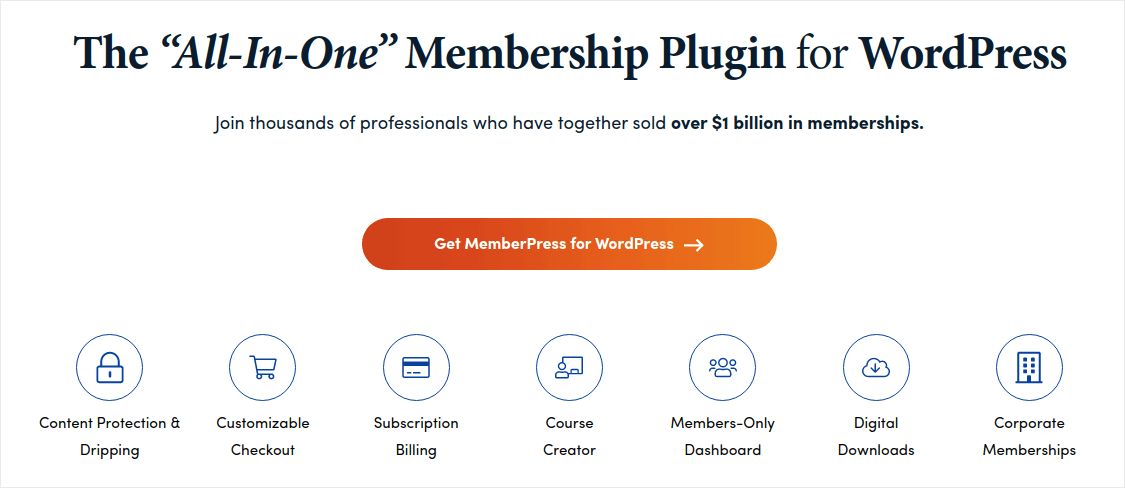
Το MemberPress είναι ένα από τα ευκολότερα plugins για ιστοσελίδες μελών WordPress στη χρήση. Έρχεται επίσης με μια ολόκληρη σουίτα εξαιρετικών χαρακτηριστικών για να σας βοηθήσει να αναπτύξετε και να δημιουργήσετε έσοδα από την κοινότητα των μελών σας.
Για να ξεκινήσετε, το μόνο που χρειάζεται να κάνετε είναι:
- Εγκαταστήστε το πρόσθετο
- Ρυθμίστε την πύλη πληρωμών σας
- Δημιουργήστε διαφορετικά επίπεδα συνδρομής
- Προσθέστε προνόμια σε κάθε επίπεδο συνδρομής
- Προσθέστε μερικά προϊόντα
Και είστε έτοιμοι! Μετά από αυτό, είναι απλό θέμα να προσκαλέσετε άτομα να συμμετάσχουν στο πρόγραμμα μελών σας.
Μπορείτε να περιορίσετε την πρόσβαση σε διαφορετικές σελίδες, τύπους δημοσιεύσεων, ετικέτες και κατηγορίες με βάση προσαρμοσμένα επίπεδα μελών. Το καλύτερο είναι ότι έχετε και έναν κατασκευαστή μαθημάτων. Έτσι, αν σκέφτεστε να δημιουργήσετε μαθήματα για τα μέλη σας, μπορείτε να το κάνετε χωρίς να εγκαταστήσετε κανένα άλλο plugin.
Κάντε κλικ εδώ για να ξεκινήσετε με το MemberPress.
Βήμα #3: Πώς να διαμορφώσετε το MemberPress στον ιστότοπό σας
Η ρύθμιση του MemberPress είναι πολύ εύκολη. Αν δεν έχετε χρησιμοποιήσει ποτέ plugins WordPress στο παρελθόν, δείτε αυτόν τον οδηγό για το πώς να εγκαταστήσετε ένα plugin WordPress. Μόλις ολοκληρώσετε την εγκατάσταση του plugin, μεταβείτε στον πίνακα ελέγχου του WordPress και πηγαίνετε στο MemberPress » Ρυθμίσεις.
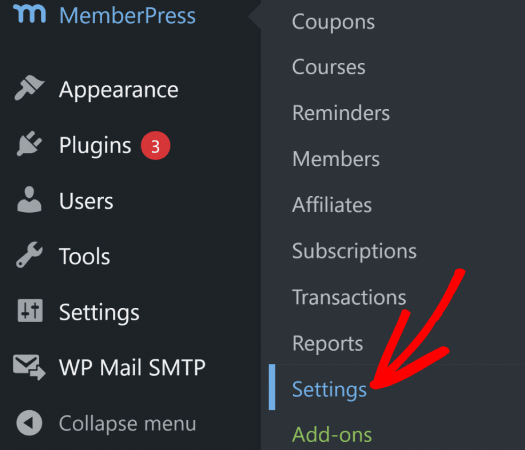
Αυτό θα σας οδηγήσει στις ρυθμίσεις Άδειας Χρήσης, όπου μπορείτε να εισαγάγετε το κλειδί άδειας χρήσης του MemberPress.
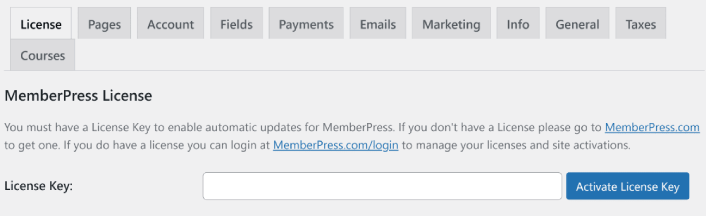
Επικολλήστε το κλειδί άδειας χρήσης σας και πατήστε το κουμπί Ενεργοποίηση Κλειδιού Άδειας Χρήσης. Τώρα θα έχετε πλήρη πρόσβαση σε όλες τις λειτουργίες του MemberPress για να πουλήσετε συνδρομές.
Βήμα #4: Πώς να ρυθμίσετε μεθόδους πληρωμής και να πουλήσετε συνδρομές στο διαδίκτυο
Για να λειτουργήσει οποιοσδήποτε ιστότοπος μελών, πρέπει να αποδεχτείτε και να επεξεργαστείτε πληρωμές για να επιτρέψετε την πρόσβαση στο περιεχόμενο υψηλής ποιότητας. Έτσι, στη συνέχεια θα ρυθμίσουμε τις επιλογές πληρωμής για τους συνδρομητές σας.
Για να προσθέσετε μια μέθοδο πληρωμής, επισκεφθείτε τη σελίδα Ρυθμίσεις του MemberPress. Κάντε κλικ στην καρτέλα Πληρωμές και κάντε κλικ στο Προσθήκη Μεθόδου Πληρωμής.
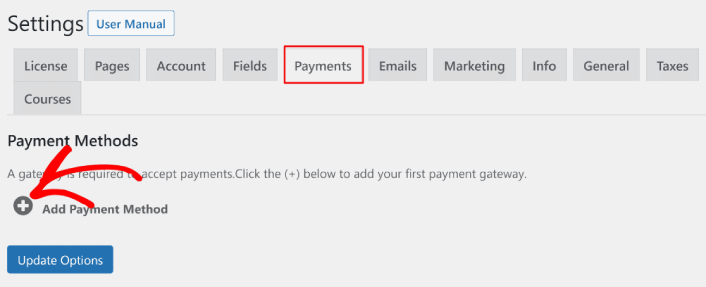
Το MemberPress σας επιτρέπει να δέχεται πληρωμές με Stripe, PayPal και Authorize.net. Συνιστούμε τη χρήση του WP Simple Pay για να δέχεστε πληρωμές Stripe στον ιστότοπό σας.
Το WP Simple Pay είναι ακριβώς αυτό που ακούγεται. Κάνει τις online πληρωμές απλές στον ιστότοπο WordPress σας. Είναι εύκολο στη χρήση, εξαιρετικά αξιόπιστο και δεν απαιτεί καθόλου κωδικοποίηση για τη ρύθμισή του.
Το καλύτερο κομμάτι; Το WP Simple Pay σας βοηθά να εστιάσετε στη δημιουργία προϊόντων και στην πώλησή τους χωρίς να ανησυχείτε για την αποδοχή πληρωμών από όλο τον κόσμο.
Όλες οι πληροφορίες πελατών και πληρωμών αποθηκεύονται στον λογαριασμό σας Stripe, όχι στον ιστότοπό σας WordPress. Ως αποτέλεσμα, το plugin δεν θα επιβαρύνει τον ιστότοπό σας όπως άλλες εναλλακτικές λύσεις. Το WP Simple Pay προσφέρει τον απλούστερο τρόπο προσθήκης πληρωμών Stripe στον ιστότοπό σας WordPress.
Αν δεν είστε σίγουροι αν είναι το σωστό plugin Stripe για εσάς, δείτε την κριτική μας για το WP Simple Pay.
Βήμα #5: Πώς να δημιουργήσετε επίπεδα μελών
Μόλις ολοκληρώσετε τη ρύθμιση της πύλης πληρωμών στον ιστότοπό σας, προχωρήστε στη δημιουργία επιπέδων συνδρομής για τα μέλη σας. Αν είστε streamer, ή αν έχετε παρακολουθήσει live streamers στο Twitch ή στο YouTube στο παρελθόν, πιθανότατα γνωρίζετε πώς λειτουργούν οι συνδρομές Patreon και YouTube.
Πρέπει να δημιουργήσετε διαφορετικά επίπεδα ή βαθμίδες συνδρομής σε διαφορετικά σημεία τιμών. Κάθε επίπεδο θα πρέπει να έχει διαφορετικά προνόμια για τα μέλη σας. Αν είστε streamer στο Twitch ή στο YouTube, τότε η γνώση του πώς να πουλάτε συνδρομές στο WordPress είναι πολύ καλύτερη από τις συνδρομές στο Patreon ή στο YouTube, επειδή έχετε περισσότερο έλεγχο στο περιεχόμενο και τα κέρδη σας.
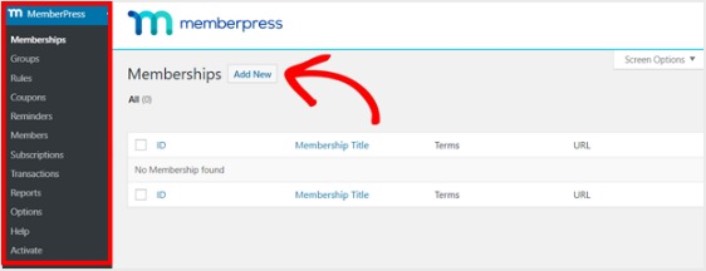
Μεταβείτε στο MemberPress » Συνδρομές και κάντε κλικ στο Προσθήκη Νέας για να δημιουργήσετε τις βαθμίδες συνδρομής σας.
Στη συνέχεια, εισαγάγετε έναν τίτλο και μια περιγραφή για το επίπεδο συνδρομής σας στον επεξεργαστή. Στη συνέχεια, ορίστε την τιμή, τον τύπο χρέωσης και τον χρόνο πρόσβασης από την ενότητα Όροι Συνδρομής στα δεξιά.
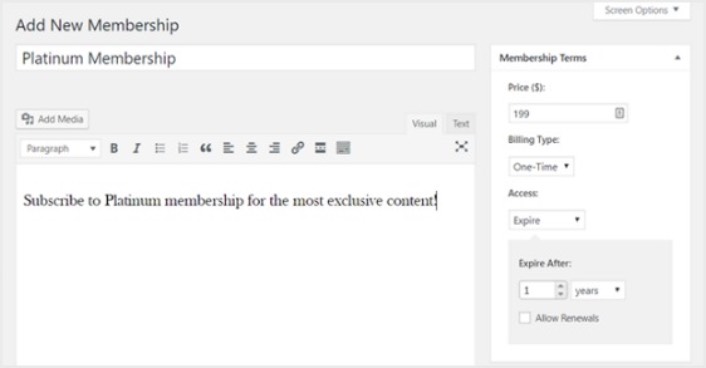
Μετά από αυτό, θα θέλετε να κάνετε κύλιση προς τα κάτω στην ενότητα Επιλογές Συνδρομής για να την προσαρμόσετε όπως θέλετε. Και μην ξεχάσετε να κάνετε κλικ στις άλλες καρτέλες για να διαμορφώσετε επίσης τα Δικαιώματα και το Πλαίσιο Τιμής.
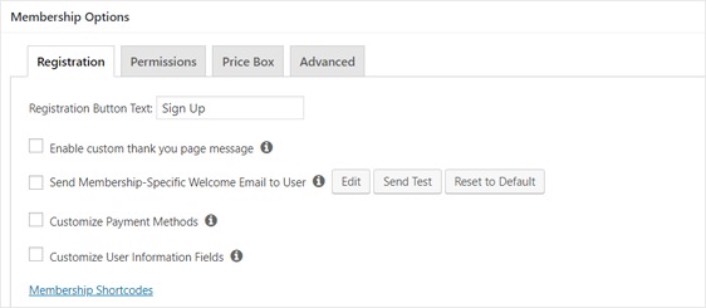
Στη συνέχεια, απλώς δημοσιεύστε τις βαθμίδες συνδρομής σας.
Βήμα #6: Πώς να ορίσετε επίπεδα πρόσβασης μελών
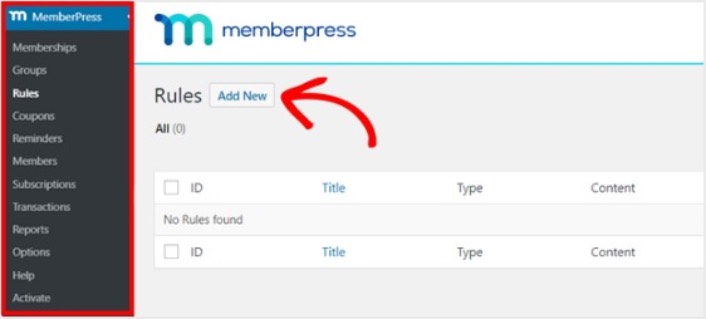
Δεν πρέπει κάθε μέλος να έχει πρόσβαση σε όλα, αν έχετε πολλαπλά επίπεδα συνδρομής. Έτσι, θα χρειαστεί να περιορίσετε την πρόσβαση στον ιστότοπό σας μελών. Μεταβείτε στο MemberPress » Rules και κάντε κλικ στο Add New.
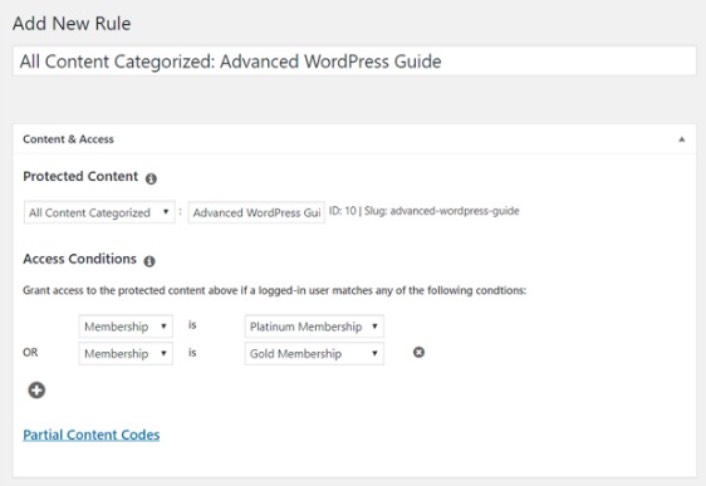
Μπορείτε να επιλέξετε όλο το περιεχόμενο κάτω από μια συγκεκριμένη κατηγορία για να είναι προσβάσιμο μόνο από χρήστες με τα 2 πιο ακριβά πακέτα συνδρομής. Σε αυτό το παράδειγμα, επιλέξαμε την κατηγορία Οδηγός Προηγμένου WordPress.
Στη συνέχεια, μεταβείτε στις ρυθμίσεις Σταδιακής Απελευθέρωσης/Λήξης.
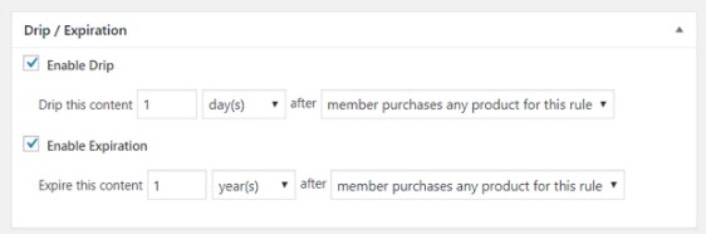
Αν επιλέξετε να ενεργοποιήσετε την επιλογή Σταδιακή Απελευθέρωση, αυτό θα σας επιτρέψει να απελευθερώνετε σταδιακά περιεχόμενο. Η επιλογή Λήξη σας επιτρέπει να επιλέξετε την ώρα που το περιεχόμενο δεν είναι πλέον διαθέσιμο.
Βήμα #7: Πώς να πουλήσετε συνδρομές με περιεχόμενο μόνο για μέλη
Στη συνέχεια, θέλετε να ανεβάσετε το περιεχόμενο για τα μέλη που πληρώνουν. Θα χρειαστεί επίσης να περιορίσετε την πρόσβαση σε αυτό με βάση τα επίπεδα συνδρομής. Μπορείτε να προσθέσετε περιεχόμενο με μια δημοσίευση ή μια σελίδα. Έτσι, για αυτό το παράδειγμα, θα δημιουργήσουμε περιεχόμενο για να συνδέσουμε τον κανόνα πρόσβασης που δημιουργήσαμε στο τελευταίο βήμα.
Δημιουργήστε μια νέα δημοσίευση και προσθέστε το περιεχόμενο που θέλετε σε αυτήν. Στη συνέχεια, επιλέξτε την κατηγορία Οδηγός Προηγμένου WordPress.
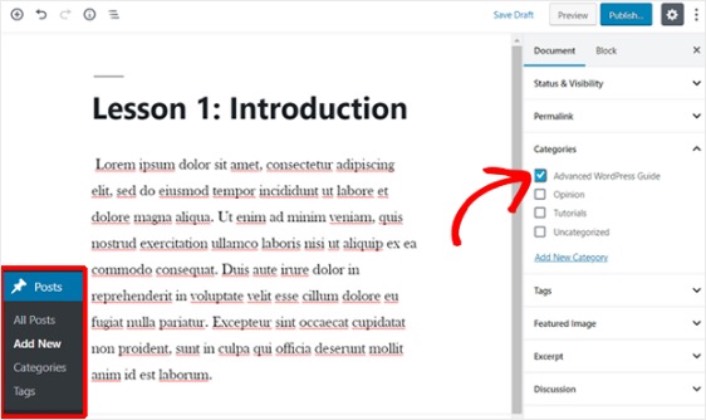
Στη συνέχεια, κάντε κύλιση προς τα κάτω στην ενότητα Μη Εξουσιοδοτημένη Πρόσβαση MemberPress.
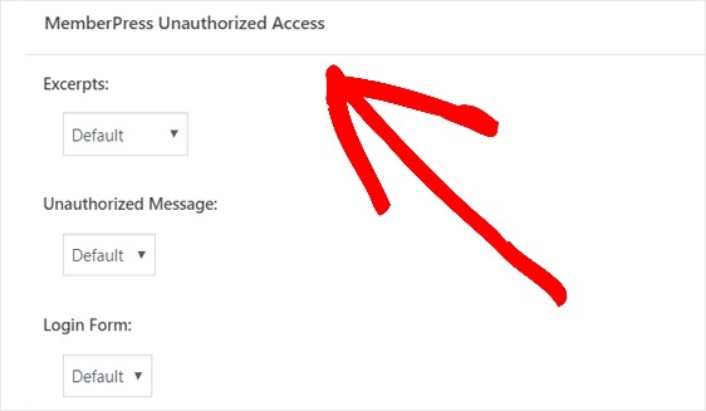
Εδώ μπορείτε να ρυθμίσετε πόσο από το περιεχόμενο που προορίζεται μόνο για μέλη μπορούν να βλέπουν οι μη μέλη. Και όταν όλα έχουν ρυθμιστεί όπως θα θέλατε, δημοσιεύστε τη σελίδα σας. Στη συνέχεια, μπορείτε να μεταβείτε στο Posts » All Posts για να δείτε ποια πρόσβαση περιεχομένου περιορίζεται σε συγκεκριμένα επίπεδα συνδρομής.
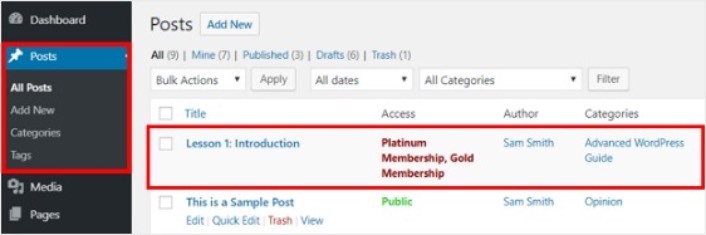
Μπορείτε ακόμη και να δημιουργήσετε ολοκληρωμένα διαδικτυακά μαθήματα χρησιμοποιώντας το MemberPress. Αλλά όλα αυτά αφορούν τη δημιουργία περιεχομένου προς πώληση. Πώς να πουλήσετε συνδρομές online; Αυτό είναι το επόμενο.
Βήμα #8: Πώς να δημιουργήσετε μια σελίδα τιμολόγησης για να πουλήσετε συνδρομές
Έχουμε φτάσει σχεδόν στο τέλος. Μέχρι τώρα, έχετε επίπεδα συνδρομής και περιεχόμενο υψηλής ποιότητας για κάθε επίπεδο. Στη συνέχεια, θα χρειαστεί να δημιουργήσετε μια σελίδα τιμολόγησης για τις συνδρομές σας.
Μεταβείτε στο MemberPress » Groups και κάντε κλικ στο κουμπί Add New.
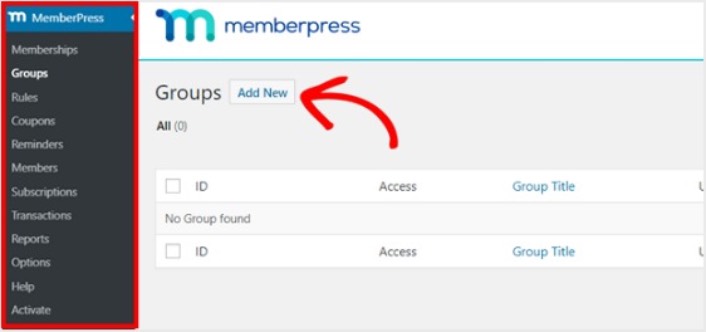
Ονομάστε την ομάδα σας κάτι σαν Pricing Plans, ώστε οι χρήστες να γνωρίζουν τι αφορά η σελίδα. Μετά από αυτό, κάντε κύλιση προς τα κάτω στην ενότητα Group Options. Εδώ, μπορείτε να προσθέσετε τις συνδρομές που θέλετε να εμφανίσετε στη σελίδα τιμολόγησης.
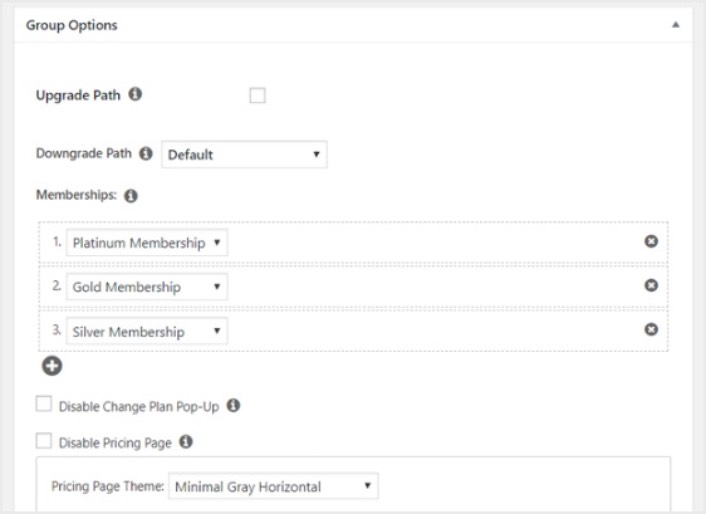
Επαγγελματική Συμβουλή: Μπορείτε επίσης να αλλάξετε το θέμα της σελίδας τιμολόγησης σε αυτήν τη σελίδα. Συνιστούμε τη χρήση του SeedProd για τη δημιουργία προσαρμοσμένων θεμάτων και σελίδων στο WordPress.
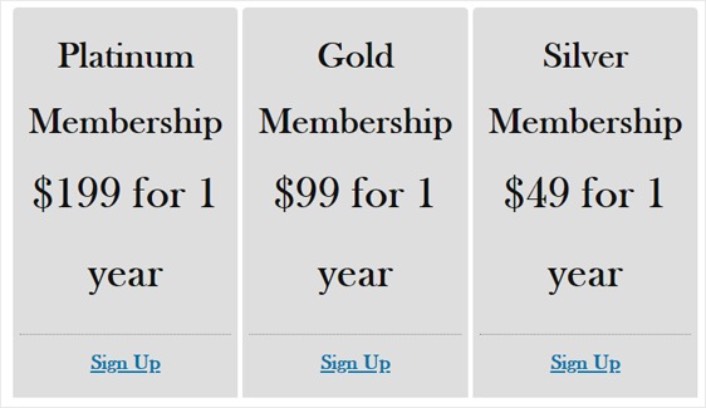
Δημοσιεύστε αυτήν τη σελίδα όταν είστε έτοιμοι και κάντε προεπισκόπηση για να τη δείτε. Αν ακολουθήσατε κάθε βήμα, θα πρέπει να μοιάζει κάπως έτσι:
Τώρα, πρέπει να βεβαιωθείτε ότι ο ιστότοπος μελών σας στο WordPress ανακατευθύνει τους μη εξουσιοδοτημένους χρήστες στη σελίδα τιμολόγησης. Αντιγράψτε τη διεύθυνση URL της σελίδας τιμολόγησης και μεταβείτε στο MemberPress » Options και κάντε κύλιση προς τα κάτω στην ενότητα Unauthorized Access.
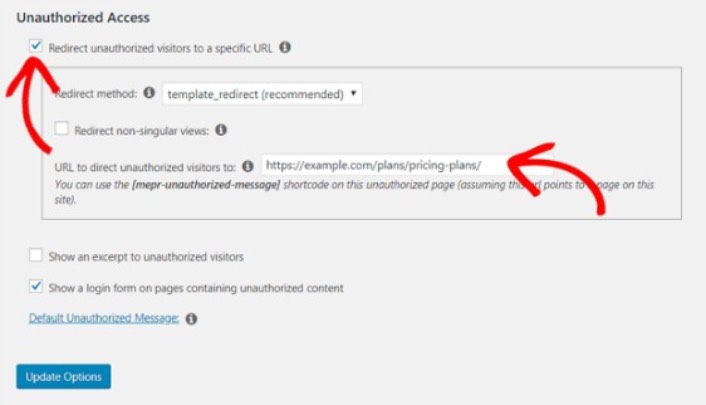
Επιλέξτε το πλαίσιο δίπλα στο Redirect unauthorized visitors to a specific URL και επικολλήστε τη διεύθυνση URL της σελίδας τιμολόγησης. Τέλος, κάντε κλικ στο Update Options για να αποθηκεύσετε τις αλλαγές σας.
Βήμα #9: Πώς να δημιουργήσετε μια φόρμα σύνδεσης και εγγραφής
Πρέπει να δώσετε στους εγγεγραμμένους χρήστες σας έναν τρόπο να συνδεθούν και να αποκτήσουν πρόσβαση στο περιεχόμενό τους. Και πρέπει επίσης να δημιουργήσετε μια φόρμα για να δεχτείτε νέα μέλη.
Ο απλούστερος τρόπος για να το κάνετε αυτό είναι να χρησιμοποιήσετε το widget σύνδεσης του MemberPress. Το MemberPress διαθέτει ήδη μια ενότητα φόρμας σύνδεσης και εγγραφής που μπορείτε απλά να εισαγάγετε χωρίς καμία προσαρμοσμένη κωδικοποίηση.
Μεταβείτε στο Appearance » Widgets στον πίνακα ελέγχου του WordPress και σύρετε το widget σύνδεσης του MemberPress σε μια περιοχή έτοιμη για widget στον ιστότοπό σας.
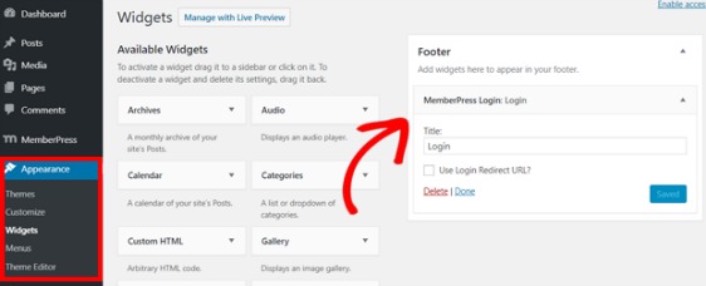
Το παράδειγμα μας δείχνει να το προσθέτουμε στο υποσέλιδο. Αλλά μπορείτε επίσης να το προσθέσετε στην πλαϊνή μπάρα αν θέλετε.
Τέλος, πρέπει να διαφημίσετε τη σελίδα σας Pricing Plans προσθέτοντάς την στο μενού πλοήγησης του ιστότοπου. Μεταβείτε στο Appearance » Menus και δημιουργήστε ένα νέο μενού ή επιλέξτε ένα υπάρχον. Στη συνέχεια, επιλέξτε Pricing Plans από τα αριστερά στην ενότητα Groups και κάντε κλικ στο κουμπί Add to Menu.
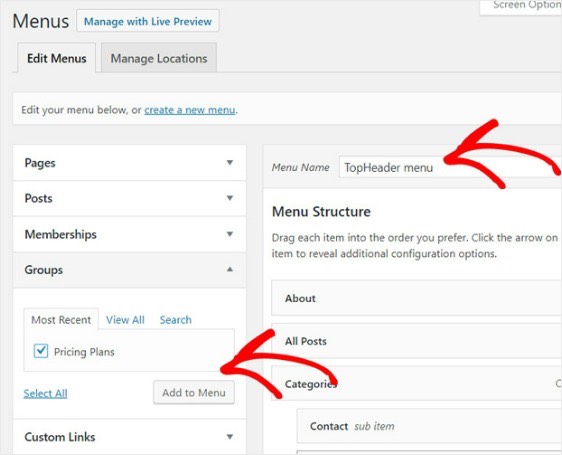
Και αυτό ήταν! Δημιουργήσατε με επιτυχία έναν ιστότοπο μελών. Τώρα, είναι καιρός να βρείτε πώς να πουλήσετε συνδρομές πιο γρήγορα.
Πώς να πουλήσετε συνδρομές πιο γρήγορα
Θα πρέπει να εξετάσετε τη χρήση ειδοποιήσεων push με το plugin μελών σας. Τα περισσότερα plugins μελών έρχονται με αυτοματοποιημένες καμπάνιες email για την προσέλκυση και διατήρηση μελών. Σας προτείνουμε όμως να χρησιμοποιήσετε ειδοποιήσεις push για να αυξήσετε την επισκεψιμότητα, την αφοσίωση και τις πωλήσεις των μελών σας παράλληλα με τις καμπάνιες email σας.
Ας δούμε πώς να πουλήσουμε συνδρομές πιο γρήγορα χρησιμοποιώντας καμπάνιες push.
Η PushEngage είναι το #1 λογισμικό ειδοποιήσεων push στον κόσμο. Και είναι εξαιρετικά εύκολο να ρυθμίσετε ειδοποιήσεις καλωσορίσματος χρησιμοποιώντας την PushEngage. Μπορείτε να δείτε την πλήρη λίστα λειτουργιών στην κριτική μας για την PushEngage. Ή, θα μπορούσατε επίσης να δείτε τις καλύτερες υπηρεσίες ειδοποιήσεων push στον κόσμο και να επιλέξετε την κατάλληλη για εσάς.
Ή, μπορείτε απλά να ξεκινήσετε αμέσως με την PushEngage.
#1. Πώς να πουλήσετε συνδρομές χρησιμοποιώντας ειδοποιήσεις push καλωσορίσματος
Είτε έχετε ένα νέο κατάστημα είτε ένα καθιερωμένο, τα μηνύματα καλωσορίσματος ιστοτόπου είναι απολύτως απαραίτητα. Οι ειδοποιήσεις push καλωσορίσματος είναι ιδανικές για:
- Επιβεβαίωση: Θέλετε να επιβεβαιώσετε ότι ο νέος σας συνδρομητής έχει όντως εγγραφεί στις ειδοποιήσεις push του ιστότοπού σας.
- Επανενεργοποίηση: Οι καμπάνιες καλωσορίσματος είναι ένας εξαιρετικός τρόπος για να κάνετε τους συνδρομητές σας να επιστρέψουν στον ιστότοπό σας.
- Πωλήσεις: Μπορείτε να δώσετε στους νέους σας συνδρομητές μια προσφορά καλωσορίσματος με εκπτώσεις, δωρεάν δώρα και κουπόνια.
Ας δημιουργήσουμε τώρα μια καμπάνια ειδοποιήσεων push καλωσορίσματος. Μεταβείτε στον πίνακα ελέγχου PushEngage και πηγαίνετε στο Καμπάνια » Αυτόματοι Αποστολείς » Δημιουργία Νέου Αυτόματου Αποστολέα:
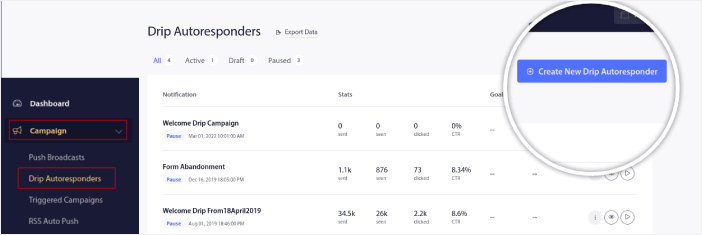
Δώστε στην καμπάνια αυτόματου αποστολέα σας ένα όνομα που μπορείτε να θυμάστε εύκολα. Στη συνέχεια, ρυθμίστε την πρώτη ειδοποίηση push να σταλεί αμέσως μετά την εγγραφή ενός επισκέπτη στις ειδοποιήσεις push σας.

Μπορείτε να επεξεργαστείτε την ειδοποίηση για να δημιουργήσετε προσαρμοσμένο περιεχόμενο για το μήνυμα καλωσορίσματός σας. Όταν τελειώσετε, κάντε κλικ στο κουμπί Προσθήκη Νέας Ειδοποίησης για να προσθέσετε περισσότερες ειδοποιήσεις στην ακολουθία. Μπορείτε να επεξεργαστείτε τις νέες ειδοποιήσεις και να ορίσετε μια προσαρμοσμένη καθυστέρηση μεταξύ κάθε ειδοποίησης.
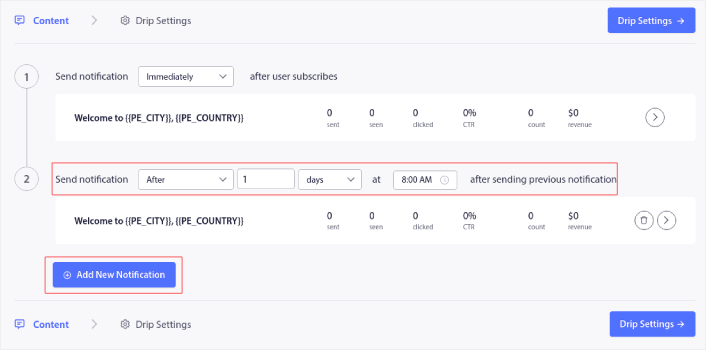
Μπορείτε να προσθέσετε όσες ειδοποιήσεις θέλετε, αλλά συνιστούμε τη δημιουργία μιας σειράς καλωσορίσματος με 5-7 ειδοποιήσεις.
Μετά από αυτό, επιλέξτε το κοινό σας στις Ρυθμίσεις Σειράς:
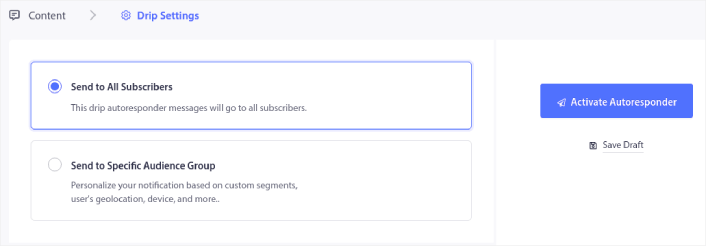
Μπορείτε να στείλετε διαφορετικές σειρές καλωσορίσματος για διαφορετικά τμήματα χρησιμοποιώντας την επιλογή Αποστολή σε Συγκεκριμένη Ομάδα Κοινού. Αυτό είναι ιδιαίτερα χρήσιμο όταν κάνετε κατηγοριοποίηση επισκεπτών όταν επιλέγουν ειδοποιήσεις push. Όταν είστε ικανοποιημένοι με τη στόχευσή σας, κάντε κλικ στο κουμπί Ενεργοποίηση Αυτόματου Αποκριτή. Και τελειώσατε!
#2. Πώς να πουλήσετε περισσότερες συνδρομές χρησιμοποιώντας ειδοποιήσεις push εγκατάλειψης καλαθιού
Η εγκατάλειψη καλαθιού αγορών συμβαίνει όταν ένας πιθανός πελάτης προσθέτει ένα προϊόν στο καλάθι αγορών και δεν ολοκληρώνει τη διαδικασία ολοκλήρωσης αγοράς. Με άλλα λόγια, εγκαταλείπουν τα προϊόντα σας για κάποιο λόγο και απλώς προχωρούν.
Η εγκατάλειψη καλαθιού αγορών στο διαδίκτυο μπορεί να οφείλεται σε ένα σημαντικό πρόβλημα στη διεπαφή χρήστη ή σε έλλειψη εμπιστοσύνης, ή ακόμα και σε κάποιες κρυφές χρεώσεις. Αν διαχειρίζεστε ένα νέο κατάστημα, τότε θα πρέπει να διαβάσετε το άρθρο μας σχετικά με το πώς να μειώσετε την εγκατάλειψη καλαθιού αγορών.
Τώρα, είναι ώρα να δημιουργήσετε την καμπάνια εγκατάλειψης καλαθιού. Μεταβείτε στις Καμπάνιες » Προγραμματισμένες Καμπάνιες και κάντε κλικ στο Δημιουργία Νέας Προγραμματισμένης Καμπάνιας:
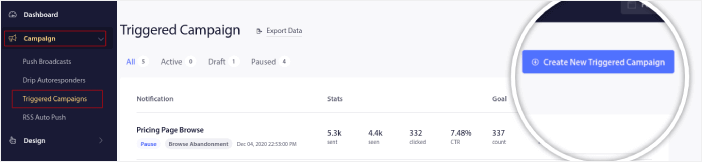
Στη συνέχεια, από τα πρότυπα καμπάνιας, επιλέξτε Εγκατάλειψη Καλαθιού και κάντε κλικ στο Δημιουργία Νέου:
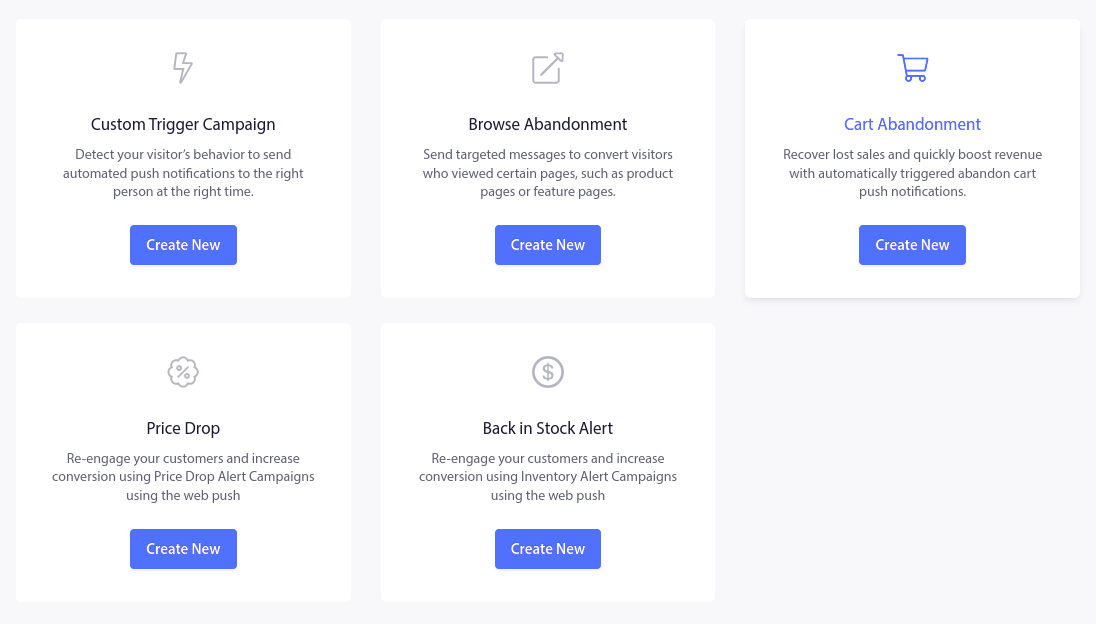
Αν χρειάζεστε ένα λεπτομερές σεμινάριο για τη δημιουργία μιας καμπάνιας εγκαταλελειμμένου καλαθιού, δείτε αυτό το άρθρο σχετικά με το πώς να ρυθμίσετε ειδοποιήσεις push για εγκαταλελειμμένα καλάθια.
#3. Πώς να αποκτήσετε περισσότερα μέλη με ειδοποιήσεις push εγκατάλειψης περιήγησης
Μια ειδοποίηση εγκατάλειψης περιήγησης είναι μια αυτοματοποιημένη ειδοποίηση push που αποστέλλεται όταν κάποιος που περιηγείται στον ιστότοπό σας αποφασίζει να φύγει χωρίς να κάνει καμία ενέργεια. Η αποστολή μιας υπενθύμισης στον επισκέπτη ότι ενδιαφέρθηκε για κάτι στον ιστότοπό σας μπορεί να αυξήσει σημαντικά τα ποσοστά μετατροπής σας.
Οι καμπάνιες εγκατάλειψης περιήγησης χρησιμοποιούνται συχνότερα από ιστότοπους ηλεκτρονικού εμπορίου. Αλλά αυτό δεν σημαίνει ότι μια ταξιδιωτική πύλη ή ένας ιστότοπος ειδήσεων (ή οποιοσδήποτε ιστότοπος, πραγματικά) δεν μπορεί να τις χρησιμοποιήσει.
Μια ειδοποίηση εγκατάλειψης περιήγησης λήγει όταν ο επισκέπτης σας προσθέτει κάτι στο καλάθι του. Μετά από αυτό, μια ειδοποίηση εγκατάλειψης καλαθιού αναλαμβάνει για να τους μετατρέψει σε πελάτες που πληρώνουν.
Εκεί έρχονται στο παιχνίδι οι καμπάνιες εγκατάλειψης περιήγησης. Χρησιμοποιώντας τα παραδείγματα email εγκατάλειψης περιήγησης σε αυτό το άρθρο, μπορείτε να στοχεύσετε, να πείσετε και να μετατρέψετε:
- Πελάτες που πρόσθεσαν ένα προϊόν σε μια Λίστα Επιθυμιών, αλλά όχι στο Καλάθι τους
- Πελάτες που είδαν ένα προϊόν περισσότερες από μία φορές
- Πελάτες που περιηγήθηκαν σε περισσότερα από 3 προϊόντα στην ίδια κατηγορία
- Πελάτες που αναζήτησαν στον ιστότοπο ένα συγκεκριμένο προϊόν
- Πελάτες που έμειναν σε μια σελίδα προϊόντος για τουλάχιστον 3 λεπτά και δεν αγόρασαν
Μεταβείτε στον πίνακα ελέγχου του PushEngage και πηγαίνετε στο Campaign » Triggered Campaigns. Στη συνέχεια, κάντε κλικ στο Create New Browse Autoresponder:
Και στη συνέχεια, επιλέξτε τον τύπο Browse Abandonment Campaign από τη λίστα τύπων καμπάνιας και κάντε κλικ στο Create New:
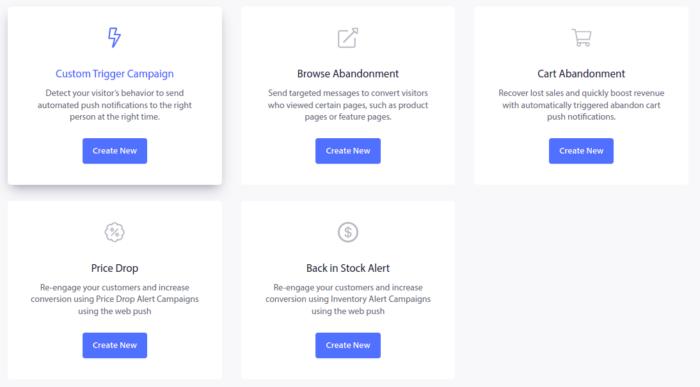
Μέχρι τώρα, θα πρέπει να μπορείτε να δείτε έναν πίνακα ελέγχου ρύθμισης καμπάνιας. Δημιουργήστε την καμπάνια σας στην ενότητα Content:
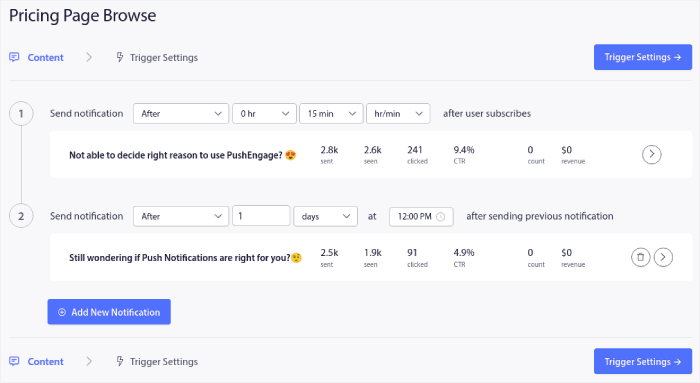
Τα περισσότερα από αυτά είναι απλά. Δώστε ένα όνομα στην καμπάνια σας και δημιουργήστε μια ακολουθία ειδοποιήσεων push εγκατάλειψης περιήγησης. Όταν τελειώσετε, κάντε κλικ στο Trigger Settings.
Είναι ώρα να ρυθμίσετε το ερέθισμα για την εγκατάλειψη περιήγησης:
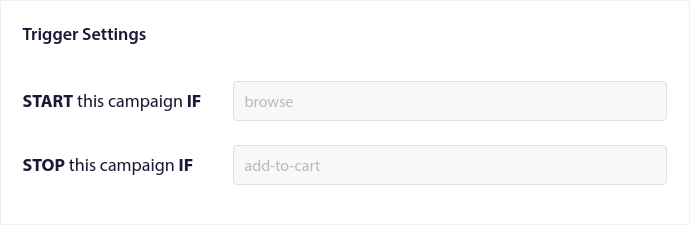
Αυτές είναι οι προεπιλεγμένες τιμές για το πρότυπο καμπάνιας εγκατάλειψης περιήγησης. Επομένως, δεν χρειάζεται να αλλάξετε τίποτα εδώ.
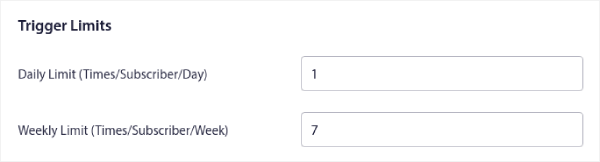
Μπορείτε να ορίσετε Trigger Limits με βάση το πόσο συχνά θέλετε να στέλνετε ειδοποιήσεις push:
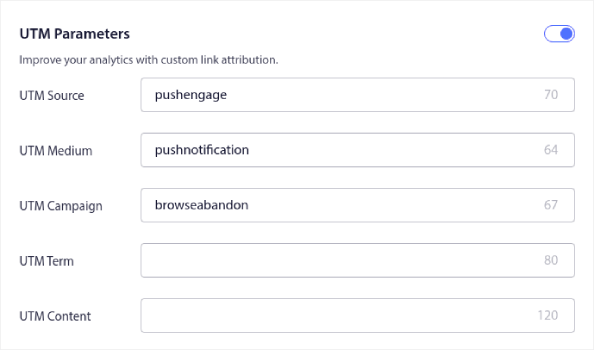
Και μπορείτε επίσης να ρυθμίσετε παραμέτρους UTM εδώ:
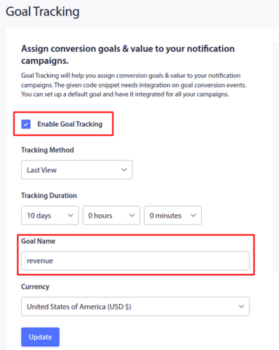
Και ενεργοποιήστε επίσης το Goal Tracking:
Αν είστε νέοι στην ανάλυση ειδοποιήσεων push, δείτε τον οδηγό μας για παρακολούθηση στόχων για ειδοποιήσεις push.
#4. Cross-Selling ειδοποιήσεις push eCommerce
Η διασταυρούμενη πώληση είναι η πώληση σχετικών ή συμπληρωματικών προϊόντων σε έναν πελάτη. Είναι μια από τις πιο αποτελεσματικές μεθόδους μάρκετινγκ. Μπορείτε εύκολα να αυξήσετε τη Μέση Αξία Παραγγελίας σας (AOV) χρησιμοποιώντας καμπάνιες διασταυρούμενης πώλησης.
Σύμφωνα με την Amazon, το 35% των πωλήσεών της προέρχεται από συνδυαστικές πωλήσεις. Οι ειδοποιήσεις push συνδυαστικών πωλήσεων είναι καμπάνιες που πωλούν αυτόματα συνδυαστικά προϊόντα στους πελάτες σας. Οι ειδοποιήσεις push συνδυαστικών πωλήσεων σας βοηθούν να αυξήσετε τις πωλήσεις, καθώς είναι 60-70% πιο πιθανό να πουλήσετε σε έναν υπάρχοντα πελάτη.
Είναι επίσης εξαιρετικά εύκολο να δημιουργήσετε μια καμπάνια cross-selling για τον ιστότοπο ηλεκτρονικού εμπορίου σας χρησιμοποιώντας ειδοποιήσεις push.
- Δημιουργήστε τμήματα με βάση τις κατηγορίες προϊόντων και προσθέστε έναν πελάτη στο σχετικό τμήμα όταν πραγματοποιεί μια αγορά
- Προσδιορίστε προϊόντα για διασταυρούμενη προώθηση κάτω από κάθε τμήμα
- Δημιουργήστε μια ειδοποίηση drip για κάθε τμήμα και στείλτε το σχετικό προϊόν ή λίστα προϊόντων για διασταυρούμενη προώθηση
Είναι τόσο απλό.
Επιστρέψτε στον πίνακα ελέγχου του PushEngage και πηγαίνετε στο Audience » Segments και δημιουργήστε τα τμήματά σας:

Θα θέλετε να τμηματοποιήσετε τους επισκέπτες σας όταν επισκέπτονται ένα προϊόν σε μια συγκεκριμένη κατηγορία:
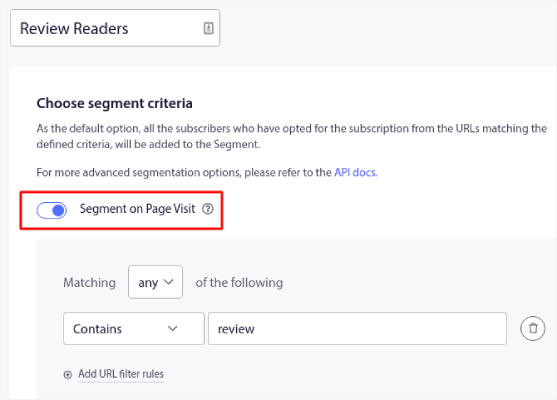
Στη συνέχεια, βρείτε ένα προϊόν για διασταυρούμενη πώληση για κάθε τμήμα και δημιουργήστε έναν αυτόματο αποστολέα drip για να το προωθήσετε.
#5. Πώς να πουλήσετε συνδρομές χρησιμοποιώντας επαναλαμβανόμενες πωλήσεις
Μπορείτε να προγραμματίσετε ειδοποιήσεις push για να επαναλαμβάνονται κάθε εβδομάδα. Ή κάθε λίγες μέρες. Πολλοί πελάτες του PushEngage χρησιμοποιούν τον επαναλαμβανόμενο προγραμματισμό και αγαπούν απόλυτα αυτή τη λειτουργία. Έχει κάνει ιδιαίτερα σημαντική διαφορά για τους ιστότοπους ηλεκτρονικού εμπορίου.
Γιατί να χρησιμοποιήσετε τον επαναλαμβανόμενο προγραμματισμό;
Φανταστείτε ότι έχετε μια εβδομαδιαία προσφορά για μια υπαίθρια αγορά. Ή μια προσφορά Σαββατοκύριακου. Ή μια εκκαθάριση αποθεμάτων. Ή ακόμα και μια μηνιαία προσφορά αστραπή.
Αυτές είναι ζωντανές εκδηλώσεις που επαναλαμβάνονται σαν ρολόι.
Θέλετε ειλικρινά να δημιουργείτε μια διαφορετική ειδοποίηση push κάθε εβδομάδα; Ειδικά αν γνωρίζετε εκ των προτέρων ότι αυτές οι προσφορές θα αποτελέσουν ένα σημαντικό μέρος της στρατηγικής μάρκετινγκ;
Ή, θα προτιμούσατε απλώς να δημιουργήσετε την ειδοποίηση μία φορά και να την προγραμματίσετε να ενεργοποιείται κάθε εβδομάδα σε μια σταθερή ώρα;
Αυτό ακριβώς μπορούν να κάνουν για εσάς οι επαναλαμβανόμενες ειδοποιήσεις push. Είναι ο τέλειος τρόπος για να εξοικονομήσετε πολύ χρόνο και ενέργεια. Αντί να σπαταλάτε χρόνο με νέες ειδοποιήσεις, μπορείτε απλώς να συνεχίσετε να βελτιστοποιείτε την υπάρχουσα καμπάνια.
Είναι επίσης πολύ εύκολο να το κάνετε. Απλώς μεταβείτε στον πίνακα ελέγχου του PushEngage και δημιουργήστε μια μετάδοση στην ενότητα Broadcast Push:
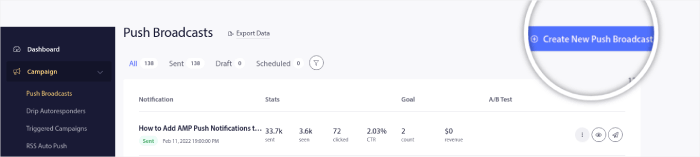
Στη συνέχεια, δημιουργήστε μια νέα ειδοποίηση push για αποστολή. Προσαρμόστε το περιεχόμενο στην καρτέλα Content:
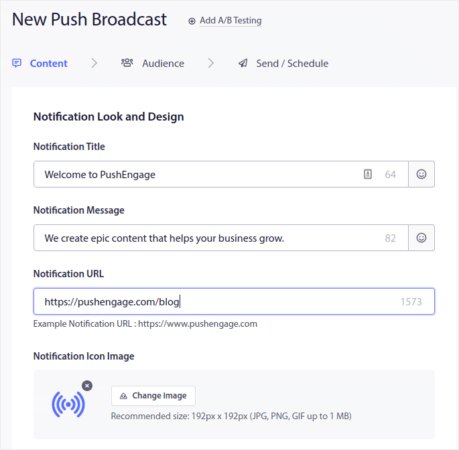
Στη συνέχεια, επιλέξτε το κοινό σας στην ενότητα Audience:
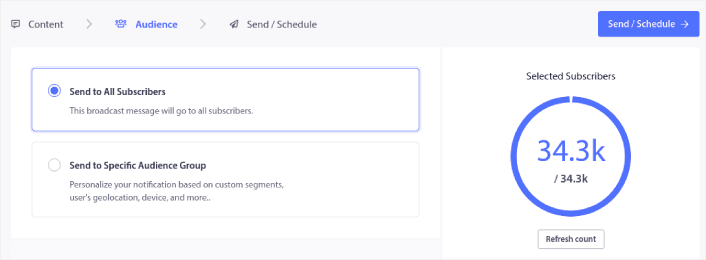
Και τέλος, στην ενότητα Send/Schedule, μπορείτε να προγραμματίσετε την ειδοποίηση ως επαναλαμβανόμενη ειδοποίηση push:
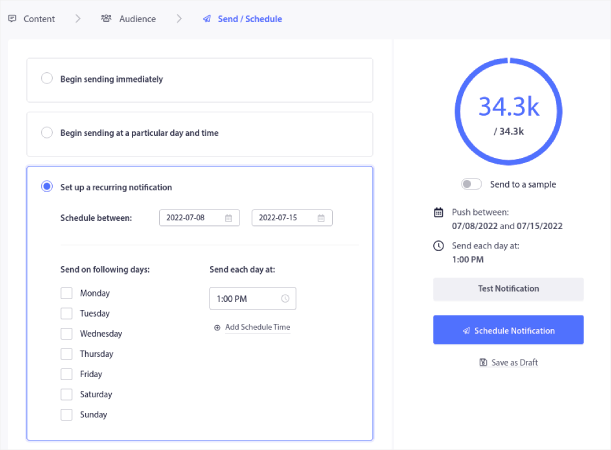
Μπορείτε εύκολα να δημιουργήσετε οποιοδήποτε πρόγραμμα θέλετε για τις ειδοποιήσεις push, συμπεριλαμβανομένων προσαρμοσμένων ημερών, ημερομηνιών και ωρών.
Τι να κάνετε αφού μάθετε πώς να πουλήσετε συνδρομές
Τώρα που ξέρετε πώς να πουλάτε συνδρομές, θα πρέπει να αφοσιωθείτε στην ανάπτυξη της επιχείρησής σας.
Γνωρίζατε ότι οι ειδοποιήσεις push έρχονται επίσης με πολλές αυτοματοποιημένες καμπάνιες; Ρίξτε μια ματιά σε μερικές που θα μπορούσαν να σας βοηθήσουν να αυξήσετε γρήγορα τις συνδρομές σας:
- Drip Campaigns και Αυτόματοι Αποστολείς για Ειδοποιήσεις Web Push
- 5 Οφέλη από τη Χρήση Καμπάνιας Ειδοποιήσεων Push για Εγκατάλειψη Καλαθιού
- Πώς να Μετατρέψετε Συνδρομητές σε Αγοραστές Χρησιμοποιώντας Ειδοποιήσεις Web Push
- Πώς να προσθέσετε ένα πρόσθετο WordPress για ειδοποιήσεις ιστού στον ιστότοπό σας
Και αν μόλις ξεκινάτε με τις ειδοποιήσεις push, σας προτείνουμε να χρησιμοποιήσετε το PushEngage. Το PushEngage είναι το Νο. 1 λογισμικό ειδοποιήσεων push στον κόσμο. Έτσι, οι καμπάνιες σας θα είναι σε ασφαλή χέρια.


