
Ψάχνετε έναν τρόπο να προσθέσετε ειδοποιήσεις push στο Wix στον ιστότοπό σας;
Οι ειδοποιήσεις push μπορούν να σας βοηθήσουν να αυξήσετε γρήγορα την επισκεψιμότητα, την αλληλεπίδραση και τις πωλήσεις σας. Αλλά ποια υπηρεσία πρέπει να χρησιμοποιήσετε για να στείλετε ειδοποιήσεις push; Θα αξίζει τον χρόνο σας; Μπορείτε να αντέξετε οικονομικά τις ειδοποιήσεις ιστού ως κανάλι μάρκετινγκ;
Και το πιο σημαντικό, χρειάζεστε μια ομάδα ανάπτυξης για να ξεκινήσετε τις καμπάνιες μάρκετινγκ σας;
Σε αυτό το άρθρο, θα σας δείξουμε πώς να ρυθμίσετε ειδοποιήσεις push σε έναν ιστότοπο Wix βήμα προς βήμα χωρίς κωδικοποίηση σε δέκα λεπτά ή λιγότερο. Το Wix είναι μια εξαιρετική πλατφόρμα για να δημιουργήσετε τον πρώτο σας ιστότοπο. Έτσι, μόλις τελειώσετε τη ρύθμιση του ιστότοπού σας στο Wix, είναι ώρα να βουτήξετε σε αυτό το σεμινάριο.
Ας ξεκινήσουμε.
Πώς να Εγκαταστήσετε Ειδοποιήσεις Push στο Wix
Η εγκατάσταση ειδοποιήσεων push στο Wix δεν είναι πραγματικά δύσκολη. Απλώς ακολουθήστε αυτά τα απλά βήματα και μέχρι το τέλος αυτού του άρθρου, θα πρέπει να δείτε μια ειδοποίηση καλωσορίσματος στον ιστότοπό σας, όπως αυτή:
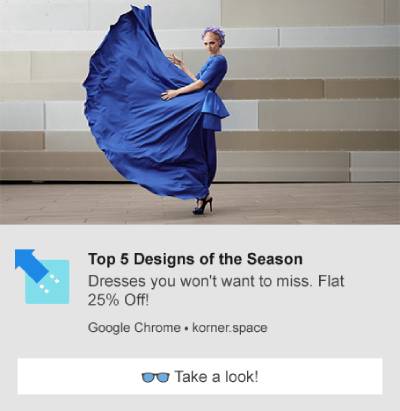
Για να είμαστε ειλικρινείς, δεν προτιμούμε πραγματικά να χρησιμοποιούμε το Wix ως κατασκευαστή ιστοτόπων. Κατά την ειλικρινή μας γνώμη, το WordPress ή ακόμα και το Shopify σας προσφέρουν πολύ καλύτερες δυνατότητες και λειτουργικότητα. Έτσι, αν μπορείτε να μεταβείτε στο WordPress ή στο Shopify, τώρα μπορεί να είναι η καλύτερη στιγμή για να το κάνετε.
Αλλά αν παραμένετε στο Wix, μην ανησυχείτε. Είναι ακόμα εύκολο να εγκαταστήσετε ειδοποιήσεις push στον ιστότοπό σας.
Ας ξεκινήσουμε.
Βήμα #1: Ρυθμίστε τον Λογαριασμό σας PushEngage
Μεταβείτε στην αρχική σελίδα του PushEngage και κάντε κλικ στο κουμπί Ξεκινήστε:

Μπορείτε να επιλέξετε το δωρεάν πρόγραμμα για να δοκιμάσετε το PushEngage, ή να επιλέξετε ένα επί πληρωμή πρόγραμμα αν είστε σοβαροί σχετικά με την ανάπτυξη της επιχείρησής σας. Τα επί πληρωμή προγράμματα έρχονται με περισσότερες επιλογές καμπάνιας και τη δυνατότητα δημιουργίας ακόμη μεγαλύτερων λιστών συνδρομητών. Οι ειδοποιήσεις push κοστίζουν πολύ λίγο για να ξεκινήσετε και μπορείτε να χρησιμοποιήσετε την πιστωτική σας κάρτα για να αγοράσετε ένα πρόγραμμα.
Αν διαχειρίζεστε έναν ιστότοπο eCommerce, συνιστούμε ανεπιφύλακτα να αποκτήσετε ένα επί πληρωμή πρόγραμμα, ώστε να μπορείτε να ρυθμίσετε ειδοποιήσεις push eCommerce. Οι ειδοποιήσεις push είναι εξαιρετικές για την κυκλοφορία νέων προϊόντων από το online κατάστημά σας.
Ελέγξτε τα προγράμματα τιμολόγησης και επιλέξτε ένα πρόγραμμα για να ξεκινήσετε. Αφού δημιουργήσετε έναν λογαριασμό, μεταβείτε στον πίνακα ελέγχου του PushEngage και πηγαίνετε στις Ρυθμίσεις Ιστότοπου » Ρυθμίσεις Εγκατάστασης:

Εδώ διαμορφώνετε τις λεπτομέρειες και την επωνυμία του ιστότοπού σας. Προχωρήστε και ορίστε ένα λογότυπο και μια διεύθυνση URL ιστότοπου για τις ειδοποιήσεις push σας. Θα πρέπει να το κάνετε αυτό τώρα, ώστε να μπορείτε να δοκιμάσετε σωστά τις ειδοποιήσεις push σας.
Βήμα #2: Λάβετε τον Κωδικό Εγκατάστασης από το PushEngage
Στη συνέχεια, θα χρειαστεί να μεταβείτε στον πίνακα ελέγχου του PushEngage και να λάβετε τον κωδικό εγκατάστασης. Μέσα στις Ρυθμίσεις Εγκατάστασης:

Ανάλογα με το αν ο ιστότοπός σας έχει εγκατεστημένο πιστοποιητικό SSL, μεταβείτε στην καρτέλα HTTP ή στην καρτέλα HTTPS για να λάβετε τον κωδικό εγκατάστασης. Για ιστότοπους WordPress, δεν χρειάζεται αυτός ο κωδικός εγκατάστασης. Το plugin αναλαμβάνει τα πάντα. Αυτό ισχύει και για ιστότοπους WooCommerce.
Μπορείτε να χρησιμοποιήσετε μια εφαρμογή Wix για να εγκαταστήσετε ειδοποιήσεις push στον ιστότοπό σας Wix. Αλλά προς το παρόν, απλώς αντιγράψτε αυτόν τον κώδικα. Η χρήση αυτοματισμών εφαρμογών Wix μπορεί να προκαλέσει περισσότερα προβλήματα από όσα λύνει.
Βήμα #3: Τοποθετήστε τον Κώδικα Εγκατάστασης Ειδοποιήσεων Push Wix στον Ιστότοπό σας
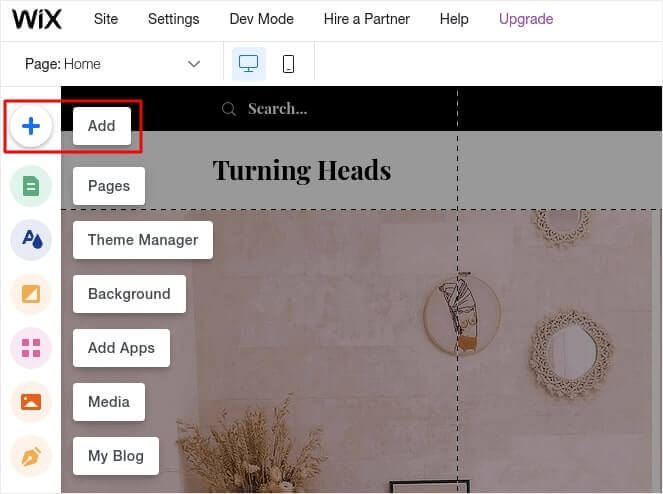
Συνδεθείτε στον λογαριασμό σας Wix και μεταβείτε στο Επεξεργασία » Προσθήκη:
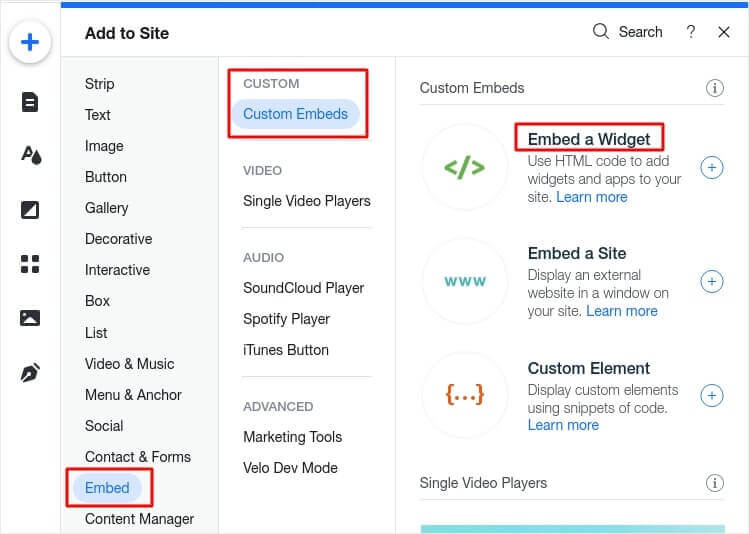
Μεταβείτε στο Ενσωμάτωση » Προσαρμοσμένες Ενσωματώσεις » Ενσωμάτωση Widget:
Εδώ είναι που εγκαθιστάτε το απόσπασμα κώδικα από τον πίνακα ελέγχου PushEngage. Κάντε κλικ στο Εισαγωγή Κώδικα:
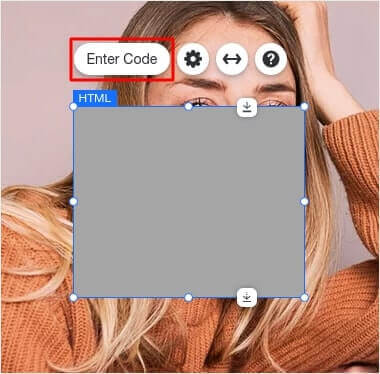
Και τώρα, επικολλήστε τον κώδικά σας και κάντε κλικ στο Ενημέρωση:
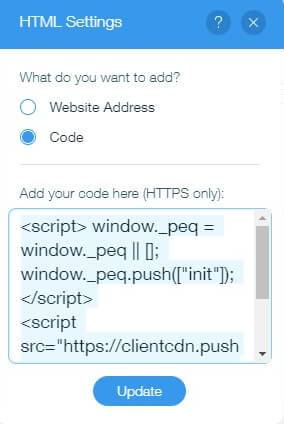
Τώρα, κάντε δεξί κλικ στο iframe και ενεργοποιήστε το Εμφάνιση σε Όλες τις Σελίδες:
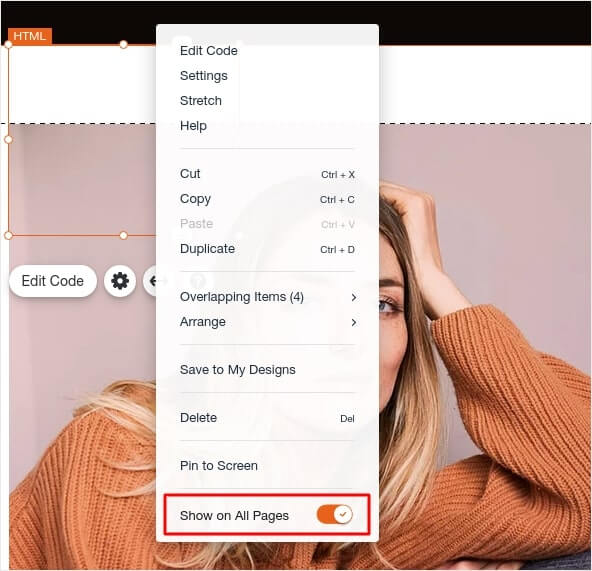
Μόλις πατήσετε Δημοσίευση, θα πρέπει να δείτε την αναδυόμενη φόρμα εγγραφής στον ιστότοπό σας Wix.
Συμβουλή Pro: Μπορείτε να επανατοποθετήσετε αυτό το στοιχείο οπουδήποτε στην οθόνη σας σύροντάς το. Συνιστούμε να το τοποθετήσετε ακριβώς κάτω από τη γραμμή πλοήγησής σας, ώστε οι επισκέπτες σας να έχουν την τυπική εμπειρία εγγραφής για ειδοποιήσεις push.
Βήμα #4: Διαμόρφωση της Εγγραφής για Ειδοποιήσεις Push Wix
Τέλος, στον πίνακα ελέγχου του PushEngage, μεταβείτε στις Σχεδίαση » Αναδυόμενες Καρτέλες:
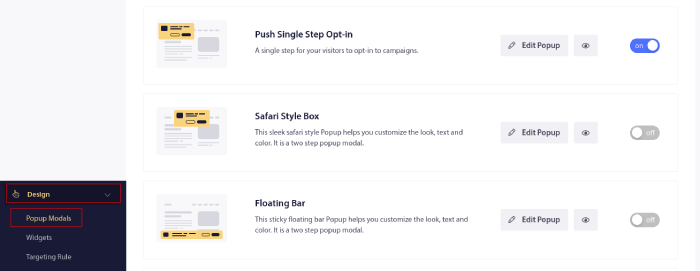
Από εδώ, μπορείτε να προσαρμόσετε την επιλογή εγγραφής για τις ειδοποιήσεις push. Αν χρειάζεστε βοήθεια με αυτό, θα πρέπει να δείτε αυτό το άρθρο σχετικά με το πώς να δημιουργήσετε μια προσαρμοσμένη επιλογή εγγραφής για ειδοποιήσεις push.
Αν χρειάζεστε έμπνευση, μπορείτε να δείτε αυτό το άρθρο σχετικά με τις επιλογές εγγραφής για ειδοποιήσεις push με υψηλή μετατροπή.
Βήμα #5: Δημιουργία Ειδοποιήσεων Καλωσορίσματος Push για Ιστό
Είτε έχετε ένα νέο κατάστημα είτε ένα καθιερωμένο, τα μηνύματα καλωσορίσματος ιστοτόπου είναι απολύτως απαραίτητα. Οι ειδοποιήσεις push καλωσορίσματος είναι ιδανικές για:
- Επιβεβαίωση: Θέλετε να επιβεβαιώσετε ότι ο νέος σας συνδρομητής έχει όντως εγγραφεί στις ειδοποιήσεις push του ιστότοπού σας.
- Επανενεργοποίηση: Οι καμπάνιες καλωσορίσματος είναι ένας εξαιρετικός τρόπος για να κάνετε τους συνδρομητές σας να επιστρέψουν στον ιστότοπό σας.
- Πωλήσεις: Μπορείτε να δώσετε στους νέους σας συνδρομητές μια προσφορά καλωσορίσματος με εκπτώσεις, δωρεάν δώρα και κουπόνια.
Ας δημιουργήσουμε τώρα μια καμπάνια ειδοποιήσεων push καλωσορίσματος. Μεταβείτε στον πίνακα ελέγχου PushEngage και πηγαίνετε στο Καμπάνια » Αυτόματοι Αποστολείς » Δημιουργία Νέου Αυτόματου Αποστολέα:
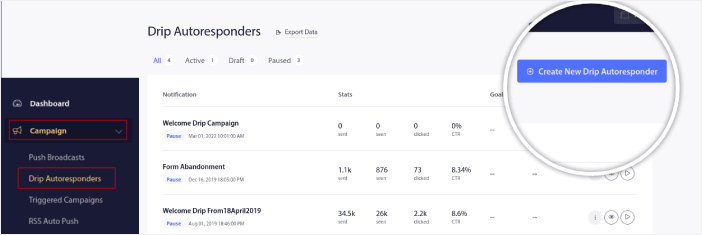
Δώστε στην καμπάνια αυτόματου αποστολέα σας ένα όνομα που μπορείτε να θυμάστε εύκολα. Στη συνέχεια, ρυθμίστε την πρώτη ειδοποίηση push να σταλεί αμέσως μετά την εγγραφή ενός επισκέπτη στις ειδοποιήσεις push σας.

Μπορείτε να επεξεργαστείτε την ειδοποίηση για να δημιουργήσετε προσαρμοσμένο περιεχόμενο για το μήνυμα καλωσορίσματός σας. Όταν τελειώσετε, κάντε κλικ στο κουμπί Προσθήκη Νέας Ειδοποίησης για να προσθέσετε περισσότερες ειδοποιήσεις στην ακολουθία. Μπορείτε να επεξεργαστείτε τις νέες ειδοποιήσεις και να ορίσετε μια προσαρμοσμένη καθυστέρηση μεταξύ κάθε ειδοποίησης.
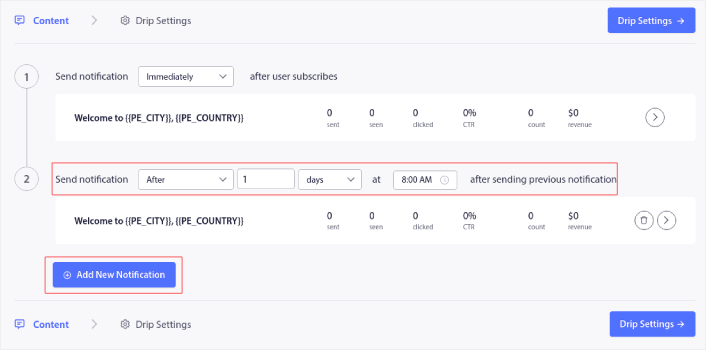
Μπορείτε να προσθέσετε όσες ειδοποιήσεις θέλετε, αλλά συνιστούμε τη δημιουργία μιας σειράς καλωσορίσματος με 5-7 ειδοποιήσεις.
Μετά από αυτό, επιλέξτε το κοινό σας στις Ρυθμίσεις Σειράς:
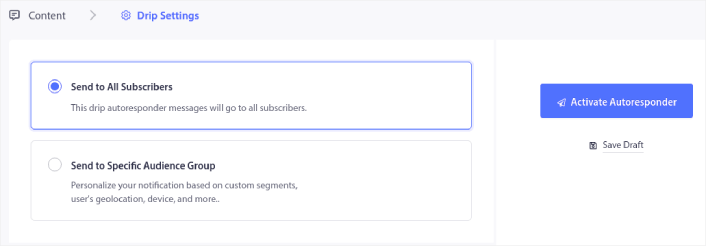
Μπορείτε να στείλετε διαφορετικές σειρές καλωσορίσματος για διαφορετικά τμήματα χρησιμοποιώντας την επιλογή Αποστολή σε Συγκεκριμένη Ομάδα Κοινού. Αυτό είναι ιδιαίτερα χρήσιμο όταν κάνετε κατηγοριοποίηση επισκεπτών όταν επιλέγουν ειδοποιήσεις push. Όταν είστε ικανοποιημένοι με τη στόχευσή σας, κάντε κλικ στο κουμπί Ενεργοποίηση Αυτόματου Αποκριτή. Και τελειώσατε!
ΣΗΜΕΙΩΣΗ: Μπορείτε επίσης να προγραμματίσετε ειδοποιήσεις σε πραγματικό χρόνο. Έτσι, αν θέλετε να στείλετε ειδοποιήσεις από μια εφαρμογή για κινητά σε Android ή iOS, το PushEngage είναι μια εξαιρετική επιλογή για εσάς.
Έχετε ρυθμίσει με επιτυχία τις ειδοποιήσεις push Wix στον ιστότοπό σας. Είναι ώρα να επιστρέψετε στον πίνακα ελέγχου του PushEngage και να αρχίσετε να δημιουργείτε τις καμπάνιες ειδοποιήσεων push σας.
Τι να κάνετε Αφού Προσθέσετε Ειδοποιήσεις Push στο Wix
Αυτό ήταν για αυτό το θέμα, φίλοι!
Αν είστε νέοι στις ειδοποιήσεις push, θα πρέπει να ακολουθήσετε μια πλήρη διαδικασία δοκιμής ειδοποιήσεων push πριν βγείτε στον αέρα. Θα σας βοηθήσει να αντιμετωπίσετε κοινά προβλήματα με τη λειτουργικότητα πριν οι επισκέπτες σας τις δουν και αρχίσουν να παραπονιούνται για μια προβληματική εμπειρία χρήστη.
Θα πρέπει να δείτε μερικούς από αυτούς τους απίστευτους πόρους για να κατανοήσετε πώς οι ειδοποιήσεις push μπορούν να βοηθήσουν στην ανάπτυξη της επιχείρησής σας πριν επενδύσετε σε μια επέκταση:
- Πώς να Αυξήσετε το Ποσοστό Συγκατάθεσης για Ειδοποιήσεις Push στο Web (7 Τρόποι)
- Πώς να Χρησιμοποιήσετε την Παρακολούθηση Εγκατάλειψης Φόρμας για Ανάκτηση Χαμένων Leads
- 11 Αυτόματες Ειδοποιήσεις Push που Πουλούν Ακόμα και Όταν Κοιμάστε
Ένα από τα καλύτερα πράγματα σχετικά με τις ειδοποιήσεις push είναι ότι μπορείτε να δημιουργήσετε πρότυπα για τις καμπάνιες σας πολύ εύκολα. Αν χρειάζεστε έμπνευση για τα πρότυπα καμπανιών σας, δείτε αυτά τα επιθετικά παραδείγματα ειδοποιήσεων push.
Και αν δεν το έχετε κάνει ήδη, προχωρήστε και δοκιμάστε το PushEngage. Το PushEngage είναι η #1 υπηρεσία ειδοποιήσεων push στον κόσμο. Έτσι, αν είστε σοβαροί σχετικά με την ανάπτυξη της επιχείρησής σας, θα πρέπει να επενδύσετε στο PushEngage.


