Γεια σας, Engagelings.
Συναρπαστικά νέα: προσθέσαμε μια ΜΕΓΑΛΗ αναβάθμιση στις ειδοποιήσεις push RSS στο PushEngage.
Λανσάραμε καμπάνιες αυτόματης προώθησης RSS πριν από λίγο και έγινε εξαιρετικά δημοφιλής. Ωστόσο, υπήρχαν περιορισμοί σε ό,τι μπορούσατε να κάνετε με τις ειδοποιήσεις RSS. Έτσι, προσθέσαμε μερικά πιο ισχυρά χαρακτηριστικά στις καμπάνιες ροής RSS.
Ακολουθεί μια γρήγορη ματιά στα κυριότερα σημεία:
- Δημιουργία πολλαπλών ροών RSS
- Έναρξη/Παύση/Διαγραφή των ειδοποιήσεων push RSS σας όποτε θέλετε
- Προσθήκη μεγάλης εικόνας για τις ροές RSS σας
- Δυναμική επιλογή της μεγάλης εικόνας για τις ειδοποιήσεις push της ροής RSS σας
- Ορισμός εικονιδίου ειδοποίησης δυναμικά από τη ροή RSS ή μεταφόρτωση του εικονιδίου της επωνυμίας σας
- Προώθηση αυτόματα του πιο πρόσφατου περιεχομένου σας με σάρωση της ροής RSS σε διαστήματα που αποφασίζετε
- Επιλογή της ομάδας κοινού που θέλετε να στοχεύσετε για καλύτερη εξατομίκευση
- Προσθήκη κανόνων λήξης ειδοποίησης
- Ορισμός προσαρμοσμένων παραμέτρων UTM
- Λήψη λεπτομερών αναλύσεων καμπάνιας για κάθε καμπάνια ροής RSS
Έχουμε επίσης κάνει τη χρήση του εξαιρετικά εύκολη. Πολύ δουλειά πήγε σε αυτήν την αναβάθμιση και πιστεύουμε ότι θα σας αρέσει. Είναι επίσης μια σημαντική αναβάθμιση, οπότε υπάρχουν ΠΟΛΛΑ να αναλύσουμε.
Ας ξεκινήσουμε.
Γιατί να στείλετε ειδοποιήσεις push RSS;
Η συνεχής δημιουργία περιεχομένου και η διαχείριση ενός blog είναι σκληρή δουλειά. Αλλά αν διαχειρίζεστε μια σοβαρή επιχείρηση, γνωρίζετε ότι η απλή δημιουργία περιεχομένου δεν αρκεί. Πρέπει επίσης να μπορείτε να προωθείτε το περιεχόμενό σας.
Και οι ειδοποιήσεις push είναι ένας εξαιρετικός τρόπος για να αποκτήσετε συνδρομητές με οικονομικά αποδοτικό τρόπο. Αυτό που κάνει τις ειδοποιήσεις push τόσο καλές ως εργαλείο μάρκετινγκ είναι ότι μπορούν να αυτοματοποιηθούν πλήρως.
Εκεί έρχονται οι ειδοποιήσεις push RSS στο προσκήνιο.
Αν ρυθμίσετε σωστά τις ειδοποιήσεις push RSS, κάθε φορά που δημοσιεύετε περιεχόμενο στον ιστότοπό σας, οι συνδρομητές σας λαμβάνουν αυτόματα μια ειδοποίηση push που τους οδηγεί στο περιεχόμενό σας.
Μην κάνετε λάθος, όμως. Οι ειδοποιήσεις push RSS εξακολουθούν να είναι λιγότερο προσωπικές από άλλες αυτοματοποιημένες καμπάνιες ειδοποιήσεων push. Επομένως, συνιστούμε τη χρήση ενός συνδυασμού διαφορετικών καμπανιών για να μεγιστοποιήσετε την ανάπτυξή σας. Για παράδειγμα, πρέπει να ενεργοποιήσετε ειδοποιήσεις push ηλεκτρονικού εμπορίου εάν διαχειρίζεστε έναν ιστότοπο ηλεκτρονικού εμπορίου.
Δημιουργία πολλαπλών ειδοποιήσεων ροής RSS
Μόλις εγκαταστήσετε το PushEngage στον ιστότοπό σας, μεταβείτε στον πίνακα ελέγχου του PushEngage και πηγαίνετε στο Campaign » RSS Auto Push και κάντε κλικ στο Create New Campaign:
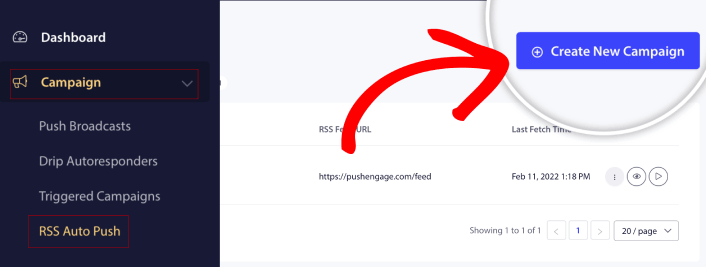
Με αυτή τη νέα αναβάθμιση, μπορείτε πλέον να δημιουργείτε και να στέλνετε πολλαπλές ειδοποιήσεις ροής RSS για διαφορετικά τμήματα και Ομάδες Κοινού. Ο ιστότοπός σας δεν έχει μόνο μία ροή RSS. Μπορείτε να δημιουργήσετε ροές RSS για κάθε κατηγορία περιεχομένου στον ιστότοπό σας.
Και απαιτεί πολύ λίγο χρόνο για να γίνει. Αλλά η δημιουργία πολλαπλών ροών σας επιτρέπει να στέλνετε πιο εξατομικευμένες ειδοποιήσεις push RSS.
Ας υποθέσουμε ότι έχετε τρεις ομάδες κοινού που ενδιαφέρονται μόνο για supercars, μηχανές και φορτηγά αντίστοιχα. Μπορείτε εύκολα να δημιουργήσετε διαφορετικές διευθύνσεις URL ροής RSS για κάθε κατηγορία και να στείλετε στους συνδρομητές σας ειδοποιήσεις push για περιεχόμενο που τους ενδιαφέρει πραγματικά.
Το αποτέλεσμα; Θα δείτε μια αύξηση στην αλληλεπίδραση του ιστότοπού σας ακόμη και με μια απλή καμπάνια αυτόματης προώθησης RSS!
Έναρξη, Παύση και Διαγραφή της καμπάνιας RSS σας οποιαδήποτε στιγμή
Το μεγαλύτερο πρόβλημα με τις καμπάνιες RSS, ακόμη και τις καμπάνιες RSS μέσω email, ήταν ο προγραμματισμός. Είναι εξαιρετικά δύσκολο να ελέγξετε πόστες στέλνετε. Και ήταν ακόμη πιο δύσκολο να κάνετε παύση στις καμπάνιες σας.
Μέχρι τώρα!
Με το PushEngage, μπορείτε εύκολα να ξεκινήσετε, να κάνετε παύση ή να διαγράψετε οποιαδήποτε καμπάνια ροής RSS ανά πάσα στιγμή. Αυτό είναι ένα εξαιρετικά χρήσιμο χαρακτηριστικό εάν εκτελείτε πολλαπλές καμπάνιες.
Ας υποθέσουμε ότι εκτελείτε μια καμπάνια ειδοποιήσεων push Black Friday. Οι συνδρομητές σας θα πρέπει να εστιάζουν μόνο στις προωθητικές σας προσφορές. Αλλά ταυτόχρονα, δεν μπορείτε να σταματήσετε τη δημοσίευση νέου περιεχομένου μέχρι να τελειώσει η περίοδος των γιορτών. Αυτή είναι μια εξαιρετική στιγμή για να κάνετε παύση στις καμπάνιες ροής RSS σας.
Δεδομένου ότι μπορείτε πλέον να εκτελείτε πολλαπλές καμπάνιες RSS, μπορείτε ακόμη και να συνεχίσετε να στέλνετε τακτικό περιεχόμενο σε συνδρομητές που δεν στοχεύετε με την προώθησή σας.
Εύκολες επιλογές προσαρμογής εικόνας
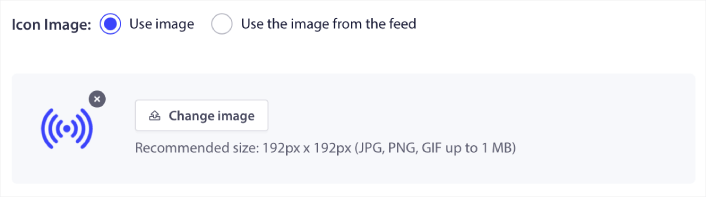
Μπορείτε να προσαρμόσετε τόσο το εικονίδιο ειδοποίησης όσο και τη μεγάλη εικόνα της ειδοποίησης απευθείας από τη ροή RSS σας. Για το εικονίδιο ειδοποίησης, μπορείτε είτε να ανεβάσετε το εικονίδιο χειροκίνητα:
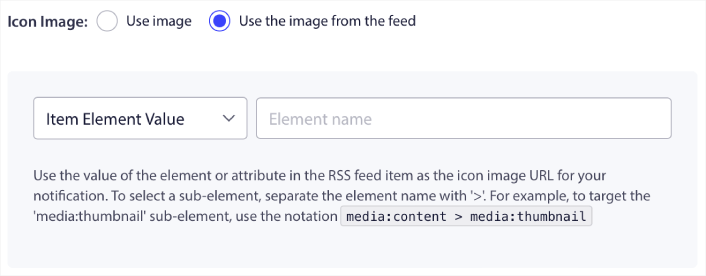
Εναλλακτικά, μπορείτε να ορίσετε ένα μοτίβο ώστε το PushEngage να εξάγει δυναμικά το εικονίδιο ειδοποίησης από τη ροή RSS σας:
Ομοίως, μπορείτε είτε να επιτρέψετε στο PushEngage να βρει αυτόματα τη μεγάλη εικόνα για τις αναρτήσεις σας:

Εναλλακτικά, μπορείτε να προσαρμόσετε το είδος της μεγάλης εικόνας που θέλετε, ανακτώντας την από τη ροή RSS σας:
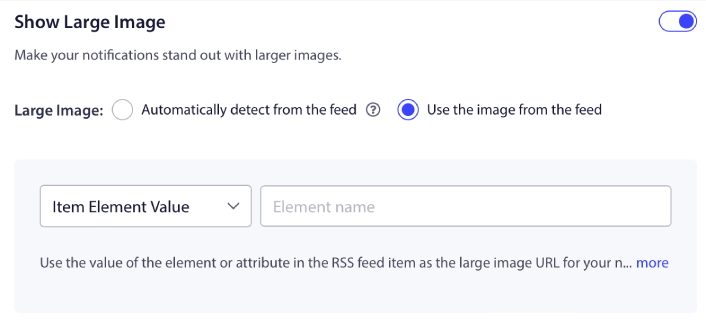
ΠΡΟΣΟΧΗ: Χρησιμοποιήστε τις προηγμένες επιλογές εξαγωγής εικόνων μόνο εάν μπορείτε να διαβάσετε το XML σε μια ροή RSS. Εάν δεν αισθάνεστε άνετα με το XML, θα πρέπει να αφήσετε το PushEngage να αποφασίσει τη μεγάλη εικόνα ειδοποίησης για εσάς και να ανεβάσετε χειροκίνητα το εικονίδιο ειδοποίησης.
Ορισμός Συχνότητας Ειδοποιήσεων RSS
Μπορείτε επίσης να ορίσετε τη Συχνότητα Εκστρατείας για κάθε εκστρατεία RSS:
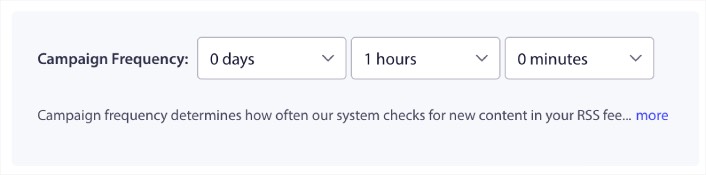
Η Συχνότητα Καμπάνιας είναι πόσο συχνά η καμπάνια ροής RSS αναζητά νέο περιεχόμενο στο blog σας για να στείλει μια αυτοματοποιημένη ειδοποίηση push. Η ελάχιστη τιμή είναι 15 λεπτά και η μέγιστη τιμή είναι 7 ημέρες.
Συνιστούμε να αναζητάτε περιεχόμενο προς προώθηση κάθε 2 ημέρες, εκτός αν είστε ειδησεογραφικό πρακτορείο. Για τα ειδησεογραφικά πρακτορεία, θα πρέπει να το περιορίσετε στα 15 λεπτά. Λάβετε υπόψη ότι το PushEngage θα αναζητήσει νέο περιεχόμενο μόνο αφού ρυθμίσετε και δημοσιεύσετε την καμπάνια σας RSS feed.
Ορισμός διάρκειας ειδοποίησης Push
Η διάρκεια της ειδοποίησης push είναι το χρονικό διάστημα που η ειδοποίηση παραμένει στο συρτάρι ειδοποιήσεων του συνδρομητή σας πριν διαγραφεί αυτόματα.
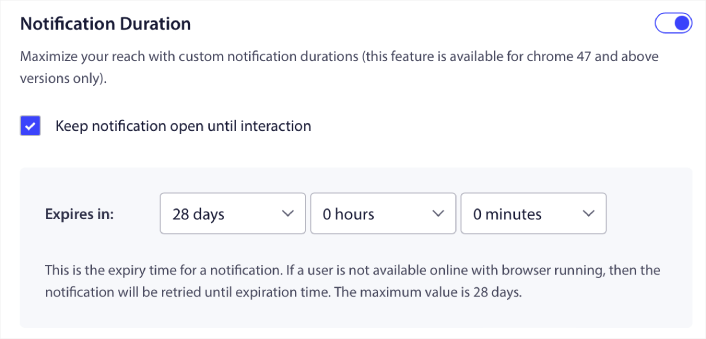
Αν δεν θέλετε να κατακλύσετε τους συνδρομητές σας με πολλές μη αναγνωσμένες ειδοποιήσεις, είναι καλύτερο να αφήσετε τις ειδοποιήσεις push να λήξουν σε μερικές ημέρες.
Σε αντίθεση με τις ειδοποιήσεις εκπομπής ή ακόμα και άλλες αυτοματοποιημένες ειδοποιήσεις push, δεν μπορείτε πραγματικά να προγραμματίσετε ειδοποιήσεις push RSS ανά ζώνη ώρας ή συγκεκριμένη ώρα αποστολής. Έτσι, έχετε πάντα την επιλογή να διατηρείτε την ειδοποίηση ανοιχτή μέχρι ο συνδρομητής σας να αλληλεπιδράσει μαζί της, ακόμη και εντός του ορίου λήξης.
Ορισμός Παραμέτρων UTM για Παρακολούθηση των Ειδοποιήσεών σας
Μπορείτε επίσης να ρυθμίσετε παραμέτρους UTM για να παρακολουθείτε τις ειδοποιήσεις push:
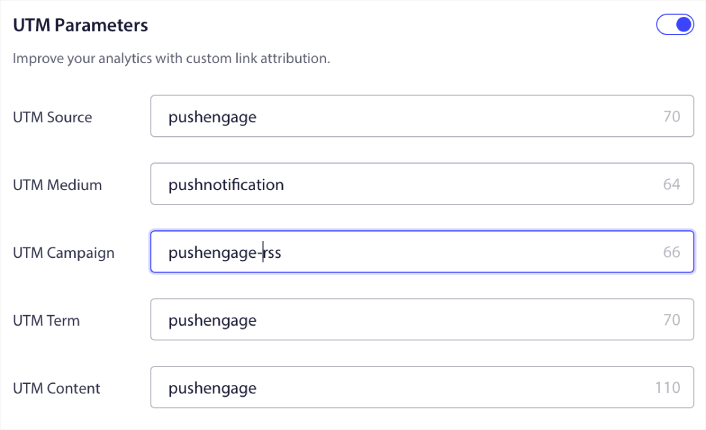
Με αυτόν τον τρόπο, μπορείτε εύκολα να αποδώσετε την επισκεψιμότητά σας από αυτές τις ειδοποιήσεις push στο Google Analytics. Φυσικά, μπορείτε επίσης να λάβετε λεπτομερή αναλυτικά στοιχεία για ολόκληρη την εκστρατεία σας απευθείας από τον πίνακα ελέγχου του PushEngage.
Στόχευση Συγκεκριμένης Ομάδας Κοινού
Η μεγαλύτερη αναβάθμιση στις ειδοποιήσεις push RSS είναι η επιλογή σας να επιλέξετε μια Ομάδα Κοινού για την αποστολή στοχευμένων ειδοποιήσεων. Μπορείτε είτε να στείλετε την εκστρατεία ροής RSS σε όλους τους συνδρομητές σας, είτε μπορείτε να δημιουργήσετε Ομάδες Κοινού για να στείλετε εξατομικευμένες ειδοποιήσεις push ακόμη και από τη ροή RSS σας.
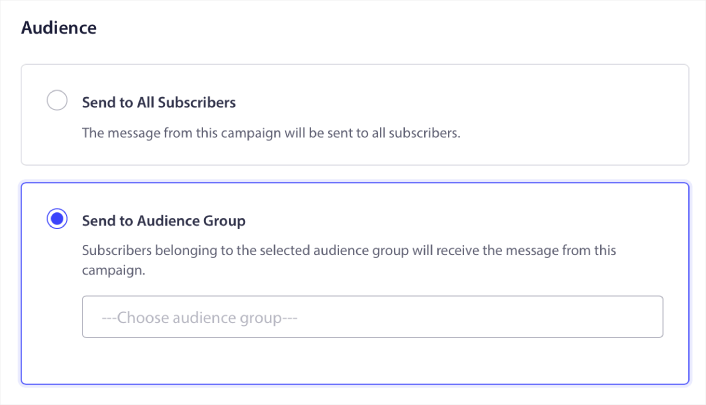
Τώρα, μπορείτε ακόμα να στέλνετε αυτοματοποιημένες ειδοποιήσεις push ρυθμίζοντάς τις μία φορά. Αλλά είναι ακόμα καλύτερο γιατί μπορείτε να επιλέξετε τι είδους περιεχόμενο θέλετε να προωθήσετε σε συγκεκριμένα κοινά.
Τι άλλο;
Γνωρίζουμε ότι η ανάπτυξη μιας επιχείρησης είναι σκληρή δουλειά. Στην PushEngage, αναζητούμε πάντα να βελτιώνουμε το προϊόν μας και την εμπειρία σας. Λανσάραμε αυτήν τη νέα λειτουργία για να σας βοηθήσουμε να αντλήσετε ακόμη μεγαλύτερη αξία από τη συνδρομή σας στην PushEngage.
Σας ευχαριστούμε πολύ που διαβάσατε αυτήν την ανακοίνωση.
Εάν έχετε οποιεσδήποτε ερωτήσεις, η ομάδα Εξυπηρέτησης Πελατών μας είναι εδώ για να βοηθήσει. Απλώς ξεκινήστε μια συνομιλία στο Live Chat ή ελέγξτε τη σελίδα επικοινωνίας μας.
Και σας ευχαριστούμε που χρησιμοποιείτε το PushEngage. Είτε χρησιμοποιείτε τη δωρεάν έκδοση είτε την Enterprise έκδοση, είστε εξίσου σημαντικοί για εμάς. Οι νέες λειτουργίες RSS autopush έχουν σχεδιαστεί για να σας βοηθήσουν να πετύχετε και σας ευχόμαστε τα καλύτερα.
Ενημερώστε μας για τις σκέψεις σας στα παρακάτω σχόλια και αν δεν το έχετε κάνει ήδη, ξεκινήστε με την PushEngage σήμερα!


