سيأخذك هذا الدليل خلال جلب تفاصيل WhatsApp Cloud API لتمكين المراسلة لعملائك. يمكنك إرسال رسائل بريد إلكتروني ترويجية مباشرة وتحديثات حالة الشحن والمزيد باستخدام PushEngage.
قبل البدء
يفترض هذا الدليل أن لديك تطبيق WhatsApp Business تم إنشاؤه مع Meta وأنك قمت بإنشاء الرموز المطلوبة. إذا لم يكن لديك حساب عمل Meta مُعد بالفعل، يمكنك إنشاء واحد وإنشاء الرموز اللازمة باتباع هذا الدليل.
إضافة رقم هاتف وإنشاء رموز
ستحتاج إلى الاتصال برقم عملك للتواصل إذا كنت ترغب في البدء في إرسال الرسائل.
1. في شاشة البداية السريعة، انقر فوق الزر ابدأ استخدام واجهة برمجة التطبيقات.
2. في قسم إعداد واجهة برمجة التطبيقات، تحتاج إلى استخدام خيار رقم الاختبار والنقر فوق إضافة رقم هاتف.
3. الآن يمكنك إنشاء ملف تعريف WhatsApp Business والنقر فوق الزر التالي.
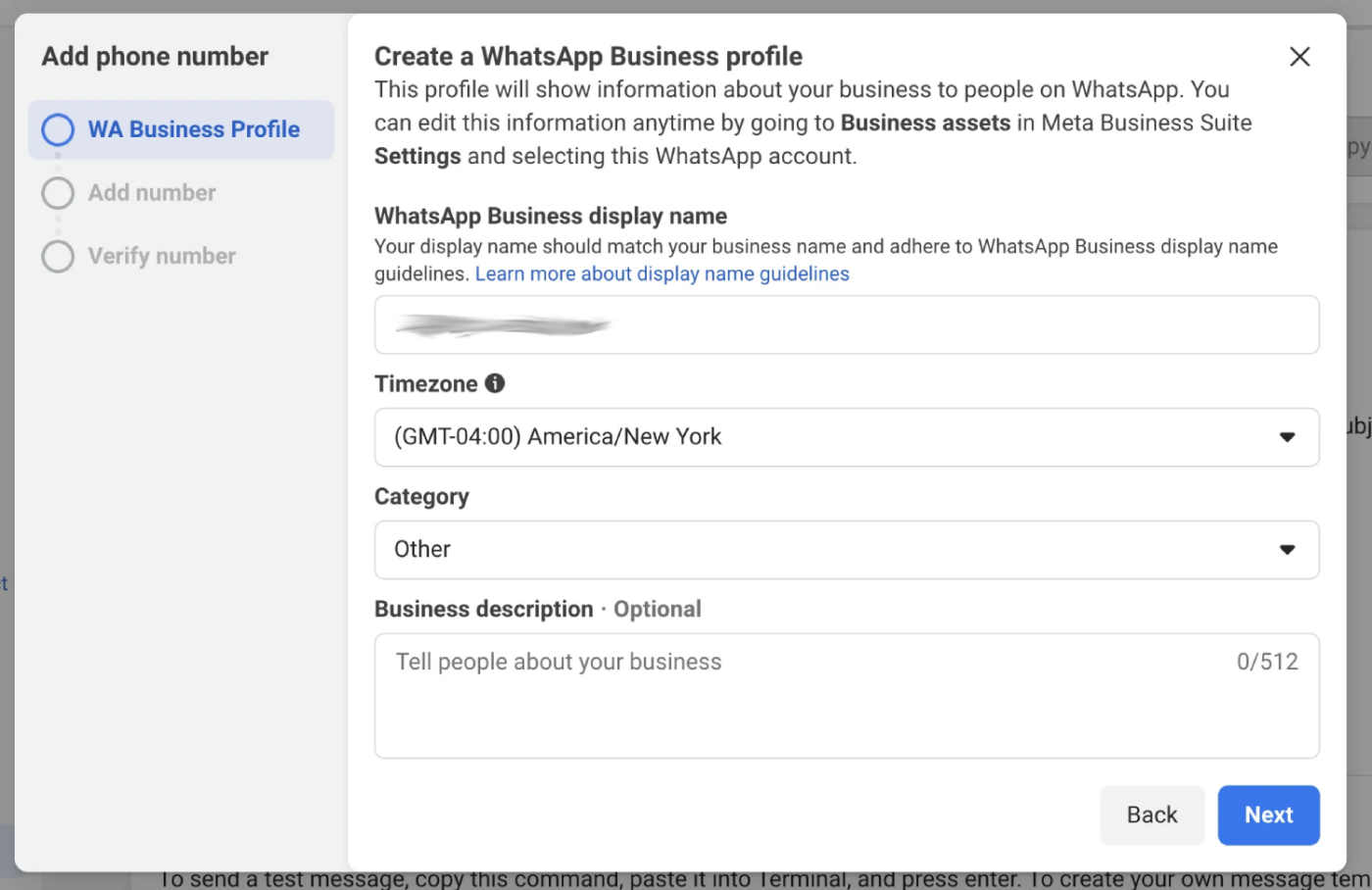
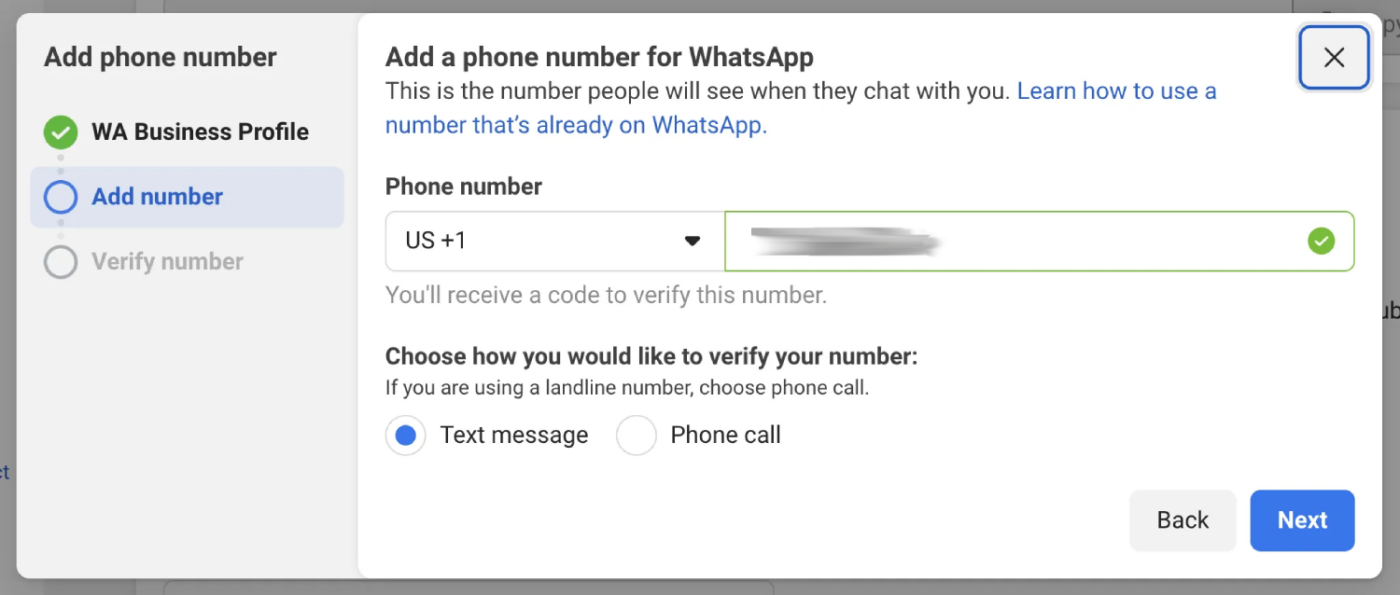
4. بعد ذلك، ستقدم رقم هاتف لـ WhatsApp Business الخاص بك. من المهم استخدام رقم غير نشط حاليًا على أي حساب WhatsApp آخر. إذا كنت تفضل استخدام رقم مرتبط بالفعل بحساب WhatsApp، فسيتعين عليك أولاً نقل هذا الرقم إلى حساب عملك، مما سيتطلب منك تسجيل الدخول. بمجرد إدخال الرقم، انقر فوق 'التالي' حتى نتمكن من تأكيد أنه لك عن طريق إرسال رسالة نصية إليك أو الاتصال بك.
5. الآن عليك إنشاء رمز وصول مؤقت في البداية. انقر فوق الزر المسمى 'إنشاء رمز وصول'. بعد النقر عليه، ستظهر نافذة منبثقة صغيرة على شاشتك. فقط اتبع التعليمات أو الخطوات التي تظهر في تلك النافذة.
ملاحظة: سيكون رمز الوصول هذا صالحًا لمدة 24 ساعة فقط. سنساعدك في إنشاء رمز وصول دائم أيضًا.
إنشاء رمز وصول دائم
ما قمنا به حتى الآن هو طريقة سريعة لتشغيل WhatsApp على موقع WordPress الخاص بك. ومع ذلك، فإن رمز الوصول الذي أنشأناه للتو - الرمز من الخطوة السابقة - مؤقت فقط وسيتوقف عن العمل بعد 24 ساعة.
عندما تكون مستعدًا للإطلاق الرسمي واستخدام هذا التكامل على المدى الطويل، ستحتاج إلى رمز وصول دائم. للحصول على هذا، تستخدم Meta ميزة تسمى 'مستخدمو النظام'. لذا، تتضمن العملية إضافة 'مستخدم نظام' إلى حساب مدير أعمالك. بمجرد إعداد ذلك، ستستخدم رمز الوصول الخاص بمستخدم النظام هذا، وسيوفر لك الاتصال الدائم الذي تحتاجه.
أضف مستخدمي النظام في مدير الأعمال لإنشاء رمز وصول دائم.
1. انتقل إلى إعدادات الأعمال.
2. سترى الآن أدناه "المستخدمون"، انقر فوق "مستخدمو النظام". انقر فوق زر "إضافة".

3. قم بتسمية مستخدم النظام واختر "مسؤول". ثم انقر فوق "إنشاء مستخدم النظام".
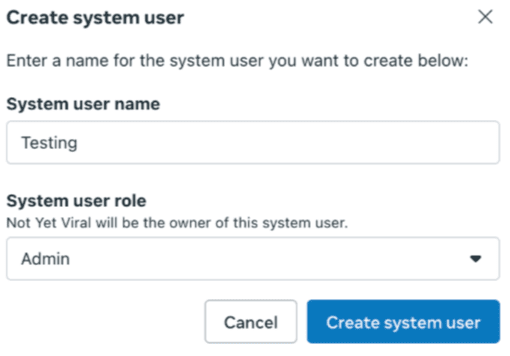
4. يمكنك النقر فوق "تعيين الأصول". في مربع الحوار الذي يظهر، حدد "التطبيقات > اسم تطبيقك > تحكم كامل".
5. يمكنك النقر فوق "إنشاء رمز" في أعلى الشاشة.
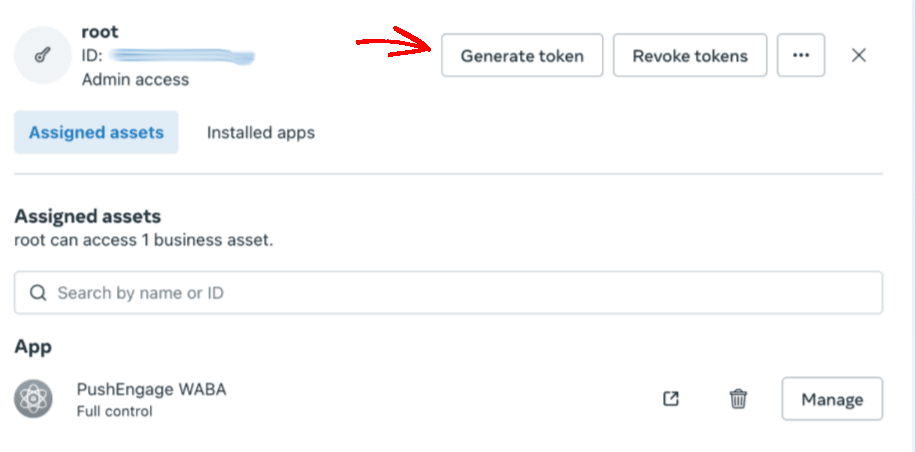
6. في النافذة المنبثقة التي تظهر، حدد تطبيقًا وفترة انتهاء صلاحية للرمز المميز والأذونات. يجب أن تكون الأذونات: "إدارة أعمال واتساب" و "مراسلة أعمال واتساب".
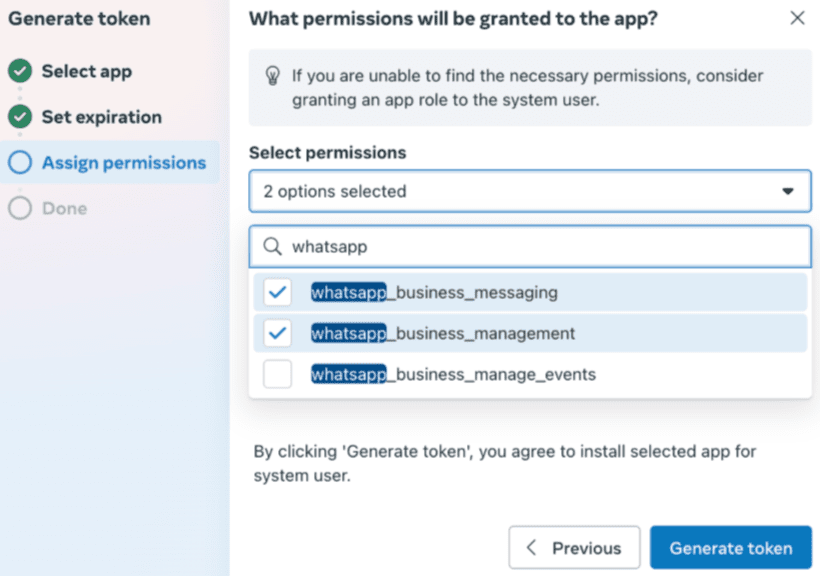
7. الآن انقر فوق "إنشاء رمز" & انسخه.
ربط PushEngage بتطبيق عملك
سيحتاج PushEngage إلى بعض المعلومات قبل أن نتمكن من مساعدتك في إرسال رسائل إلى عملائك.
يمكنك اتباع الخطوات أدناه لربط حساب PushEngage الخاص بك بتطبيق عملك
يمكنك الانتقال إلى PushEngage في المكونات الإضافية المدرجة، والنقر فوق WhatsApp والانتقال إلى علامة التبويب الإعدادات
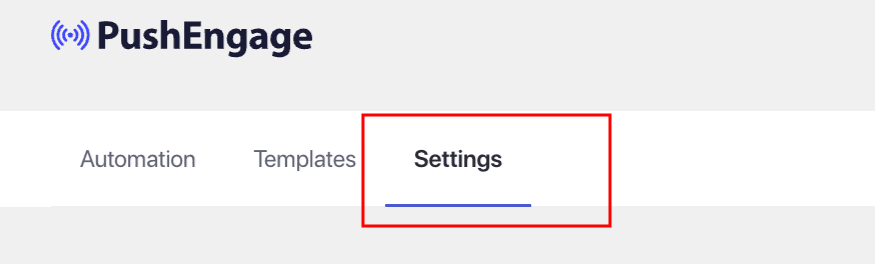
هنا، ستضيف تفاصيل إلى إعدادات واجهة برمجة تطبيقات WhatsApp السحابية. إليك الأشياء التي ستحتاجها –
- معرف حساب WhatsApp Business
- معرف رقم الهاتف
- رقم هاتف WhatsApp
- رمز وصول دائم
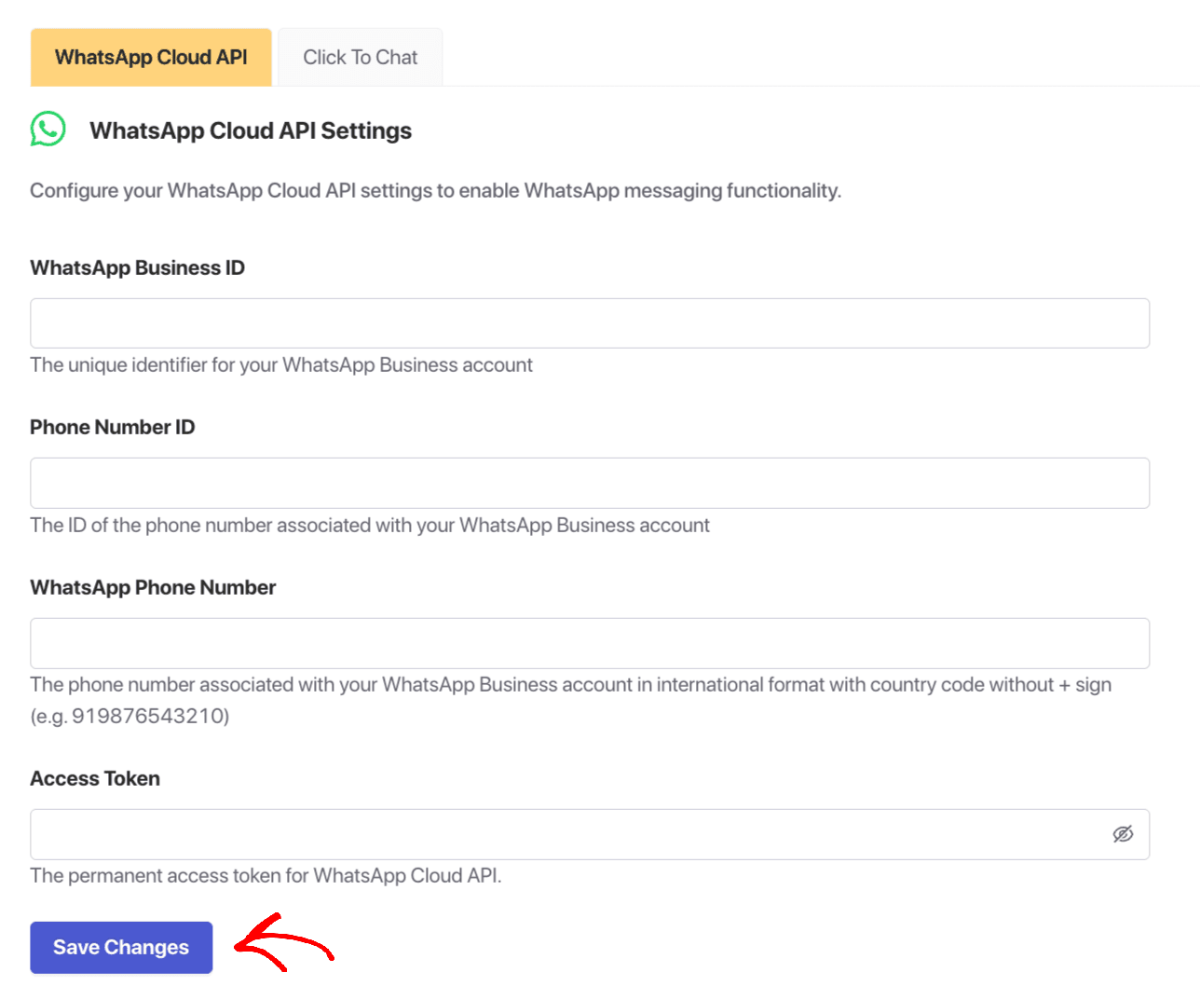
هذا كل شيء، لقد قمت بإنشاء حساب WhatsApp Business وربطته أيضًا بـ PushEngage. يمكنك الآن البدء في إرسال الحملات.
في حال واجهت أي مشاكل، فلا تتردد في الاتصال بنا بالنقر هنا. سيكون فريق الدعم لدينا قادرًا على مساعدتك.