
Looking for a way to add a WordPress title tag to the webpages and posts on your site?
36% of SEO experts think the title is the most important SEO element. But how do you actually change and optimize your SEO titles for clicks? Sure, you can edit the HTML to add, edit, and optimize your WordPress title tag. But, can you do it without coding?
Short answer: Yes, you can.
You can add a WordPress SEO title from any SEO plugin at all. In this article, we’ll show you how.
让我们开始吧。
What Is an SEO Title in WordPress?
The WordPress SEO title is the title of the page that shows up in the search results of Google and other search engines. It’s also called a WordPress title tag. Here’s an example of a typical Search Engine Results Page (SERP):
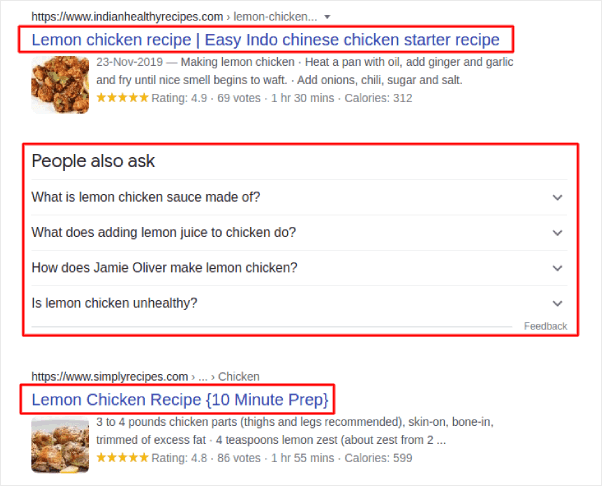
The highlighted box just underneath the URL is the SEO title. The results you see under the People also ask section contains results where the title tag is framed as a direct question. And you can modify it using the HTML title tag in WordPress.
The title tag tells search engines the most about your content. So, it’s super important to optimize it correctly.
Both posts and pages can have a WordPress title tag. And if you use a WordPress SEO plugin, you can add, edit, and optimize your title tags any time you want.
Why Is the WordPress Title Tag Important?
The WordPress title tag is important because it:
- Helps Google and other search engines crawl, index, and rank your content
- Can get you relevant traffic from a keyword it’s optimized for
- Makes people you can serve with your content click through to your site
If your title isn’t good enough, people will ignore it and move on to other results. This results in lower CTR (click through rate) and search rankings because search engines usually reward high CTR pages.
So, if you don’t pay attention to your WordPress title tag, you’re going to lose out on SEO traffic throughout your site.
How to Easily Change the WordPress Title Tag
The WordPress title tag is found in the HTML <head> of every page between the <title> and </title> tags. You can find it at the top of the WordPress post or page editor.
Now, one way to edit your WordPress title tag is to change your post title directly. But because of the way WordPress pages are generated, there’s no easy way to change the SEO title without a plugin.
我们建议您使用AIOSEO作为您的WordPress SEO插件。

All In One SEO 是世界上最好的WordPress SEO插件。
AIOSEO不仅功能强大,足以实施最新的SEO最佳实践,而且您还可以获得高级选项,开箱即用地解决特定的SEO问题。这包括:
- 面向本地受众的小型企业的本地SEO模块
- 在线商店的WooCommerce SEO
- WordPress编辑器内的SEO优化器
- 智能站点地图,可即时索引搜索引擎
- 一个Schema插件,可让您的内容在富摘要中排名
当然,您可以为网站上的任何页面或帖子添加、编辑和优化WordPress标题标签!从我们的 AIOSEO评测中了解更多详细功能。
How to Add the WordPress SEO Title for the Home Page
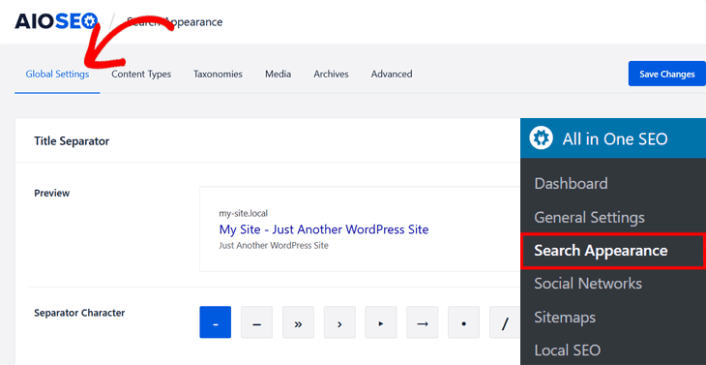
After installing and activating the AIOSEO plugin, go to Search Appearance in the All in One SEO menu and click on the Global Settings tab.
Next, scroll down in the same window to the Home Page section.
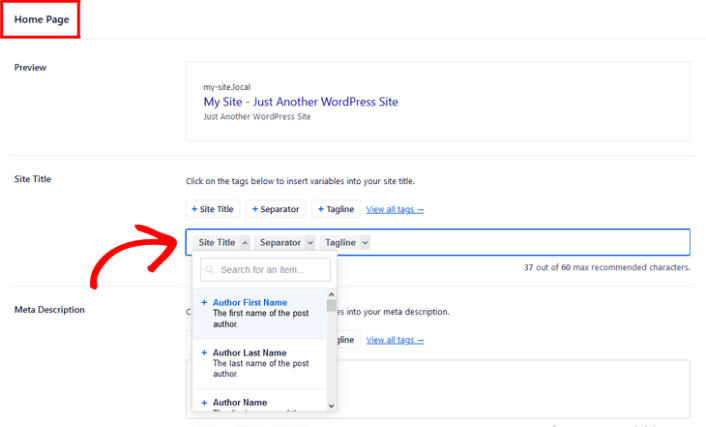
As you can see in the preview, you can set a pattern for the WordPress title tag using variables. Or, you can simply delete the variables and type in a custom SEO title in the Site Title field.
How to Add the WordPress SEO Title on Posts and Pages
To change the SEO title on individual posts and pages, just scroll down to the AIOSEO Settings in the post or page you’re editing.
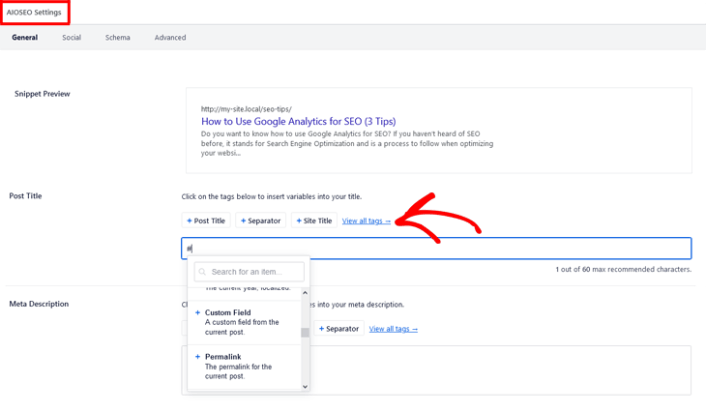
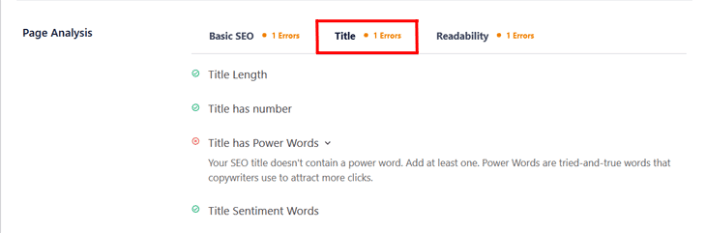
AIOSEO even analyses your title and lets you know if your title has the correct length, is engaging enough, and if it’s click-worthy. To check your title analysis, you simply scroll down to the Page Analysis section and click on the Title tab.
就这样!
What to do After You Add Your WordPress Title Tag
Now that you know how to add a WordPress title tag on your WordPress website, it’s time to learn how to get even more traffic to your site. SEO is a great way to bring in fresh traffic to your site using just content. But you also need to bring in repeat traffic, website engagement, and sales.
That’s where push notifications can be super useful for your site.
If you’re not 100% convinced, you should check out these resources on how to effectively use push notifications:
我们建议使用PushEngage来创建您的推送通知广告系列。PushEngage是全球排名第一的推送通知软件。所以,如果您还没有,请立即开始使用PushEngage!


